> ## Documentation Index
> Fetch the complete documentation index at: https://docs.thinkrr.ai/llms.txt
> Use this file to discover all available pages before exploring further.

# API Key Generation

> Learn how to create and manage API keys in your thinkrr dashboard to connect with external services like CRMs, automation tools, and property platforms.

## Overview

<iframe className="w-full aspect-video rounded-xl" src="https://www.youtube.com/embed/YN31qo2yKfQ" title="YouTube video player" frameBorder="0" allow="accelerometer; autoplay; clipboard-write; encrypted-media; gyroscope; picture-in-picture" allowFullScreen />

This video guide also contains informaiton on [**Webhook Support**](/Webhook-Support).

API keys are essential for securely connecting thinkrr to third-party platforms such as Make, Hostaway, Zapier, and other automation or CRM tools. This document walks you through the process of generating reusable API keys from within your thinkrr dashboard and explains how they can be used across integration workflows.

## Details

thinkrr API keys allow authorized platforms to access your account securely and trigger specific AI-driven voice actions, such as launching calls, retrieving data, or handling inbound routing logic.

These keys are used in authentication headers of HTTP requests, ensuring secure and direct communication between thinkrr and your chosen external system. You can generate and manage multiple keys to isolate integrations or revoke access if needed.

### How to Generate an API Key

<Steps>
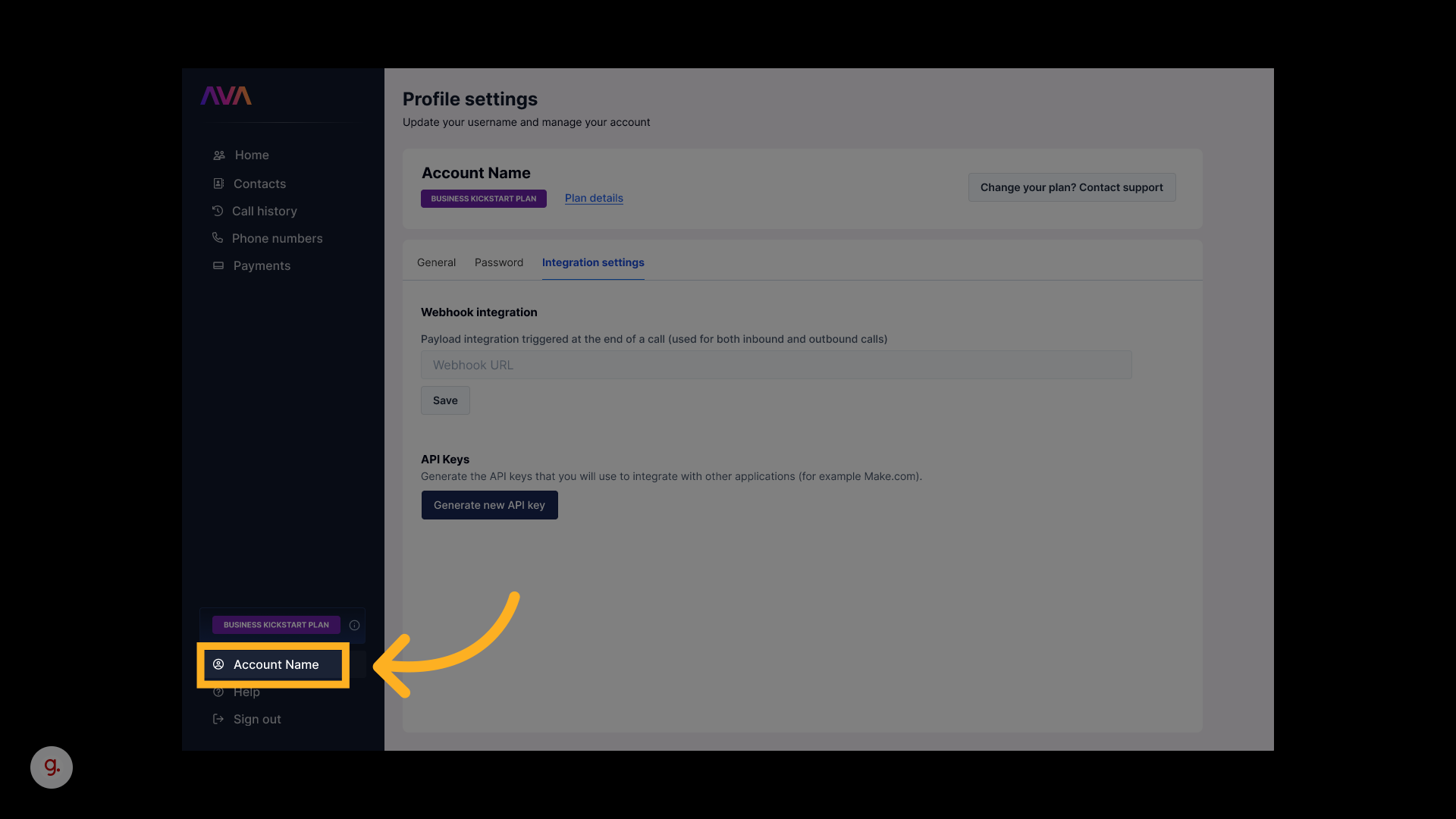
  <Step title="Access Profile Settings in thinkrr">
    * In your **thinkrr Dashboard**, navigate to your **Profile Settings**.

          <img src="https://mintcdn.com/thinkrrai/_0A6fgFokCqxXCJu/images/makeone.png?fit=max&auto=format&n=_0A6fgFokCqxXCJu&q=85&s=14bb25d583507181bcb47de5b99cca07" alt="Makeone Pn" width="1920" height="1080" data-path="images/makeone.png" />
  </Step>

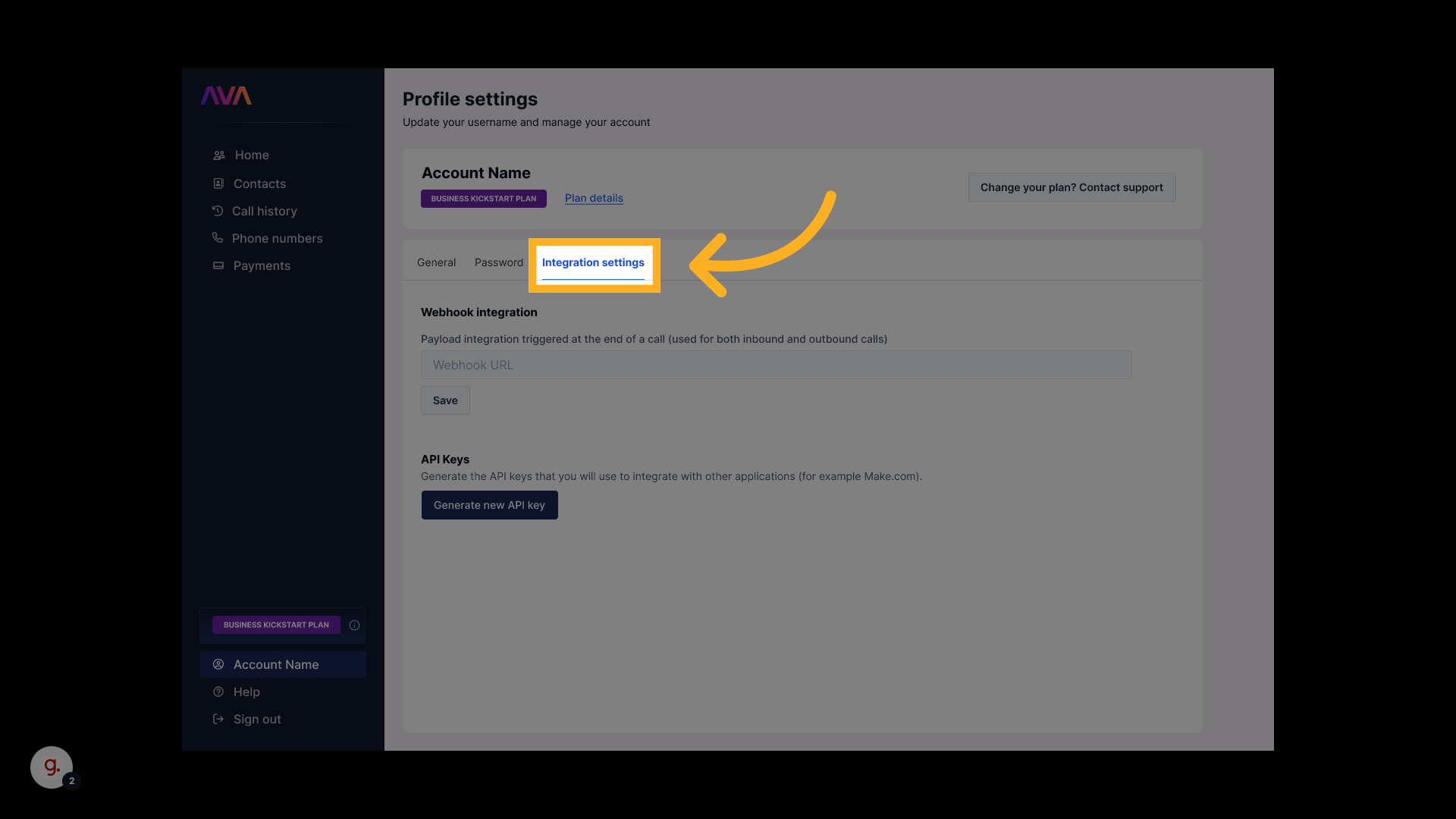
  <Step title="Open Integration Settings">
    * Inside **Profile Settings**, click on **Integration Settings**.

          <img src="https://mintcdn.com/thinkrrai/_0A6fgFokCqxXCJu/images/maketwo.png?fit=max&auto=format&n=_0A6fgFokCqxXCJu&q=85&s=665ef795cb6bfccab2e4008c4b79e0f8" alt="Maketwo Pn" width="1920" height="1080" data-path="images/maketwo.png" />
  </Step>

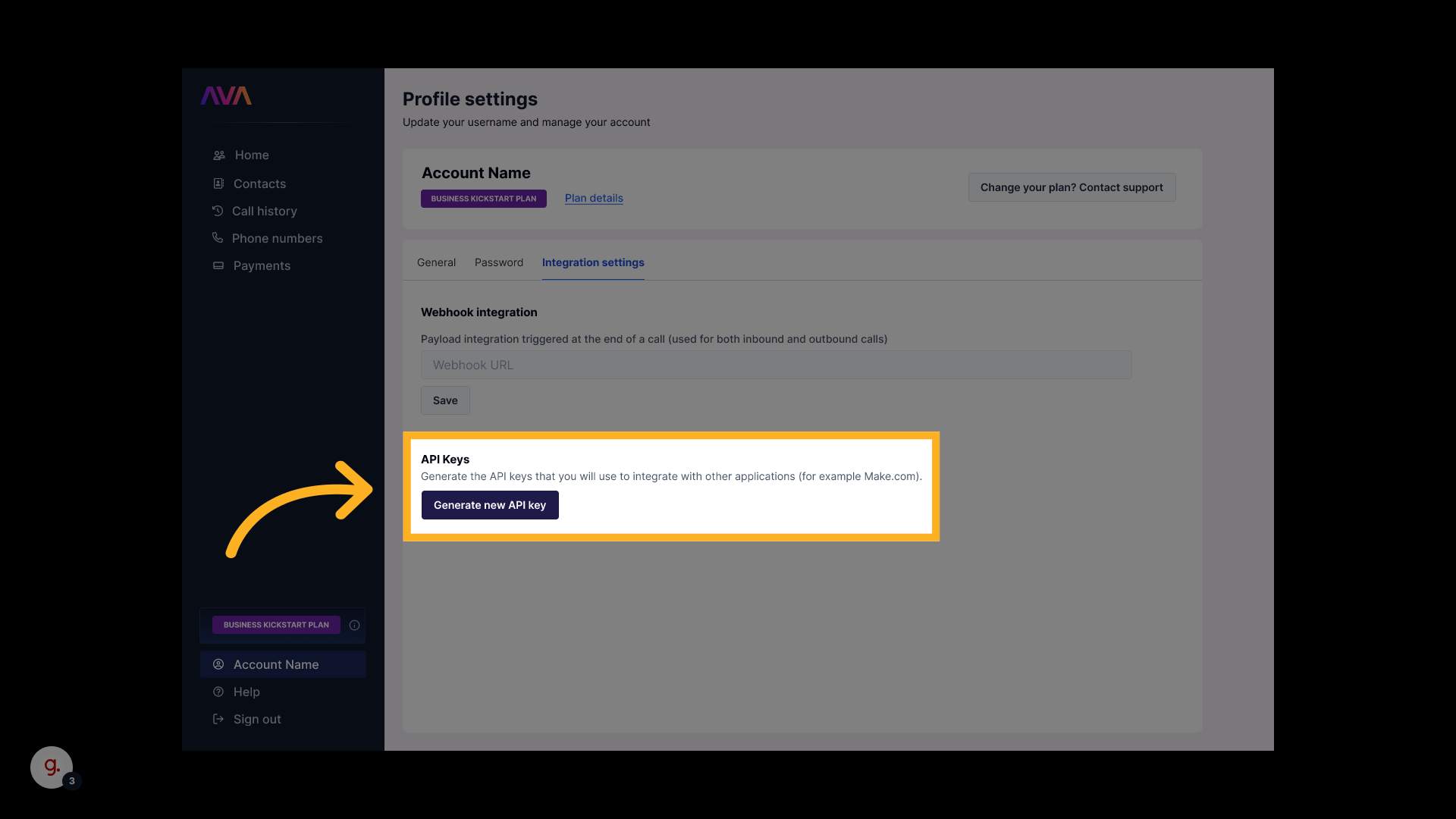
  <Step title="Generate an API Key">
    * In the **Integration Settings** page, locate the **API Keys** section underneath **Webhook Integration**.
    * Click **Generate Key** to create a new API key for external integration.

          <img src="https://mintcdn.com/thinkrrai/_0A6fgFokCqxXCJu/images/makethree.png?fit=max&auto=format&n=_0A6fgFokCqxXCJu&q=85&s=0262d025a0abdb0225c20fa4783cb6cb" alt="Makethree Pn" width="1920" height="1080" data-path="images/makethree.png" />
  </Step>

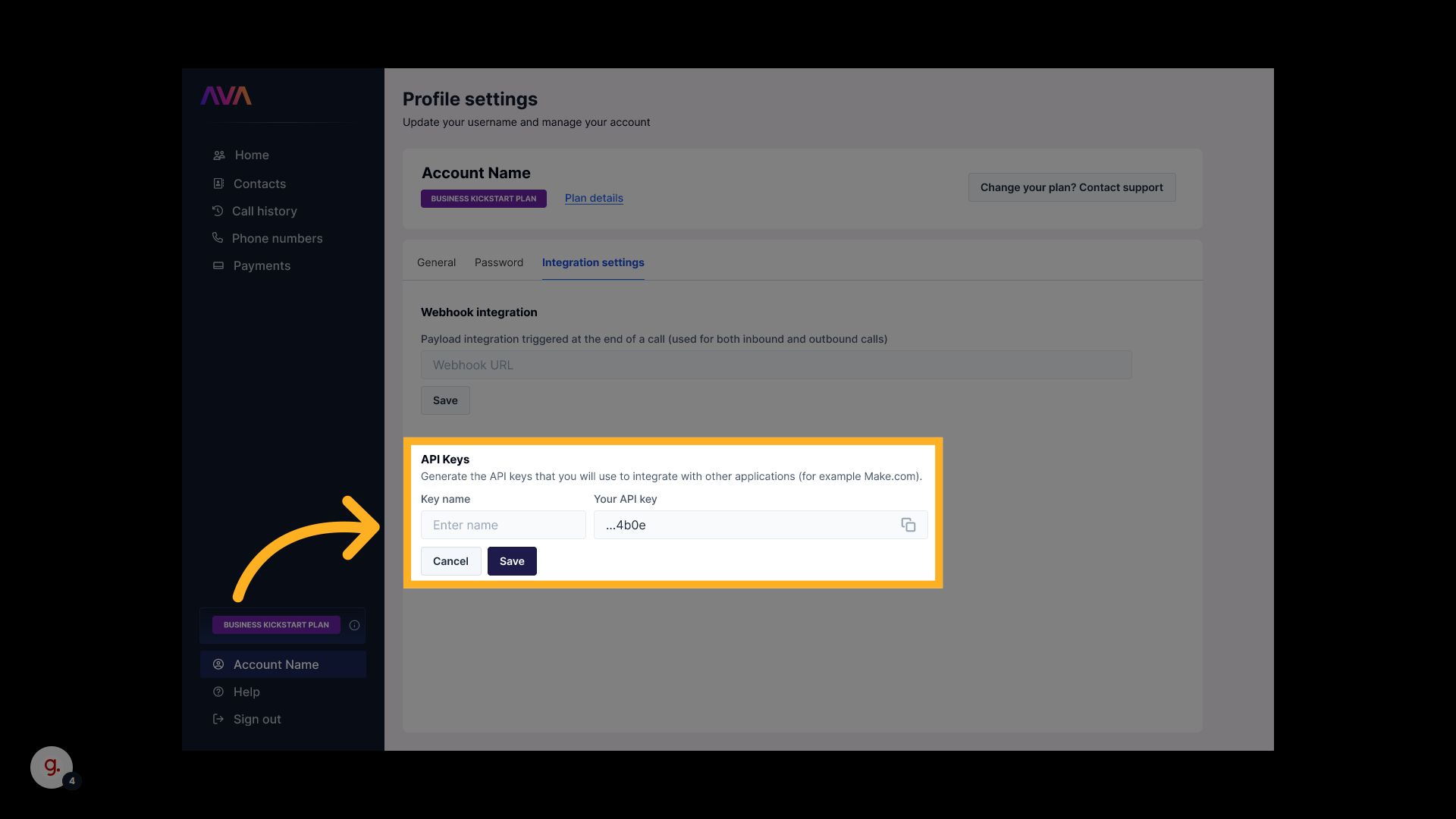
  <Step title="Name and Copy Your API Key">
    * When prompted, **name your API key** for easier identification (e.g., "CRM Sync" or "Hostaway Link").
    * Each key generated is unique, even if multiple keys share the same name.
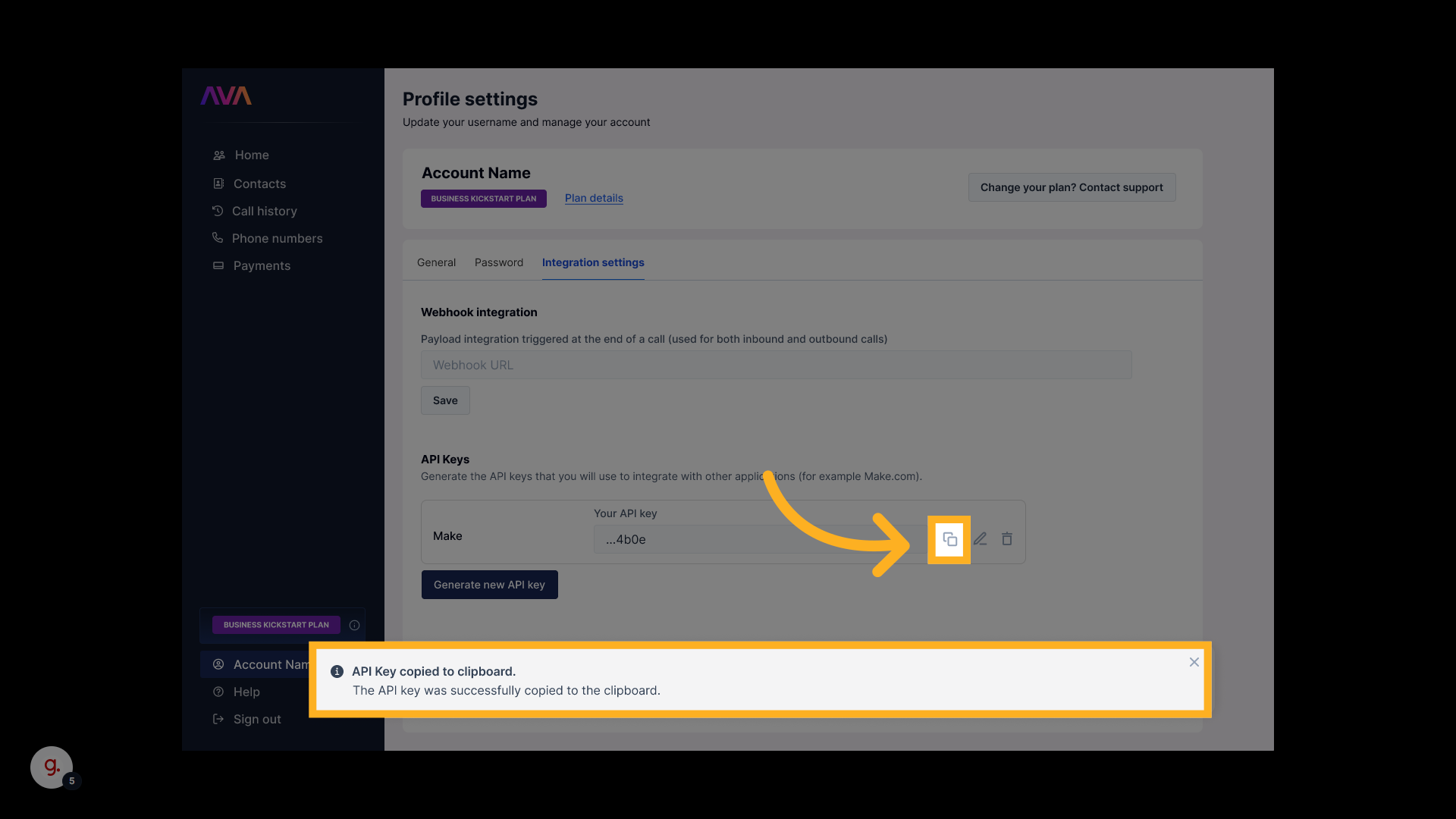
    * After generation, click the **Copy** icon next to the key to copy it to your clipboard.

          <img src="https://mintcdn.com/thinkrrai/_0A6fgFokCqxXCJu/images/makefour.png?fit=max&auto=format&n=_0A6fgFokCqxXCJu&q=85&s=9dc4de84834a31091d2842beb40687d4" alt="Makefour Pn" width="1920" height="1080" data-path="images/makefour.png" />

          <img src="https://mintcdn.com/thinkrrai/_0A6fgFokCqxXCJu/images/makefive.png?fit=max&auto=format&n=_0A6fgFokCqxXCJu&q=85&s=346506a981886064e3571472558ad117" alt="Makefive Pn" width="1920" height="1080" data-path="images/makefive.png" />
  </Step>
</Steps>

## Integrations

Below is an example of how a generated thinkrr API key can be used within a third-party platform integration.

<Accordion title="Make" icon="plug" iconType="duotone">
  <Steps>
    <Step title="Log In to Your Make Account">
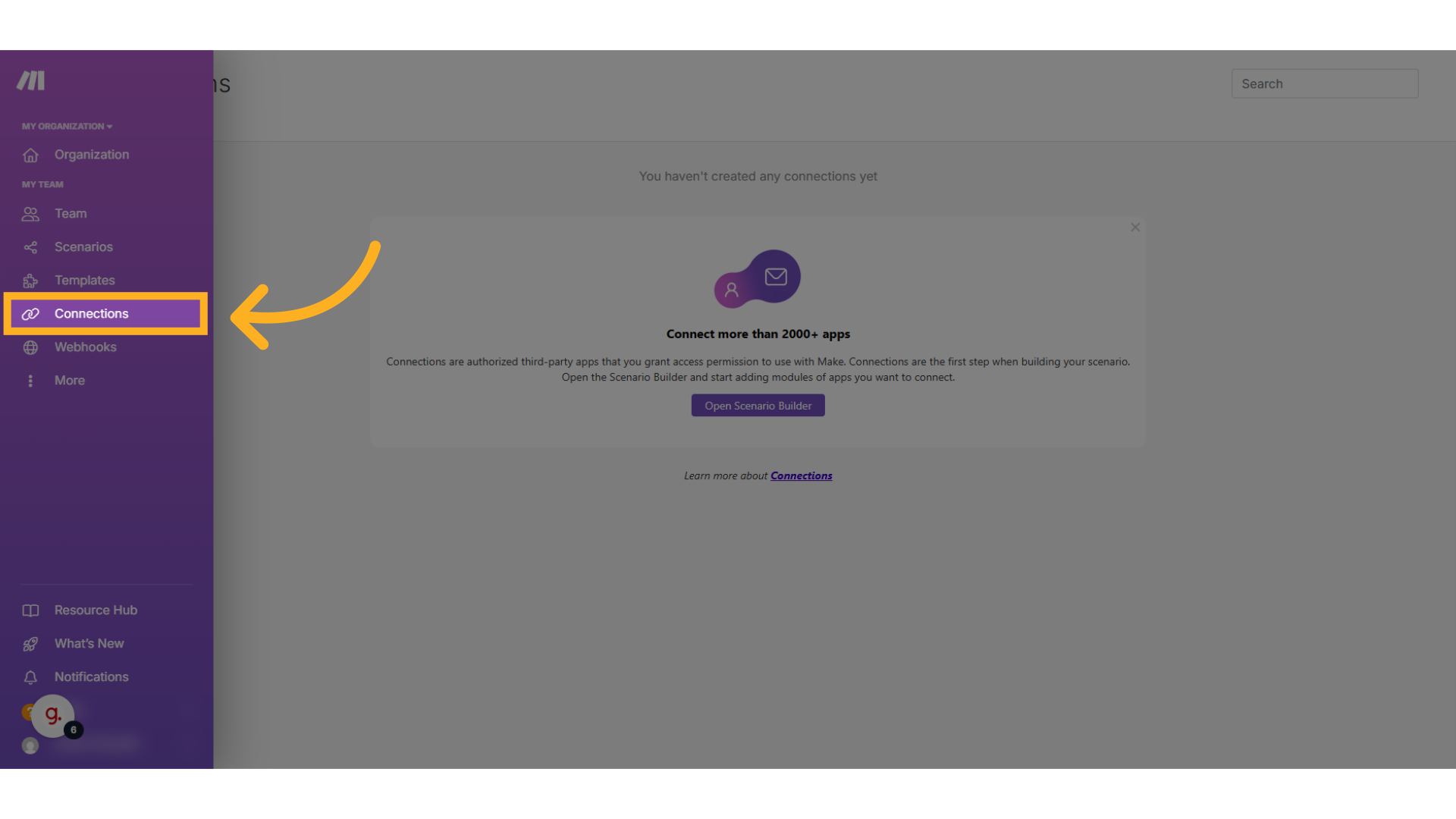
      * Go to [make.com](https://make.com) and sign into your dashboard.
      * Navigate to **Connections** to begin building or modifying a workflow.

              <img src="https://mintcdn.com/thinkrrai/_0A6fgFokCqxXCJu/images/makesix.png?fit=max&auto=format&n=_0A6fgFokCqxXCJu&q=85&s=934992aae6e3aae00ed264c6aad55cc6" alt="Makesix Pn" width="1920" height="1080" data-path="images/makesix.png" />
    </Step>

    <Step title="Select or Create a Scenario">
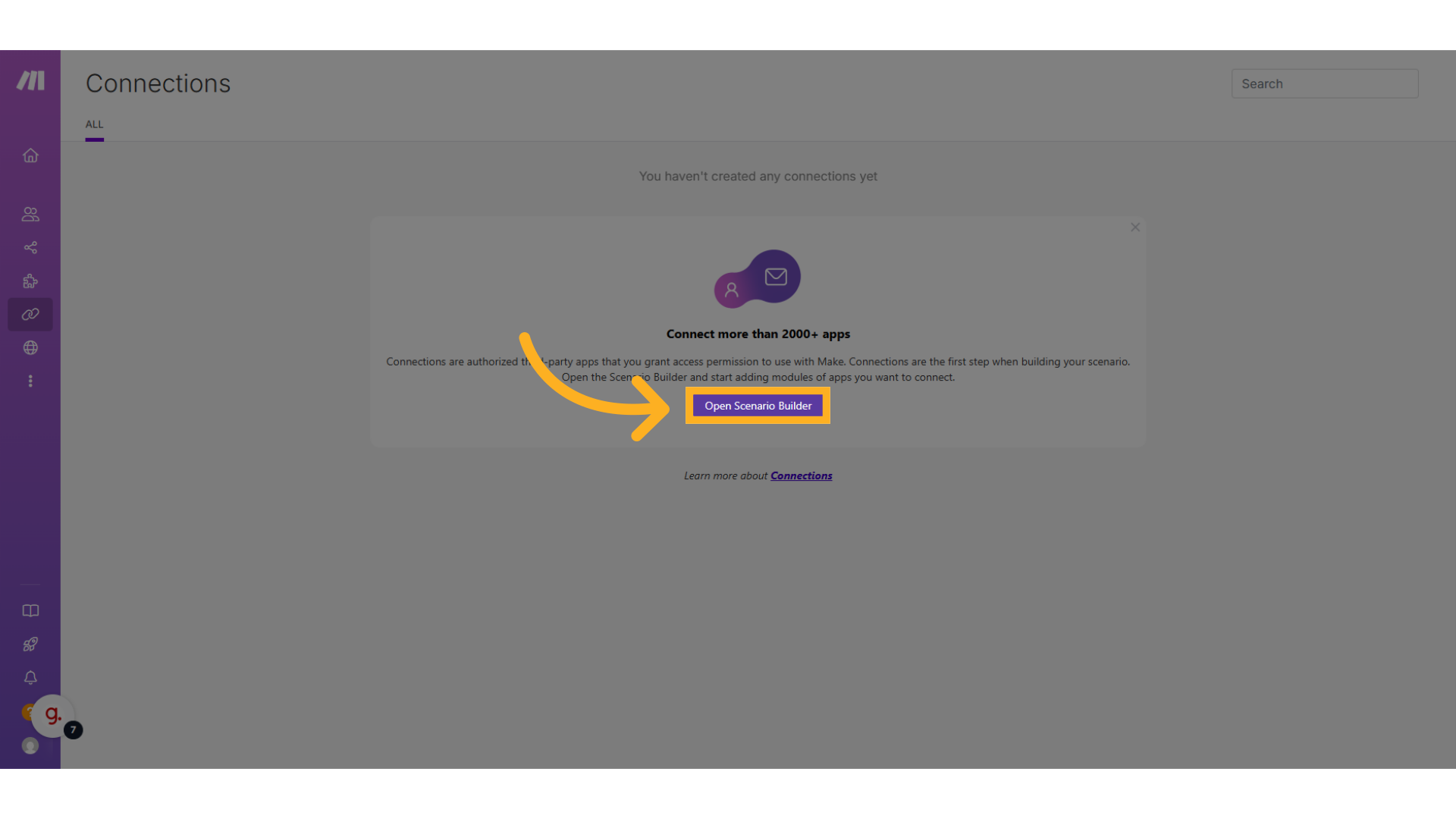
      * Click **Scenario Builder** to create a new automation.
      * You can also edit an existing scenario if one is already configured.

              <img src="https://mintcdn.com/thinkrrai/_0A6fgFokCqxXCJu/images/makeseven.png?fit=max&auto=format&n=_0A6fgFokCqxXCJu&q=85&s=79e3810dc2fe4e79385ddc3df50d12bd" alt="Makeseven Pn" width="1920" height="1080" data-path="images/makeseven.png" />
    </Step>

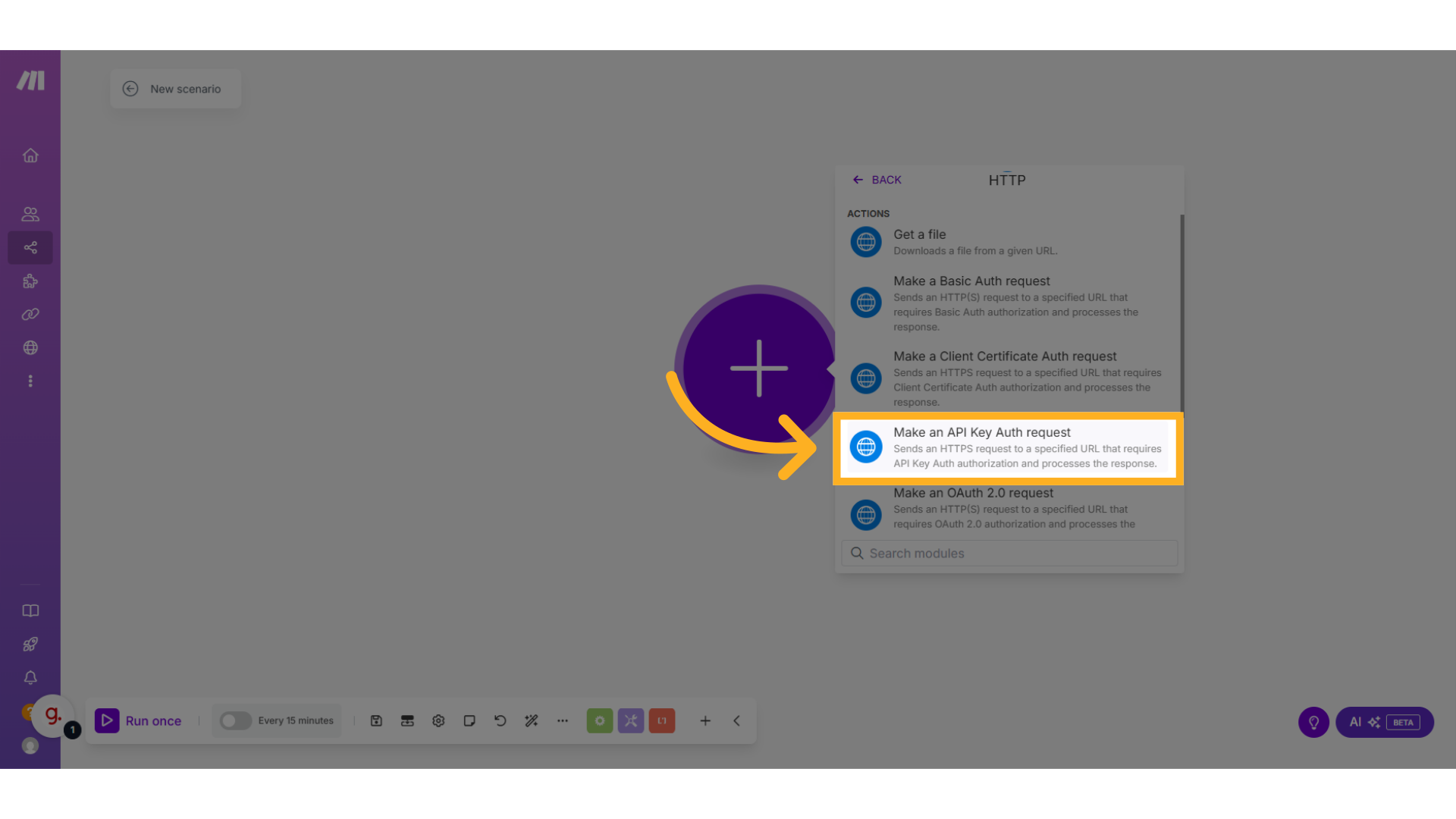
    <Step title="Add an HTTP Module">
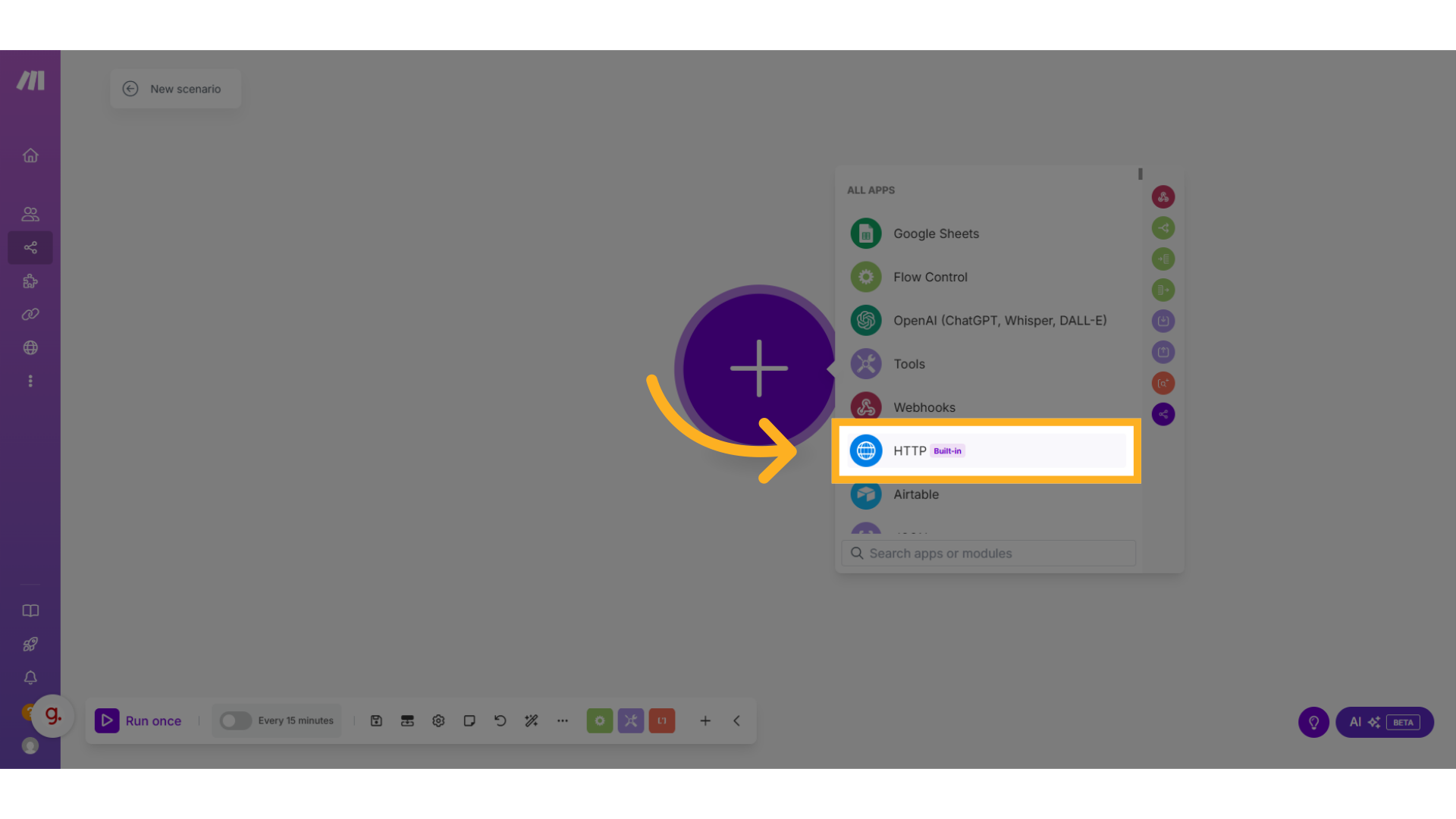
      * Inside the scenario, click the **+** icon to add a module.
      * Search for **HTTP** and select **HTTP - Make a request**.
      * This will allow you to connect with thinkrr’s API.

              <img src="https://mintcdn.com/thinkrrai/_0A6fgFokCqxXCJu/images/makemodule.png?fit=max&auto=format&n=_0A6fgFokCqxXCJu&q=85&s=ea7078b6948ec72be157addda6da7d22" alt="Makemodule Pn" width="1920" height="1080" data-path="images/makemodule.png" />
    </Step>

    <Step title="Open HTTPS Request Settings">
      * Select the HTTPS request type:\
        **“Send an HTTPS request to a specified URL that requires API Key Auth authorization and processes the response.”**

              <img src="https://mintcdn.com/thinkrrai/_0A6fgFokCqxXCJu/images/makemodule.png?fit=max&auto=format&n=_0A6fgFokCqxXCJu&q=85&s=ea7078b6948ec72be157addda6da7d22" alt="Makemodule Pn" width="1920" height="1080" data-path="images/makemodule.png" />

              <img src="https://mintcdn.com/thinkrrai/_0A6fgFokCqxXCJu/images/makemoduletwo.png?fit=max&auto=format&n=_0A6fgFokCqxXCJu&q=85&s=9a6e57a897c8426d71e95cfafc188aef" alt="Makemoduletwo Pn" width="1920" height="1080" data-path="images/makemoduletwo.png" />
    </Step>

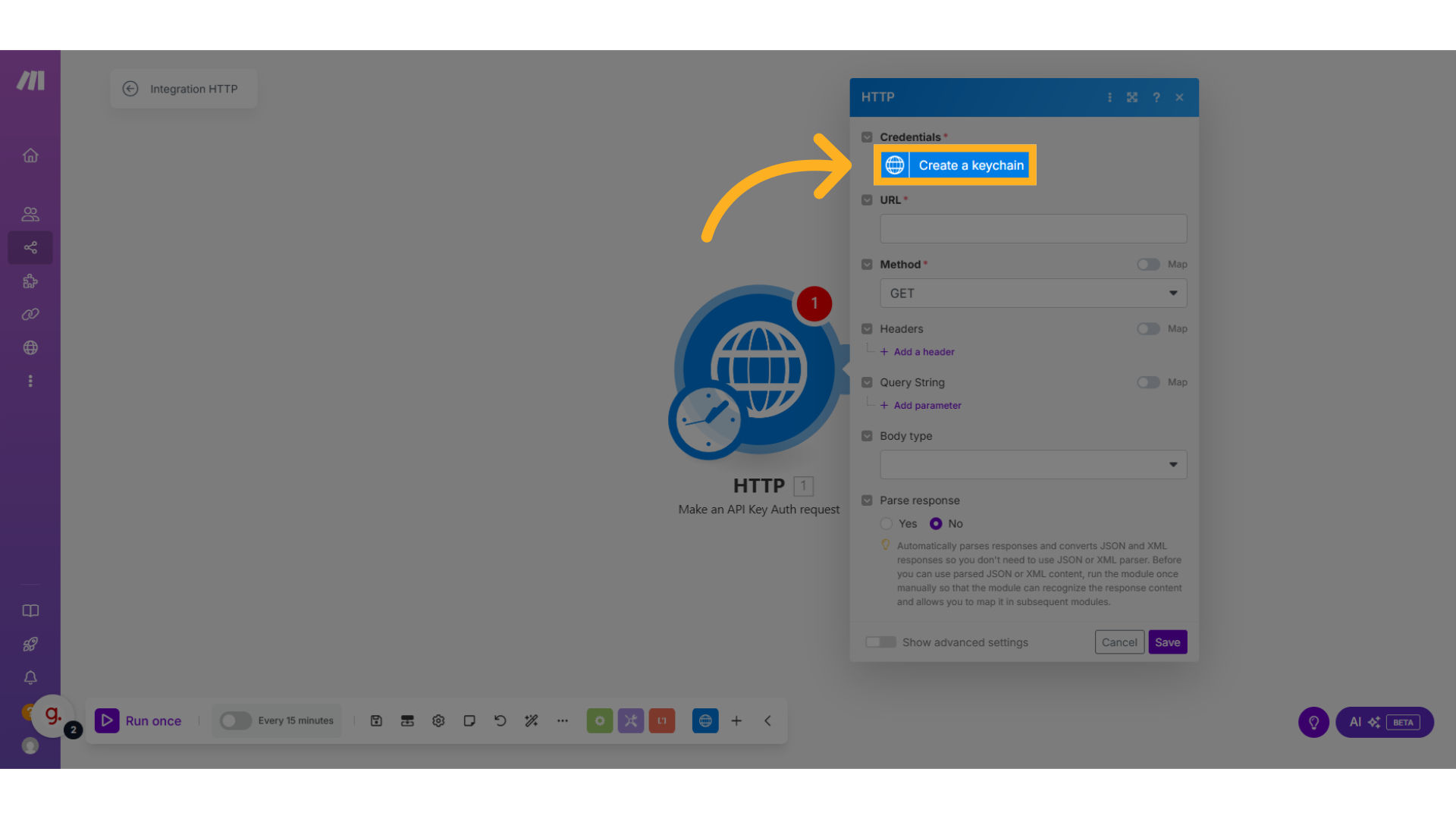
    <Step title="Create a Keychain">
      * Click **Create a keychain** to begin authentication setup.

              <img src="https://mintcdn.com/thinkrrai/_0A6fgFokCqxXCJu/images/makemodulethree.png?fit=max&auto=format&n=_0A6fgFokCqxXCJu&q=85&s=47a6a2270fffab08a76c649679b67d74" alt="Makemodulethree Pn" width="1920" height="1080" data-path="images/makemodulethree.png" />
    </Step>

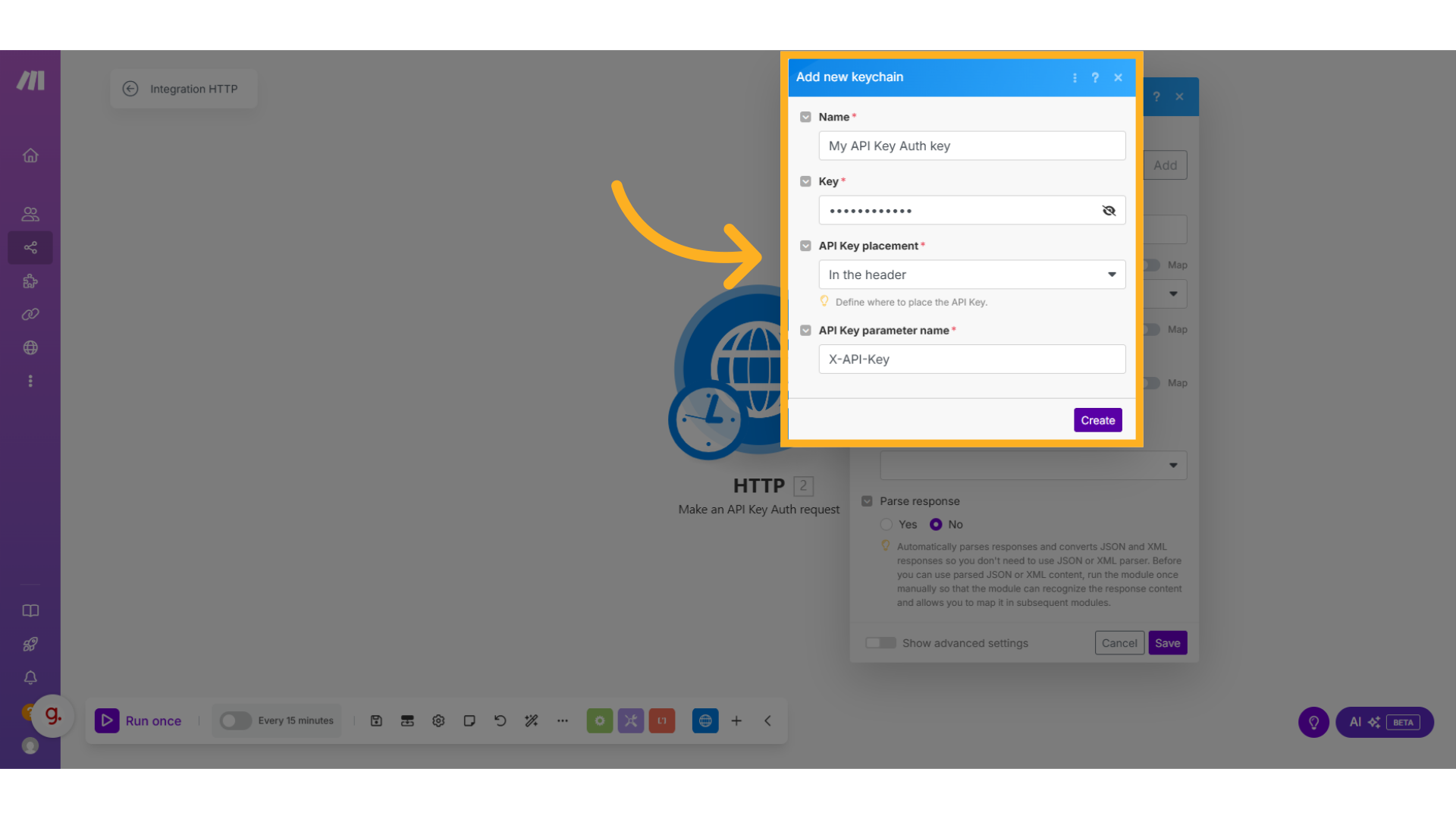
    <Step title="Configure the Keychain Settings">
      * **Name** your keychain (e.g., `thinkrr Integration`).
      * **Paste your API key value** from thinkrr.
      * Set **API Key Placement** to `Header`.
      * Leave the **Parameter Name** unchanged unless your HTTP request specifies otherwise.
      * Ensure the header name matches the field in your HTTP module settings.

              <img src="https://mintcdn.com/thinkrrai/_0A6fgFokCqxXCJu/images/keychain.png?fit=max&auto=format&n=_0A6fgFokCqxXCJu&q=85&s=b3ad7084e194dfdfb43886bc5b20ba58" alt="Keychain Pn" width="1920" height="1080" data-path="images/keychain.png" />
    </Step>
  </Steps>
</Accordion>

***

## FAQs & Troubleshooting

### General Questions

<Accordion title="Where are API keys used?" icon="key" iconType="duotone">
  API keys are used in integration workflows with tools like **Make**, **Hostaway**, or **GHL**. They are typically placed in the **Authorization header** of an HTTP request to validate access and trigger actions in thinkrr.
</Accordion>

<Accordion title="Can I create multiple keys for different services?" icon="layer-group" iconType="duotone">
  Yes. You can create multiple API keys with different names. This helps you manage access separately for each service or client and allows revoking individual keys without disrupting other connections.
</Accordion>

<Accordion title="Is it safe to share my API key?" icon="shield-check" iconType="duotone">
  Only share your API key with trusted platforms or developers. Treat it like a password — anyone with the key can access the associated thinkrr functions. If a key is compromised, revoke it immediately by deleting it in the **Integration Settings**.
</Accordion>

***

For additional questions or guidance, try using our [**Virtual Support Agent**](/Thinkrr-Support-Agent)! Available 24/7 to help resolve most issues quickly at [thinkrr.ai/support](https://thinkrr.ai/support).

If you still need assistance, visit our support site at [help.thinkrr.ai](http://help.thinkrr.ai) and submit a [Ticket](/Support-Ticket-System) or contact our team directly at [hello@thinkrr.ai](mailto:hello@thinkrr.ai).