> ## Documentation Index
> Fetch the complete documentation index at: https://docs.thinkrr.ai/llms.txt
> Use this file to discover all available pages before exploring further.
# Agencies
> Learn how to set up your **thinkrr** agency account, connect your GoHighLevel workspace, manage client subaccounts, and navigate the **thinkrr** dashboard.
## Details
The **thinkrr Voice AI Studio** enables marketing firms, service providers, and sales agencies to deploy AI-powered voice agents at scale — both for inbound and outbound communication.
This platform is ideal for **GoHighLevel (GHL) agency owners** and other resellers looking to offer advanced AI voice solutions as part of their service packages. It supports multiple client sub-accounts, branded call agents, and integration with scheduling tools and CRMs.
With **thinkrr,** agencies can:
* Automate lead follow-up and appointment booking
* Deploy receptionist-style inbound agents for 24/7 support
* Configure outbound campaigns with sales coaching and persona simulation
* Monitor call logs, transcripts, and performance across all clients
The platform offers a flexible foundation to **resell thinkrr** as part of your existing marketing or sales services.
***
## Getting Started with Your Agency Workspace
After purchasing your agency plan:
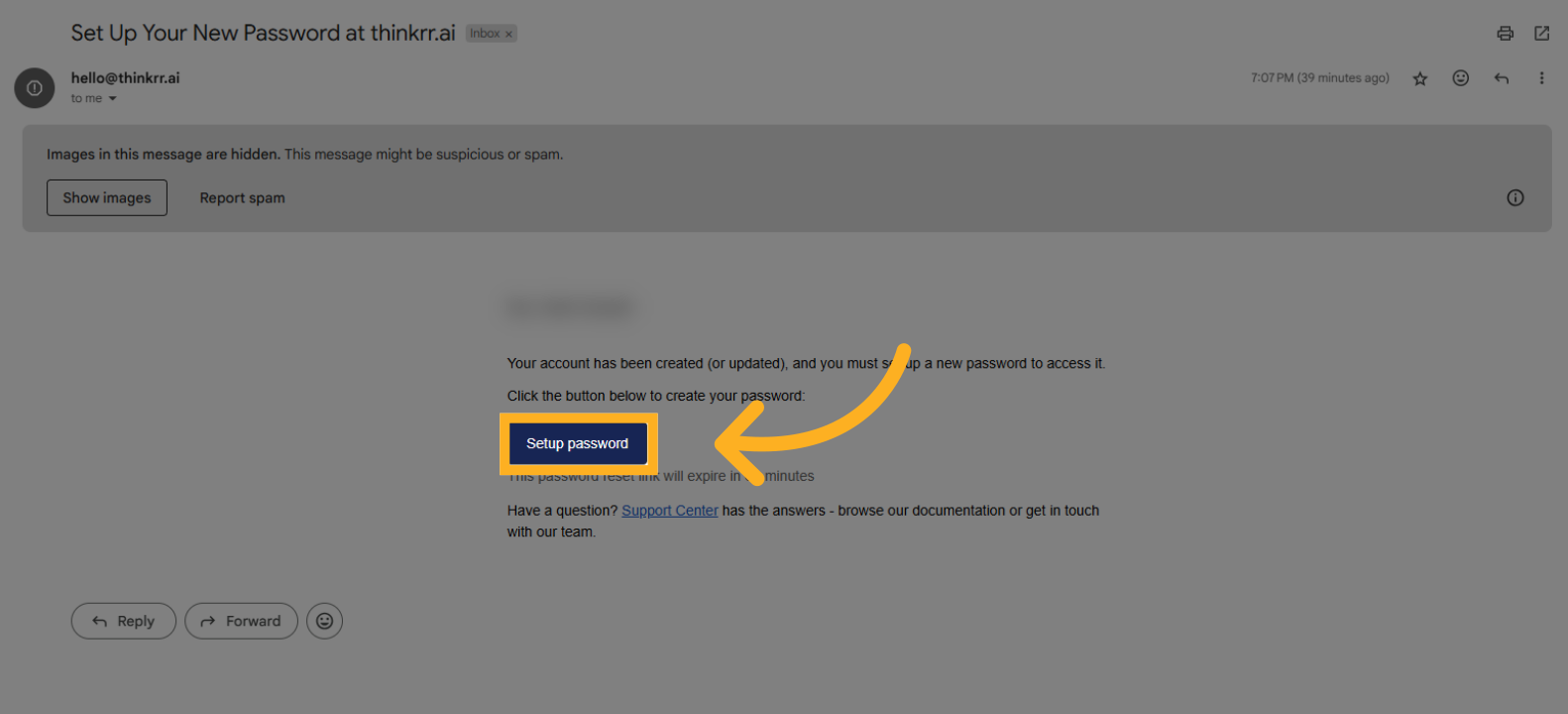
* Check your inbox for an email from **thinkrr**
* Click the **"Set Your Password"** link to create your login credentials
Once your password is set, sign in on the login screen to access your new agency workspace.
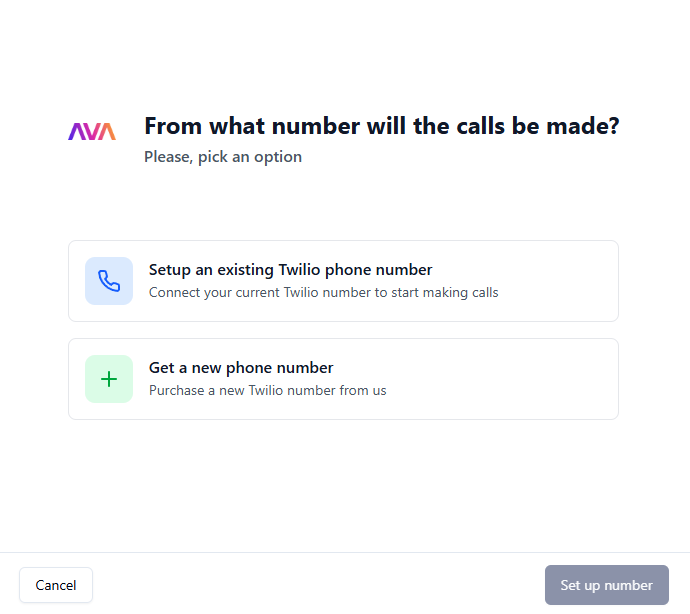
When you first log in, thinkrr will prompt you to add a phone number for your voice agent.\
This step is **optional** — you can skip it and assign a number later.
**You can:**
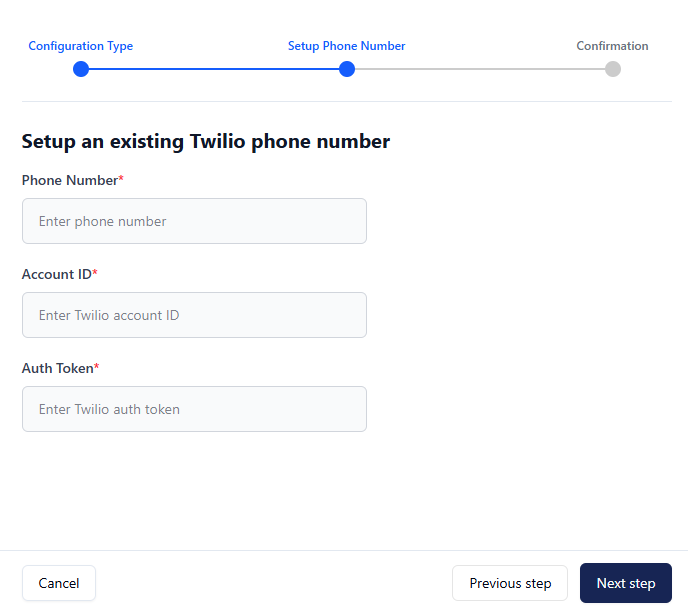
* Import an existing Twilio phone number by entering:
* The phone number
* Twilio Account SID
* Twilio Auth Token
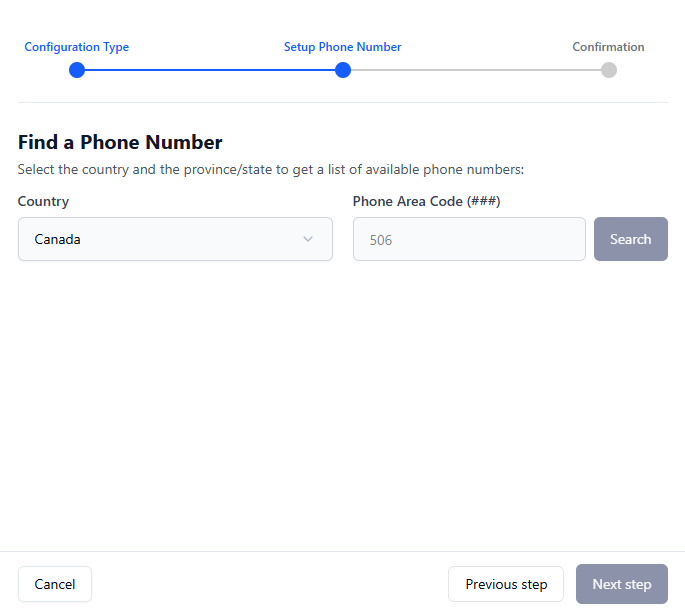
* Or click **"Create New Number"** to generate a number directly inside thinkrr
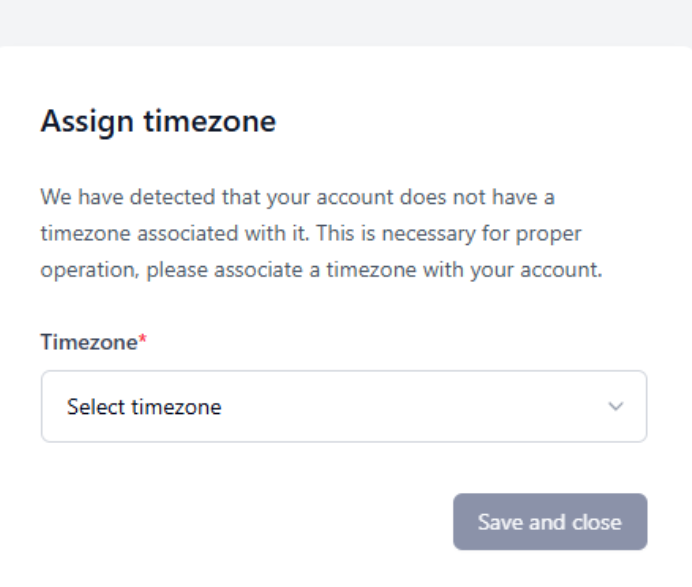
Next, you’ll be asked to choose the **default time zone** for your agency workspace.
This is a mandatory step, because the time zone affects:
* When agents book or schedule meetings
* Scheduling for outbound campaigns
> ⚠️ **Important:**\
> If you use a CRM (like GHL) for scheduling, ensure your calendar time zones match the time zone you set here.
With your password, number, and time zone set, your account setup is complete.
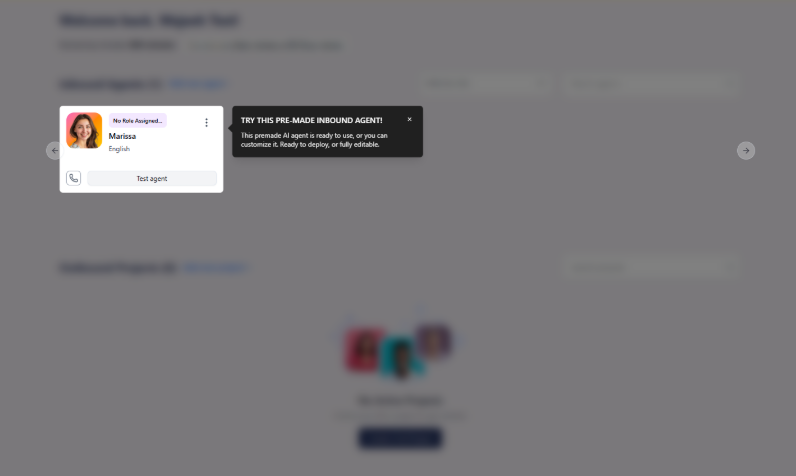
On your first visit to the dashboard, you may see short **tooltip-style onboarding hints**, including:
* A quick introduction to your **pre-made inbound agent**
* Tips on activating your agent
* Pointers to core navigation items
There is **no forced onboarding flow** — you can navigate freely and explore in any order you prefer.
GHL connection is now optional, but recommended if you plan to:
* Sync contacts
* Use two-way campaign syncing
* Automate outbound call workflows
* Link subaccounts automatically
To connect, first go to **profile settings:**
* Open **Integrations → GoHighLevel**
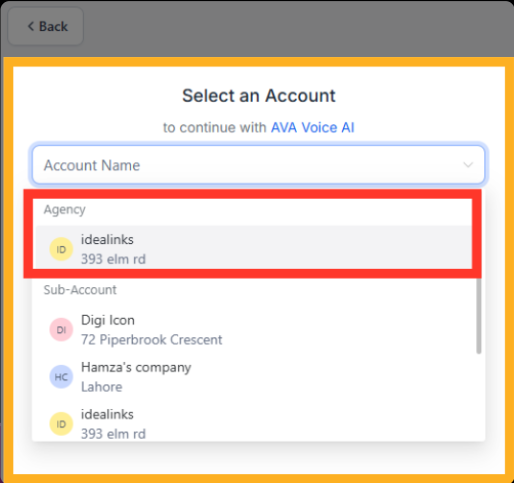
* Select your **primary GHL agency account** (this becomes your primary subaccount in thinkrr)
> ⚠️ **Critical Step: Install Settings**\
> When prompted, be sure to check: **"Install app under all sub-accounts"**\
> This ensures thinkrr automatically connects to each client location.
After confirming permissions, click **Finish Setup**.\
Your thinkrr account and GHL workspace will now sync subaccounts, contacts, and outbound project data.
Inside your thinkrr account, you’ll see:
**Switch Accounts**
* Easily move between subaccounts as your client list grows
* Available for Lite and Unlimited plans
**Home**
* Build Inbound Agents and Outbound Projects
* Launch AI-driven calling workflows
**Account Manager**
* View usage, minutes, subaccounts, and agency profit
* Add subaccounts and manage billing settings
* Connect Stripe for automatic client billing
**White Label (Add-On Feature)**
* Add your own branding: domain, logo, sender ID
* Available as a **\$99/mo add-on** for all paid plans
**Contacts**
* Manage all contacts used for outbound campaigns
**Call History**
* Review inbound and outbound call logs
**Phone Numbers**
* Assign numbers to inbound agents or outbound campaigns
**Payments**
* Monitor wallet balance, minutes, and Auto-Recharge options
**Profile Settings**
* Manage credentials, webhook keys, and custom integrations
> ℹ️ Business users see a simplified dashboard with fewer options.
## Plan-Specific Subaccount Limits
| Plan | Subaccount Access |
| ------------- | --------------------------- |
| **Kickstart** | 1 subaccount (primary only) |
| **Lite** | 1 primary + 2 client subs |
| **Unlimited** | Unlimited subaccounts |
***
## FAQs & Troubleshooting
### General Questions
Agency accounts allow for multi-client management with subaccount creation and usage tracking. Business accounts are for standalone deployments without multi-tenant tools.
No. GHL integration is optional. However, connecting GHL allows you to sync contacts, automate campaigns, and pull subaccounts automatically.
### Configuration
Use the **Account Manager** tab → Click **Add Subaccount** → Select the GHL location → Choose a client email (or your own) → Send invite.
Yes. Use your client’s email during setup to give them full login access. Or use your own email if you’ll manage it on their behalf.
Yes. Agencies can set custom per-minute pricing and track profits in the Account Manager.
### Usage and Results
The **Account Manager** tab shows total agency minutes, subaccount usage breakdowns, and historical data per client.
Yes. White-label branding is available as a **\$99/month add-on** for all paid plans. Once activated, you can add your domain, logo, and sender ID.
Connect Stripe in the Account Manager. Clients can be billed automatically through your markup settings.
***
For additional questions or guidance, try using our [**Virtual Support Agent**](/Thinkrr-Support-Agent)! Available 24/7 to help resolve most issues quickly at [thinkrr.ai/support](https://thinkrr.ai/support).
If you still need assistance, visit our support site at [help.thinkrr.ai](http://help.thinkrr.ai) and submit a [Ticket](/Support-Ticket-System) or contact our team directly at [hello@thinkrr.ai](mailto:hello@thinkrr.ai).
 Once your password is set, sign in on the login screen to access your new agency workspace.
 **You can:**
* Import an existing Twilio phone number by entering:
* The phone number
* Twilio Account SID
* Twilio Auth Token
**You can:**
* Import an existing Twilio phone number by entering:
* The phone number
* Twilio Account SID
* Twilio Auth Token
 * Or click **"Create New Number"** to generate a number directly inside thinkrr
 > ⚠️ **Important:**\
> If you use a CRM (like GHL) for scheduling, ensure your calendar time zones match the time zone you set here.
> ⚠️ **Important:**\
> If you use a CRM (like GHL) for scheduling, ensure your calendar time zones match the time zone you set here.
 * Open **Integrations → GoHighLevel**
* Select your **primary GHL agency account** (this becomes your primary subaccount in thinkrr)
* Open **Integrations → GoHighLevel**
* Select your **primary GHL agency account** (this becomes your primary subaccount in thinkrr)
 > ⚠️ **Critical Step: Install Settings**\
> When prompted, be sure to check: **"Install app under all sub-accounts"**\
> This ensures thinkrr automatically connects to each client location.
After confirming permissions, click **Finish Setup**.\
Your thinkrr account and GHL workspace will now sync subaccounts, contacts, and outbound project data.
> ⚠️ **Critical Step: Install Settings**\
> When prompted, be sure to check: **"Install app under all sub-accounts"**\
> This ensures thinkrr automatically connects to each client location.
After confirming permissions, click **Finish Setup**.\
Your thinkrr account and GHL workspace will now sync subaccounts, contacts, and outbound project data.