> ## Documentation Index
> Fetch the complete documentation index at: https://docs.thinkrr.ai/llms.txt
> Use this file to discover all available pages before exploring further.
# Businesses
> A getting started guide for businesses using **thinkrr** and **thinkrr CRM**. Learn how to create your account and configure your first AI voice agent.
## Overview
If you’re a business owner ready to supercharge your customer communication with AI-powered voice automation, this guide will help you get started. Whether you’re using**thinkrr** as a standalone solution or integrating it into your account through NIKO, the process is designed to be straightforward and accessible — no technical expertise required.
With just a few steps, you can set up your AI receptionist to handle inbound calls, run outbound campaigns, qualify leads, and book appointments — all while syncing seamlessly with your business logic.
> 💡 **Not sure if you’re in the right place?**\
> If you're an agency managing multiple client accounts, refer to our [**Agencies**](/Agencies) guide instead.
## Creating Your Business Account
**Thinkrr** makes it easy for business owners to get started with voice automation. Here’s how to set up your account and onboard your first AI agent.
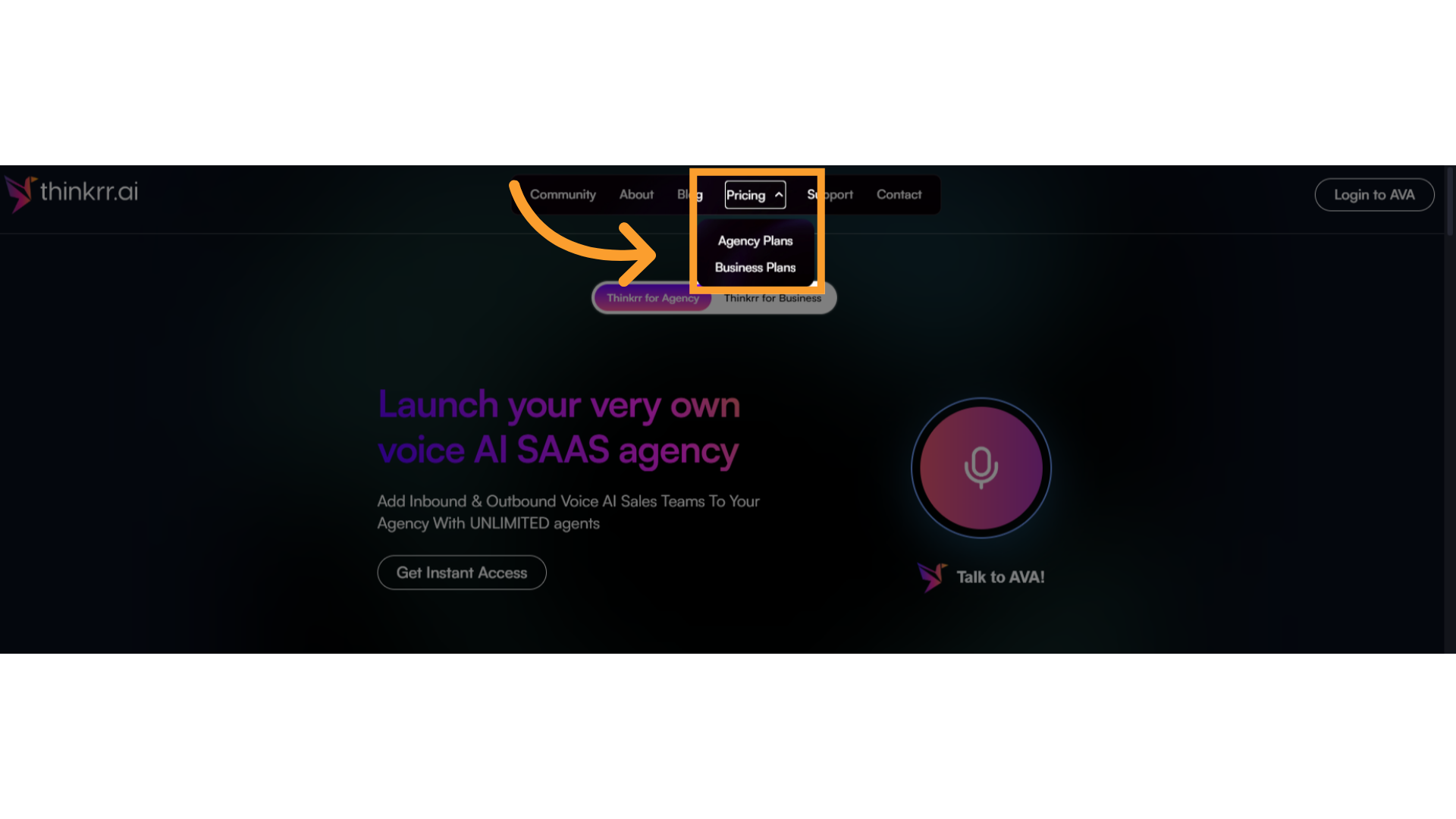
Visit [**thinkrr.ai**](https://thinkrr.ai) and hover over the '**Pricing**' tab then click **Business Plans**.
 Choose your preferred plan (refer to our [**Plans & Pricing**](/Agency-and-Business-Plans) for details).
Complete the checkout process and confirm your purchase.
Check your email for the invite link to set your password and log in to your **thinkrr** account.
## Onboarding Your First AI Voice Agent
Once your account is active, it’s time to set up your first AI agent. In **thinkrr**, there are two main ways to deploy your agent depending on your goals:
* [**Inbound Agents**](Creating-an-Inbound-Agent) — Handle incoming calls, book appointments, qualify leads, or provide customer service.
* [**Outbound Projects**](/Projects-and-scenarios) — Run outbound call campaigns where your agent reaches out to a contact list for follow-ups, sales, reminders, or surveys.
Here’s how to get started with either approach:
### Setting Up an Inbound Agent
From your **thinkrr** Dashboard, in the **Home** screen, click **"Add New Agent"**.
Configure the agent’s core details:
* Agent name
* Role
* Language
* Ethinicity
* Voice
Define the **call logic and goals** — including how the agent should answer calls, qualify leads, and handle different outcomes (e.g., bookings, transfers, voicemails).
Connect your calendar (if offering booking services) to allow the agent to schedule appointments automatically.
(Optional) Configure fallback behavior like voicemail handling or live call transfers.
### Creating an Outbound Project (Campaign)
In the thinkk home screen, navigate to **Projects** and click **"New Project"**.
Select the **Scenario Template** that defines the conversational flow for the project (e.g., lead qualification, appointment reminders, review requests).
Upload your contact list (CSV or CRM-integrated), or select contacts from your connected CRM.
Configure project details:
* Project name and description
* Assigned AI agent (voice and persona)
* Campaign start time and duration
* Voicemail preferences (optional)
Review the project configuration and launch the campaign when ready.
> 🧠 **Tip:**\
> You can run inbound agents and outbound projects independently or together depending on your business needs. For example, use an inbound receptionist for appointment booking and run outbound follow-up campaigns for no-shows or review requests.
## Terms & Definitions
* **thinkrr** – The AI voice agent platform for handling conversations via phone.
* **thinkrr CRM** – The integration layer voice automation ecosystem.
* **Inbound Agent** – Your AI assistant assigned to handle inbound calls and bookings.
* **Scenario Template** – Prebuilt conversational flows designed to meet specific use cases like lead qualification or appointment booking.
* **Outbound Projects** – Automated calling sequences targeting specific contact lists for follow-ups, reminders, or sales outreach.
* **Call Routing** – Logic that determines whether calls are handled by AI, transferred to a human, or sent to voicemail.
* **Calendar Integration** – Syncs your AI agent with your booking calendar to manage appointments directly through voice.
## FAQs & Troubleshooting
### General Questions
Yes. **Thinkrr** works as a standalone voice automation platform. You can run inbound reception, outbound campaigns, and follow-ups without GHL. However, integrating with GHL unlocks additional CRM and workflow automation features.
The number of agents you can create may depend on your selected plan. Refer to the [**Plans & Pricing**](Agency-and-Business-Plans) section for details.
### Configuration
Yes. You can choose from different AI voice options and configure the tone, personality, and conversational style of each agent.
No, Twilio is not required, but it is supported. You can use either Twilio-connected numbers or numbers provided directly through **thinkrr**. Lead Connector numbers are not supported for AI calling functions in **thinkrr**.
### Usage and Results
The **thinkrr** Dashboard includes **Call History**, showing call outcomes, durations, transcripts, and booking results.
Yes. Call logs, transcripts, and booking results can be exported from your dashboard for reporting and analysis.
If you reach your plan’s usage limit, outbound and inbound campaigns will pause. You can upgrade your plan or purchase additional credits to continue service.
***
For additional questions or guidance, try using our [**Virtual Support Agent**](/Thinkrr-Support-Agent)! Available 24/7 to help resolve most issues quickly at [thinkrr.ai/support](https://thinkrr.ai/support).
If you still need assistance, visit our support site at [help.thinkrr.ai](http://help.thinkrr.ai) and submit a [Ticket](/Support-Ticket-System) or contact our team directly at [hello@thinkrr.ai](mailto:hello@thinkrr.ai).
Choose your preferred plan (refer to our [**Plans & Pricing**](/Agency-and-Business-Plans) for details).
Complete the checkout process and confirm your purchase.
Check your email for the invite link to set your password and log in to your **thinkrr** account.
## Onboarding Your First AI Voice Agent
Once your account is active, it’s time to set up your first AI agent. In **thinkrr**, there are two main ways to deploy your agent depending on your goals:
* [**Inbound Agents**](Creating-an-Inbound-Agent) — Handle incoming calls, book appointments, qualify leads, or provide customer service.
* [**Outbound Projects**](/Projects-and-scenarios) — Run outbound call campaigns where your agent reaches out to a contact list for follow-ups, sales, reminders, or surveys.
Here’s how to get started with either approach:
### Setting Up an Inbound Agent
From your **thinkrr** Dashboard, in the **Home** screen, click **"Add New Agent"**.
Configure the agent’s core details:
* Agent name
* Role
* Language
* Ethinicity
* Voice
Define the **call logic and goals** — including how the agent should answer calls, qualify leads, and handle different outcomes (e.g., bookings, transfers, voicemails).
Connect your calendar (if offering booking services) to allow the agent to schedule appointments automatically.
(Optional) Configure fallback behavior like voicemail handling or live call transfers.
### Creating an Outbound Project (Campaign)
In the thinkk home screen, navigate to **Projects** and click **"New Project"**.
Select the **Scenario Template** that defines the conversational flow for the project (e.g., lead qualification, appointment reminders, review requests).
Upload your contact list (CSV or CRM-integrated), or select contacts from your connected CRM.
Configure project details:
* Project name and description
* Assigned AI agent (voice and persona)
* Campaign start time and duration
* Voicemail preferences (optional)
Review the project configuration and launch the campaign when ready.
> 🧠 **Tip:**\
> You can run inbound agents and outbound projects independently or together depending on your business needs. For example, use an inbound receptionist for appointment booking and run outbound follow-up campaigns for no-shows or review requests.
## Terms & Definitions
* **thinkrr** – The AI voice agent platform for handling conversations via phone.
* **thinkrr CRM** – The integration layer voice automation ecosystem.
* **Inbound Agent** – Your AI assistant assigned to handle inbound calls and bookings.
* **Scenario Template** – Prebuilt conversational flows designed to meet specific use cases like lead qualification or appointment booking.
* **Outbound Projects** – Automated calling sequences targeting specific contact lists for follow-ups, reminders, or sales outreach.
* **Call Routing** – Logic that determines whether calls are handled by AI, transferred to a human, or sent to voicemail.
* **Calendar Integration** – Syncs your AI agent with your booking calendar to manage appointments directly through voice.
## FAQs & Troubleshooting
### General Questions
Yes. **Thinkrr** works as a standalone voice automation platform. You can run inbound reception, outbound campaigns, and follow-ups without GHL. However, integrating with GHL unlocks additional CRM and workflow automation features.
The number of agents you can create may depend on your selected plan. Refer to the [**Plans & Pricing**](Agency-and-Business-Plans) section for details.
### Configuration
Yes. You can choose from different AI voice options and configure the tone, personality, and conversational style of each agent.
No, Twilio is not required, but it is supported. You can use either Twilio-connected numbers or numbers provided directly through **thinkrr**. Lead Connector numbers are not supported for AI calling functions in **thinkrr**.
### Usage and Results
The **thinkrr** Dashboard includes **Call History**, showing call outcomes, durations, transcripts, and booking results.
Yes. Call logs, transcripts, and booking results can be exported from your dashboard for reporting and analysis.
If you reach your plan’s usage limit, outbound and inbound campaigns will pause. You can upgrade your plan or purchase additional credits to continue service.
***
For additional questions or guidance, try using our [**Virtual Support Agent**](/Thinkrr-Support-Agent)! Available 24/7 to help resolve most issues quickly at [thinkrr.ai/support](https://thinkrr.ai/support).
If you still need assistance, visit our support site at [help.thinkrr.ai](http://help.thinkrr.ai) and submit a [Ticket](/Support-Ticket-System) or contact our team directly at [hello@thinkrr.ai](mailto:hello@thinkrr.ai).