> ## Documentation Index
> Fetch the complete documentation index at: https://docs.thinkrr.ai/llms.txt
> Use this file to discover all available pages before exploring further.
# Call Forwarding
> **Call Forwarding** functionality allows you to seamlessly route incoming calls made to your GHL (GoHighLevel) Lead Connector phone number to your [thinkrr.ai](http://thinkrr.ai) thinkrr Voice AI phone number.
## **Overview**
This ensures that calls can be picked up and handled by an thinkrr Voice AI agent, enhancing efficiency and providing round-the-clock support. With call transfer, businesses can optimize customer interactions by leveraging Thinkrr's AI-powered inbound call capabilities.
## **Details**
### **Prerequisites**
Before starting, ensure you meet the following requirements:
1. **GHL Account**: You must have an active GHL account with at least one configured Lead Connector number.
2. **Thinkrr Phone Number**: You must have an active thinkrr.ai phone number set up in thinkrr. This number should be connected to an inbound agent for call handling.
1) Log into your **GoHighLevel (GHL)** dashboard.
2) Navigate to **Settings** in the bottom-left corner.
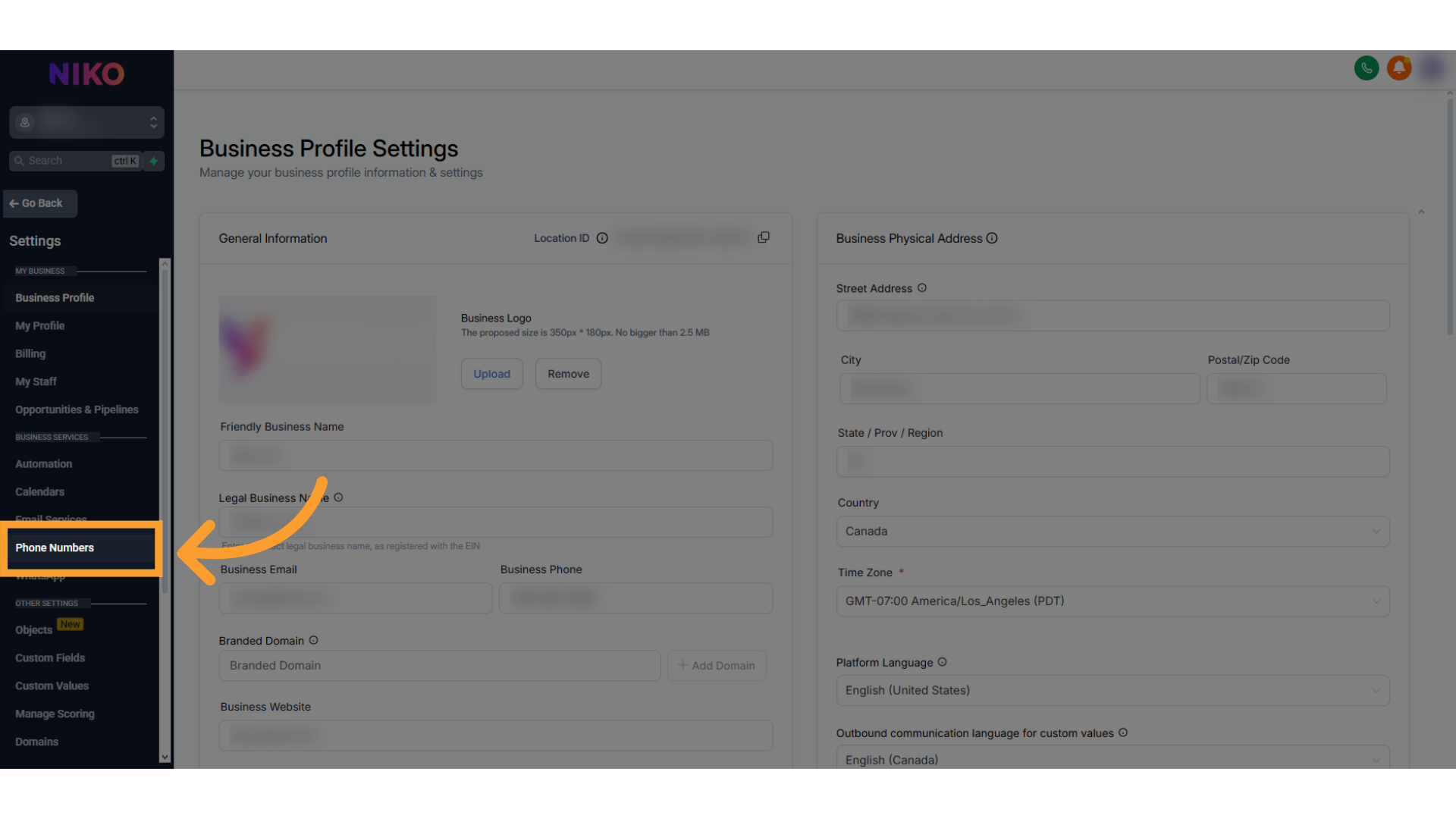
3. Click on **Phone Numbers** under the **Business Info** section to view your configured Lead Connector numbers.
1. Locate the Lead Connector number you wish to configure in the Phone Numbers section.
2. Click on the three dots (**ellipsis**) next to the number and select Edit Configuration.
3. Select "**Edit Configuration**" configuration settings, find the **Call Forwarding** or Routing field.
4. Enter your thinkrr.ai phone number (include the full number with the country code, e.g., +1 for the U.S.).
5. Double-check the number for accuracy.
6. Click Save or Update to apply the changes.
1. Navigate to the \*\*Advanced Settings \*\*tab.
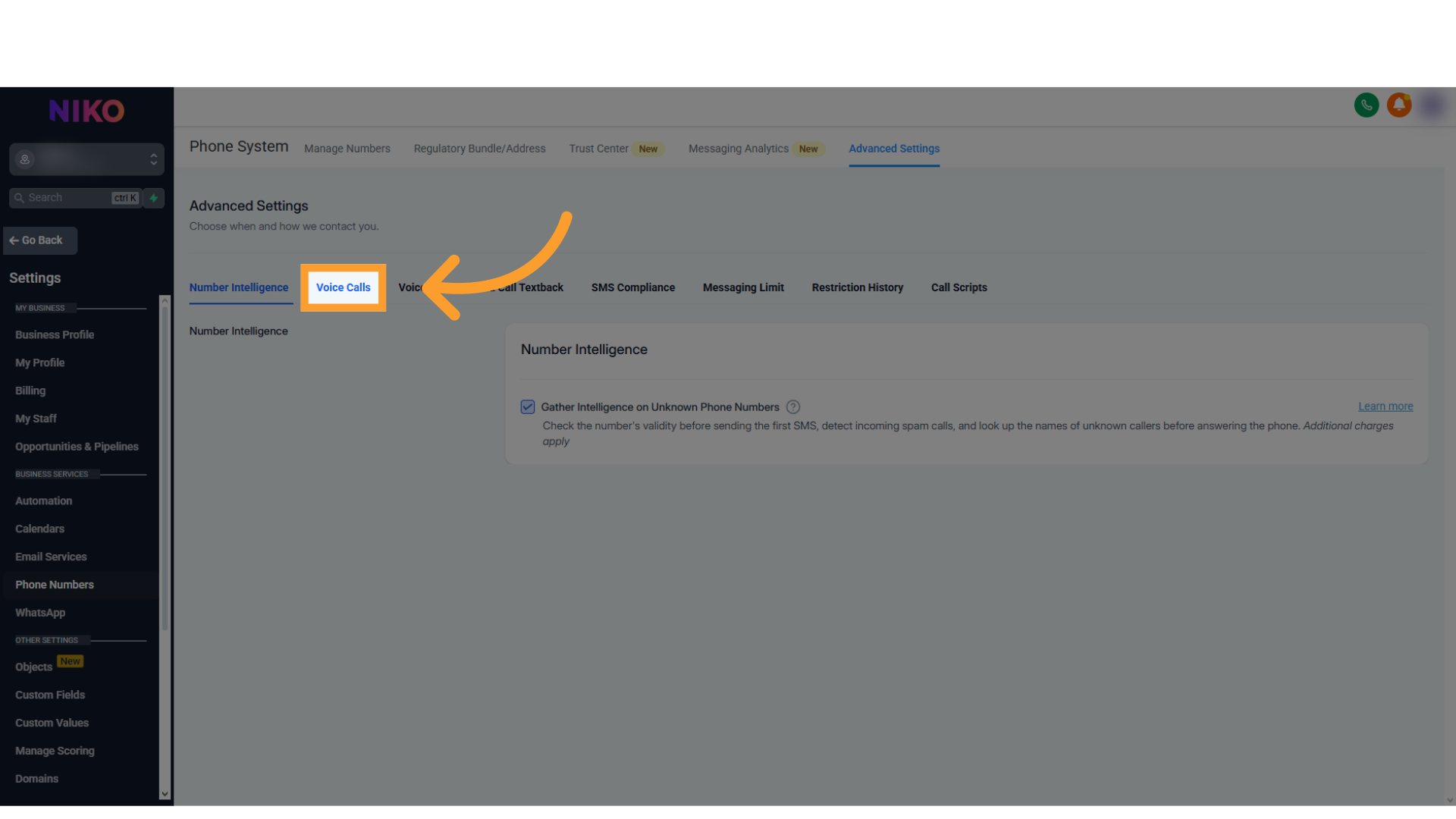
2. Select the **Voice Calls** tab and select **Inbound Call**.
3. Adjust the following options in the **Inbound Call** configuration screen:
* **Forward Calls to Business Phone Number**: Turn Off to ensure calls forward directly to your thinkrr.ai number.
* **Ring User Assigned to Called Number**: Turn Off to prevent routing to a specific user instead of the thinkrr.ai number.
4. Additional settings to review:
* **Voicemail Settings**: Enable fallback voicemail for unanswered calls.
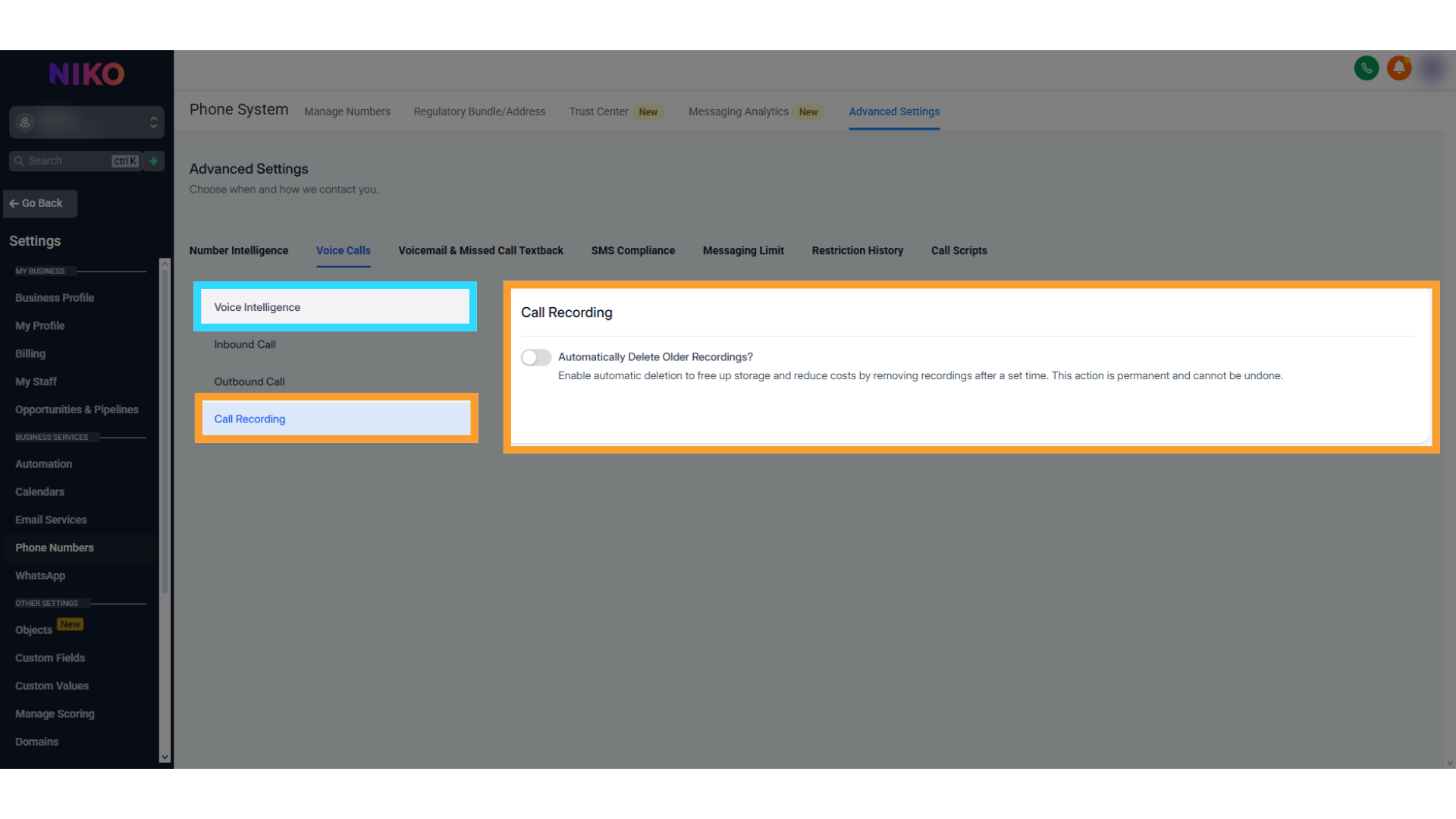
* **Call Recording**: Toggle recording for quality assurance or compliance.
5. Save your changes after configuring these settings.
1. Test your setup by calling your **GHL Lead Connector number**.
2. Confirm that the call is forwarded to your thinkrr.ai phone number and is picked up by the Inbound AI agent.
## **Troubleshooting Common Issues**
### **Problem: Calls Are Not Forwarding**
* **Check Call Forwarding Settings**: Ensure the thinkrr.ai number is entered correctly, including the country code.
* **Network Issues**: Ensure a stable internet connection while configuring the settings. Retry the setup if necessary.
### **Problem: Calls Are Forwarded Incorrectly**
* **Incorrect Number**: Verify that the correct thinkrr.ai number is entered in the forwarding field.
* **Advanced Settings Misconfiguration**: Review advanced settings to ensure options like "Forward Calls to Business Phone Number" and "Ring User Assigned to Called Number" are turned off.
### **Problem: Calls Are Not Routed to the Correct Person**
* **User Assignments Conflict**: Check contact-specific user assignments in GHL to avoid conflicts in routing logic.
## **Testing Tips**
* **Call Each Number**: Test both the GHL Lead Connector number and the thinkrr.ai number individually to ensure they are operational.
* **Check Logs**: Review call logs in GHL and thinkrr to identify potential issues in the routing process.
## FAQs & Troubleshooting
### Setup & Requirements
Yes. You must have:
* An active GHL account with at least one Lead Connector phone number.
* An active thinkrr.ai phone number assigned to an Inbound AI agent.
You can use external numbers (e.g. Twilio), but for GHL call forwarding you must configure forwarding from a Lead Connector number inside GHL.
### Configuration
Go to **Settings → Phone Numbers**. Select the Lead Connector number, click the ellipsis (**...**), choose **Edit Configuration**, and enter your thinkrr.ai phone number under **Call Forwarding**.
Yes. In **Advanced Settings → Voice Calls → Inbound Call**, disable:
* **Forward Calls to Business Phone Number**
* **Ring User Assigned to Called Number**
Call your Lead Connector number and confirm your thinkrr inbound agent answers. You can also check logs in both GHL and thinkrr for call routing details.
### Common Issues
* Confirm the thinkrr.ai number is correct, including country code.
* Verify you saved changes in both standard and advanced GHL settings.
* Ensure your thinkrr.ai number is active and assigned to an inbound agent.
* Recheck GHL advanced settings to ensure no user assignments are conflicting.
* Verify you fully disabled both **Business Phone Number** and **Ring User** options.
Confirm:
* The number is correctly assigned to an inbound agent in thinkrr.
* The thinkrr agent is active and not in error state.
***
For additional questions or guidance, try using our [Virtual Support Agent](/Thinkrr-Support-Agent)! Available 24/7 to help resolve most issues quickly at [thinkrr.ai/support](https://thinkrr.ai/support).
If you still need assistance, visit our support site at help.thinkrr.ai and submit a [Ticket](/Support-Ticket-System) or contact our team directly at [hello@thinkrr.ai](mailto:hello@thinkrr.ai).
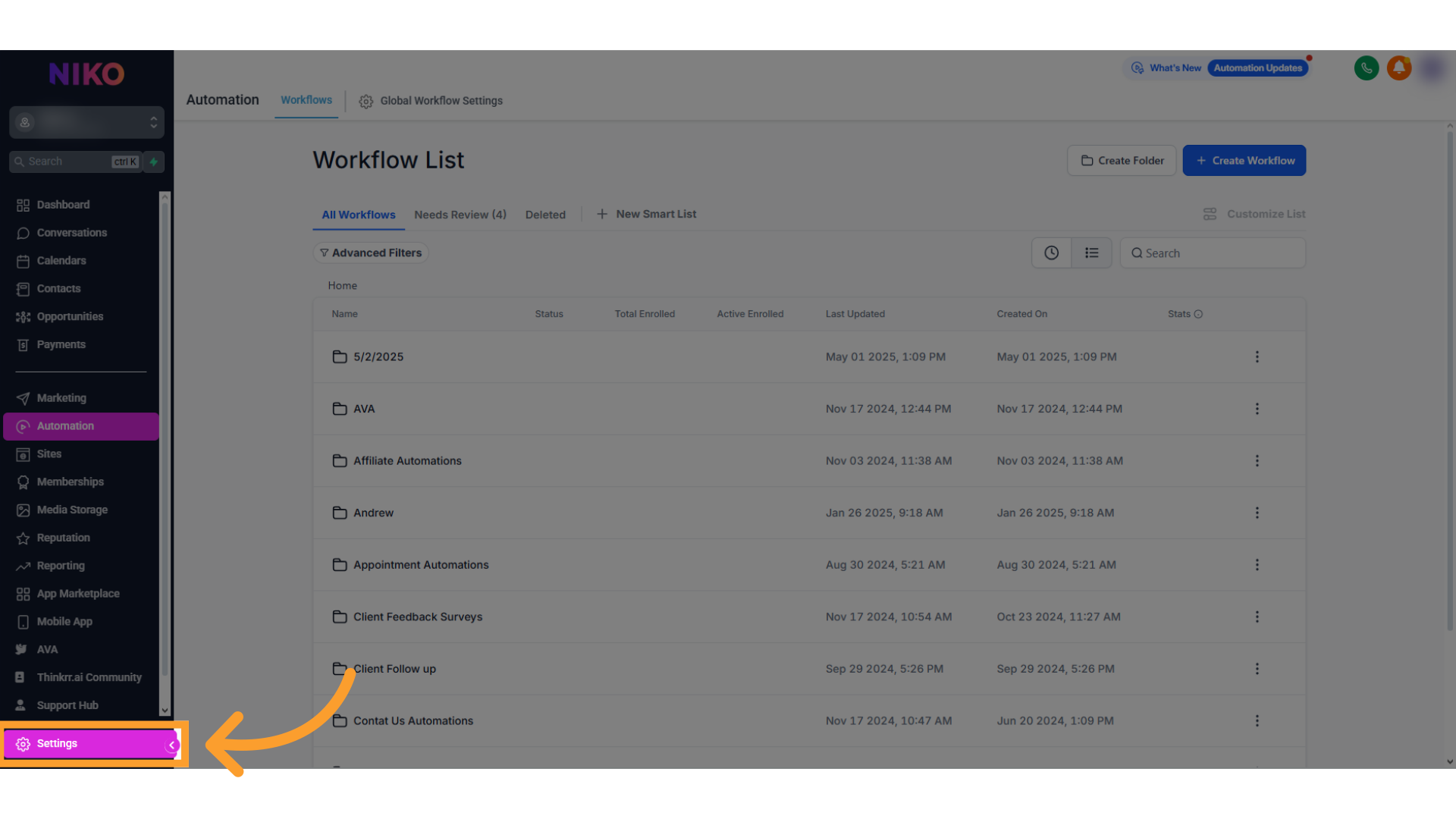 3. Click on **Phone Numbers** under the **Business Info** section to view your configured Lead Connector numbers.
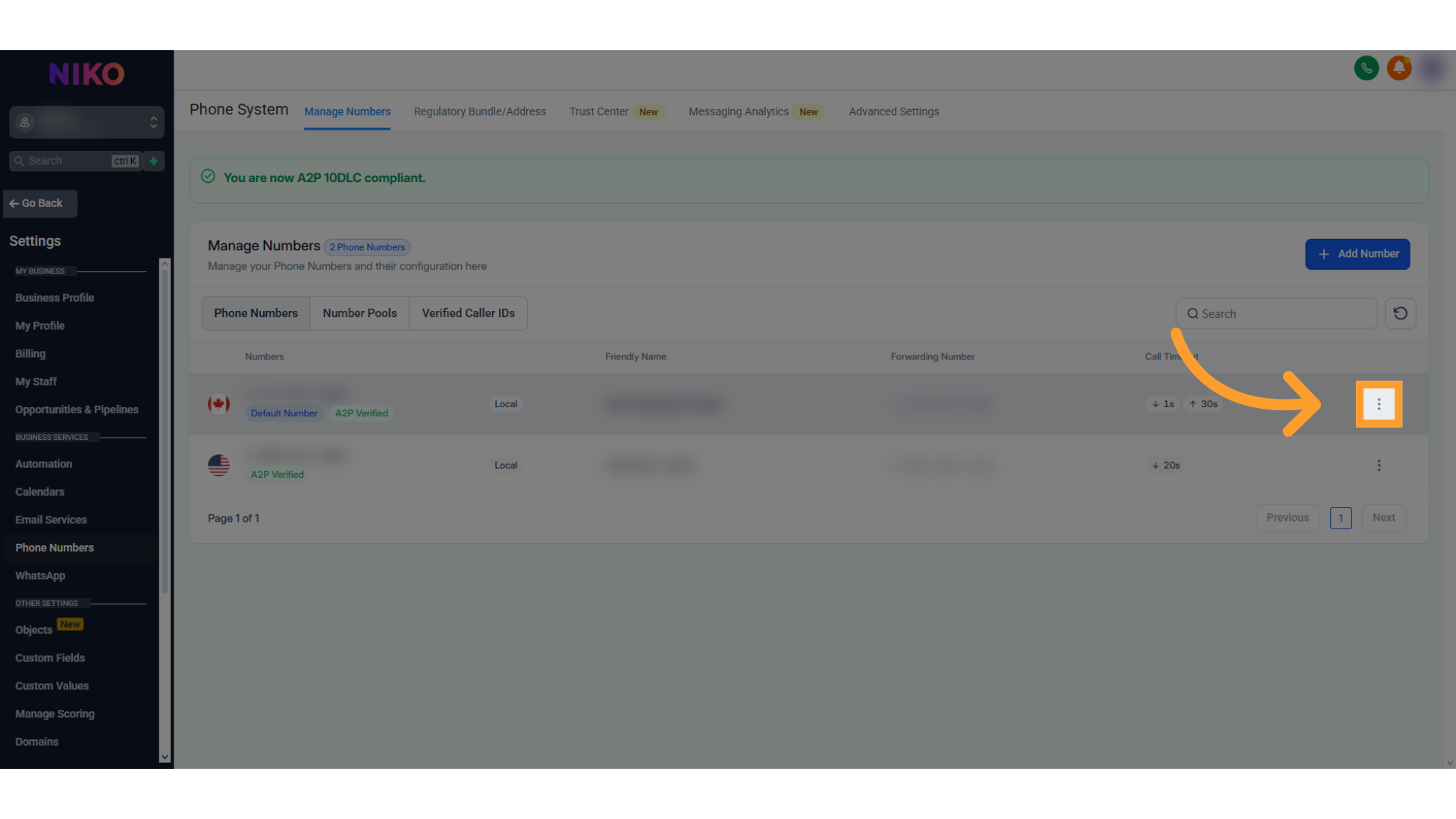 3. Select "**Edit Configuration**" configuration settings, find the **Call Forwarding** or Routing field.
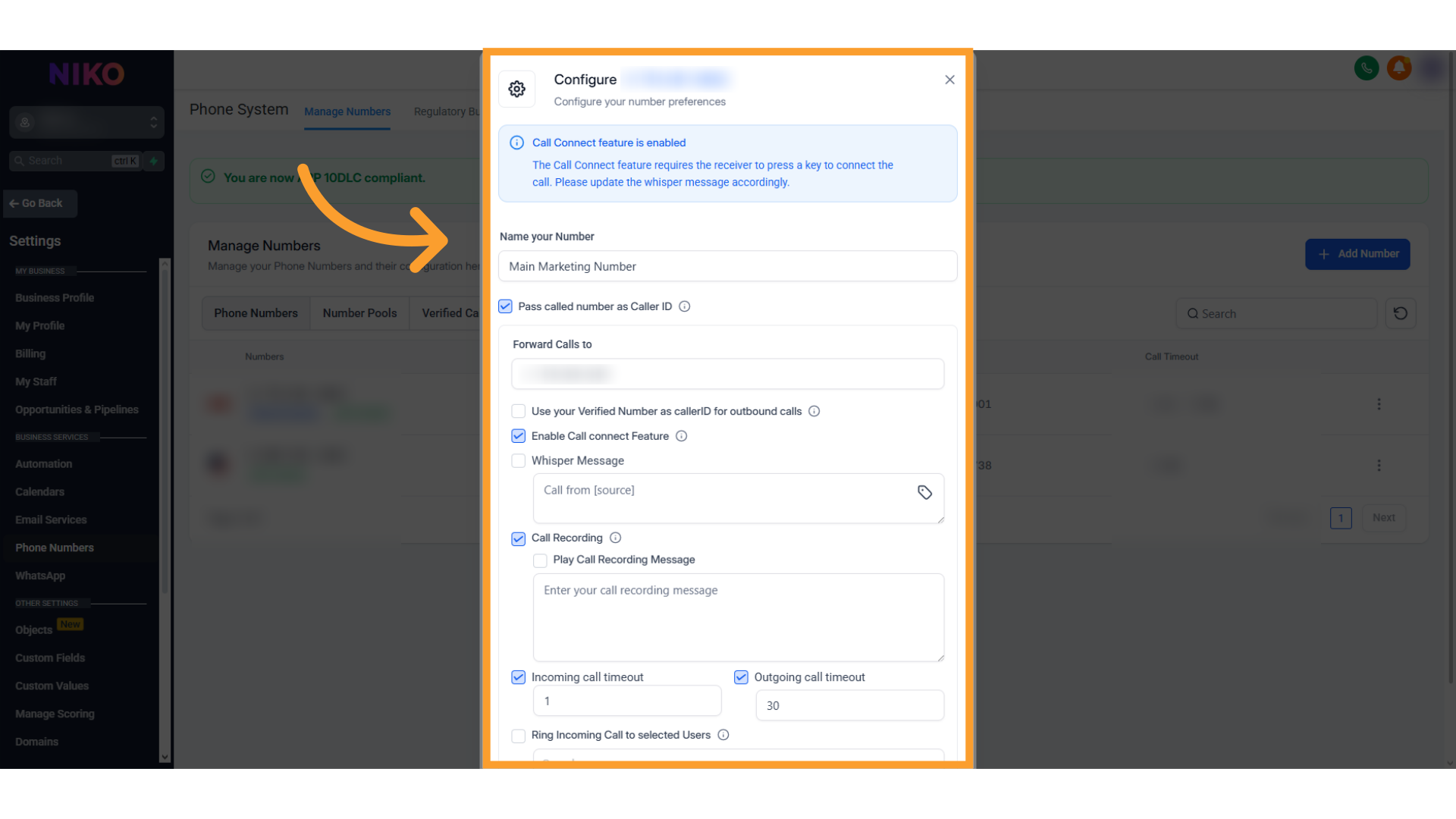 4. Enter your thinkrr.ai phone number (include the full number with the country code, e.g., +1 for the U.S.).
5. Double-check the number for accuracy.
6. Click Save or Update to apply the changes.
4. Enter your thinkrr.ai phone number (include the full number with the country code, e.g., +1 for the U.S.).
5. Double-check the number for accuracy.
6. Click Save or Update to apply the changes.
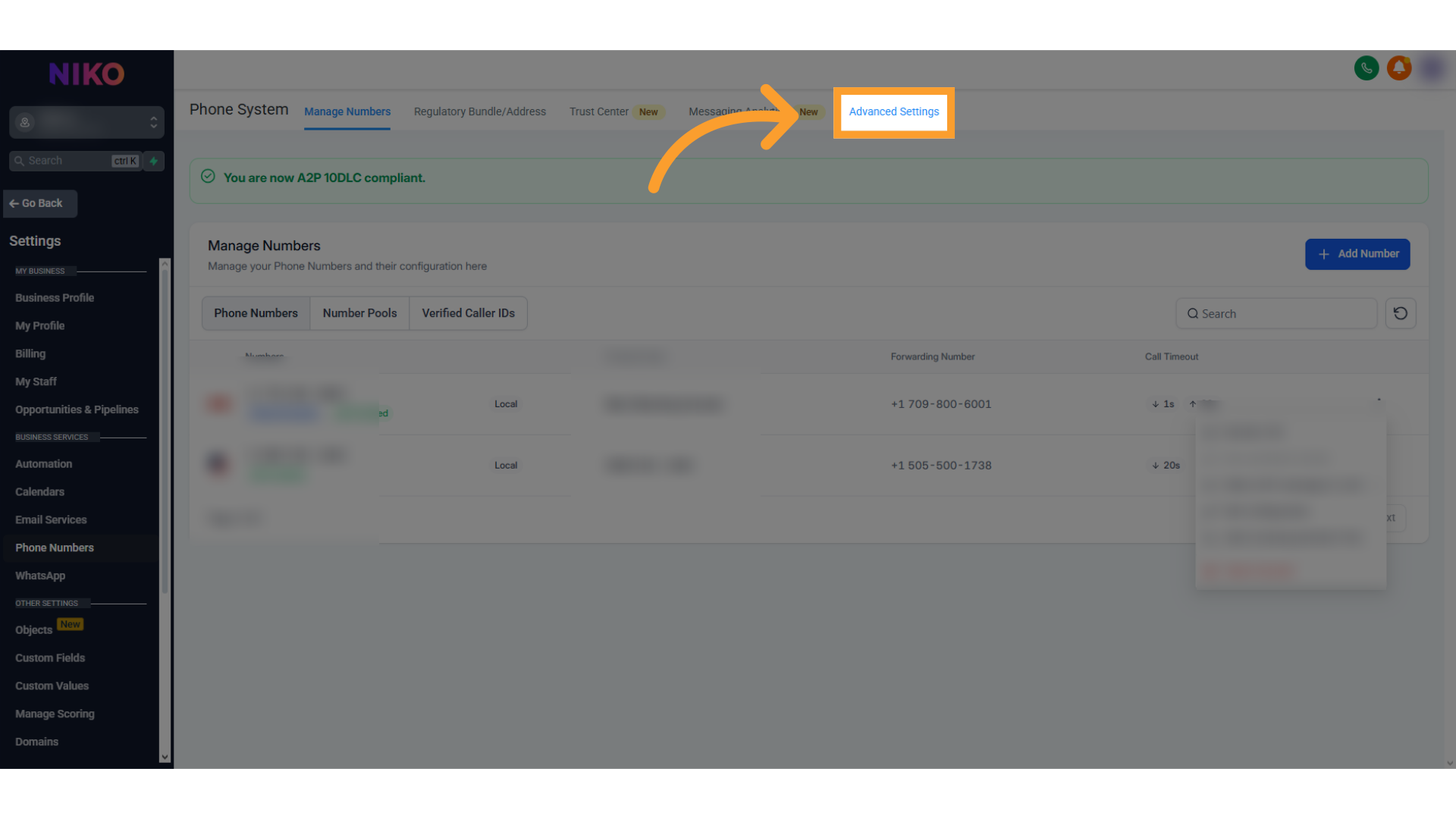 2. Select the **Voice Calls** tab and select **Inbound Call**.
 3. Adjust the following options in the **Inbound Call** configuration screen:
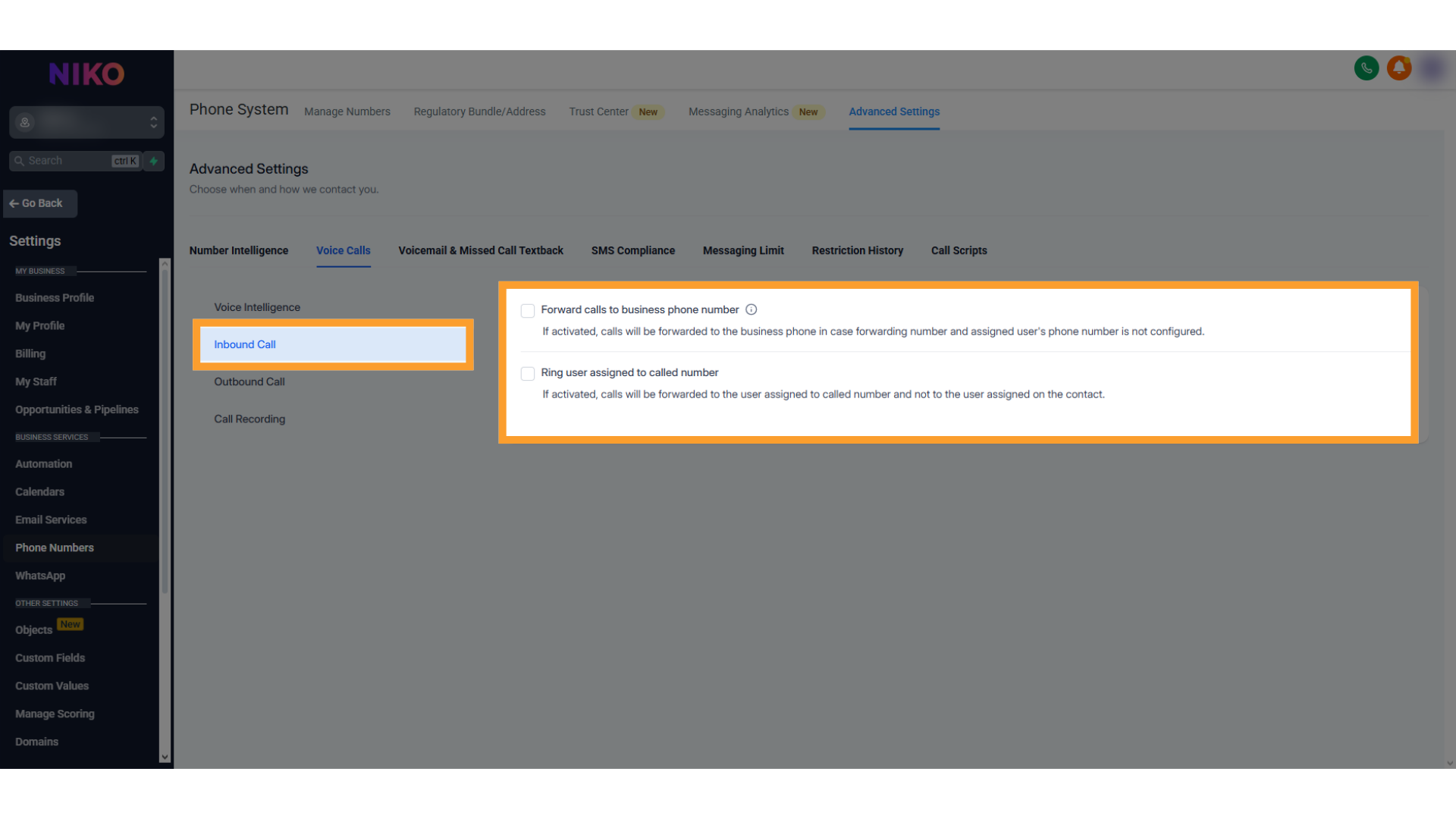 * **Forward Calls to Business Phone Number**: Turn Off to ensure calls forward directly to your thinkrr.ai number.
* **Ring User Assigned to Called Number**: Turn Off to prevent routing to a specific user instead of the thinkrr.ai number.
4. Additional settings to review:
* **Voicemail Settings**: Enable fallback voicemail for unanswered calls.
* **Call Recording**: Toggle recording for quality assurance or compliance.
* **Forward Calls to Business Phone Number**: Turn Off to ensure calls forward directly to your thinkrr.ai number.
* **Ring User Assigned to Called Number**: Turn Off to prevent routing to a specific user instead of the thinkrr.ai number.
4. Additional settings to review:
* **Voicemail Settings**: Enable fallback voicemail for unanswered calls.
* **Call Recording**: Toggle recording for quality assurance or compliance.
 5. Save your changes after configuring these settings.