> ## Documentation Index
> Fetch the complete documentation index at: https://docs.thinkrr.ai/llms.txt
> Use this file to discover all available pages before exploring further.
# Call History & Recording
> **Call History** in thinkrr provides a detailed record of all calls made and received, offering insights into call statuses, call outcomes, engagement levels, and critical details such as meeting schedules and contact information.
## Overview
Accessible through both the **Call History** section and campaign-specific **Contact** records, these logs are essential for tracking campaign performance and refining outreach strategies. Additionally, in GHL, **Call History** data can be seamlessly integrated into workflows or appended to contact details.
## Details
**Call History** is incredibly data-rich and was purpose built to give you valuable insight into the quality of a call, as well as empowering you to gather the outcome of the call at a glance.
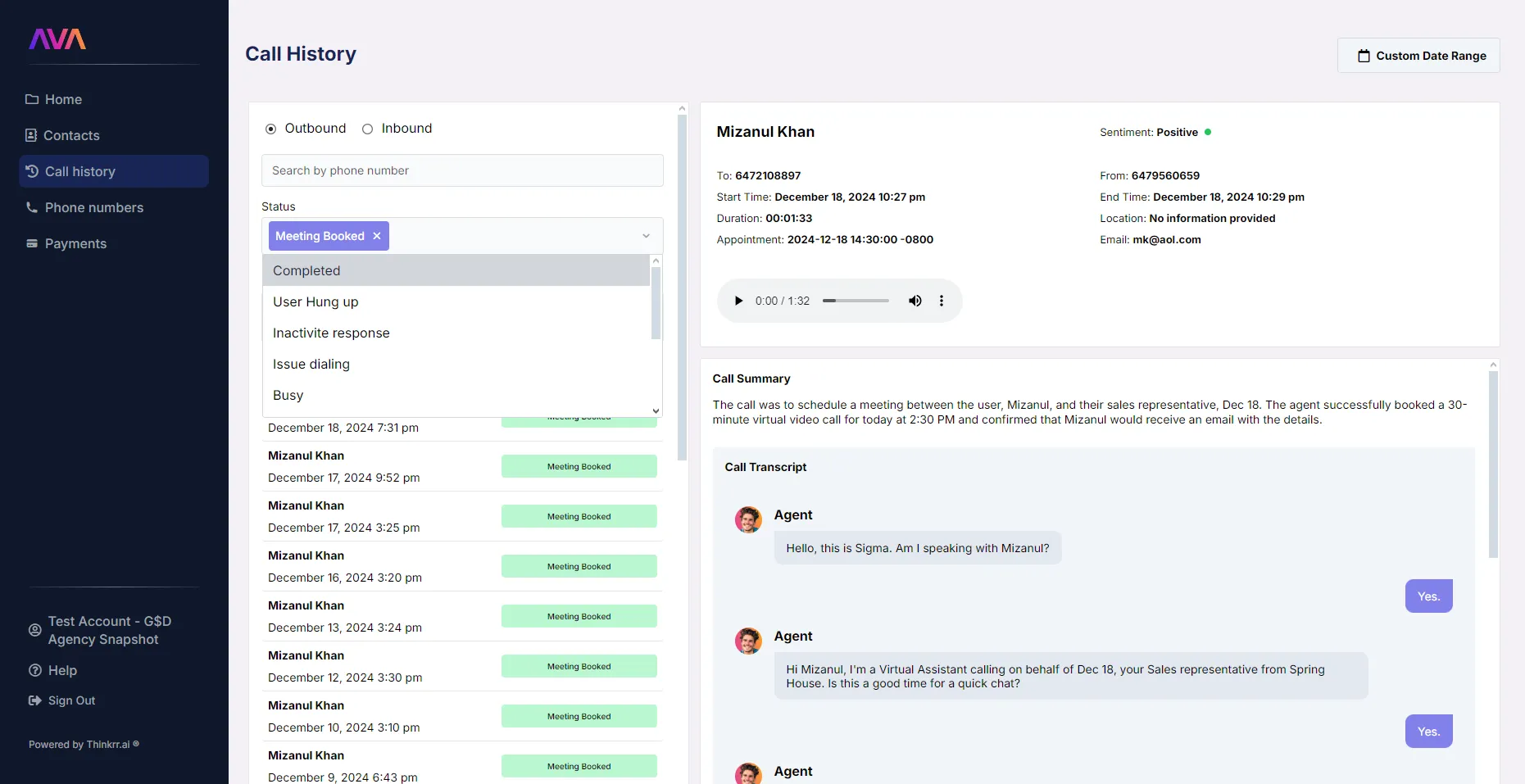
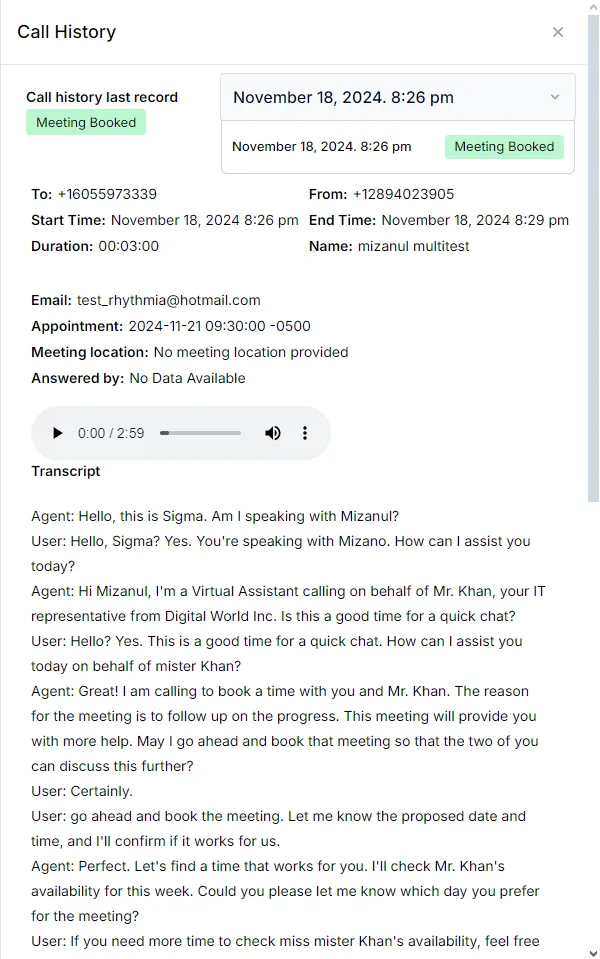
Each call log includes the following data points:
* **“To” Phone Number**: The recipient's phone number.
* **“From” Phone Number**: The outbound agent’s phone number.
* **Start Time & End Time**: Full date and time stamps (e.g., November 23, 2024, 8:15 PM).
* **Call Duration**: Total duration of the call.
* **Call Status**: The general result of the call.
* **Call Outcome**: A more specific layer of result that helps clarify what happened during the call.
* **Location**: Agreed meeting/appointment location (if applicable).
* **Appointment**: Date and time of the agreed appointment (if booked).
* **Email Address**: Contact’s email collected during the call.
* **Call Summary**: A brief summary of the call for quick reference.
* **Call Transcript**: Full transcription of the call for detailed review.
* **Call Recording**: An audio file of the call for playback.
* **Call Sentiment**: AI-analyzed mood or outcome of the call, categorized as “Positive”, “Neutral”, or “Negative”.
Each of these data points are individually accessible as values within the thinkrr Voice AI “Contact Called” trigger in GHL and may be used to inform conditional logic, such as filtering and segmenting by meeting location, call sentiment, call status, or call outcome, or for further processing e.g. feeding the call transcript into an LLM for further insights.
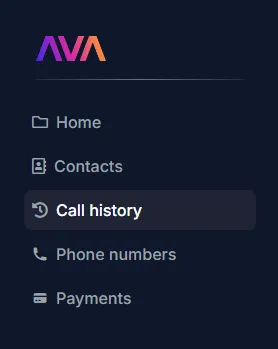
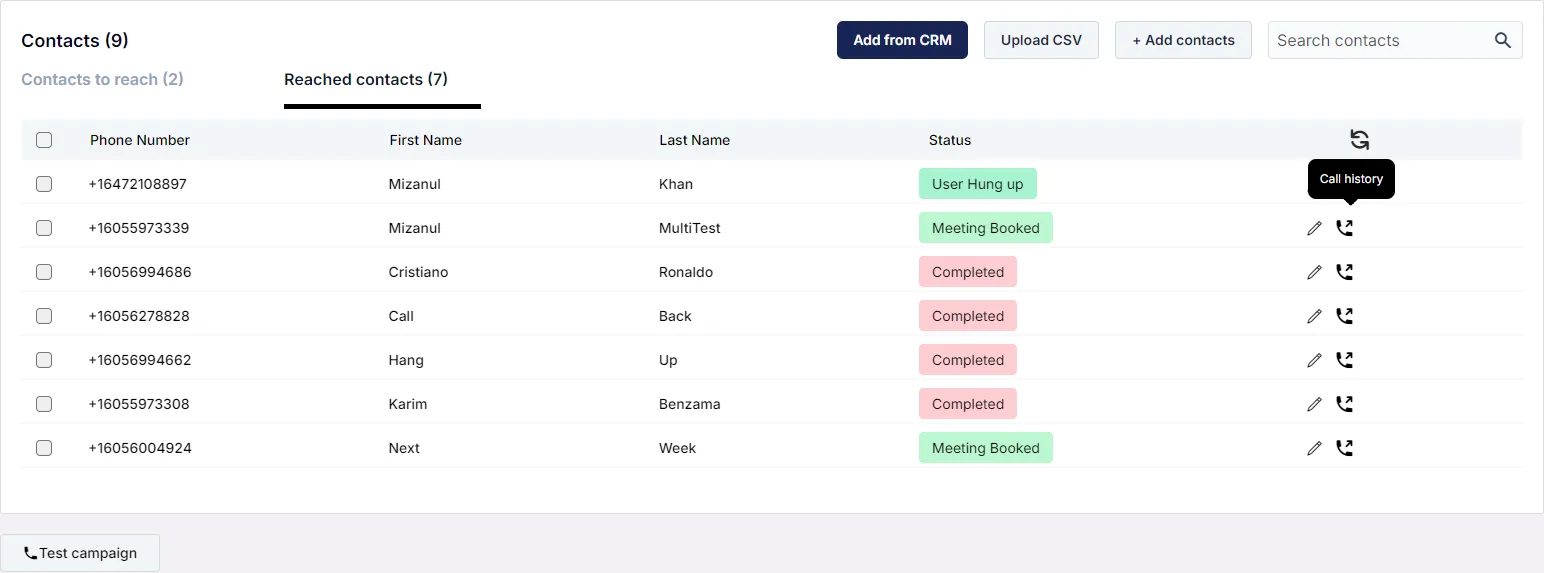
There are two areas within thinkrr where **Call History** is accessible: the dedicated **Call History** page, and the **Call History** drawer which is accessible through the **Contacts** section of the **Campaign** view.
## Inside thinkrr
* **Call History Page**
* **Call Type**: Filter by Inbound or Outbound calls.
* **Phone Number**: Search for specific contacts by their phone number.
* **Call Status**: Filter by status such as **Completed**, **User Hung Up**, **Meeting Booked**, or **Voicemail - Left Message**. For more details on available call statuses and their definitions, please refer to the [Call Statuses & Outcomes](/Call-Statuses) page.
* **Call Outcome**: Filter and review the more specific result associated with a call where applicable.
* **Inbound Agent**: For inbound calls, filter by the AI agent that answered the call.
* **Campaign-Specific Contact History**
* Call Status and Call Outcome.
* To/From Phone Numbers.
* Call Start and End Times.
* Call Duration.
* Recipient’s Name and Email Address.
* Appointment DateTime and Location (if booked).
* Call Recording and Transcript.
## Inside GHL
This video also contains information on [Call Status in GHL](https://docs.thinkrr.ai/Call-Statuses#how-can-i-use-call-status-as-a-trigger-in-my-ghl-automation-workflow).
All datapoints are available as custom values and outputs of the thinkrr Voice AI “Contact Called” trigger, which allows you to capture the information and save it wherever you wish, or use it as the basis of other conditional logic and workflows.
In the **Integration With GHL** help section we walked through a workflow that used the thinkrr Voice AI “Contact Called” trigger to capture the Call Sentiment and Call Summary and append them as notes to the contact. For more details on that, please review that section.
For now, we will simply provide a brief on where this data is and how to access it.
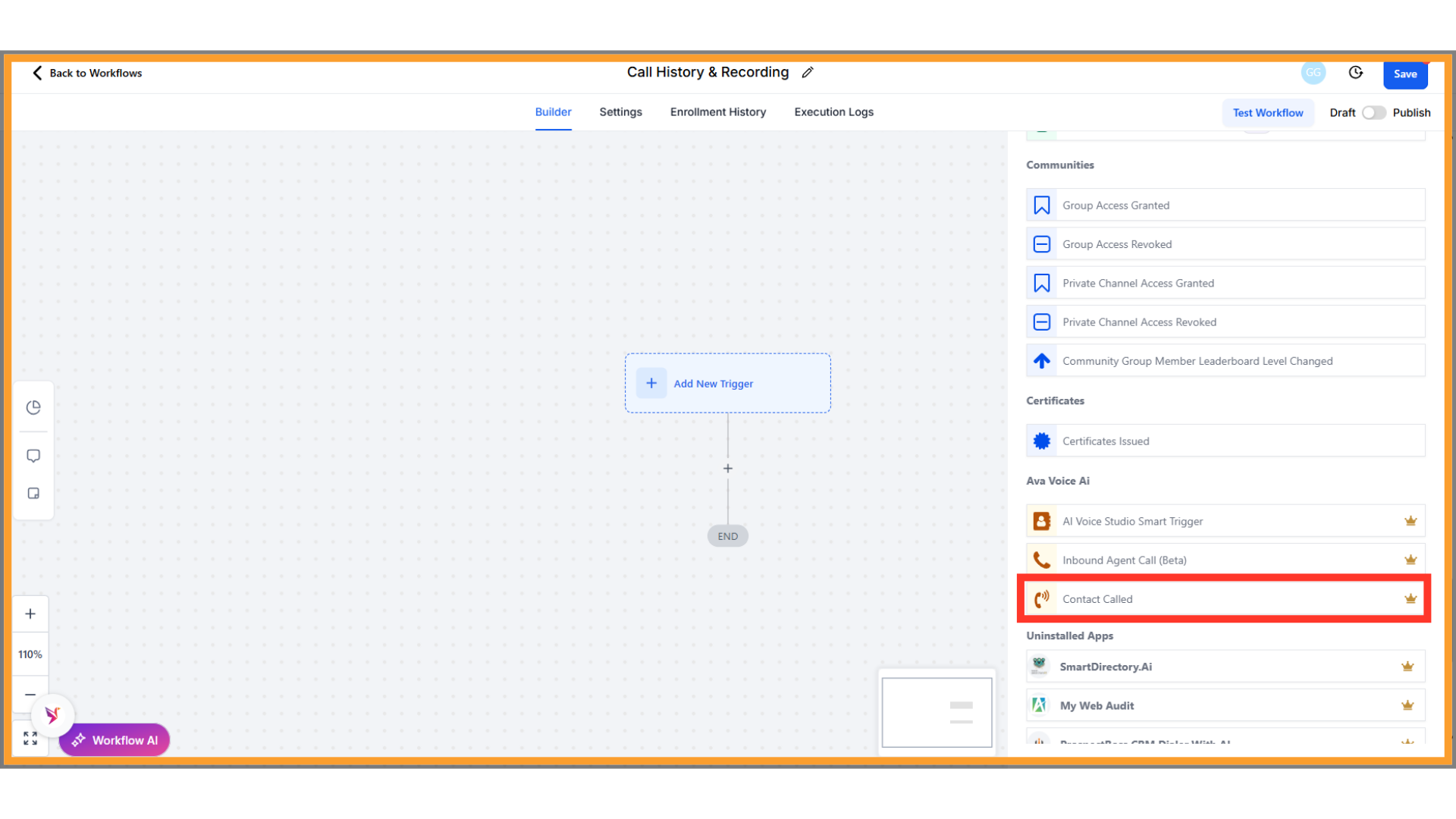
Create or open a workflow within GHL to access the thinkrr Voice AI actions and triggers.
Insert the “Contact Called” trigger into your workflow. This trigger gives you access to all thinkrr Voice AI call outputs.
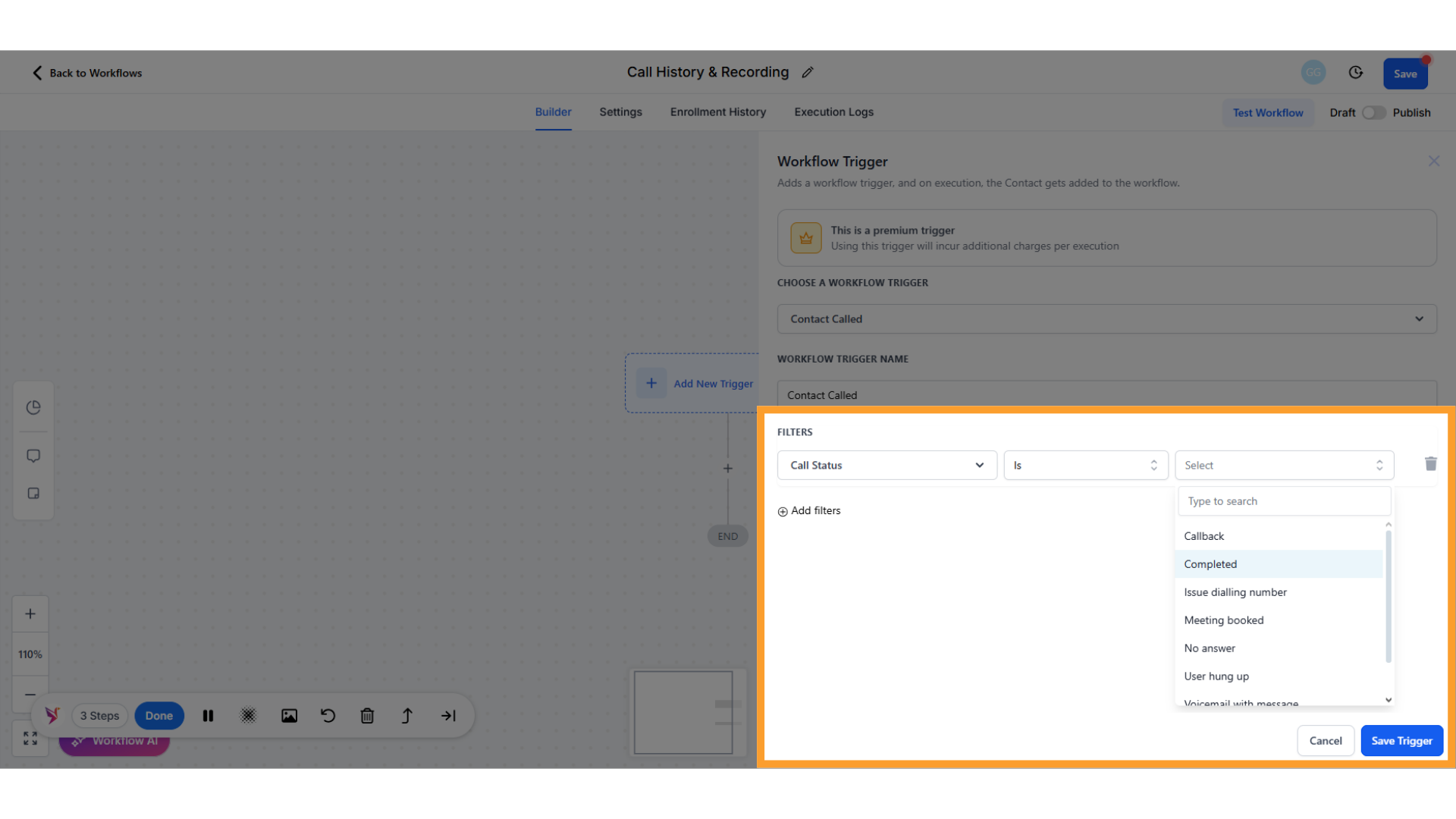
Configure the trigger for different kinds of call results, such as when a call is completed.
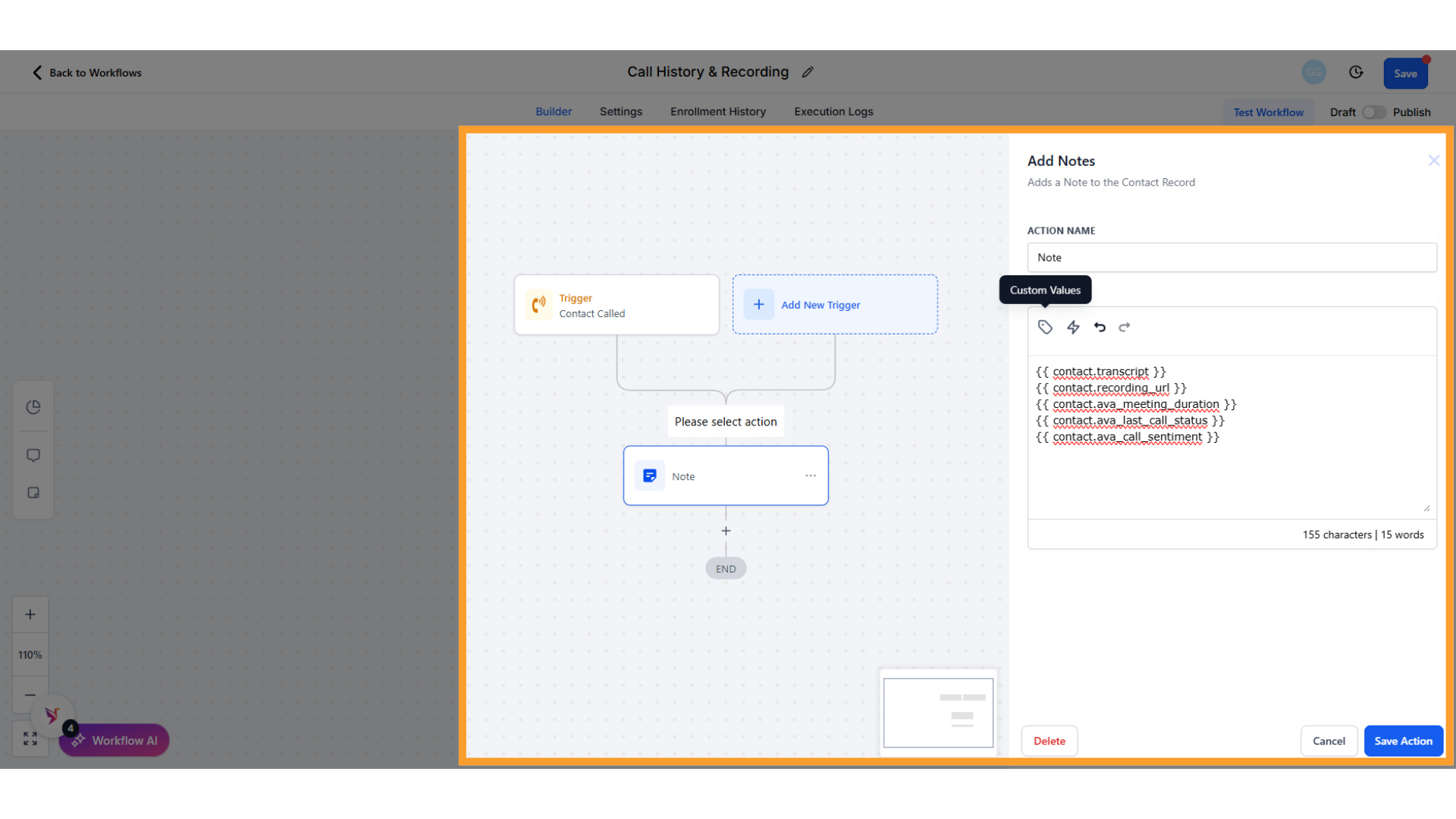
Add an action such as “Add Notes” to your workflow. Here, you can insert any custom values from the thinkrr call to store or use elsewhere in your automations.
For example, you might include the **Call Summary**, **Call Sentiment**, **Call Status**, **Call Outcome**, or additional fields like the **Call Transcript** or **Recording URL**. These values help enrich your contact record and enable downstream logic based on call content and results.
And that’s all there is to it. Now that you know where the **Call History** data is within GHL, you can build a variety of automations and workflows based off the call details and results of calls processed through thinkrr.
## FAQs & Troubleshooting
### General Questions
Call history is accessible in two locations:
* The **Call History** section, where you can filter by call type, phone number, call status, call outcome, or inbound AI agent.
* The **Contacts** section within campaigns, where a side drawer displays call logs for specific contacts.
Yes, inbound calls can be viewed in the **Call History** section, with additional filtering options by the inbound AI agent.
For now, **Call History** details will always be presented in English, regardless of any other languages spoken throughout the call.
However, if an AI Agent is configured to speak a language other than English, there will be an option in the Call Transcript to view the transcript in the original language of the call i.e. if an AI Agent is configured to speak in Spanish and the conversation is conducted in Spanish, the Call Transcript will display a translation in English, with the option to view the original transcript in Spanish.
### Data and Workflow Integration
All call history data, including call status, call outcome, summary, sentiment, recording, transcript, and more, is available in the payload of the **thinkrr Voice AI Contact Called** trigger.
Call history data can be:
* Pushed to external tools or CRMs.
* Used for conditional logic in workflows.
* Appended to contact details for enriched records.
### Testing and Functionality
Yes, call recordings are accessible in both the **Call History** section and the campaign-specific **Contacts** view, and the call recording URL is also available as an output of the trigger in GHL.
**Call Status** shows the general result of the call, while **Call Outcome** provides a more specific layer of detail to help clarify what happened during that interaction.
Call Sentiment is an AI-generated analysis of the call’s outcome, categorized as **Positive**, **Neutral**, or **Negative**, based on the interaction’s tone and context.
***
For additional questions or guidance, try using our [**Virtual Support Agent**](/Thinkrr-Support-Agent)! Available 24/7 to help resolve most issues quickly at [thinkrr.ai/support](https://thinkrr.ai/support).
If you still need assistance, visit our support site at [help.thinkrr.ai](http://help.thinkrr.ai) and submit a [Ticket](/Support-Ticket-System) or contact our team directly at [hello@thinkrr.ai](mailto:hello@thinkrr.ai).
 For example, you might include the **Call Summary**, **Call Sentiment**, **Call Status**, **Call Outcome**, or additional fields like the **Call Transcript** or **Recording URL**. These values help enrich your contact record and enable downstream logic based on call content and results.