> ## Documentation Index
> Fetch the complete documentation index at: https://docs.thinkrr.ai/llms.txt
> Use this file to discover all available pages before exploring further.
# Scheduling Calls
> Learn how to schedule calls in both thinkrr and GHL, using campaign settings and workflow automation.
## Overview
Scheduling a call is one of the features within your campaign settings that allows customizable dates and additional planning when deploying your outbound projects. Since the scheduling option exists within campaign settings, you can have the same project running under different campaigns, each with its own timing.
If you want to learn how to create and manage outbound projects, visit the **"Creating an Outbound Project"** section. For campaign features and setup, refer to the **"Project Campaigns"** section.
## How to Schedule a Call
* From the Home screen, either:
* Click **Add New Project** to create a new outbound project, or
* Select an existing outbound project from your list.
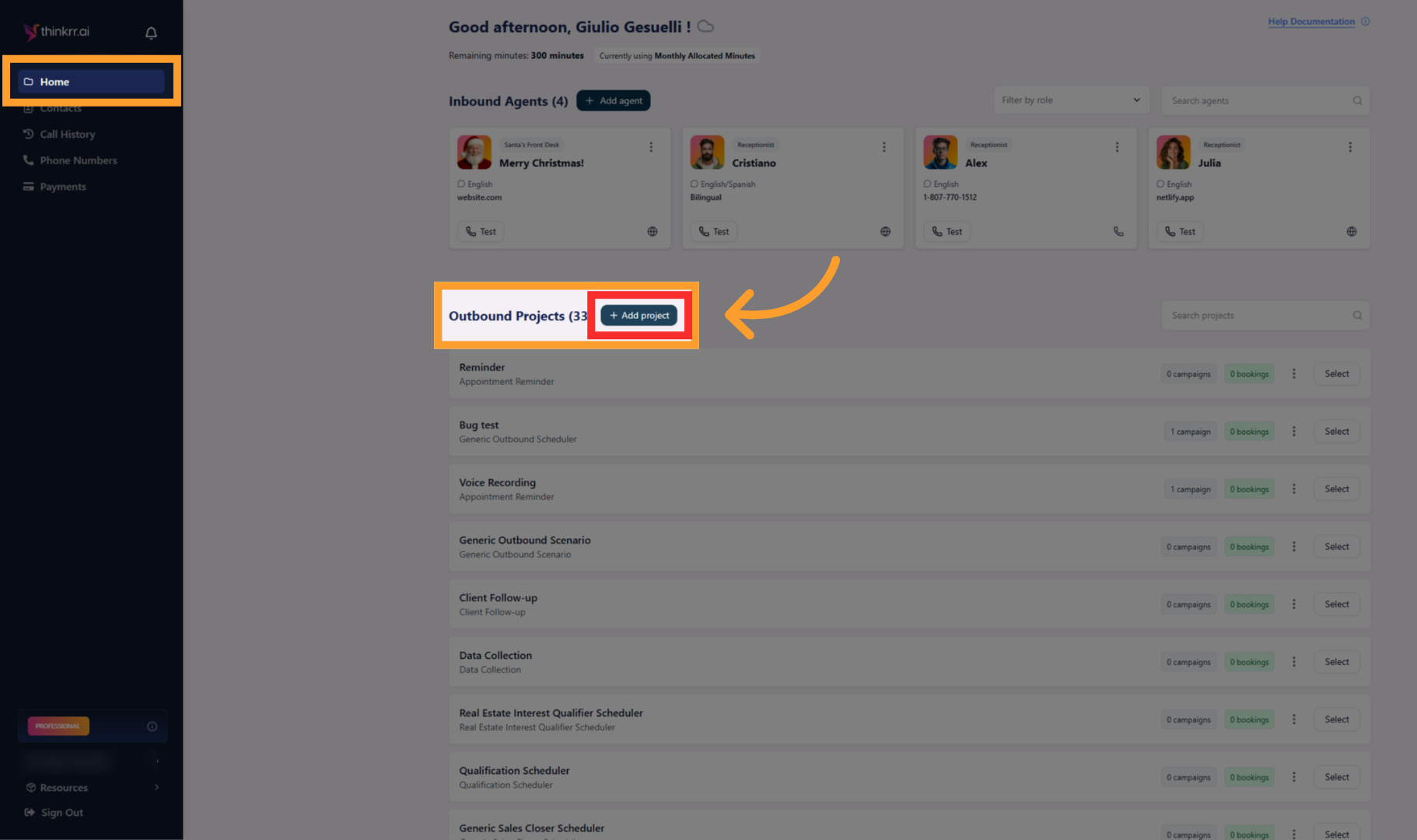 * Once opened, you’ll be inside the project workspace.
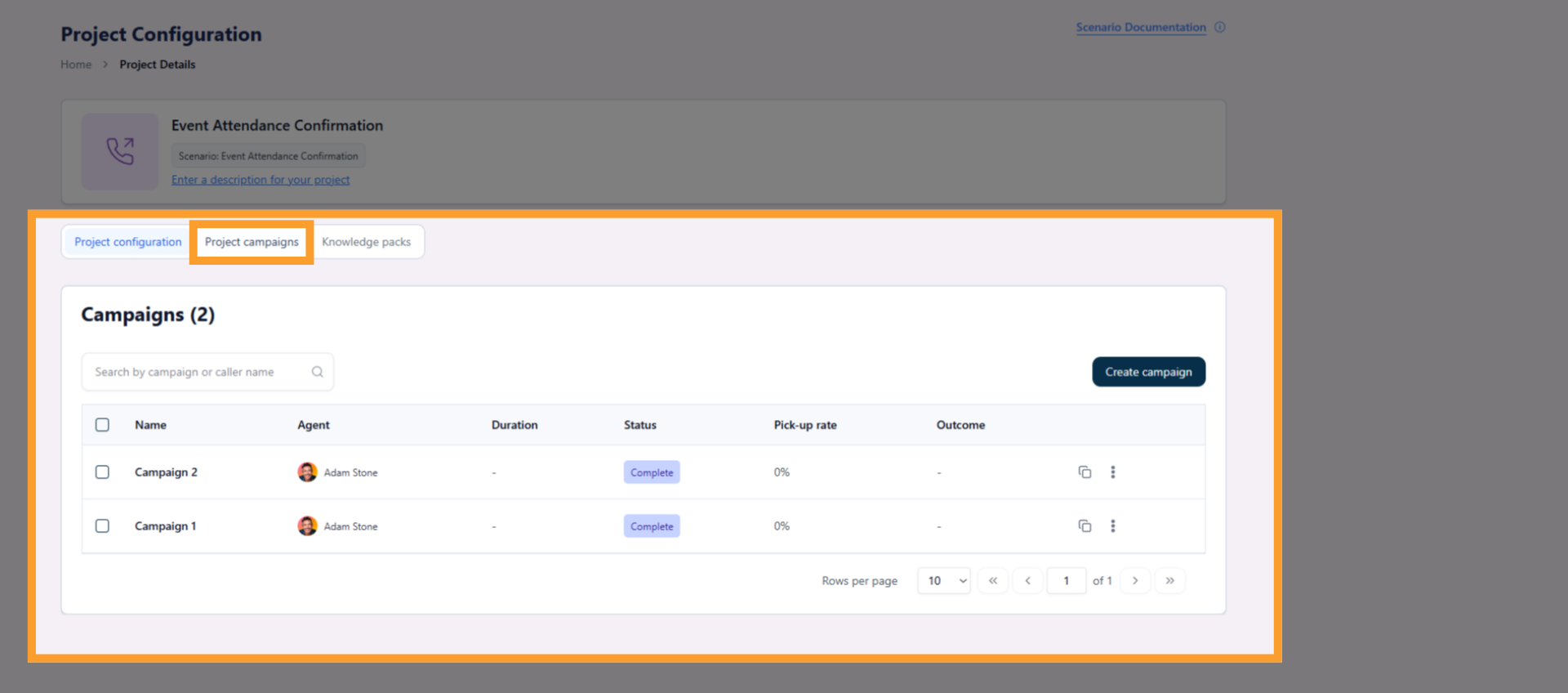
* Inside the project, click the **Project Campaigns** tab.
* This is where all campaigns for the project are created and managed.
* Once opened, you’ll be inside the project workspace.
* Inside the project, click the **Project Campaigns** tab.
* This is where all campaigns for the project are created and managed.
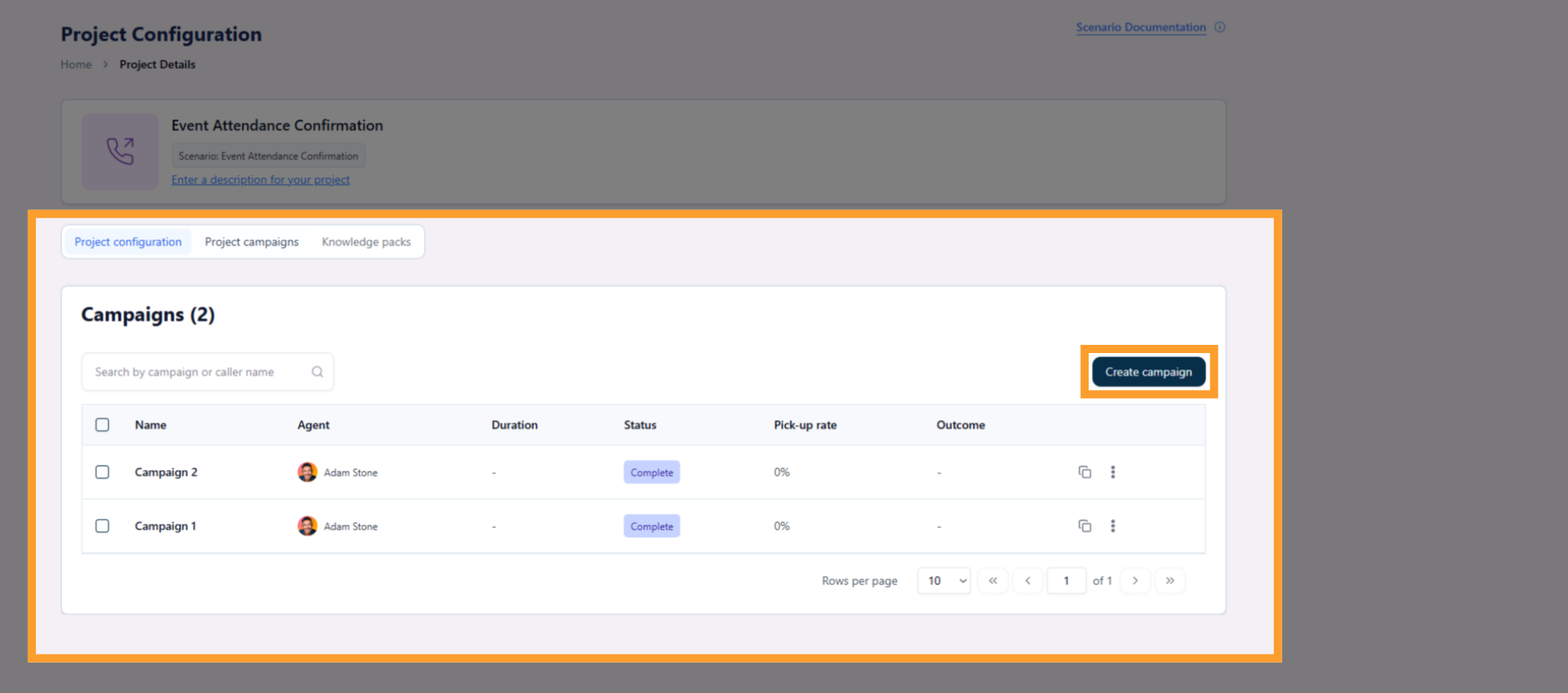
 * Either:
* Click **Create Campaign** to add a new campaign, or
* Click an existing campaign to edit it.
* Either:
* Click **Create Campaign** to add a new campaign, or
* Click an existing campaign to edit it.
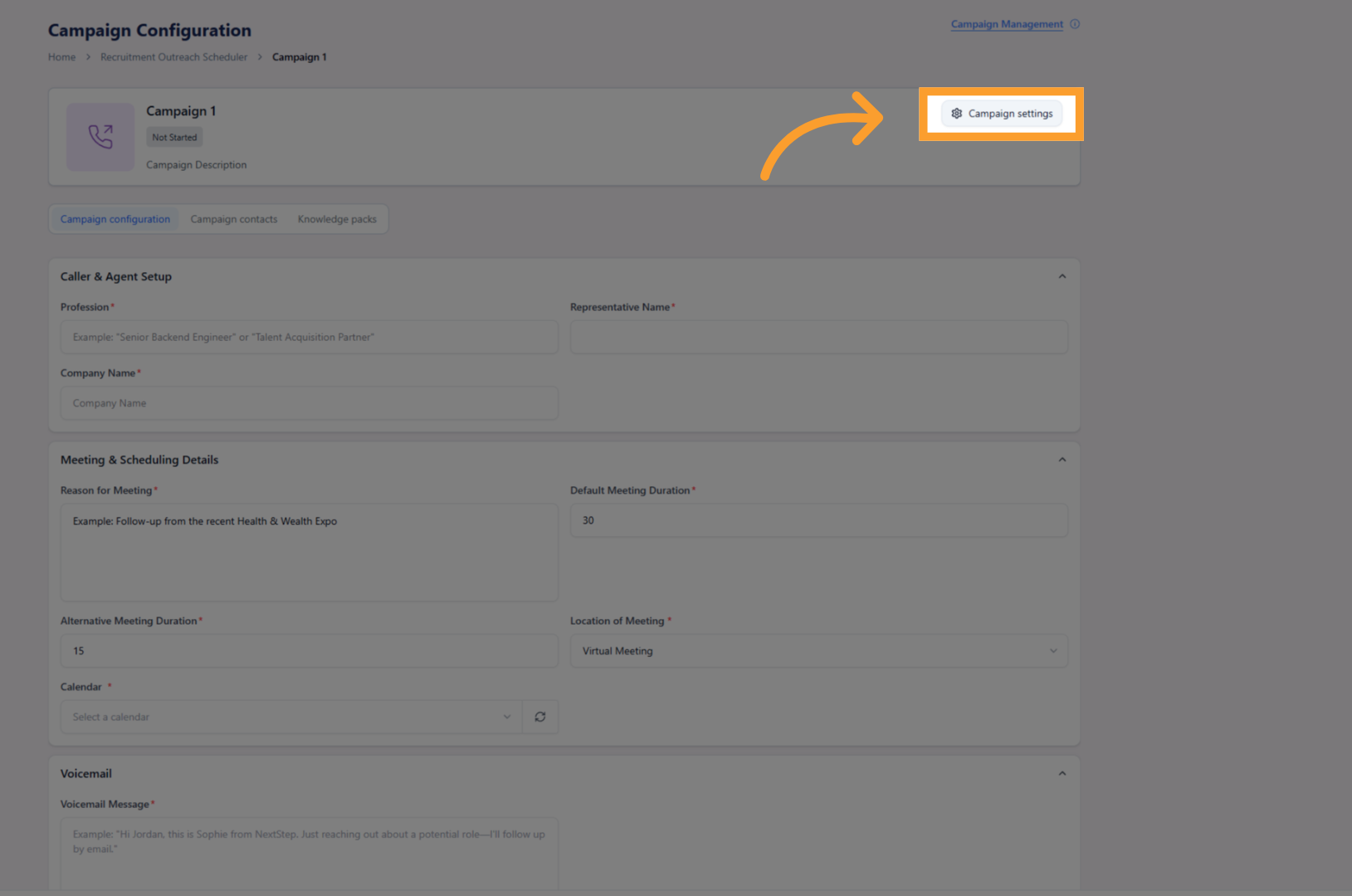
 * Opening a campaign takes you into the **campaign workspace**, which includes:
* **Campaign Configuration**
* **Contacts**
* **Knowledge Packs**
These tabs allow you to override project-level settings and define which contacts the campaign will call.
* From inside the campaign workspace, click **Campaign Settings** in the top-right corner.
* Opening a campaign takes you into the **campaign workspace**, which includes:
* **Campaign Configuration**
* **Contacts**
* **Knowledge Packs**
These tabs allow you to override project-level settings and define which contacts the campaign will call.
* From inside the campaign workspace, click **Campaign Settings** in the top-right corner.
 * This opens the Campaign Settings panel, which contains four tabs:
* **Core Settings** – agent identity and voice selection
* **Scheduling** – when and how long calls should run
* **Call Settings** – call behavior and handling rules
* **Voice Settings** – responsiveness and interruption behavior
* Click the **Scheduling** tab inside Campaign Settings.
* This opens the Campaign Settings panel, which contains four tabs:
* **Core Settings** – agent identity and voice selection
* **Scheduling** – when and how long calls should run
* **Call Settings** – call behavior and handling rules
* **Voice Settings** – responsiveness and interruption behavior
* Click the **Scheduling** tab inside Campaign Settings.
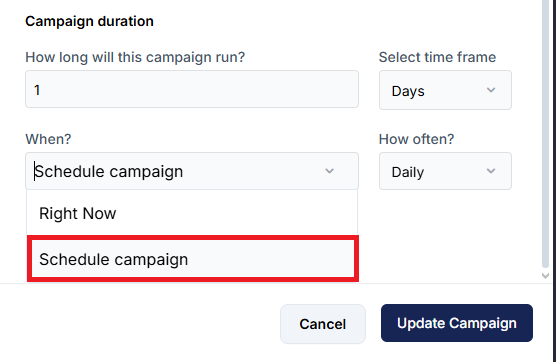
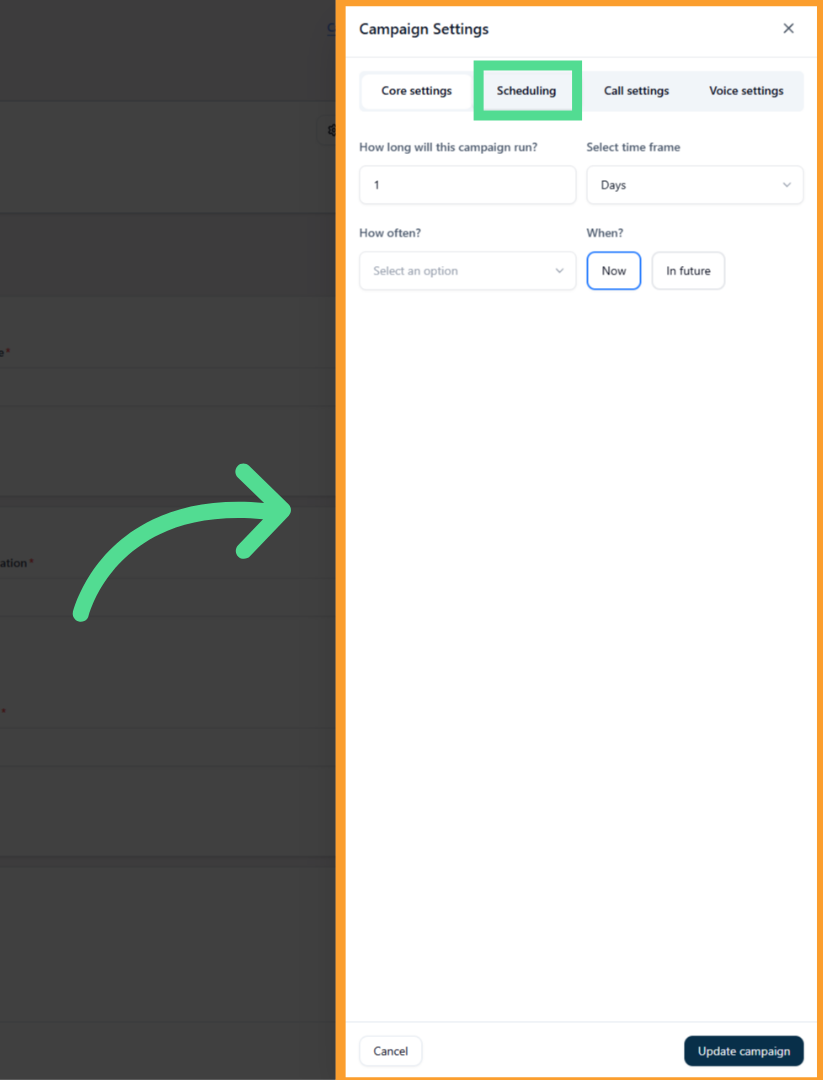 * Under **When?**:
* Select '**In Future'**
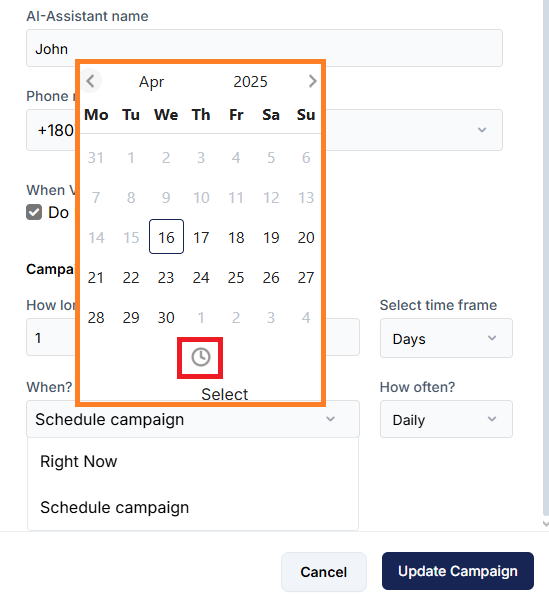
* Choose a start date from the calendar
* Under **When?**:
* Select '**In Future'**
* Choose a start date from the calendar
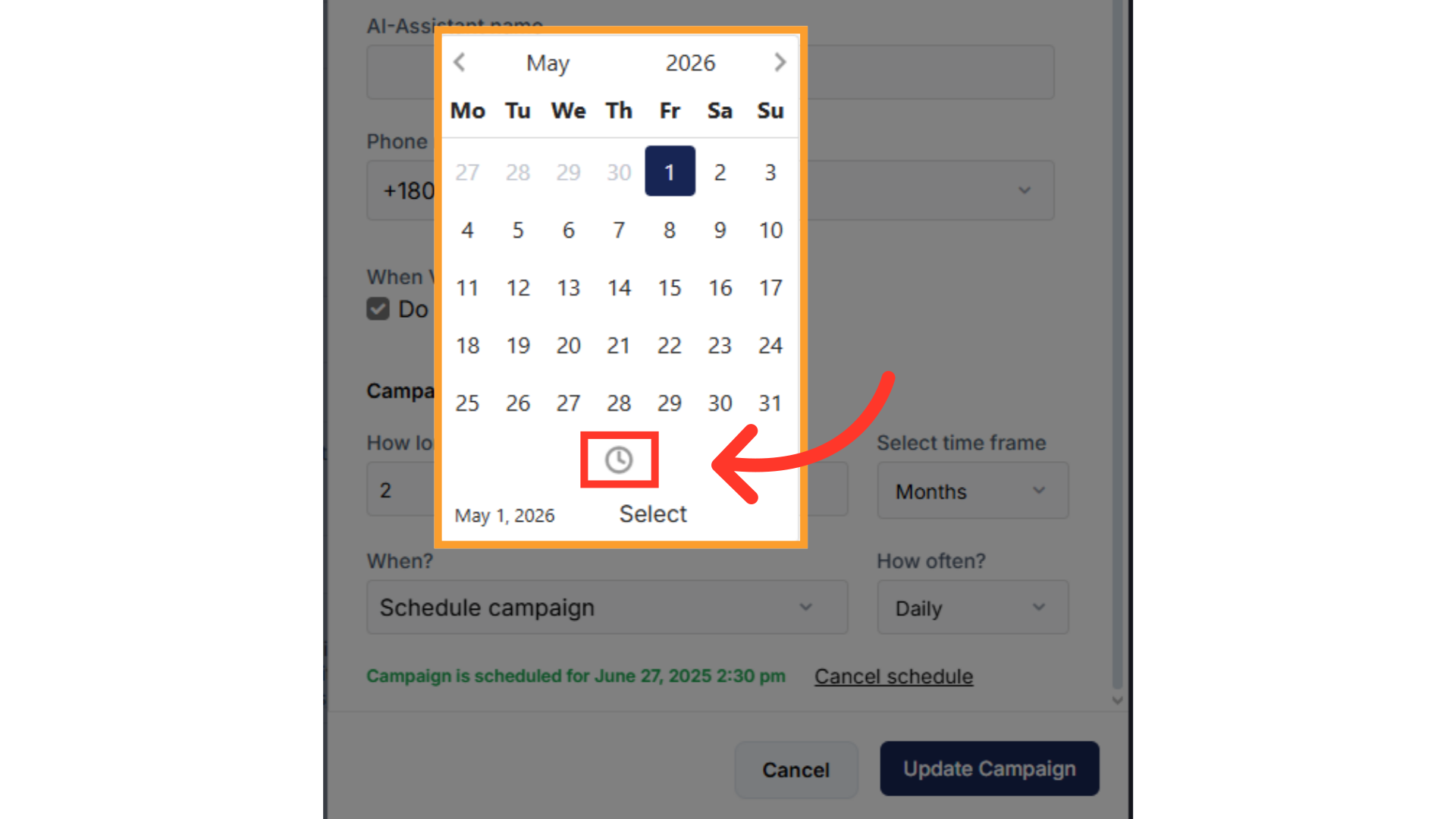
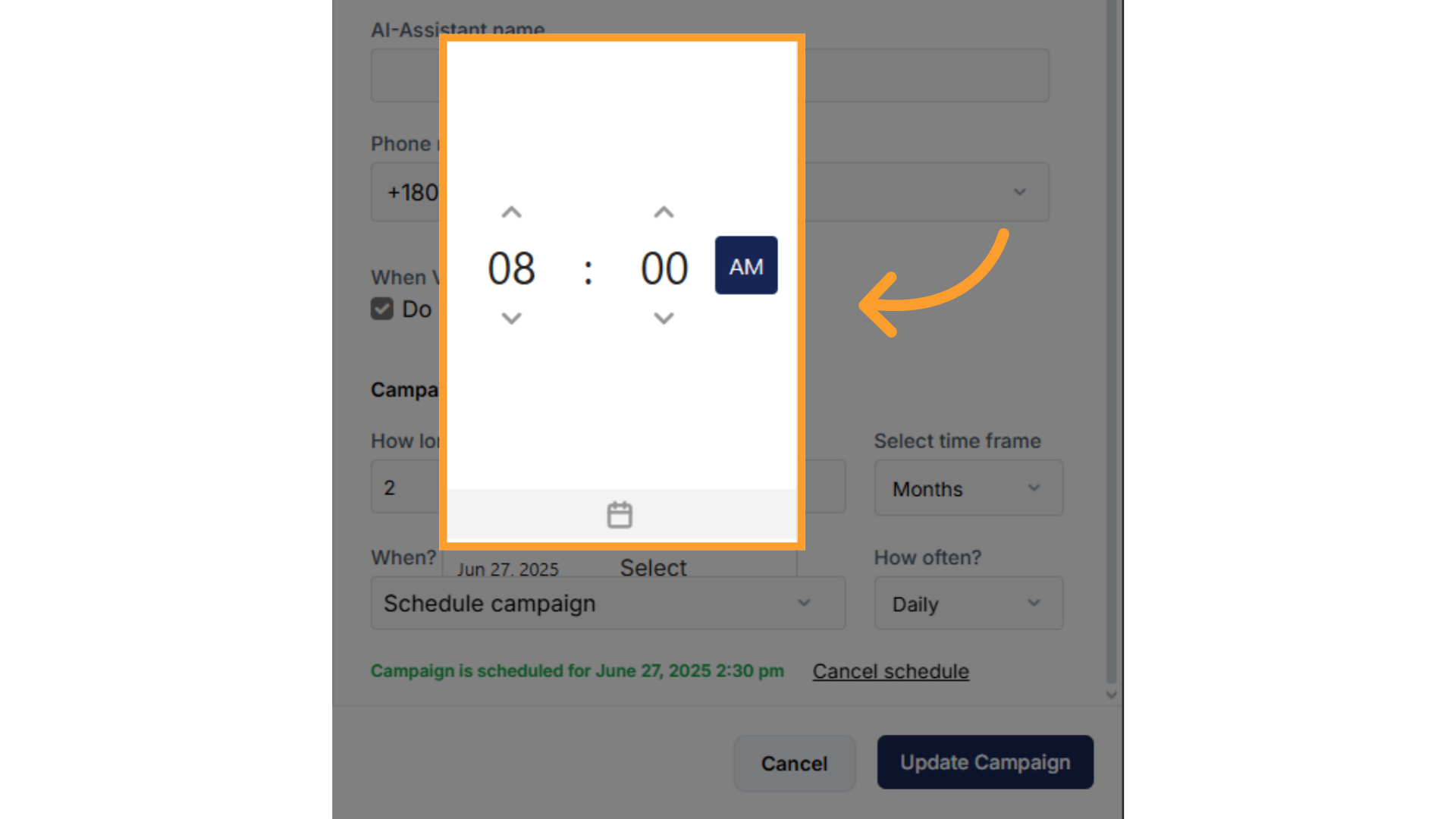
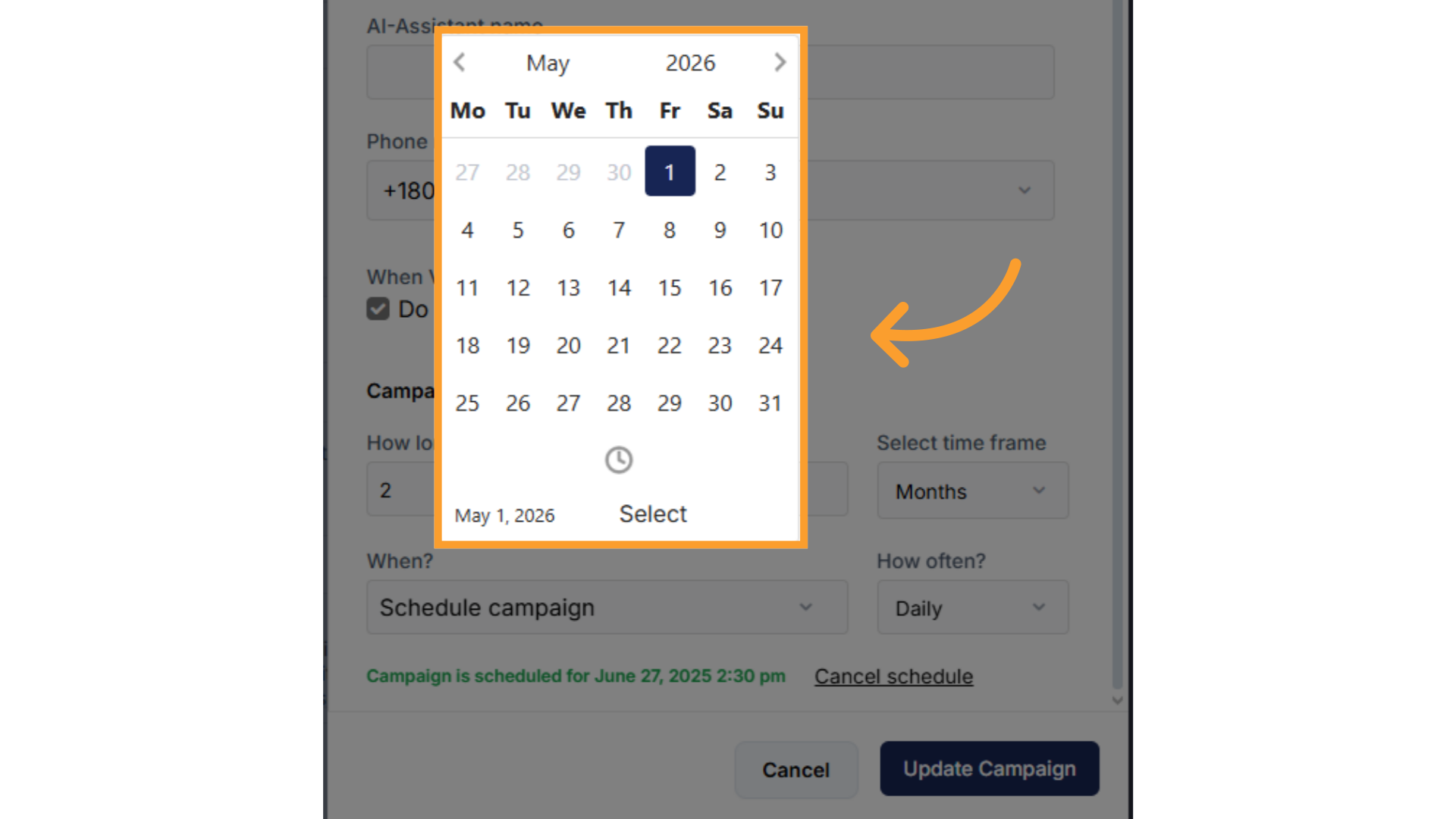 * Select a start time using the clock picker.
 * Under **How Long**:
* Define how long the campaign should run (hours, days, or months)
* Under **How Often**:
* Define how frequently calls should occur
* Under **How Long**:
* Define how long the campaign should run (hours, days, or months)
* Under **How Often**:
* Define how frequently calls should occur
 **Example:**
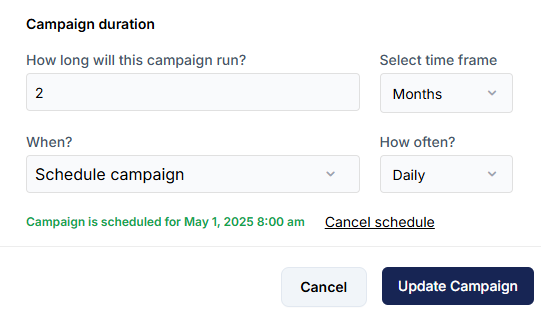
* Run daily for 2 months starting on May 1st at 8:00 AM.
**Example:**
* Run daily for 2 months starting on May 1st at 8:00 AM.
 * After scheduling:
* Close Campaign Settings
* Return to the campaign view
* Click **Execute** to start the campaign based on the defined schedule
## Scheduling Calls in GHL
* Go to the **Automations** tab in your GHL account.
* Either:
* Click **Create Workflow** to make a new one, or
* Select an existing workflow that includes a **Dynamic Outbound Call**.
* For manual execution:
* Ensure the workflow does **not** have a trigger.
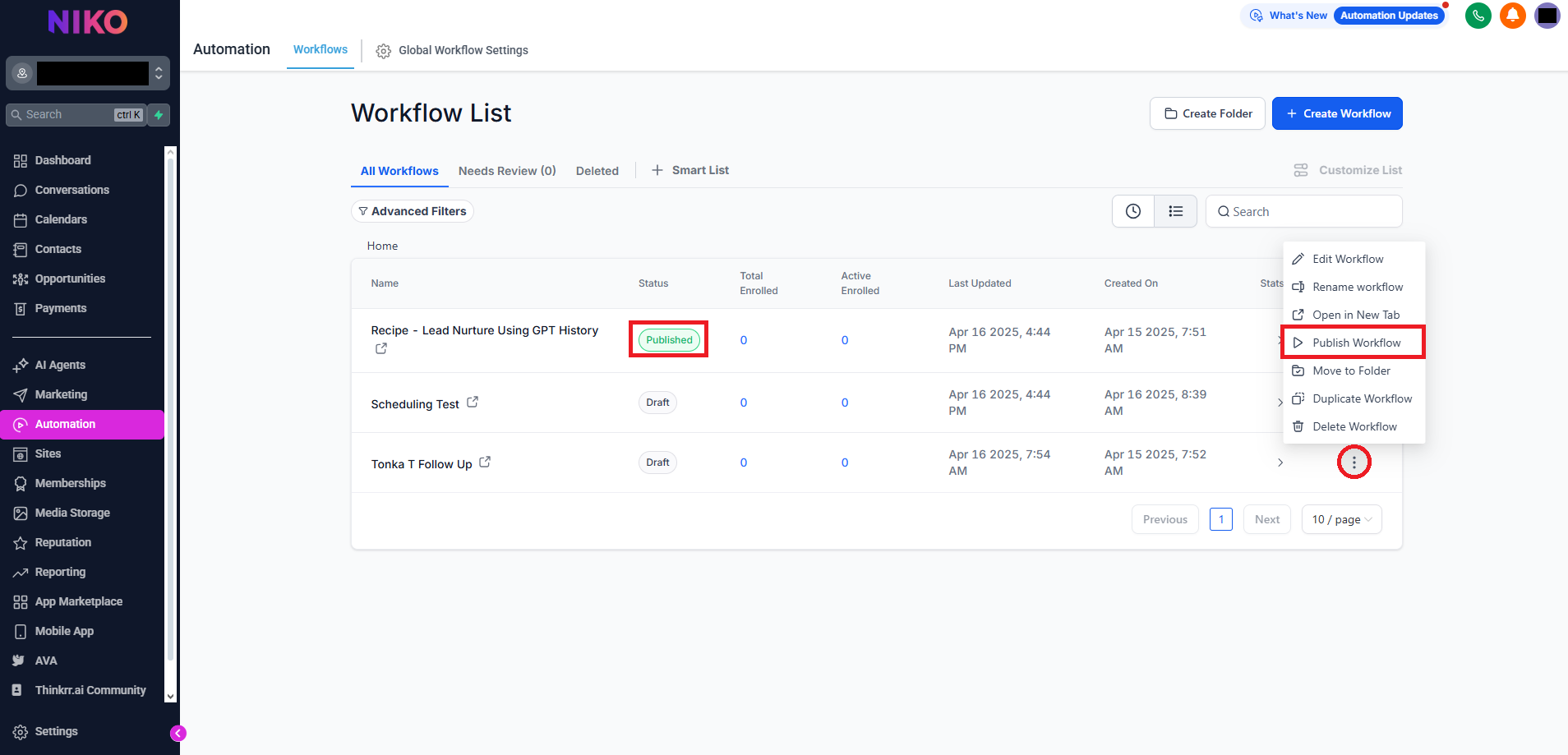
* Make sure the workflow is **Published**, not in Draft mode.
* To publish:
* Click the **three dots** icon on the workflow.
* Select **Publish Workflow** from the dropdown menu.
* If you’re unsure how to set this up, refer to: [**Integrations with GHL**](/Integration-With-GHL-4d0c65d7e323414997e27fdc7c9403a1) > **thinkrr in GHL**
* After scheduling:
* Close Campaign Settings
* Return to the campaign view
* Click **Execute** to start the campaign based on the defined schedule
## Scheduling Calls in GHL
* Go to the **Automations** tab in your GHL account.
* Either:
* Click **Create Workflow** to make a new one, or
* Select an existing workflow that includes a **Dynamic Outbound Call**.
* For manual execution:
* Ensure the workflow does **not** have a trigger.
* Make sure the workflow is **Published**, not in Draft mode.
* To publish:
* Click the **three dots** icon on the workflow.
* Select **Publish Workflow** from the dropdown menu.
* If you’re unsure how to set this up, refer to: [**Integrations with GHL**](/Integration-With-GHL-4d0c65d7e323414997e27fdc7c9403a1) > **thinkrr in GHL**
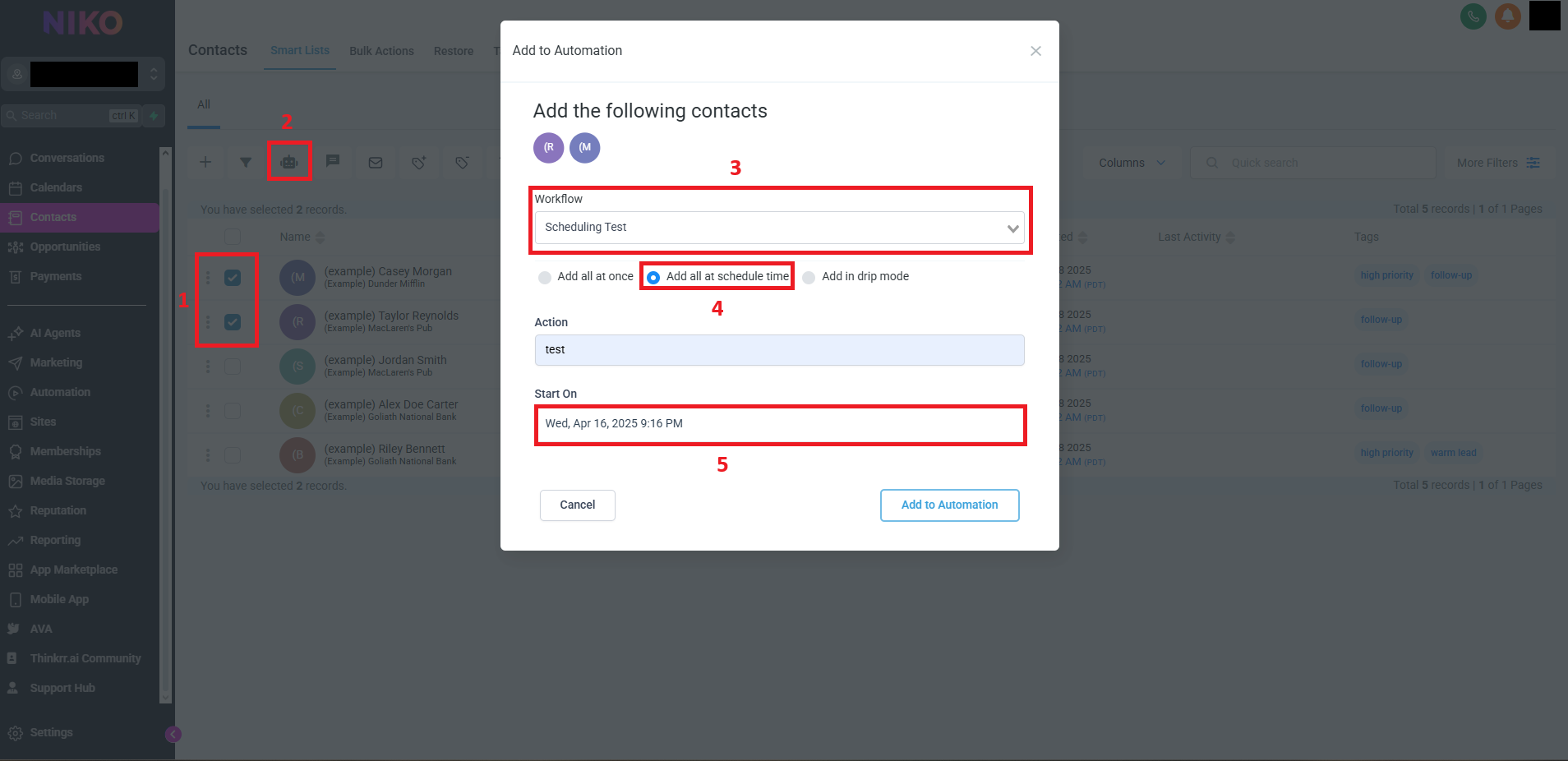
 * Navigate to the **Contacts** section in GHL.
* Select the contacts you want to include in the outbound project.
* Click **Add to Automation**.
* In the **Add to Automation** window:
* Select the desired **Published Workflow** from the list.
* Choose how to add the contacts:
* **Add All at Scheduled Time**:
* Allows you to define a start date and time.
* Optionally, fill out the **Action Description** field.
* **Add in Drip Mode** (for large volumes):
* Includes all options above, plus:
* **Batch Quantity** – how many contacts to call per batch.
* **Repeat After** – time delay between batches.
* **Send On** – days of the week to process batches.
* **Process Between** – define a time range for calling.
* Navigate to the **Contacts** section in GHL.
* Select the contacts you want to include in the outbound project.
* Click **Add to Automation**.
* In the **Add to Automation** window:
* Select the desired **Published Workflow** from the list.
* Choose how to add the contacts:
* **Add All at Scheduled Time**:
* Allows you to define a start date and time.
* Optionally, fill out the **Action Description** field.
* **Add in Drip Mode** (for large volumes):
* Includes all options above, plus:
* **Batch Quantity** – how many contacts to call per batch.
* **Repeat After** – time delay between batches.
* **Send On** – days of the week to process batches.
* **Process Between** – define a time range for calling.
 * After scheduling your contacts:
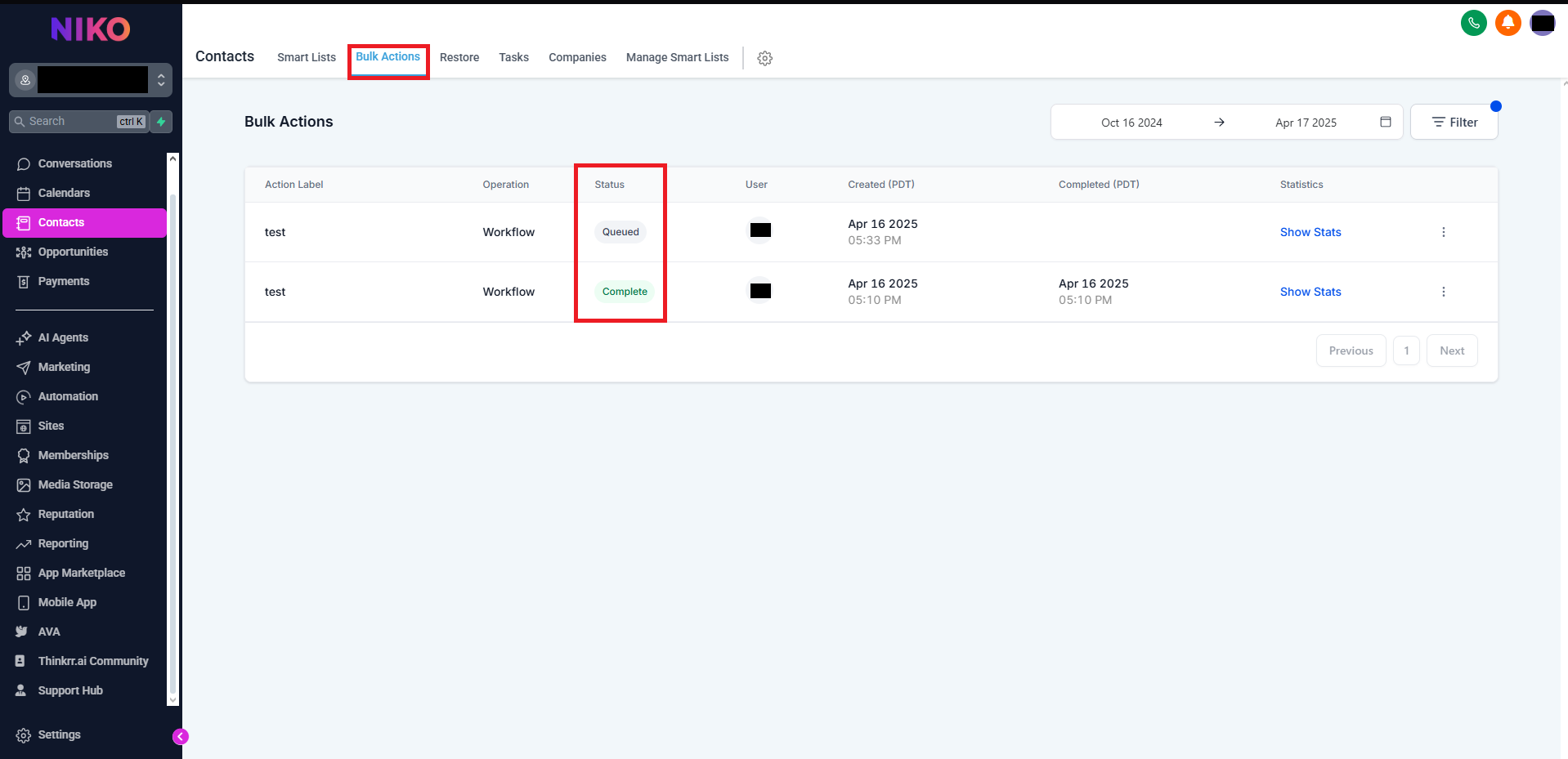
* Click **Add to Automation** to confirm.
* You will be redirected back to the **Contacts** section under the **Bulk Actions** tab.
* Here, you can:
* Monitor the status of the bulk action.
* Check whether contacts were successfully added to the workflow.
* Verify execution times and resolve any issues if needed.
* After scheduling your contacts:
* Click **Add to Automation** to confirm.
* You will be redirected back to the **Contacts** section under the **Bulk Actions** tab.
* Here, you can:
* Monitor the status of the bulk action.
* Check whether contacts were successfully added to the workflow.
* Verify execution times and resolve any issues if needed.
 ## Additional Scheduling Considerations
Effective call scheduling goes beyond simply selecting a time and date, it requires aligning system settings with real-world outreach strategy. Regardless of whether you're using thinkrr's campaign settings or GHL's workflow automations, a few strategic considerations can significantly impact results.
* **Time Zone Awareness**: Always schedule calls according to the time zone of your target audience. Misalignment here can lead to missed calls or low engagement.
* **Client Availability**: Consider when your ideal customers are most likely to answer. For B2B, weekday mornings may perform better; for B2C, evenings or weekends might be ideal.
* **System Load Management**: When scheduling high-volume campaigns, spread out calls using frequency or batch pacing settings to avoid system overload or delivery issues.
* **Platform-Specific Timing Logic**: In thinkrr, scheduling is handled within each campaign's configuration. In GHL, Drip Mode allows finer control over frequency, days, and call time windows.
* **Edit Limitations**: Once a schedule is active (e.g., campaigns are executed or contacts are added to automation), most platforms lock those parameters. Plan carefully before launching.
By planning your campaign timing thoughtfully and configuring platform tools correctly, you can improve connection rates, reduce retries, and maintain a smooth user experience across outbound projects.
## FAQs & Troubleshooting
### General Questions
Scheduling in GHL relies on defining the start date, time, and frequency (e.g., daily, weekly) when enrolling contacts into a published workflow. You can adjust batch sizes and scheduling windows using Drip Mode for large volumes.
No, once contacts are enrolled and scheduled, the campaign will execute as defined in the workflow. You cannot modify the schedule for contacts already in the queue.
### Configuration
Modifications to a workflow after contacts are added will not affect those contacts in the queue. You would need to remove and re-add contacts to apply changes to their schedule.
Scheduling in GHL is subject to system processing limits, especially when working with large batches. It is recommended to monitor workflow performance for large campaigns to ensure smooth execution.
### Usage and Results
Ensure that the workflow is published and that all scheduling parameters (start time, frequency, and batch sizes) are set correctly. Additionally, check if there are any network issues or invalid contact numbers.
You can track the status of scheduled calls within the **Campaign History** or **Call Analytics** sections of the GHL dashboard. Each entry includes the timestamp, scheduled time, status, and related campaign data.
***
For additional questions or guidance, try using our [**Virtual Support Agent**](/Thinkrr-Support-Agent)! Available 24/7 to help resolve most issues quickly at [thinkrr.ai/support](https://thinkrr.ai/support).
If you still need assistance, visit our support site at [help.thinkrr.ai](http://help.thinkrr.ai) and submit a [Ticket](/Support-Ticket-System) or contact our team directly at [hello@thinkrr.ai](mailto:hello@thinkrr.ai).
## Additional Scheduling Considerations
Effective call scheduling goes beyond simply selecting a time and date, it requires aligning system settings with real-world outreach strategy. Regardless of whether you're using thinkrr's campaign settings or GHL's workflow automations, a few strategic considerations can significantly impact results.
* **Time Zone Awareness**: Always schedule calls according to the time zone of your target audience. Misalignment here can lead to missed calls or low engagement.
* **Client Availability**: Consider when your ideal customers are most likely to answer. For B2B, weekday mornings may perform better; for B2C, evenings or weekends might be ideal.
* **System Load Management**: When scheduling high-volume campaigns, spread out calls using frequency or batch pacing settings to avoid system overload or delivery issues.
* **Platform-Specific Timing Logic**: In thinkrr, scheduling is handled within each campaign's configuration. In GHL, Drip Mode allows finer control over frequency, days, and call time windows.
* **Edit Limitations**: Once a schedule is active (e.g., campaigns are executed or contacts are added to automation), most platforms lock those parameters. Plan carefully before launching.
By planning your campaign timing thoughtfully and configuring platform tools correctly, you can improve connection rates, reduce retries, and maintain a smooth user experience across outbound projects.
## FAQs & Troubleshooting
### General Questions
Scheduling in GHL relies on defining the start date, time, and frequency (e.g., daily, weekly) when enrolling contacts into a published workflow. You can adjust batch sizes and scheduling windows using Drip Mode for large volumes.
No, once contacts are enrolled and scheduled, the campaign will execute as defined in the workflow. You cannot modify the schedule for contacts already in the queue.
### Configuration
Modifications to a workflow after contacts are added will not affect those contacts in the queue. You would need to remove and re-add contacts to apply changes to their schedule.
Scheduling in GHL is subject to system processing limits, especially when working with large batches. It is recommended to monitor workflow performance for large campaigns to ensure smooth execution.
### Usage and Results
Ensure that the workflow is published and that all scheduling parameters (start time, frequency, and batch sizes) are set correctly. Additionally, check if there are any network issues or invalid contact numbers.
You can track the status of scheduled calls within the **Campaign History** or **Call Analytics** sections of the GHL dashboard. Each entry includes the timestamp, scheduled time, status, and related campaign data.
***
For additional questions or guidance, try using our [**Virtual Support Agent**](/Thinkrr-Support-Agent)! Available 24/7 to help resolve most issues quickly at [thinkrr.ai/support](https://thinkrr.ai/support).
If you still need assistance, visit our support site at [help.thinkrr.ai](http://help.thinkrr.ai) and submit a [Ticket](/Support-Ticket-System) or contact our team directly at [hello@thinkrr.ai](mailto:hello@thinkrr.ai).