> ## Documentation Index
> Fetch the complete documentation index at: https://docs.thinkrr.ai/llms.txt
> Use this file to discover all available pages before exploring further.
# Call Statuses & Outcomes
> Detailed overview of each call status and call outcome used in thinkrr Campaigns, including definitions, impact on call tracking, and troubleshooting tips.
## Overview
Call statuses are used to track the outcome of each call made during a **Campaign** in thinkrr. These statuses provide crucial insights into the effectiveness of the outreach efforts, allowing users to evaluate their campaigns, identify issues, and optimize the process for better results.
Call outcomes add a second layer of detail on top of the call status. While the status shows the general result of the call, the outcome helps clarify how the call ended or what happened during it.
## Statuses and Outcomes
Call Status shows the general result of the call. Some statuses appear while the call is actively being processed, while others reflect the final result once the call has ended.
| **Status** | **Description** |
| ----------------------------- | ------------------------------------------------------------------------------------------------------------------------------------ |
| **Not started** | The call has not started yet. |
| **Queued** | The call is waiting in the queue to be processed. |
| **Initiating..** | The system is starting the call attempt. This is an in-progress status that usually appears while the call is actively being placed. |
| **Ringing..** | The call is currently ringing. This is an in-progress status that usually appears while the call is actively happening. |
| **Being processed..** | The call is still being processed by the system. This is an in-progress status that usually appears during the active call flow. |
| **Completed** | The conversation was completed with no more specific final status, such as a booked meeting or transferred call. |
| **User Hung up** | The callee ended the call before the AI completed the conversation. |
| **Meeting Booked** | A meeting was successfully scheduled during the call. |
| **Call Transferred** | The call was successfully transferred to another party. |
| **Client Callback Requested** | The callee requested a callback during the conversation. |
| **Voicemail - Left Message** | The call went to voicemail and the AI left a recorded message. |
| **Voicemail - No Message** | The call went to voicemail, but no message was left by the AI. |
| **No Answer** | The call rang, but was not answered and did not reach voicemail. The call was not connected. |
| **Busy** | The callee’s line was busy, and the call could not be connected. |
| **Issue dialling** | The system encountered a network or formatting error and could not place the call. The call was not connected. |
| **Failed** | The call attempt failed entirely due to a system, connection, or unknown error. The call was not connected. |
| **Inactive Response** | The call could not continue because there was no active response from the callee. |
| **IVR Detected** | The call was answered by an automated system (IVR) and was terminated. |
Call Outcome adds more specific detail to the call result. It works alongside the call status to give you a clearer picture of what happened during the interaction.
| **Outcome** | **Description** |
| ------------------------ | ------------------------------------------------------------------------------------------------------------------ |
| **Calendar Issue** | There was a problem accessing or updating the calendar. |
| **Callback Requested** | The client requested a callback during the conversation. |
| **Appointment Set** | A meeting was successfully scheduled. |
| **Explicit Request** | The caller specifically asked to speak with a human agent. |
| **Complex Request** | The caller asked a question the AI is not trained to answer, requiring a human agent. |
| **IVR System** | The call was dropped because an interactive voice response menu was detected. |
| **Integration Error** | A connection issue prevented the AI from completing the request. |
| **Sentiment Escalation** | The caller appeared frustrated or angry, triggering an automatic transfer to staff. |
| **System Error** | A system error prevented the call from completing as expected. |
| **After-hours queued** | The agent offered a call transfer, but it could not be completed because the call happened outside business hours. |
| **No Message Left** | Voicemail was reached, but no message was left. |
## How to Check Your Campaign Call Status
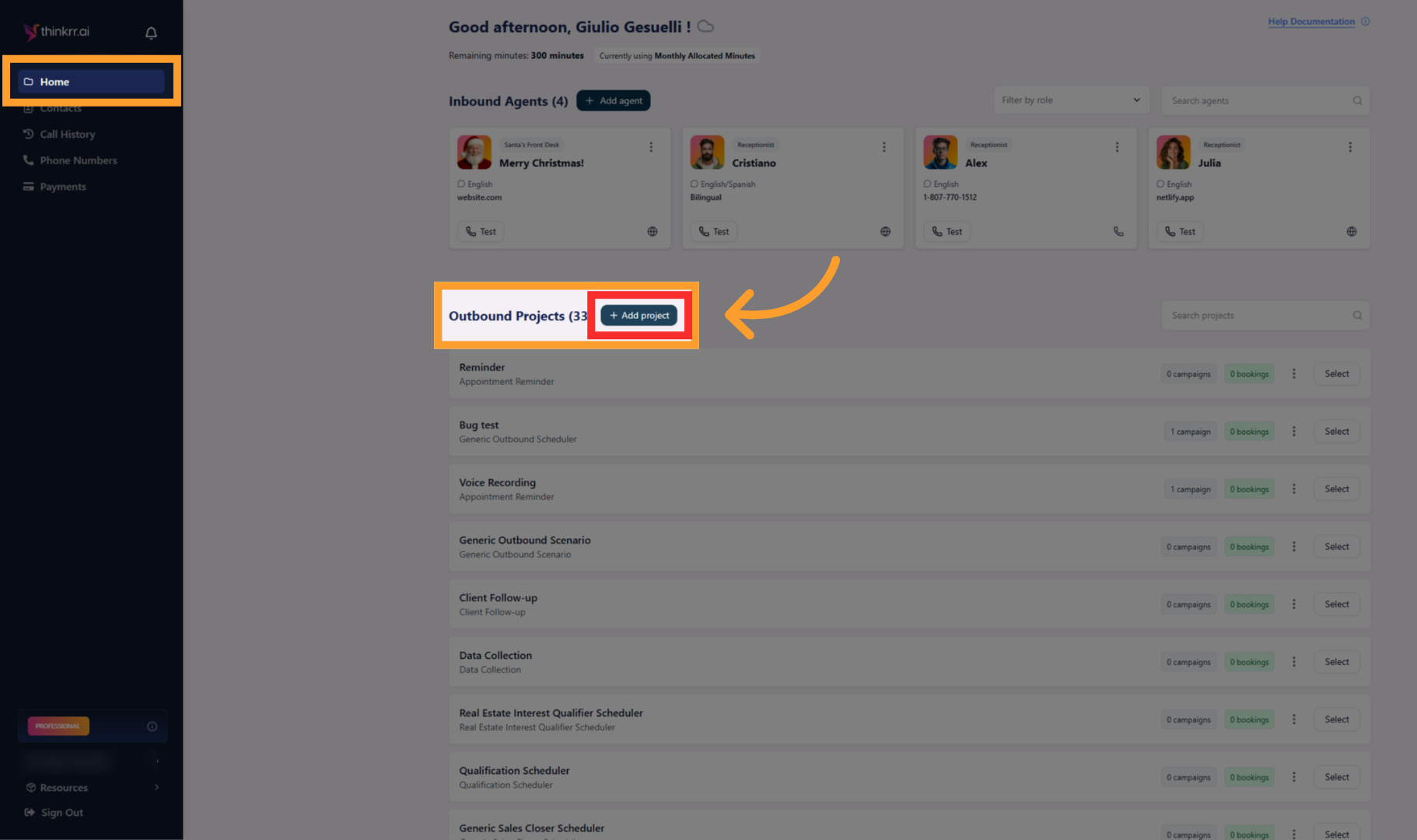
* From the **Home** screen, select an existing outbound project.
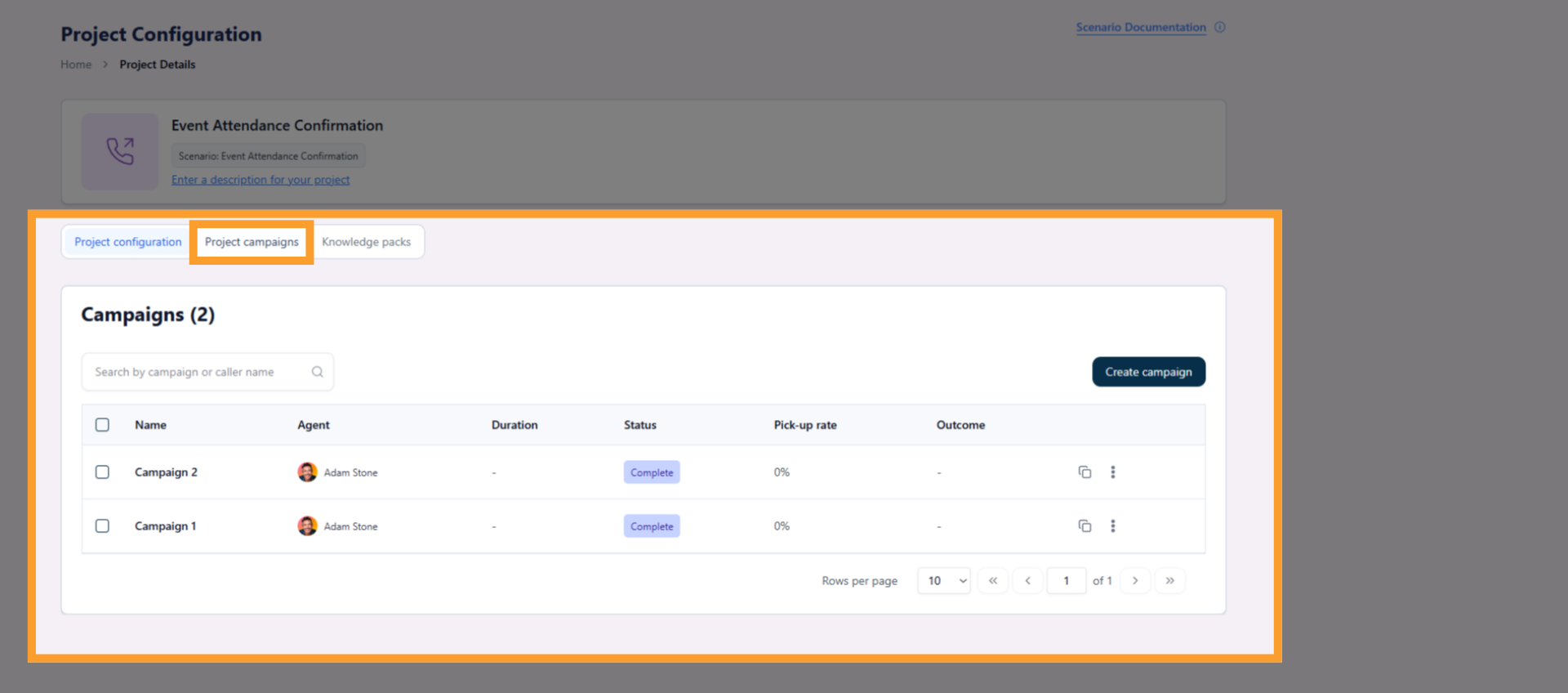
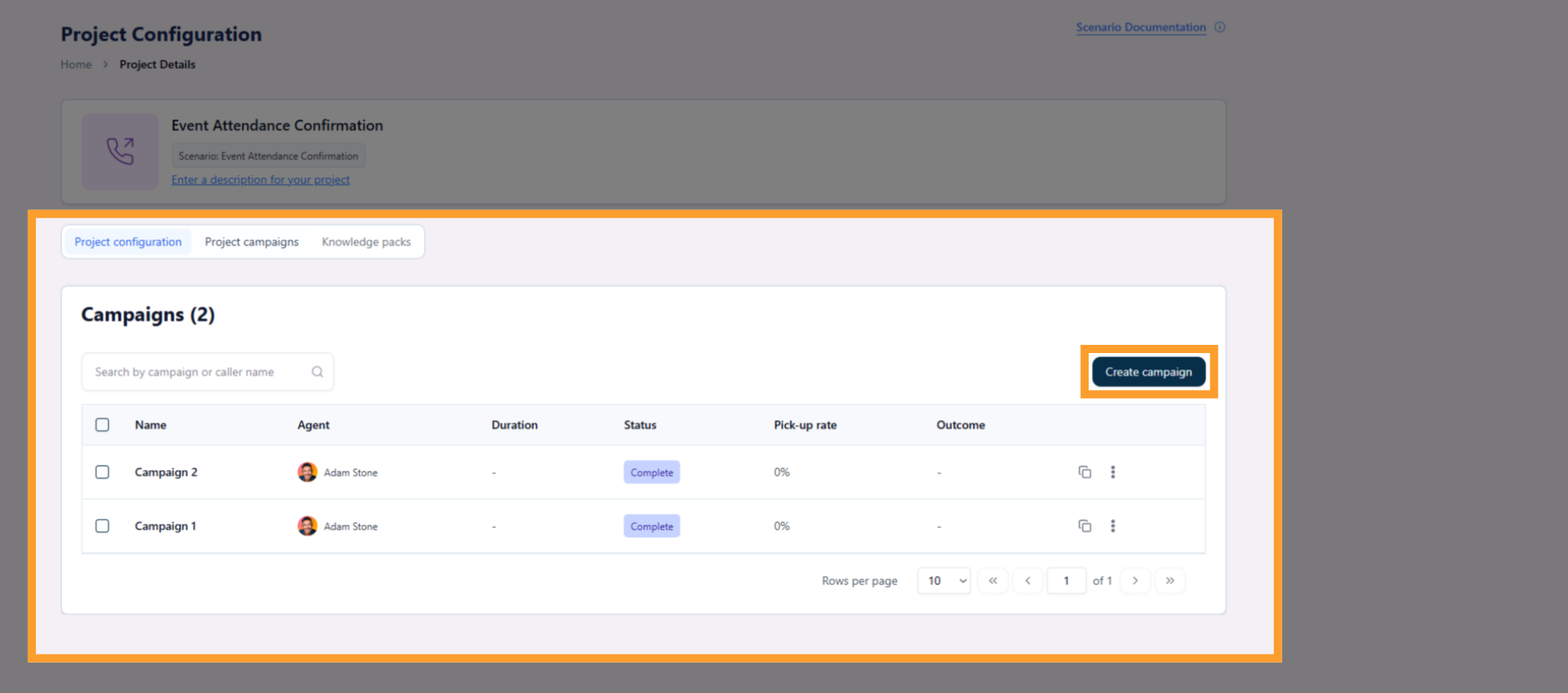
* Inside the project, click the **Project Campaigns** tab.
* This displays all campaigns created under the project.
* Click the campaign you want to review.
* This opens the campaign workspace.
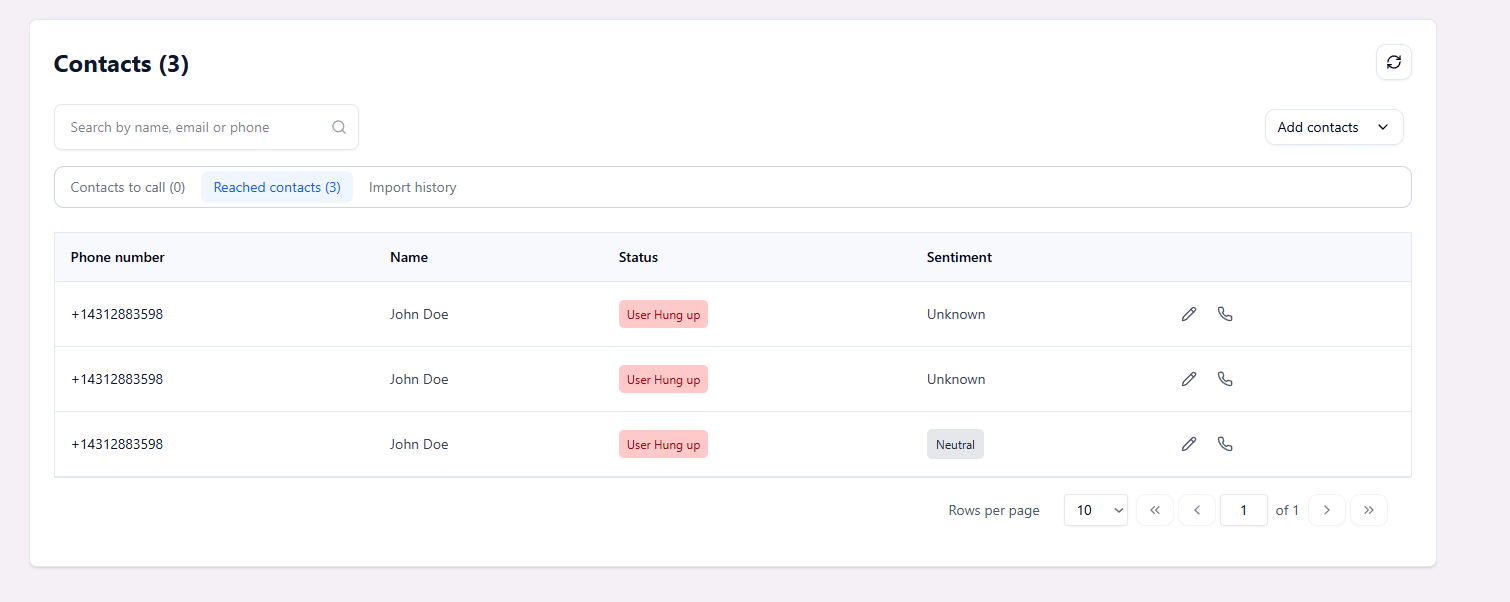
* Inside the campaign workspace, open the **Contacts** tab.
* Each contact shows its current **Call Status**, reflecting the general result of the call.
* Where available, **Call Outcome** adds a more detailed explanation of what happened during the call.
## Handling Call Status in GHL
This video also contains information on [Call History & Recording in GHL](https://docs.thinkrr.ai/Call-History-Recording#ghl)
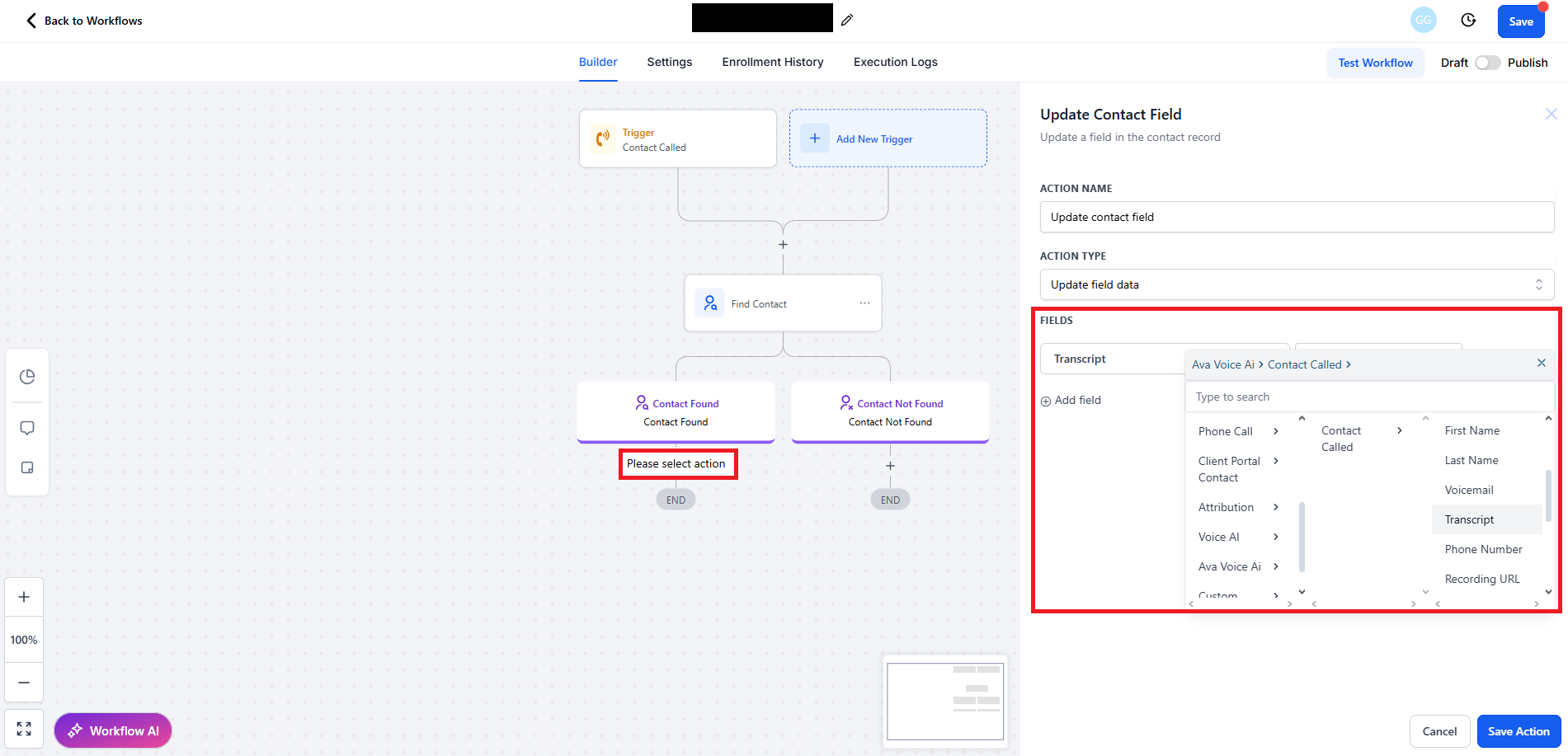
You can integrate call status outcomes into your **Go High Level (GHL)** automation workflows to trigger actions such as logging feedback, updating contact fields, or sending follow-ups. This is especially useful in scenarios like outbound campaigns where you'd want to react differently based on whether a call resulted in a meeting, voicemail, or no response.
Here's how to set it up:
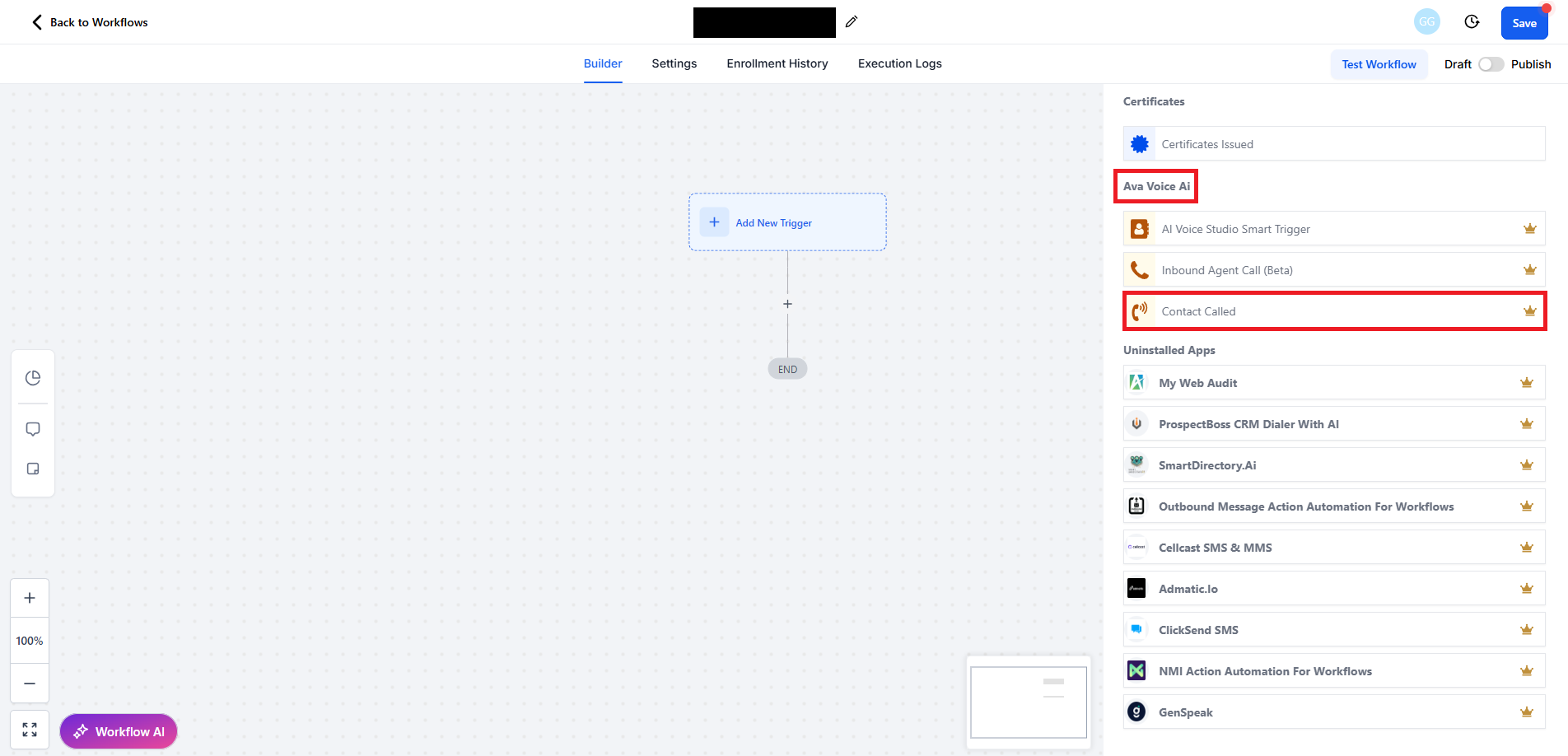
* In your GHL workflow builder, scroll down to **thinkrr Voice AI's premium actions**.
* Select **Contact Called** as the workflow trigger.
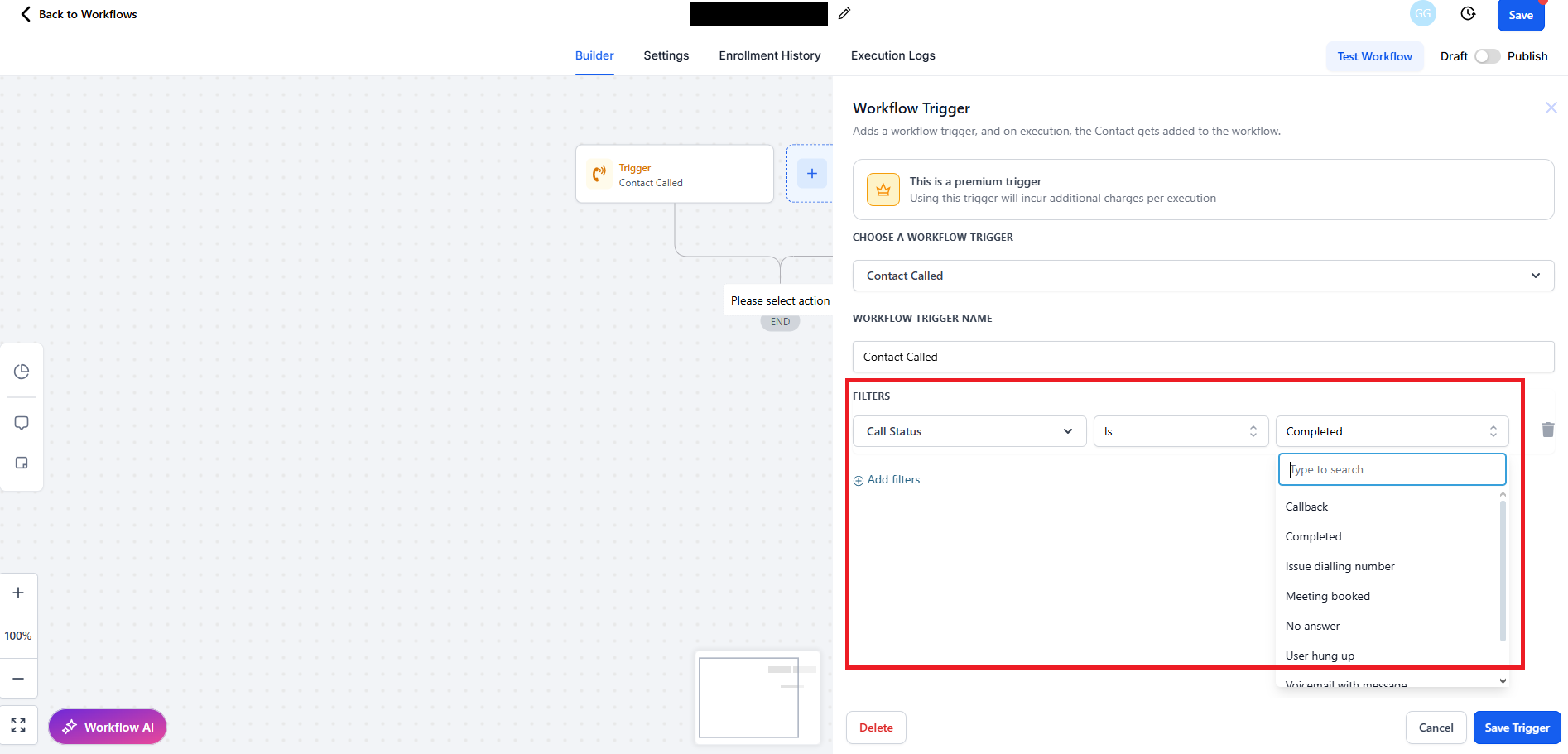
* Click **+Add filters** below the trigger.
* Choose **Call Status** from the **Standard Fields** section.
* Set the operator to **is**.
* Select your desired Call Status from the dropdown to act as the trigger condition.
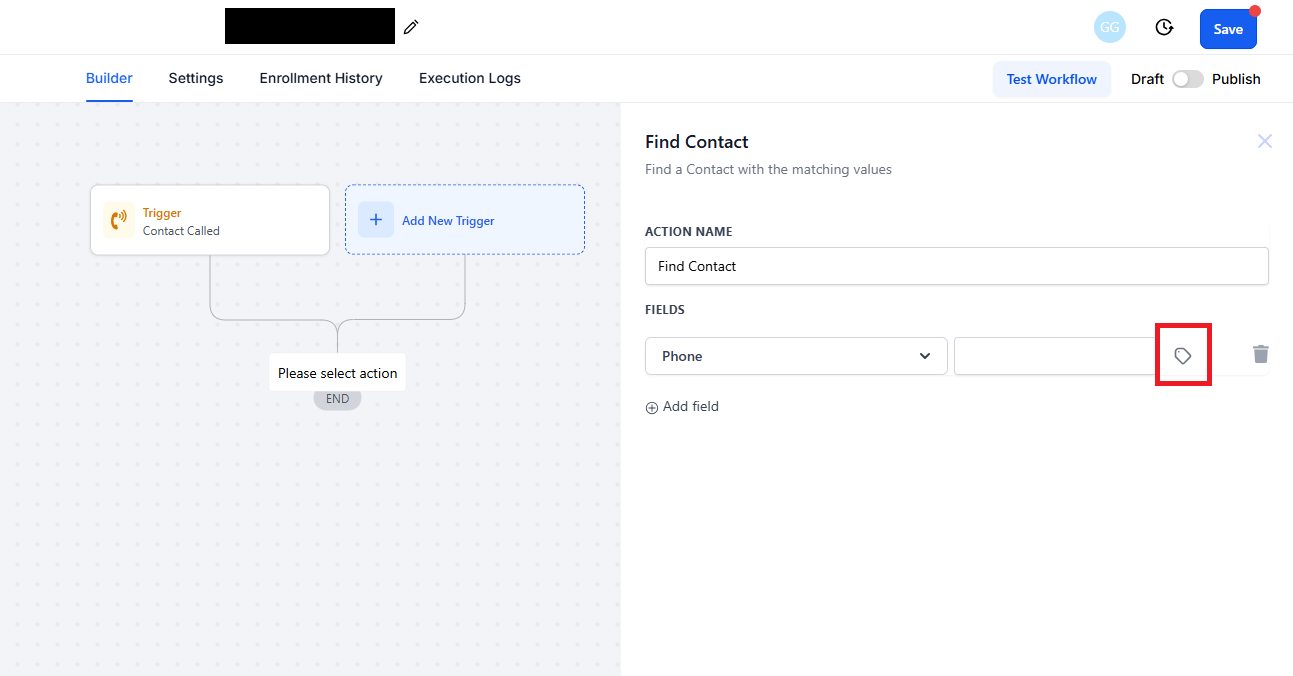
* Click the **+** in the workflow and select **Find Contact**.
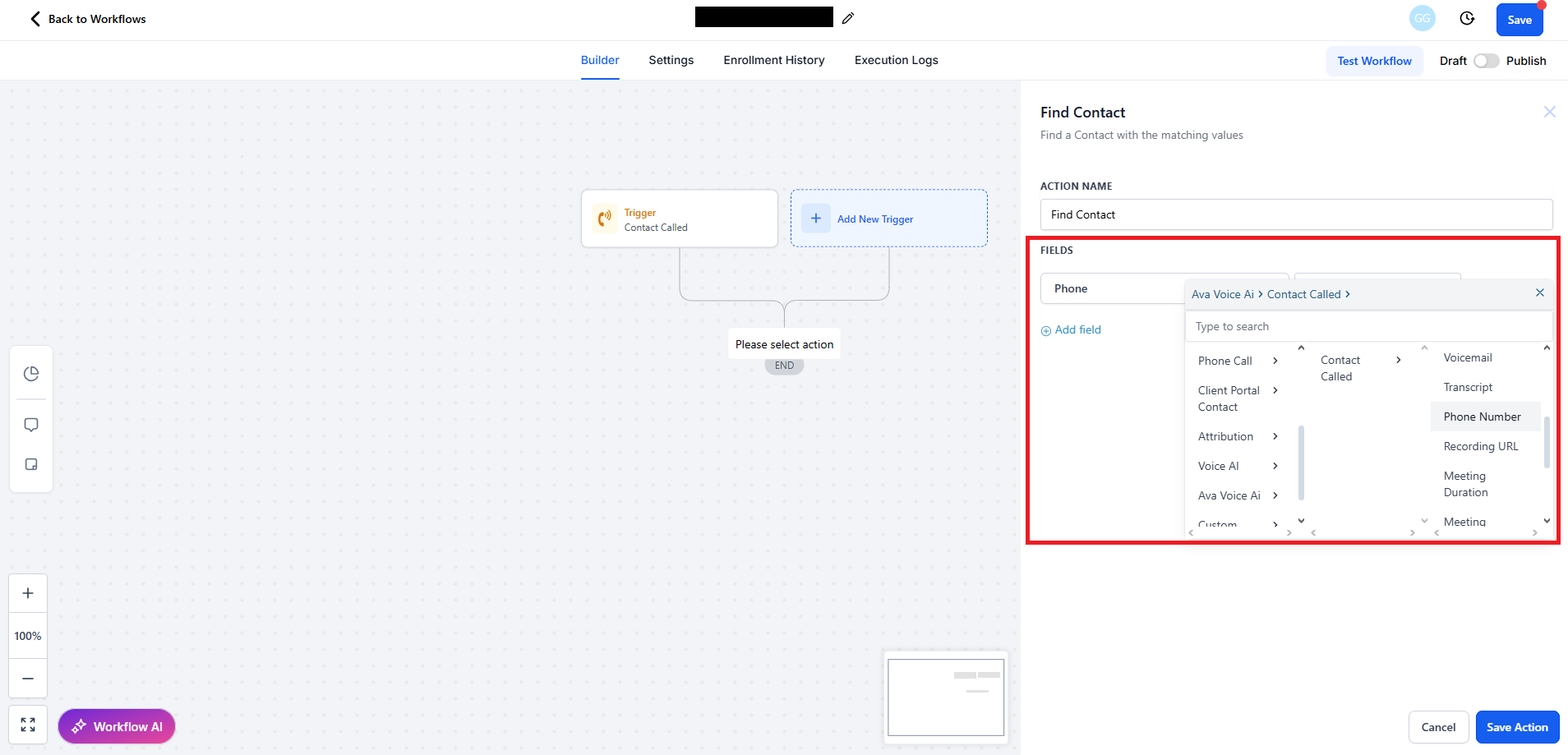
* Add a filter using the contact's **Phone Number**, which is a unique identifier.
* Use the custom field selector to access:\
**thinkrr Voice AI > Contact Called > Phone Number**.
* An **IF/ELSE** condition should be added automatically after **Find Contact** is added. If not, add manually.
* Under the **Contact Found** branch, add an action to **Update Contact Field**.
* Choose or create a custom field (e.g., **Transcript**) to store call data.
* You can create new fields via **GHL Settings > Custom Fields > Add Field**.
## Additional Call Considerations
In addition to these statuses, it is important to note how **call connection time** is tracked in thinkrr. Calls that are successfully connected, whether answered or sent to voicemail, will count toward the **Total Time Spent** in the campaign. This includes calls marked as **Completed**, **User Hung Up**, **Meeting Booked**, **Call Transferred**, **Client Callback Requested**, **Voicemail - Left Message**, and **Voicemail - No Message**. Calls that were not connected, such as **No Answer**, **Busy**, **Issue dialling**, and **Failed**, do not reflect a completed conversation and may affect results differently depending on the call attempt.
The call statuses and outcomes provide valuable feedback for evaluating the overall performance of a **Campaign** and help guide decisions on whether to adjust call frequencies, campaign durations, or engage in additional follow-up efforts.
## FAQs & Troubleshooting
### General Questions
Call statuses allow users to track the general result of every call attempt within a Campaign. They help evaluate outreach effectiveness, guide improvements, and determine if follow-up actions such as scheduling another call or sending a message are needed.
Call Status shows the general result of the call, such as whether it was completed, transferred, or sent to voicemail. Call Outcome adds a more specific layer of detail on top of that status, helping you understand more clearly what happened during the interaction.
Yes. Within the thinkrr dashboard, you can filter your call history or Campaign analytics by specific call statuses, allowing you to better understand patterns like unanswered calls, failed attempts, or meetings booked.
### Configuration
thinkrr automatically assigns a call status based on the result of the interaction. For example, if a call reaches voicemail and a message is left, it is marked as **Voicemail - Left Message**. If the user asks for a callback, it is marked as **Client Callback Requested**. These assignments require no manual tagging.
Call outcomes are automatically assigned when a more specific result is available for the call. They work alongside the call status to provide additional clarity, such as whether a call ended with an appointment being set, a calendar issue, or a transfer request.
Currently, call status definitions are standardized across all Campaigns to maintain consistency in reporting. Custom logic for status determination is not supported but may be added in future updates.
Connected calls and voicemail interactions count toward the **Total Time Spent** in your Campaign and may influence usage or billing metrics depending on your plan. Calls that do not connect, such as **No Answer**, **Busy**, **Issue dialling**, and **Failed**, do not reflect a completed conversation.
### Usage and Results
These typically result from network errors or invalid numbers. Check the phone number formatting and ensure the contact information is correct before trying again.
If a user requests a callback, the call status may appear as **Client Callback Requested**, and the call outcome may appear as **Callback Requested**. You can review these entries in your campaign records and decide on the next follow-up action.
These are in-progress statuses that usually appear while the call is actively happening. In most cases, users see the final call result instead, especially when reviewing campaigns after the call has already ended.
Call status and outcome details are accessible through your Campaign records and call-related views in the thinkrr dashboard. Each entry helps you understand how the call progressed and what result was reached.
***
For additional questions or guidance, try using our [**Virtual Support Agent**](/Thinkrr-Support-Agent)! Available 24/7 to help resolve most issues quickly at [thinkrr.ai/support](https://thinkrr.ai/support).
If you still need assistance, visit our support site at [help.thinkrr.ai](http://help.thinkrr.ai) and submit a [Ticket](/Support-Ticket-System) or contact our team directly at [hello@thinkrr.ai](mailto:hello@thinkrr.ai).