> ## Documentation Index
> Fetch the complete documentation index at: https://docs.thinkrr.ai/llms.txt
> Use this file to discover all available pages before exploring further.
# Campaign Statuses
> Definitions for each campaign status in thinkrr. Understand how to interpret the current state of your outbound calling efforts at a glance.
## Overview
Campaign statuses are essential for tracking the performance of each campaign in thinkrr. They allow users to understand the outcomes of their outreach efforts and make data-driven decisions to improve future campaigns. Each status represents a distinct stage in the campaign's lifecycle, from initial engagement to follow-up actions, providing clear insights into how a campaign is progressing and whether further interventions are needed.
## How to Check Your Campaign Status
To access your campaign management and track statuses, follow these steps:
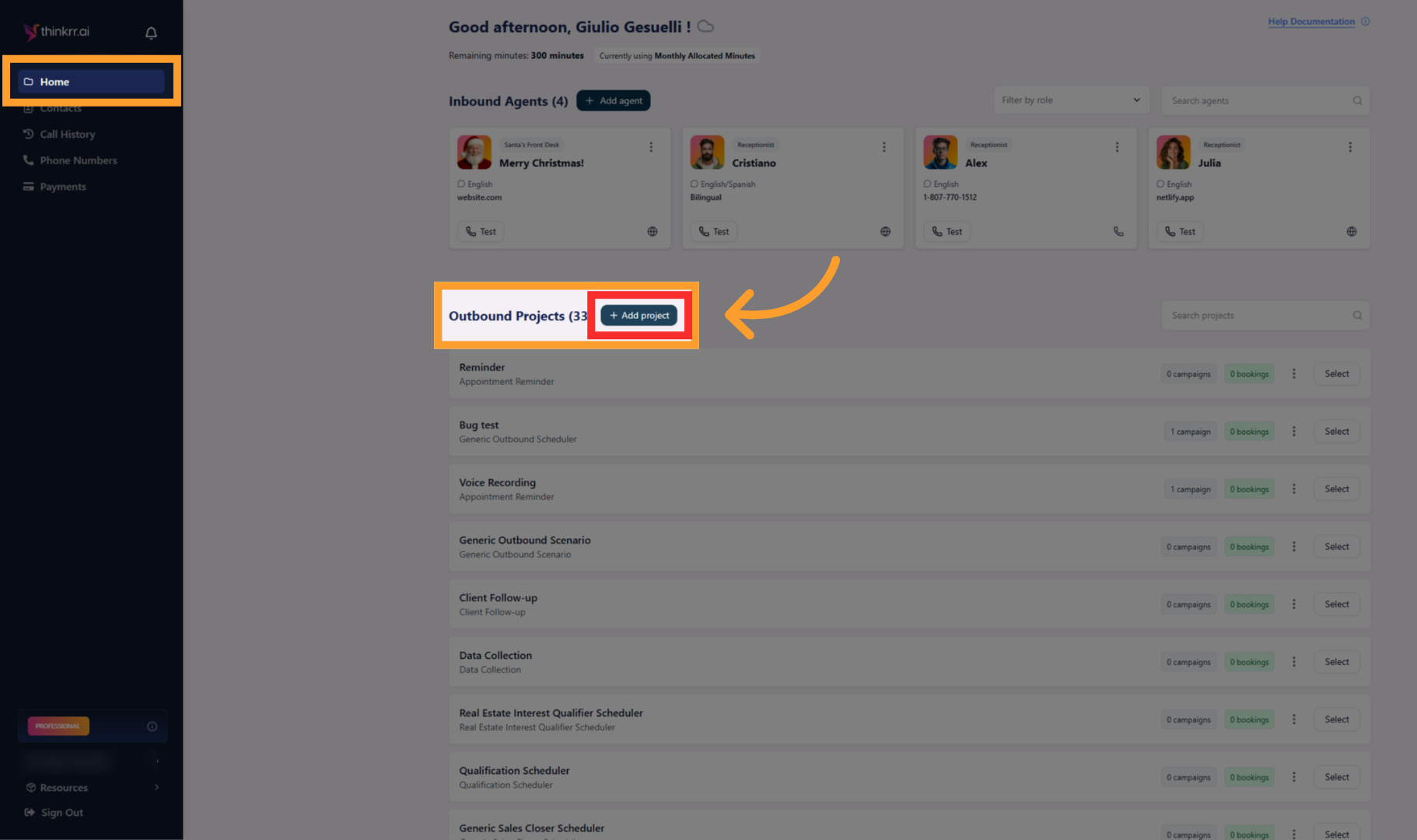
From the **Home** screen, select an existing outbound project.
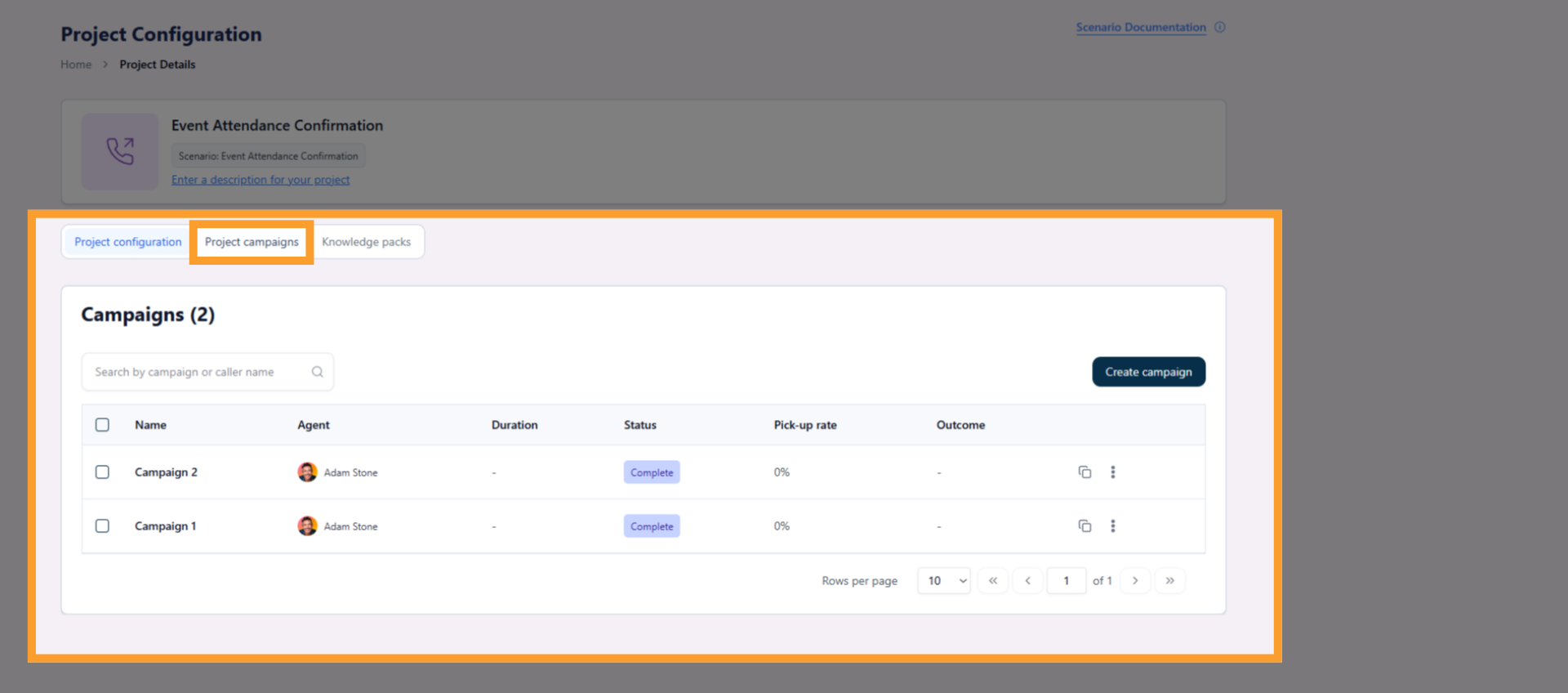
 Inside the project, click the **Project Campaigns** tab to view all campaigns associated with the project.
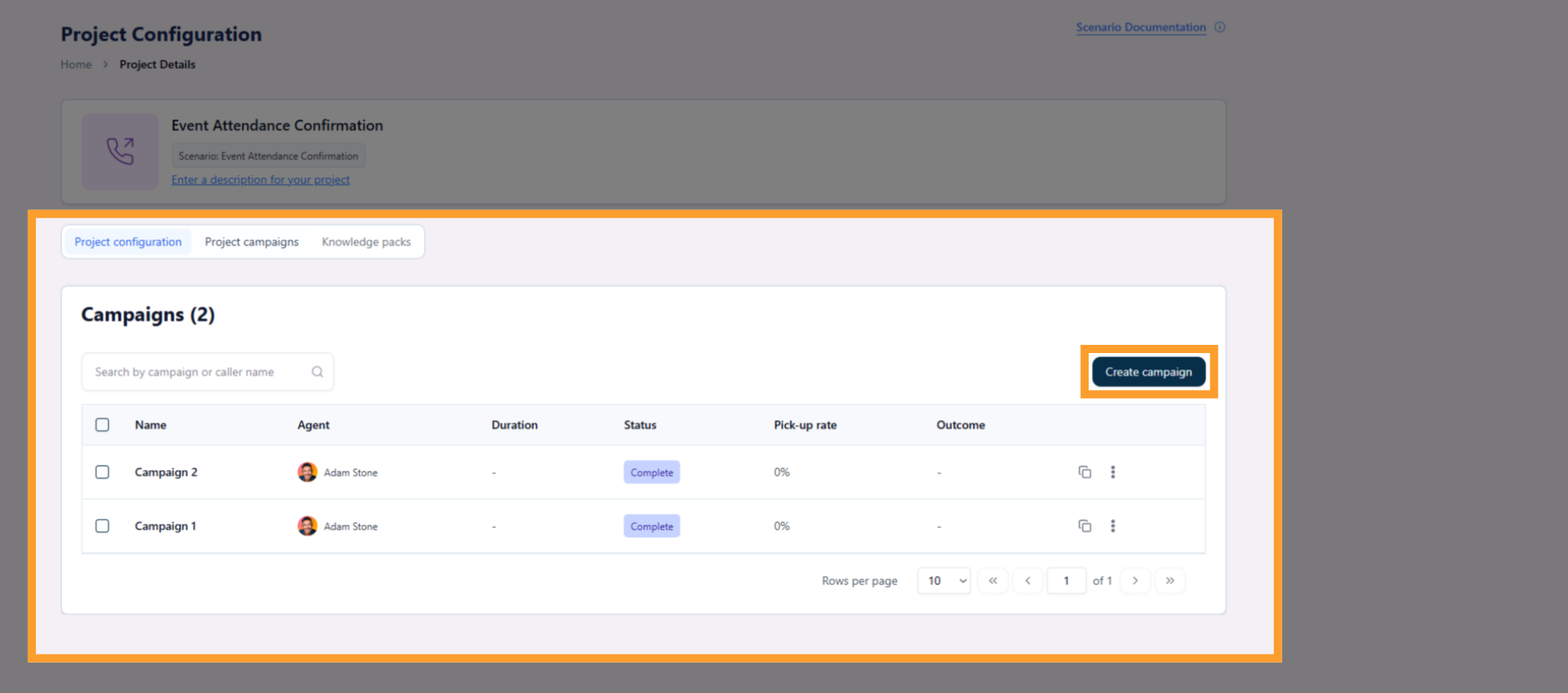
 Click the campaign you want to review to open the campaign workspace.
 In the campaign view, you can see the campaign’s current **Status** directly in the campaign header and campaign list.
Campaign statuses indicate whether the campaign is **Not Started**, **Started**, **Paused**, **Complete**, or **Ended**, and reflect the overall execution state of the campaign.
## Campaign Statuses
| **Status** | **Description** |
| --------------- | ---------------------------------------------------------------------------------------------------- |
| **Not Started** | The campaign has been created but has not yet begun executing any calls. |
| **Started** | The campaign has been initiated, but no calls have been executed yet. |
| **Complete** | The campaign has finished executing all scheduled calls successfully. *(Previously called Executed)* |
| **Paused** | The campaign has been temporarily halted, often due to an issue or for review. |
| **Ended** | The campaign was manually stopped before completion. |
## Campaign Considerations
In addition to these statuses, it is important to note how **call connection time** is tracked in thinkrr. Calls that are successfully connected, whether answered or sent to voicemail, will count toward the **Total Time Spent** in the campaign. This includes calls marked as:
* **Completed**
* **No Answer**
* **No Message**
* **Left Message**
Any failed connection, such as **Issue Dialing** or **Failed**, will not count toward the total time spent in the campaign.
Campaign statuses provide valuable feedback for evaluating the overall performance of a campaign and help guide decisions on whether to adjust call frequencies, campaign durations, or engage in additional follow-up efforts, such as scheduling another call or sending an email reminder.
To ensure the success of your campaign, consider the following factors:
* **Campaign Scheduling** – Make sure that your campaign is scheduled to run at optimal times for your target audience.
* **Campaign Review** – Periodically review the status of the campaign to identify any pauses or issues that need to be addressed.
* **Follow-up Actions** – Adjust the next steps based on the campaign’s completion, whether by scheduling additional calls or sending follow-up communications.
***
## FAQs & Troubleshooting
### General Questions
Campaign statuses allow users to track the outcome of every call attempt within a campaign. They help evaluate outreach effectiveness, guide improvements, and determine if follow-up actions such as scheduling another call or sending a message are needed.
Yes. Within the thinkrr dashboard, you can filter your call history or campaign analytics by specific statuses, allowing you to better understand patterns like unanswered calls, failed attempts, or meetings booked.
### Configuration
thinkrr automatically assigns a campaign status based on the outcome of the interaction. For example, if a call reaches voicemail and a message is left, it is marked as **Left Message**. If the user hangs up, it is marked as **User Hung Up**. These assignments require no manual tagging.
Currently, campaign status definitions are standardized across all campaigns to maintain consistency in reporting. Custom logic for status determination is not supported but may be added in future updates.
Only **connected calls** (e.g., Completed, No Answer, No Message, Left Message) count toward the **Total Time Spent** in your campaign and may influence usage or billing metrics depending on your plan. Failed or undelivered calls do not count toward these totals.
### Usage and Results
These typically result from network errors or invalid numbers. Check the phone number formatting and ensure network settings are stable. Reattempting the call at a later time or verifying the contact info is recommended.
If a user requests a callback, the system marks the status as **Callback**. You can view these entries in the call logs and take appropriate action manually or set up a follow-up campaign to automatically retry the call at a later time.
Campaign status logs are accessible via the **Campaign History** or **Call Analytics** sections in the thinkrr dashboard. Each entry includes the timestamp, call duration, status, and relevant AI interaction data.
***
For additional questions or guidance, try using our [**Virtual Support Agent**](/Thinkrr-Support-Agent)! Available 24/7 to help resolve most issues quickly at [thinkrr.ai/support](https://thinkrr.ai/support).
If you still need assistance, visit our support site at [help.thinkrr.ai](http://help.thinkrr.ai) and submit a [Ticket](/Support-Ticket-System) or contact our team directly at [hello@thinkrr.ai](mailto:hello@thinkrr.ai).
In the campaign view, you can see the campaign’s current **Status** directly in the campaign header and campaign list.
Campaign statuses indicate whether the campaign is **Not Started**, **Started**, **Paused**, **Complete**, or **Ended**, and reflect the overall execution state of the campaign.
## Campaign Statuses
| **Status** | **Description** |
| --------------- | ---------------------------------------------------------------------------------------------------- |
| **Not Started** | The campaign has been created but has not yet begun executing any calls. |
| **Started** | The campaign has been initiated, but no calls have been executed yet. |
| **Complete** | The campaign has finished executing all scheduled calls successfully. *(Previously called Executed)* |
| **Paused** | The campaign has been temporarily halted, often due to an issue or for review. |
| **Ended** | The campaign was manually stopped before completion. |
## Campaign Considerations
In addition to these statuses, it is important to note how **call connection time** is tracked in thinkrr. Calls that are successfully connected, whether answered or sent to voicemail, will count toward the **Total Time Spent** in the campaign. This includes calls marked as:
* **Completed**
* **No Answer**
* **No Message**
* **Left Message**
Any failed connection, such as **Issue Dialing** or **Failed**, will not count toward the total time spent in the campaign.
Campaign statuses provide valuable feedback for evaluating the overall performance of a campaign and help guide decisions on whether to adjust call frequencies, campaign durations, or engage in additional follow-up efforts, such as scheduling another call or sending an email reminder.
To ensure the success of your campaign, consider the following factors:
* **Campaign Scheduling** – Make sure that your campaign is scheduled to run at optimal times for your target audience.
* **Campaign Review** – Periodically review the status of the campaign to identify any pauses or issues that need to be addressed.
* **Follow-up Actions** – Adjust the next steps based on the campaign’s completion, whether by scheduling additional calls or sending follow-up communications.
***
## FAQs & Troubleshooting
### General Questions
Campaign statuses allow users to track the outcome of every call attempt within a campaign. They help evaluate outreach effectiveness, guide improvements, and determine if follow-up actions such as scheduling another call or sending a message are needed.
Yes. Within the thinkrr dashboard, you can filter your call history or campaign analytics by specific statuses, allowing you to better understand patterns like unanswered calls, failed attempts, or meetings booked.
### Configuration
thinkrr automatically assigns a campaign status based on the outcome of the interaction. For example, if a call reaches voicemail and a message is left, it is marked as **Left Message**. If the user hangs up, it is marked as **User Hung Up**. These assignments require no manual tagging.
Currently, campaign status definitions are standardized across all campaigns to maintain consistency in reporting. Custom logic for status determination is not supported but may be added in future updates.
Only **connected calls** (e.g., Completed, No Answer, No Message, Left Message) count toward the **Total Time Spent** in your campaign and may influence usage or billing metrics depending on your plan. Failed or undelivered calls do not count toward these totals.
### Usage and Results
These typically result from network errors or invalid numbers. Check the phone number formatting and ensure network settings are stable. Reattempting the call at a later time or verifying the contact info is recommended.
If a user requests a callback, the system marks the status as **Callback**. You can view these entries in the call logs and take appropriate action manually or set up a follow-up campaign to automatically retry the call at a later time.
Campaign status logs are accessible via the **Campaign History** or **Call Analytics** sections in the thinkrr dashboard. Each entry includes the timestamp, call duration, status, and relevant AI interaction data.
***
For additional questions or guidance, try using our [**Virtual Support Agent**](/Thinkrr-Support-Agent)! Available 24/7 to help resolve most issues quickly at [thinkrr.ai/support](https://thinkrr.ai/support).
If you still need assistance, visit our support site at [help.thinkrr.ai](http://help.thinkrr.ai) and submit a [Ticket](/Support-Ticket-System) or contact our team directly at [hello@thinkrr.ai](mailto:hello@thinkrr.ai).