> ## Documentation Index
> Fetch the complete documentation index at: https://docs.thinkrr.ai/llms.txt
> Use this file to discover all available pages before exploring further.
# Concierge
> The **Concierge** role allows businesses and property managers to automate guest communications, providing 24/7 assistance powered by thinkrr and Hostaway. This role connects directly with your Hostaway account, syncing property data to deliver accurate, context-rich responses. For properties not connected via Hostaway, you can also manually add and manage them directly within thinkrr.
## Details
A **Concierge** Inbound Agent is capable of:
* Greeting guests and confirming bookings or stay details.
* Providing real-time information about check-in, amenities, or property rules.
* Sharing local recommendations and handling guest requests.
* Routing calls or sending notifications to property managers when escalation is needed.
The **Concierge** is designed to act as a 24/7 guest assistant, improving service quality while reducing manual coordination for property hosts and managers.
***
## Configuring the Concierge Role
### Step 1: Add Property
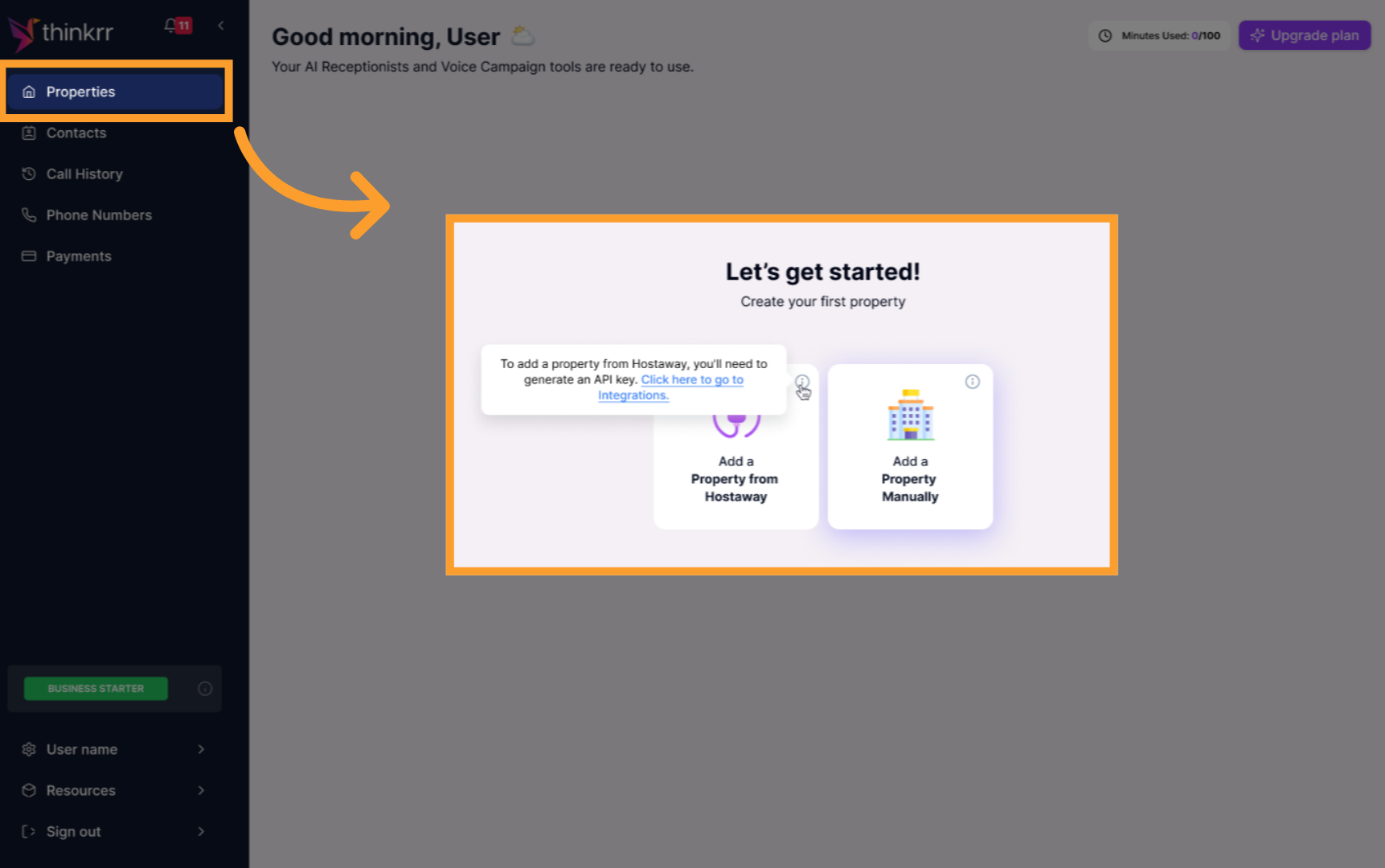
* Go to the **Properties** section from the thinkrr sidebar.
* Click **Add New Property**.
 ***
### Step 2: Configure Property Settings
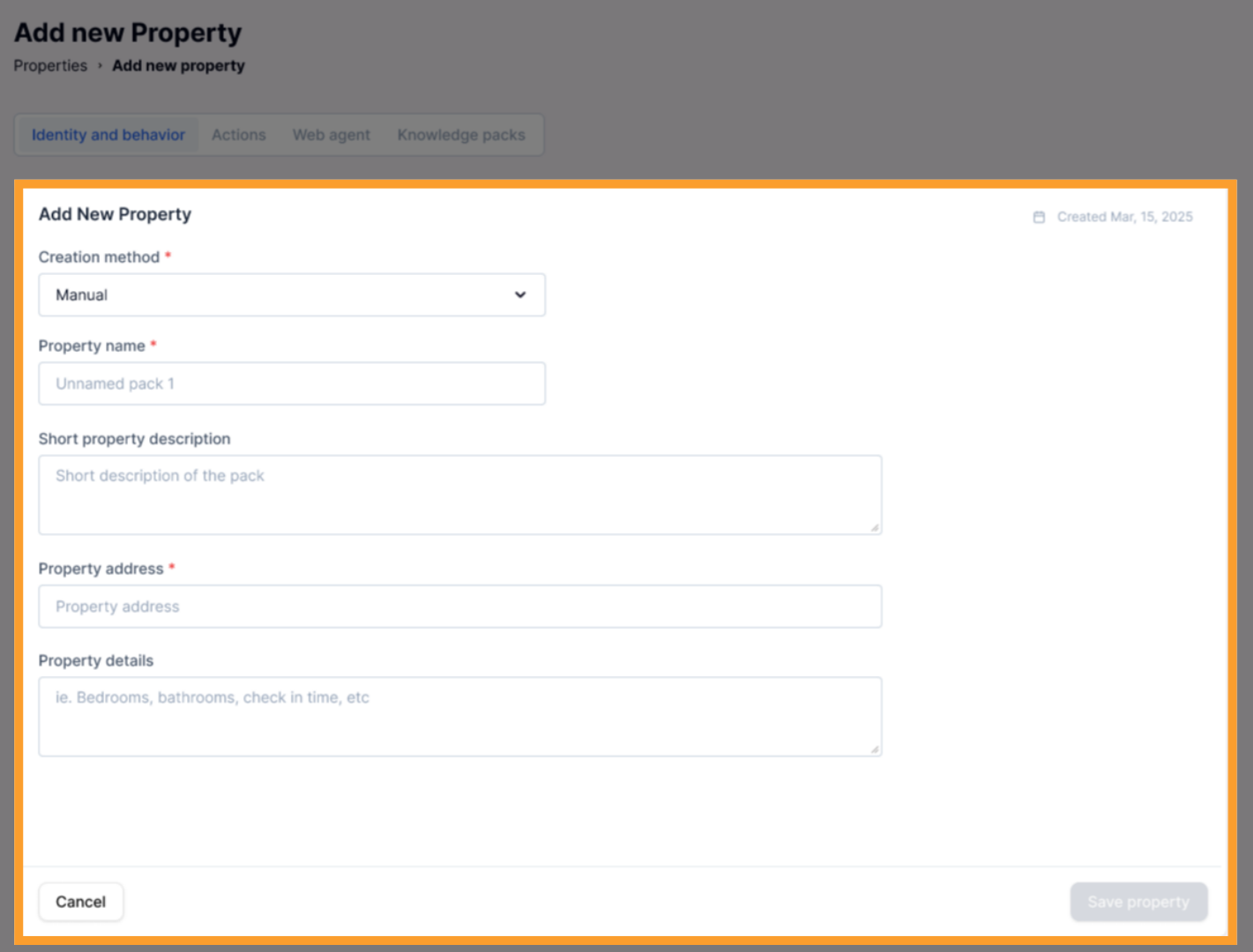
* Open the newly added property to configure the following fields:
* **Creation Method**\* – Choose how the property is added:
* **Manual**: Does not require integration with any system.
* **Hostaway**: Requires an active Hostaway integration to sync data.
* **Property Name**\* – Enter the name of the property.
* **Short Property Description**\* – Provide a short summary or description.
* **Property Address**\* – Enter the physical address of the property.
* **Property Details (read-only)** – Auto-filled for Hostaway-connected properties, showing data such as bedrooms, bathrooms, check-in/check-out times, and amenities.
* Properties added manually require all fields to be filled in manually.
* Hostaway-connected properties will automatically sync these details and update periodically.
***
### Step 2: Configure Property Settings
* Open the newly added property to configure the following fields:
* **Creation Method**\* – Choose how the property is added:
* **Manual**: Does not require integration with any system.
* **Hostaway**: Requires an active Hostaway integration to sync data.
* **Property Name**\* – Enter the name of the property.
* **Short Property Description**\* – Provide a short summary or description.
* **Property Address**\* – Enter the physical address of the property.
* **Property Details (read-only)** – Auto-filled for Hostaway-connected properties, showing data such as bedrooms, bathrooms, check-in/check-out times, and amenities.
* Properties added manually require all fields to be filled in manually.
* Hostaway-connected properties will automatically sync these details and update periodically.
 ***
### Step 3: Create or Activate the Concierge
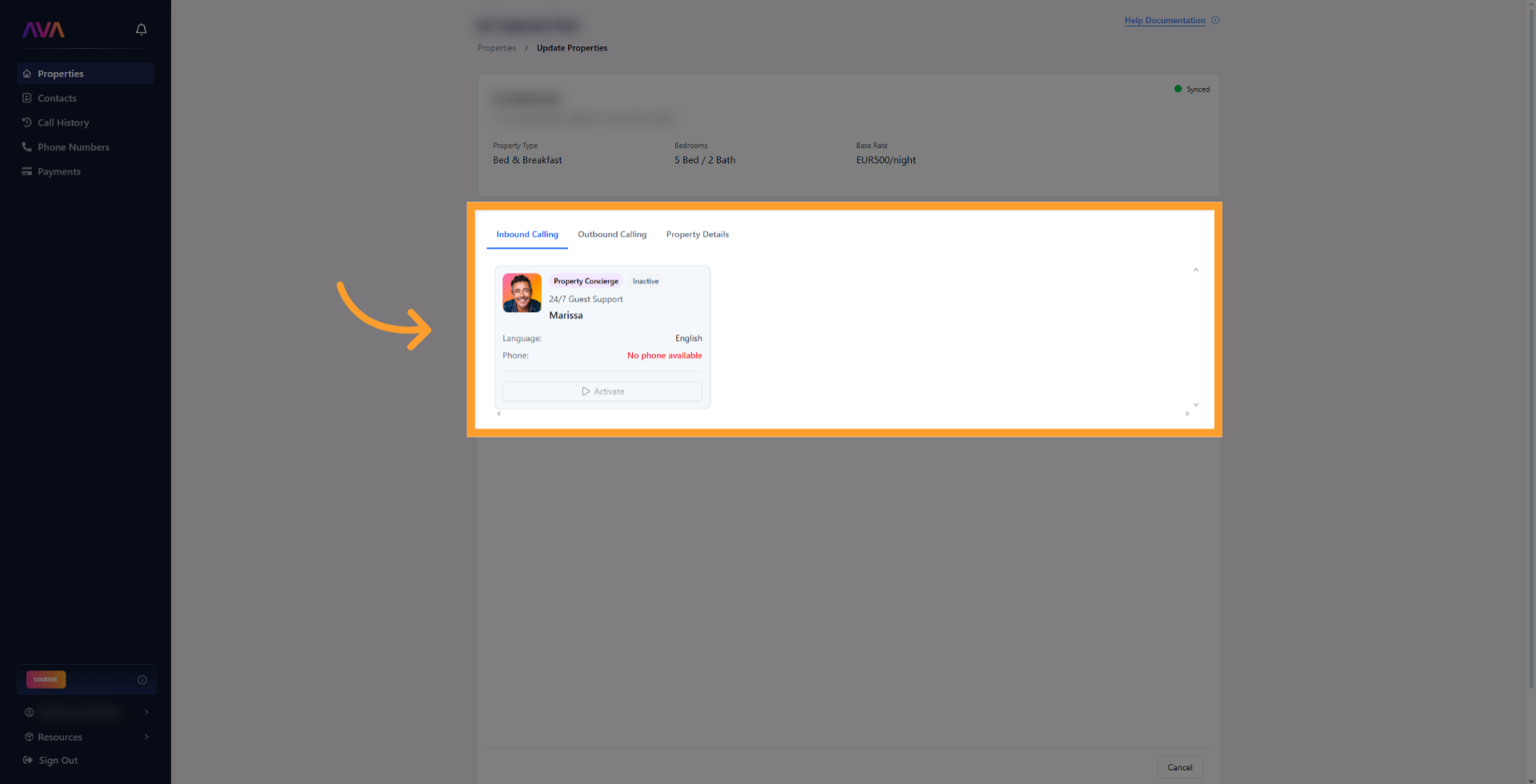
* Each property has one pre-created concierge agent (inactive by default).
* You can **activate** it directly from the **Inbound** tab or create a new one manually if needed.
* Choose deployment type:
* Over the **phone**
* On the **web** via a [Web Widget](/Web-Widget)
* Or both
***
### Step 3: Create or Activate the Concierge
* Each property has one pre-created concierge agent (inactive by default).
* You can **activate** it directly from the **Inbound** tab or create a new one manually if needed.
* Choose deployment type:
* Over the **phone**
* On the **web** via a [Web Widget](/Web-Widget)
* Or both
 ***
### 4. Defining the Concierge’s Behavior
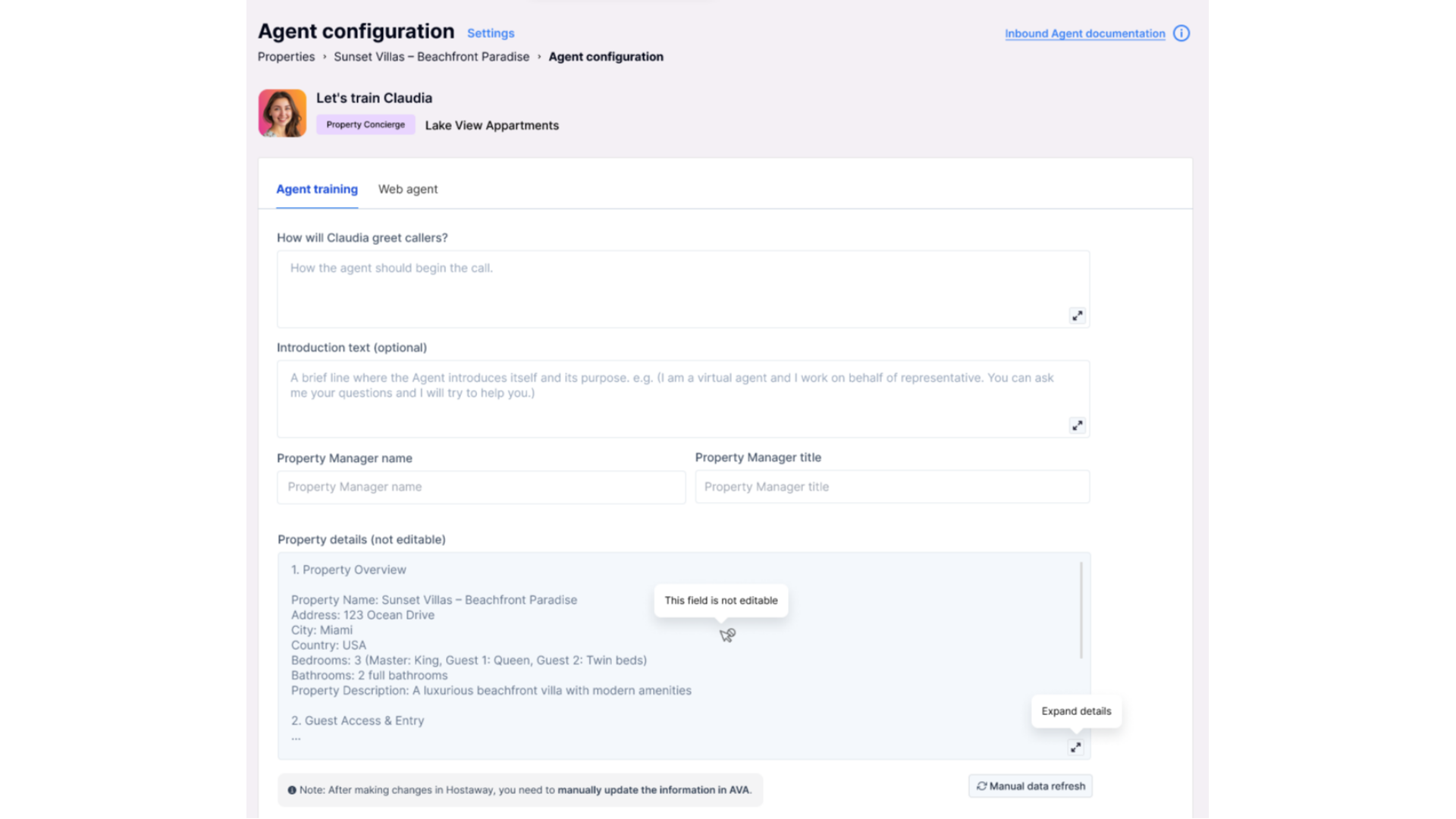
After selecting the Concierge role, you’ll train your AI to properly represent your property or brand.\
Unlike other roles, the Concierge automatically populates many fields using Hostaway property data.
The following input fields help you tailor its responses:
* **Greeting** – How the Concierge answers calls (e.g., “Welcome to Seaside Villas, your virtual concierge speaking.”)
* **Introduction Text** – Optional message explaining the AI’s role.
* **Property Manager Name** – The manager or host the agent refers to.
* **Property Manager Title** – The title of that person, such as “Host” or “Guest Experience Manager.”
* **Property Details** – Auto-filled from Hostaway (address, amenities, Wi-Fi, check-in/out times).
* **Additional Details** – Notes like “Early check-in available on request.”
* **Local Recommendations** – Restaurants, landmarks, or experiences you’d like highlighted.
***
### 4. Defining the Concierge’s Behavior
After selecting the Concierge role, you’ll train your AI to properly represent your property or brand.\
Unlike other roles, the Concierge automatically populates many fields using Hostaway property data.
The following input fields help you tailor its responses:
* **Greeting** – How the Concierge answers calls (e.g., “Welcome to Seaside Villas, your virtual concierge speaking.”)
* **Introduction Text** – Optional message explaining the AI’s role.
* **Property Manager Name** – The manager or host the agent refers to.
* **Property Manager Title** – The title of that person, such as “Host” or “Guest Experience Manager.”
* **Property Details** – Auto-filled from Hostaway (address, amenities, Wi-Fi, check-in/out times).
* **Additional Details** – Notes like “Early check-in available on request.”
* **Local Recommendations** – Restaurants, landmarks, or experiences you’d like highlighted.
 ***
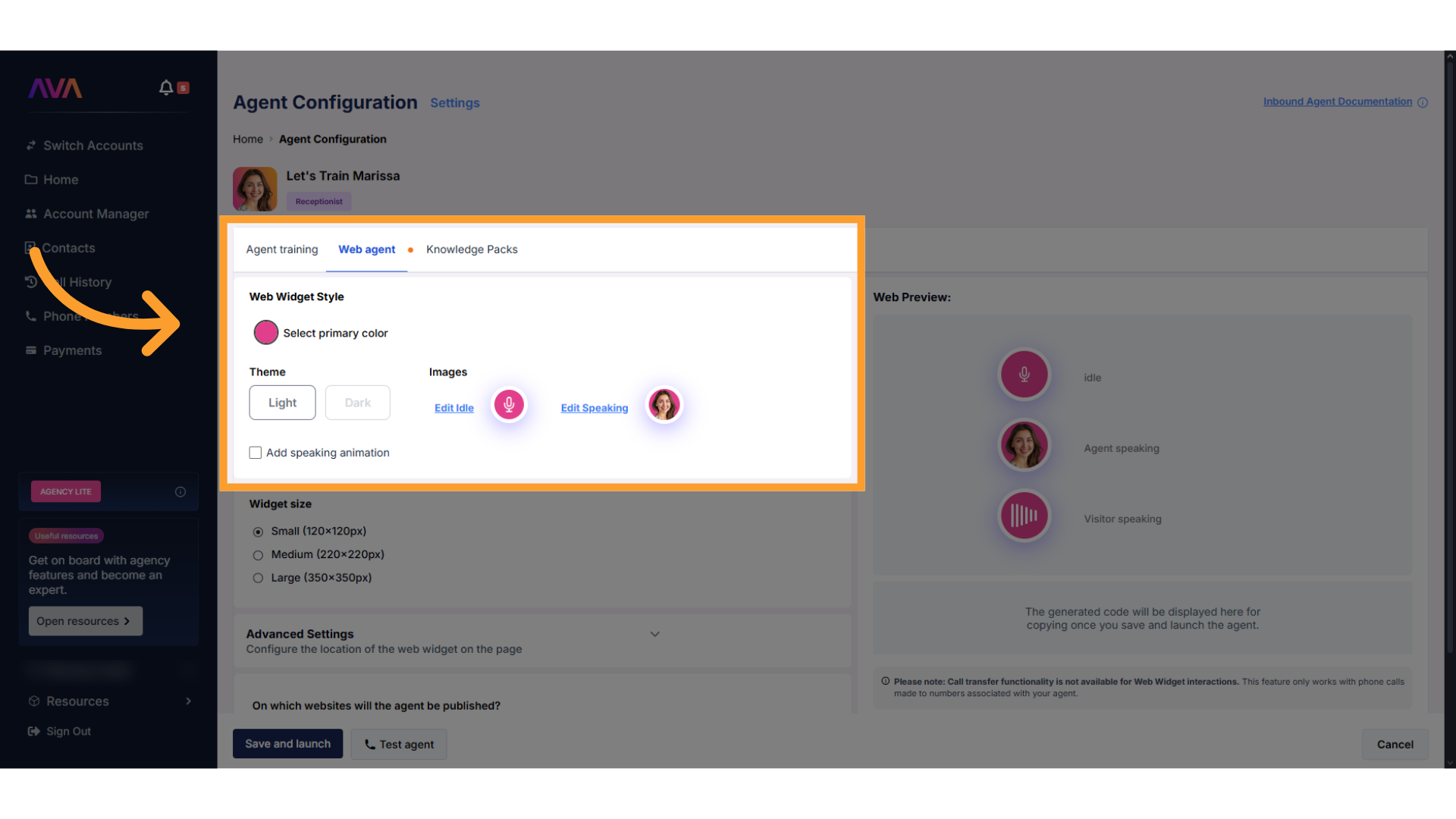
If your Concierge Agent is deployed on the **web**, you can customize its widget appearance and placement using the **Web Agent** tab.
* **Primary Color** – Match your website branding.
* **Theme** – Choose **Light** or **Dark**.
* **Idle Image** and **Speaking Image** – Control how the Concierge looks when idle or talking.
* **Speaking Animation Toggle** – Enable animation while the AI speaks.
***
If your Concierge Agent is deployed on the **web**, you can customize its widget appearance and placement using the **Web Agent** tab.
* **Primary Color** – Match your website branding.
* **Theme** – Choose **Light** or **Dark**.
* **Idle Image** and **Speaking Image** – Control how the Concierge looks when idle or talking.
* **Speaking Animation Toggle** – Enable animation while the AI speaks.
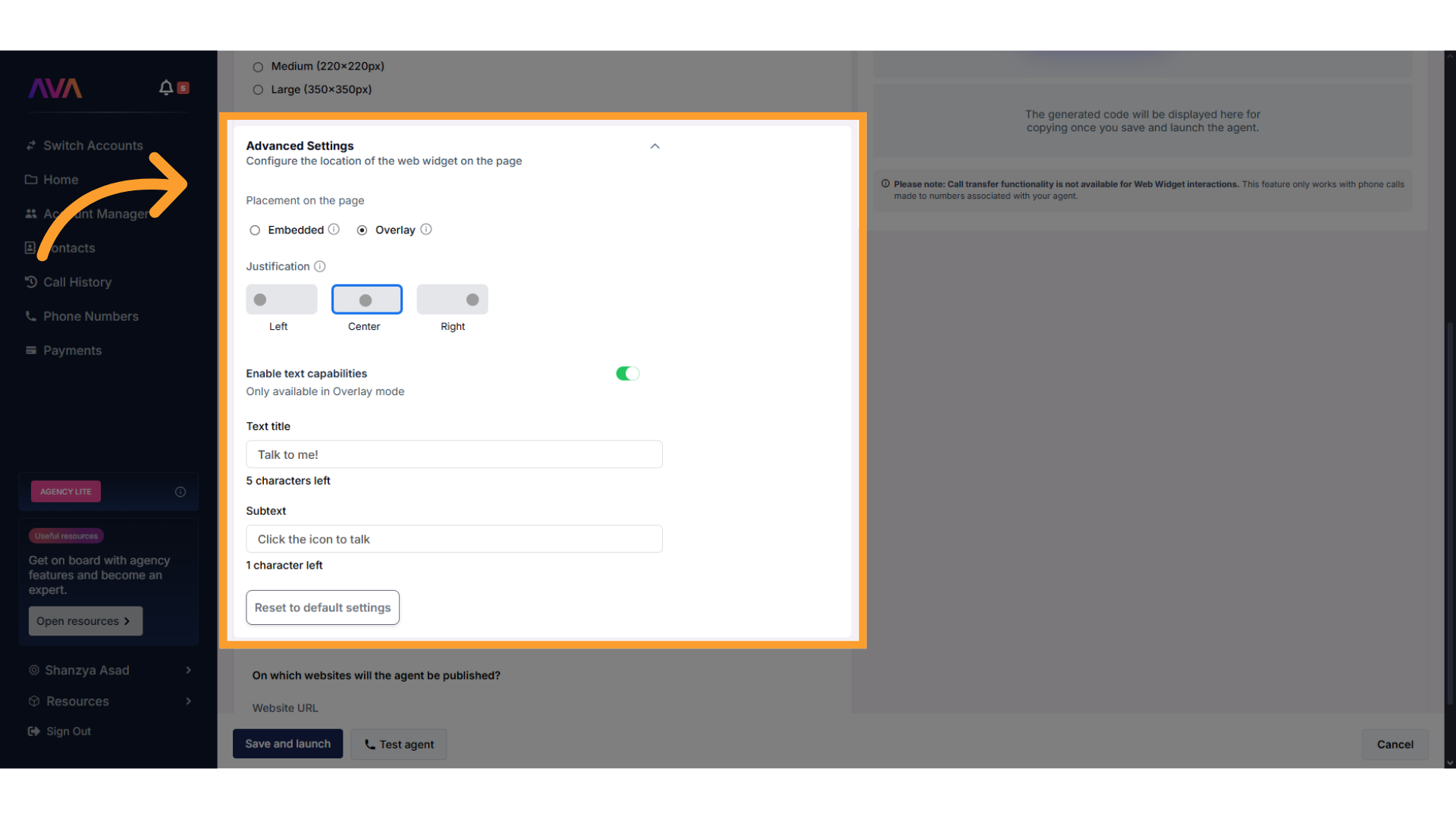
 * Choose **Embedded** or **Overlay** placement.
* Justify Left, Center, or Right.
* Enable on-screen text (Overlay only).
* Choose **Embedded** or **Overlay** placement.
* Justify Left, Center, or Right.
* Enable on-screen text (Overlay only).
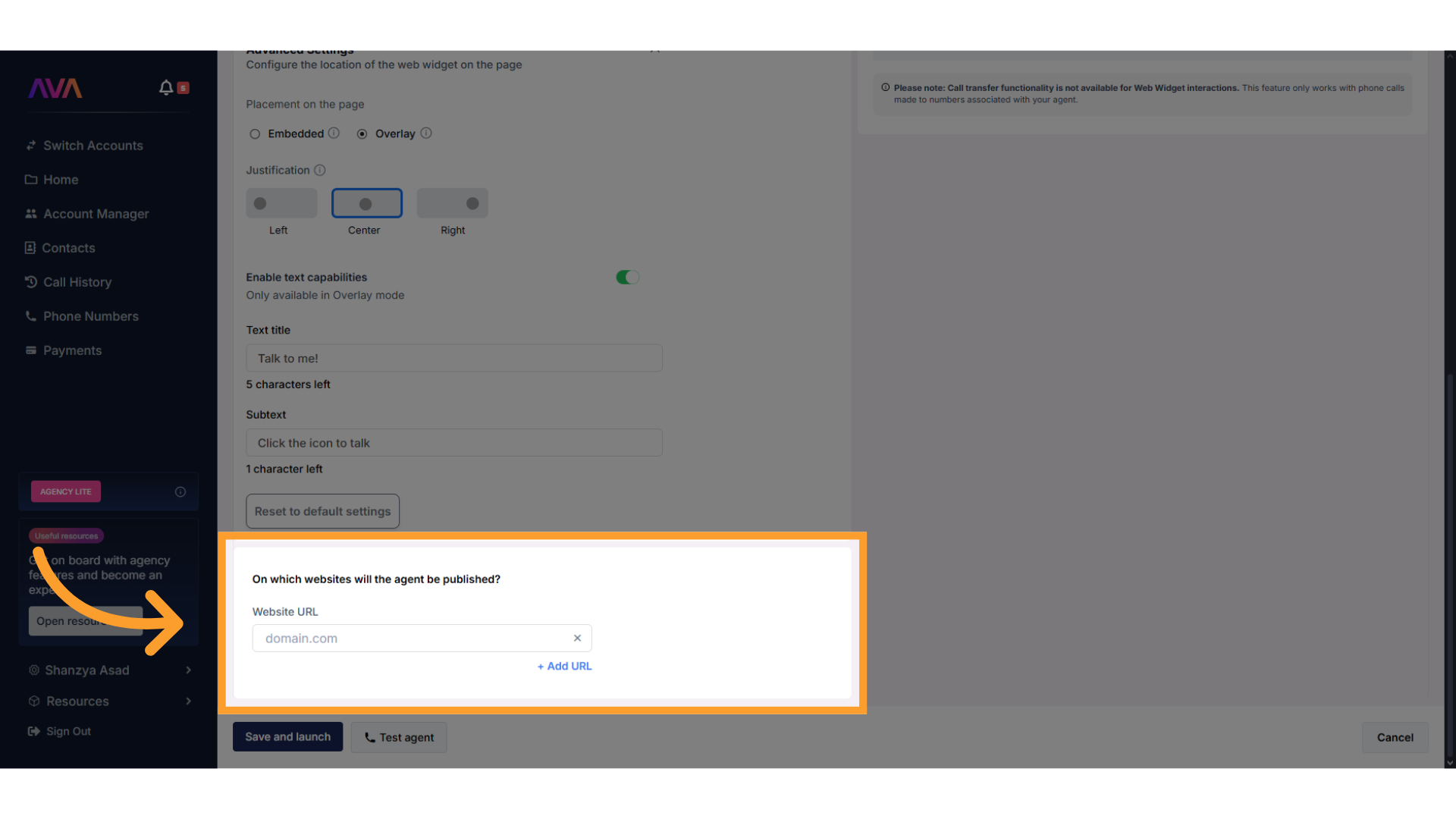
 * Add the domain(s) where the Concierge will appear.
* Include both `www.` and non-www versions if applicable.
* Add the domain(s) where the Concierge will appear.
* Include both `www.` and non-www versions if applicable.
 Once saved, thinkrr generates a code snippet to embed on your website.
**Knowledge Packs** let your Concierge reference additional documents or URLs beyond what’s imported from Hostaway.\
This is ideal for adding house manuals, FAQs, or brand policies.
**Supported plans:**
* Business Professional: 1 Pack
* Business Growth: 2 Packs
* Agency Lite: 1 Pack
* Agency Unlimited: 2 Packs
**Steps to Add:**
1. In the agent configuration screen, clickon the \*\*Knowledge Packs \*\*tab.
2. Click **Create New Knowledge Pack**.
3. Choose to **Upload Files** (.pdf, .txt, .docx, etc.) or **Enter URLs** to scan.
4. You can edit, delete, or toggle packs on/off anytime.
🚫 **Note:** Sub-accounts cannot access Knowledge Packs from the agency’s main account.
***
### 5. Assigning Actions to the Concierge AI
Once your agent’s behavior and optional modules are configured, click on the**Actions** tab.
Each action appears as a **toggle switch**:
* Turning a toggle **on** opens a configuration sidebar.
* Once configured, the setup will be **retained**, even if later turned off.
* Re-enabling the toggle restores the saved configuration instantly.
Once saved, thinkrr generates a code snippet to embed on your website.
**Knowledge Packs** let your Concierge reference additional documents or URLs beyond what’s imported from Hostaway.\
This is ideal for adding house manuals, FAQs, or brand policies.
**Supported plans:**
* Business Professional: 1 Pack
* Business Growth: 2 Packs
* Agency Lite: 1 Pack
* Agency Unlimited: 2 Packs
**Steps to Add:**
1. In the agent configuration screen, clickon the \*\*Knowledge Packs \*\*tab.
2. Click **Create New Knowledge Pack**.
3. Choose to **Upload Files** (.pdf, .txt, .docx, etc.) or **Enter URLs** to scan.
4. You can edit, delete, or toggle packs on/off anytime.
🚫 **Note:** Sub-accounts cannot access Knowledge Packs from the agency’s main account.
***
### 5. Assigning Actions to the Concierge AI
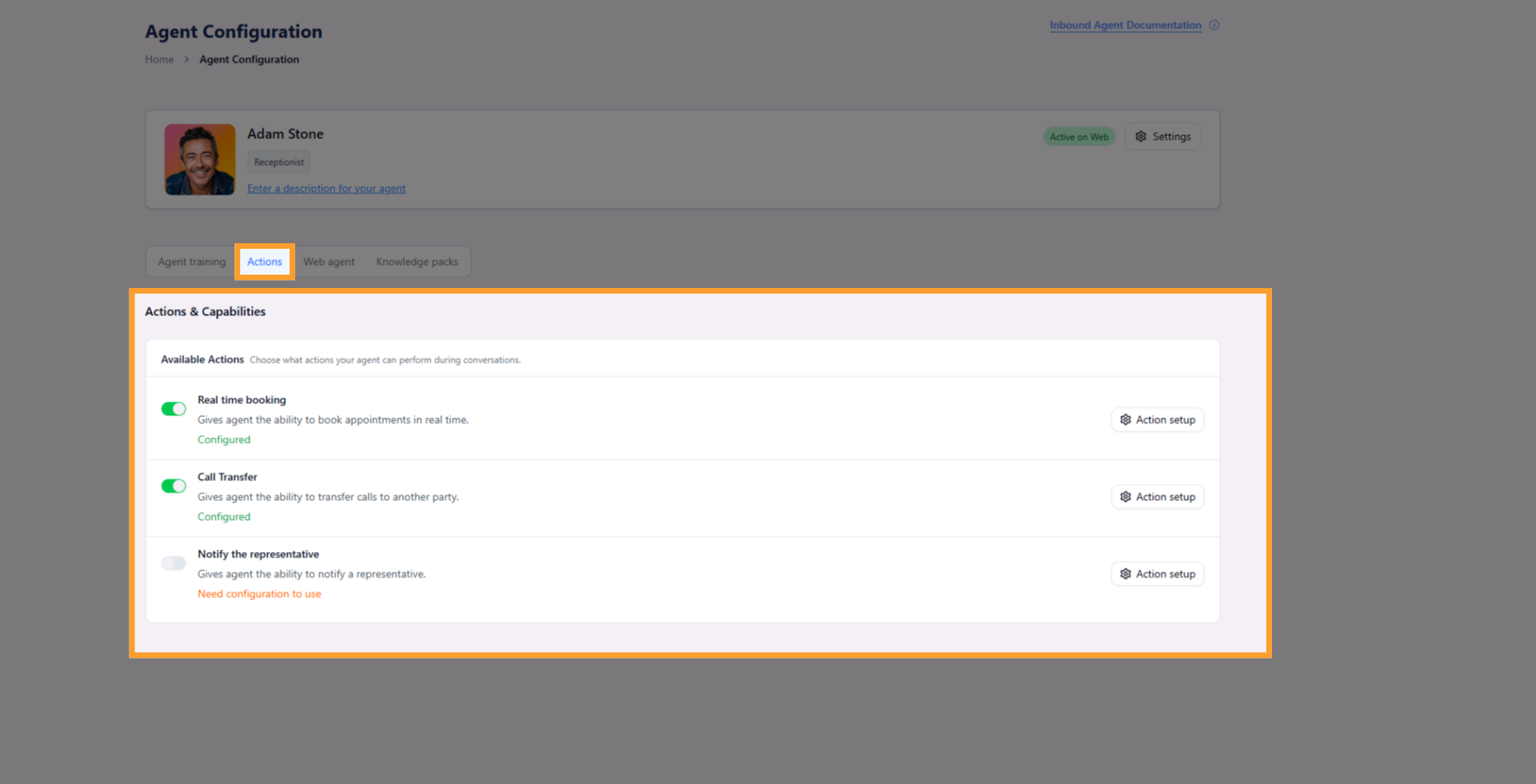
Once your agent’s behavior and optional modules are configured, click on the**Actions** tab.
Each action appears as a **toggle switch**:
* Turning a toggle **on** opens a configuration sidebar.
* Once configured, the setup will be **retained**, even if later turned off.
* Re-enabling the toggle restores the saved configuration instantly.
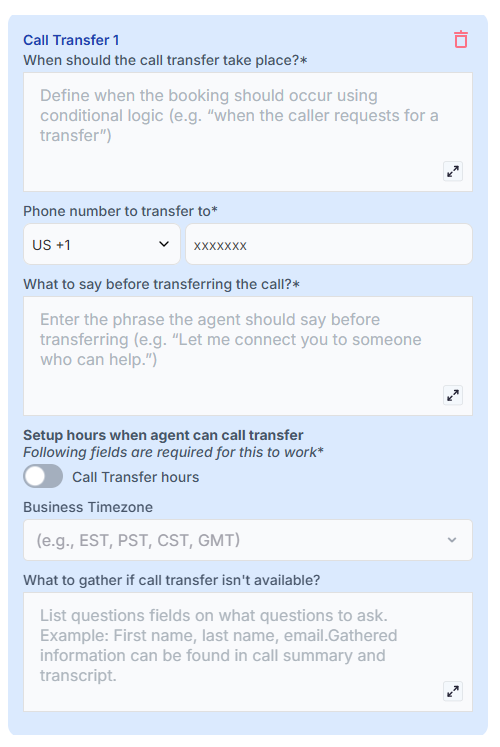
 - Enter the **phone number** to transfer to.
- Define **when** the transfer should occur.
- Add a **message** to be spoken before the transfer (e.g., “Let me connect you to someone who can help with that.”).
- Multiple call transfers can be set up with unique hours and conditions. If two conditions are true at once, the system prioritizes the first configuration in the list.
- Enter the **phone number** to transfer to.
- Define **when** the transfer should occur.
- Add a **message** to be spoken before the transfer (e.g., “Let me connect you to someone who can help with that.”).
- Multiple call transfers can be set up with unique hours and conditions. If two conditions are true at once, the system prioritizes the first configuration in the list.
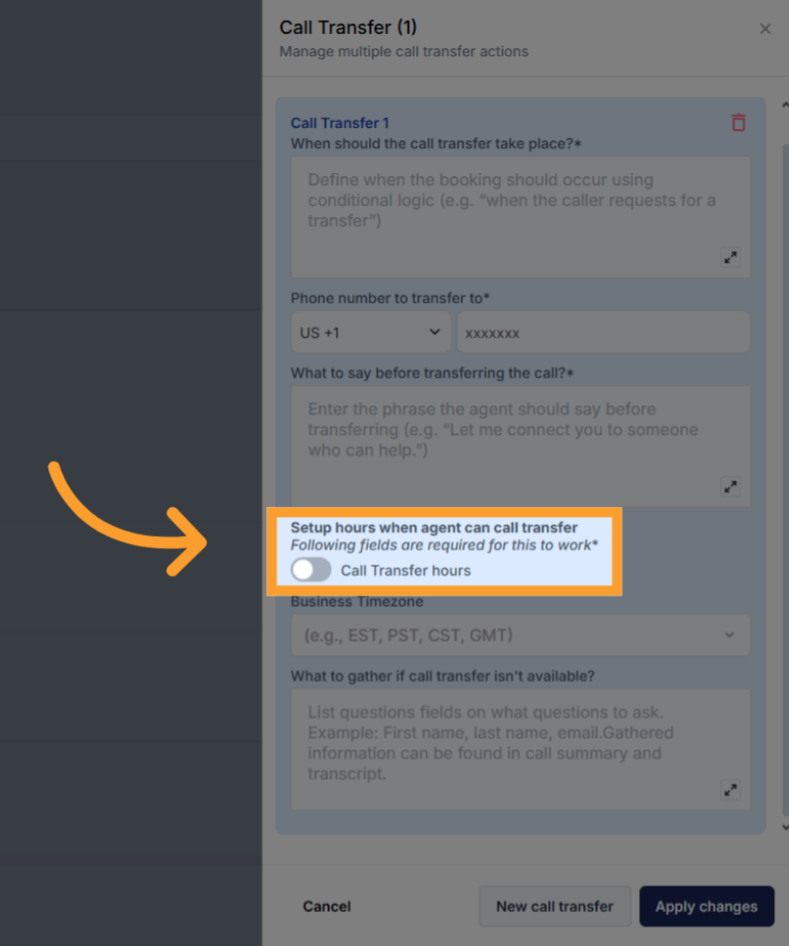
 * You can configure **business/availability hours** to prevent disruptive off-hour transfers (for example, to avoid calls going through late at night).\
Outside configured hours, the Concierge will offer alternatives such as taking a message or sending an email.
* You can configure **business/availability hours** to prevent disruptive off-hour transfers (for example, to avoid calls going through late at night).\
Outside configured hours, the Concierge will offer alternatives such as taking a message or sending an email.
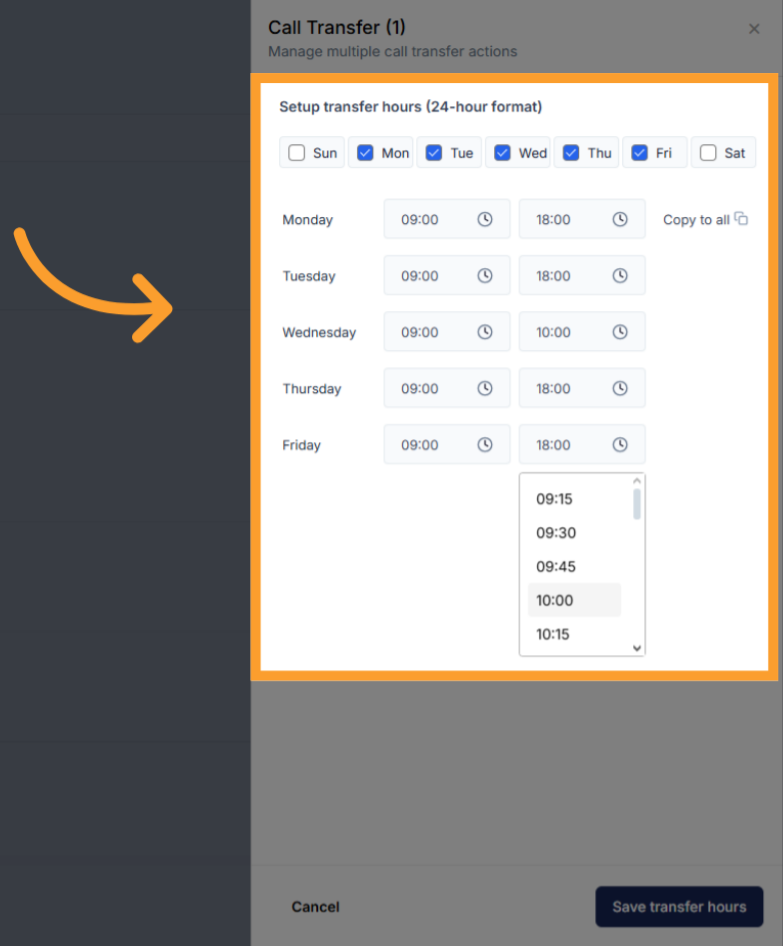
 * Select the days of the week and customize the hours for each day.\
After setting one day, you can use **Copy All** to apply the same schedule across all days if desired.
* Select the days of the week and customize the hours for each day.\
After setting one day, you can use **Copy All** to apply the same schedule across all days if desired.
 * Transfers only work in **phone-based agents**.
* Enter up to **10 email addresses** to receive notifications.
* Each email includes:
* Guest details
* Call summary and transcript
* Call sentiment
* Recording link (unless the call was transferred)
* These are **internal notifications only**, meant for hosts, property managers, or support teams.
* Transfers only work in **phone-based agents**.
* Enter up to **10 email addresses** to receive notifications.
* Each email includes:
* Guest details
* Call summary and transcript
* Call sentiment
* Recording link (unless the call was transferred)
* These are **internal notifications only**, meant for hosts, property managers, or support teams.
.png?fit=max&auto=format&n=d9INt8_clMeLOZYl&q=85&s=6680c602305ea07d657b708a30d0ea96) Once saved, your Concierge will be active and ready to manage guest calls, relay key details, and ensure that live staff are notified when necessary.
***
## FAQs & Troubleshooting
### General Questions
Yes. You can configure the Concierge manually without Hostaway integration, but you must be on the STR plan.
Yes. Each Concierge can represent a unique property and phone number once connected to Hostaway or manually created.
### Configuration
We automatically sync property data when connected via Hostaway. You can also manually add or update property information for properties not connected to Hostaway.
Yes. You can adjust voice tone, responsiveness, and greeting text under **Voice Settings** and **Agent Settings**.
### Usage and Results
It’s ideal for answering guest inquiries, confirming bookings, and relaying information during active stays.
All Concierge activity appears in the **Call History** and **Agent Logs** within thinkrr.
***
For additional questions or guidance, try using our [**Virtual Support Agent**](/Thinkrr-Support-Agent)! Available 24/7 to help resolve most issues quickly at [thinkrr.ai/support](https://thinkrr.ai/support).
If you still need assistance, visit our support site at help.thinkrr.ai or submit a [Ticket](/Support-Ticket-System) or contact our team directly at [hello@thinkrr.ai](mailto:hello@thinkrr.ai).
Once saved, your Concierge will be active and ready to manage guest calls, relay key details, and ensure that live staff are notified when necessary.
***
## FAQs & Troubleshooting
### General Questions
Yes. You can configure the Concierge manually without Hostaway integration, but you must be on the STR plan.
Yes. Each Concierge can represent a unique property and phone number once connected to Hostaway or manually created.
### Configuration
We automatically sync property data when connected via Hostaway. You can also manually add or update property information for properties not connected to Hostaway.
Yes. You can adjust voice tone, responsiveness, and greeting text under **Voice Settings** and **Agent Settings**.
### Usage and Results
It’s ideal for answering guest inquiries, confirming bookings, and relaying information during active stays.
All Concierge activity appears in the **Call History** and **Agent Logs** within thinkrr.
***
For additional questions or guidance, try using our [**Virtual Support Agent**](/Thinkrr-Support-Agent)! Available 24/7 to help resolve most issues quickly at [thinkrr.ai/support](https://thinkrr.ai/support).
If you still need assistance, visit our support site at help.thinkrr.ai or submit a [Ticket](/Support-Ticket-System) or contact our team directly at [hello@thinkrr.ai](mailto:hello@thinkrr.ai).