> ## Documentation Index
> Fetch the complete documentation index at: https://docs.thinkrr.ai/llms.txt
> Use this file to discover all available pages before exploring further.
> Easily manage your contact lists by importing or exporting data in bulk using thinkrr and GoHighLevel (GHL) tools.
# Contact Import & Export
## Details
Expedite your contact management through the use of mass import and export features on **thinkrr** and **GHL**.
## Managing Contacts
Follow these steps to import your contacts from a connected CRM, upload them from a file, or add them manually one at a time.
* From your dashboard, click **Contacts** in the sidebar. 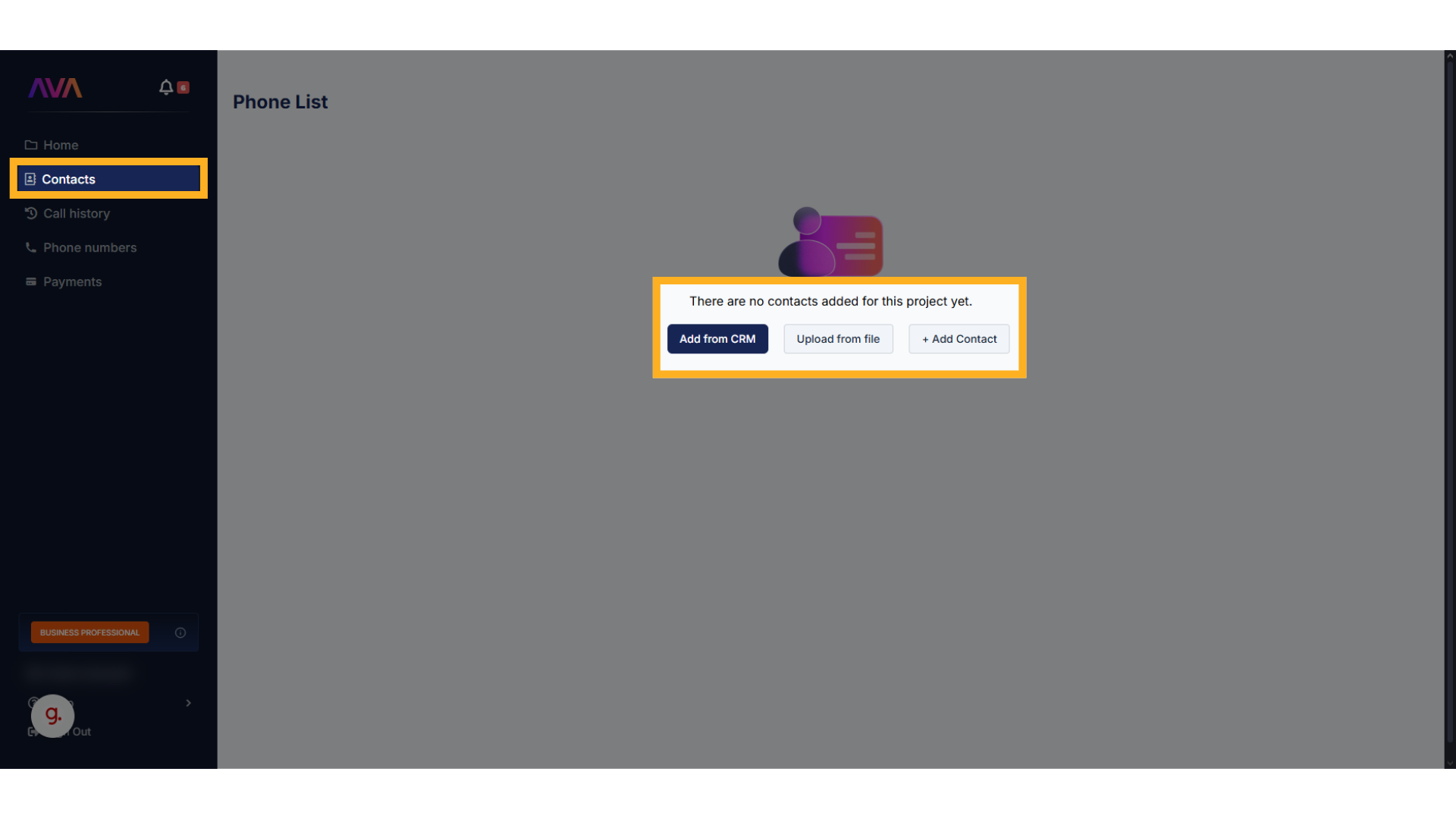 * On this page you’ll see three options for adding contacts:
* **Add from CRM** (pulls data from your connected GoHighLevel account)
* **Upload from file** (bulk import via XLSX or CSV)
* **Add contact** (manual entry for a single record)
* Make sure your GoHighLevel agency account is connected first.
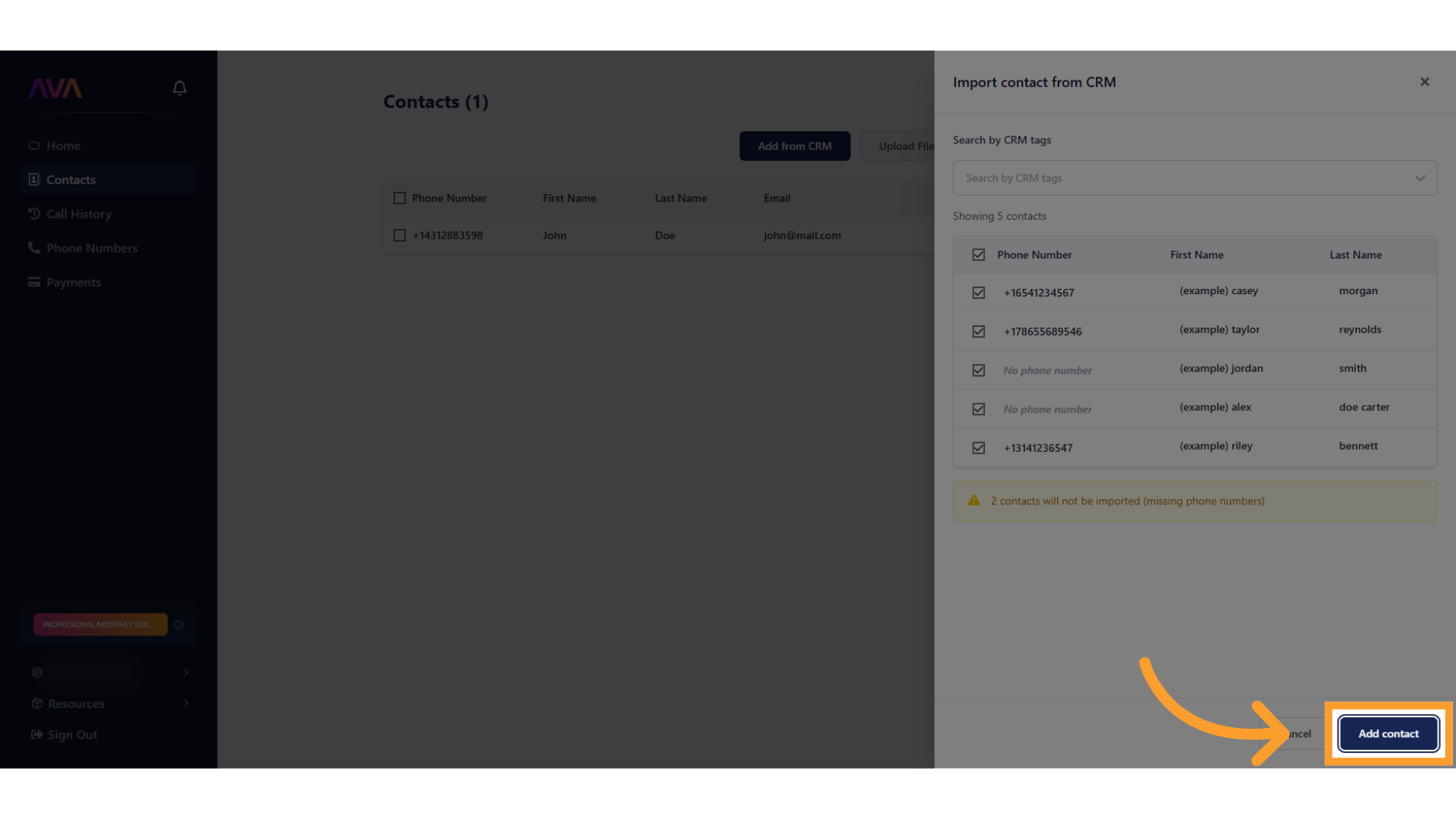
* Click **Add from CRM** to open a side panel with available contacts.
* On this page you’ll see three options for adding contacts:
* **Add from CRM** (pulls data from your connected GoHighLevel account)
* **Upload from file** (bulk import via XLSX or CSV)
* **Add contact** (manual entry for a single record)
* Make sure your GoHighLevel agency account is connected first.
* Click **Add from CRM** to open a side panel with available contacts.
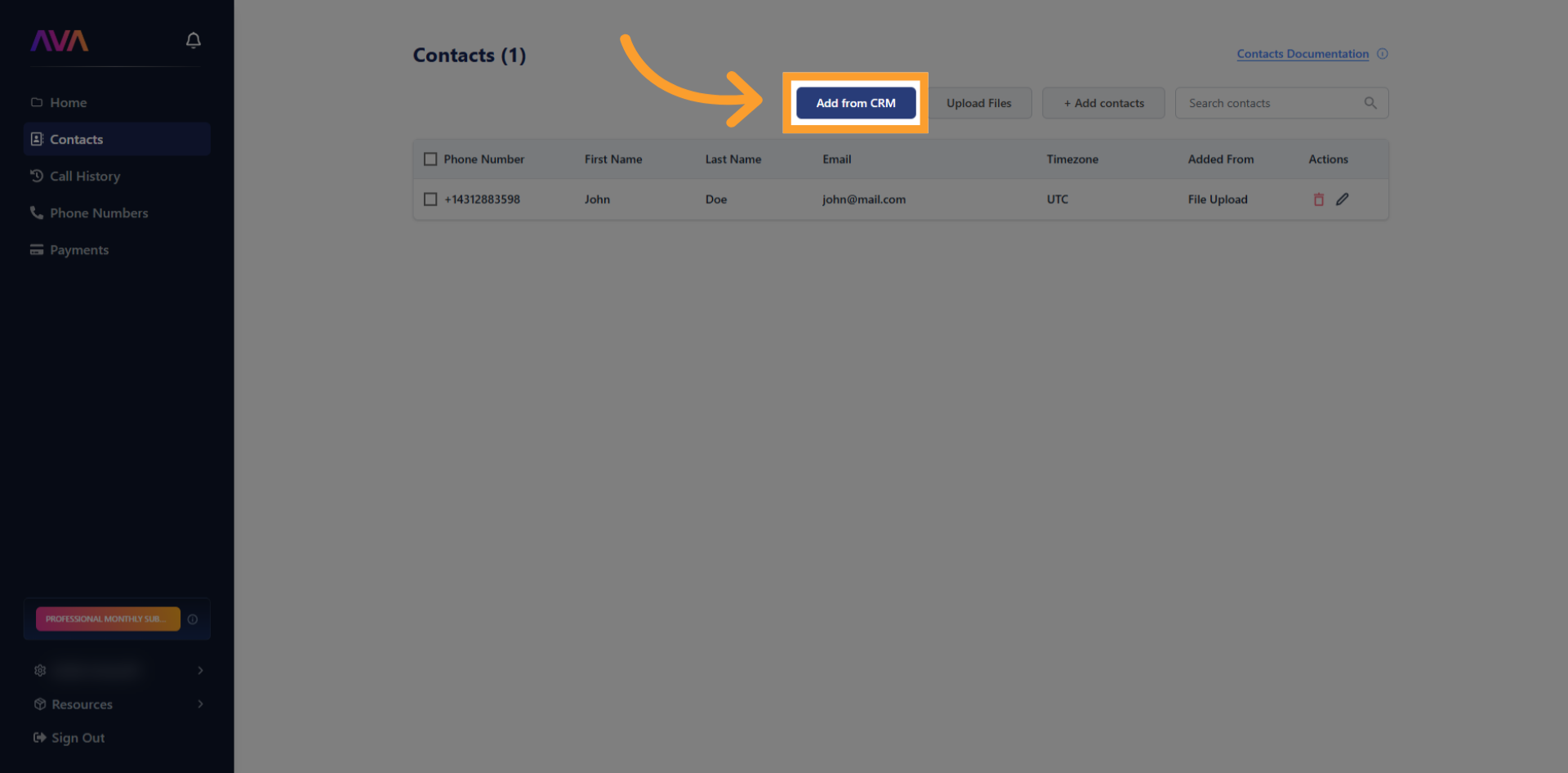 * Use the filter at the top of the panel to narrow results by tag if you have many contacts.
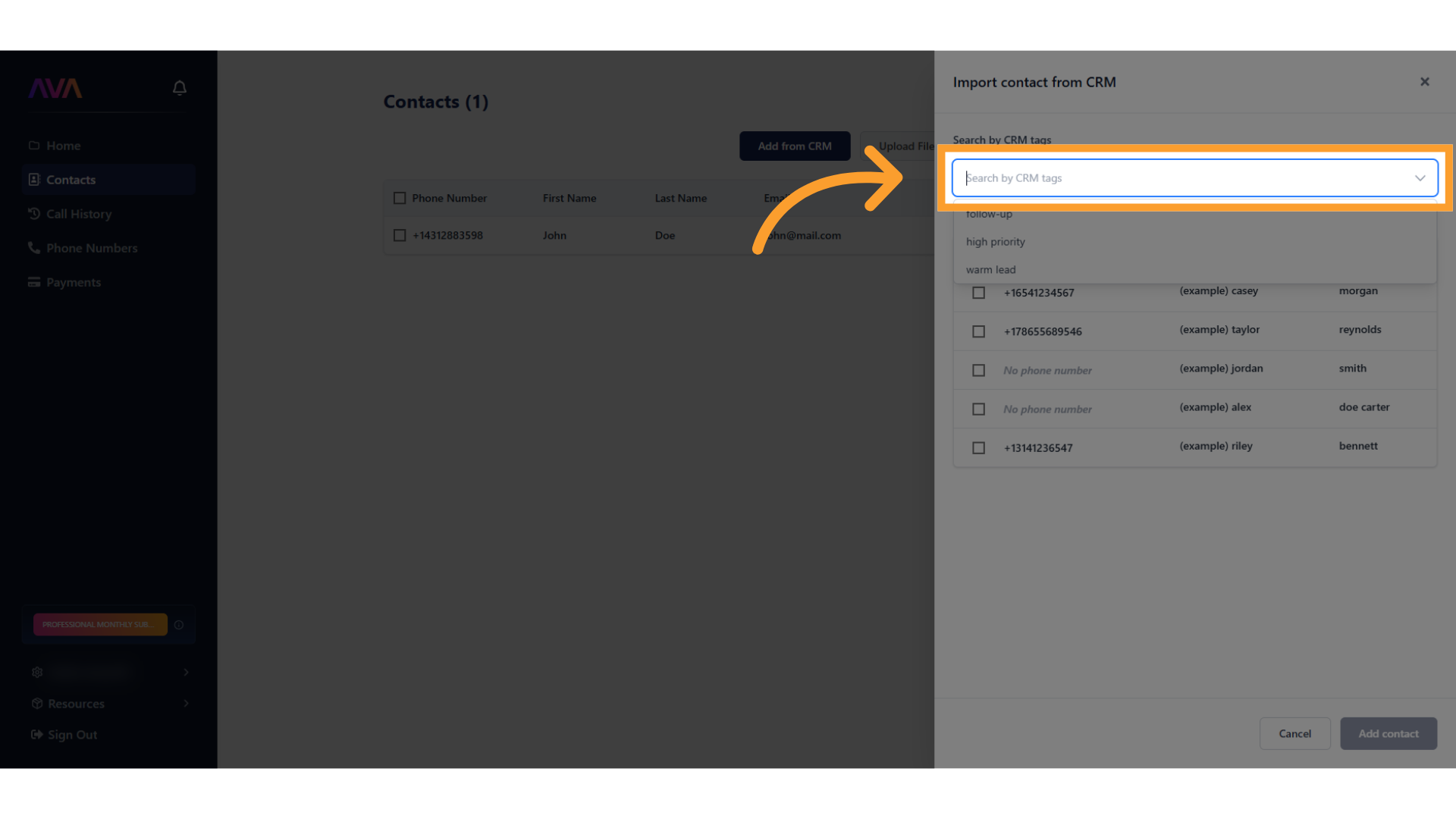 * Contacts missing required data (like a phone number) will display a warning and won’t import.
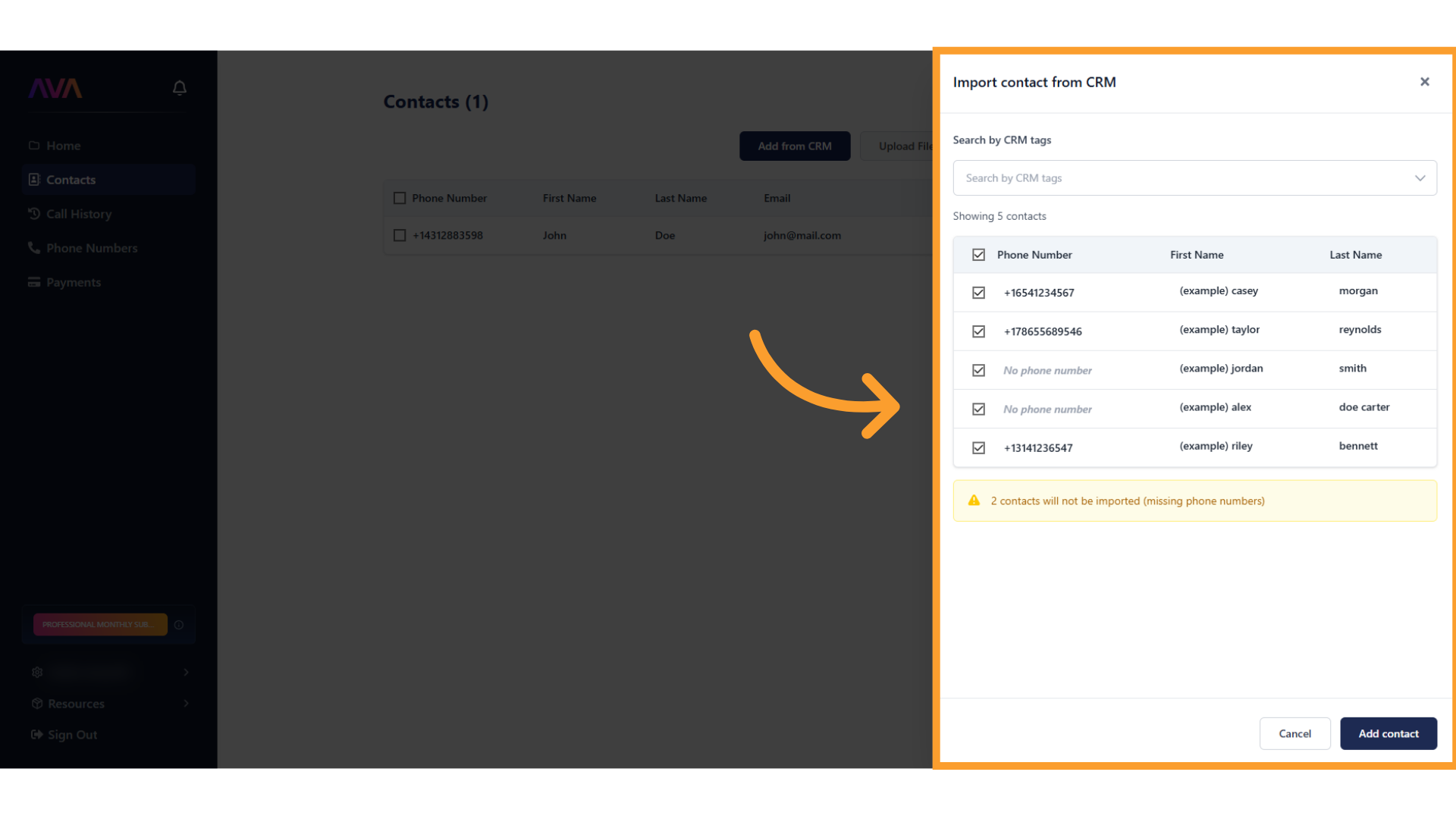 * When ready, click **Add Contact** at the bottom of the panel to complete the import.
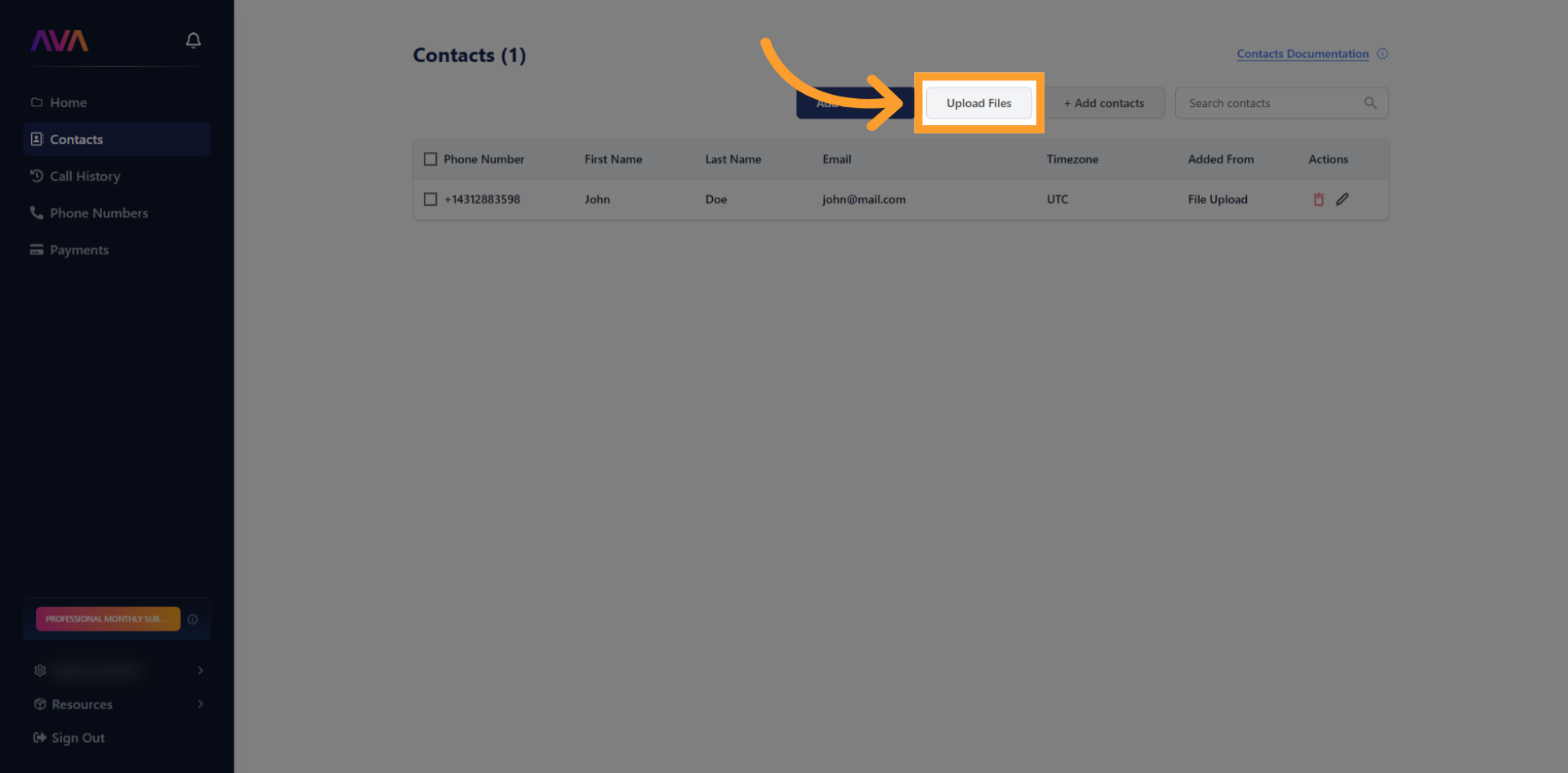
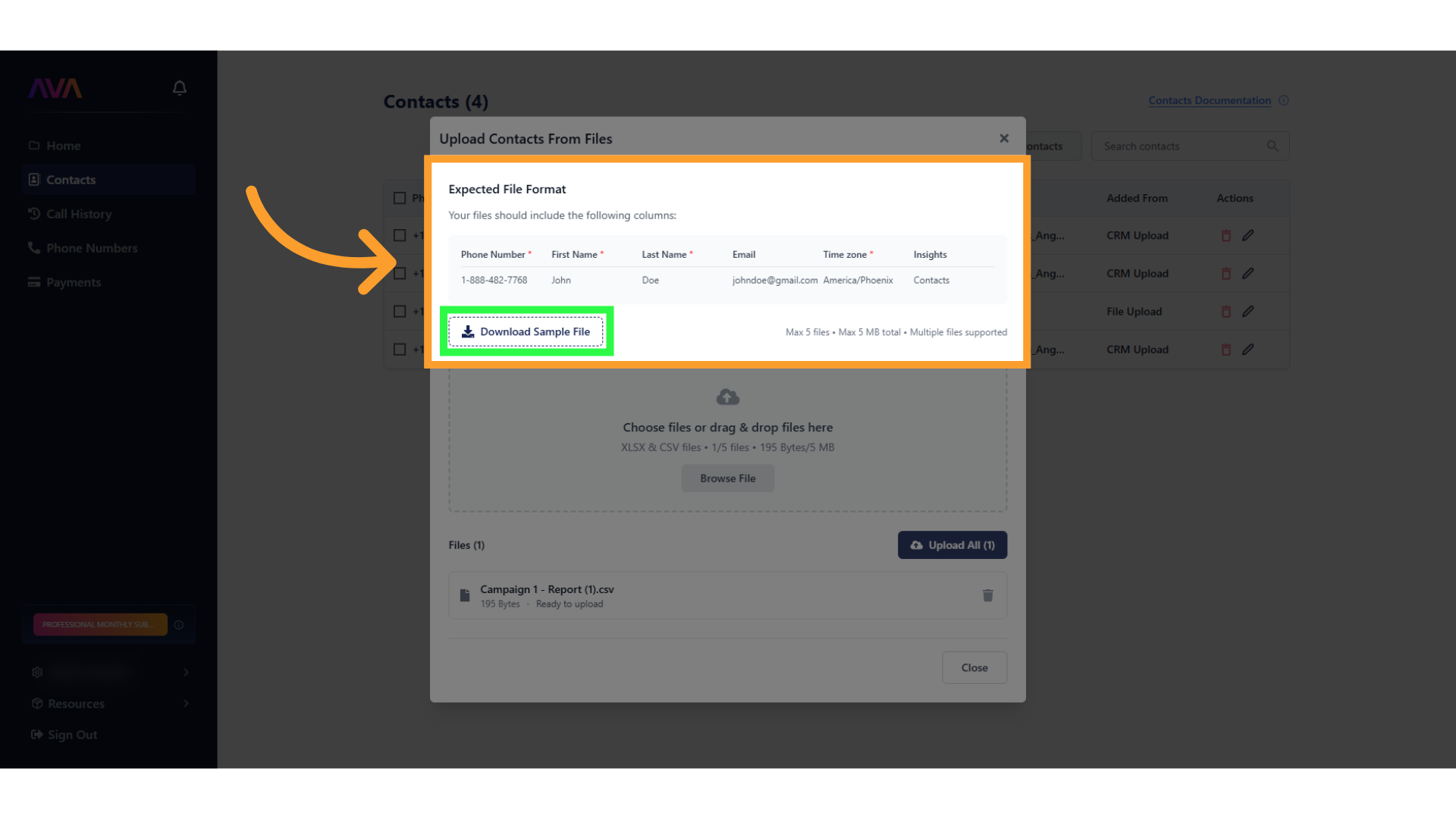
 * Click **Upload files**.
 * In the interface that opens, click **Browse File**, then drag-and-drop or select your files.
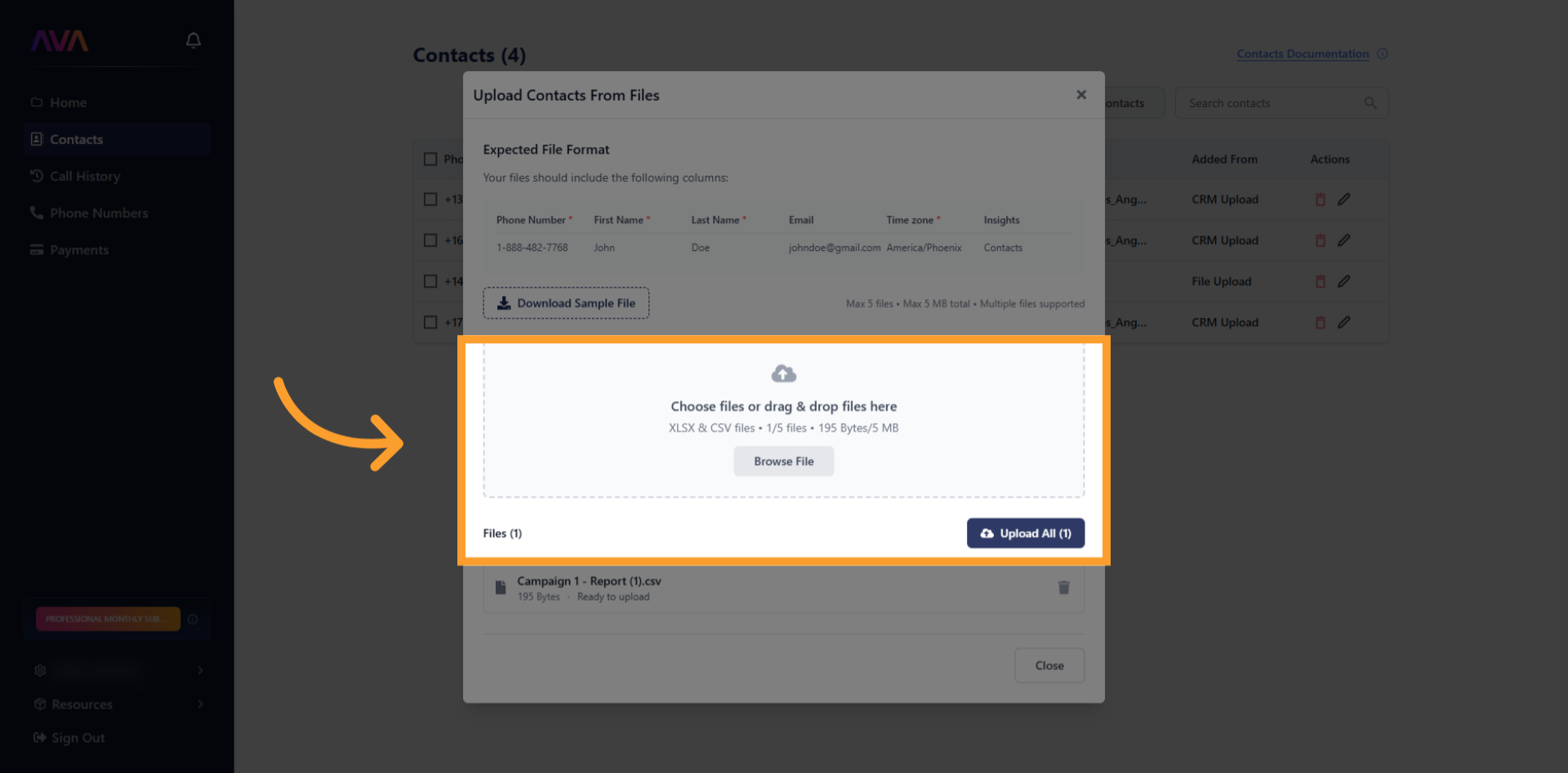 * Requirements:
* Formats: **.xlsx** and **.csv**
* Maximum file size: **5 MB** each
* Up to **five files at a time**
* After selecting, click **Upload all** to begin processing.
* The status section will display:
* Requirements:
* Formats: **.xlsx** and **.csv**
* Maximum file size: **5 MB** each
* Up to **five files at a time**
* After selecting, click **Upload all** to begin processing.
* The status section will display:
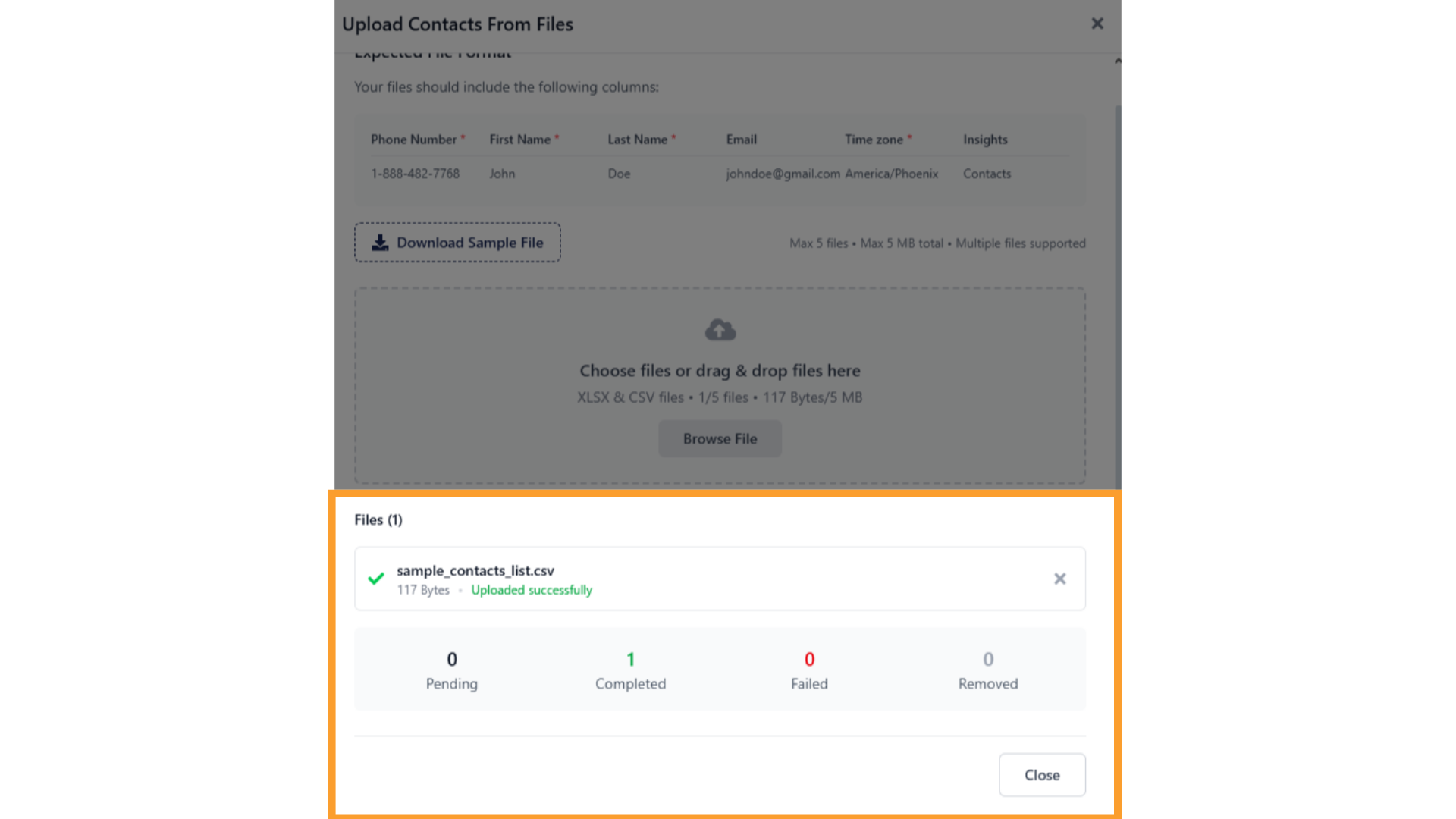 * **Pending**: contacts waiting to be processed
* **Completed**: successfully imported records
* **Failed**: records rejected due to missing data or formatting errors
* **Removed**: records taken out if you delete a file from the batch
* Tip: Use the **Download Sample File** button to see the correct headers and required fields if uploads fail.
* **Pending**: contacts waiting to be processed
* **Completed**: successfully imported records
* **Failed**: records rejected due to missing data or formatting errors
* **Removed**: records taken out if you delete a file from the batch
* Tip: Use the **Download Sample File** button to see the correct headers and required fields if uploads fail.
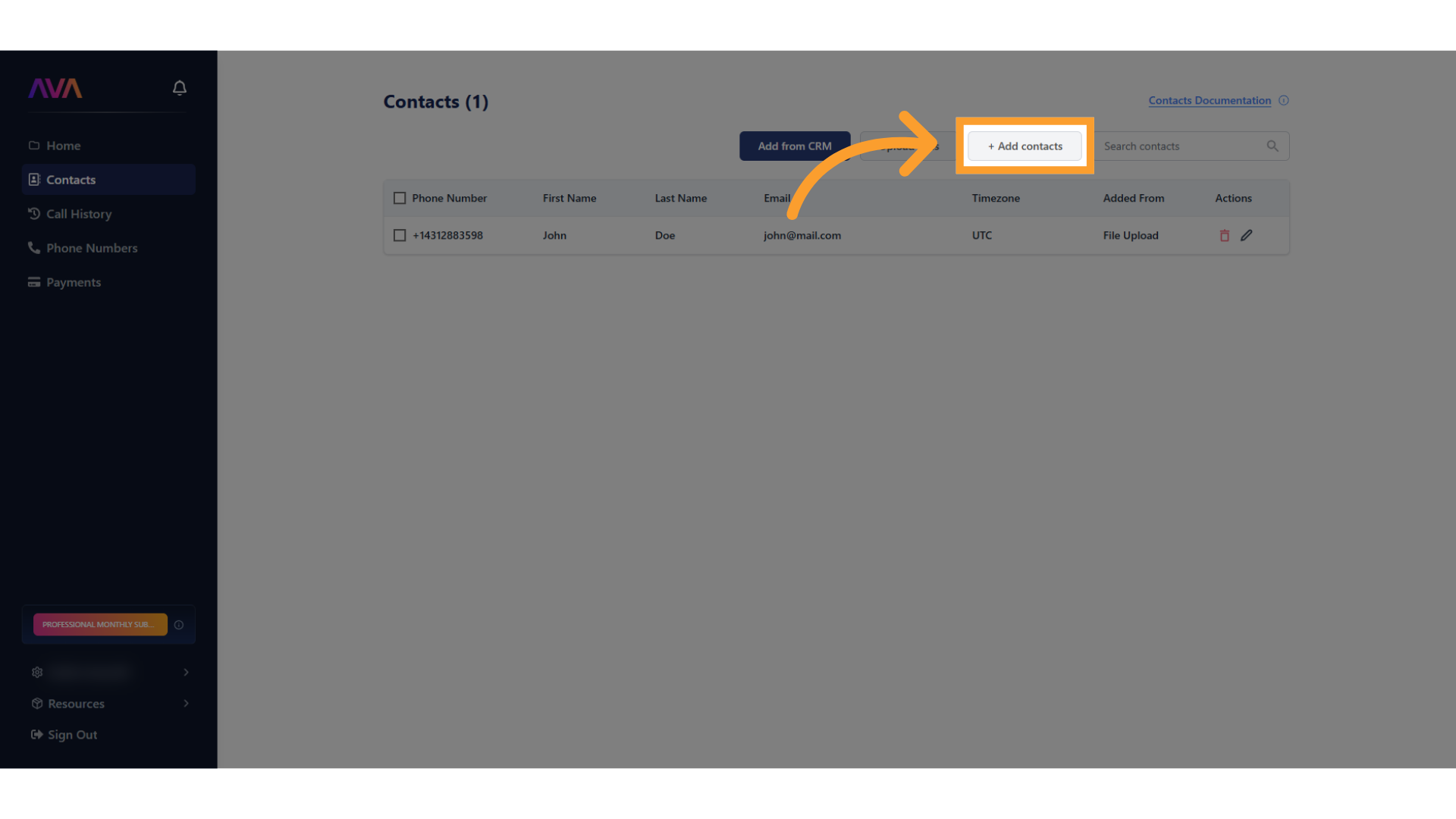
 * Click **Add contact** to enter details one at a time.
 * Fill in:
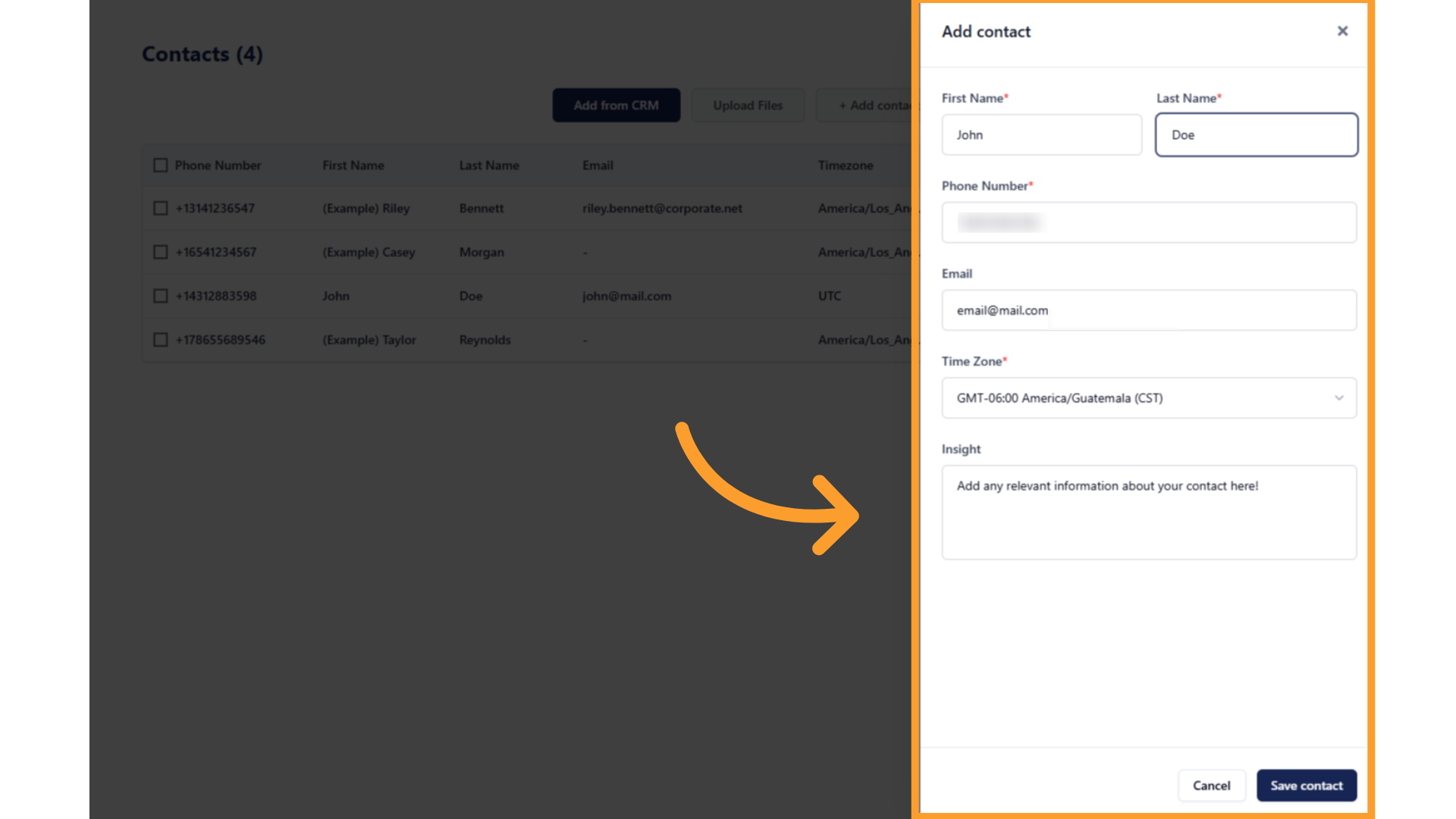 * First Name
* Last Name
* Phone number
* Email (optional, must be valid if provided)
* Time zone
* Any additional fields you’d like thinkrr’s agents to use
* Click **Save contact** to add it to your list.
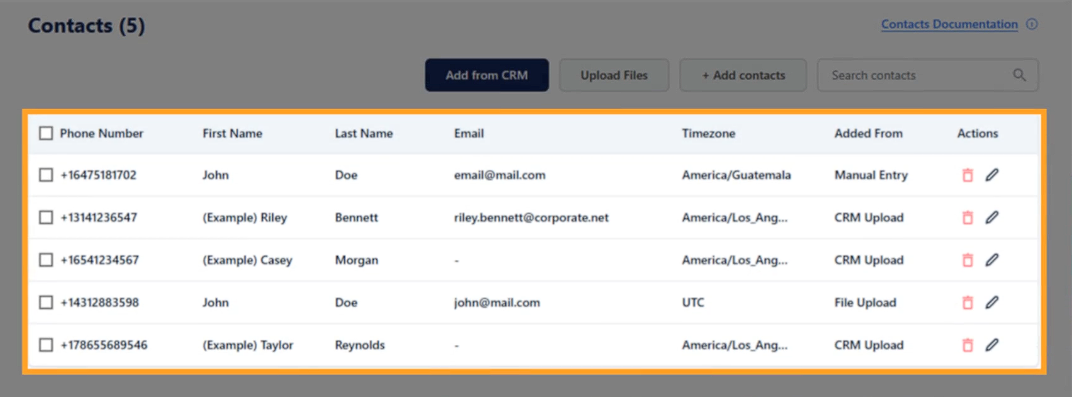
* After importing, all records appear on the **Contacts** page with their source (CRM, File, or Manual).
* First Name
* Last Name
* Phone number
* Email (optional, must be valid if provided)
* Time zone
* Any additional fields you’d like thinkrr’s agents to use
* Click **Save contact** to add it to your list.
* After importing, all records appear on the **Contacts** page with their source (CRM, File, or Manual).
 * To see details of an upload, go to the **Import History** tab inside a **campaign**:
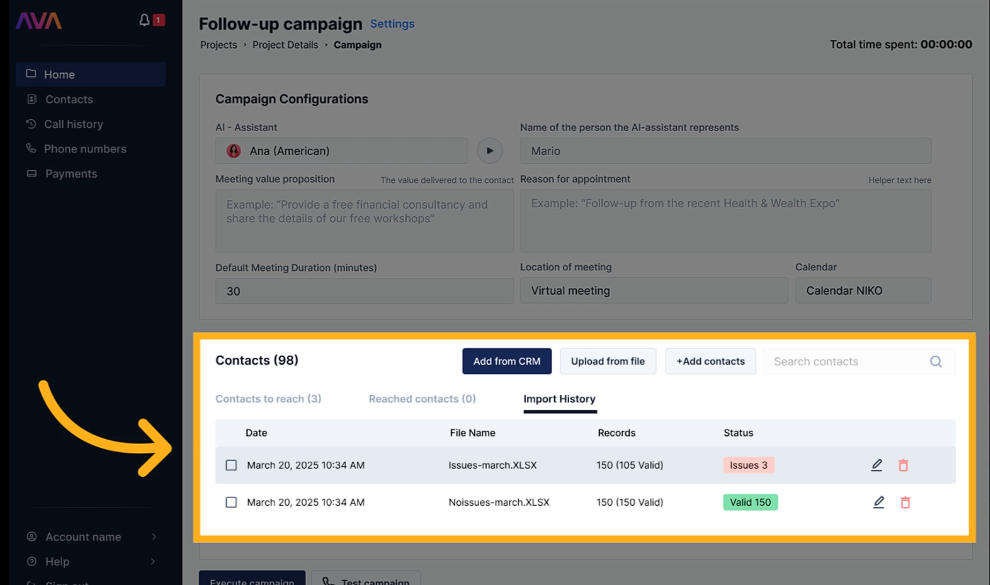 * Shows upload date, file name, total records processed, and current status.
* Records are flagged as **invalid** if they:
* Are duplicates of existing contacts
* Have invalid email or time zone
* Have missing required fields (First Name, Last Name, Phone, Time zone)
* Supported phone number formats:
* `1-XXX-XXX-XXXX`
* `1 (XXX) XXX-XXXX`
Follow these steps to import or export contacts using your GoHighLevel (GHL) dashboard.
## Importing Contacts
* In your GHL dashboard, click **Contacts**.
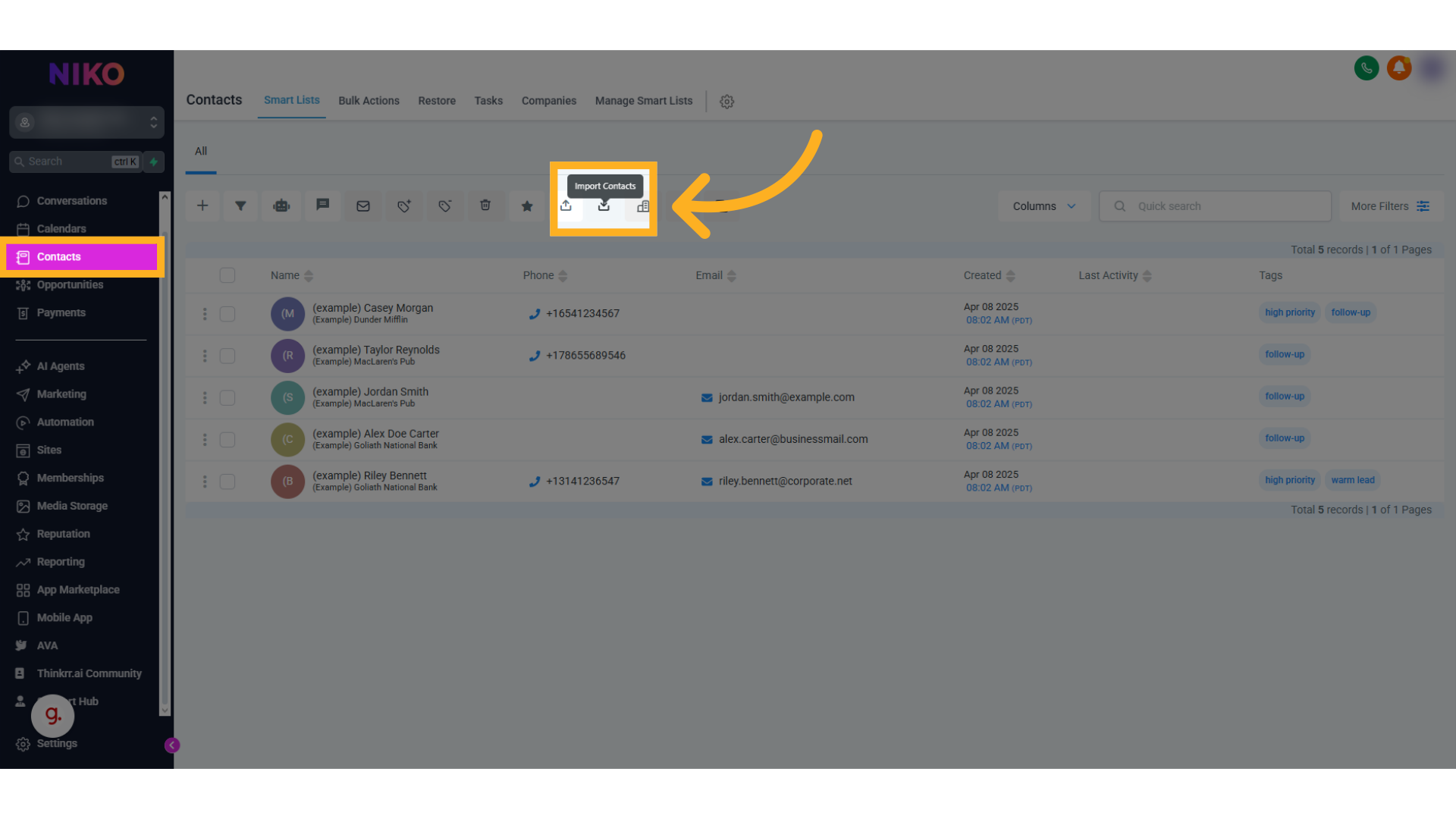
* At the top of the contacts page, you'll see two icons:
* **Import** (arrow pointing inward).
* **Export** (arrow pointing outward).
* Click on the **Import** icon.
* Shows upload date, file name, total records processed, and current status.
* Records are flagged as **invalid** if they:
* Are duplicates of existing contacts
* Have invalid email or time zone
* Have missing required fields (First Name, Last Name, Phone, Time zone)
* Supported phone number formats:
* `1-XXX-XXX-XXXX`
* `1 (XXX) XXX-XXXX`
Follow these steps to import or export contacts using your GoHighLevel (GHL) dashboard.
## Importing Contacts
* In your GHL dashboard, click **Contacts**.
* At the top of the contacts page, you'll see two icons:
* **Import** (arrow pointing inward).
* **Export** (arrow pointing outward).
* Click on the **Import** icon.
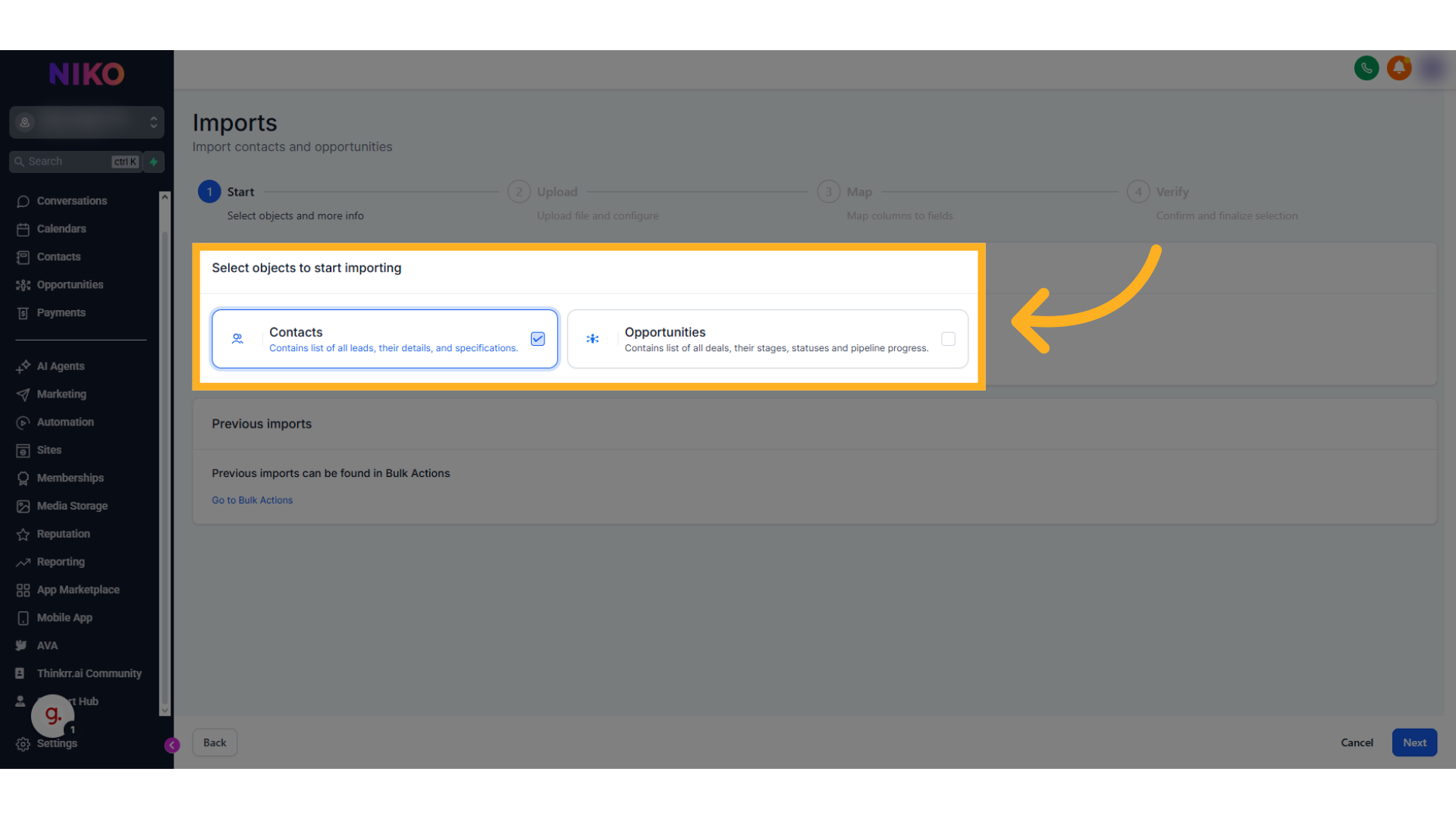
 * Select whether you are importing **Contacts** or **Opportunities**.
* This choice determines the available actions and the required fields for mapping.
* Select whether you are importing **Contacts** or **Opportunities**.
* This choice determines the available actions and the required fields for mapping.
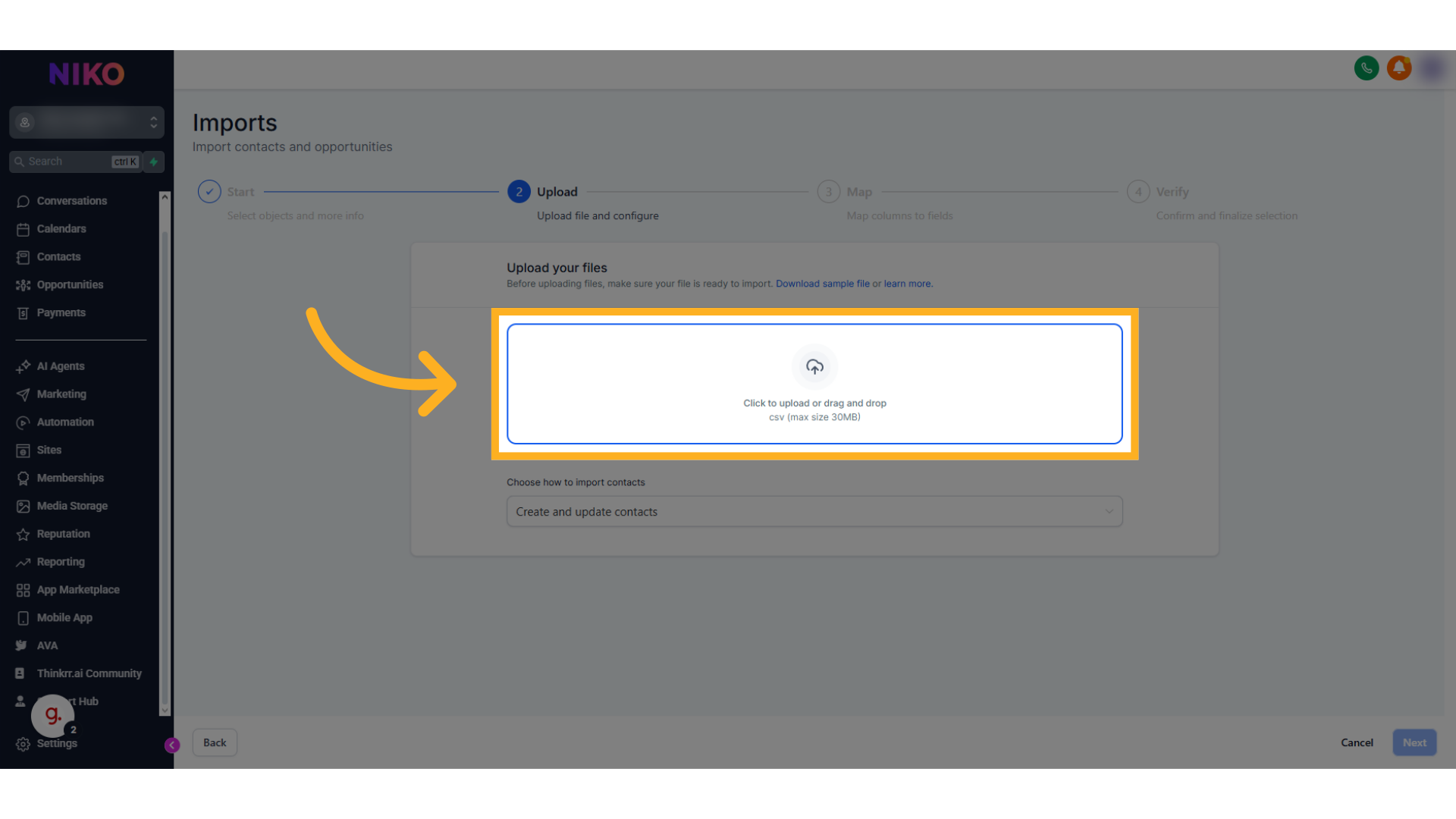
 * Click **"Click to upload or drag and drop csv"** (max size 30MB).
* Upload your CSV file through this prompt.
* Click **"Click to upload or drag and drop csv"** (max size 30MB).
* Upload your CSV file through this prompt.
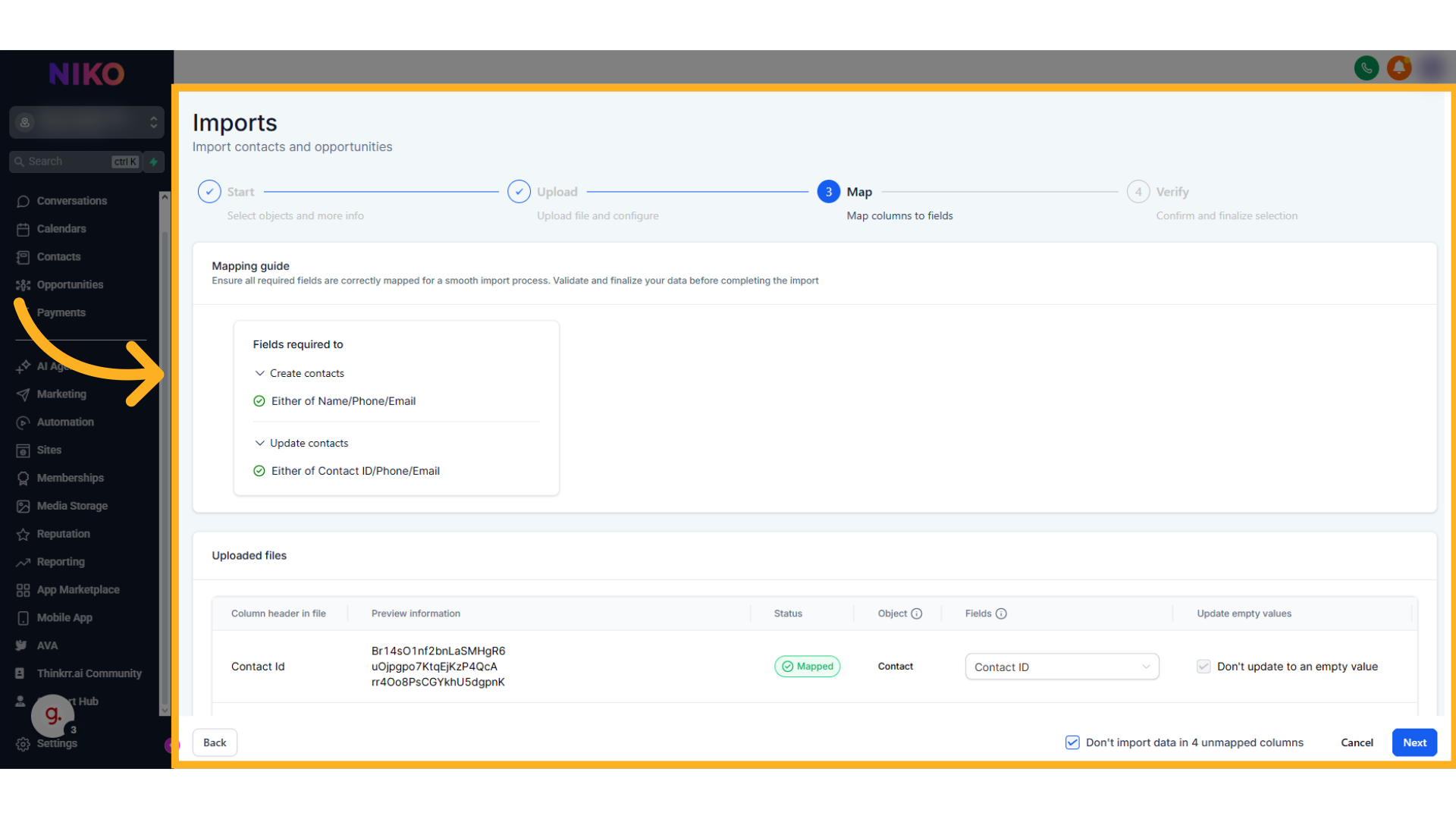
 * In the mapping section, you will see:
* The **column header** from your file.
* A **preview of the data**.
* The **mapping status** (whether each field is already mapped).
* The **object type**.
* The **field selection**.
* An option to **skip updating empty fields**.
* Review which fields are required and ensure they are properly mapped.
* Choose whether or not to update fields if the incoming data is empty.
* In the mapping section, you will see:
* The **column header** from your file.
* A **preview of the data**.
* The **mapping status** (whether each field is already mapped).
* The **object type**.
* The **field selection**.
* An option to **skip updating empty fields**.
* Review which fields are required and ensure they are properly mapped.
* Choose whether or not to update fields if the incoming data is empty.
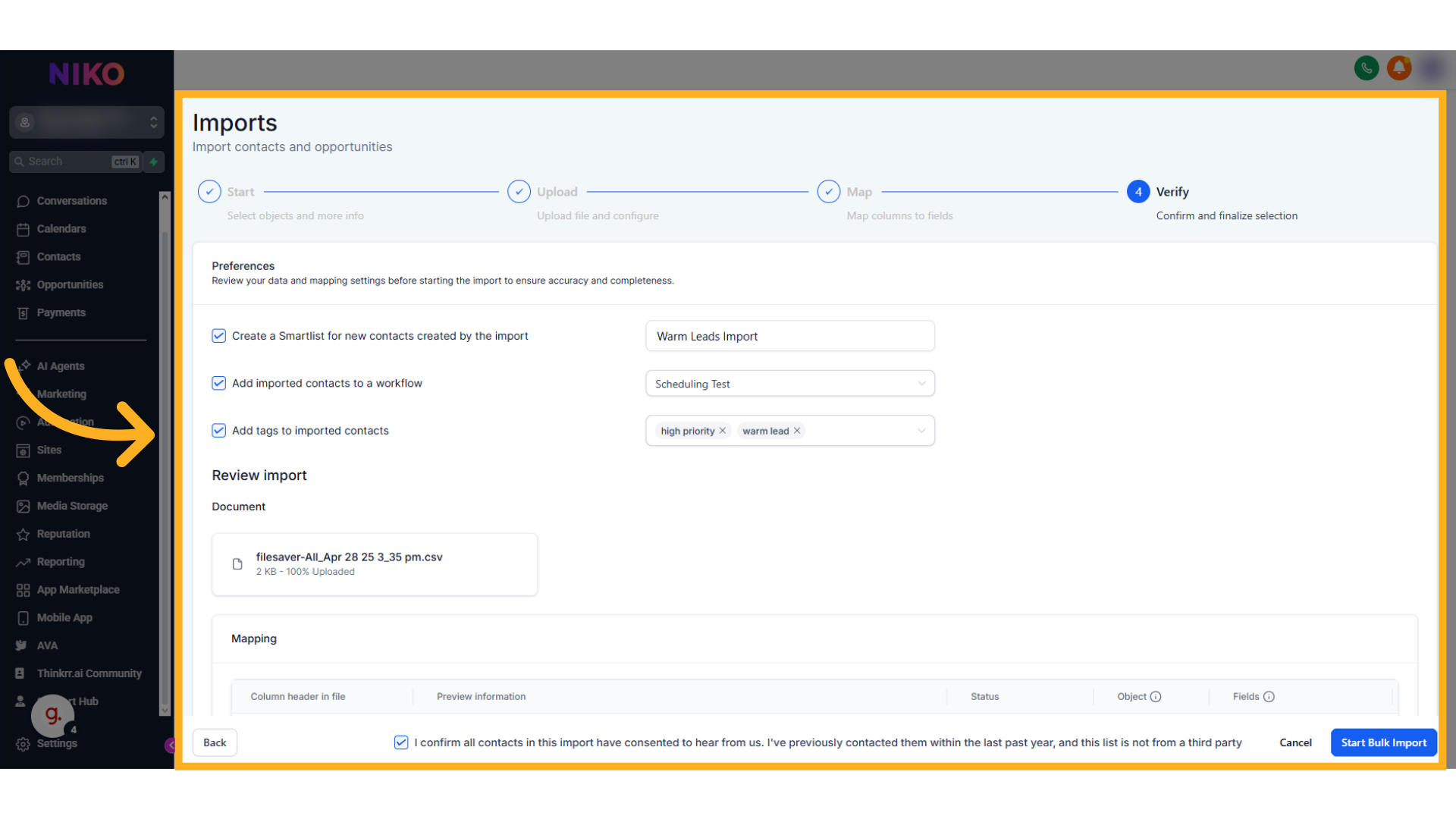
 * In the **Verify** section, review the contacts being imported.
* Configure your import preferences:
* Create a **Smart List**.
* Add contacts to an **existing published workflow**.
* Add **tags** to your imported contacts.
* Accept the **Terms and Conditions** at the bottom of the page.
* Click **Start Bulk Import** to complete the process.
* In the **Verify** section, review the contacts being imported.
* Configure your import preferences:
* Create a **Smart List**.
* Add contacts to an **existing published workflow**.
* Add **tags** to your imported contacts.
* Accept the **Terms and Conditions** at the bottom of the page.
* Click **Start Bulk Import** to complete the process.
 ## Exporting Contacts
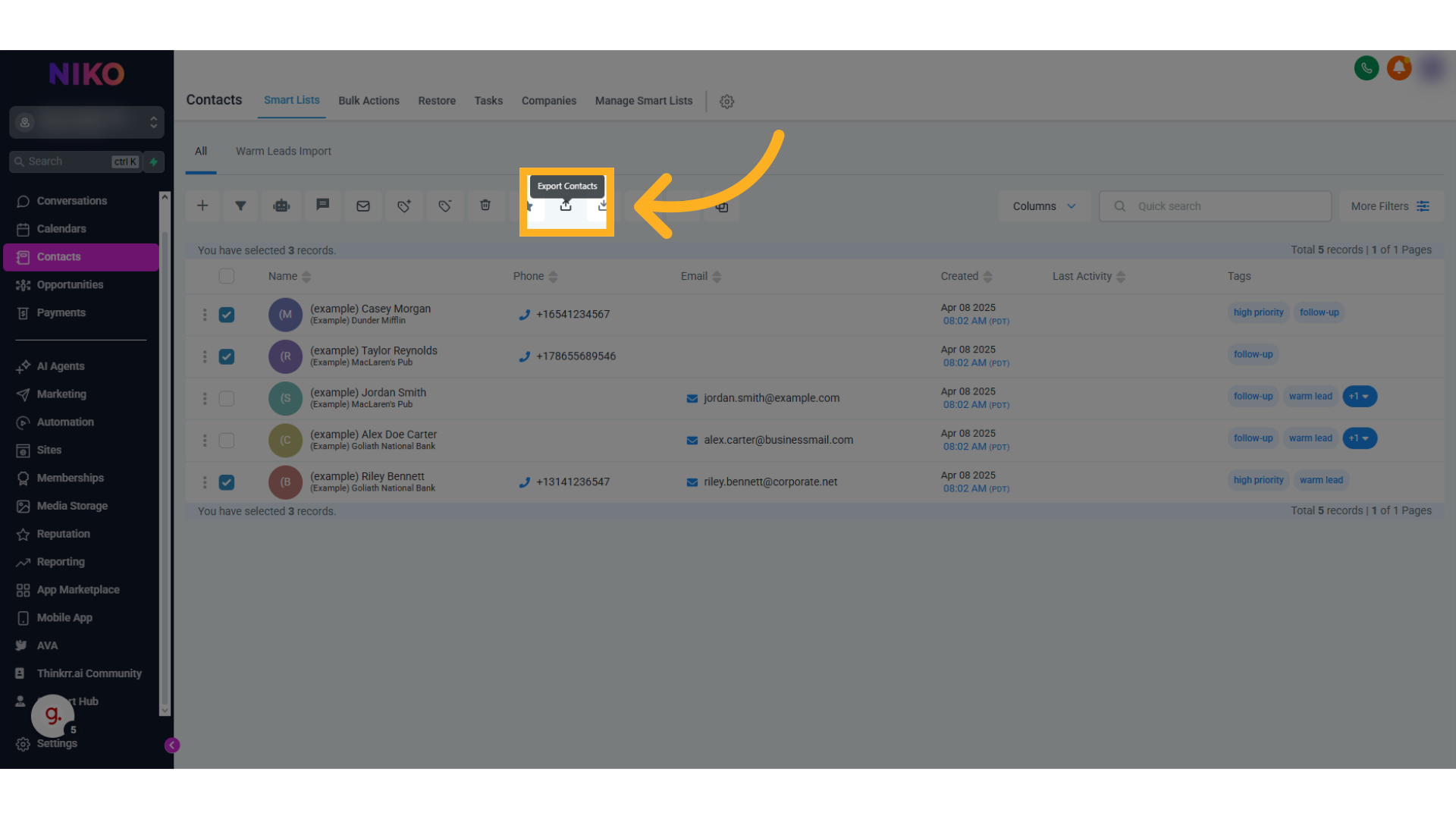
* From the **Contacts** list, select the contacts you wish to export.
* Use the checkbox next to each contact to make your selection.
## Exporting Contacts
* From the **Contacts** list, select the contacts you wish to export.
* Use the checkbox next to each contact to make your selection.
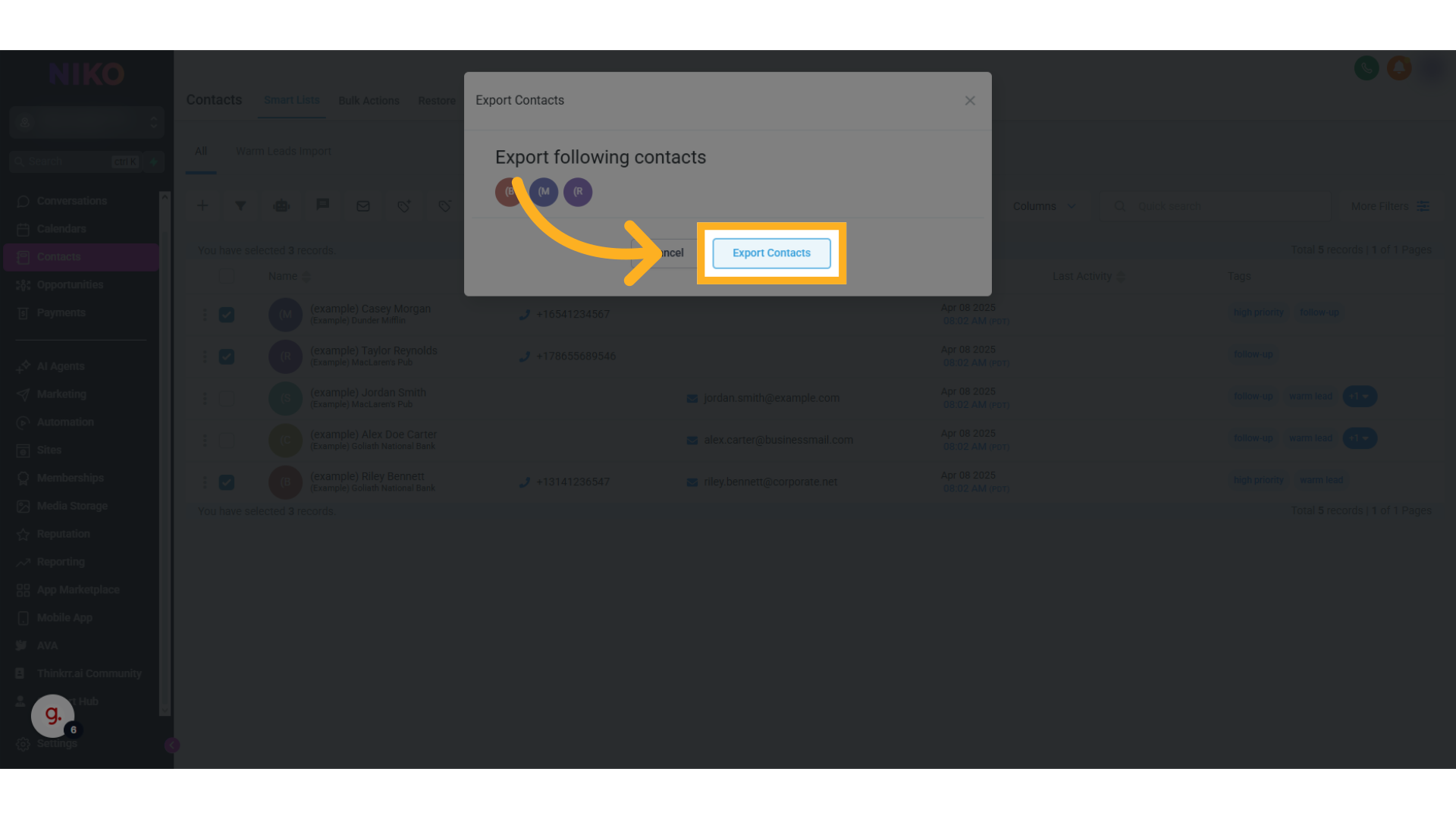
 * A summary of your selected contacts will appear.
* Review the selection to ensure accuracy.
* Click **Export Contacts** once you're satisfied with the selection.
* A summary of your selected contacts will appear.
* Review the selection to ensure accuracy.
* Click **Export Contacts** once you're satisfied with the selection.
 ## Do Not Disturb (D\&D) Status
Contacts can be marked as **Do Not Disturb** to prevent them from being called in future campaigns. D\&D contacts are automatically skipped when a campaign runs — no minutes are consumed for skipped contacts.
There are two types of D\&D status:
* **Manual D\&D** — You can mark any contact as Do Not Disturb directly from the contacts page. Manual D\&D can be removed by the user at any time.
* **System D\&D** — Automatically applied when a contact explicitly requests not to be called during a call, or when a contact has been attempted more than 10 times without answering.
The status will reflect whether D\&D was set manually or by the system, so you always know when and why it was applied.
### How to Mark a Contact as D\&D
1. From the home screen, click **Contacts** in the sidebar.
## Do Not Disturb (D\&D) Status
Contacts can be marked as **Do Not Disturb** to prevent them from being called in future campaigns. D\&D contacts are automatically skipped when a campaign runs — no minutes are consumed for skipped contacts.
There are two types of D\&D status:
* **Manual D\&D** — You can mark any contact as Do Not Disturb directly from the contacts page. Manual D\&D can be removed by the user at any time.
* **System D\&D** — Automatically applied when a contact explicitly requests not to be called during a call, or when a contact has been attempted more than 10 times without answering.
The status will reflect whether D\&D was set manually or by the system, so you always know when and why it was applied.
### How to Mark a Contact as D\&D
1. From the home screen, click **Contacts** in the sidebar.
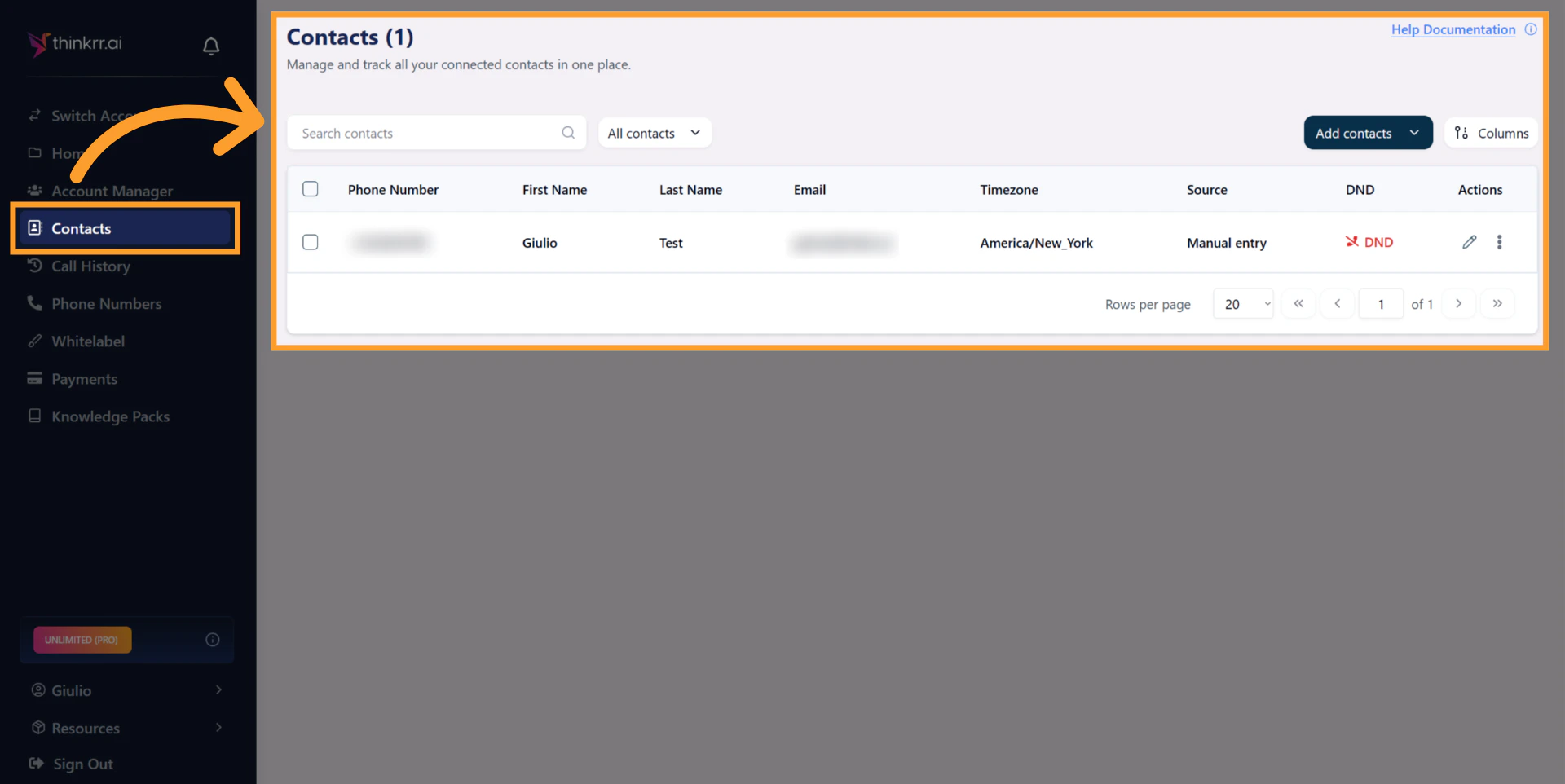 2. Find the contact in the table and look for the **Actions** column on the right.
3. Click the **three-dot menu** (⋮) and select **Mark as DND**.
2. Find the contact in the table and look for the **Actions** column on the right.
3. Click the **three-dot menu** (⋮) and select **Mark as DND**.
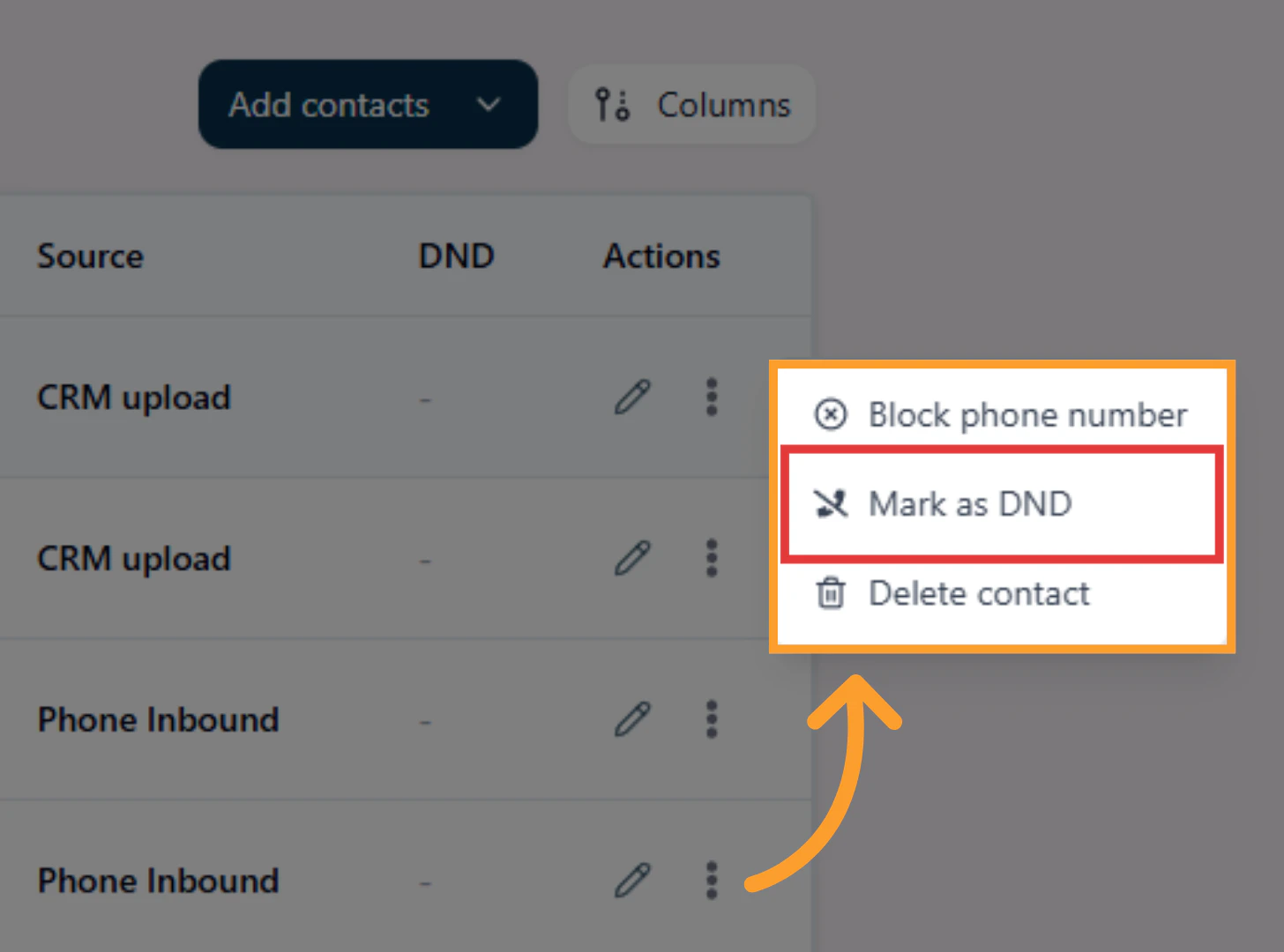 4. Select a reason:
* **Customer Request** — The contact has asked not to be called again.
* **Billing Issues** — There is a billing-related reason to stop contacting them.
* **Service Complaints** — The contact has raised service-related concerns.
* **Other** — Enter custom details for any other reason.
4. Select a reason:
* **Customer Request** — The contact has asked not to be called again.
* **Billing Issues** — There is a billing-related reason to stop contacting them.
* **Service Complaints** — The contact has raised service-related concerns.
* **Other** — Enter custom details for any other reason.
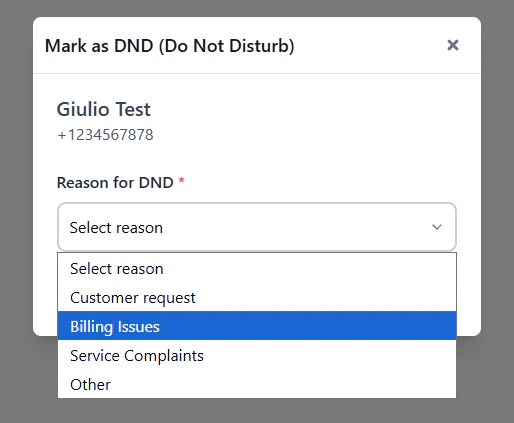 5. Confirm your selection. The contact will now be skipped in all future campaigns.
***
## Block Phone Numbers
You can add phone numbers to a block list to prevent unwanted callers from connecting to your inbound agents. This is useful for blocking spam, telemarketers, or any known numbers you don't want consuming your minutes.
Once a contact's number is logged in your system — whether created automatically from an incoming call or added manually — you can block that phone number. Blocked numbers will hear a system message when they attempt to call in and will not be connected to your agent.
### How to Block a Phone Number
1. From the home screen, click **Contacts** in the sidebar.
5. Confirm your selection. The contact will now be skipped in all future campaigns.
***
## Block Phone Numbers
You can add phone numbers to a block list to prevent unwanted callers from connecting to your inbound agents. This is useful for blocking spam, telemarketers, or any known numbers you don't want consuming your minutes.
Once a contact's number is logged in your system — whether created automatically from an incoming call or added manually — you can block that phone number. Blocked numbers will hear a system message when they attempt to call in and will not be connected to your agent.
### How to Block a Phone Number
1. From the home screen, click **Contacts** in the sidebar.
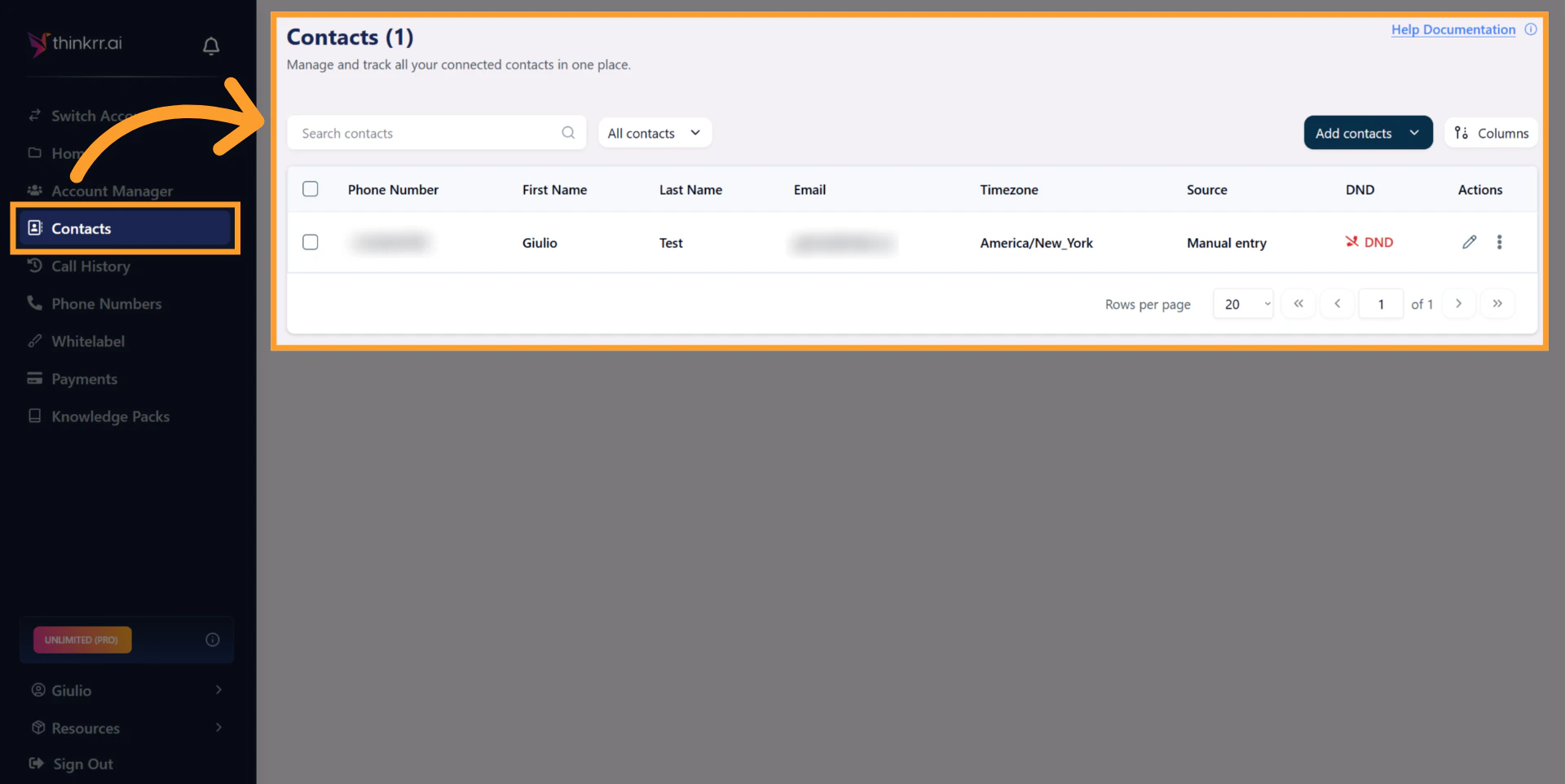 2. Find the contact in the table and look for the **Actions** column on the right.
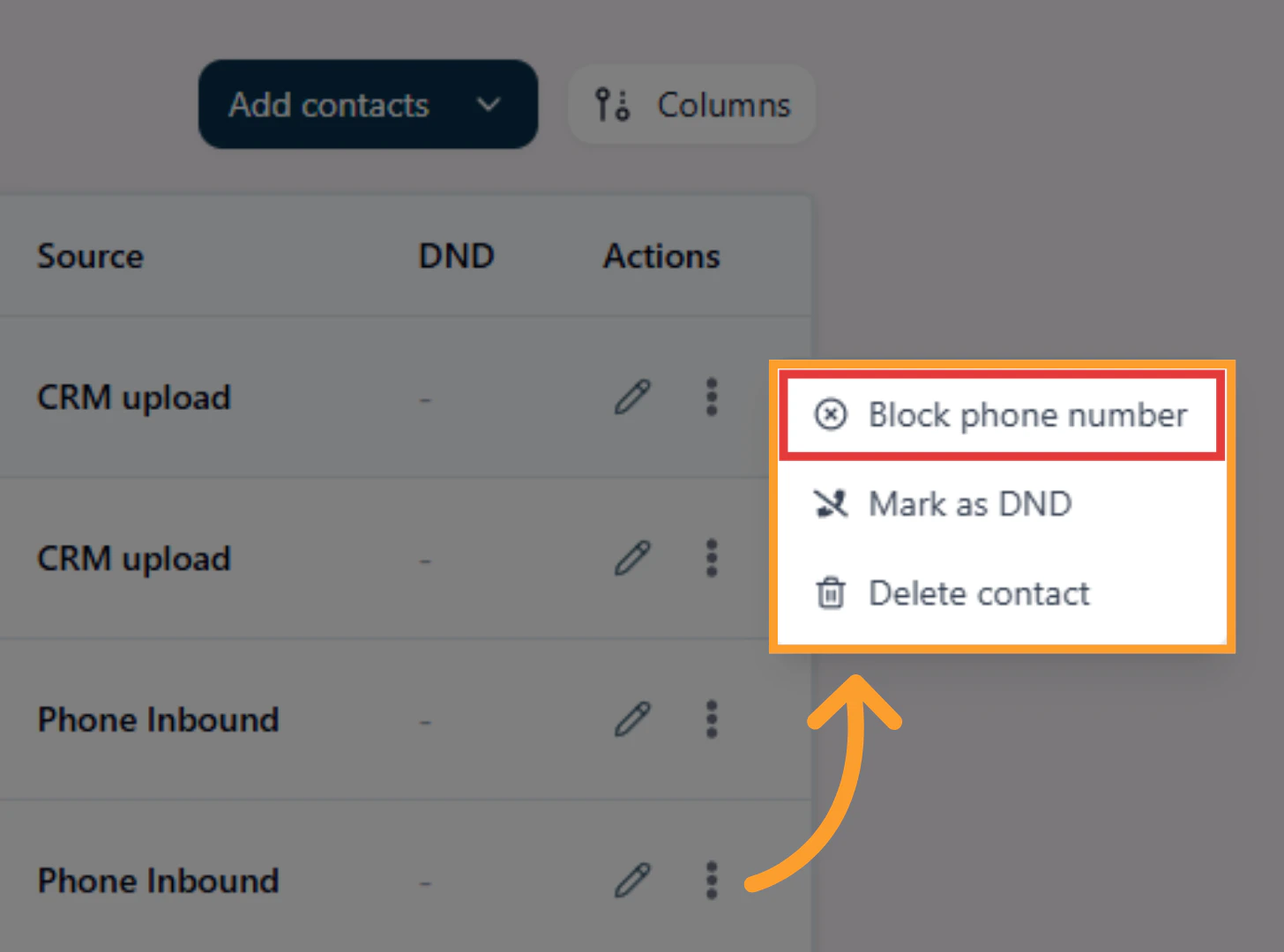
3. Click the **three-dot menu** (⋮) and select **Block Phone Number**.
2. Find the contact in the table and look for the **Actions** column on the right.
3. Click the **three-dot menu** (⋮) and select **Block Phone Number**.
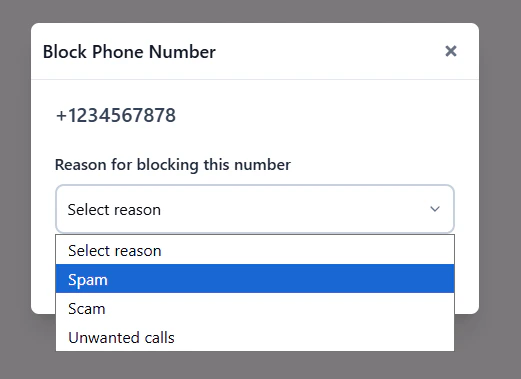
 4. Select a reason:
* **Spam**
* **Scam**
* **Unwanted Calls**
4. Select a reason:
* **Spam**
* **Scam**
* **Unwanted Calls**
 5. Confirm your selection. The number will no longer be able to connect to your inbound agents.
## FAQs & Troubleshooting
### General Questions
Yes, in **GHL** you can choose between importing **Contacts** or **Opportunities**. In **thinkrr**, you can import only contacts, but you can do so via CRM, file upload, or manual entry.
* **thinkrr** supports **.xlsx** and **.csv** file formats up to a maximum of **5MB** each, with up to **five files uploaded at once**.
* **GHL** supports only **.csv** files with a maximum file size of **30MB**. Ensure your files are properly formatted before uploading to avoid issues.
* In **thinkrr**, check the **Contacts page** to see newly added records and use the **Import History** tab inside a campaign to review upload date, file name, records processed, and status.
* In **GHL**, you’ll see an import summary before completing the process, and can verify results on the Contacts page.
### Configuration
Required fields are the same across thinkrr and GHL:
* **First Name** (required)
* **Last Name** (required)
* **Phone number** (required, must be North American format)
* **Timezone** (required)
**Email** and **Insight** are optional. Missing required fields will cause the record to fail import.
A contact will be marked invalid if:
* It’s a duplicate of an existing record
* The email is invalid (if provided)
* The timezone is invalid
* The phone number is invalid (only North American supported)
* Required fields (First Name, Last Name, Phone, Timezone) are missing
> 📞 Phone numbers must be formatted as: `1-XXX-XXX-XXXX` or `1 (XXX) XXX-XXXX`.
Yes. Both **thinkrr** and **GHL** provide options to skip updating empty fields during imports so existing data isn’t overwritten by blanks.
### Usage and Results
Do Not Disturb prevents a contact from being called in future campaigns. It can be set manually by a user (with a reason) or applied automatically by the system when a contact requests not to be called or has been attempted more than 10 times without answering. D\&D contacts are skipped in campaigns and no minutes are consumed.
Yes. You can add any phone number to a block list to prevent it from connecting to your inbound agents. Blocked callers will hear a system message and will not be connected. This helps protect your minutes from spam or unwanted calls.
* In **thinkrr**, check the **status section** after uploading. Failed contacts can be corrected using the sample file format for reference, then re-uploaded.
* In **GHL**, errors are flagged during field mapping or import verification and must be corrected in your CSV before retrying.
Yes, **GHL** allows you to:
* Add imported contacts to **Smart Lists**
* Assign **tags**
* Include them in **existing published workflows** during the import process
**thinkrr** does not support adding contacts directly into workflows during import.
Yes. In **GHL**, you can apply filters to your contact list before exporting. Select the filtered contacts and click **Export Contacts**.\
**thinkrr** does not currently support contact export.
***
For additional questions or guidance, try using our [**Virtual Support Agent**](/Thinkrr-Support-Agent) ! Available 24/7 to help resolve most issues quickly at [thinkrr.ai/support](https://thinkrr.ai/support).
If you still need assistance, visit our support site at [help.thinkrr.ai](https://help.thinkrr.ai) and submit a [Ticket](/Support-Ticket-System) or contact our team directly at [**hello@thinkrr.ai**](mailto:hello@thinkrr.ai).
5. Confirm your selection. The number will no longer be able to connect to your inbound agents.
## FAQs & Troubleshooting
### General Questions
Yes, in **GHL** you can choose between importing **Contacts** or **Opportunities**. In **thinkrr**, you can import only contacts, but you can do so via CRM, file upload, or manual entry.
* **thinkrr** supports **.xlsx** and **.csv** file formats up to a maximum of **5MB** each, with up to **five files uploaded at once**.
* **GHL** supports only **.csv** files with a maximum file size of **30MB**. Ensure your files are properly formatted before uploading to avoid issues.
* In **thinkrr**, check the **Contacts page** to see newly added records and use the **Import History** tab inside a campaign to review upload date, file name, records processed, and status.
* In **GHL**, you’ll see an import summary before completing the process, and can verify results on the Contacts page.
### Configuration
Required fields are the same across thinkrr and GHL:
* **First Name** (required)
* **Last Name** (required)
* **Phone number** (required, must be North American format)
* **Timezone** (required)
**Email** and **Insight** are optional. Missing required fields will cause the record to fail import.
A contact will be marked invalid if:
* It’s a duplicate of an existing record
* The email is invalid (if provided)
* The timezone is invalid
* The phone number is invalid (only North American supported)
* Required fields (First Name, Last Name, Phone, Timezone) are missing
> 📞 Phone numbers must be formatted as: `1-XXX-XXX-XXXX` or `1 (XXX) XXX-XXXX`.
Yes. Both **thinkrr** and **GHL** provide options to skip updating empty fields during imports so existing data isn’t overwritten by blanks.
### Usage and Results
Do Not Disturb prevents a contact from being called in future campaigns. It can be set manually by a user (with a reason) or applied automatically by the system when a contact requests not to be called or has been attempted more than 10 times without answering. D\&D contacts are skipped in campaigns and no minutes are consumed.
Yes. You can add any phone number to a block list to prevent it from connecting to your inbound agents. Blocked callers will hear a system message and will not be connected. This helps protect your minutes from spam or unwanted calls.
* In **thinkrr**, check the **status section** after uploading. Failed contacts can be corrected using the sample file format for reference, then re-uploaded.
* In **GHL**, errors are flagged during field mapping or import verification and must be corrected in your CSV before retrying.
Yes, **GHL** allows you to:
* Add imported contacts to **Smart Lists**
* Assign **tags**
* Include them in **existing published workflows** during the import process
**thinkrr** does not support adding contacts directly into workflows during import.
Yes. In **GHL**, you can apply filters to your contact list before exporting. Select the filtered contacts and click **Export Contacts**.\
**thinkrr** does not currently support contact export.
***
For additional questions or guidance, try using our [**Virtual Support Agent**](/Thinkrr-Support-Agent) ! Available 24/7 to help resolve most issues quickly at [thinkrr.ai/support](https://thinkrr.ai/support).
If you still need assistance, visit our support site at [help.thinkrr.ai](https://help.thinkrr.ai) and submit a [Ticket](/Support-Ticket-System) or contact our team directly at [**hello@thinkrr.ai**](mailto:hello@thinkrr.ai).