> ## Documentation Index
> Fetch the complete documentation index at: https://docs.thinkrr.ai/llms.txt
> Use this file to discover all available pages before exploring further.
# Creating an Outbound Project
> Learn how to create and configure an outbound project in your thinkrr account.
## Overview
Outbound projects are how you run AI-powered outbound calls in thinkrr. A project defines how the AI agent should behave, what it should say, and what information it should use during calls.
Projects are built using **Scenarios**, and calls are executed through **Campaigns**. Together, these components allow you to configure agent behavior once, then run multiple targeted calling campaigns using the same foundation.
At a high level:
* **Projects** define the AI agent’s behavior
* **Scenarios** determine which configuration fields are available
* **Campaigns** control who gets called and when
***
## Terms & Definitions
### Project
A project is the core workspace for outbound calling in thinkrr. It contains all scenario-specific configuration fields used to instruct and train the AI agent.
### Scenario
A scenario is a predefined call framework selected from the Scenario Library when creating a project. Each scenario determines the type of call being made and which configuration fields appear in the project.
### Campaign
A campaign is an execution layer inside a project. Campaigns inherit the project’s configuration by default and allow you to control outreach timing, contact lists, and per-campaign overrides.
***
## Creating an Outbound Project
Use the steps below to create an outbound project from scratch.
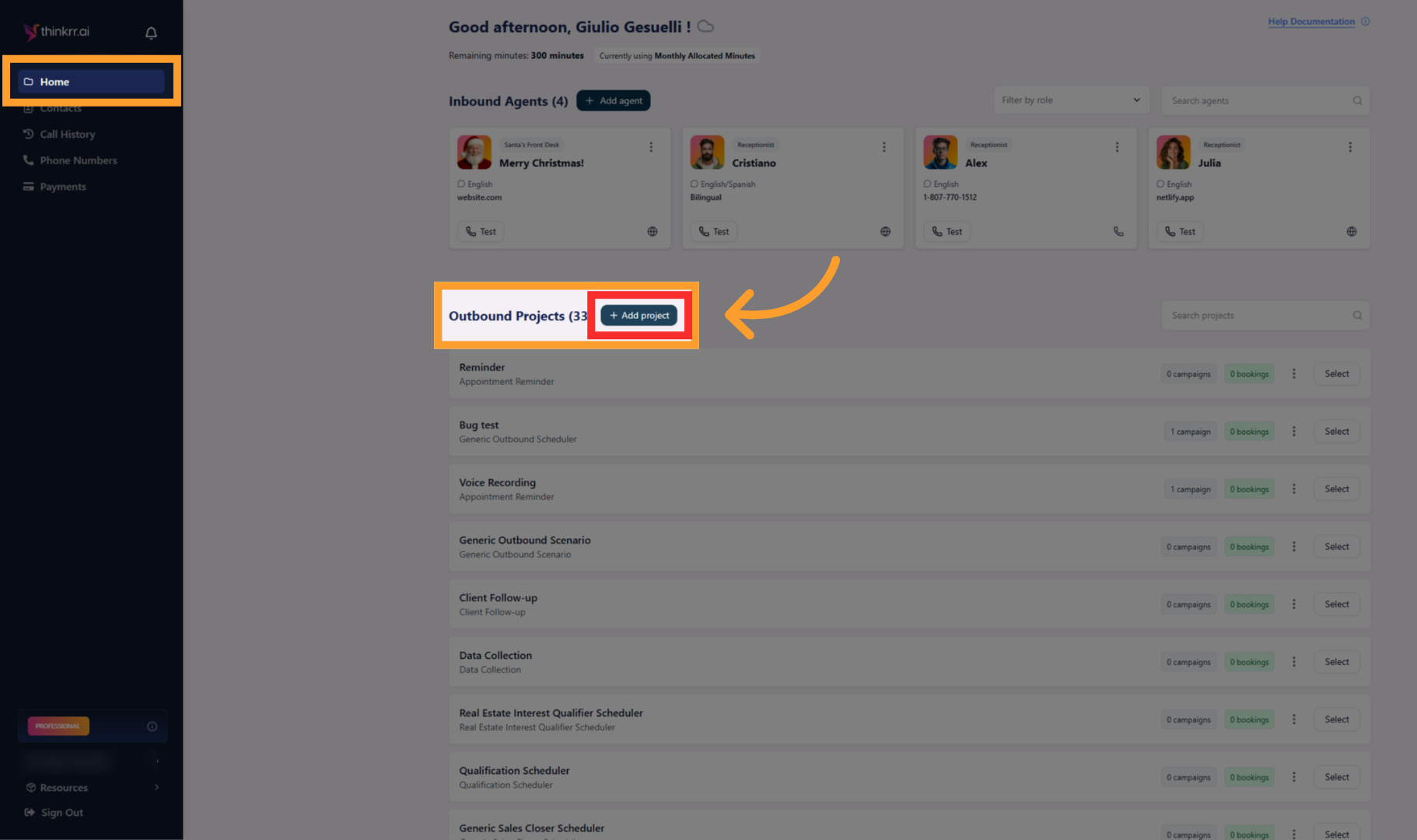
From the Home screen, click **Add New Project**.
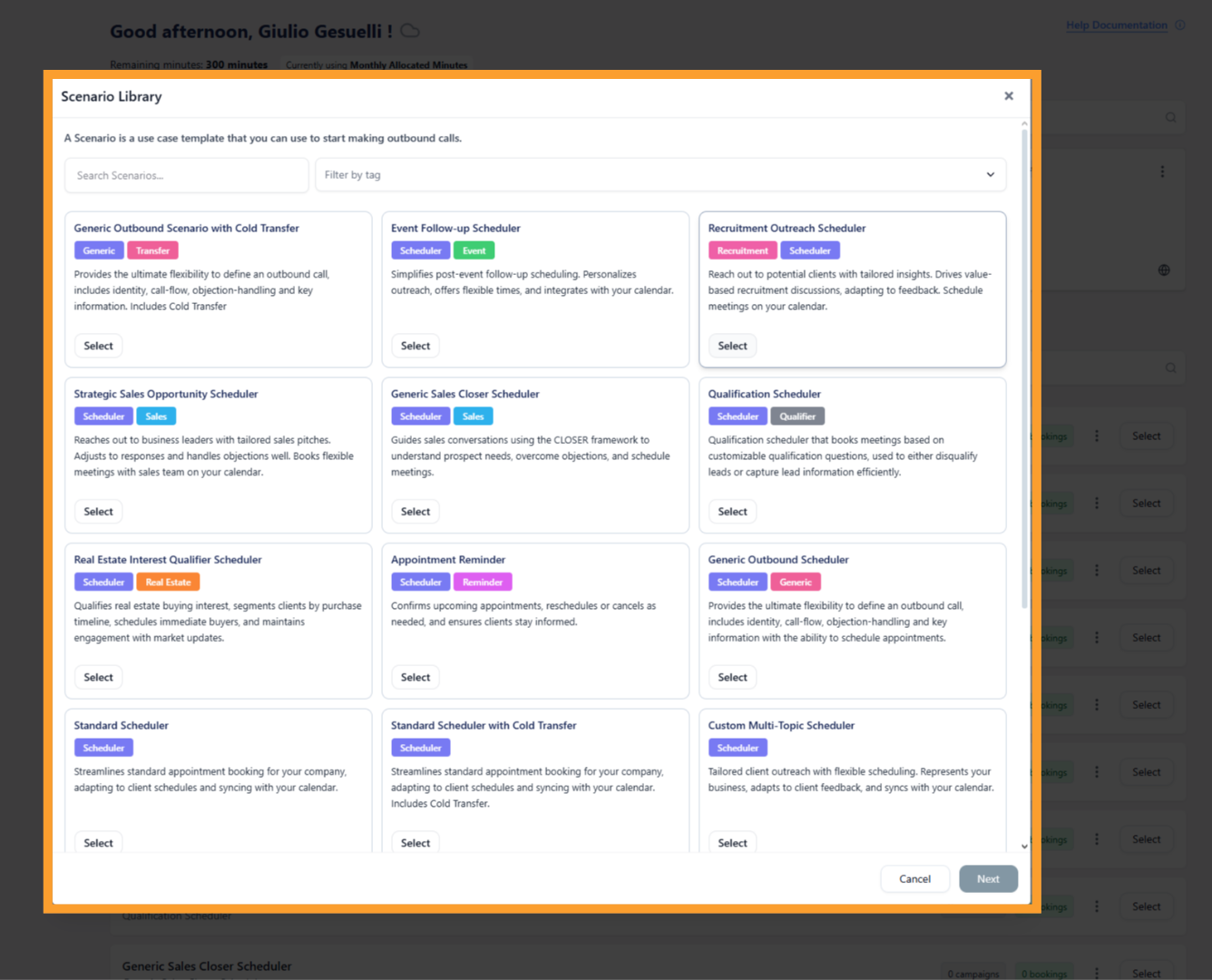
Choose a **Scenario** from the Scenario Library. Scenarios define the call type and determine which configuration fields you’ll see later.
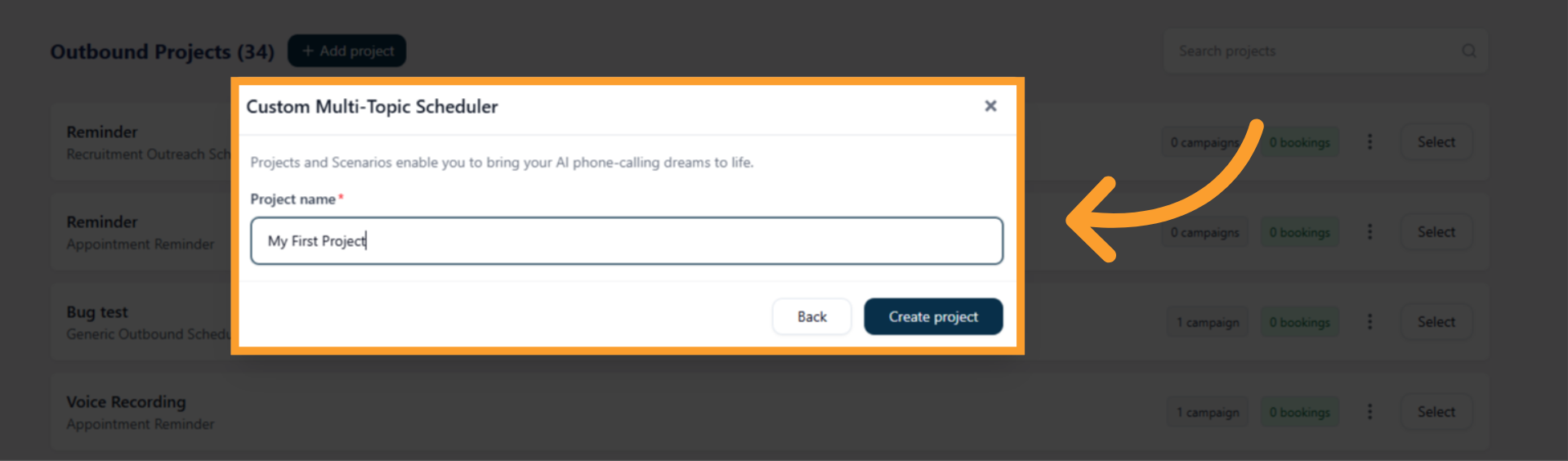
Click **Next**, then enter a **Project Name**.\
This name helps you identify the project when managing campaigns and reports.
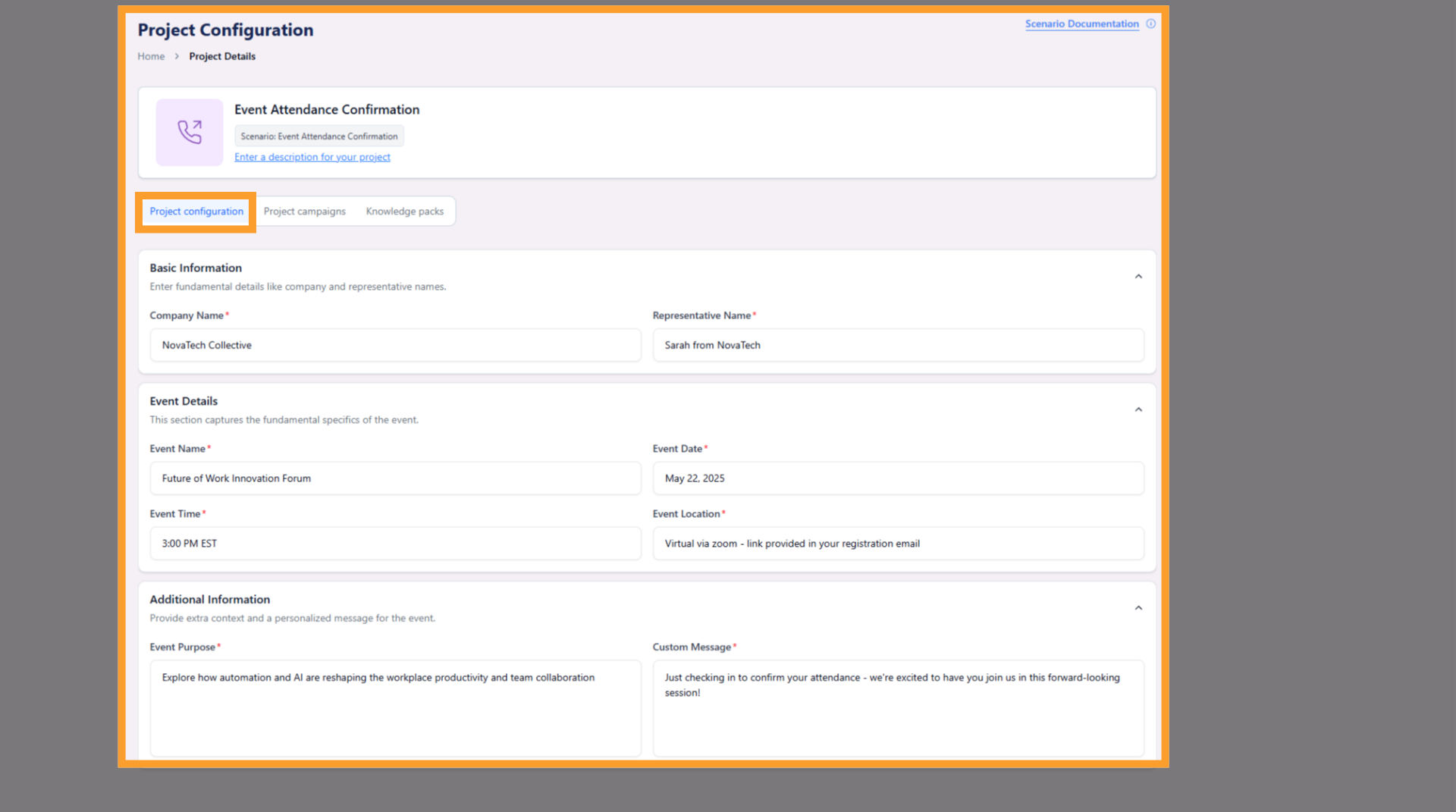
After naming the project, you’ll land on the **Project Configuration** tab.
This screen contains all scenario-specific fields used to train and instruct the AI agent. These may include company details, value propositions, objection handling, scheduling information, voicemail messaging, and more, depending on the scenario.
Each project includes three main tabs:
**Project Configuration**\
This is where you define how the AI agent should behave. These settings act as the baseline for all campaigns created under the project.
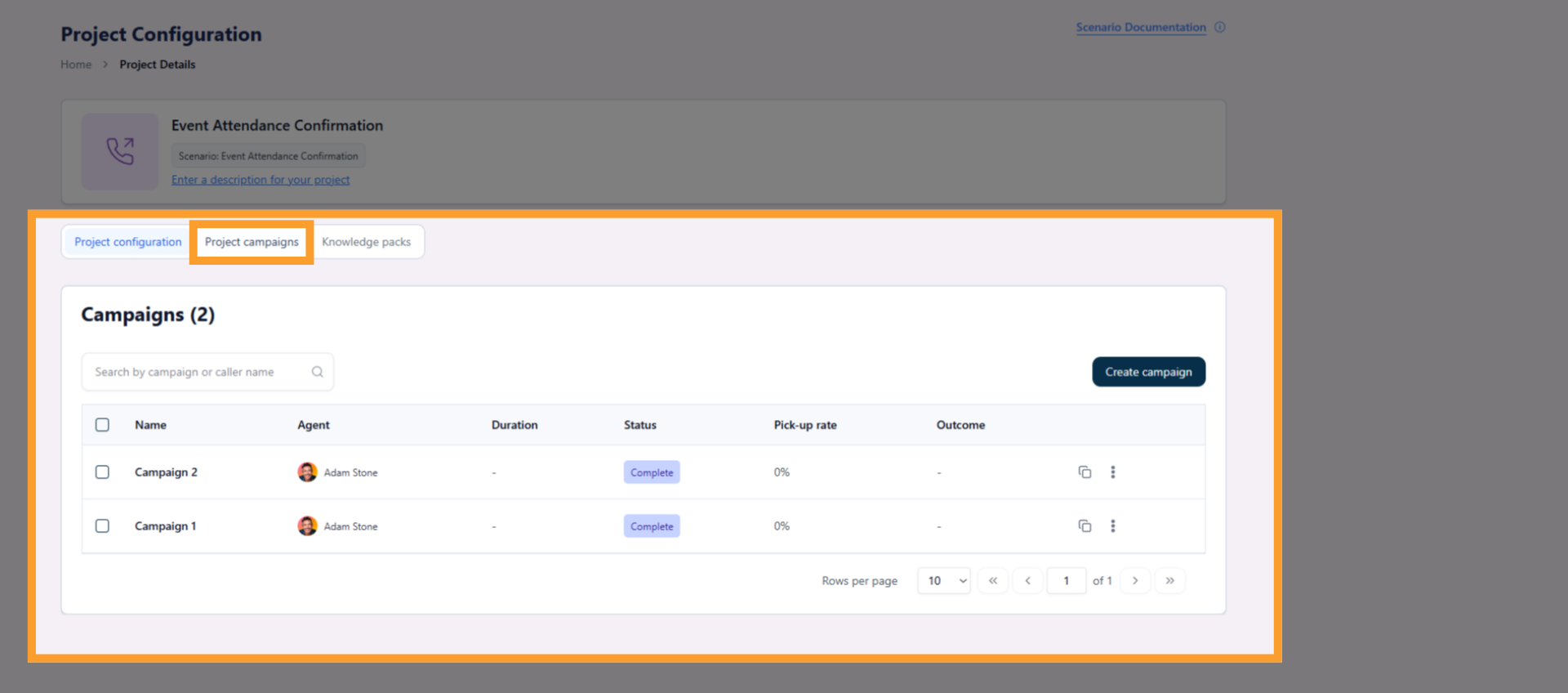
**Project Campaigns**\
This tab is where you create and manage campaigns that execute outbound calls using the project’s configuration.
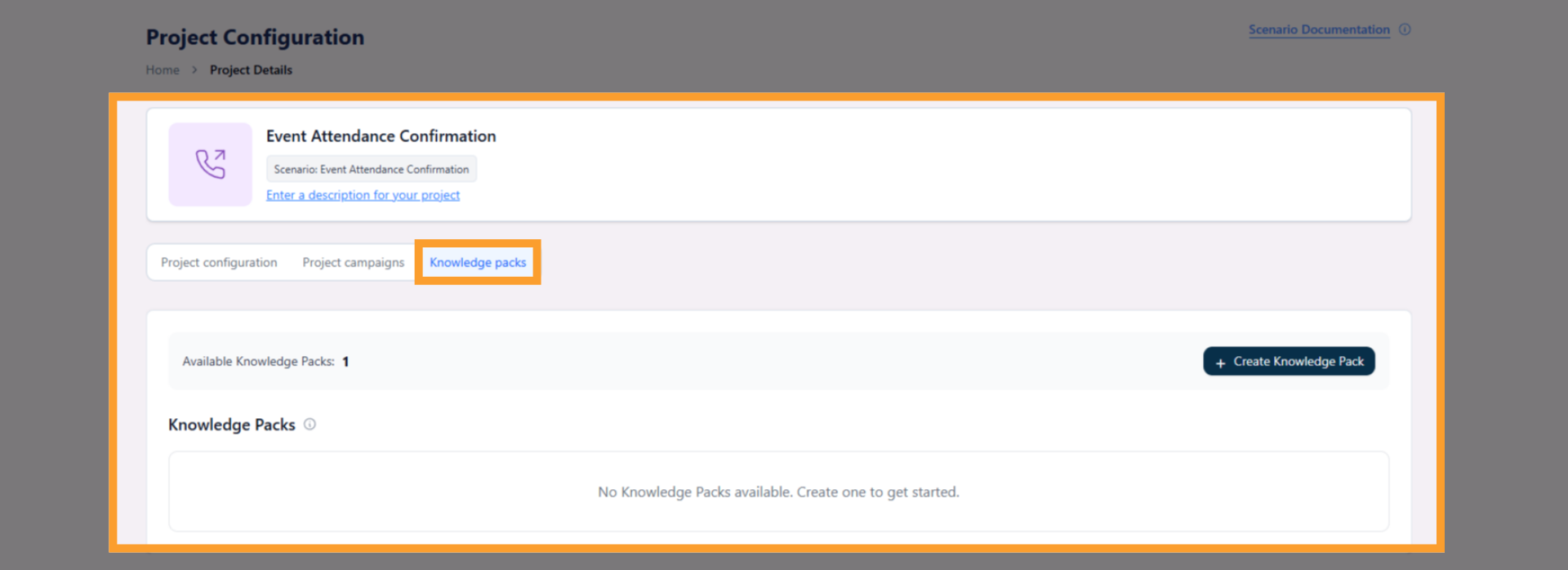
**Knowledge Packs**\
This optional tab allows you to attach structured knowledge that the AI agent can reference during calls.
Campaigns run outbound calls using your project’s configuration. They inherit all project settings by default and allow you to segment audiences, control timing, and run multiple campaigns from the same project.
At this level, you only need to know that campaigns exist and are managed inside the **Project Campaigns** tab.
If you want a full walkthrough of creating, configuring, and scheduling campaigns, see [**Project Campaigns**](/Project-Campaigns).
***
## What’s Next
After creating your outbound project, you can:
* Create and manage campaigns in [**Project Campaigns**](/Project-Campaigns)
* Configure scheduling and execution timing
* Explore scenario-specific configuration guides for deeper customization
***
## FAQs & Troubleshooting
### General Questions
A **Project** defines how the AI agent behaves and what it says.\
A **Campaign** controls who gets called and when, using the project’s configuration as its foundation.
Yes. You can create multiple campaigns under a single project. Each campaign can target different contacts or run on different schedules while sharing the same project setup.
Campaigns inherit project settings by default, but campaign-level overrides may remain unchanged. Review campaign configurations after making major project edits.
***
For additional questions or guidance, try using our [**Virtual Support Agent**](/Thinkrr-Support-Agent), available 24/7 at [thinkrr.ai/support](https://thinkrr.ai/support).
If you still need assistance, visit [help.thinkrr.ai](http://help.thinkrr.ai) and submit a [**Support Ticket**](/Support-Ticket-System) or contact our team at [**hello@thinkrr.ai**](mailto:hello@thinkrr.ai).
 **Project Campaigns**\
This tab is where you create and manage campaigns that execute outbound calls using the project’s configuration.
**Project Campaigns**\
This tab is where you create and manage campaigns that execute outbound calls using the project’s configuration.
 **Knowledge Packs**\
This optional tab allows you to attach structured knowledge that the AI agent can reference during calls.
**Knowledge Packs**\
This optional tab allows you to attach structured knowledge that the AI agent can reference during calls.
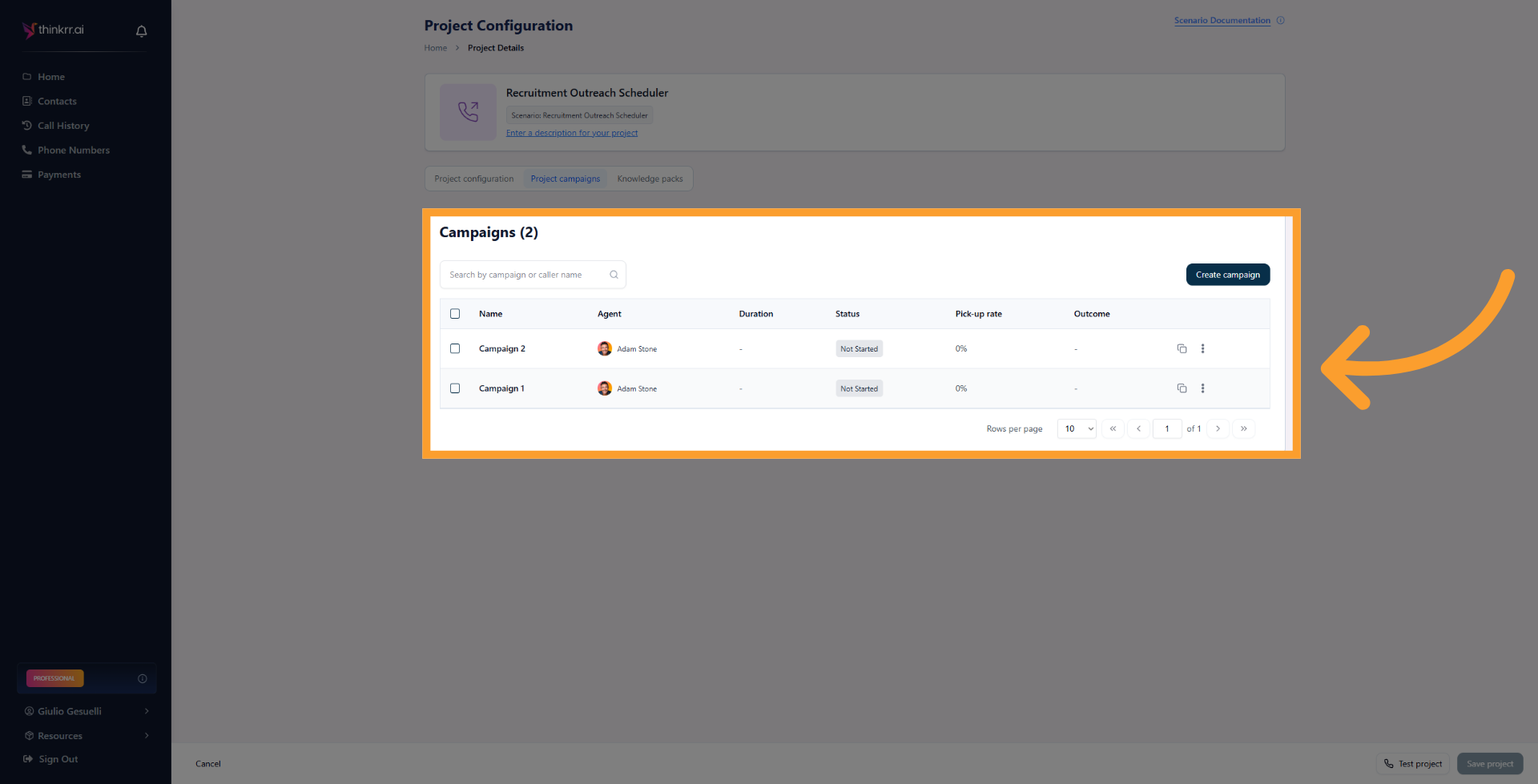 If you want a full walkthrough of creating, configuring, and scheduling campaigns, see [**Project Campaigns**](/Project-Campaigns).