> ## Documentation Index
> Fetch the complete documentation index at: https://docs.thinkrr.ai/llms.txt
> Use this file to discover all available pages before exploring further.
# Custom Multi-Topic Scheduler
> The Custom Multi-Topic Scheduler focuses on a more flexible approach to AI agent interactions, offering a wider variety of custom topics during a single outreach. This broadens the conversation spectrum and optimizes time consumption, as the AI adapts to each client’s needs based on topic-specific configurations.
## Details
The **Custom Multi-Topic Scheduler** is designed for businesses that want to cover more ground per call while still keeping messaging relevant and structured. It’s ideal for outreach scenarios where clients may be interested in multiple services, partnership offerings, or collaborative opportunities, all in one conversation.
By configuring up to three unique topics in the **Project Configuration**, this Scheduler enables your AI to offer a more holistic and personalized experience. Additionally, the AI can introduce a partner company or co-branded service during the interaction, expanding the opportunity for value-driven engagement.
## Key Features
1. **Purpose:**
* Deliver flexible, multi-topic outreach in a single call
* Adapt the conversation based on client interest and feedback
* Support partnership-based interactions with optional co-branding
* Optimize time spent with each contact
2. **Customizable User Input Fields:**
This scenario is designed for multi-topic consultations and collaborative partner campaigns. Fields are organized into logical sections that define the caller identity, conversation context, and scheduling logistics.
***
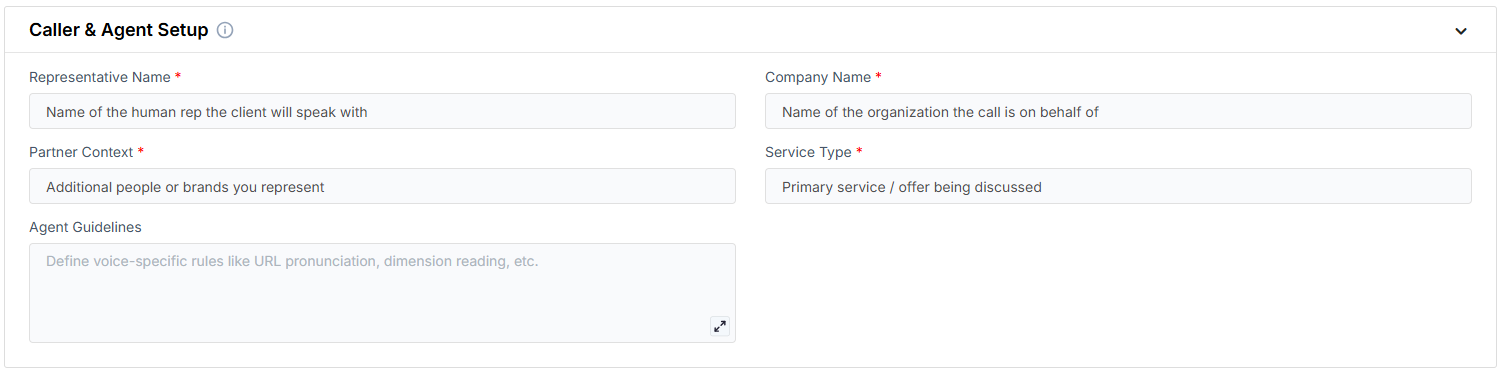
**Caller & Agent Setup**\
Fields that introduce the AI Agent and set the stage for a collaborative outreach.
* **Representative Name**: The AI’s greeting message, used to confirm the contact’s identity.
* **Company Name**: The organization making the outreach.
* **Partner Context**: A short line explaining any relevant partnerships or collaborative efforts.
* **Service Type**: The category or type of services being discussed.
* **Agent Guidelines**: Behavior constraints you can set to shape how the AI communicates (e.g. emphasis, or handling edge cases).
***
**Discussion Topics**\
A set of predefined topics the AI will mention to structure the consultation.
* **Topic 1**: The first area of discussion or service offering.
* **Topic 2**: The second area of focus in the conversation.
* **Topic 3**: A third topic or optional value-add service.
***
**Meeting & Scheduling Details**\
Defines the duration and method of meeting delivery.
* **Default Meeting Duration (minutes)**: The standard meeting time.
* **Alternative Meeting Duration (minutes)**: An alternate duration option for scheduling flexibility.
* **Location of Meeting**: Virtual or physical format of the appointment.
* **Calendar**: The connected calendar used to book the meeting.
***
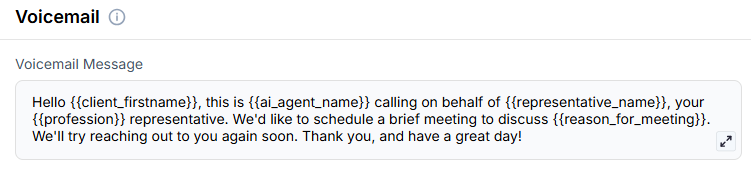
**Voicemail**\
Defines the fallback message used when the contact doesn’t answer.
* **Voicemail Message**: A prewritten script the AI uses when leaving a voicemail.
***
3. **Objective:**
* To enable the AI to represent your business and partners seamlessly
* To cover multiple service offerings within one streamlined call
* To offer scheduling flexibility and personalized value propositions
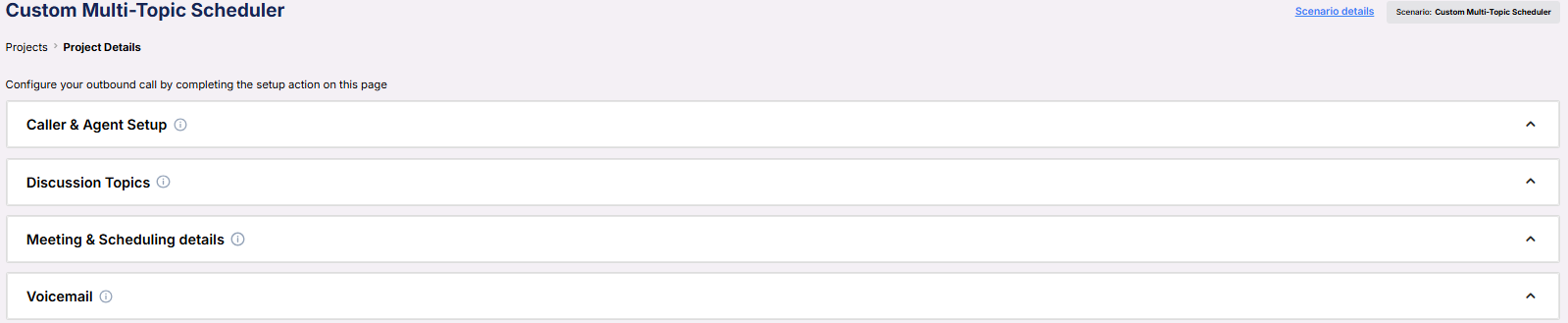
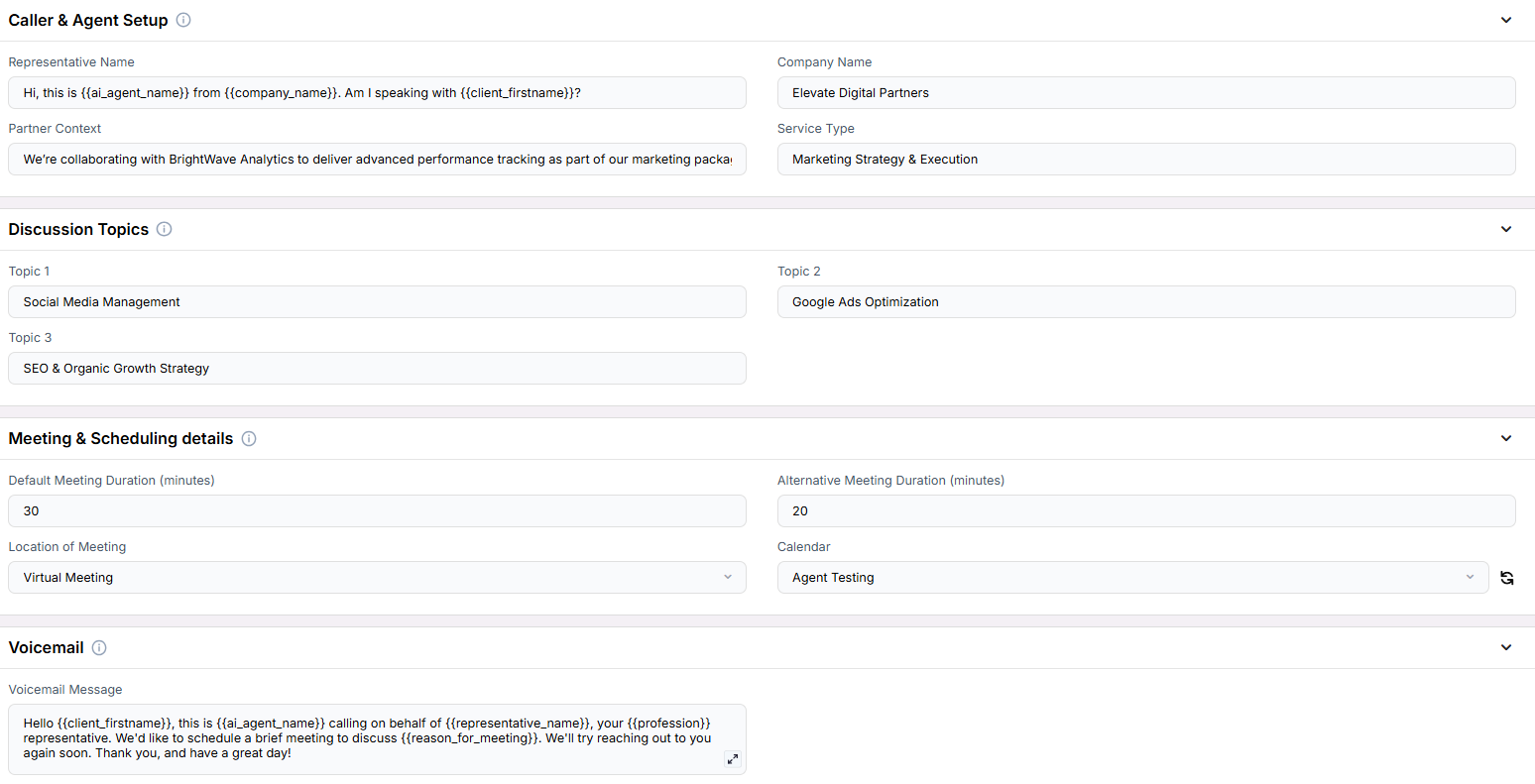
Here is the **Project Configurations** interface of this scenario, alongside instructions and some examples:
Remember that Scenarios are defined at the Project level, and every Campaign inherits the pre-filled fields from the Project, which means every Campaign can have different information in the input boxes, allowing you to tailor communications per Campaign to align with your customer/client or business needs.
## Example Configuration & Demo
### Caller & Agent Setup
**Representative Name**\
Hi, this is {ai_agent_name} from {company_name}. Am I speaking with {client_firstname}?\
**Company Name**\
Elevate Digital Partners\
**Partner Context**\
We’re collaborating with BrightWave Analytics to deliver advanced performance tracking as part of our marketing packages\
**Service Type**\
Marketing Strategy & Execution
### Discussion Topics
**Topic 1**\
Social Media Management\
**Topic 2**\
Google Ads Optimization\
**Topic 3**\
SEO & Organic Growth Strategy
### Meeting & Scheduling Details
**Default Meeting Duration (minutes)**\
30\
**Alternative Meeting Duration (minutes)**\
20\
**Location of Meeting**\
Virtual Meeting\
**Calendar**\
Agent Testing
### Voicemail
**Voicemail Message**\
Hello {client_firstname}, this is {ai_agent_name} calling on behalf of {representative_name}, your {profession} representative. We'd like to schedule a brief meeting to discuss {reason_for_meeting}. We'll try reaching out to you again soon. Thank you, and have a great day!
## FAQs & Troubleshooting
### General Questions
The Custom Multi-Topic Scheduler allows for up to three distinct discussion points during a single outreach, whereas the Standard Scheduler typically focuses on one topic. This makes it ideal for more complex or layered service offerings.
Yes. You can use the **Partner Context** field to have the AI introduce and position offerings from a partner company.
Yes. The AI presents the topics in the order they’re configured: Topic 1, then Topic 2, then Topic 3, unless it detects strong interest in a specific one early in the conversation.
All meetings are booked through the connected calendar, and call summaries can be accessed via thinkrr or integrated CRMs like GHL.
The Scheduler defaults to basic scheduling behavior, similar to the Standard Scheduler, and skips topic-related dialogue.
### Configuration
No. The scheduler adapts to however many topics you provide, 1, 2, or 3.
The AI pivots to focus on that topic and proceeds with scheduling based on the defined preferences.
Yes. Each campaign inherits fields from its Project but can override them to tailor messaging to the client.
### Usage and Results
The custom field structure allows any service-based business to mold the conversation structure to its needs.
No. If not configured, the AI omits the partner context entirely.
The AI briefly addresses all configured topics before guiding the client to a single, consolidated meeting.
***
For additional questions or guidance, try using our [**Virtual Support Agent**](/Thinkrr-Support-Agent)! Available 24/7 to help resolve most issues quickly at [thinkrr.ai/support](https://thinkrr.ai/support).
If you still need assistance, visit our support site at [help.thinkrr.ai](http://help.thinkrr.ai) and submit a [Ticket](/Support-Ticket-System) or contact our team directly at [hello@thinkrr.ai](mailto:hello@thinkrr.ai).
 ***
**Caller & Agent Setup**\
Fields that introduce the AI Agent and set the stage for a collaborative outreach.
***
**Caller & Agent Setup**\
Fields that introduce the AI Agent and set the stage for a collaborative outreach.
 * **Representative Name**: The AI’s greeting message, used to confirm the contact’s identity.
* **Company Name**: The organization making the outreach.
* **Partner Context**: A short line explaining any relevant partnerships or collaborative efforts.
* **Service Type**: The category or type of services being discussed.
* **Agent Guidelines**: Behavior constraints you can set to shape how the AI communicates (e.g. emphasis, or handling edge cases).
***
**Discussion Topics**\
A set of predefined topics the AI will mention to structure the consultation.
* **Representative Name**: The AI’s greeting message, used to confirm the contact’s identity.
* **Company Name**: The organization making the outreach.
* **Partner Context**: A short line explaining any relevant partnerships or collaborative efforts.
* **Service Type**: The category or type of services being discussed.
* **Agent Guidelines**: Behavior constraints you can set to shape how the AI communicates (e.g. emphasis, or handling edge cases).
***
**Discussion Topics**\
A set of predefined topics the AI will mention to structure the consultation.
 * **Topic 1**: The first area of discussion or service offering.
* **Topic 2**: The second area of focus in the conversation.
* **Topic 3**: A third topic or optional value-add service.
***
**Meeting & Scheduling Details**\
Defines the duration and method of meeting delivery.
* **Topic 1**: The first area of discussion or service offering.
* **Topic 2**: The second area of focus in the conversation.
* **Topic 3**: A third topic or optional value-add service.
***
**Meeting & Scheduling Details**\
Defines the duration and method of meeting delivery.
 * **Default Meeting Duration (minutes)**: The standard meeting time.
* **Alternative Meeting Duration (minutes)**: An alternate duration option for scheduling flexibility.
* **Location of Meeting**: Virtual or physical format of the appointment.
* **Calendar**: The connected calendar used to book the meeting.
***
**Voicemail**\
Defines the fallback message used when the contact doesn’t answer.
* **Default Meeting Duration (minutes)**: The standard meeting time.
* **Alternative Meeting Duration (minutes)**: An alternate duration option for scheduling flexibility.
* **Location of Meeting**: Virtual or physical format of the appointment.
* **Calendar**: The connected calendar used to book the meeting.
***
**Voicemail**\
Defines the fallback message used when the contact doesn’t answer.
 * **Voicemail Message**: A prewritten script the AI uses when leaving a voicemail.
***
3. **Objective:**
* To enable the AI to represent your business and partners seamlessly
* To cover multiple service offerings within one streamlined call
* To offer scheduling flexibility and personalized value propositions
Here is the **Project Configurations** interface of this scenario, alongside instructions and some examples:
* **Voicemail Message**: A prewritten script the AI uses when leaving a voicemail.
***
3. **Objective:**
* To enable the AI to represent your business and partners seamlessly
* To cover multiple service offerings within one streamlined call
* To offer scheduling flexibility and personalized value propositions
Here is the **Project Configurations** interface of this scenario, alongside instructions and some examples:
 Remember that Scenarios are defined at the Project level, and every Campaign inherits the pre-filled fields from the Project, which means every Campaign can have different information in the input boxes, allowing you to tailor communications per Campaign to align with your customer/client or business needs.
## Example Configuration & Demo
### Caller & Agent Setup
**Representative Name**\
Hi, this is {ai_agent_name} from {company_name}. Am I speaking with {client_firstname}?\
**Company Name**\
Elevate Digital Partners\
**Partner Context**\
We’re collaborating with BrightWave Analytics to deliver advanced performance tracking as part of our marketing packages\
**Service Type**\
Marketing Strategy & Execution
### Discussion Topics
**Topic 1**\
Social Media Management\
**Topic 2**\
Google Ads Optimization\
**Topic 3**\
SEO & Organic Growth Strategy
### Meeting & Scheduling Details
**Default Meeting Duration (minutes)**\
30\
**Alternative Meeting Duration (minutes)**\
20\
**Location of Meeting**\
Virtual Meeting\
**Calendar**\
Agent Testing
### Voicemail
**Voicemail Message**\
Hello {client_firstname}, this is {ai_agent_name} calling on behalf of {representative_name}, your {profession} representative. We'd like to schedule a brief meeting to discuss {reason_for_meeting}. We'll try reaching out to you again soon. Thank you, and have a great day!
## FAQs & Troubleshooting
### General Questions
Remember that Scenarios are defined at the Project level, and every Campaign inherits the pre-filled fields from the Project, which means every Campaign can have different information in the input boxes, allowing you to tailor communications per Campaign to align with your customer/client or business needs.
## Example Configuration & Demo
### Caller & Agent Setup
**Representative Name**\
Hi, this is {ai_agent_name} from {company_name}. Am I speaking with {client_firstname}?\
**Company Name**\
Elevate Digital Partners\
**Partner Context**\
We’re collaborating with BrightWave Analytics to deliver advanced performance tracking as part of our marketing packages\
**Service Type**\
Marketing Strategy & Execution
### Discussion Topics
**Topic 1**\
Social Media Management\
**Topic 2**\
Google Ads Optimization\
**Topic 3**\
SEO & Organic Growth Strategy
### Meeting & Scheduling Details
**Default Meeting Duration (minutes)**\
30\
**Alternative Meeting Duration (minutes)**\
20\
**Location of Meeting**\
Virtual Meeting\
**Calendar**\
Agent Testing
### Voicemail
**Voicemail Message**\
Hello {client_firstname}, this is {ai_agent_name} calling on behalf of {representative_name}, your {profession} representative. We'd like to schedule a brief meeting to discuss {reason_for_meeting}. We'll try reaching out to you again soon. Thank you, and have a great day!
## FAQs & Troubleshooting
### General Questions