> ## Documentation Index
> Fetch the complete documentation index at: https://docs.thinkrr.ai/llms.txt
> Use this file to discover all available pages before exploring further.
# Integration With GHL
> With thinkrr’s native **GHL Integration**, you can experience all of thinkrr’s advanced AI capabilities, right within your favorite CRM.
## Overview
Linking your account, setting up actions and triggers, and capturing all the call data for your own workflows and automations is simple. This guide shows you where to connect GoHighLevel inside thinkrr, how CRM sync settings work, and how to use thinkrr directly inside GHL workflows.
## Terms & Definitions
* **GoHighLevel** – A CRM platform used to manage contacts, workflows, automations, pipelines, and client accounts.
* **Snapshot** – A reusable package of CRM workflows, automations, fields, and configuration that can be installed into sub-accounts.
* **Primary Account** – The main agency-level operating account that has access to workflows, snapshots, and all client sub-accounts.
* **Secondary Account** – A client sub-account inside GoHighLevel, typically managed through the Primary Account.
* **Location ID** – A unique identifier associated with each GHL account, sometimes required for Partner Plan sub-account linking.
* **Calendar ID** – A unique identifier tied to a specific GHL calendar, required for scheduling actions inside thinkrr.
## Details
thinkrr Voice AI connects directly with GoHighLevel so you can automate calls, capture call data, and trigger workflows inside your CRM without complicated setup.
### Connecting GoHighLevel to thinkrr
Your CRM connection is managed directly inside your thinkrr Profile Settings.
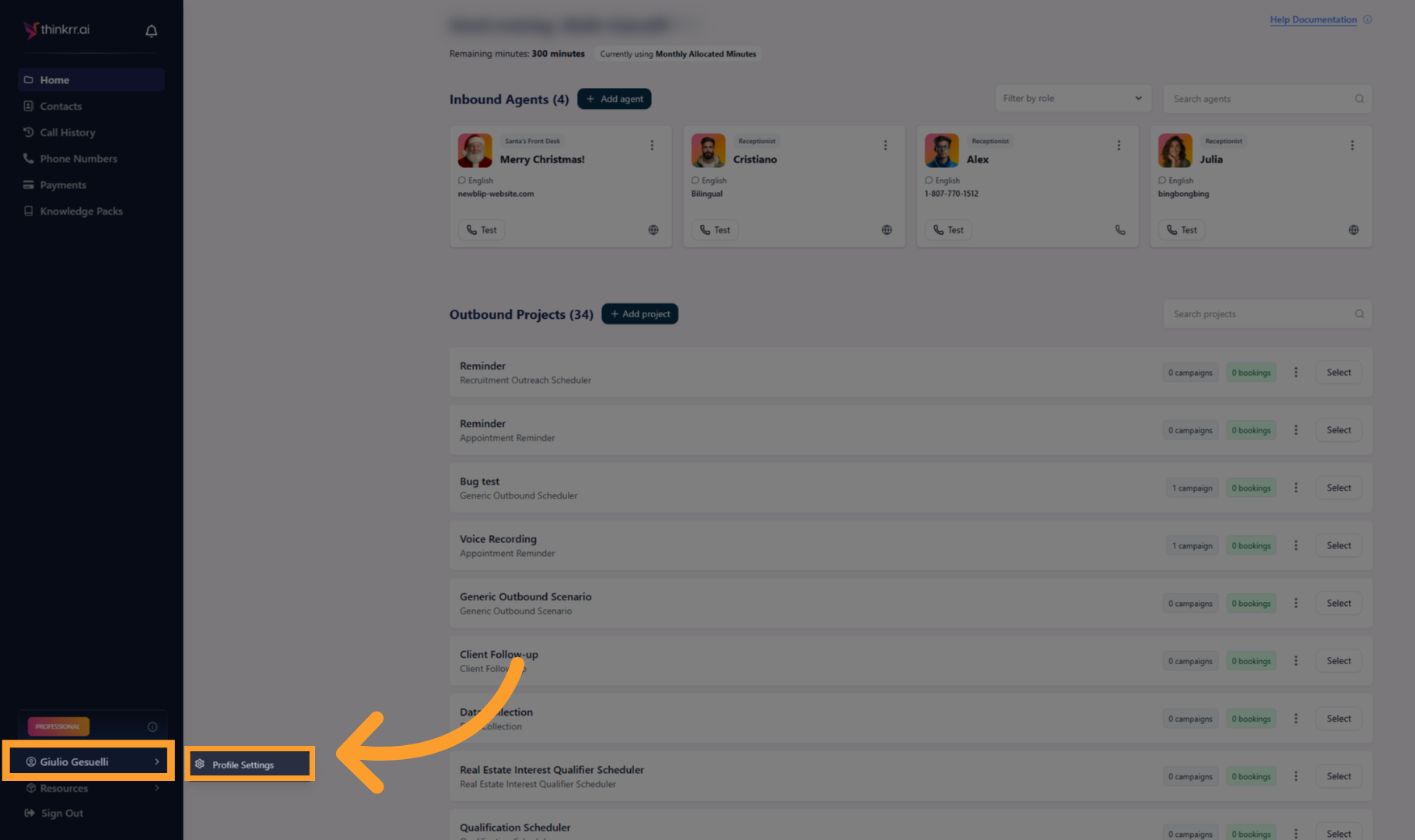
* Scroll to the bottom of the left-hand sidebar in thinkrr.
* Hover over your account name.
* Click **Profile Settings**.
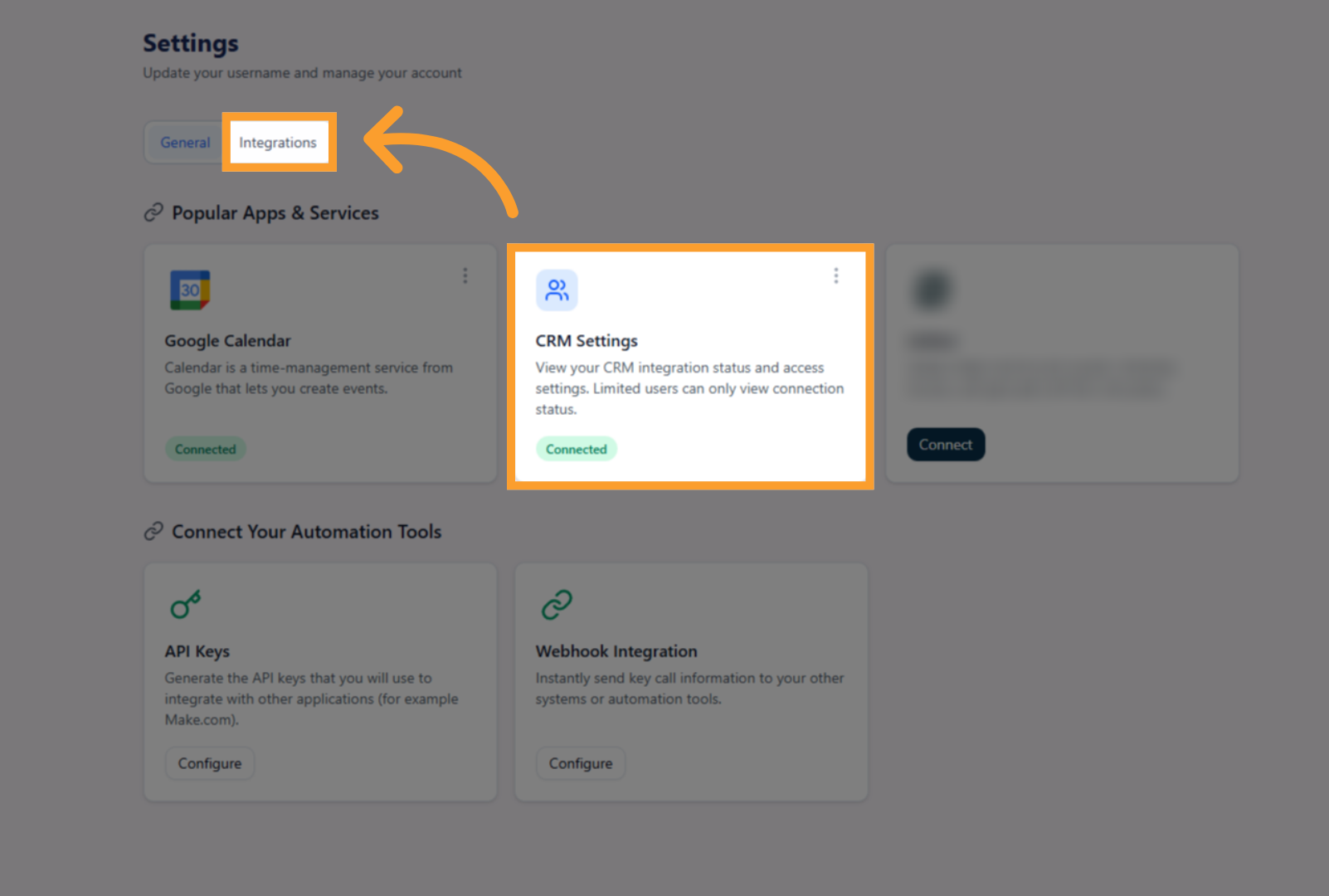
 * Inside Profile Settings, open the **Integrations** tab.
* This section displays all connected apps and automation tools.
* Inside Profile Settings, open the **Integrations** tab.
* This section displays all connected apps and automation tools.
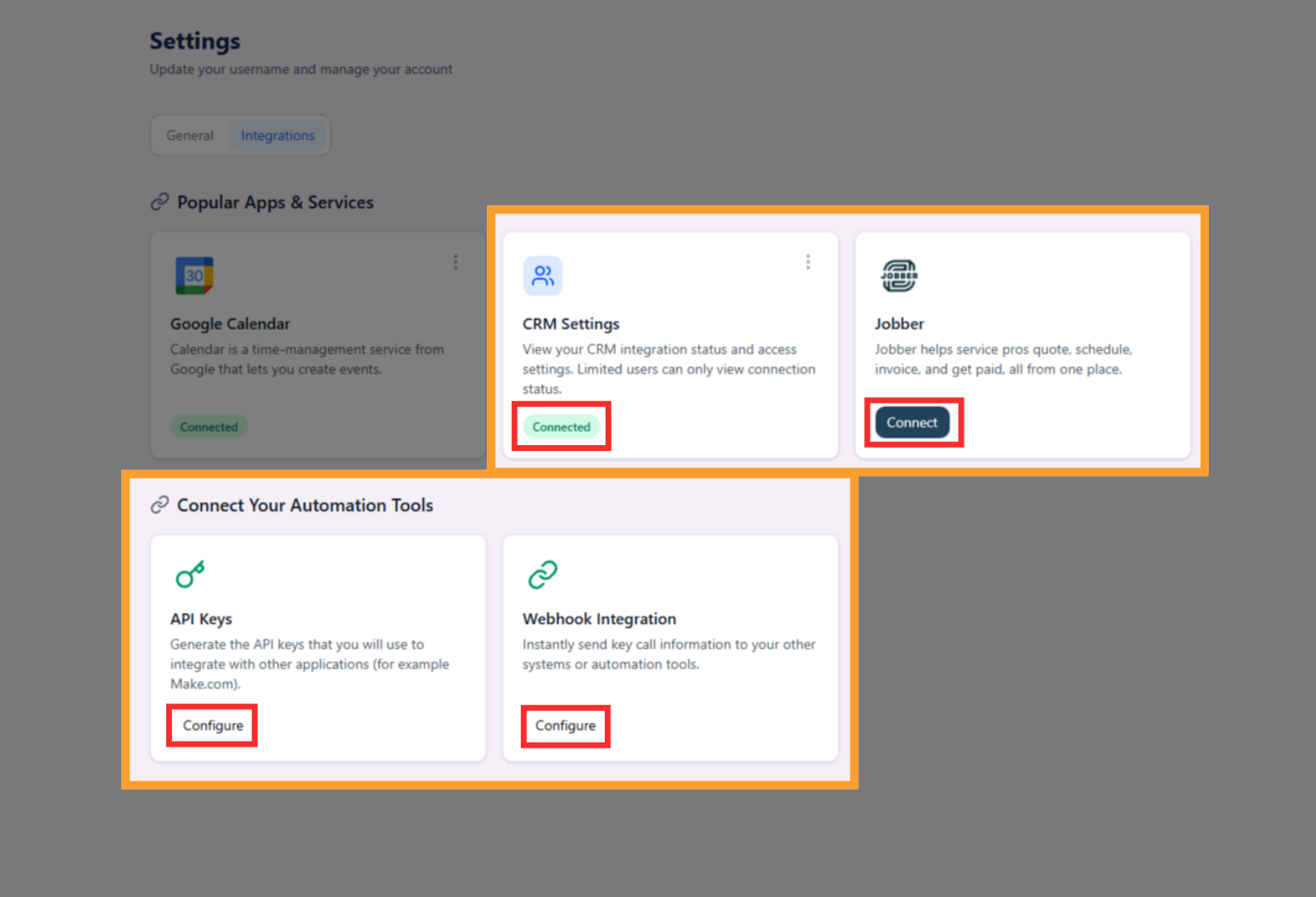
 * Inside this tab you will see options to connect apps, setup API Keys and Webhooks for automation tools and check connected services.
* Under **CRM Settings**, click **Connect**.
* Log in to your GoHighLevel account when prompted.
* Inside this tab you will see options to connect apps, setup API Keys and Webhooks for automation tools and check connected services.
* Under **CRM Settings**, click **Connect**.
* Log in to your GoHighLevel account when prompted.
 > ⚠️ **Important**
>
> Connect using your **Primary Agency Account** in GoHighLevel.
>
> This account must have access to workflows, snapshots, and client sub-accounts. Do not connect an individual client sub-account here.
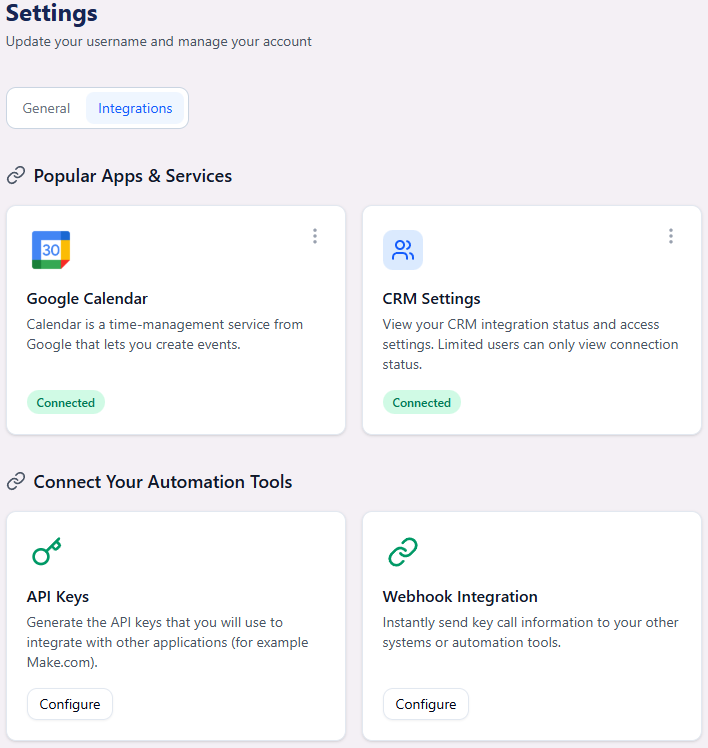
* Once connected, the Integration Status will display as **Connected**.
> ⚠️ **Important**
>
> Connect using your **Primary Agency Account** in GoHighLevel.
>
> This account must have access to workflows, snapshots, and client sub-accounts. Do not connect an individual client sub-account here.
* Once connected, the Integration Status will display as **Connected**.
 ## CRM Integration Settings
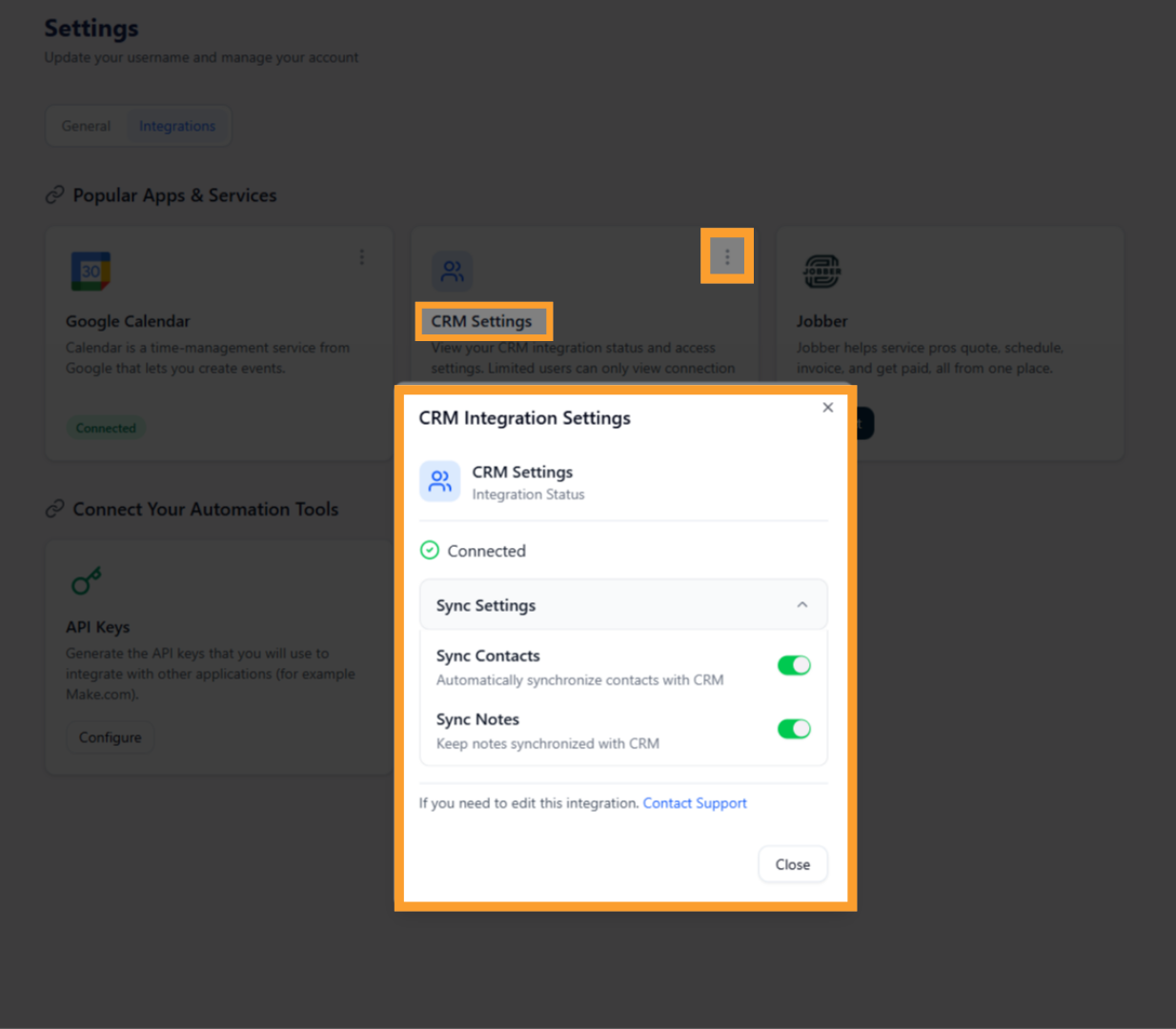
After connecting, you can control how thinkrr syncs CRM data.
## CRM Integration Settings
After connecting, you can control how thinkrr syncs CRM data.
 ### Sync Settings
* **Sync Contacts**
* Automatically creates contacts inside GoHighLevel when inbound or outbound calls occur.
* Contacts are only created if they do not already exist.
* Existing CRM records are never overwritten or removed.
* **Sync Notes**
* Automatically attaches call notes to the matching contact.
* Notes include structured call details for follow-up and tracking.
## thinkrr in GHL
Using thinkrr inside GoHighLevel is done directly through the workflow builder.
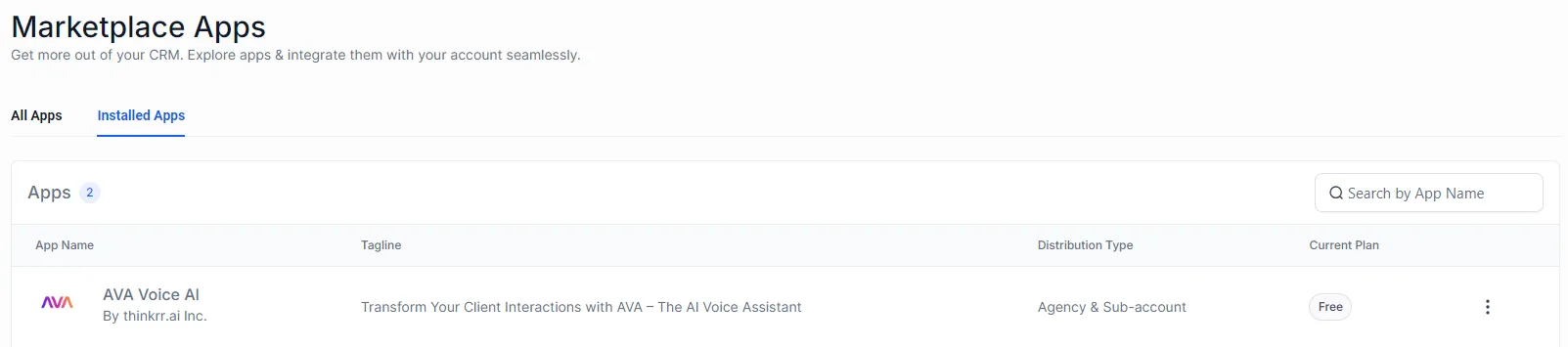
* In GoHighLevel, open **App Marketplace**.
* Search for **thinkrr Voice AI**.
* Click **Install**.
### Sync Settings
* **Sync Contacts**
* Automatically creates contacts inside GoHighLevel when inbound or outbound calls occur.
* Contacts are only created if they do not already exist.
* Existing CRM records are never overwritten or removed.
* **Sync Notes**
* Automatically attaches call notes to the matching contact.
* Notes include structured call details for follow-up and tracking.
## thinkrr in GHL
Using thinkrr inside GoHighLevel is done directly through the workflow builder.
* In GoHighLevel, open **App Marketplace**.
* Search for **thinkrr Voice AI**.
* Click **Install**.
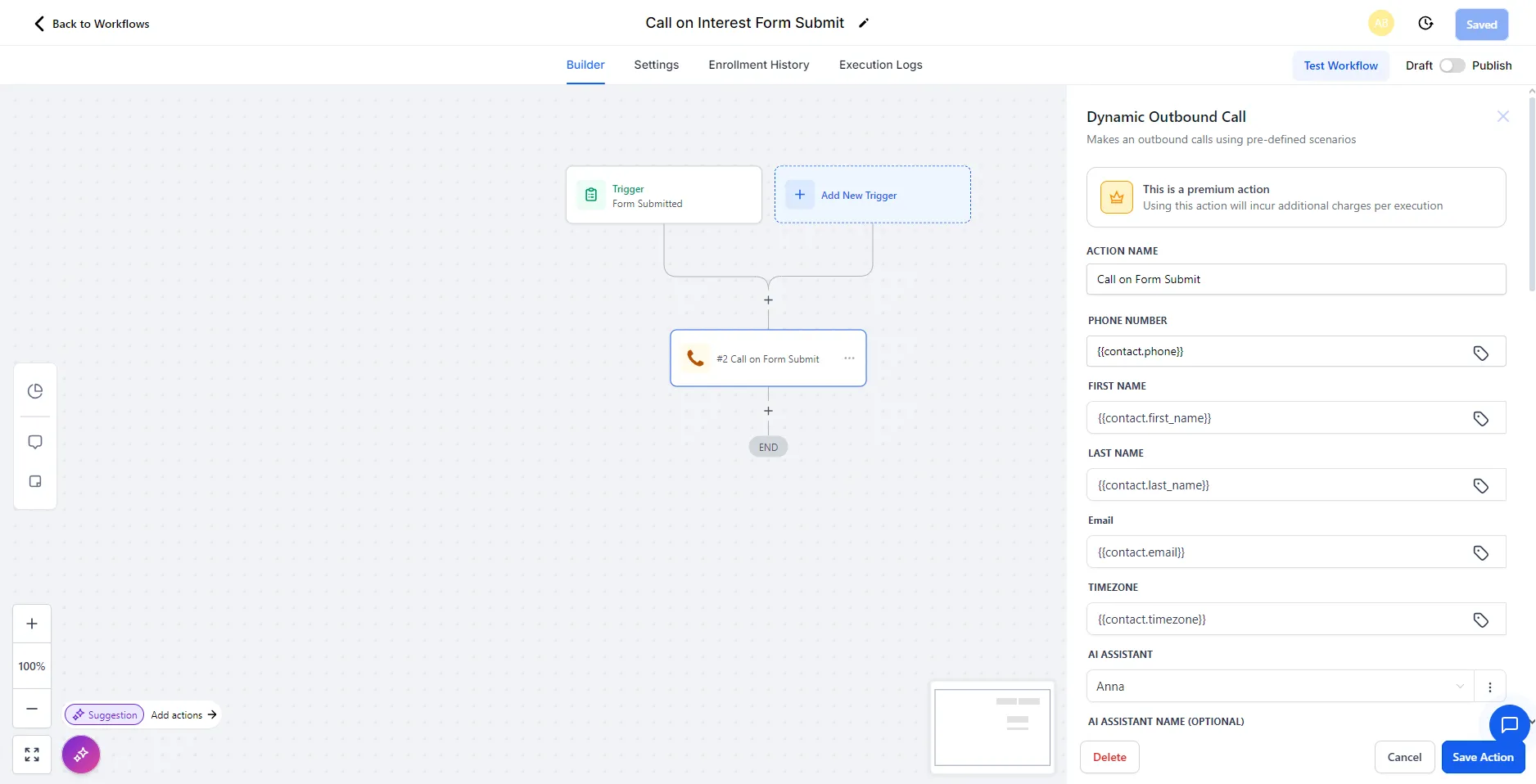
 * Inside a workflow, click the **+ Add Action** button.
* Select **thinkrr Voice AI - Dynamic Outbound Call**.
* Inside a workflow, click the **+ Add Action** button.
* Select **thinkrr Voice AI - Dynamic Outbound Call**.
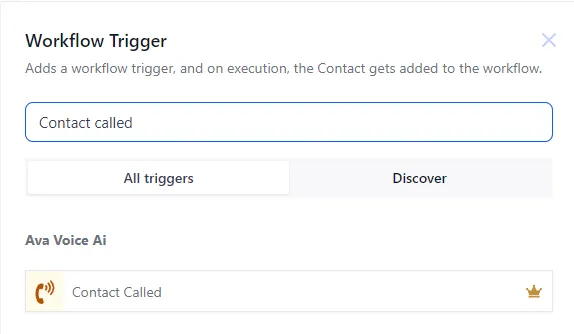
 * Click **Add New Trigger**.
* Select **thinkrr Voice AI - Contact Called**.
* Filter by call status such as **Meeting Booked**.
* Click **Add New Trigger**.
* Select **thinkrr Voice AI - Contact Called**.
* Filter by call status such as **Meeting Booked**.
 ## FAQs & Troubleshooting
### General Questions
The integration allows you to run thinkrr Voice AI directly inside GoHighLevel workflows, automate calls, and sync call outcomes back into your CRM.
You must connect your **Primary Agency Account**. This ensures access to workflows, snapshots, and all sub-accounts.
Yes. thinkrr can be installed across agency and client environments, but Partner Plan agencies may require Location IDs for additional sub-account linking.
### Configuration
Sync Contacts creates a CRM contact automatically when a call occurs, as long as that contact does not already exist in GoHighLevel.
Sync Notes attaches structured call notes to the matching CRM contact after inbound or outbound calls.
Open **Profile Settings → Integrations → CRM Settings**, then use the three-dot menu to access CRM Integration Settings.
### Usage and Results
Add the **thinkrr Voice AI - Dynamic Outbound Call** action inside any workflow step.
Use the **thinkrr Voice AI - Contact Called** trigger, then apply filters and workflow logic based on call outcomes.
***
For additional questions or guidance, try using our [**Virtual Support Agent**](/Thinkrr-Support-Agent)! Available 24/7 to help resolve most issues quickly at [thinkrr.ai/support](https://thinkrr.ai/support).
If you still need assistance, visit our support site at [help.thinkrr.ai](http://help.thinkrr.ai) or contact our team directly at [hello@thinkrr.ai](mailto:hello@thinkrr.ai).
## FAQs & Troubleshooting
### General Questions
The integration allows you to run thinkrr Voice AI directly inside GoHighLevel workflows, automate calls, and sync call outcomes back into your CRM.
You must connect your **Primary Agency Account**. This ensures access to workflows, snapshots, and all sub-accounts.
Yes. thinkrr can be installed across agency and client environments, but Partner Plan agencies may require Location IDs for additional sub-account linking.
### Configuration
Sync Contacts creates a CRM contact automatically when a call occurs, as long as that contact does not already exist in GoHighLevel.
Sync Notes attaches structured call notes to the matching CRM contact after inbound or outbound calls.
Open **Profile Settings → Integrations → CRM Settings**, then use the three-dot menu to access CRM Integration Settings.
### Usage and Results
Add the **thinkrr Voice AI - Dynamic Outbound Call** action inside any workflow step.
Use the **thinkrr Voice AI - Contact Called** trigger, then apply filters and workflow logic based on call outcomes.
***
For additional questions or guidance, try using our [**Virtual Support Agent**](/Thinkrr-Support-Agent)! Available 24/7 to help resolve most issues quickly at [thinkrr.ai/support](https://thinkrr.ai/support).
If you still need assistance, visit our support site at [help.thinkrr.ai](http://help.thinkrr.ai) or contact our team directly at [hello@thinkrr.ai](mailto:hello@thinkrr.ai).