> ## Documentation Index
> Fetch the complete documentation index at: https://docs.thinkrr.ai/llms.txt
> Use this file to discover all available pages before exploring further.
# Microsoft Teams
> Integrating **Microsoft Teams** with GHL allows users to schedule virtual meetings seamlessly, with dynamic Teams links added directly to calendar events.
## Overview
This integration enhances scheduling efficiency, ensures real-time synchronization, and provides greater flexibility for team collaboration. However, there are specific limitations and configuration requirements to keep in mind when using **Microsoft Teams** within GHL.
## Details
**Setting Up Microsoft Teams Integration**
* Navigate to **Settings** in the GHL side-panel.
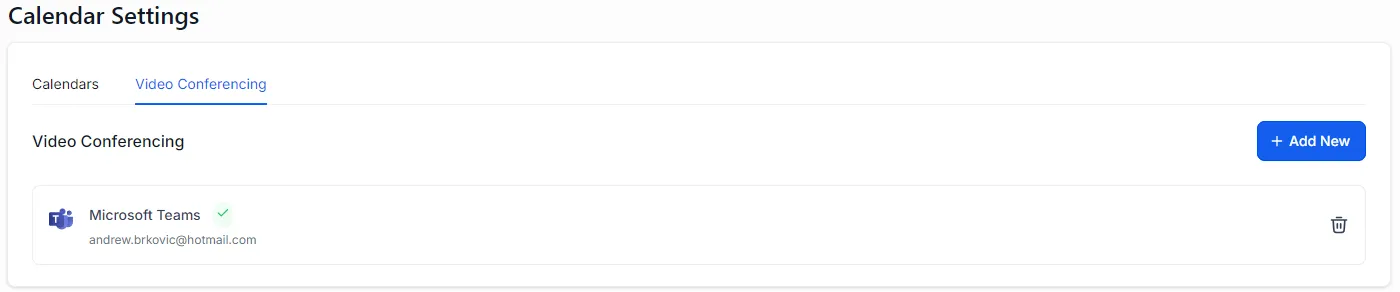
* Select **Calendar Connections** > **Video Conferencing.**
* Click **Add New** and choose **Microsoft Teams** from the options.
* Log in to your Teams account and authorize the connection.
* Ensure that the integration is successfully set up before proceeding.
 ## Important Notes and Limitations
1. **Separate Connections for Teams and Outlook:**
* Connecting an Outlook calendar does not automatically link Microsoft Teams.
* To use Teams, you must connect it separately through **Calendar Connections** > **Video Conferencing.**
2. **Outlook Calendar and Teams Integration:**
* To view appointments in your Outlook calendar, ensure your desired Outlook calendar is connected and selected as the linked calendar under **Calendar Connections** > **Calendars.**
3. **Limitations:**
* Only **Microsoft Teams** accounts for **Work and School (Organization and Education)** are eligible for integration.
* Each user can connect only **one Microsoft Teams integration** per subaccount.
* A single **Microsoft Teams** integration can be used across multiple subaccounts but only by the same user.
* For example, if User A connects their Teams integration in Subaccount A, only User A can use that integration in Subaccount B.
## FAQs & Troubleshooting
### Integration and Setup
Navigate to **Calendar Connections** > **Video Conferencing**, click **Add New**, and select **Microsoft Teams.** Log in and authorize the connection.
No, Outlook and Microsoft Teams require separate connections. You must link Teams independently through **Video Conferencing Settings.**
Yes, Teams can be connected and used independently of an Outlook calendar. However, if you wish to view appointments in your Outlook calendar, you must also connect your desired Outlook calendar.
### Calendar Management
Yes, once Teams is connected, you can edit your calendar settings, select a team member with Teams integration, and choose **Microsoft Teams** as the meeting location. Dynamic Teams links will be added to your events.
Yes, changes made in GHL calendars are reflected in real-time within Microsoft Teams, ensuring consistency and reducing scheduling conflicts.
### Limitations
Only Microsoft Teams accounts for **Work and School (Organization and Education)** can be integrated with GHL.
The same Teams integration can be used across multiple subaccounts, but only by the same user. For example, User A’s Teams integration can be linked to Subaccount A and Subaccount B, but not by User B.
Each user can connect only one Microsoft Teams integration per subaccount.
***
For additional questions or guidance, try using our [Virtual Support Agent](/Thinkrr-Support-Agent)! Available 24/7 to help resolve most issues quickly at [thinkrr.ai/support](https://thinkrr.ai/support).
If you still need assistance, visit our support site at help.thinkrr.ai and submit a [Ticket](/Support-Ticket-System) or contact our team directly at [hello@thinkrr.ai](mailto:hello@thinkrr.ai).
## Important Notes and Limitations
1. **Separate Connections for Teams and Outlook:**
* Connecting an Outlook calendar does not automatically link Microsoft Teams.
* To use Teams, you must connect it separately through **Calendar Connections** > **Video Conferencing.**
2. **Outlook Calendar and Teams Integration:**
* To view appointments in your Outlook calendar, ensure your desired Outlook calendar is connected and selected as the linked calendar under **Calendar Connections** > **Calendars.**
3. **Limitations:**
* Only **Microsoft Teams** accounts for **Work and School (Organization and Education)** are eligible for integration.
* Each user can connect only **one Microsoft Teams integration** per subaccount.
* A single **Microsoft Teams** integration can be used across multiple subaccounts but only by the same user.
* For example, if User A connects their Teams integration in Subaccount A, only User A can use that integration in Subaccount B.
## FAQs & Troubleshooting
### Integration and Setup
Navigate to **Calendar Connections** > **Video Conferencing**, click **Add New**, and select **Microsoft Teams.** Log in and authorize the connection.
No, Outlook and Microsoft Teams require separate connections. You must link Teams independently through **Video Conferencing Settings.**
Yes, Teams can be connected and used independently of an Outlook calendar. However, if you wish to view appointments in your Outlook calendar, you must also connect your desired Outlook calendar.
### Calendar Management
Yes, once Teams is connected, you can edit your calendar settings, select a team member with Teams integration, and choose **Microsoft Teams** as the meeting location. Dynamic Teams links will be added to your events.
Yes, changes made in GHL calendars are reflected in real-time within Microsoft Teams, ensuring consistency and reducing scheduling conflicts.
### Limitations
Only Microsoft Teams accounts for **Work and School (Organization and Education)** can be integrated with GHL.
The same Teams integration can be used across multiple subaccounts, but only by the same user. For example, User A’s Teams integration can be linked to Subaccount A and Subaccount B, but not by User B.
Each user can connect only one Microsoft Teams integration per subaccount.
***
For additional questions or guidance, try using our [Virtual Support Agent](/Thinkrr-Support-Agent)! Available 24/7 to help resolve most issues quickly at [thinkrr.ai/support](https://thinkrr.ai/support).
If you still need assistance, visit our support site at help.thinkrr.ai and submit a [Ticket](/Support-Ticket-System) or contact our team directly at [hello@thinkrr.ai](mailto:hello@thinkrr.ai).