> ## Documentation Index
> Fetch the complete documentation index at: https://docs.thinkrr.ai/llms.txt
> Use this file to discover all available pages before exploring further.
# Sales Coach
> The **Sales Coach** role allows inbound agents to simulate customer personas in sales style conversations. This role is used for both internal sales training and as an external tool agencies can offer to their clients. Configure the Sales Coach to reflect a realistic buyer profile, complete with tone, objections, and purchase behavior.
## Details
A **Sales Coach** is a specialized role for **Inbound Agents** that simulates a potential customer during a sales conversation. It is not a sales rep, it’s the voice on the other end of the call, portraying different buyer profiles to help you train, test, or demonstrate sales interactions.
The AI behaves like a real customer by:
* Responding to persuasion techniques
* Displaying varied interest levels and buying styles
* Asking realistic product-related questions
* Raising common objections
* Reacting to different sales tactics
This tool is ideal for:
* Training new reps in controlled simulations
* Stress-testing sales scripts and objection handling
* Demonstrating call performance to stakeholders or clients
* Offering sales coaching services to other businesses via thinkrr
All configuration fields define the **simulated customer**, not the company, product, or sales rep. The more realistic the persona, the more effective the training.
## Configuring the Sales Coach Role
### 1. Selecting the Sales Coach Role
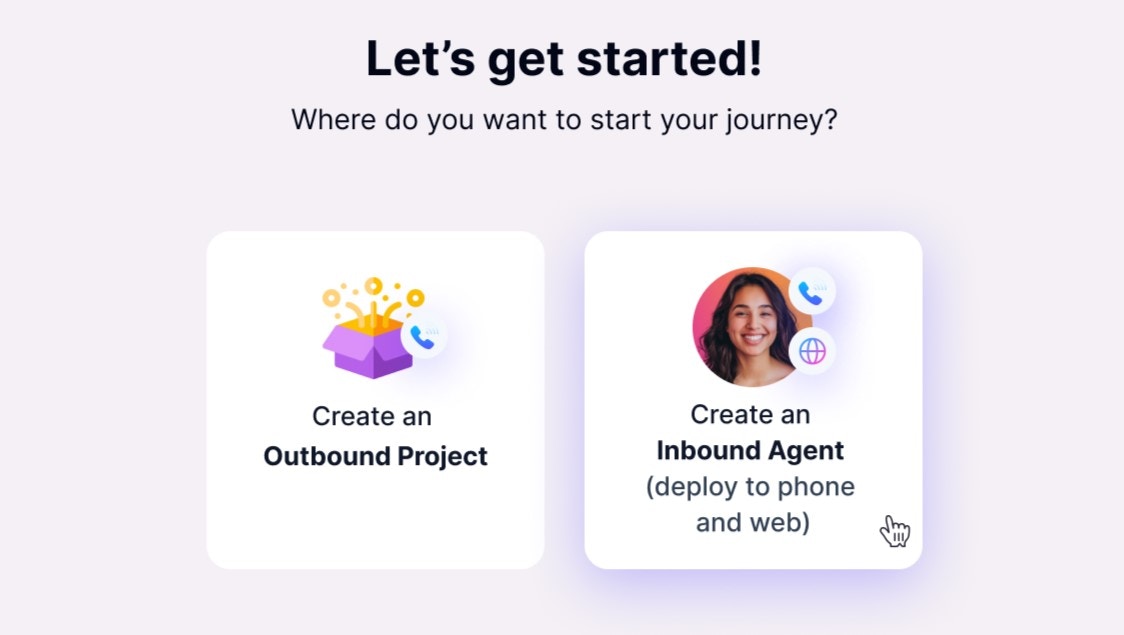
* If you're setting up your first Agent in thinkrr, you’ll be prompted to create an Outbound Project or an Inbound Agent.
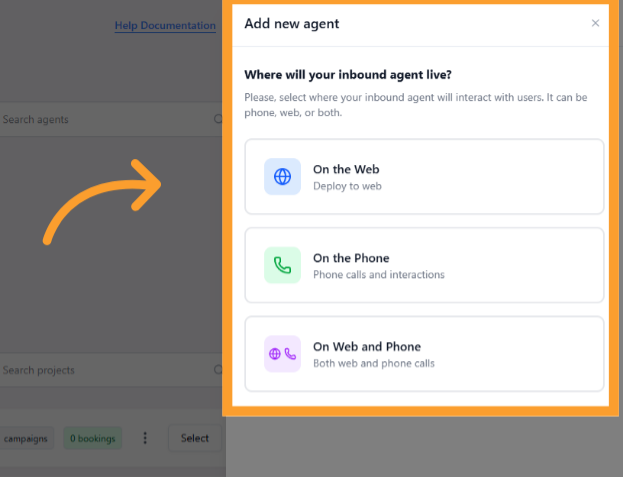
Otherwise, from the **Home** screen:
* Click **"Add New Agent"** in the **Active Agents** section.
* Choose the deployment method:
* Tied to a **phone number**
* Deployed to the **web**
* Both
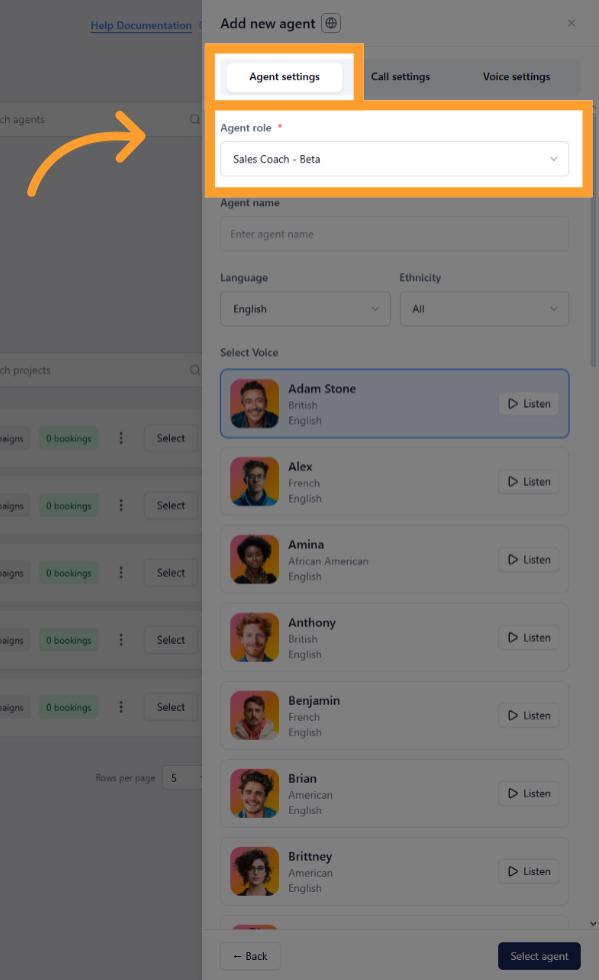
When creating a new Sales Coach, configuration is organized into three tabs: **Agent Settings**, **Call Settings**, and **Voice Settings**.
* **Agent Settings**
* **Agent Role** – Select **Sales Coach**.
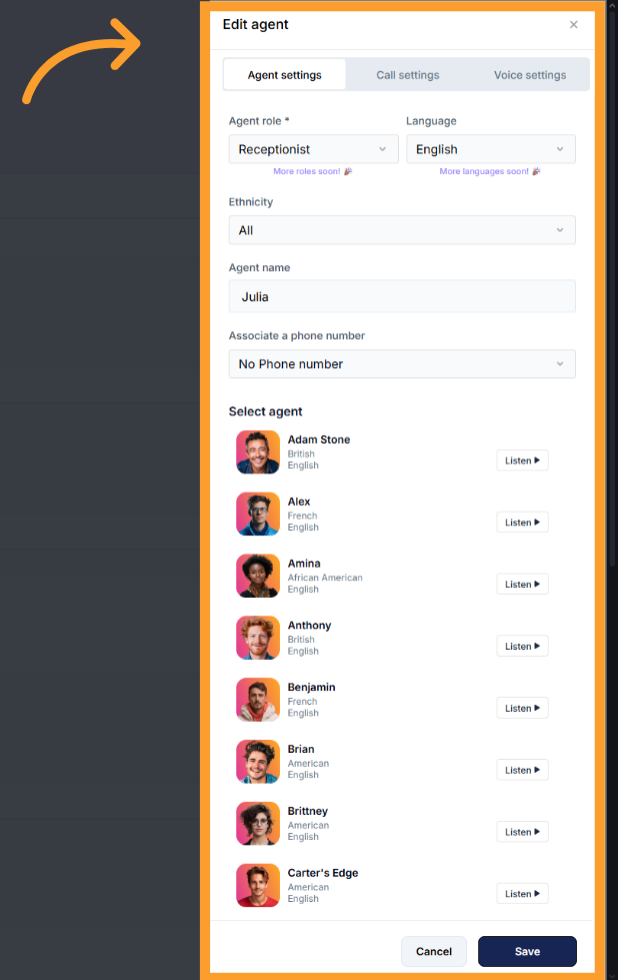
* **Agent Name** – Name the simulated customer persona (e.g., “Skeptical Prospect” or “Premium Buyer”).
* **Language & Ethnicity** – Choose the language and voice traits to match the persona.
* **Agent Voice** – Use the **Listen** button to preview and select a voice.
* **Phone Number** – Assign a number if phone simulation is required (**Inbound Agents must have unique numbers**).
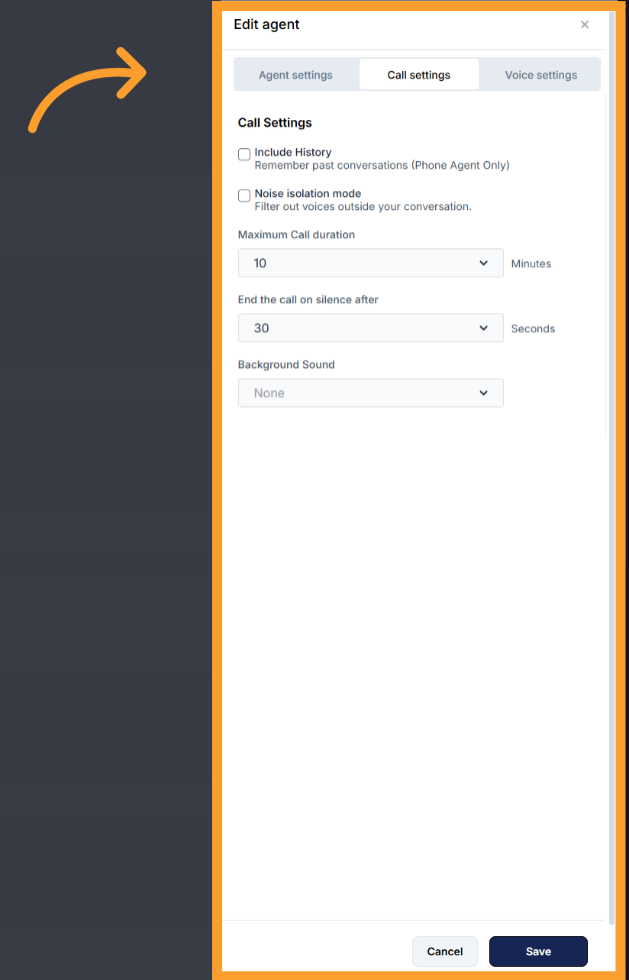
* **Call Settings**
* **Include History** – Option to let the Sales Coach “remember” past simulated calls.
* **Noise Isolation Mode** – Filters out background voices.
* **Maximum Call Duration** – Caps call length (set in minutes).
* **End Call After Silence** – Ends the call automatically after a set silence period.
* **Background Sound** – Add ambient noise (e.g., busy office).
* **Background Volume Slider** – Appears if background sound is enabled.
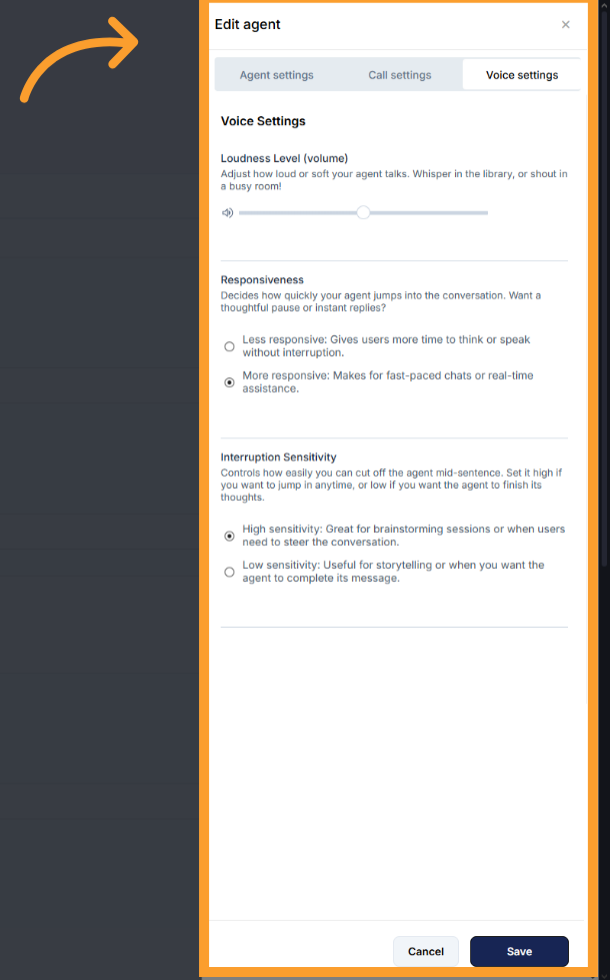
* **Voice Settings**
* **Loudness Level (volume)** – Adjust how loud or soft the simulated customer speaks.
* **Responsiveness** – Decide how quickly the persona replies.
* Less responsive: Pauses more before answering.
* More responsive: Reacts instantly for fast-paced simulation.
* **Interruption Sensitivity** – Controls how easily you can cut off the agent mid-sentence.
* High sensitivity: Interruptions cut in immediately.
* Low sensitivity: Persona will usually finish speaking first.
### 2. Defining the Sales Coach’s Behavior
Once the **Sales Coach** role is selected and your initial settings are configured, you will need to train the Agent with persona details.
If you need to revisit or update these settings later, click the **Settings** button at the top of the agent’s page. This reopens the same three tabs, **Agent Settings**, **Call Settings**, and **Voice Settings**, allowing you to make adjustments at any time.
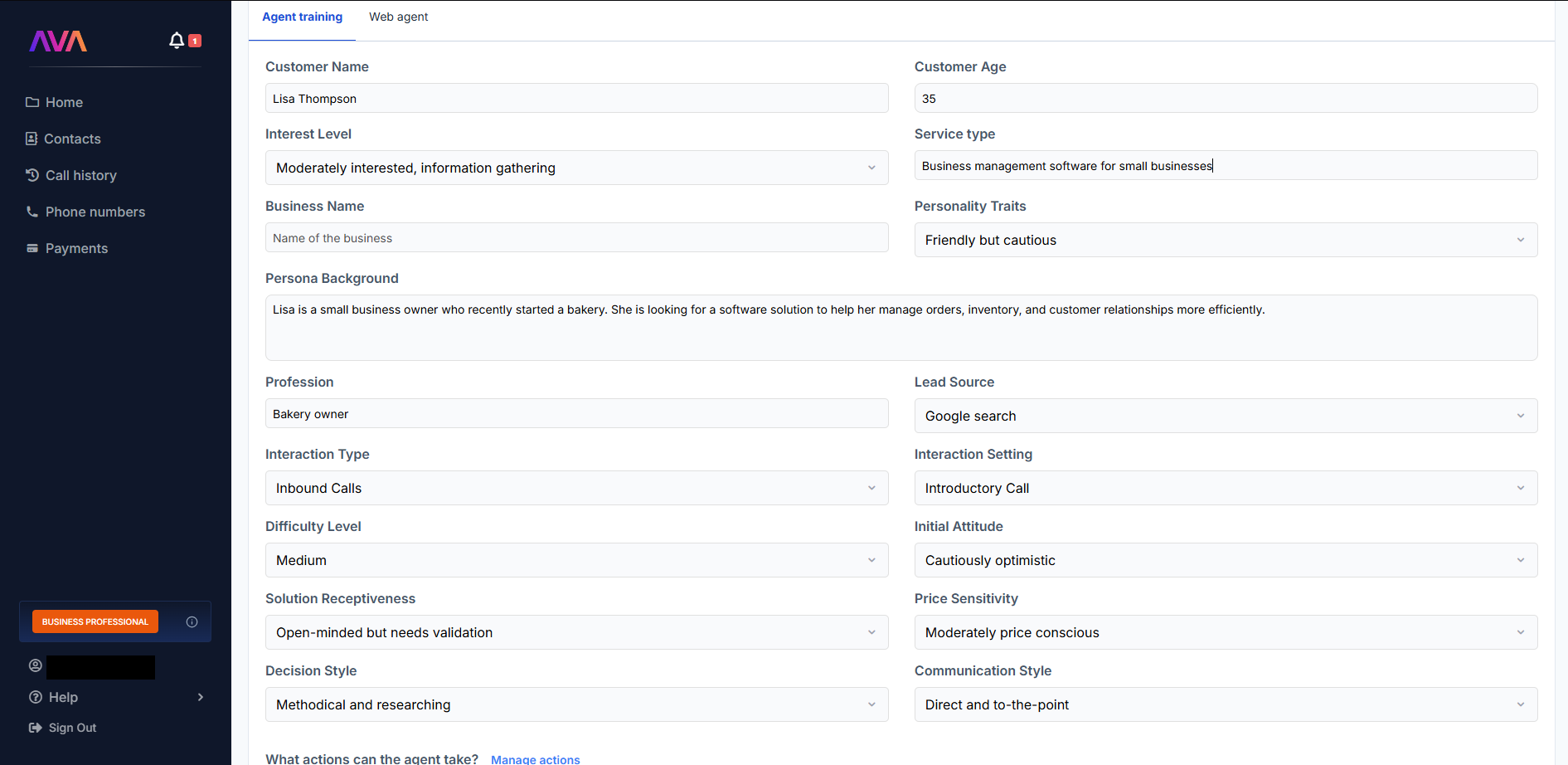
The following input fields define how the simulated customer will behave:
* **Customer Name** – Simulated name of the customer.
* **Customer Age** – Age range for the simulated customer.
* **Interest Level**
* Moderately interested, information gathering
* Slightly interested, just browsing
* Highly interested, price sensitive
* **Service Type** – The type of service the simulated customer is inquiring about.
* **Business Name** – The business your live sales rep is representing.
* **Personality Traits**
* Friendly but cautious
* Direct and Time Conscious
* Indecisive but enthusiastic
* **Persona Background** – Short description of the customer’s situation or lifestyle.
* **Profession** – Job or role of the simulated customer.
* **Lead Source**
* Social Media advertisement
* Google search
* Friend or family recommendation
* Drive by or walk by
* Corporate wellness program
* Local community event
* Current member referral
* **Interaction Type**
* Outbound call
* Inbound call
* Sales pitch
* Objection handling
* **Interaction Setting**
* Introductory call
* Lead nurture call
* Sales closure call
* Service upgrade call
* **Difficulty Level**
* Easy
* Medium
* Hard
* **Initial Attitude**
* Enthusiastic and eager
* Cautiously optimistic
* Neutral but willing
* Slightly skeptical
* Reserved and needs convincing
* **Solution Receptiveness**
* Highly receptive
* Open minded but needs validation
* Cautious but willing
* Skeptical but convincible
* Resistant but listening
* **Price Sensitivity**
* Very price sensitive
* Moderately price conscious
* Value-focused
* Budget driven
* Premium-oriented
* **Decision Style**
* Quick and decisive
* Methodical and researching
* Emotional and intuitive
* Collaborative and consulting
* **Communication Style**
* Direct and to-the-point
* Detailed and thorough
* Casual and conversational
* Formal and professional
We recommend not overthinking the instructions. Train your agent the way you would brief a roleplay partner, not with a rigid script, but with traits, context, and likely reactions to simulate.
Remember, this is Generative AI. The more flexible and realistic the persona you provide, the better the simulation.
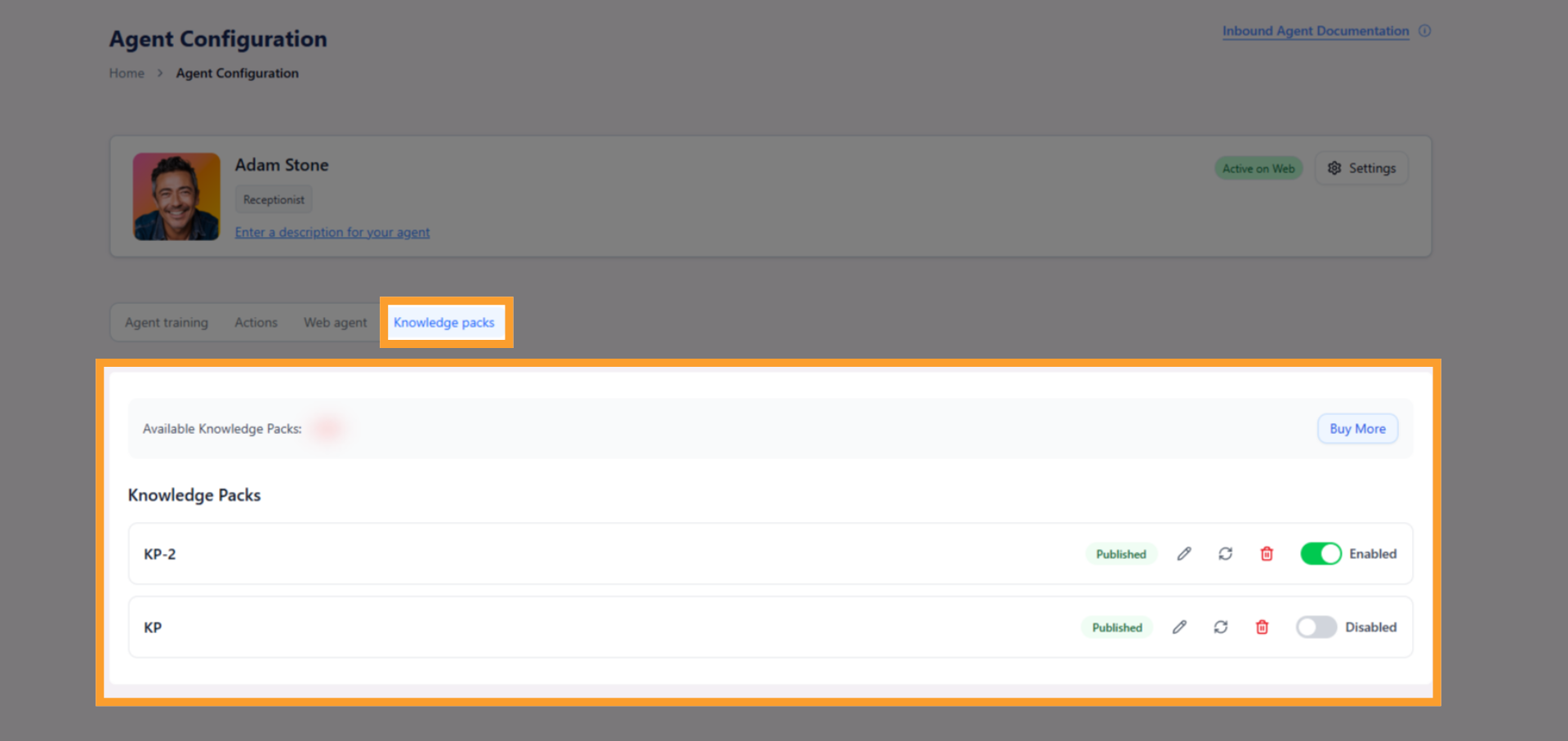
A **Knowledge Pack** allows your agent to access and reference structured company information during conversations. It can be used across both inbound and outbound projects.
Depending on your plan, you can create one or more Knowledge Packs and attach them to specific agents as needed.
**Supported plans:**
* Business Professional: 1 Pack
* Business Growth: 2 Packs
* Agency Lite: 1 Pack
* Agency Unlimited: 2 Packs
#### Steps to Add a Knowledge Pack:
1. In your inbound agent configuration screen, scroll down and click **"Knowledge Packs."**
2. Click **"Create New Knowledge Pack"** to launch the builder.
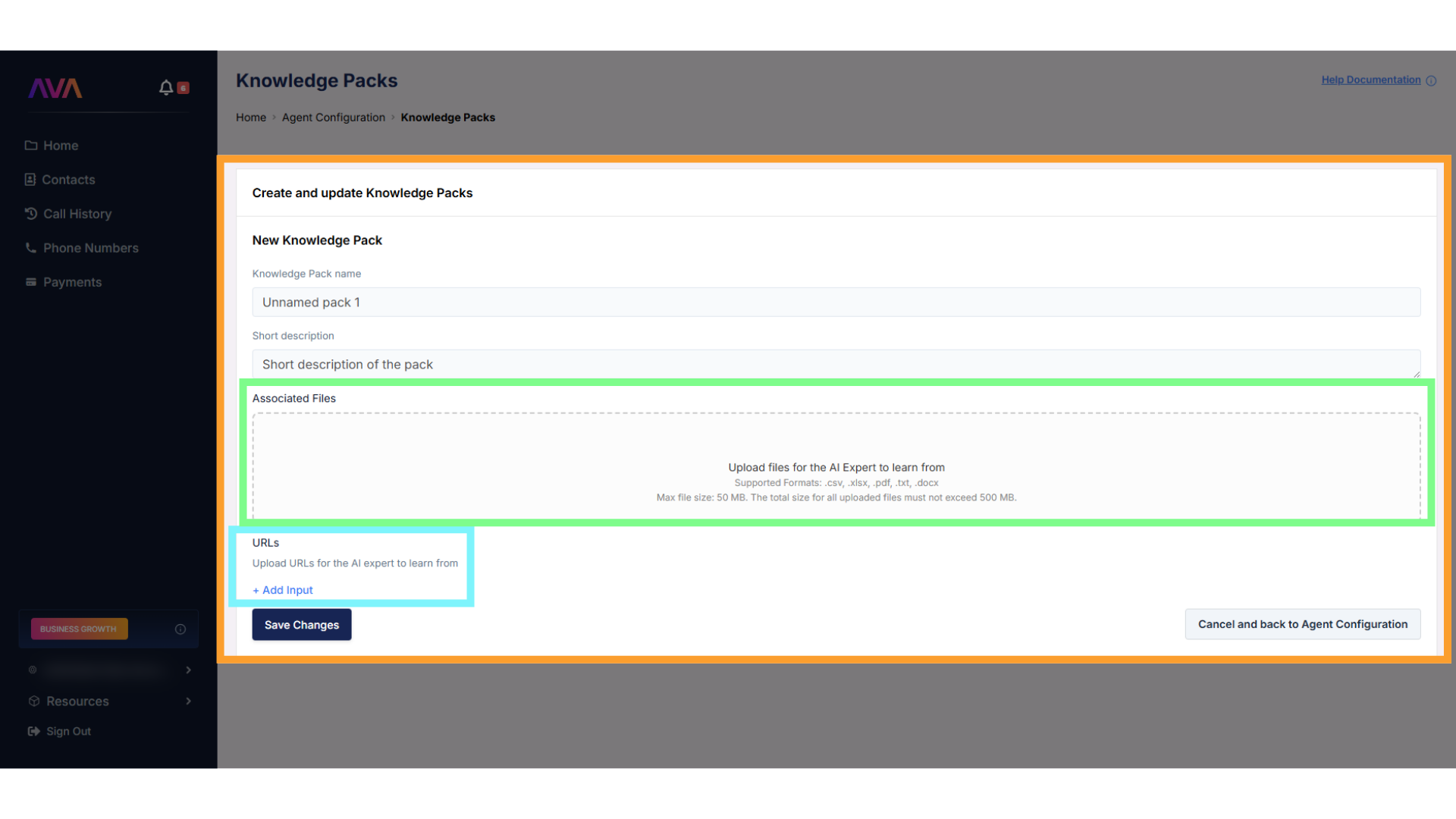
3. Choose one or both of the following sources:
* **Upload files** in .csv, .xlsx, .pdf, .txt, or .docx format
* Up to 50MB per file, total upload limit of 500MB
* **Enter URLs** to let thinkrr scan web pages for reference content
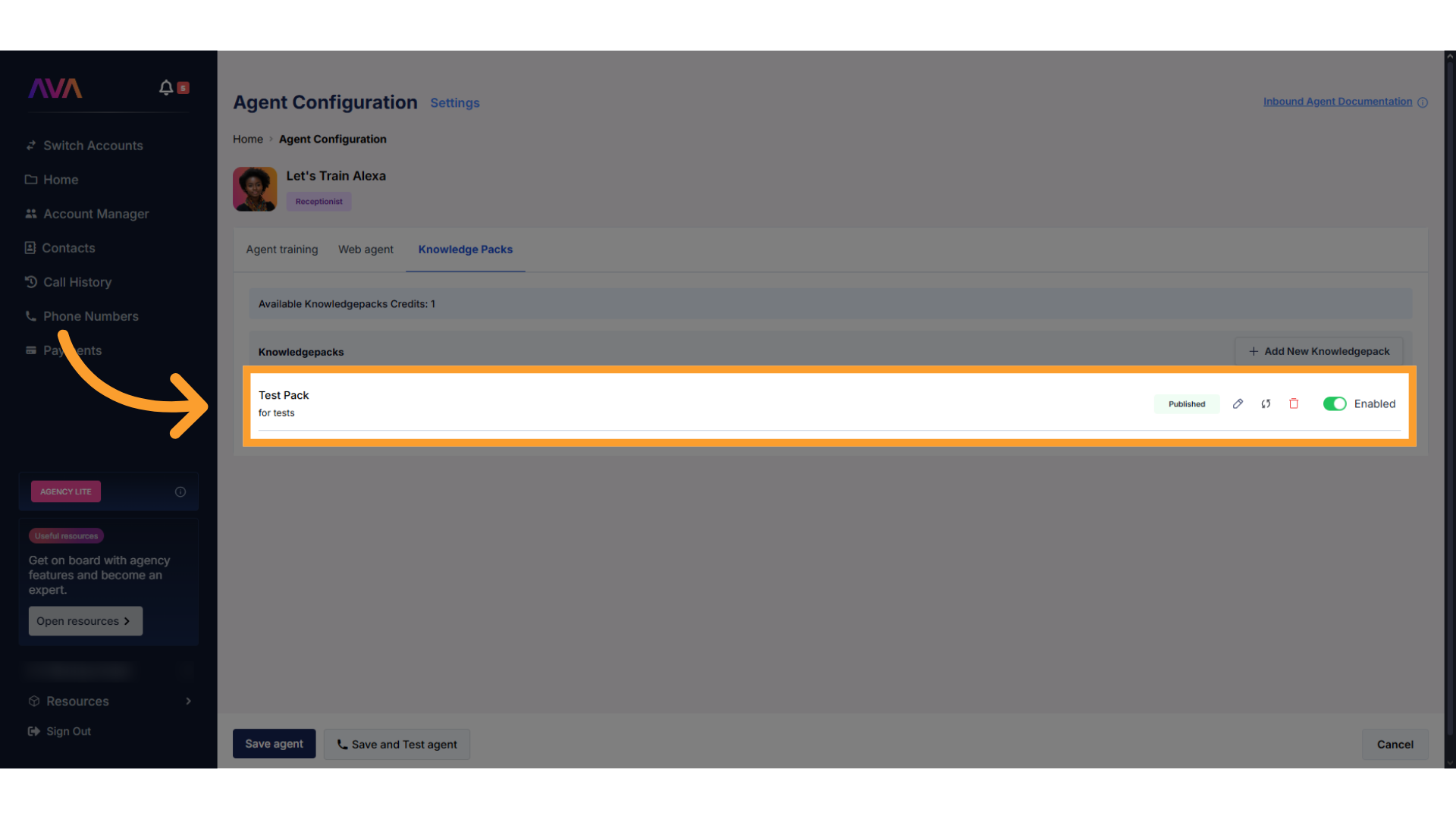
4. Once created, you can **edit**, **delete**, or **refresh** your pack from the right-hand menu.
* To disable access temporarily, simply **turn off** the pack instead of deleting it.
* You can re-enable the same pack at any time without losing the content.
🚫 **Note:** Sub-accounts cannot access Knowledge Packs created by an agency’s main account.
### 3. Assigning Actions to the Sales Coach AI
The **Sales Coach** role can send notifications about training sessions but does not handle real bookings or CRM actions.
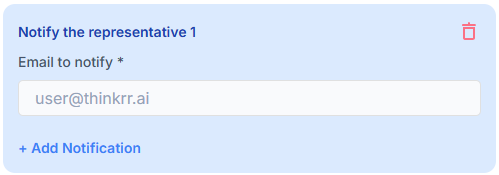
* **Notify The Rep**
* Enter up to **10 email addresses**.
* Each notification includes:
* Simulated caller profile
* Conversation summary
* Transcript
* Call recording (if enabled)
## Editing an Existing Sales Coach AI
1. From the **Home** screen, locate the Agent under **Active Agents**.
2. Click on the Agent (or the 3-dot menu) to open the editor.
3. Update persona inputs like Communication Style or Price Sensitivity.
4. Adjust action behaviors or notification settings.
5. Use **"Save & Test"** to run simulations and refine the training setup.
## Notes & Considerations
* This role is for **Inbound Agents only**.
* The Agent simulates a **customer**, not a company rep.
* Use Test mode to train and certify human reps or validate outbound scripts.
* You can set up multiple versions of this role to simulate different customer types.
## FAQs & Troubleshooting
### General Questions
* The Sales Coach is only available as an **Inbound Agent**, but it simulates **outbound-style customer calls** to train your team.
* It acts like a potential customer, responding based on your inputs, asking questions, showing interest or hesitation, and behaving like a real prospect.
* Absolutely. Use fields like **Initial Attitude**, **Difficulty Level**, and **Objection Triggers** to model different behaviors.
### Troubleshooting
* Make sure your persona includes a realistic **Difficulty Level** and **Objection Triggers**.
* Try refining **Price Sensitivity** and providing more context in the **Persona Background**.
* Add more depth to **Communication Style**, **Decision Style**, and include nuanced objections or goals.
***
For additional questions or guidance, try using our [**Virtual Support Agent**](/Thinkrr-Support-Agent)! Available 24/7 to help resolve most issues quickly at [thinkrr.ai/support](https://thinkrr.ai/support).
If you still need assistance, visit our support site at [help.thinkrr.ai](http://help.thinkrr.ai) and submit a [Ticket](/Support-Ticket-System) or contact our team directly at [hello@thinkrr.ai](mailto:hello@thinkrr.ai).
 Otherwise, from the **Home** screen:
* Click **"Add New Agent"** in the **Active Agents** section.
* Choose the deployment method:
* Tied to a **phone number**
* Deployed to the **web**
* Both
Otherwise, from the **Home** screen:
* Click **"Add New Agent"** in the **Active Agents** section.
* Choose the deployment method:
* Tied to a **phone number**
* Deployed to the **web**
* Both
 When creating a new Sales Coach, configuration is organized into three tabs: **Agent Settings**, **Call Settings**, and **Voice Settings**.
* **Agent Settings**
* **Agent Role** – Select **Sales Coach**.
When creating a new Sales Coach, configuration is organized into three tabs: **Agent Settings**, **Call Settings**, and **Voice Settings**.
* **Agent Settings**
* **Agent Role** – Select **Sales Coach**.
 * **Agent Name** – Name the simulated customer persona (e.g., “Skeptical Prospect” or “Premium Buyer”).
* **Language & Ethnicity** – Choose the language and voice traits to match the persona.
* **Agent Voice** – Use the **Listen** button to preview and select a voice.
* **Phone Number** – Assign a number if phone simulation is required (**Inbound Agents must have unique numbers**).
* **Agent Name** – Name the simulated customer persona (e.g., “Skeptical Prospect” or “Premium Buyer”).
* **Language & Ethnicity** – Choose the language and voice traits to match the persona.
* **Agent Voice** – Use the **Listen** button to preview and select a voice.
* **Phone Number** – Assign a number if phone simulation is required (**Inbound Agents must have unique numbers**).
 * **Call Settings**
* **Include History** – Option to let the Sales Coach “remember” past simulated calls.
* **Noise Isolation Mode** – Filters out background voices.
* **Maximum Call Duration** – Caps call length (set in minutes).
* **End Call After Silence** – Ends the call automatically after a set silence period.
* **Background Sound** – Add ambient noise (e.g., busy office).
* **Background Volume Slider** – Appears if background sound is enabled.
* **Call Settings**
* **Include History** – Option to let the Sales Coach “remember” past simulated calls.
* **Noise Isolation Mode** – Filters out background voices.
* **Maximum Call Duration** – Caps call length (set in minutes).
* **End Call After Silence** – Ends the call automatically after a set silence period.
* **Background Sound** – Add ambient noise (e.g., busy office).
* **Background Volume Slider** – Appears if background sound is enabled.
 * **Voice Settings**
* **Loudness Level (volume)** – Adjust how loud or soft the simulated customer speaks.
* **Responsiveness** – Decide how quickly the persona replies.
* Less responsive: Pauses more before answering.
* More responsive: Reacts instantly for fast-paced simulation.
* **Interruption Sensitivity** – Controls how easily you can cut off the agent mid-sentence.
* High sensitivity: Interruptions cut in immediately.
* Low sensitivity: Persona will usually finish speaking first.
* **Voice Settings**
* **Loudness Level (volume)** – Adjust how loud or soft the simulated customer speaks.
* **Responsiveness** – Decide how quickly the persona replies.
* Less responsive: Pauses more before answering.
* More responsive: Reacts instantly for fast-paced simulation.
* **Interruption Sensitivity** – Controls how easily you can cut off the agent mid-sentence.
* High sensitivity: Interruptions cut in immediately.
* Low sensitivity: Persona will usually finish speaking first.
 ### 2. Defining the Sales Coach’s Behavior
Once the **Sales Coach** role is selected and your initial settings are configured, you will need to train the Agent with persona details.
If you need to revisit or update these settings later, click the **Settings** button at the top of the agent’s page. This reopens the same three tabs, **Agent Settings**, **Call Settings**, and **Voice Settings**, allowing you to make adjustments at any time.
The following input fields define how the simulated customer will behave:
* **Customer Name** – Simulated name of the customer.
* **Customer Age** – Age range for the simulated customer.
* **Interest Level**
* Moderately interested, information gathering
* Slightly interested, just browsing
* Highly interested, price sensitive
* **Service Type** – The type of service the simulated customer is inquiring about.
* **Business Name** – The business your live sales rep is representing.
* **Personality Traits**
* Friendly but cautious
* Direct and Time Conscious
* Indecisive but enthusiastic
* **Persona Background** – Short description of the customer’s situation or lifestyle.
* **Profession** – Job or role of the simulated customer.
* **Lead Source**
* Social Media advertisement
* Google search
* Friend or family recommendation
* Drive by or walk by
* Corporate wellness program
* Local community event
* Current member referral
* **Interaction Type**
* Outbound call
* Inbound call
* Sales pitch
* Objection handling
* **Interaction Setting**
* Introductory call
* Lead nurture call
* Sales closure call
* Service upgrade call
* **Difficulty Level**
* Easy
* Medium
* Hard
* **Initial Attitude**
* Enthusiastic and eager
* Cautiously optimistic
* Neutral but willing
* Slightly skeptical
* Reserved and needs convincing
* **Solution Receptiveness**
* Highly receptive
* Open minded but needs validation
* Cautious but willing
* Skeptical but convincible
* Resistant but listening
* **Price Sensitivity**
* Very price sensitive
* Moderately price conscious
* Value-focused
* Budget driven
* Premium-oriented
* **Decision Style**
* Quick and decisive
* Methodical and researching
* Emotional and intuitive
* Collaborative and consulting
* **Communication Style**
* Direct and to-the-point
* Detailed and thorough
* Casual and conversational
* Formal and professional
### 2. Defining the Sales Coach’s Behavior
Once the **Sales Coach** role is selected and your initial settings are configured, you will need to train the Agent with persona details.
If you need to revisit or update these settings later, click the **Settings** button at the top of the agent’s page. This reopens the same three tabs, **Agent Settings**, **Call Settings**, and **Voice Settings**, allowing you to make adjustments at any time.
The following input fields define how the simulated customer will behave:
* **Customer Name** – Simulated name of the customer.
* **Customer Age** – Age range for the simulated customer.
* **Interest Level**
* Moderately interested, information gathering
* Slightly interested, just browsing
* Highly interested, price sensitive
* **Service Type** – The type of service the simulated customer is inquiring about.
* **Business Name** – The business your live sales rep is representing.
* **Personality Traits**
* Friendly but cautious
* Direct and Time Conscious
* Indecisive but enthusiastic
* **Persona Background** – Short description of the customer’s situation or lifestyle.
* **Profession** – Job or role of the simulated customer.
* **Lead Source**
* Social Media advertisement
* Google search
* Friend or family recommendation
* Drive by or walk by
* Corporate wellness program
* Local community event
* Current member referral
* **Interaction Type**
* Outbound call
* Inbound call
* Sales pitch
* Objection handling
* **Interaction Setting**
* Introductory call
* Lead nurture call
* Sales closure call
* Service upgrade call
* **Difficulty Level**
* Easy
* Medium
* Hard
* **Initial Attitude**
* Enthusiastic and eager
* Cautiously optimistic
* Neutral but willing
* Slightly skeptical
* Reserved and needs convincing
* **Solution Receptiveness**
* Highly receptive
* Open minded but needs validation
* Cautious but willing
* Skeptical but convincible
* Resistant but listening
* **Price Sensitivity**
* Very price sensitive
* Moderately price conscious
* Value-focused
* Budget driven
* Premium-oriented
* **Decision Style**
* Quick and decisive
* Methodical and researching
* Emotional and intuitive
* Collaborative and consulting
* **Communication Style**
* Direct and to-the-point
* Detailed and thorough
* Casual and conversational
* Formal and professional
 We recommend not overthinking the instructions. Train your agent the way you would brief a roleplay partner, not with a rigid script, but with traits, context, and likely reactions to simulate.
Remember, this is Generative AI. The more flexible and realistic the persona you provide, the better the simulation.
We recommend not overthinking the instructions. Train your agent the way you would brief a roleplay partner, not with a rigid script, but with traits, context, and likely reactions to simulate.
Remember, this is Generative AI. The more flexible and realistic the persona you provide, the better the simulation.
 2. Click **"Create New Knowledge Pack"** to launch the builder.
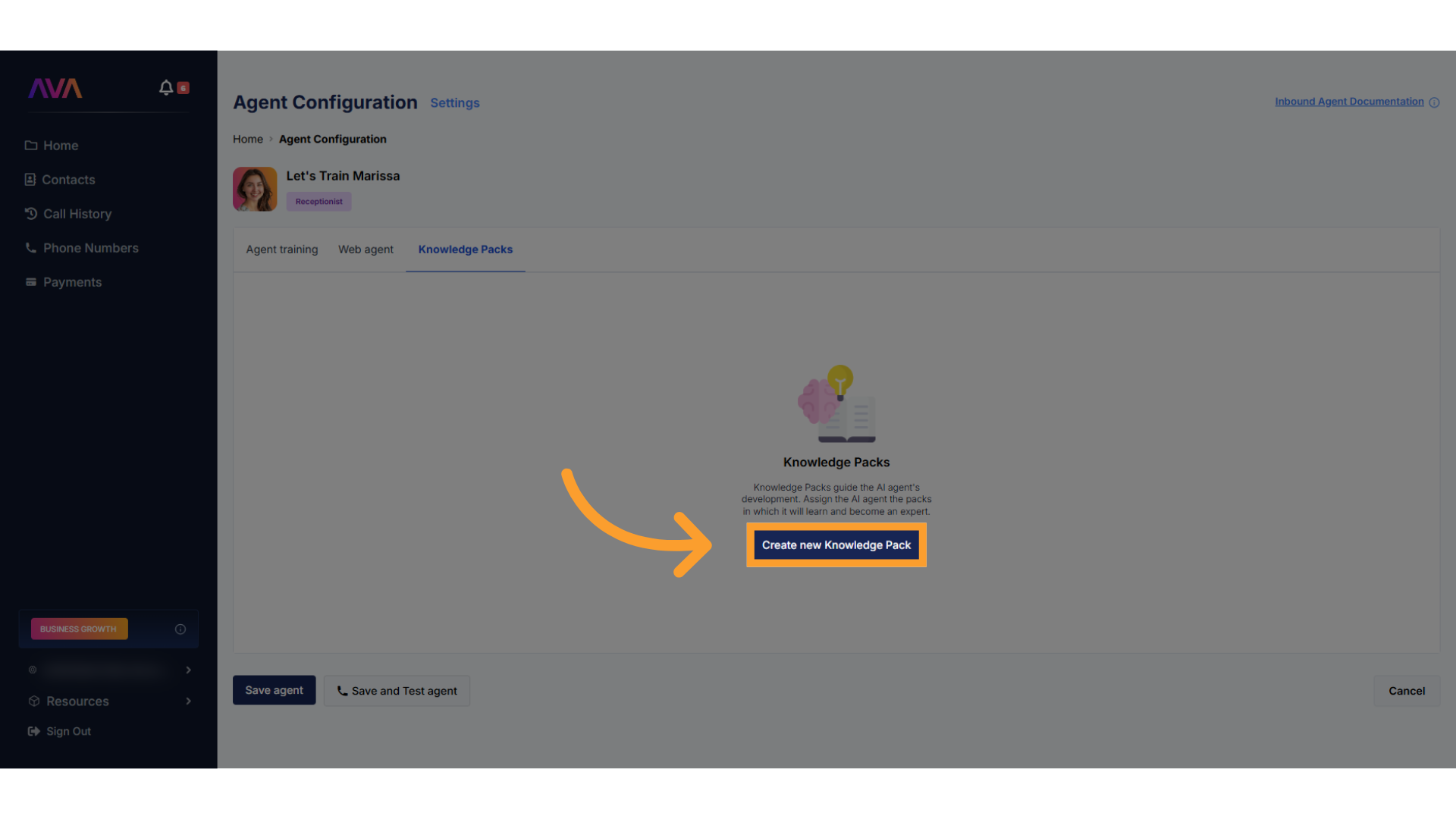 3. Choose one or both of the following sources:
* **Upload files** in .csv, .xlsx, .pdf, .txt, or .docx format
* Up to 50MB per file, total upload limit of 500MB
* **Enter URLs** to let thinkrr scan web pages for reference content
3. Choose one or both of the following sources:
* **Upload files** in .csv, .xlsx, .pdf, .txt, or .docx format
* Up to 50MB per file, total upload limit of 500MB
* **Enter URLs** to let thinkrr scan web pages for reference content
 4. Once created, you can **edit**, **delete**, or **refresh** your pack from the right-hand menu.
* To disable access temporarily, simply **turn off** the pack instead of deleting it.
* You can re-enable the same pack at any time without losing the content.
4. Once created, you can **edit**, **delete**, or **refresh** your pack from the right-hand menu.
* To disable access temporarily, simply **turn off** the pack instead of deleting it.
* You can re-enable the same pack at any time without losing the content.
 🚫 **Note:** Sub-accounts cannot access Knowledge Packs created by an agency’s main account.
 ## Editing an Existing Sales Coach AI
1. From the **Home** screen, locate the Agent under **Active Agents**.
2. Click on the Agent (or the 3-dot menu) to open the editor.
3. Update persona inputs like Communication Style or Price Sensitivity.
4. Adjust action behaviors or notification settings.
5. Use **"Save & Test"** to run simulations and refine the training setup.
## Notes & Considerations
* This role is for **Inbound Agents only**.
* The Agent simulates a **customer**, not a company rep.
* Use Test mode to train and certify human reps or validate outbound scripts.
* You can set up multiple versions of this role to simulate different customer types.
## FAQs & Troubleshooting
### General Questions
## Editing an Existing Sales Coach AI
1. From the **Home** screen, locate the Agent under **Active Agents**.
2. Click on the Agent (or the 3-dot menu) to open the editor.
3. Update persona inputs like Communication Style or Price Sensitivity.
4. Adjust action behaviors or notification settings.
5. Use **"Save & Test"** to run simulations and refine the training setup.
## Notes & Considerations
* This role is for **Inbound Agents only**.
* The Agent simulates a **customer**, not a company rep.
* Use Test mode to train and certify human reps or validate outbound scripts.
* You can set up multiple versions of this role to simulate different customer types.
## FAQs & Troubleshooting
### General Questions