> ## Documentation Index
> Fetch the complete documentation index at: https://docs.thinkrr.ai/llms.txt
> Use this file to discover all available pages before exploring further.
# V4 Snapshot Setup
> Learn how to install the thinkrr Demo Snapshot (v4) in GoHighLevel, explore its included assets, and use it to quickly jumpstart your workflows.
## Overview
In **GoHighLevel**, a snapshot is a saved template of a complete account setup. It includes funnels, workflows, pipelines, calendars, tags, triggers, and other configurations. Snapshots are designed to quickly and consistently replicate setups across multiple subaccounts.
Thinkrr provides the **thinkrr Demo Snapshot v4** as a starting point for agencies and clients. This snapshot installs a preconfigured package of assets designed to demonstrate thinkrr’s integration with GoHighLevel and give you a strong head start.
This guide covers:
1. Installing the thinkrr Demo Snapshot into your agency account
2. Loading the snapshot into a subaccount
3. Reviewing the included assets after installation
***
## Setup Guide
* Begin by clicking the installation link provided by Thinkrr: [**Snapshot V4**](https://affiliates.gohighlevel.com/?fp_ref=thinkrr-ai69\&share=LaYcHjJTgqZMsAwO8tT9)
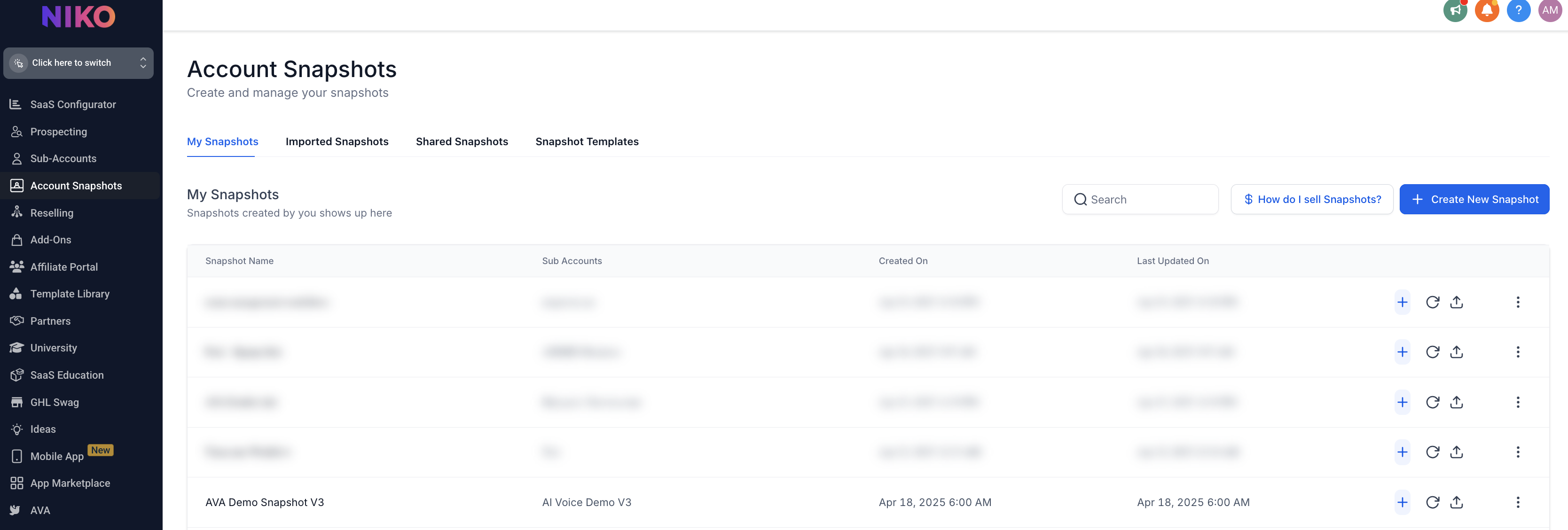
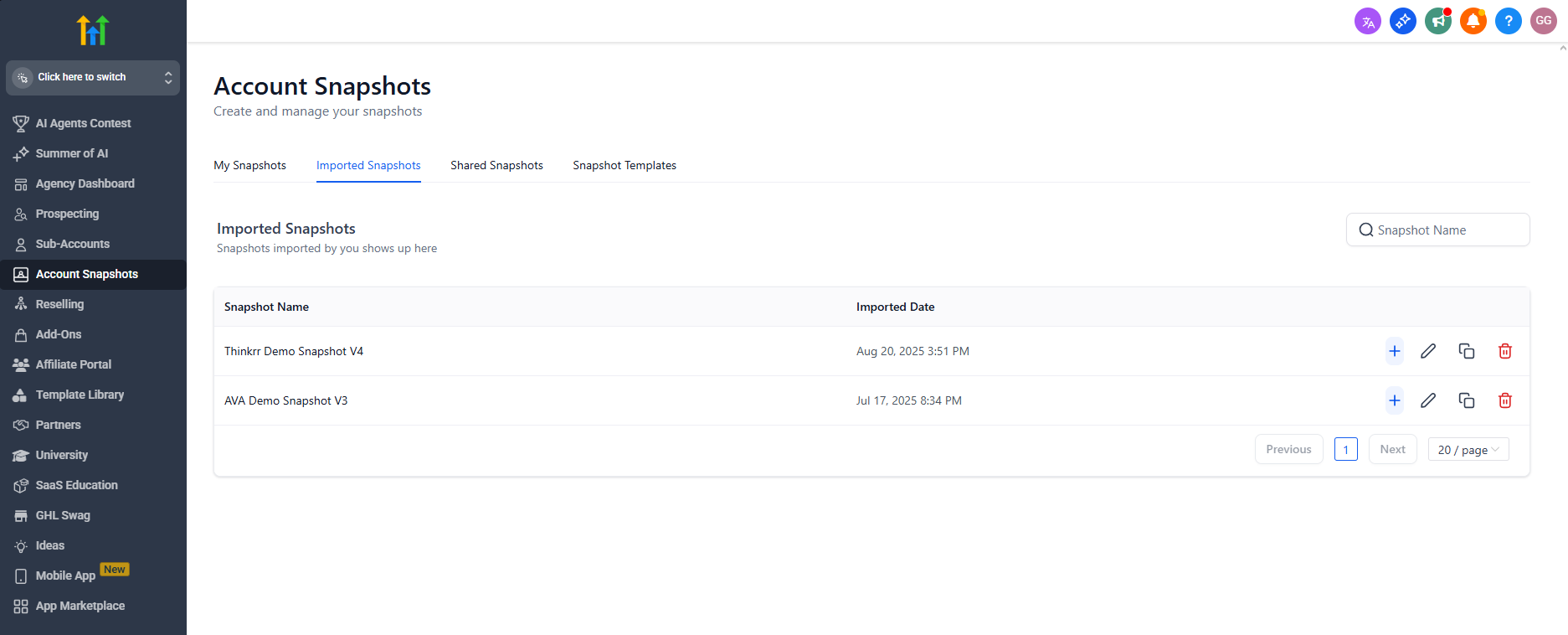
* Once installed, the snapshot will appear under **Imported Snapshots** in your GoHighLevel account.
* If you created the snapshot yourself, it will appear under **My Snapshots**.
* Look for **thinkrr Demo Snapshot V4**
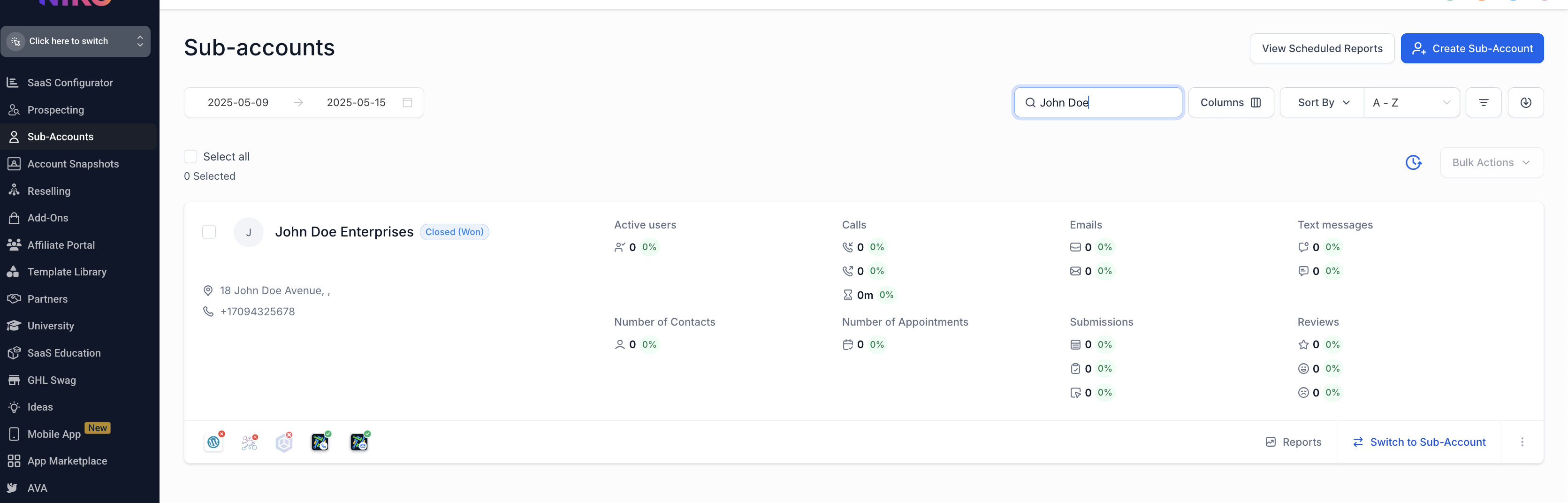
* By default, you’ll start in **Agency View**.
* Click **Subaccounts** in the sidebar menu.
* Select the subaccount you want to work with (for example, *John Doe Enterprises*).
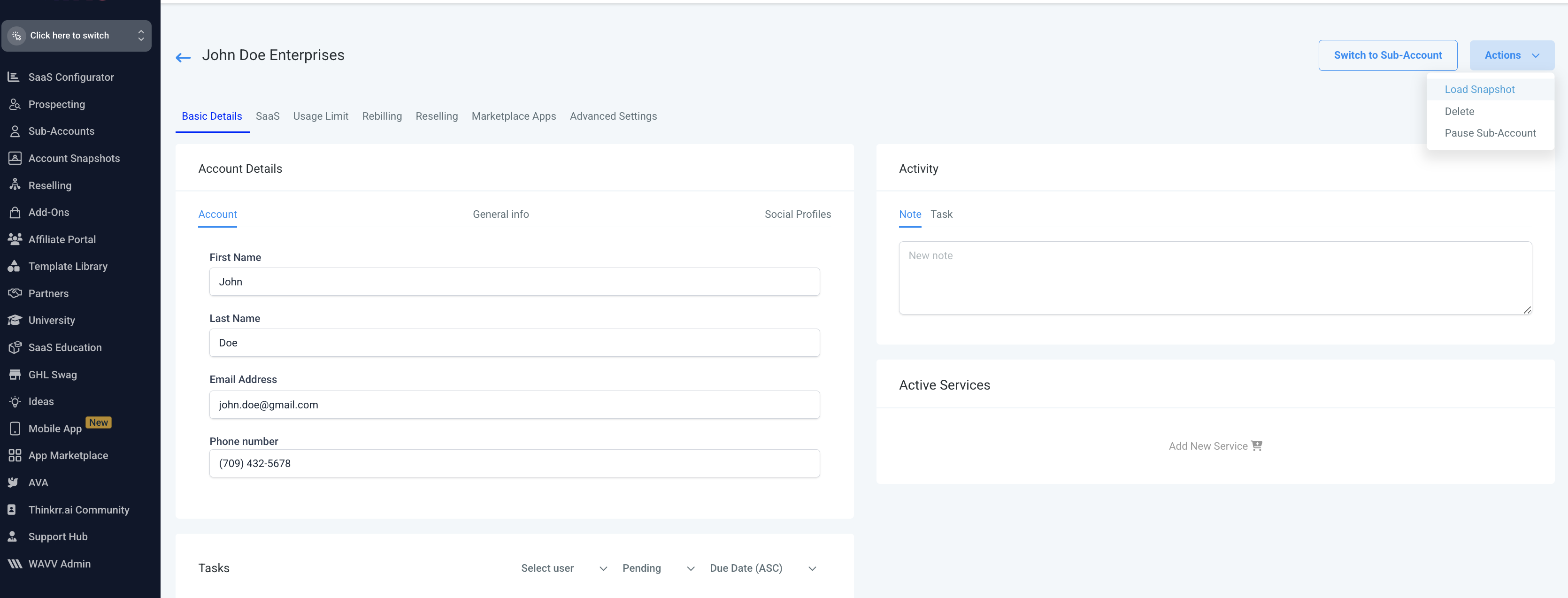
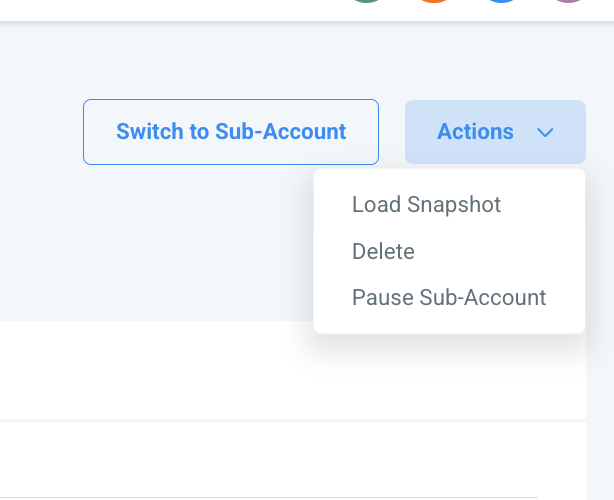
* Inside the chosen subaccount, click the **Actions** button in the top right corner.
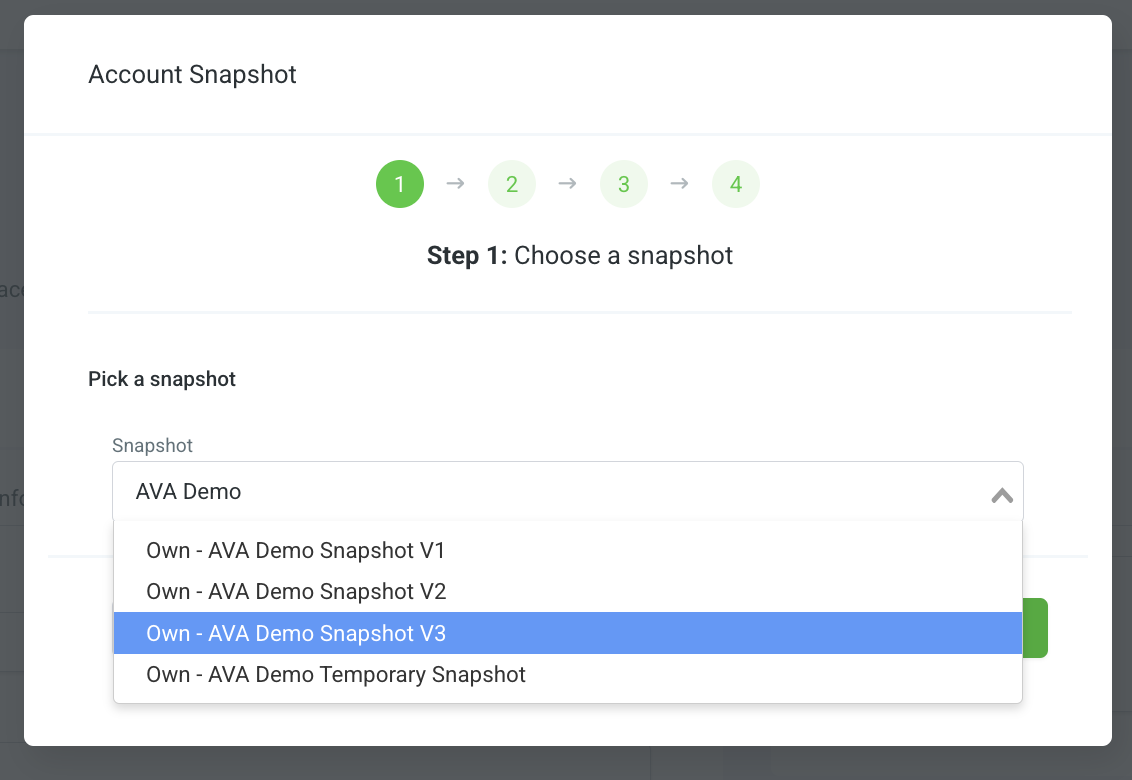
* From the dropdown, select **Load Snapshot**.
* From the list, choose **thinkrr Demo Snapshot v4** (or the most up-to-date version available).
* Then click **Proceed**.
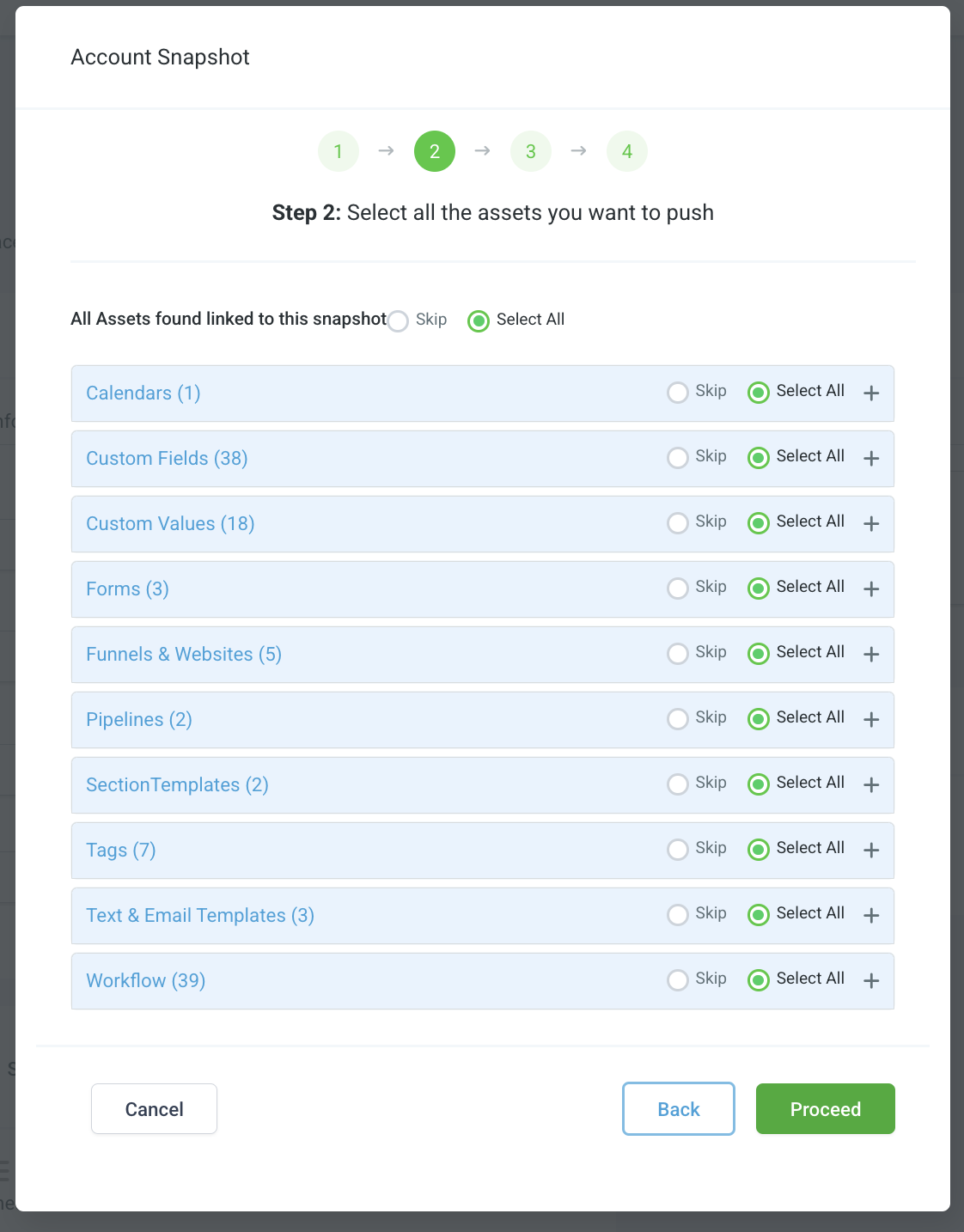
* Next, you’ll see a **summary of assets** to be imported with the snapshot.
* Review the list of funnels, workflows, pipelines, calendars, and other components.
* You may skip assets you don’t want to import by deselecting them.
* The exact list of assets will vary depending on the snapshot version.
* Once you’re satisfied with the selection, click **Proceed** again.
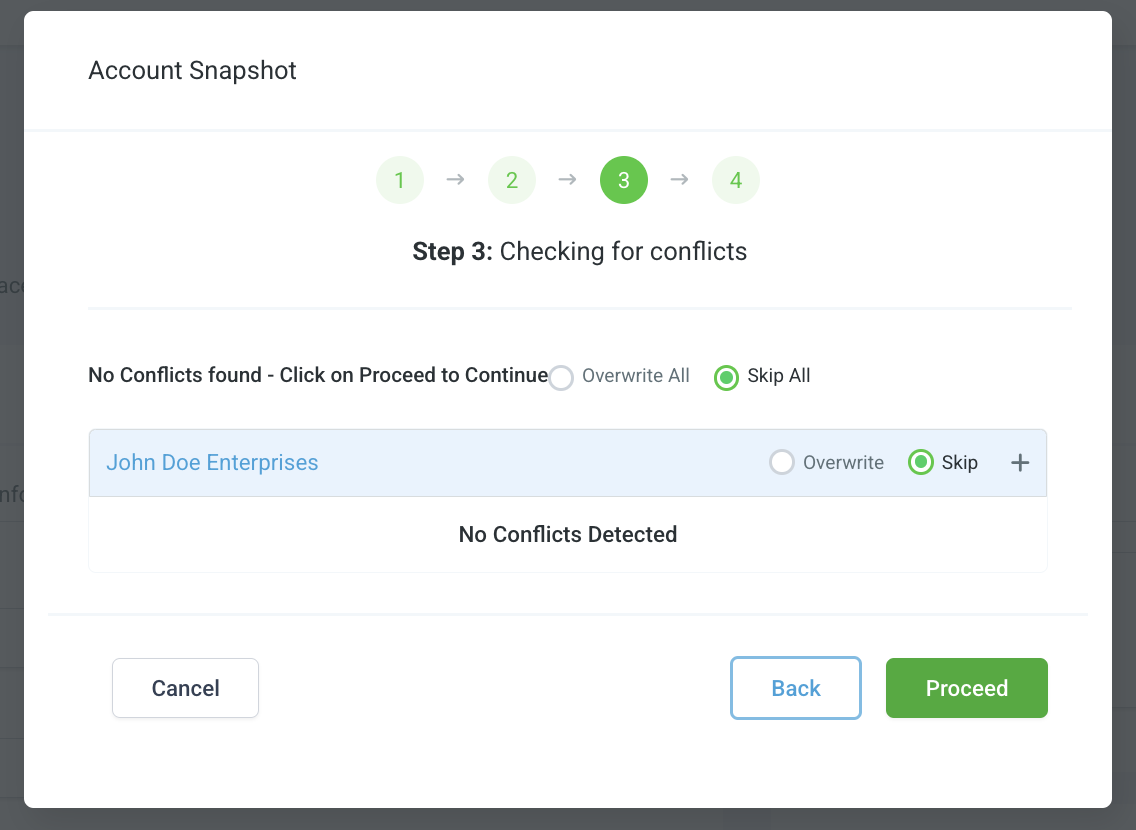
* You’ll see a **Checking for Conflicts** screen.
* If there are **no conflicts**, the snapshot won’t overwrite anything in your account.
* If conflicts appear, review and resolve them before proceeding.
* After resolving, click **Proceed**.
* You’ll receive a notification once the snapshot is fully loaded — this usually happens quickly.
* Switch back into your subaccount and confirm that the assets have been installed.
* Continue below to review what’s included in the thinkrr Demo Snapshot v4.
***
## Assets Included After Installation
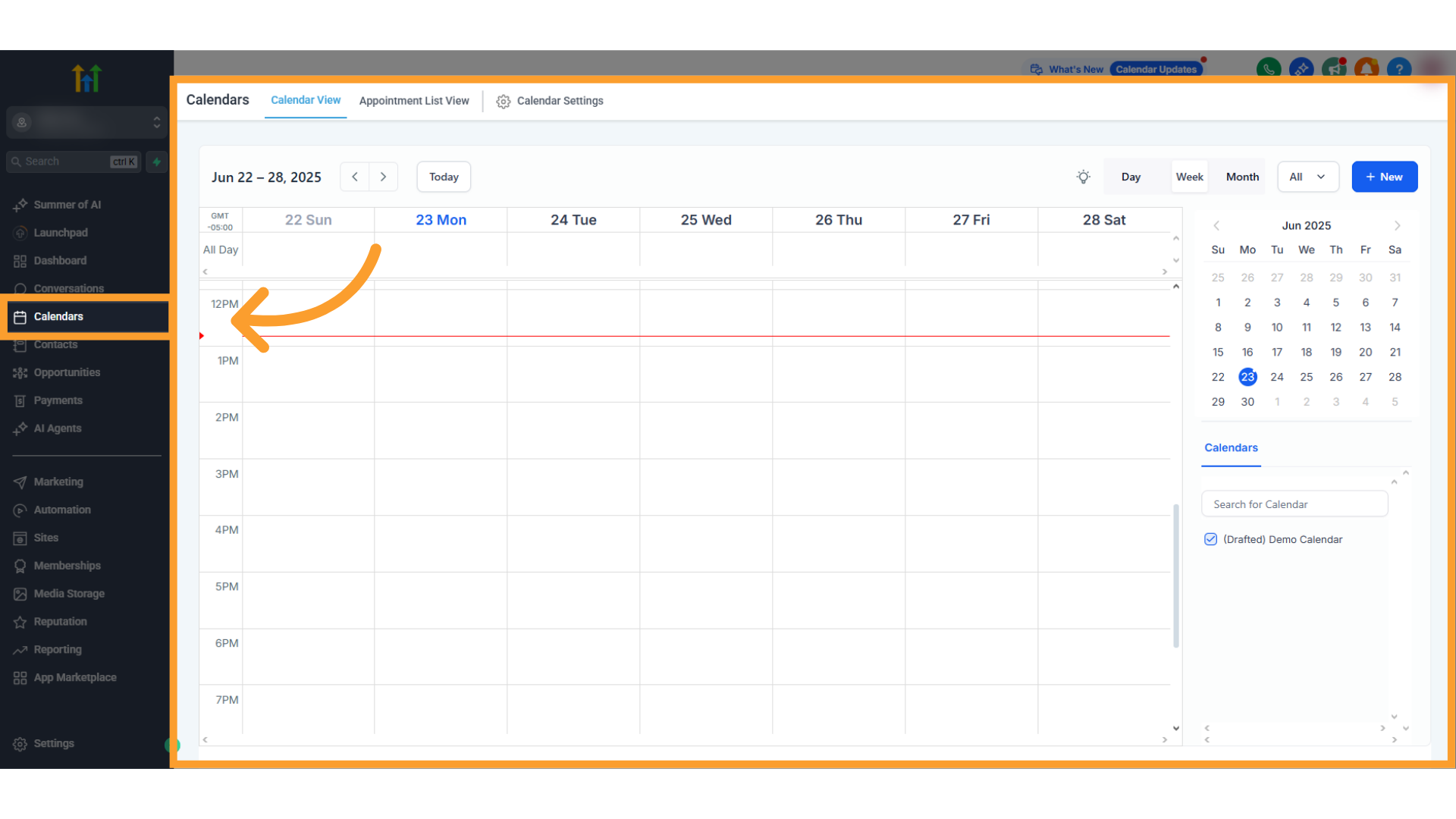
### Calendars
* A demo calendar is included for **testing and demonstration purposes**.
* We strongly recommend connecting your own calendar for real use, but this sample calendar is provided by default.
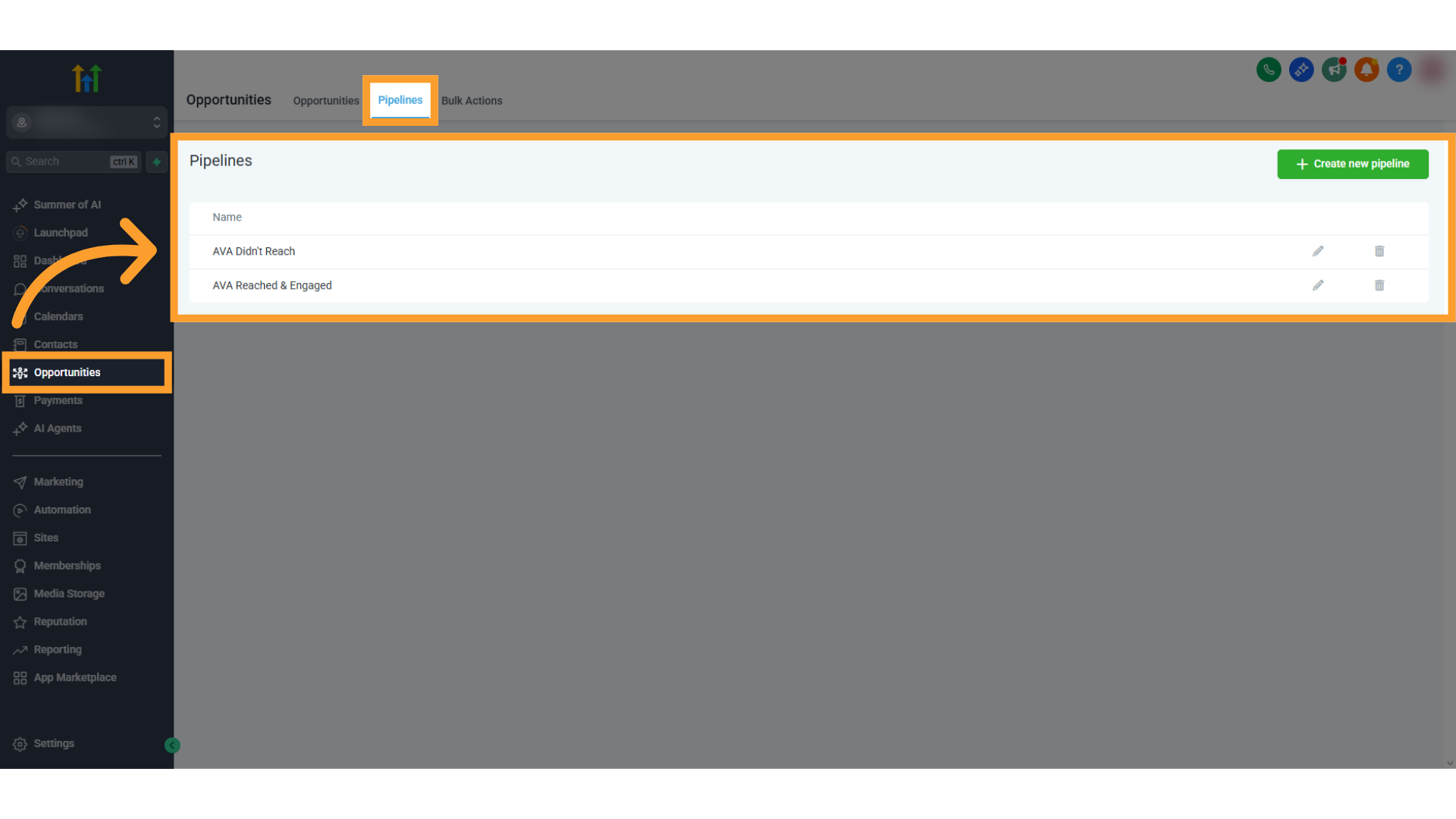
### Opportunities
* Prebuilt **pipelines** are provided to help track lead progress across different sales or support stages.
* These give you a ready-made structure to begin managing leads and client opportunities.
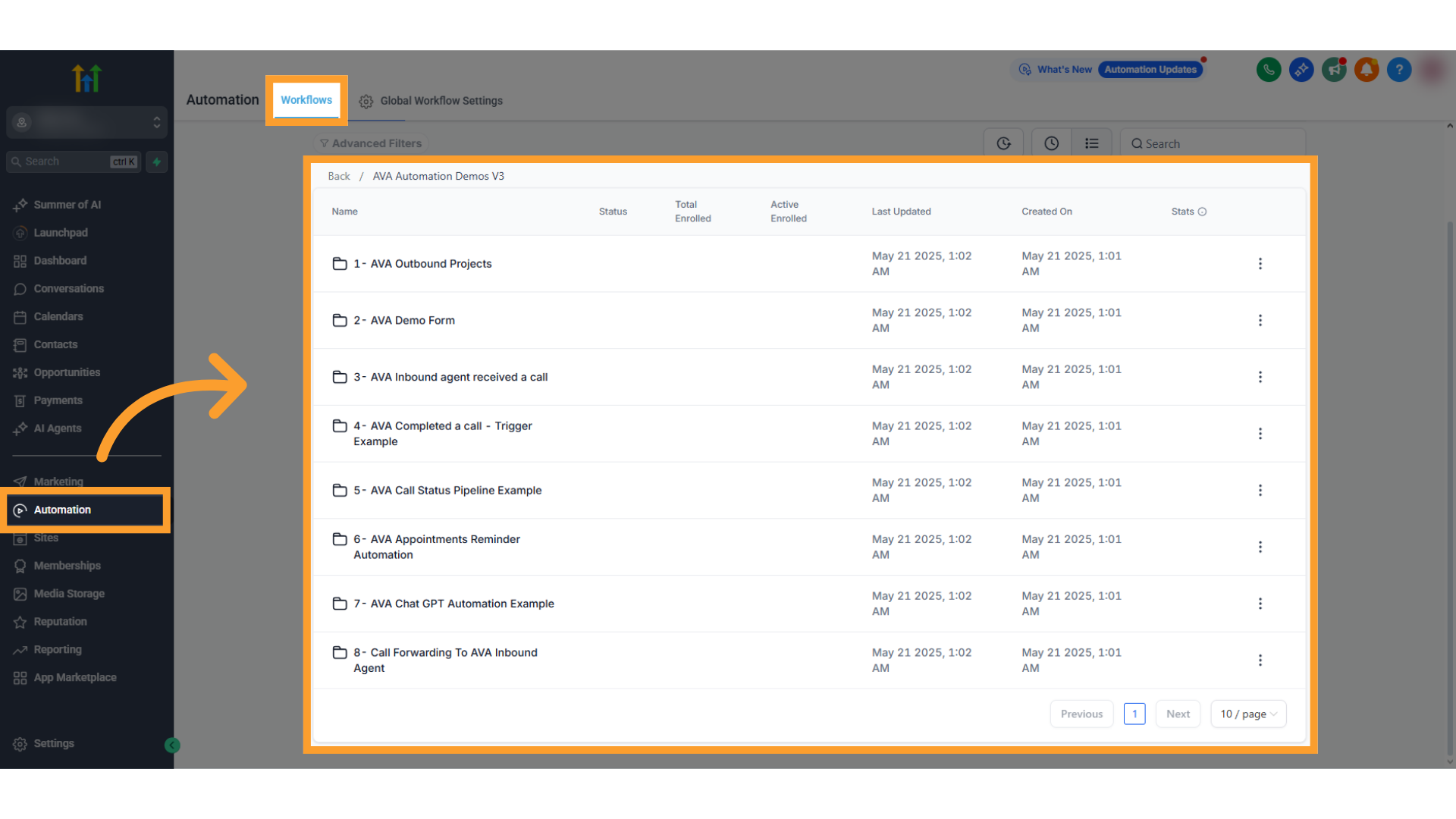
### Automations
* A dedicated folder contains **preconfigured workflows**.
* These workflows include:
* Outbound call sequences
* Inbound call triggers
* A demo form connected to one of the preset funnels
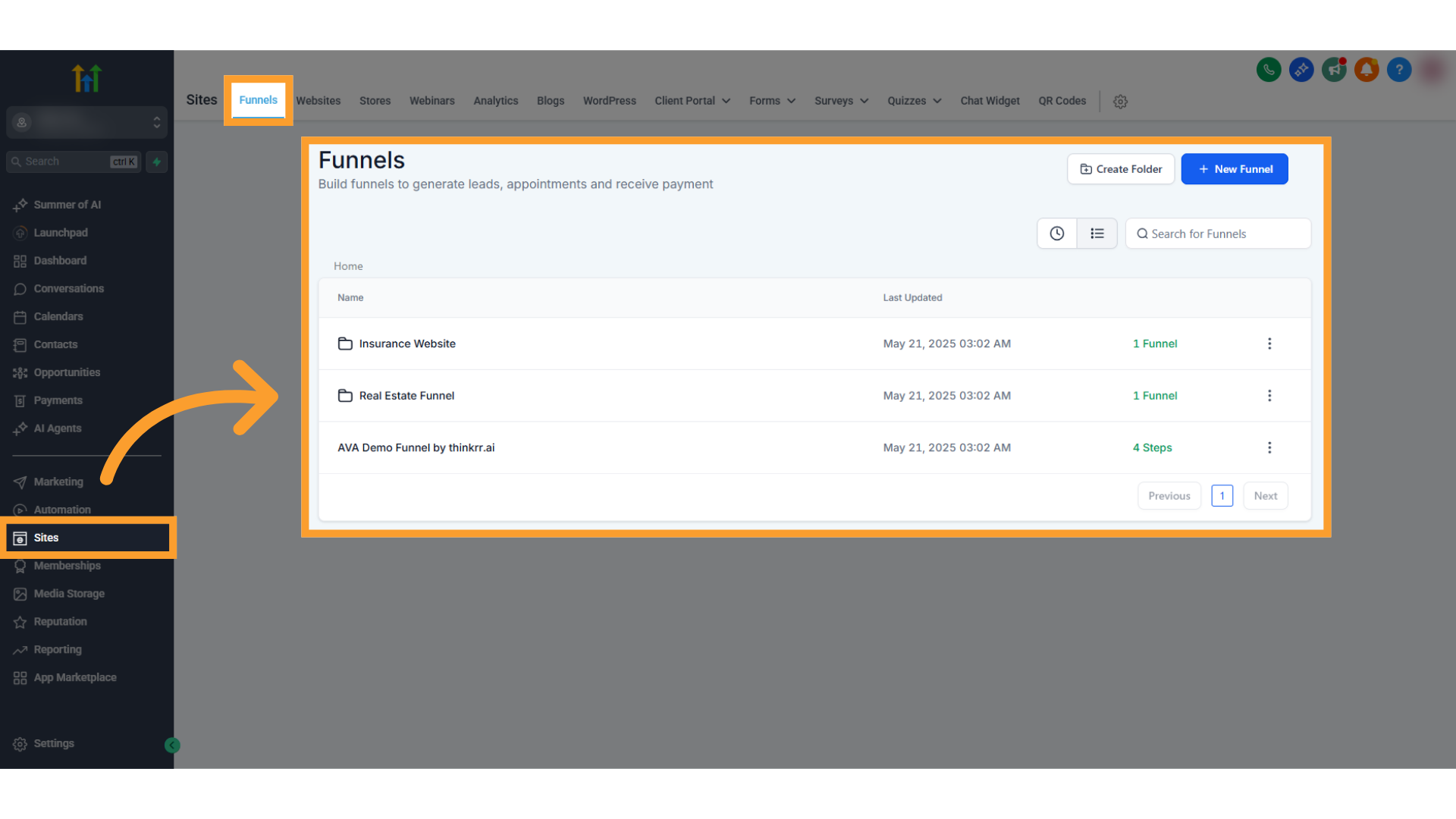
### Funnels
* Funnel templates are available under the **Sites** section.
* These funnels are designed to plug directly into the automation flows provided in the snapshot.
### Settings
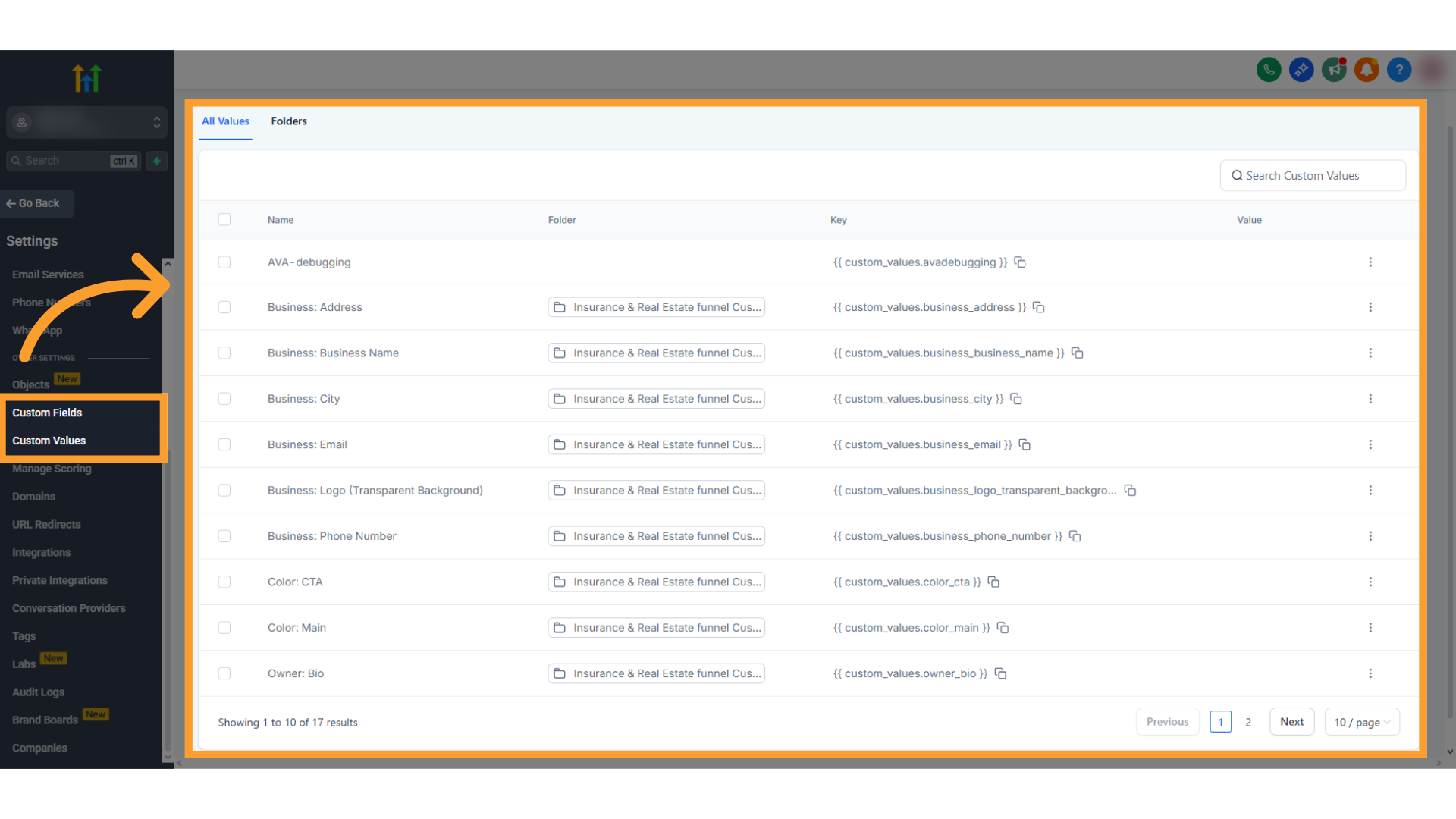
* The snapshot also installs a large set of **custom fields** and **custom values**.
* These fields allow you to capture and manage data throughout your workflows with flexibility.
***
## Notes & Recommendations
* **Snapshots are versioned.** Always choose the most recent version (e.g., thinkrr Demo Snapshot v4).
* **Test first.** The demo assets are provided to help you experiment. Replace demo calendars and sample values with your own for live use.
* **Conflicts.** If conflicts appear during installation, review them carefully to avoid overwriting existing setups.
***
## FAQs & Troubleshooting
### General Questions
A snapshot is a complete package of funnels, workflows, pipelines, calendars, and configurations. It allows agencies to replicate account setups quickly across subaccounts.
Always install the latest available version (currently v4). Newer versions may include updated assets or fixes.
### Configuration
No. During installation, you can review the list of assets and deselect any you don’t want to import.
If conflicts appear, review them carefully. You can skip overwriting existing assets or adjust as needed before proceeding.
### Usage and Results
Replace demo calendars, funnels, and values with your own production assets. The demo setup is for testing and demonstration only.
* Calendars appear in the **Calendars** section.
* Pipelines are under **Opportunities**.
* Workflows are in **Automations**.
* Funnels are in the **Sites** section.
* Custom fields and values are listed in **Settings**.
***
For additional questions or guidance, try using our [**Virtual Support Agent**](/Thinkrr-Support-Agent)! Available 24/7 to help resolve most issues quickly at [thinkrr.ai/support](https://thinkrr.ai/support).
If you still need assistance, visit our support site at [help.thinkrr.ai](http://help.thinkrr.ai) and submit a [Ticket](/Support-Ticket-System) or contact our team directly at [hello@thinkrr.ai](mailto:hello@thinkrr.ai).
 * Continue below to review what’s included in the thinkrr Demo Snapshot v4.
 ### Opportunities
* Prebuilt **pipelines** are provided to help track lead progress across different sales or support stages.
* These give you a ready-made structure to begin managing leads and client opportunities.
### Opportunities
* Prebuilt **pipelines** are provided to help track lead progress across different sales or support stages.
* These give you a ready-made structure to begin managing leads and client opportunities.
 ### Automations
* A dedicated folder contains **preconfigured workflows**.
* These workflows include:
* Outbound call sequences
* Inbound call triggers
* A demo form connected to one of the preset funnels
### Automations
* A dedicated folder contains **preconfigured workflows**.
* These workflows include:
* Outbound call sequences
* Inbound call triggers
* A demo form connected to one of the preset funnels
 ### Funnels
* Funnel templates are available under the **Sites** section.
* These funnels are designed to plug directly into the automation flows provided in the snapshot.
### Funnels
* Funnel templates are available under the **Sites** section.
* These funnels are designed to plug directly into the automation flows provided in the snapshot.
 ### Settings
* The snapshot also installs a large set of **custom fields** and **custom values**.
* These fields allow you to capture and manage data throughout your workflows with flexibility.
### Settings
* The snapshot also installs a large set of **custom fields** and **custom values**.
* These fields allow you to capture and manage data throughout your workflows with flexibility.
 ***
## Notes & Recommendations
* **Snapshots are versioned.** Always choose the most recent version (e.g., thinkrr Demo Snapshot v4).
* **Test first.** The demo assets are provided to help you experiment. Replace demo calendars and sample values with your own for live use.
* **Conflicts.** If conflicts appear during installation, review them carefully to avoid overwriting existing setups.
***
## FAQs & Troubleshooting
### General Questions
***
## Notes & Recommendations
* **Snapshots are versioned.** Always choose the most recent version (e.g., thinkrr Demo Snapshot v4).
* **Test first.** The demo assets are provided to help you experiment. Replace demo calendars and sample values with your own for live use.
* **Conflicts.** If conflicts appear during installation, review them carefully to avoid overwriting existing setups.
***
## FAQs & Troubleshooting
### General Questions