> ## Documentation Index
> Fetch the complete documentation index at: https://docs.thinkrr.ai/llms.txt
> Use this file to discover all available pages before exploring further.
# Testing Procedure
> Learn how to properly test your inbound and outbound thinkrr projects using mock calls, safe test numbers, and structured evaluation techniques before going live.
## How to Test Inbound and Outbound Projects
Before going live with any agent or campaign, it's critical to test your setup to ensure everything is functioning as expected. Thinkrr allows for safe, internal testing of both inbound and outbound experiences via dedicated mock call tools. Below are the step-by-step instructions for each type of project.
For a detailed guide on how to create an inbound project, refer to the [Inbound Project Setup](/Creating-an-Inbound-Agent-1ad9c7cf4f5880d0b50afe31ad96d89c) section.
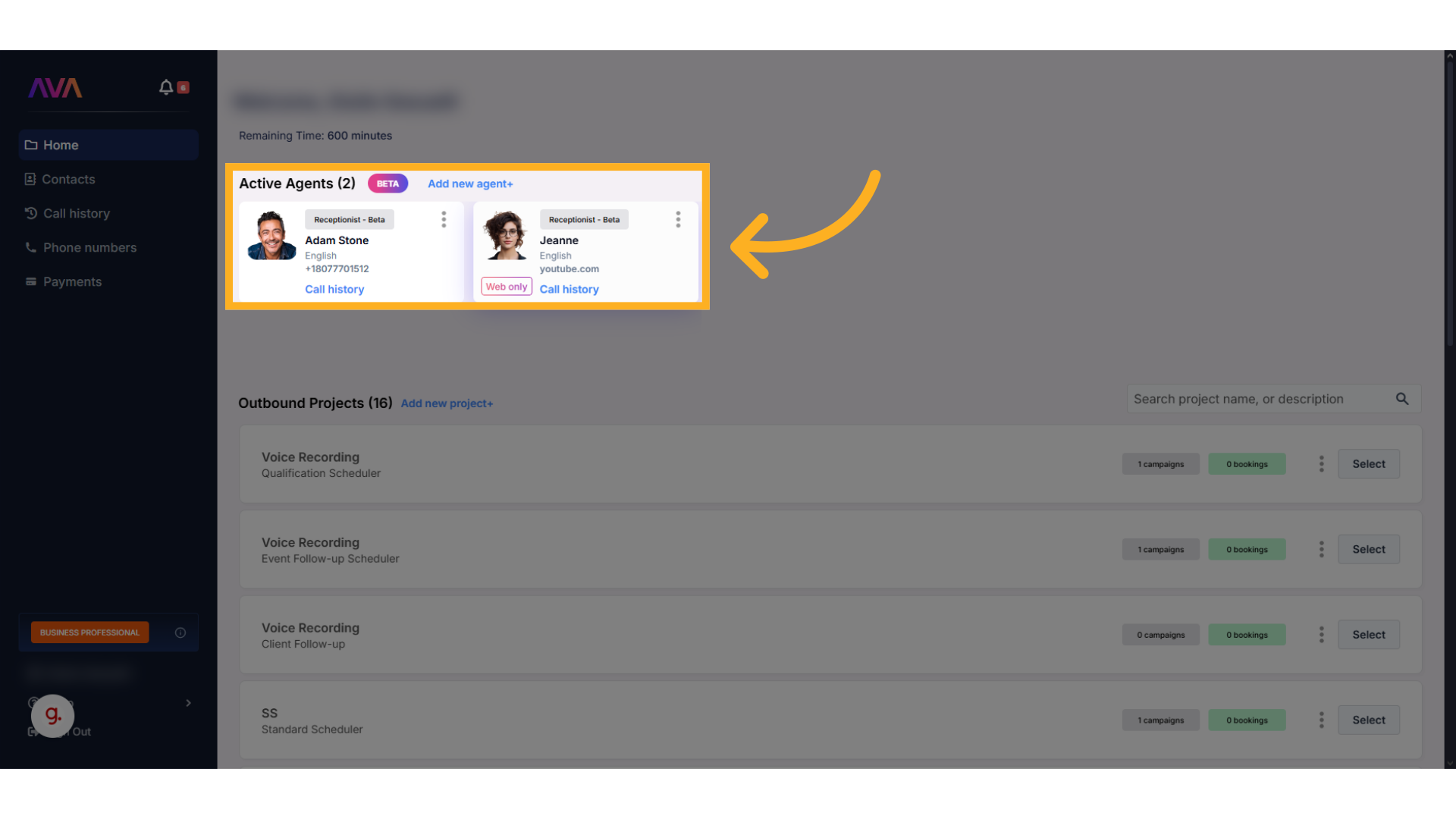
* Navigate to your **thinkrr Dashboard**.
* Either **select an existing inbound agent** or click to **create a new one**.
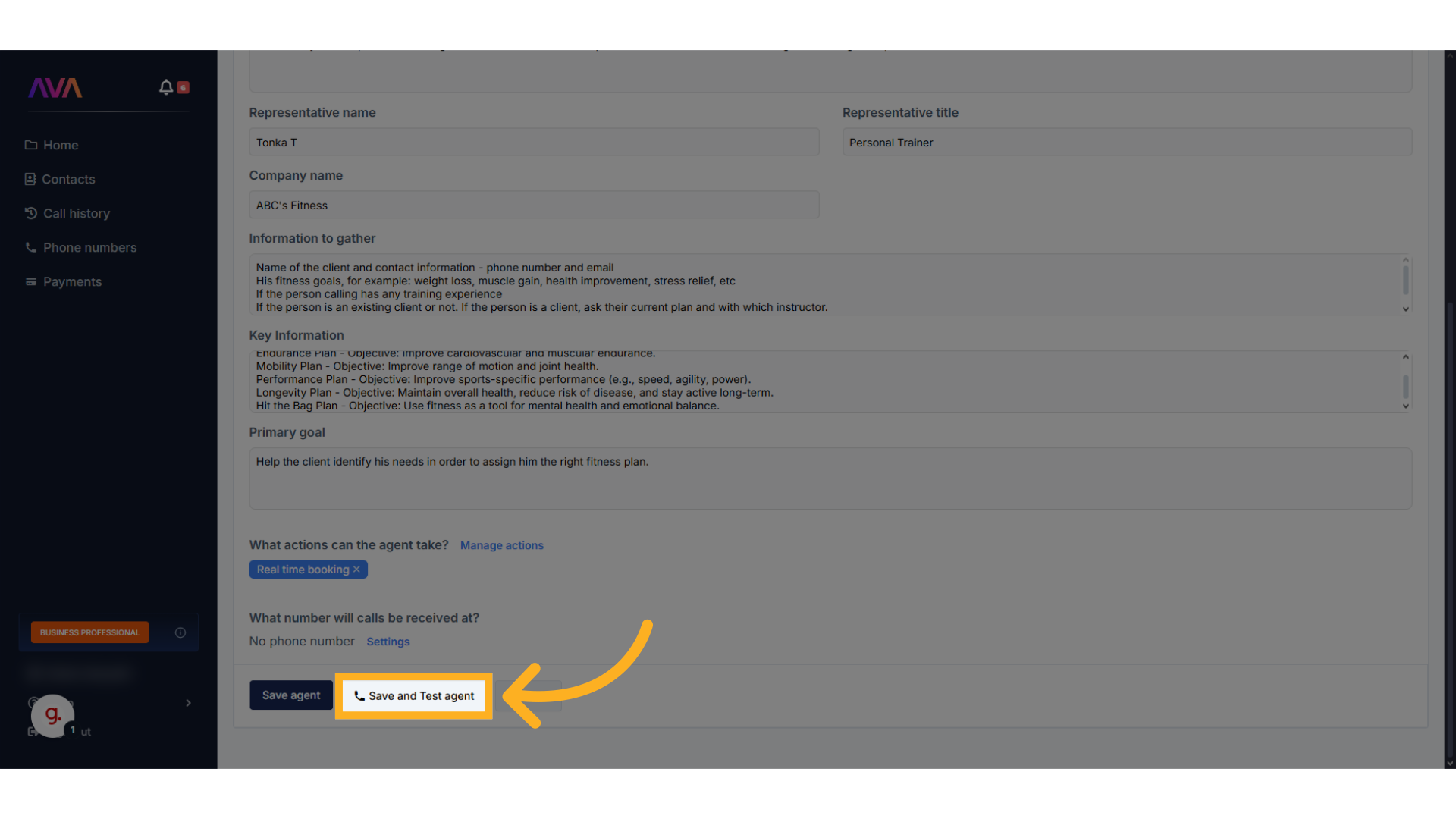
 * Scroll to the bottom of the agent configuration page.
* Click **Save and Test Agent** to access the testing panel.
* Scroll to the bottom of the agent configuration page.
* Click **Save and Test Agent** to access the testing panel.
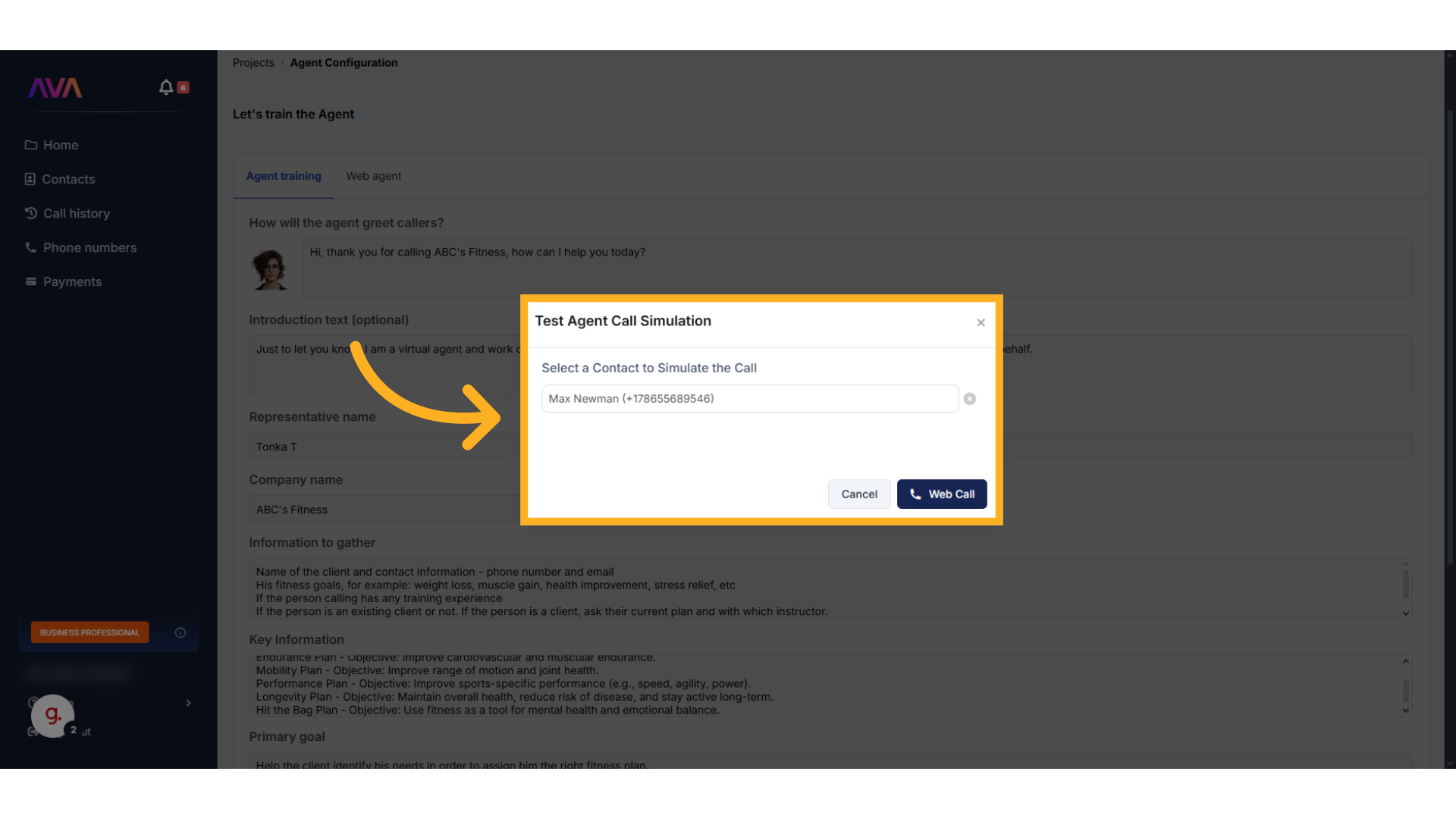
 * Choose a phone number to simulate the call.
* Proceed with the mock call to test your configured scenario.
* ✅ It’s highly recommended to use a **test phone number** to avoid live client interaction during early testing.
* Choose a phone number to simulate the call.
* Proceed with the mock call to test your configured scenario.
* ✅ It’s highly recommended to use a **test phone number** to avoid live client interaction during early testing.
 For a detailed guide on how to create an outbound project, refer to the [Outbound Project Setup](/Projects-and-scenarios) section.
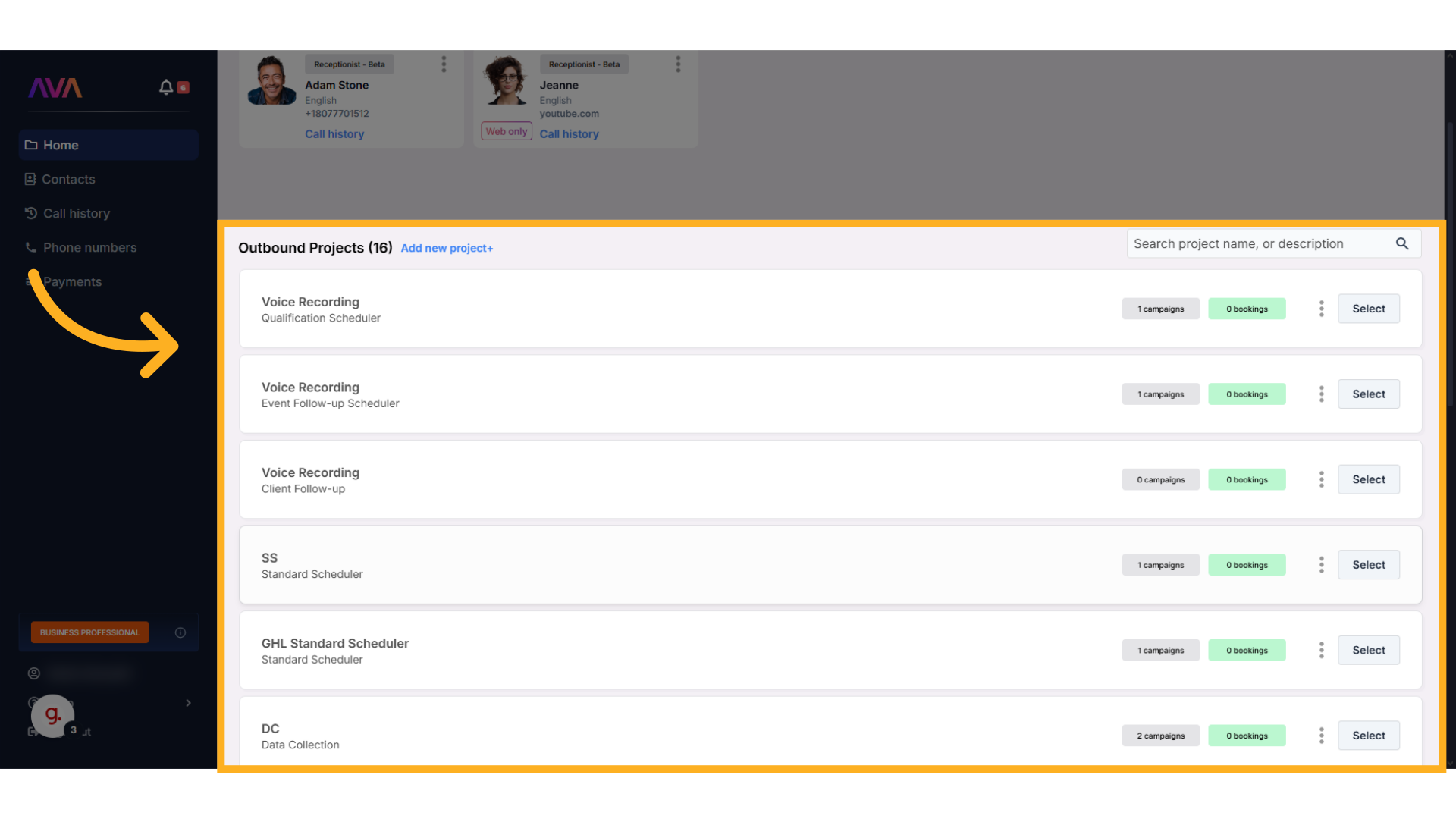
* Go to your **thinkrr Dashboard**.
* Click **Add New Project** or select an **existing outbound project**.
For a detailed guide on how to create an outbound project, refer to the [Outbound Project Setup](/Projects-and-scenarios) section.
* Go to your **thinkrr Dashboard**.
* Click **Add New Project** or select an **existing outbound project**.
 * Complete your **project configuration**, including scenario and campaign settings.
* Make sure to attach a set of **test contact numbers**.
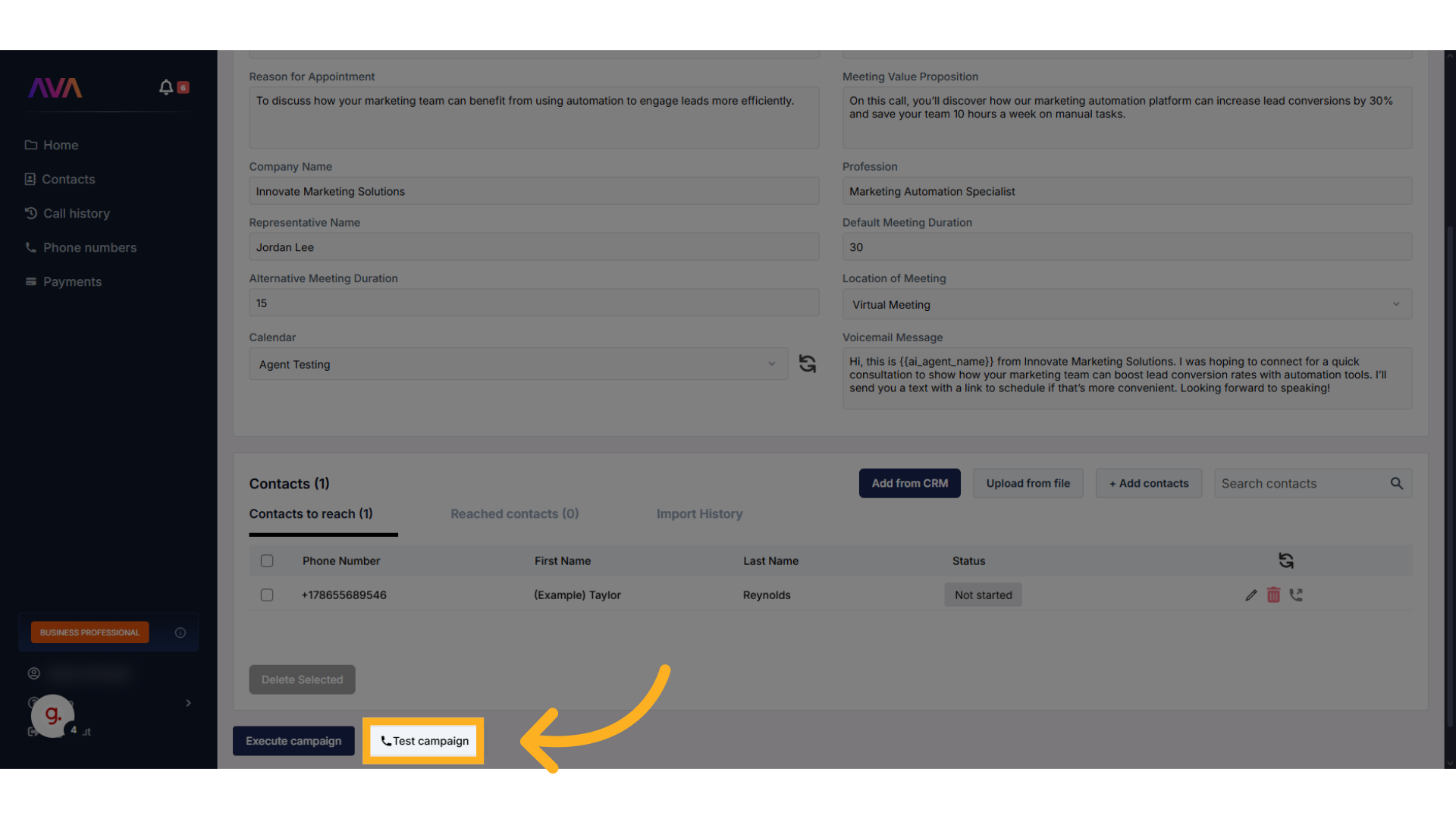
* After setup, the **Test Campaign** button will appear.
* Click it to launch a safe simulation of the outbound experience.
* Complete your **project configuration**, including scenario and campaign settings.
* Make sure to attach a set of **test contact numbers**.
* After setup, the **Test Campaign** button will appear.
* Click it to launch a safe simulation of the outbound experience.
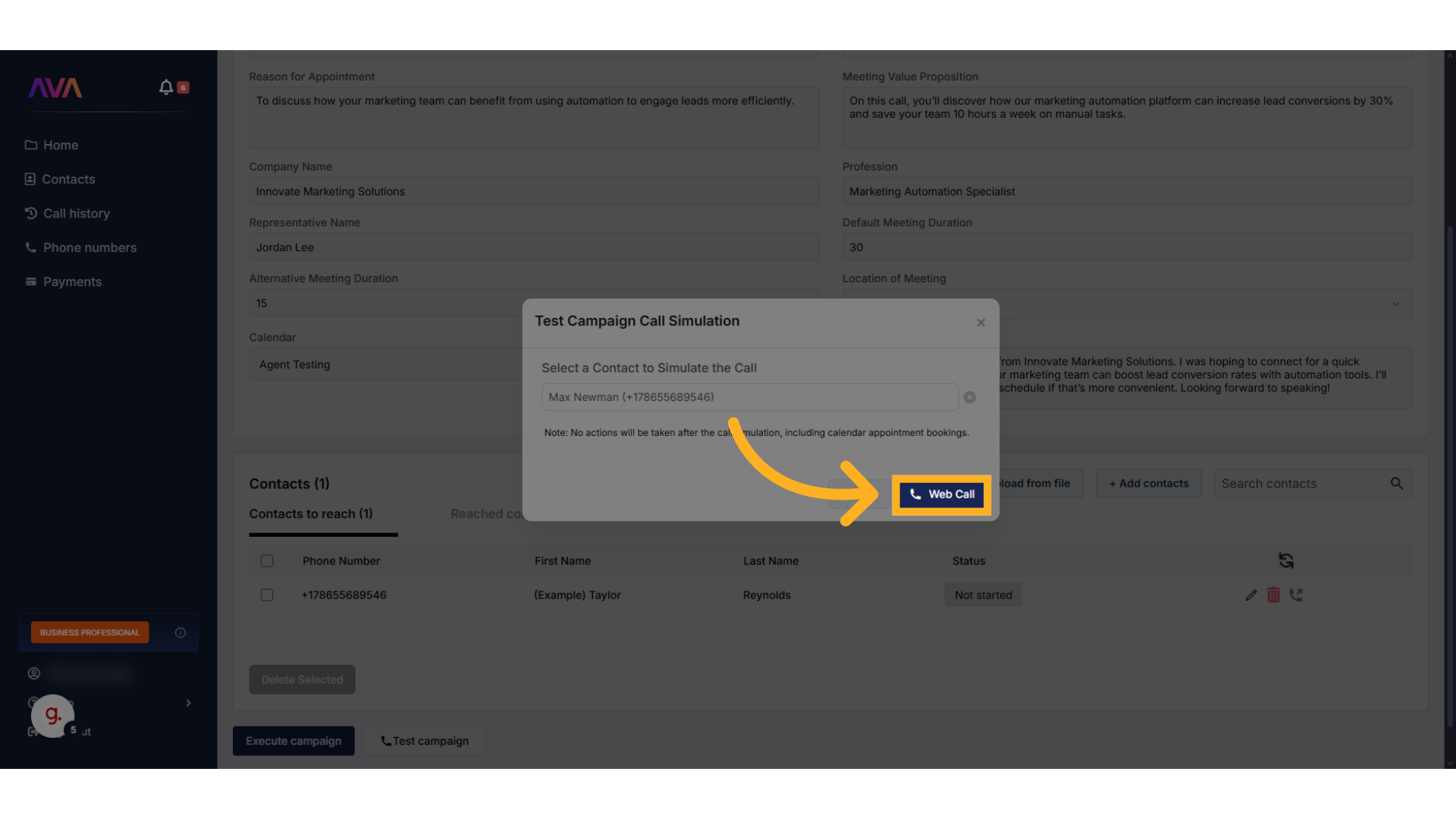
 * Choose your **test phone number** to simulate an outbound call.
* ⚠️ Avoid using real client numbers during testing to prevent unintended outreach.
* Choose your **test phone number** to simulate an outbound call.
* ⚠️ Avoid using real client numbers during testing to prevent unintended outreach.
 ## General Advice
Testing your AI agent is more than just clicking "Run" — it's about simulating realistic, high-stakes scenarios and using the outcomes to optimize your agent's behavior. The goal isn’t to see if the agent “works,” but to evaluate how it performs under pressure, confusion, or resistance. Below is a breakdown of best practices, common pitfalls, and actionable examples.
### 1. Don’t Coach the Agent During the Call
It’s tempting to “help” the agent by prompting it with instructions during your test, but this defeats the purpose. Thinkrr doesn’t remember what you say in the call. It relies solely on the fields you've configured.
> **What Not to Do:**\
> “Hey thinkrr, tell me the three plans we offer.” — This won’t work unless you’ve configured the relevant field.
> **What to Do Instead:**\
> Configure your **Prompting** field to say: “If the client asks about pricing, explain our three-tier plan options,” and enter those options in the **Key Information** field.
### 2. Test as If You’re a Confused or Challenging Client
You want to find the edge cases — what happens if the client misunderstands? Is rude? Refuses the offer? The agent’s behavior in these scenarios is more telling than in ideal ones.
> **What Not to Do:**\
> Only ask basic questions you know the agent can answer. Avoid softballs.
> **What to Do Instead:**\
> Try: “This sounds confusing, can you explain it again?” or “I don’t trust this offer, who are you with again?”
### 3. Structure Your Data Cleanly and Use Fields as Intended
Bulk data like pricing, service packages, or product options should be added in **Key Information** fields — clearly separated by lines or bullet points, not crammed into long paragraphs. Avoid inserting prompts or filler text in these fields.
> **What Not to Do:**\
> “If the client asks about pricing, let them know we offer this, this, and this” (in an Information field).
> **What to Do Instead:**\
> In **Key Information**, just add:
>
> ```
> Basic Plan: $29/mo
> Premium Plan: $59/mo
> Enterprise Plan: $99/mo
> ```
### 4. Use Custom Values for Names and Personal Details
Never hardcode names like “Hi John” or “Speak to Sarah” in scripting fields. Use custom values such as `{{client_firstname}}` or `{{representative_name}}` instead. This ensures adaptability and prevents having to manually update multiple fields.
> **What Not to Do:**\
> “This is Sarah from FitLife.” (hardcoded)
> **What to Do Instead:**\
> “This is {representative_name} from {company_name}.”
***
> 💡 **Final Note:**\
> Treat every test like a live scenario. Review transcripts, refine one field at a time, and test again. Consistency, structure, and proper field usage are what separate good agents from great ones.
***
## FAQs & Troubleshooting
### General Questions
Simulating real client behavior ensures the agent is being tested under realistic conditions. You should avoid guiding the agent during the call — instead, observe how it reacts to natural responses, confusion, objections, or redirection. This helps identify gaps in your information and prompting fields.
No. Thinkrr does not retain memory between calls. Each test is isolated. Use test call transcripts and logs to manually analyze outcomes and refine the agent’s configuration accordingly.
You can, but it’s strongly recommended to use a designated **test number** to avoid accidentally contacting actual clients or stakeholders. This ensures your tests remain internal and risk-free.
### Configuration
Review your input fields — especially **Key Information**, **Prompting**, and **Objection Handling** sections. If the data or instructions are vague, unstructured, or overloaded, the AI may generate inaccurate responses. Clean up the input and retest.
In limited cases, yes. For example, objection handling can combine a guiding prompt with a sample script. However, most fields are optimized for one type of input — sticking to the field’s intended use will deliver more consistent results.
After a test run, thinkrr will generate a **call transcript** and **log URL**. These allow you to review the AI’s responses and make informed updates to your agent configuration. Be sure to check for unnatural pauses, missed data, or off-brand messaging.
### Usage and Results
When the agent reliably:
* Handles objections smoothly
* Delivers correct and brand-aligned information
* Shows minimal latency or confusion
* Passes multiple edge-case tests\
At that point, you're ready to publish and monitor performance in a live environment.
Yes. A dedicated test number can be reused across scenarios. Just make sure the number is disconnected from any real client profiles or live campaigns.
***
For additional questions or guidance, try using our [**Virtual Support Agent**](/Thinkrr-Support-Agent)! Available 24/7 at [thinkrr.ai/support](https://thinkrr.ai/support).
If you still need assistance, visit our support site at [help.thinkrr.ai](https://help.thinkrr.ai) and submit a [Ticket](/Support-Ticket-System) or contact our team directly at [hello@thinkrr.ai](mailto:hello@thinkrr.ai).
## General Advice
Testing your AI agent is more than just clicking "Run" — it's about simulating realistic, high-stakes scenarios and using the outcomes to optimize your agent's behavior. The goal isn’t to see if the agent “works,” but to evaluate how it performs under pressure, confusion, or resistance. Below is a breakdown of best practices, common pitfalls, and actionable examples.
### 1. Don’t Coach the Agent During the Call
It’s tempting to “help” the agent by prompting it with instructions during your test, but this defeats the purpose. Thinkrr doesn’t remember what you say in the call. It relies solely on the fields you've configured.
> **What Not to Do:**\
> “Hey thinkrr, tell me the three plans we offer.” — This won’t work unless you’ve configured the relevant field.
> **What to Do Instead:**\
> Configure your **Prompting** field to say: “If the client asks about pricing, explain our three-tier plan options,” and enter those options in the **Key Information** field.
### 2. Test as If You’re a Confused or Challenging Client
You want to find the edge cases — what happens if the client misunderstands? Is rude? Refuses the offer? The agent’s behavior in these scenarios is more telling than in ideal ones.
> **What Not to Do:**\
> Only ask basic questions you know the agent can answer. Avoid softballs.
> **What to Do Instead:**\
> Try: “This sounds confusing, can you explain it again?” or “I don’t trust this offer, who are you with again?”
### 3. Structure Your Data Cleanly and Use Fields as Intended
Bulk data like pricing, service packages, or product options should be added in **Key Information** fields — clearly separated by lines or bullet points, not crammed into long paragraphs. Avoid inserting prompts or filler text in these fields.
> **What Not to Do:**\
> “If the client asks about pricing, let them know we offer this, this, and this” (in an Information field).
> **What to Do Instead:**\
> In **Key Information**, just add:
>
> ```
> Basic Plan: $29/mo
> Premium Plan: $59/mo
> Enterprise Plan: $99/mo
> ```
### 4. Use Custom Values for Names and Personal Details
Never hardcode names like “Hi John” or “Speak to Sarah” in scripting fields. Use custom values such as `{{client_firstname}}` or `{{representative_name}}` instead. This ensures adaptability and prevents having to manually update multiple fields.
> **What Not to Do:**\
> “This is Sarah from FitLife.” (hardcoded)
> **What to Do Instead:**\
> “This is {representative_name} from {company_name}.”
***
> 💡 **Final Note:**\
> Treat every test like a live scenario. Review transcripts, refine one field at a time, and test again. Consistency, structure, and proper field usage are what separate good agents from great ones.
***
## FAQs & Troubleshooting
### General Questions
Simulating real client behavior ensures the agent is being tested under realistic conditions. You should avoid guiding the agent during the call — instead, observe how it reacts to natural responses, confusion, objections, or redirection. This helps identify gaps in your information and prompting fields.
No. Thinkrr does not retain memory between calls. Each test is isolated. Use test call transcripts and logs to manually analyze outcomes and refine the agent’s configuration accordingly.
You can, but it’s strongly recommended to use a designated **test number** to avoid accidentally contacting actual clients or stakeholders. This ensures your tests remain internal and risk-free.
### Configuration
Review your input fields — especially **Key Information**, **Prompting**, and **Objection Handling** sections. If the data or instructions are vague, unstructured, or overloaded, the AI may generate inaccurate responses. Clean up the input and retest.
In limited cases, yes. For example, objection handling can combine a guiding prompt with a sample script. However, most fields are optimized for one type of input — sticking to the field’s intended use will deliver more consistent results.
After a test run, thinkrr will generate a **call transcript** and **log URL**. These allow you to review the AI’s responses and make informed updates to your agent configuration. Be sure to check for unnatural pauses, missed data, or off-brand messaging.
### Usage and Results
When the agent reliably:
* Handles objections smoothly
* Delivers correct and brand-aligned information
* Shows minimal latency or confusion
* Passes multiple edge-case tests\
At that point, you're ready to publish and monitor performance in a live environment.
Yes. A dedicated test number can be reused across scenarios. Just make sure the number is disconnected from any real client profiles or live campaigns.
***
For additional questions or guidance, try using our [**Virtual Support Agent**](/Thinkrr-Support-Agent)! Available 24/7 at [thinkrr.ai/support](https://thinkrr.ai/support).
If you still need assistance, visit our support site at [help.thinkrr.ai](https://help.thinkrr.ai) and submit a [Ticket](/Support-Ticket-System) or contact our team directly at [hello@thinkrr.ai](mailto:hello@thinkrr.ai).