> ## Documentation Index
> Fetch the complete documentation index at: https://docs.thinkrr.ai/llms.txt
> Use this file to discover all available pages before exploring further.
# Voice & Language
> Customize your AI Agent’s voice, accent, and language to align with your brand and better engage your audience across global markets.
## Overview
Whether you’re using the thinkrr app directly or integrating with GHL, voice and language customization ensures your AI Agent speaks with the tone, personality, and language best suited to your audience. From accents to supported languages, thinkrr provides extensive configuration options for both outbound and inbound AI agents.
## Outbound Calling
Start by creating a **Project**, which is required for any outbound calling. Refer to the [Projects & Scenarios](/Projects-and-scenarios) documentation for more information on creating **projects**.
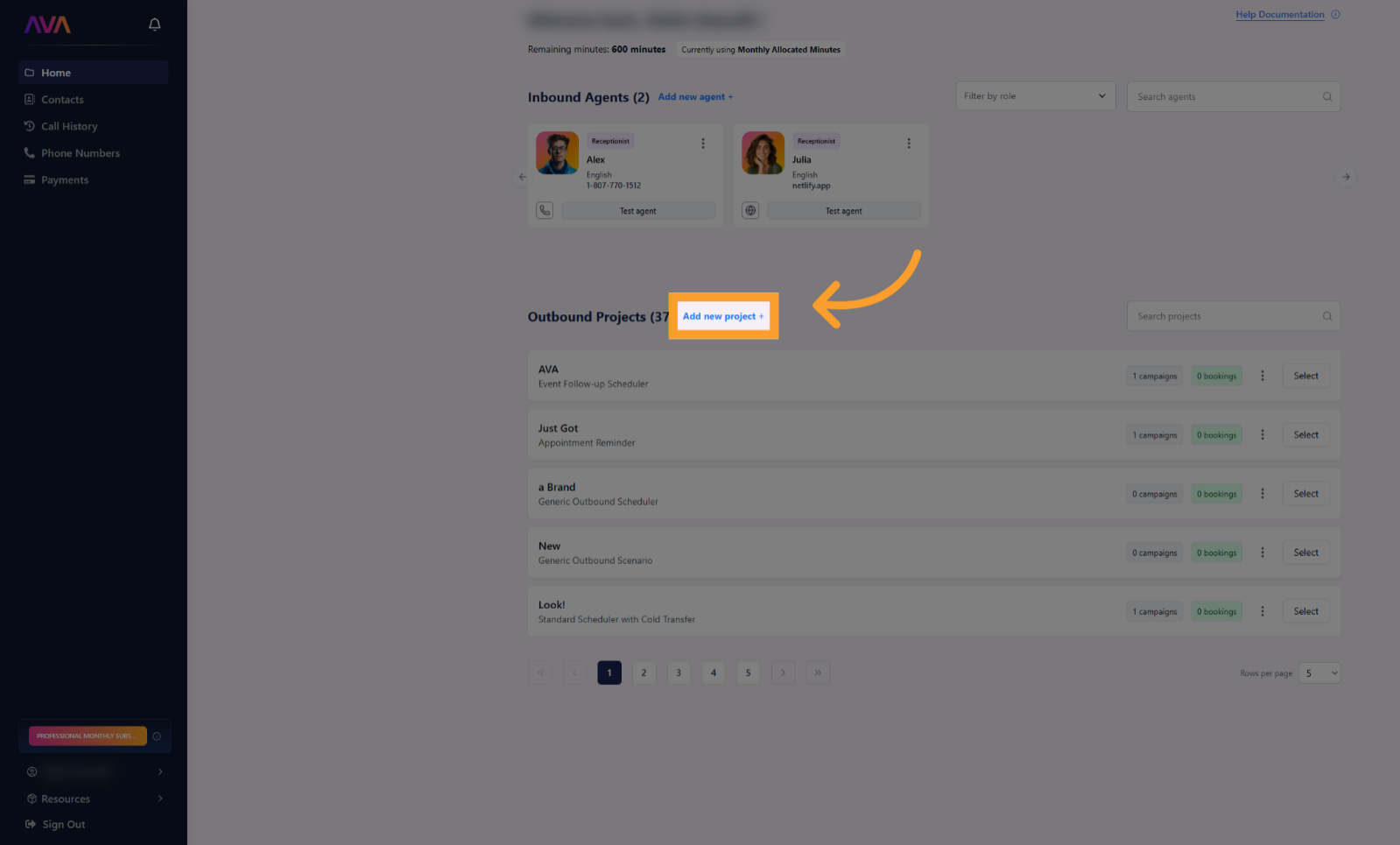 Once your Project is set, create a **Campaign** where you define the AI Agent responsible for the outbound communication. Think of this as assigning a task to a virtual employee, including contact lists and call styles. See [**Campaign Management**](/Campaign-Management-f4bd929fa38e478f86180c93c36df7e4) for more.
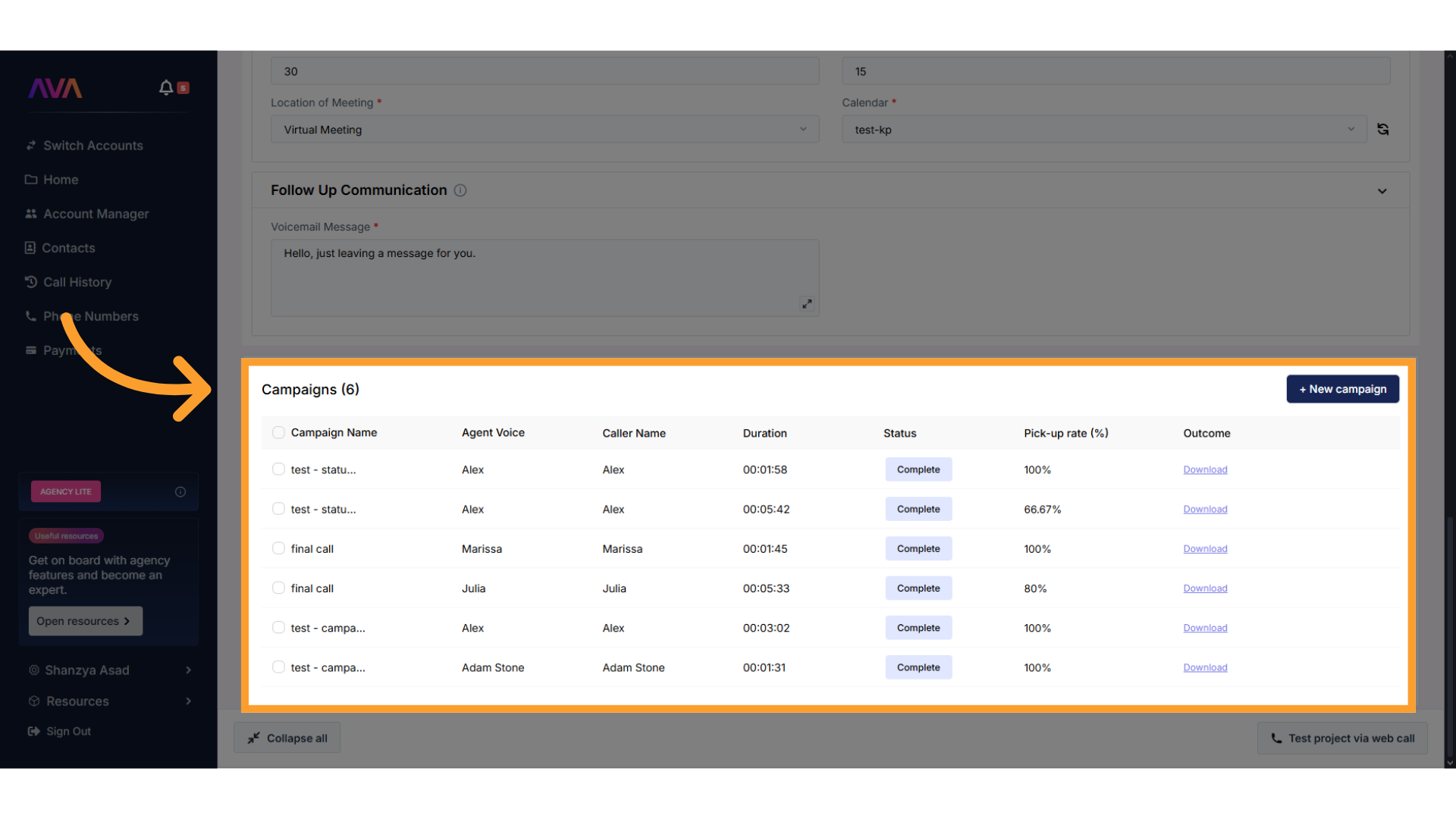 When adding a **campaign** or editing an existing one, open the **Campaign Settings** tab. Configure:
* **Campaign Name** and **Campaign Description**
* **Agent Settings**:
* **Agent Language**
* **Agent Voice** (click **Play** to preview)
* **Caller Name**
* **Phone number to call from**
* **When Voicemail Detected** behavior
When adding a **campaign** or editing an existing one, open the **Campaign Settings** tab. Configure:
* **Campaign Name** and **Campaign Description**
* **Agent Settings**:
* **Agent Language**
* **Agent Voice** (click **Play** to preview)
* **Caller Name**
* **Phone number to call from**
* **When Voicemail Detected** behavior
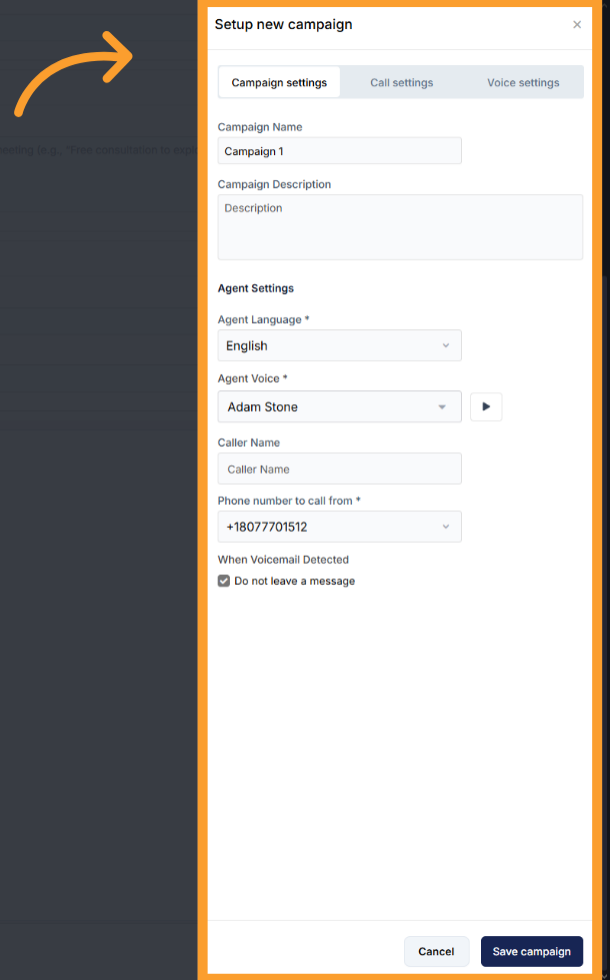 Click **Test Campaign** to preview how your AI Agent sounds and behaves before launching live calls.
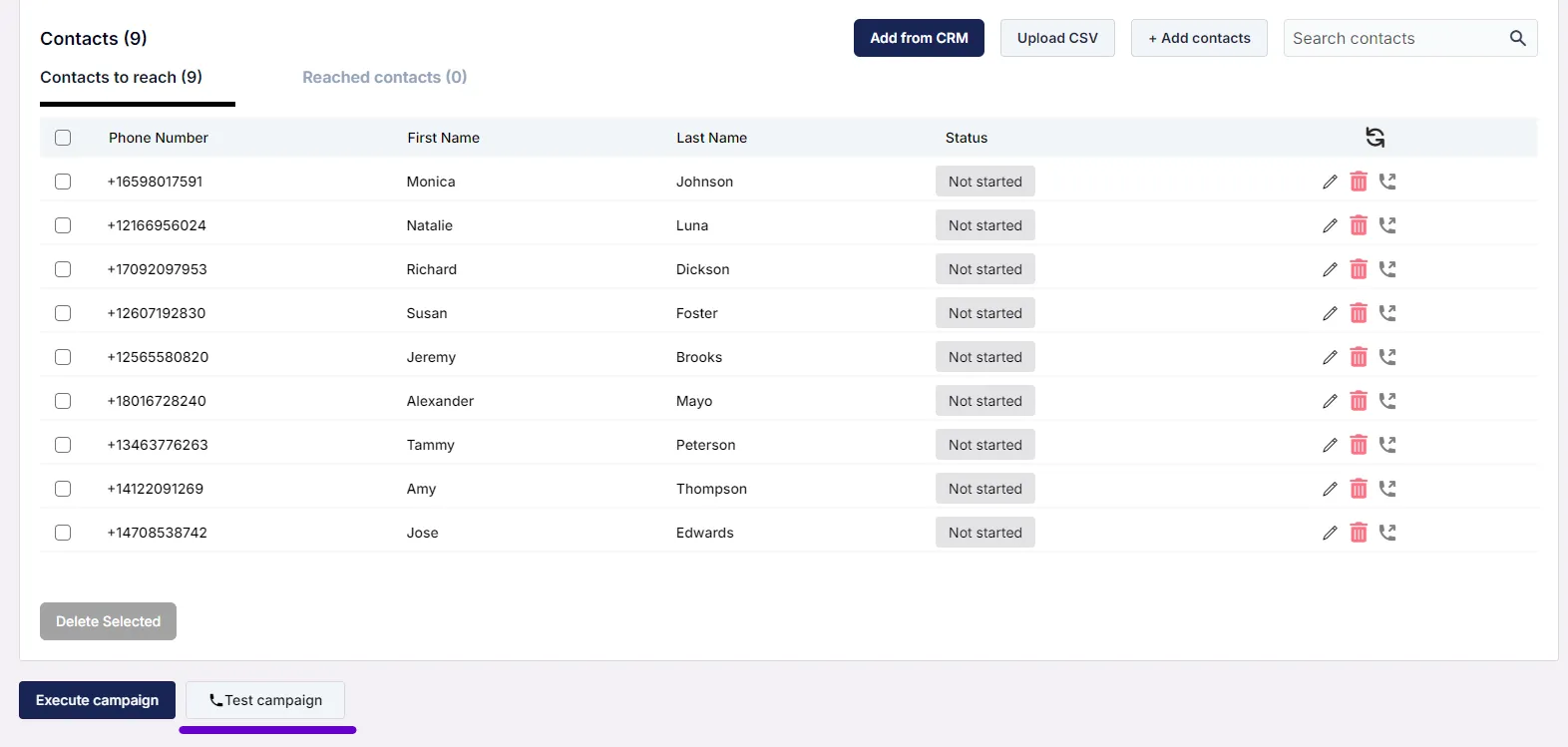 You can revisit **Campaign Settings** at any time via the “Settings” button to modify voice, language, or other preferences.
When using thinkrr within GHL workflows, voice and language settings are found under the **“AI Assistant”** label in the **thinkrr Voice AI Dynamic Outbound Call** action.
You can revisit **Campaign Settings** at any time via the “Settings” button to modify voice, language, or other preferences.
When using thinkrr within GHL workflows, voice and language settings are found under the **“AI Assistant”** label in the **thinkrr Voice AI Dynamic Outbound Call** action.
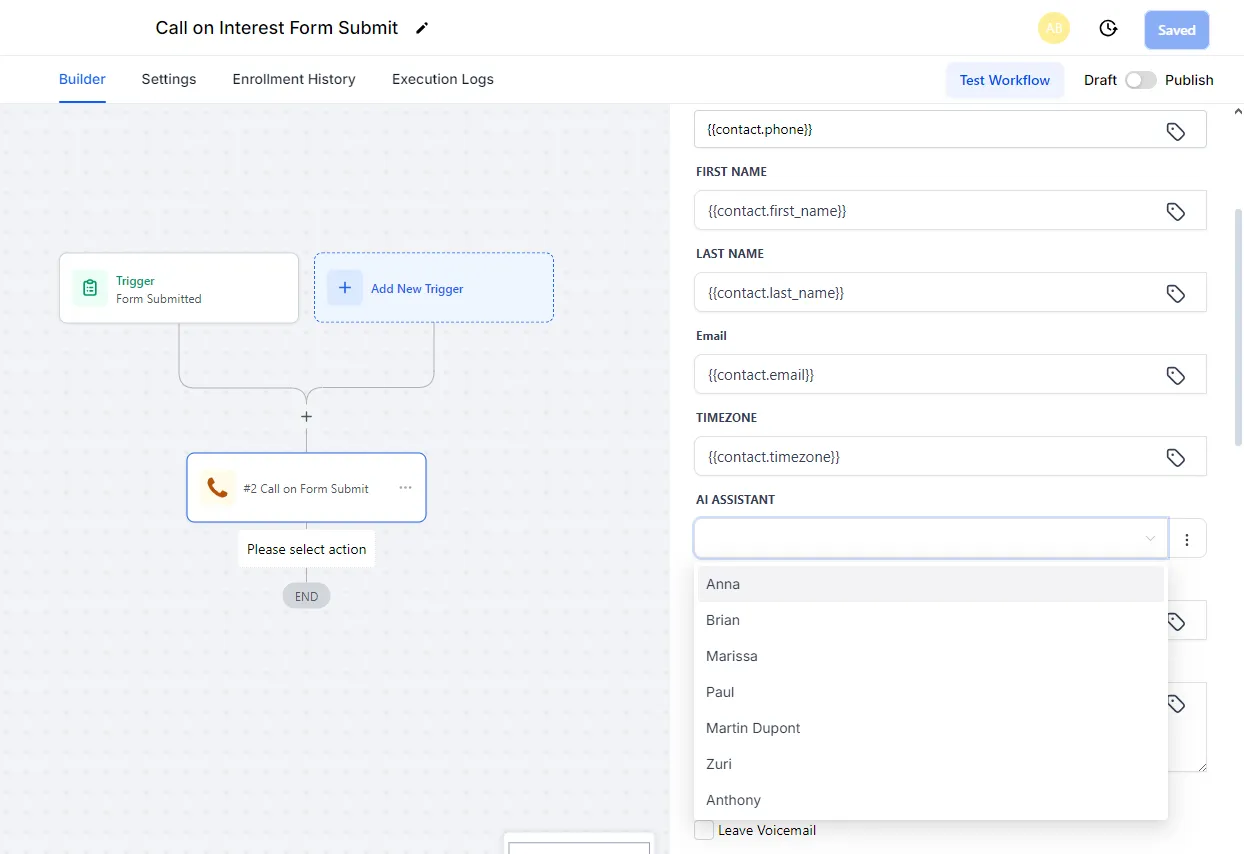 * Voice selection uses consistent agent names across thinkrr and GHL for cross-platform compatibility.
* Use the **AI Assistant Language Dropdown** to select a supported language.
* Test your voice and configuration first in thinkrr, as audio previews are not available in GHL.
## Inbound Calling
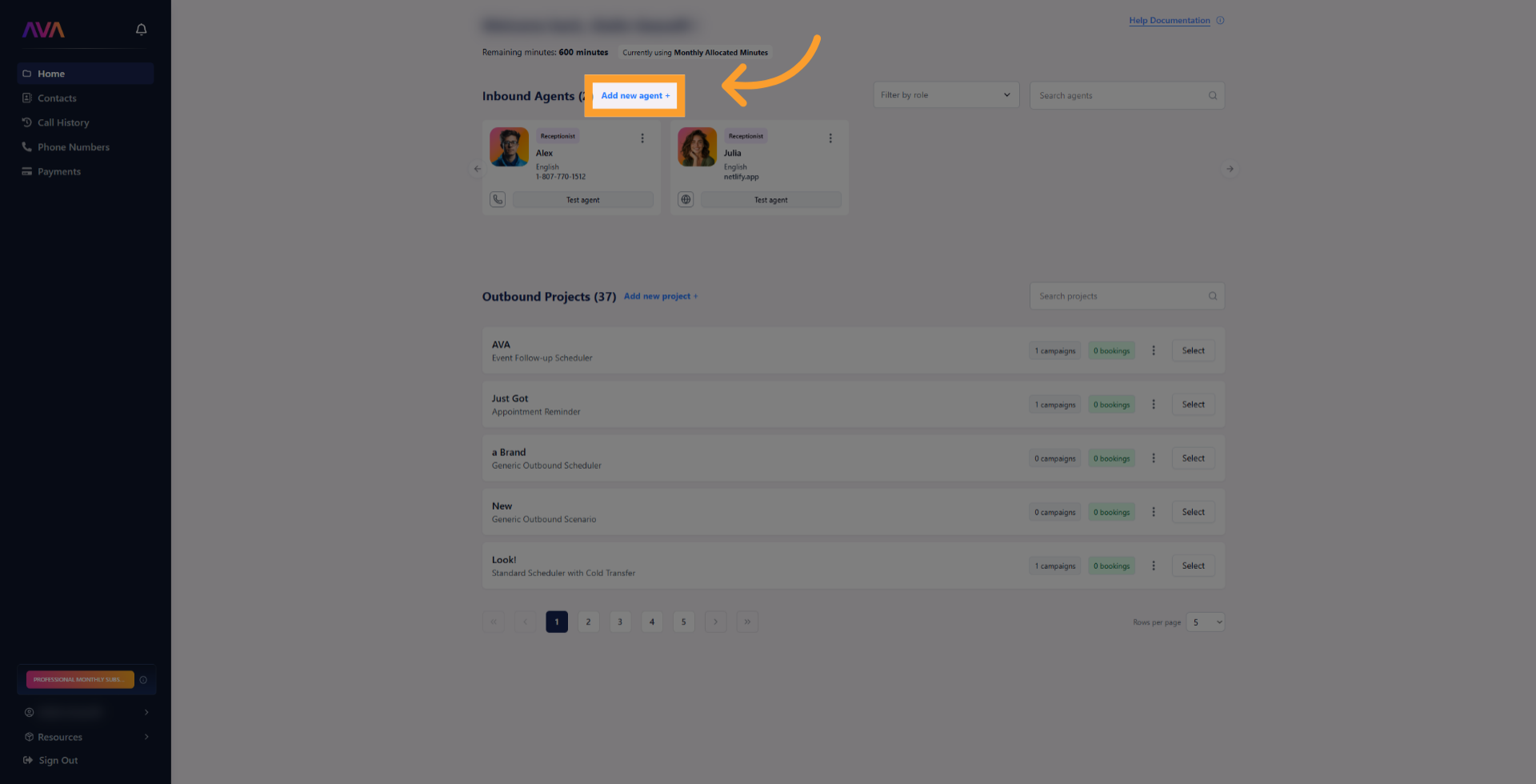
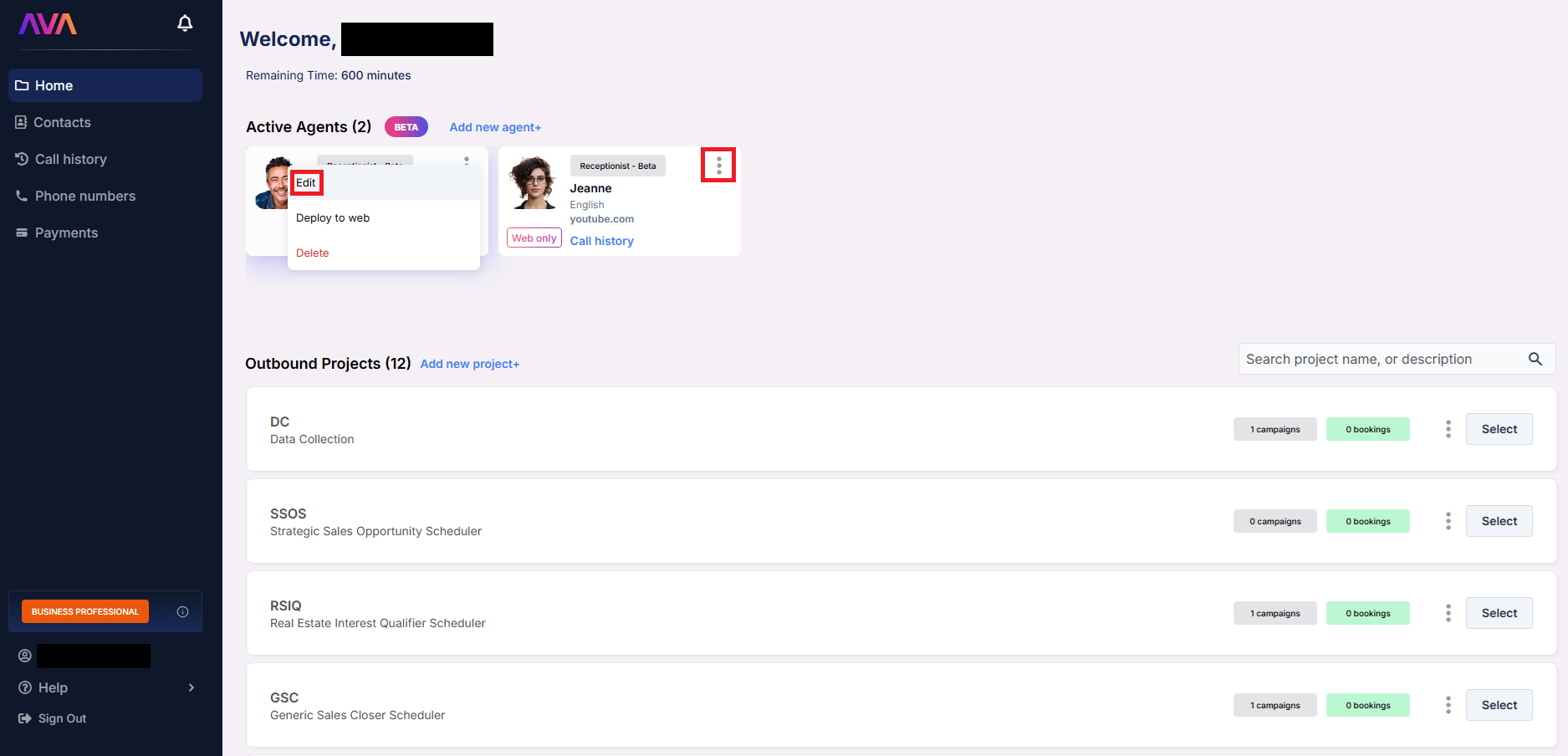
From the **Home** screen, click **“Add new agent +”**.
* Voice selection uses consistent agent names across thinkrr and GHL for cross-platform compatibility.
* Use the **AI Assistant Language Dropdown** to select a supported language.
* Test your voice and configuration first in thinkrr, as audio previews are not available in GHL.
## Inbound Calling
From the **Home** screen, click **“Add new agent +”**.
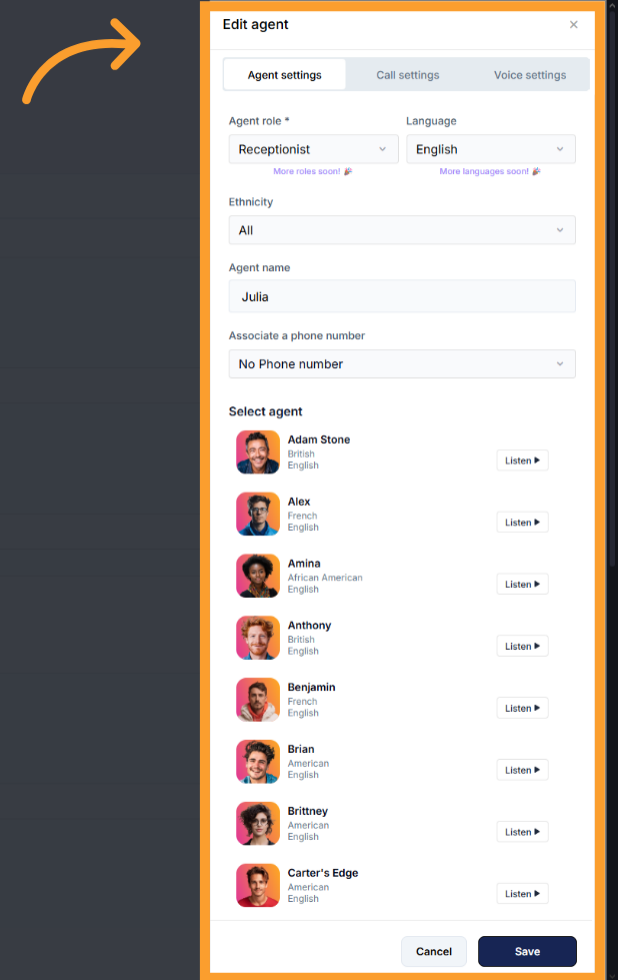
 Define the following in the **Agent Settings** tab:
* **Role** (Receptionist/Sales Coach)
* **Language**
* \*\*Dialect \*\*– Defines agent's accent
* **Agent Name**
* **Associated phone number**
* **Voice** (click **Play** to preview available options)
Define the following in the **Agent Settings** tab:
* **Role** (Receptionist/Sales Coach)
* **Language**
* \*\*Dialect \*\*– Defines agent's accent
* **Agent Name**
* **Associated phone number**
* **Voice** (click **Play** to preview available options)
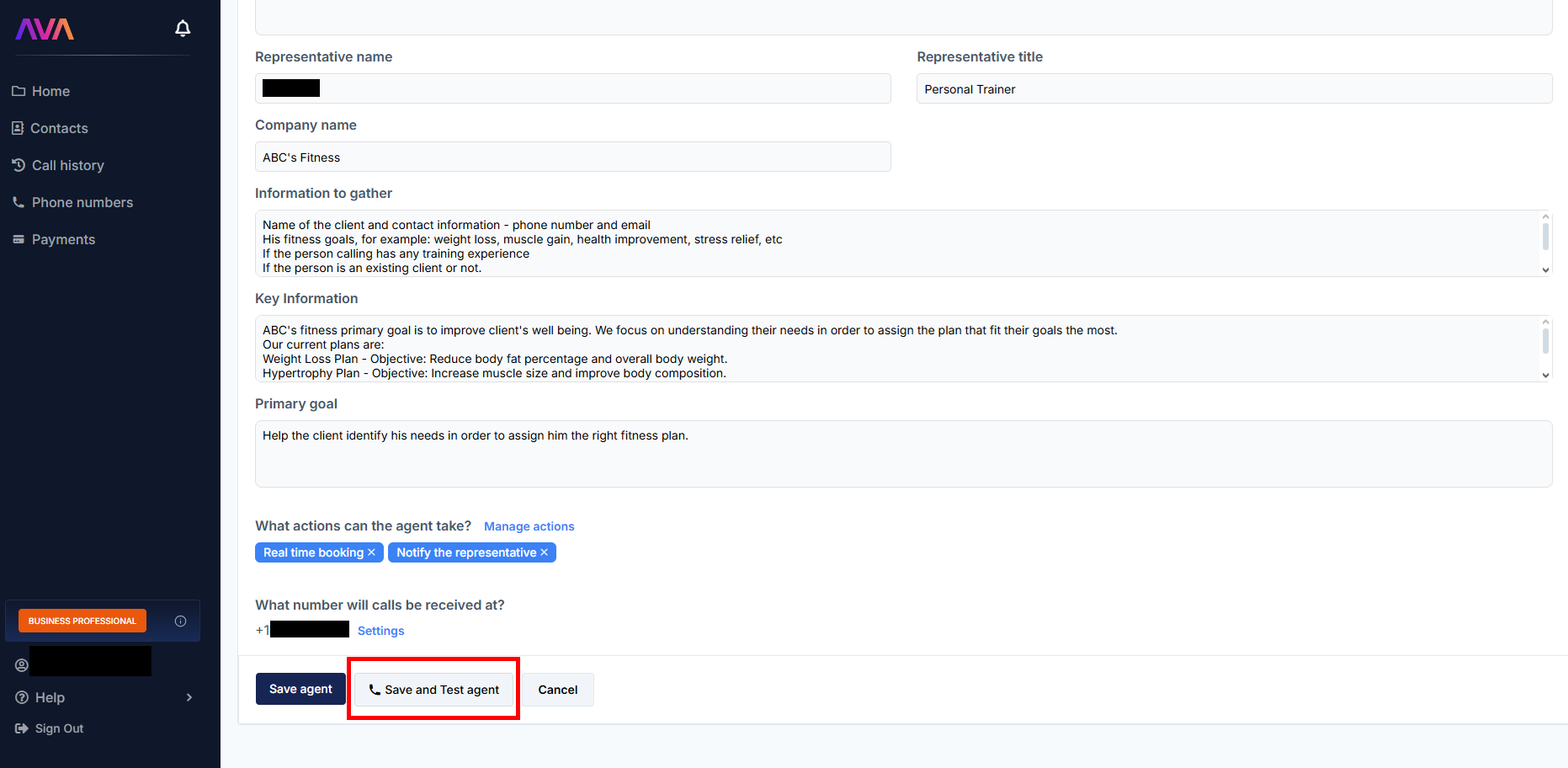
 Click **Save and Test Agent** to initiate a web call and interact with the agent.
 To edit later, go to the **Active Agents** section and click '**Edit**' from the *three dots* menu or simply click on the agent's card.
 * Configuration for inbound agents is minimal in GHL.
* All voice and language settings must be configured in **thinkrr** before linking.
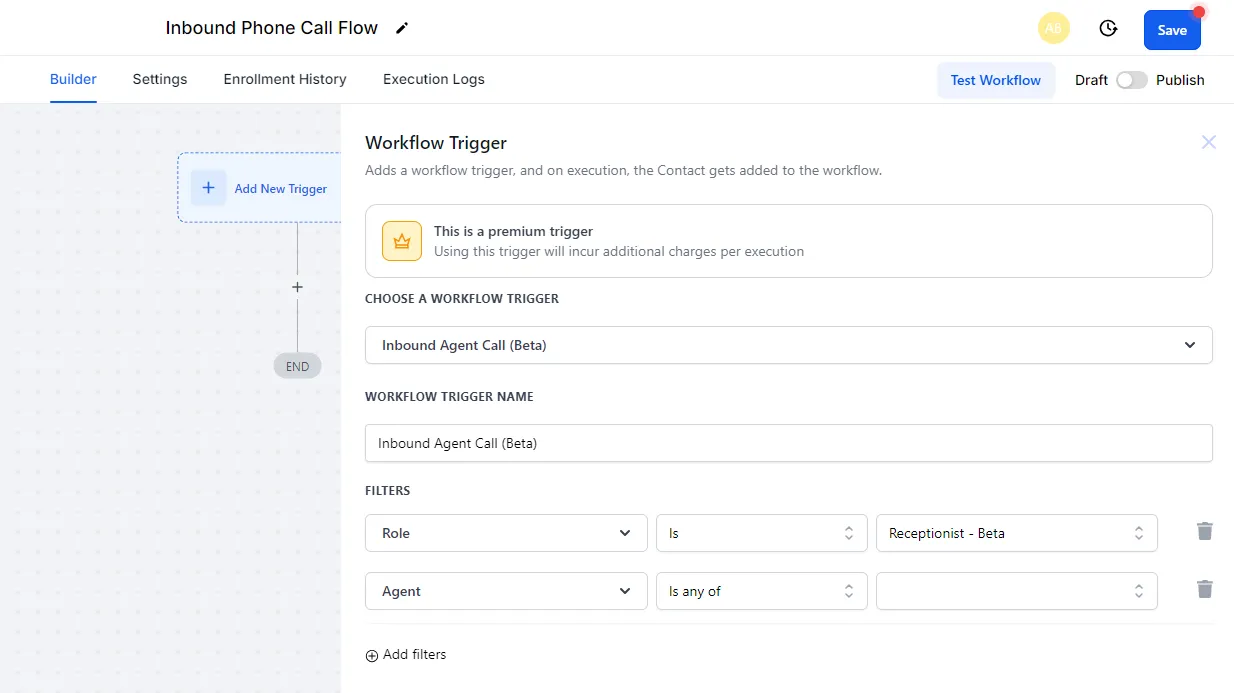
* In GHL, use the **thinkrr Voice AI Inbound Agent Call** trigger, which allows:
* Selecting the **Agent Role** (e.g., **Receptionist**)
* Choosing the **Assigned Agent**
* Configuration for inbound agents is minimal in GHL.
* All voice and language settings must be configured in **thinkrr** before linking.
* In GHL, use the **thinkrr Voice AI Inbound Agent Call** trigger, which allows:
* Selecting the **Agent Role** (e.g., **Receptionist**)
* Choosing the **Assigned Agent**
 ## Supported Languages
The following languages are supported:
* **English/Spanish (Bilingual)** – Allows the agent to understand and respond in both English and Spanish during the same conversation.
* **English**
* **Spanish (Mexico)**
* **Spanish (Spain)**
* **French**
* **Portuguese (Brazil)**
* **Portuguese (Portugal)**
* **German**
* **Russian**
* **Chinese**
* **Hindi**
* **Dutch**
* **Italian**
* **Korean**
* **Japanese**
* **Swedish**
* **Norwegian**
* **Polish**
* **Turkish**
* **Vietnamese**
> **Note:** The **Language** dropdown determines which agents appear in the list. Agents assigned to a bilingual option can understand and respond in both languages during a single conversation.
***
## Voice Selection
You can choose from over **100 unique voice agents**, including male and female voices with a variety of regional accents.
These agents are optimized for:
* ✅ Clear pronunciation across supported languages
* ✅ Natural delivery and pacing
* ✅ Sentiment-aware response handling
We currently have **100 total agents** across **17 languages**:
* **English** – 43 agents
* **Spanish** – 7 agents
* **Portuguese** – 5 agents
* **Chinese** – 4 agents
* **Italian** – 4 agents
* **Korean** – 4 agents
* **Polish** – 4 agents
* **Russian** – 4 agents
* **Turkish** – 4 agents
* **Vietnamese** – 4 agents
* **Hindi** – 3 agents
* **Japanese** – 4 agents
* **Swedish** – 2 agents
* **Norwegian** – 2 agents
* **Dutch** – 2 agents
* **French** – 2 agents
* **German** – 2 agents
💡 **Tip:** Assign voice agents based on your audience. For example, use a **male Spanish (Mexico)** agent for Latin American outreach, or a **female British English** agent for UK-based clients. Matching the voice profile to your customer’s region or expectations helps improve engagement and trust.
***
## Transcripts and Summaries
* **Call Transcripts:** Returned in the call’s spoken language. Default view is English.
* **Summaries:** Provided in English for easy review regardless of call language.
## FAQs & Troubleshooting
### Audio Samples and Testing
No. Audio samples are only available in the main thinkrr app. Use the **Test Campaign** feature in thinkrr to preview voices.
Some sample audios may be limited to English, but live calls use the configured language and voice.
### Reconfiguration and Testing
Yes. Reopen the Campaign or Agent settings in thinkrr to make changes, then re-test before relaunching.
Use the **Test Campaign** (outbound) or **Test Agent** (inbound) feature to simulate live interactions.
### Language Support
Yes. Agents configured with a bilingual language option can switch naturally between supported languages during a single conversation.
Create separate agents or campaigns for each language you want to support.
No. All voice and language customizations for inbound agents must be done within the thinkrr app.
***
For additional questions or guidance, try using our [**Virtual Support Agent**](/Thinkrr-Support-Agent)! Available 24/7 to help resolve most issues quickly at [thinkrr.ai/support](https://thinkrr.ai/support).
If you still need assistance, visit our support site at [help.thinkrr.ai](https://help.thinkrr.ai) and submit a [Ticket](/Support-Ticket-System) or contact our team directly at [hello@thinkrr.ai](mailto:hello@thinkrr.ai).
## Supported Languages
The following languages are supported:
* **English/Spanish (Bilingual)** – Allows the agent to understand and respond in both English and Spanish during the same conversation.
* **English**
* **Spanish (Mexico)**
* **Spanish (Spain)**
* **French**
* **Portuguese (Brazil)**
* **Portuguese (Portugal)**
* **German**
* **Russian**
* **Chinese**
* **Hindi**
* **Dutch**
* **Italian**
* **Korean**
* **Japanese**
* **Swedish**
* **Norwegian**
* **Polish**
* **Turkish**
* **Vietnamese**
> **Note:** The **Language** dropdown determines which agents appear in the list. Agents assigned to a bilingual option can understand and respond in both languages during a single conversation.
***
## Voice Selection
You can choose from over **100 unique voice agents**, including male and female voices with a variety of regional accents.
These agents are optimized for:
* ✅ Clear pronunciation across supported languages
* ✅ Natural delivery and pacing
* ✅ Sentiment-aware response handling
We currently have **100 total agents** across **17 languages**:
* **English** – 43 agents
* **Spanish** – 7 agents
* **Portuguese** – 5 agents
* **Chinese** – 4 agents
* **Italian** – 4 agents
* **Korean** – 4 agents
* **Polish** – 4 agents
* **Russian** – 4 agents
* **Turkish** – 4 agents
* **Vietnamese** – 4 agents
* **Hindi** – 3 agents
* **Japanese** – 4 agents
* **Swedish** – 2 agents
* **Norwegian** – 2 agents
* **Dutch** – 2 agents
* **French** – 2 agents
* **German** – 2 agents
💡 **Tip:** Assign voice agents based on your audience. For example, use a **male Spanish (Mexico)** agent for Latin American outreach, or a **female British English** agent for UK-based clients. Matching the voice profile to your customer’s region or expectations helps improve engagement and trust.
***
## Transcripts and Summaries
* **Call Transcripts:** Returned in the call’s spoken language. Default view is English.
* **Summaries:** Provided in English for easy review regardless of call language.
## FAQs & Troubleshooting
### Audio Samples and Testing
No. Audio samples are only available in the main thinkrr app. Use the **Test Campaign** feature in thinkrr to preview voices.
Some sample audios may be limited to English, but live calls use the configured language and voice.
### Reconfiguration and Testing
Yes. Reopen the Campaign or Agent settings in thinkrr to make changes, then re-test before relaunching.
Use the **Test Campaign** (outbound) or **Test Agent** (inbound) feature to simulate live interactions.
### Language Support
Yes. Agents configured with a bilingual language option can switch naturally between supported languages during a single conversation.
Create separate agents or campaigns for each language you want to support.
No. All voice and language customizations for inbound agents must be done within the thinkrr app.
***
For additional questions or guidance, try using our [**Virtual Support Agent**](/Thinkrr-Support-Agent)! Available 24/7 to help resolve most issues quickly at [thinkrr.ai/support](https://thinkrr.ai/support).
If you still need assistance, visit our support site at [help.thinkrr.ai](https://help.thinkrr.ai) and submit a [Ticket](/Support-Ticket-System) or contact our team directly at [hello@thinkrr.ai](mailto:hello@thinkrr.ai).