> ## Documentation Index
> Fetch the complete documentation index at: https://docs.thinkrr.ai/llms.txt
> Use this file to discover all available pages before exploring further.
# Welcome Call
> The **Welcome Call** Scenario automates personalized post-check-in calls for Hostaway-connected properties. Acting as a virtual concierge, the AI Agent confirms guest arrivals, ensures satisfaction, and provides key property information—reducing workload for property managers and improving the guest experience.
## Details
The **Welcome Call Scenario** is one of two outbound projects automatically included with every property connected through **Hostaway**. Once your Hostaway account is connected, each property in thinkrr comes preloaded with two default outbound scenarios — the **Welcome Call** and the **NPS Survey**.
You can enable or disable these scenarios individually per property. When disabled, they remain inactive and will not trigger any outbound calls.
> 💡 **Note:** You can configure these scenarios only **after** a property has been added — either manually or via a connected Hostaway account.
The **Welcome Call** is designed to provide an automated, yet personal, guest experience immediately after check-in. Using synced Hostaway data such as guest name, property details, and booking information, the AI Agent places a warm welcome call to confirm the guest’s arrival, ensure everything is working properly, and offer assistance if needed. This automation keeps guest communication proactive, professional, and consistent across every stay — without requiring manual effort from your team.
## Key Features
1. **Purpose**
* Automate guest check-in follow-up with personalized, on-brand calls.
* Reduce manual outreach while maintaining a human touch.
* Confirm smooth arrivals and proactively address guest needs.
* Escalate issues to property managers instantly when needed.
2. **Customizable User Input Fields**
The **Welcome Call** Scenario includes a structured set of fields that define how the AI Agent greets guests, verifies their check-in, and handles any issues they mention. These fields mirror the configuration style of other outbound scenarios in thinkrr, making setup straightforward across multiple properties.
Each input field can include scripted lines or dynamic placeholders like `{client_firstname}`, `{property_name}`, and `{representative_name}`. This ensures every call feels natural and personalized while staying scalable across dozens of properties.
 ## Customizable User Input Fields
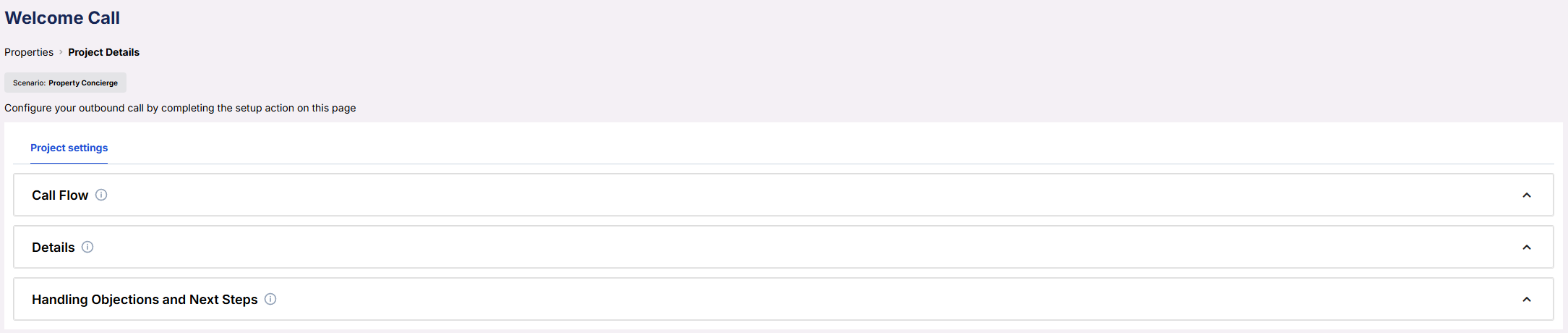
The **Welcome Call** Scenario uses three sections that mirror your app: **Call Flow**, **Details**, and **Handling Objections and Next Steps**. Below are the fields exactly as they appear, with concise explanations of what each does.
**Call Flow**
* **Property/Section** – Select the property this scenario applies to (synced from Hostaway).
* **Manager Name** – The manager’s name referenced in the dialogue.
* **Initial Greeting** – The exact opening line the AI says to start the call.
* **Introduction** – The short identification line the AI uses after the greeting.
* **Time of the Call** – The call is automatically triggered on the guest’s **check-in day** at the time you specify.\
Example: If you set it to **8:00 PM**, the Welcome Call will be placed at 8:00 PM local property time.
> ⚠️ **Important:** Make sure your call time is **after** your usual check-in time to avoid calling guests before they arrive.
* **Manager Title** – The title the AI should use when referencing the manager.
## Customizable User Input Fields
The **Welcome Call** Scenario uses three sections that mirror your app: **Call Flow**, **Details**, and **Handling Objections and Next Steps**. Below are the fields exactly as they appear, with concise explanations of what each does.
**Call Flow**
* **Property/Section** – Select the property this scenario applies to (synced from Hostaway).
* **Manager Name** – The manager’s name referenced in the dialogue.
* **Initial Greeting** – The exact opening line the AI says to start the call.
* **Introduction** – The short identification line the AI uses after the greeting.
* **Time of the Call** – The call is automatically triggered on the guest’s **check-in day** at the time you specify.\
Example: If you set it to **8:00 PM**, the Welcome Call will be placed at 8:00 PM local property time.
> ⚠️ **Important:** Make sure your call time is **after** your usual check-in time to avoid calling guests before they arrive.
* **Manager Title** – The title the AI should use when referencing the manager.
 **Details**
* **Host/Property Overview** – High-level description and metadata (name, address, city, country, beds/baths, short summary).
* **Additional Details** – Any extra operational notes you want the AI to know.
* **Personal Recommendations** – Optional local tips the AI can mention.
**Details**
* **Host/Property Overview** – High-level description and metadata (name, address, city, country, beds/baths, short summary).
* **Additional Details** – Any extra operational notes you want the AI to know.
* **Personal Recommendations** – Optional local tips the AI can mention.
 **Handling Objections and Next Steps**
* **Issue Handling** – Brief guidance for how the AI acknowledges and escalates problems.
* **Additional Contact Information** – The closing line with how guests can reach support.
**Handling Objections and Next Steps**
* **Issue Handling** – Brief guidance for how the AI acknowledges and escalates problems.
* **Additional Contact Information** – The closing line with how guests can reach support.
 ***
## Example Configuration
**Call Flow**
* **Property/Section**\
63 Gabriel Peri
* **Manager Name**\
Shanzay Hostaway
* **Initial Greeting**\
Hi {client_firstname}, I’m your Virtual Concierge calling on behalf of {property_manager_name} from {property_name}. I just wanted to make sure everything went smoothly with your check-in. Do you have a moment?
* **Introduction**\
Hello, this is {ai_agent_name}. Am I speaking with {client_firstname}?
* **Time of the Call**\
20:00:00
* **Manager Title**\
Property Manager
**Details**
* **Host/Property Overview**\
Property Name: 63 Gabriel Peri\
Address: 67 Rue Gabriel Péri, 94200 Ivry-sur-Seine, France\
City: Ivry-sur-Seine\
Country: France\
Bedrooms: 5\
Bathrooms: 2\
Property Description: A great guesthouse perfect for travellers
* **Additional Details**\
—
* **Personal Recommendations**\
—
**Handling Objections and Next Steps**
* **Issue Handling**\
Acknowledge the issue, apologize, and notify {property_manager_name} immediately for follow-up.
* **Additional Contact Information**\
If you have any issues during your stay or need assistance, you can reach our 24/7 virtual assistance.
***
## FAQs & Troubleshooting
### General Questions
The call is automatically placed on the guest’s **check-in day** at the time you specify in the **Outbound** tab.\
Example: If set to 8:00 PM, the call will be placed at 8:00 PM local property time.\
⚠️ Make sure your call time is after your standard check-in time.
Yes. All guest names, booking dates, and property details are synced directly from your **Hostaway connection**.
Absolutely. You can edit any scripting or prompting fields — such as greeting, introduction, or issue handling — to reflect your tone and brand.
### Configuration
The Welcome Call can only use synced data when connected to **Hostaway**.\
Manual properties do not currently support automated outbound calls for this scenario.
Use the **Save & Test Agent** option in the **Outbound** tab to run a simulation and adjust your script as needed.
Yes. You can enable a follow-up text message through **Post-Call Actions** for guests who do not answer or to share additional details.
### Usage and Results
All call logs, recordings, and results appear under the **Outbound** tab and the property’s **Activity Log** in thinkrr.
Yes. When a guest reports an issue, the AI automatically triggers a **Call Transfer** or notification to {representative_name} or your chosen escalation contact.
***
For additional questions or guidance, try using our [**Virtual Support Agent**](/Thinkrr-Support-Agent)!\
Available 24/7 to help resolve most issues quickly at [thinkrr.ai/support](https://thinkrr.ai/support).
If you still need assistance, visit [help.thinkrr.ai](http://help.thinkrr.ai) and submit a [Ticket](/Support-Ticket-System) or contact our team directly at [hello@thinkrr.ai](mailto:hello@thinkrr.ai).
***
## Example Configuration
**Call Flow**
* **Property/Section**\
63 Gabriel Peri
* **Manager Name**\
Shanzay Hostaway
* **Initial Greeting**\
Hi {client_firstname}, I’m your Virtual Concierge calling on behalf of {property_manager_name} from {property_name}. I just wanted to make sure everything went smoothly with your check-in. Do you have a moment?
* **Introduction**\
Hello, this is {ai_agent_name}. Am I speaking with {client_firstname}?
* **Time of the Call**\
20:00:00
* **Manager Title**\
Property Manager
**Details**
* **Host/Property Overview**\
Property Name: 63 Gabriel Peri\
Address: 67 Rue Gabriel Péri, 94200 Ivry-sur-Seine, France\
City: Ivry-sur-Seine\
Country: France\
Bedrooms: 5\
Bathrooms: 2\
Property Description: A great guesthouse perfect for travellers
* **Additional Details**\
—
* **Personal Recommendations**\
—
**Handling Objections and Next Steps**
* **Issue Handling**\
Acknowledge the issue, apologize, and notify {property_manager_name} immediately for follow-up.
* **Additional Contact Information**\
If you have any issues during your stay or need assistance, you can reach our 24/7 virtual assistance.
***
## FAQs & Troubleshooting
### General Questions
The call is automatically placed on the guest’s **check-in day** at the time you specify in the **Outbound** tab.\
Example: If set to 8:00 PM, the call will be placed at 8:00 PM local property time.\
⚠️ Make sure your call time is after your standard check-in time.
Yes. All guest names, booking dates, and property details are synced directly from your **Hostaway connection**.
Absolutely. You can edit any scripting or prompting fields — such as greeting, introduction, or issue handling — to reflect your tone and brand.
### Configuration
The Welcome Call can only use synced data when connected to **Hostaway**.\
Manual properties do not currently support automated outbound calls for this scenario.
Use the **Save & Test Agent** option in the **Outbound** tab to run a simulation and adjust your script as needed.
Yes. You can enable a follow-up text message through **Post-Call Actions** for guests who do not answer or to share additional details.
### Usage and Results
All call logs, recordings, and results appear under the **Outbound** tab and the property’s **Activity Log** in thinkrr.
Yes. When a guest reports an issue, the AI automatically triggers a **Call Transfer** or notification to {representative_name} or your chosen escalation contact.
***
For additional questions or guidance, try using our [**Virtual Support Agent**](/Thinkrr-Support-Agent)!\
Available 24/7 to help resolve most issues quickly at [thinkrr.ai/support](https://thinkrr.ai/support).
If you still need assistance, visit [help.thinkrr.ai](http://help.thinkrr.ai) and submit a [Ticket](/Support-Ticket-System) or contact our team directly at [hello@thinkrr.ai](mailto:hello@thinkrr.ai).