> ## Documentation Index
> Fetch the complete documentation index at: https://docs.thinkrr.ai/llms.txt
> Use this file to discover all available pages before exploring further.
# White Labeling
> The **White Labeling** feature allows agencies to fully brand and customize the thinkrr platform as their own.
## **Overview**
Available as a **\$99/month add-on** for all paid agency plans (Kickstart, Lite, and Unlimited), this feature enables businesses to replace thinkrr.ai branding with their own company identity, product name, domain, and email settings for a seamless, professional client experience.
It is important to note that white labeling is an all-or-nothing feature; users **must configure all branding options** to fully apply white labeling. There is no partial white labeling option.
## **Feature Breakdown**
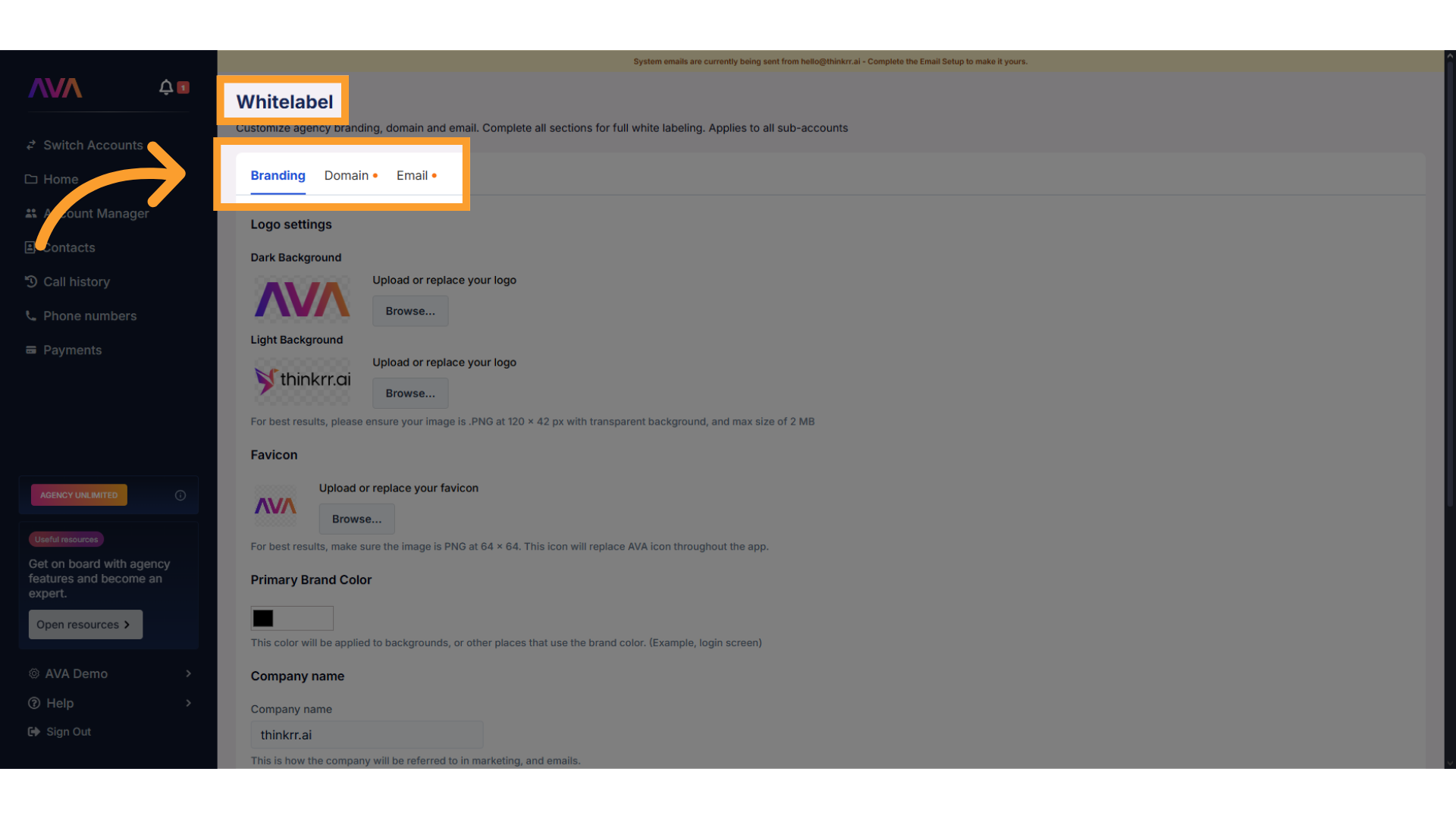
The **White Labeling** settings are located in the **White Label** profile menu within thinkrr (visible only to eligible plans). The feature is divided into four configuration sections:
* **Branding** – Customize logos, product names, and color themes.
* **Domain** – Configure a custom URL to replace **app.thinkrr.ai**.
* **Email** – Set a custom email domain for all platform-related communications.
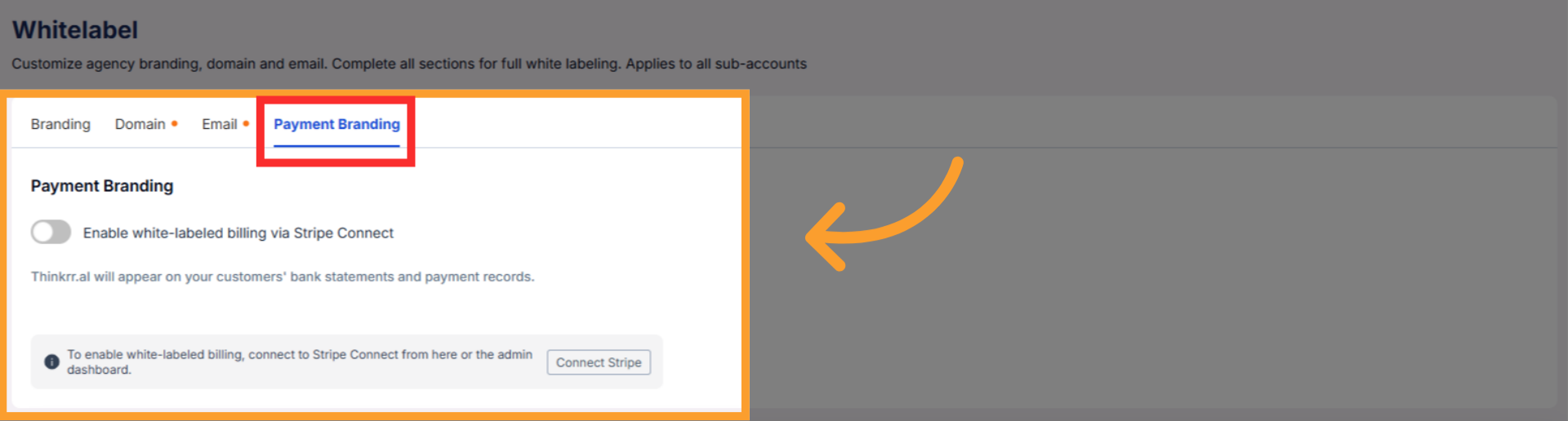
* **Payment Branding** – Enable white-labeled billing via Stripe Connect.
## **How to Access & Use the White Label Feature**
### **Navigating to the White Label Settings**
**Log into thinkrr** using any **paid agency plan** (Kickstart, Lite, or Unlimited) with the White Label add-on enabled.
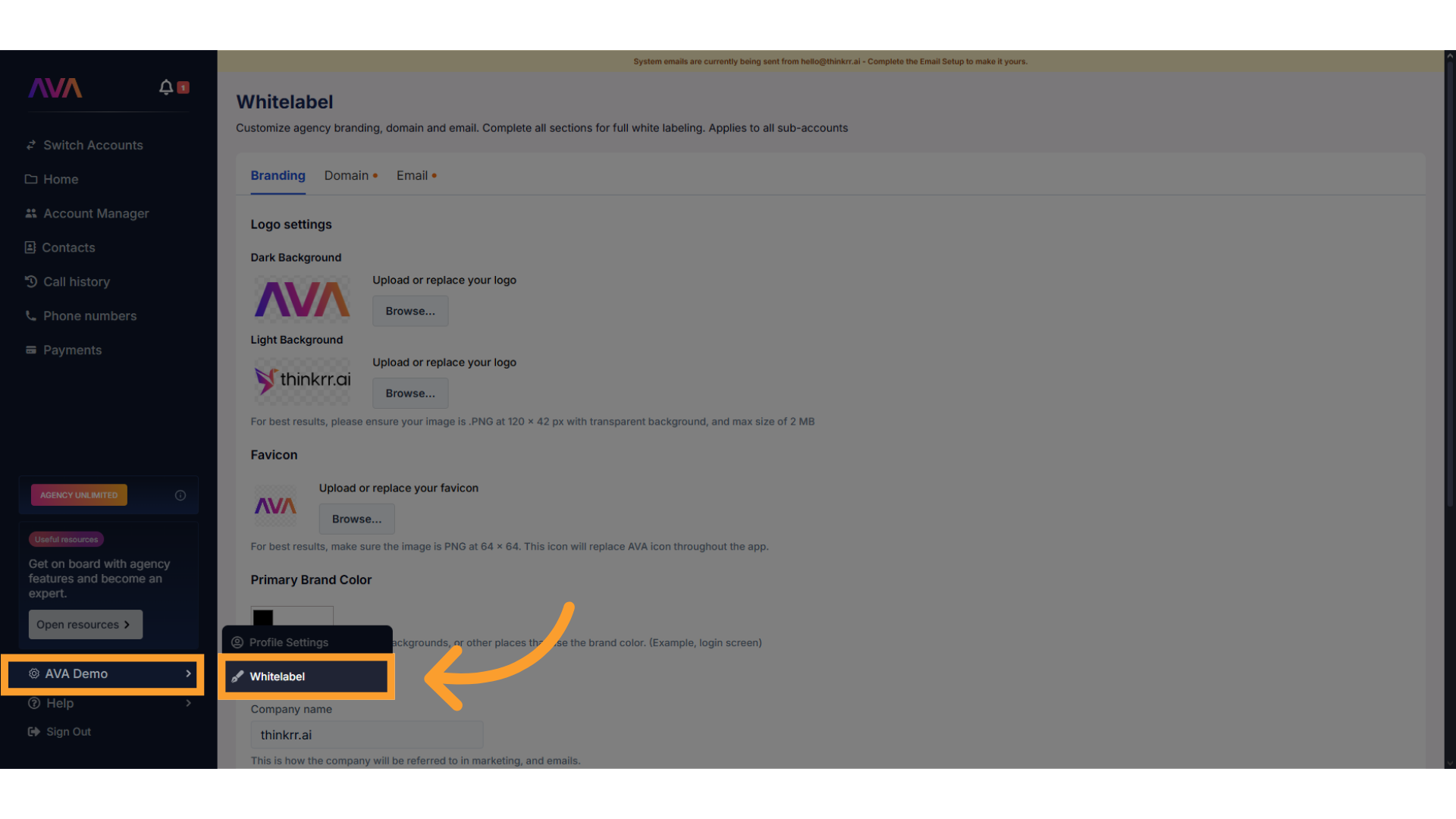
In the **left-side** navigation **menu**, hover your **account name** and click on **White Label** to access branding options.
You will see four tabs: **Branding, Domain, Email, and Payment Branding** — each with settings to customize your experience.
## **Configuration Sections**
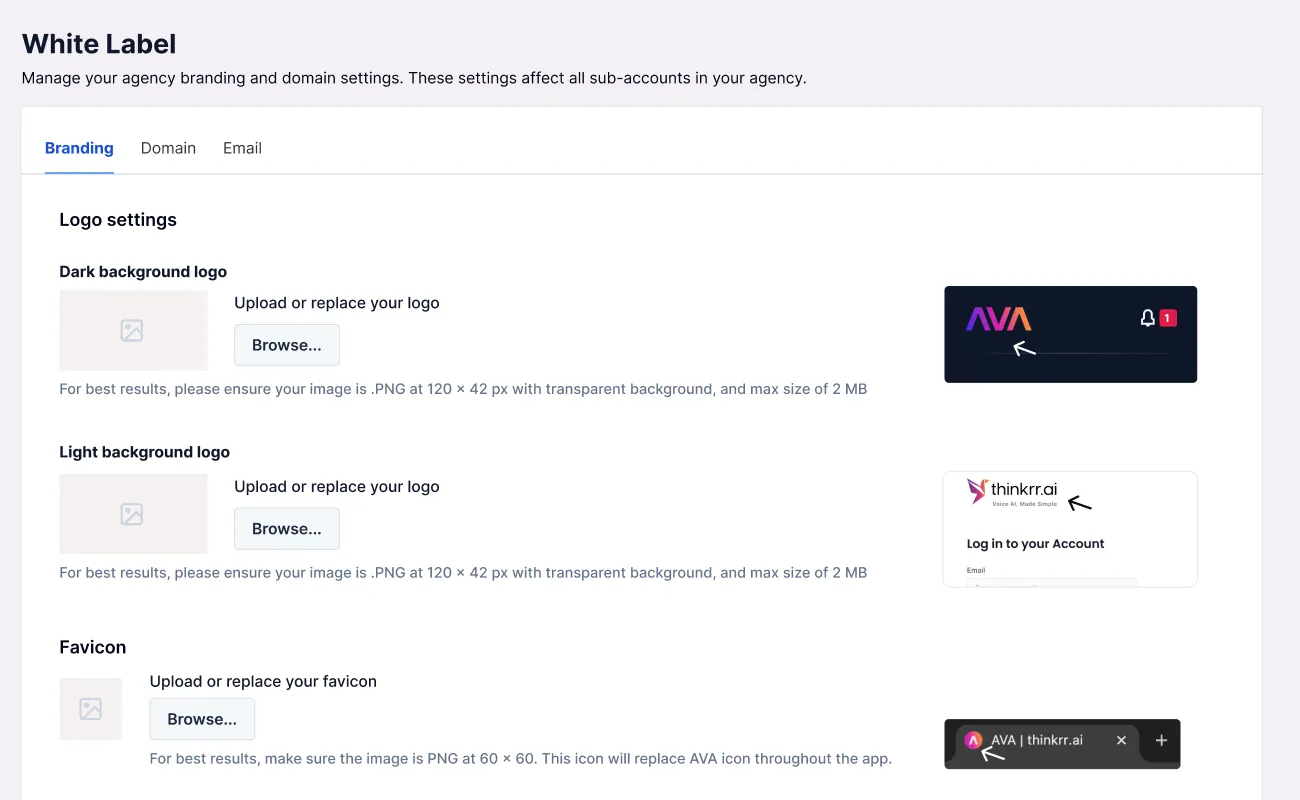
* Upload logos for different backgrounds:
* **Dark Background Logo** – Appears on darker areas of the platform.
* **Light Background Logo** – Used for emails and light-themed areas.
* **Favicon** – Small icon that appears in browser tabs.
* **Recommended image sizes:**
* Logos: **120x42px** with a transparent background.
* Favicon: **60x60px** with a transparent background.
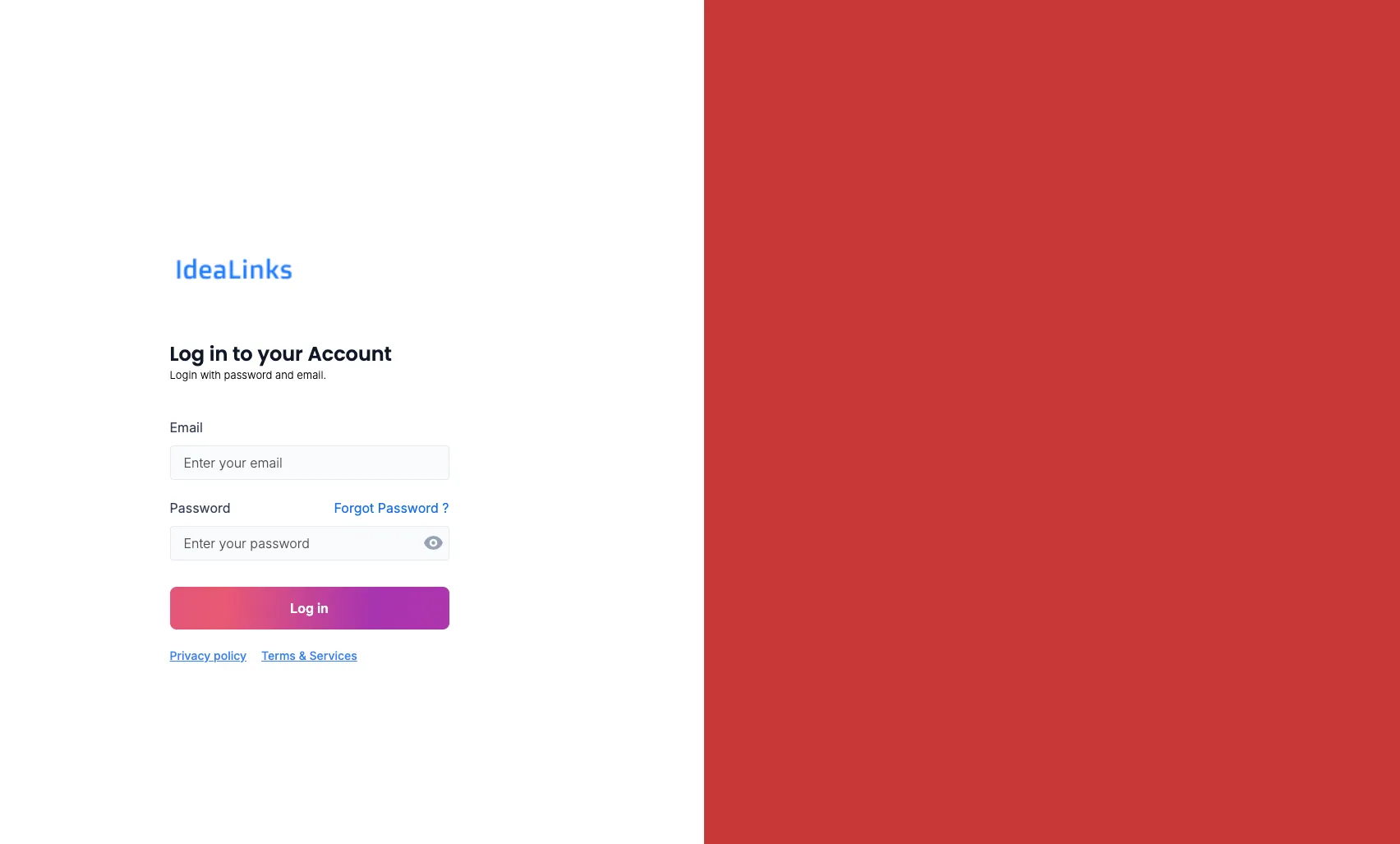
* Choose a HEX color to define the platform’s primary theme (e.g., login screen).
* **Company Name** – Replaces all instances of **thinkrr.ai** in the platform and email communications.
* **Product Name** – Replaces all instances of the default product name so users can name the AI platform uniquely.
Example: Password reset email showing the branded elements as configured in the White Label settings.
* You must provide your own **Privacy Policy** and **Terms & Conditions** URLs.
* These links are required for compliance and will be displayed on the login screen and other applicable areas.
> ⚠️ **Important**\
> White-labeled businesses cannot use thinkrr.ai’s legal documentation. Your own legal links are mandatory for activation.
> 💡 **Temporary option if you don’t have legal pages yet**\
> You can temporarily use the Privacy Policy and Terms templates from the **Thinkrr V4 snapshot**.\
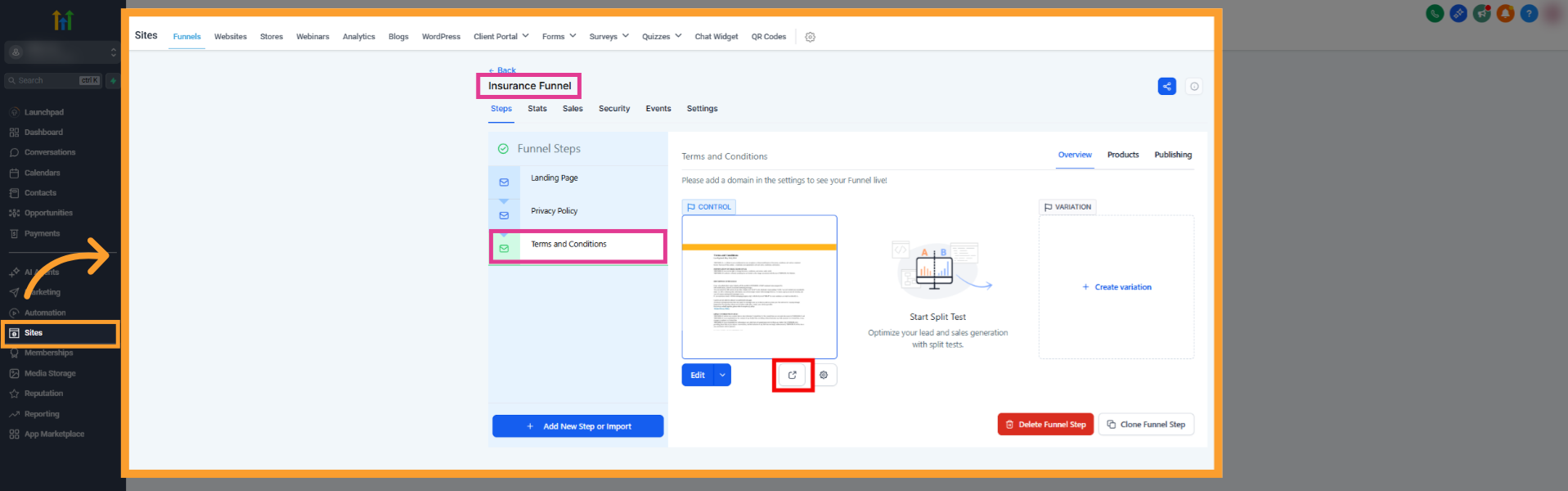
> Open the snapshot in thinkrr CRM, go to **Sites → Funnels**, locate the Privacy Policy and Terms pages (for example, in the Insurance funnel), and copy those URLs into the White Label setup until you publish your own branded versions.
>
>
>
>
> ❗ **Domain requirement**\
> All white label domains must be **valid subdomains**. Root domains like `yourcompany.com` are not supported and will fail to verify.
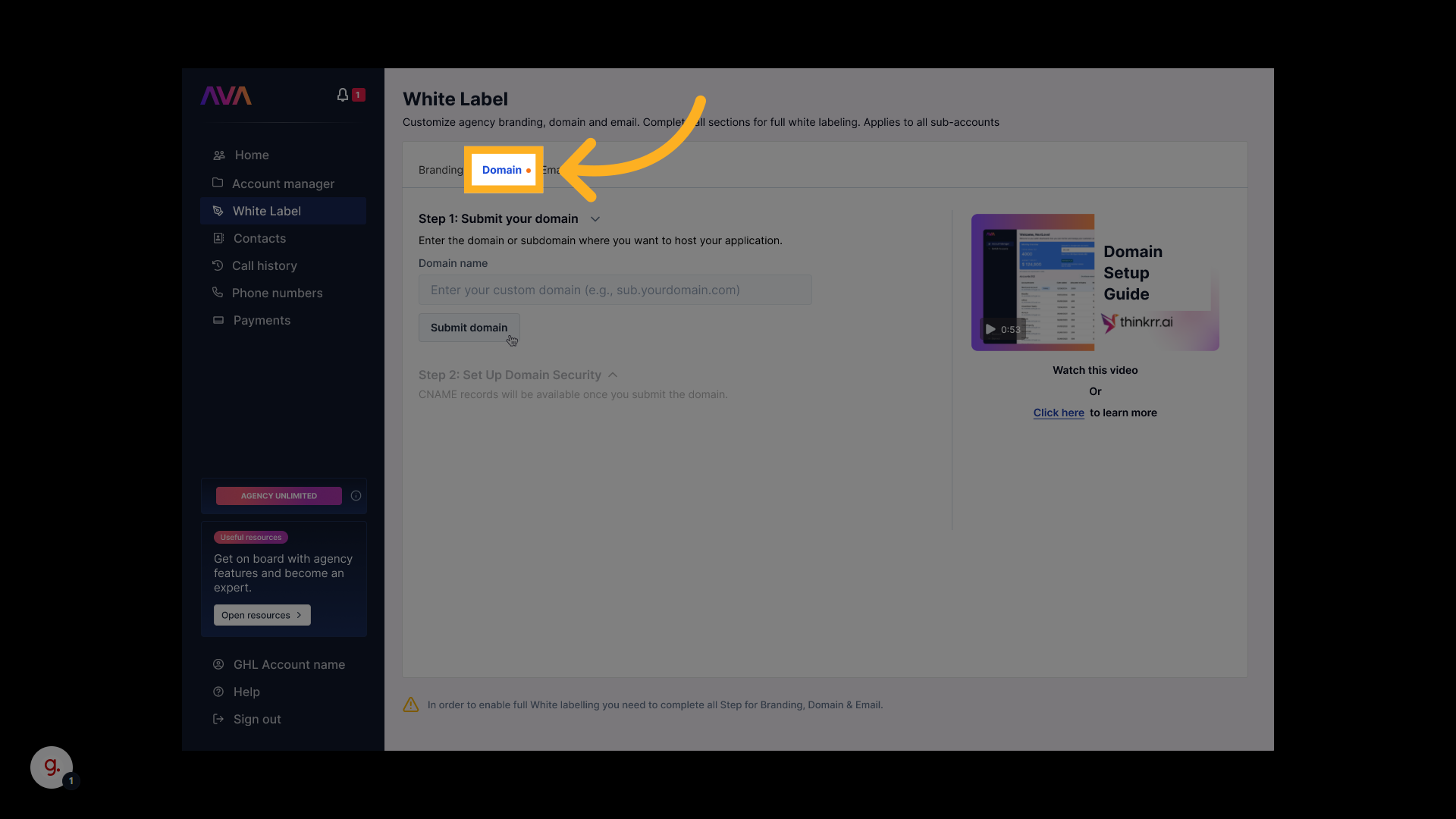
* Type the subdomain (e.g., `app.yourcompany.com`) into the Domain tab.
* **Must be lowercase.**
* **Correct:** `app.yourcompany.com`, `portal.example.org`\
**Incorrect:** `yourcompany.com`, `www.yourcompany.com`
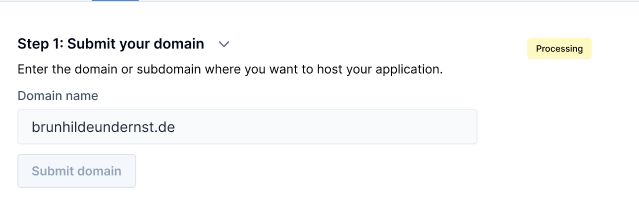
* Click **Submit Domain** to continue.
> ❗ **Important**\
> Once submitted, only support can modify the domain.
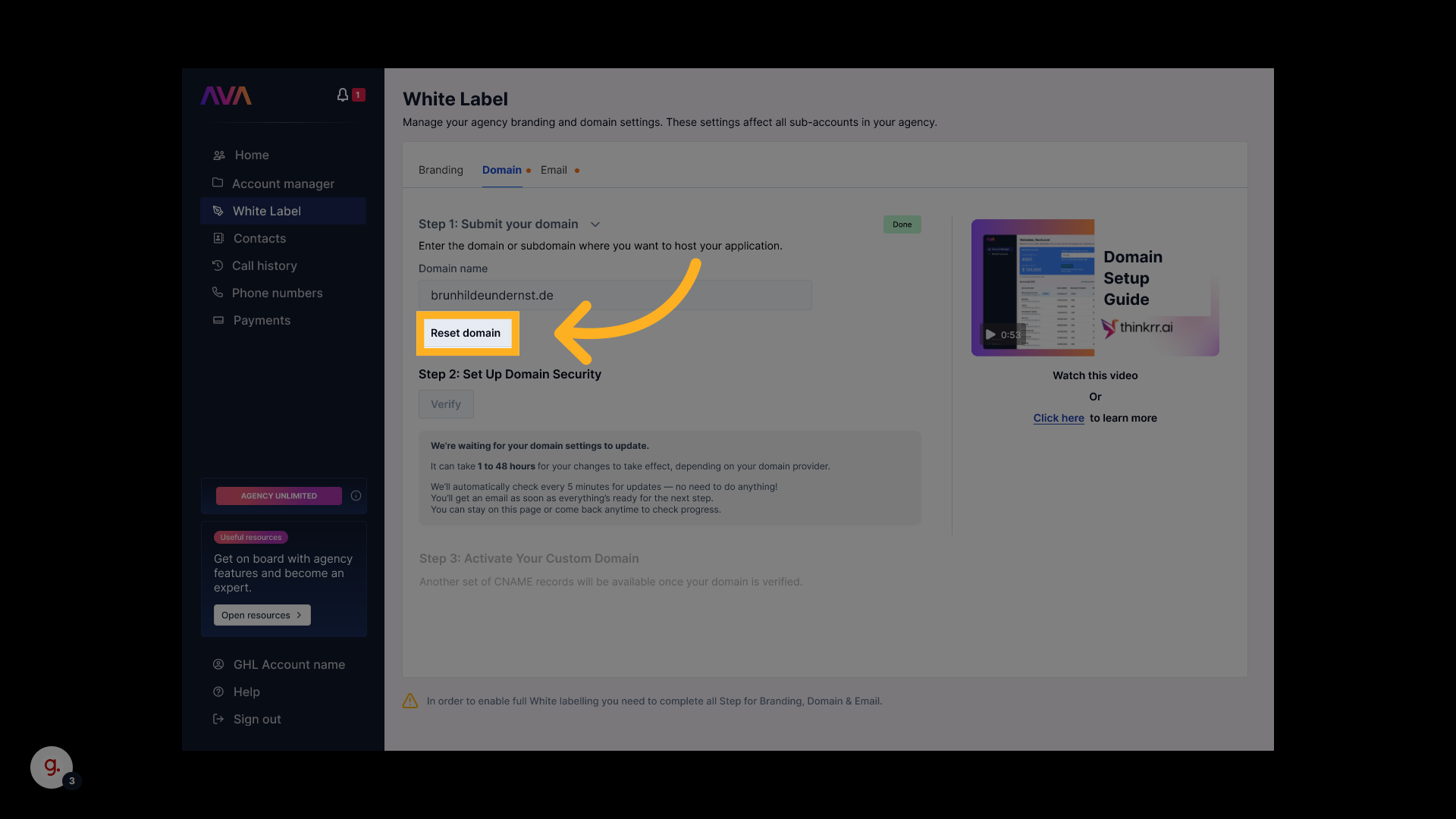
* Use **Reset domain** only if you intend to wipe and restart the configuration.
> 🛑 **Reset warning**\
> Resetting deletes your current domain configuration permanently.
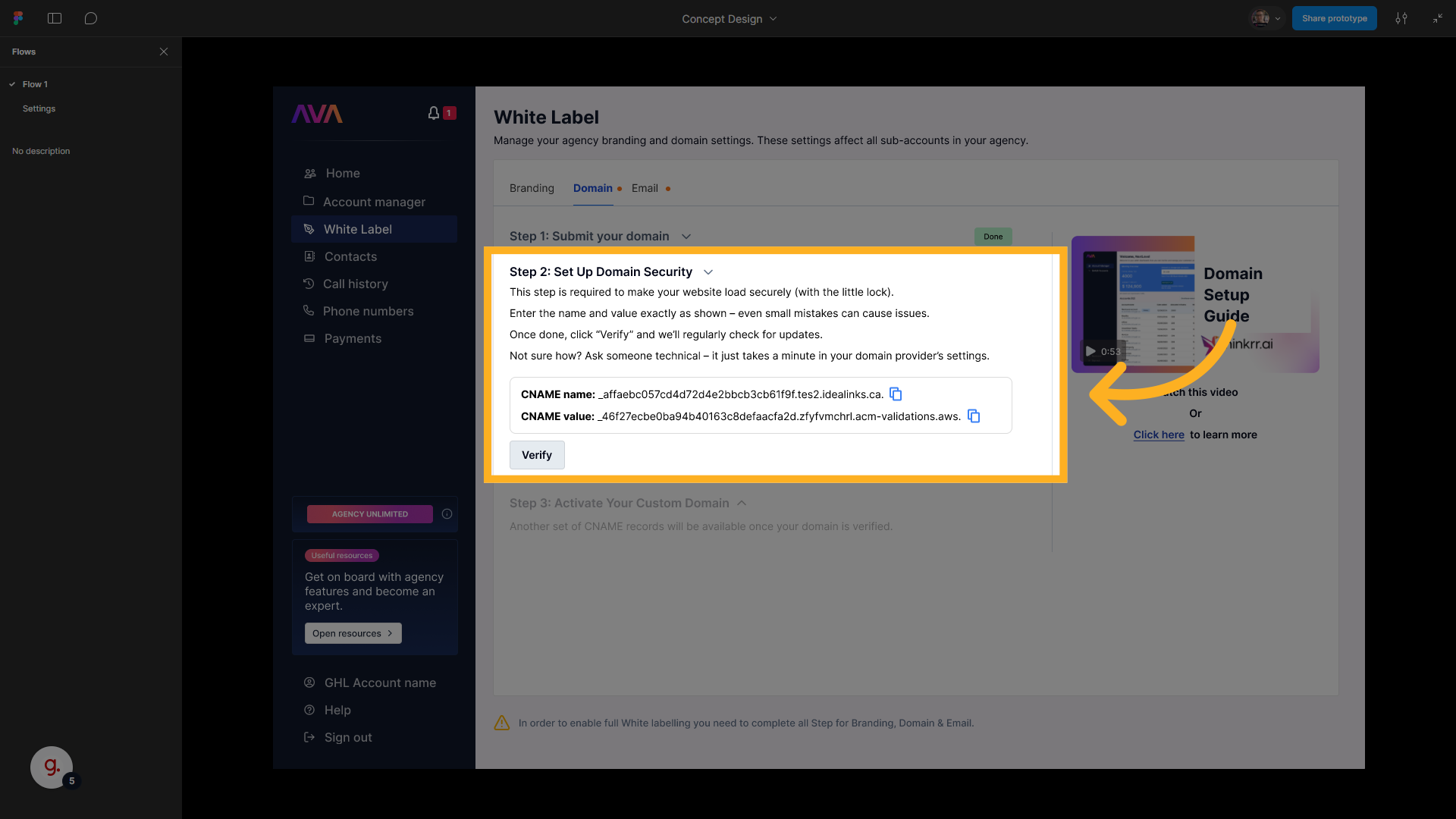
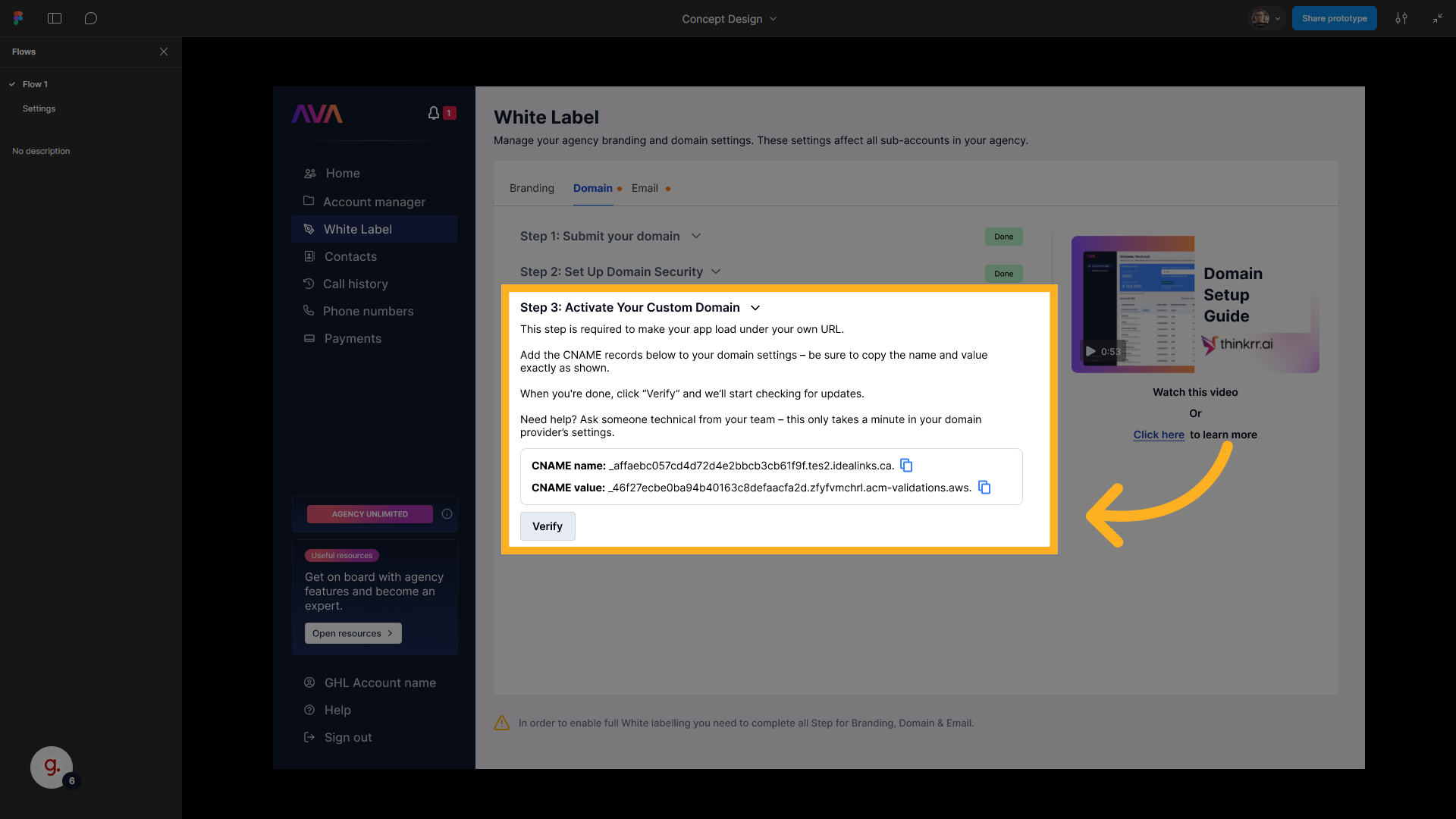
* Two sets of CNAMEs will be generated:
* SSL/security validation
* Traffic routing
**DNS formatting rules:**
* **Host field:** Use only the subdomain portion\
Example: `app` instead of `app.thinkrr.ai.`
* **Value field:** Remove the trailing period\
`validations.aws.` → `validations.aws`
> 💡 **Tip**\
> Use **whatsmydns.net** to check propagation.\
> For lookup, use the **full CNAME**, e.g. `app.thinkrr.ai` (without a trailing period).
* After DNS updates, click **Verify Domain**.
* Verification can take **up to 48 hours**.
DNS changes may take up to **48 hours** to fully propagate.
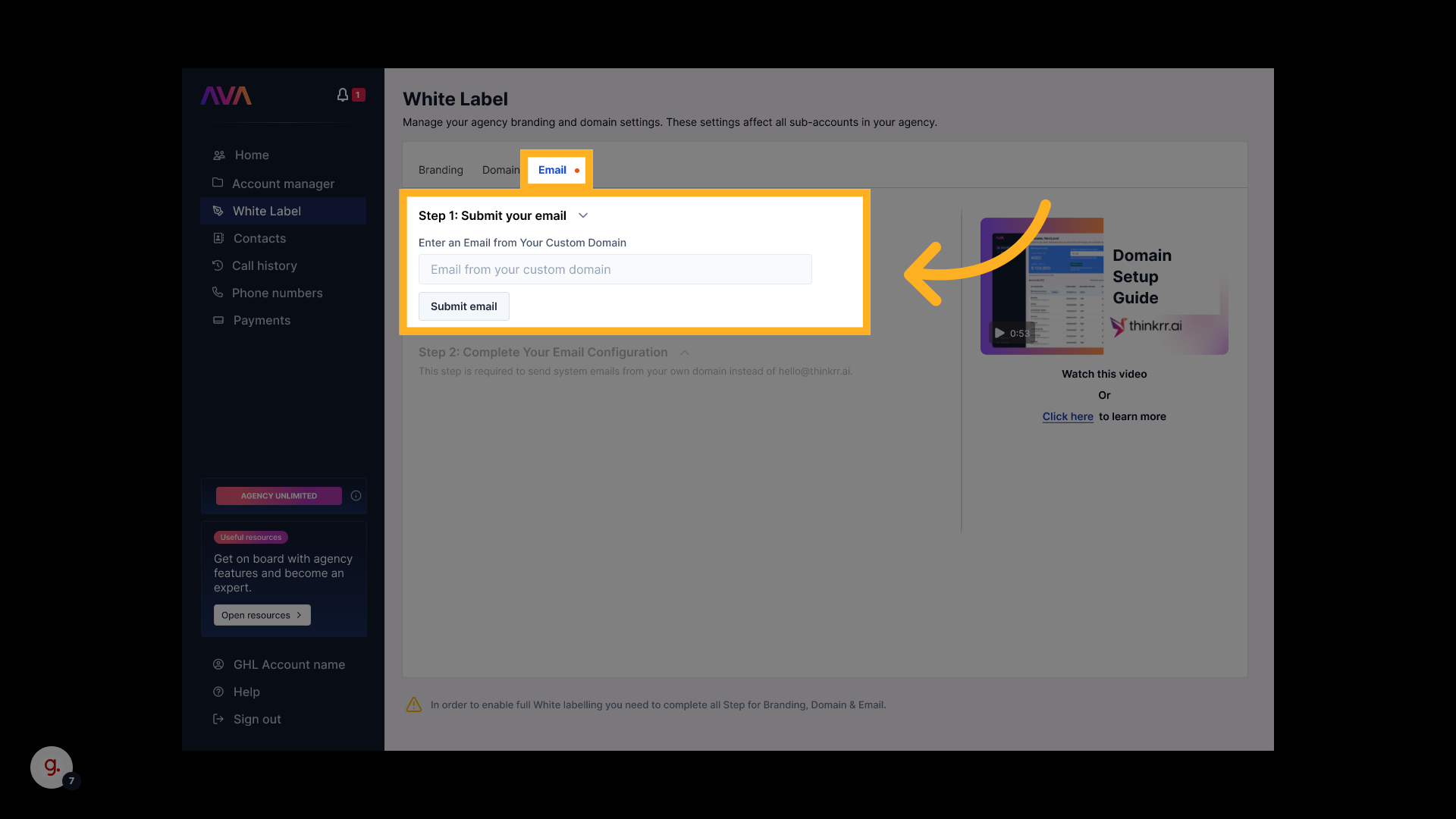
* Example: `support@yourcompany.com`
* Click **Submit Email**.
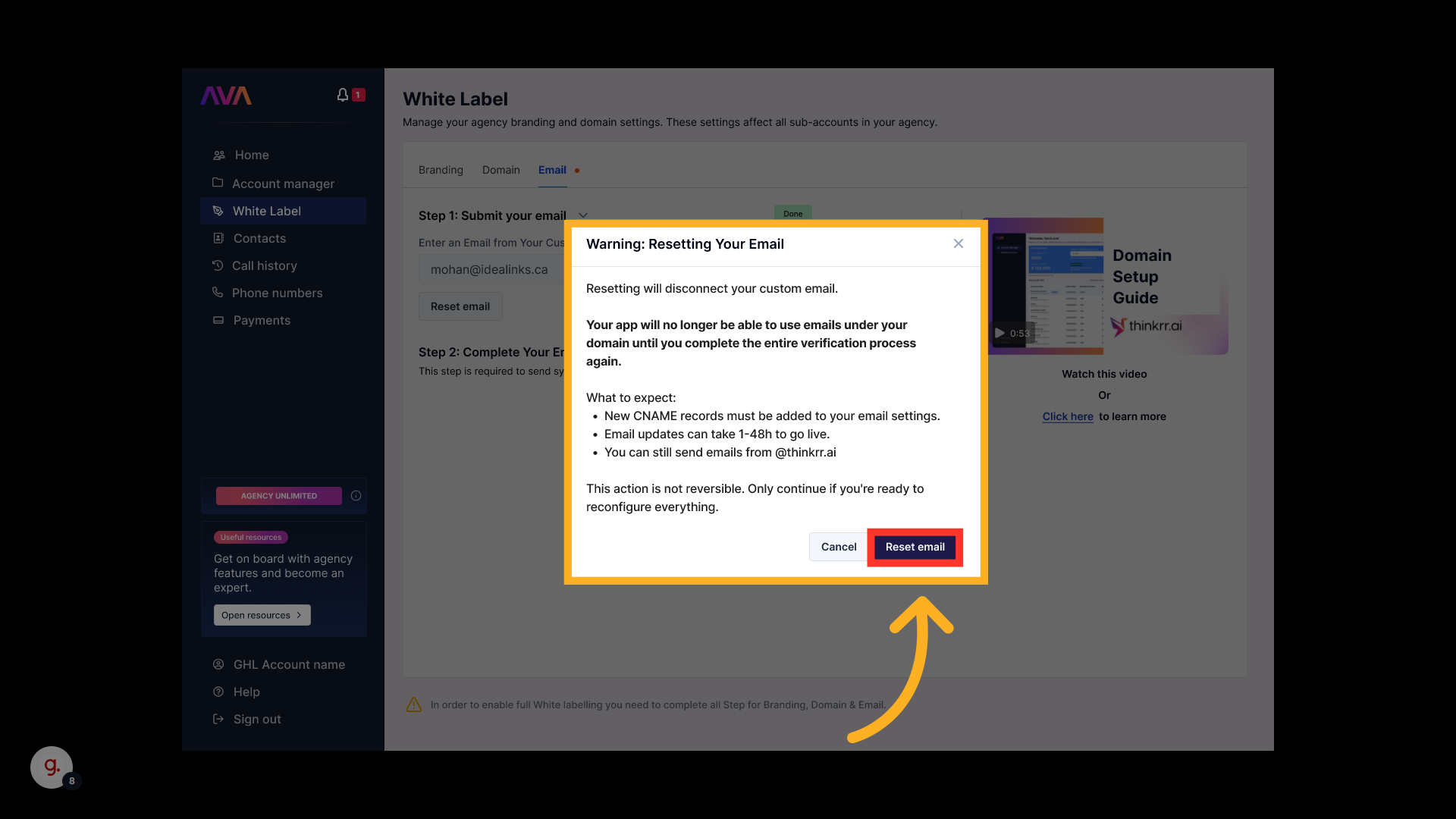
> 🔁 **Email reset notice**\
> Resetting your sender email removes all current records and requires full reconfiguration.
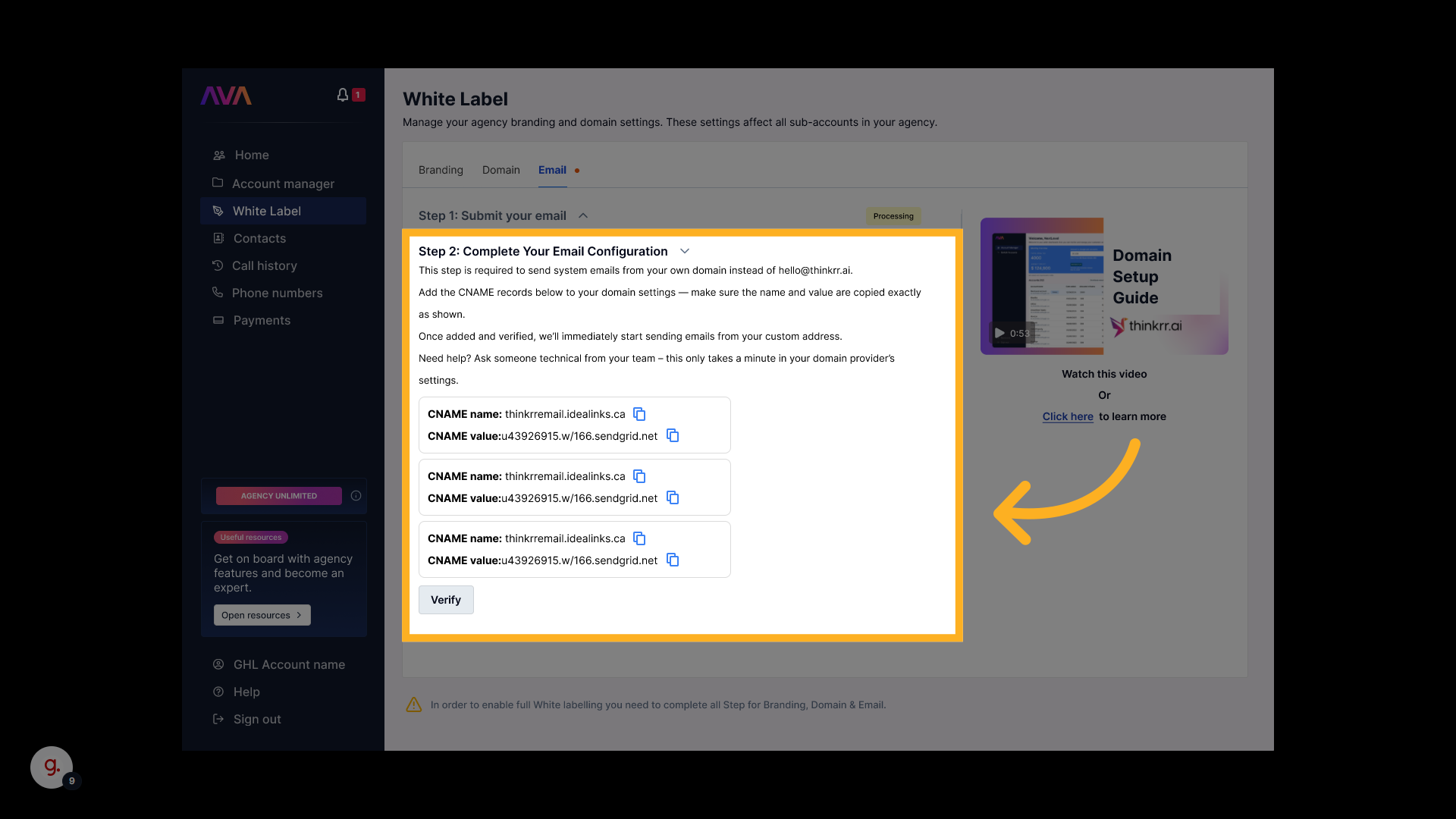
* You will receive **three CNAME records**.
* Enter them into your email provider.
* **Formatting rules:**
* **Host:** remove root domain; keep subdomain only.
* **Value:** remove trailing period if present.
* Click **Verify** once DNS updates have propagated.
> ℹ️ **Where to see your branding**\
> Branding appears only when logging in via **your custom domain**, not via thinkrr.ai.
Users can enable white-labeled billing through **Stripe Connect**.
* Payments will display **your business name** on customer bank statements.
## FAQs & Troubleshooting
### General Questions
White Labeling allows agencies to fully brand the thinkrr platform as their own.
White Labeling is available as a **\$99/month add-on** for all paid agency plans.
No. White Labeling is an all-or-nothing feature.
### Configuration
* Must be a **valid subdomain** (e.g., `app.yourcompany.com`)
* Ensure both CNAMEs are added correctly
* Host = subdomain only
* Value = no trailing period
* Propagation may take up to 48 hours
* Use whatsmydns.net to verify
No. You must use a **custom business email domain**.
Resetting deletes your current setup permanently and requires full reconfiguration.
### Usage and Results
No. Thinkrr does not currently provide white-labeled documentation or white-labeled community video courses.\
All official training material and documentation are hosted on thinkrr’s platforms and have thinkrr branding.
White labeling cannot activate without your own legal pages.
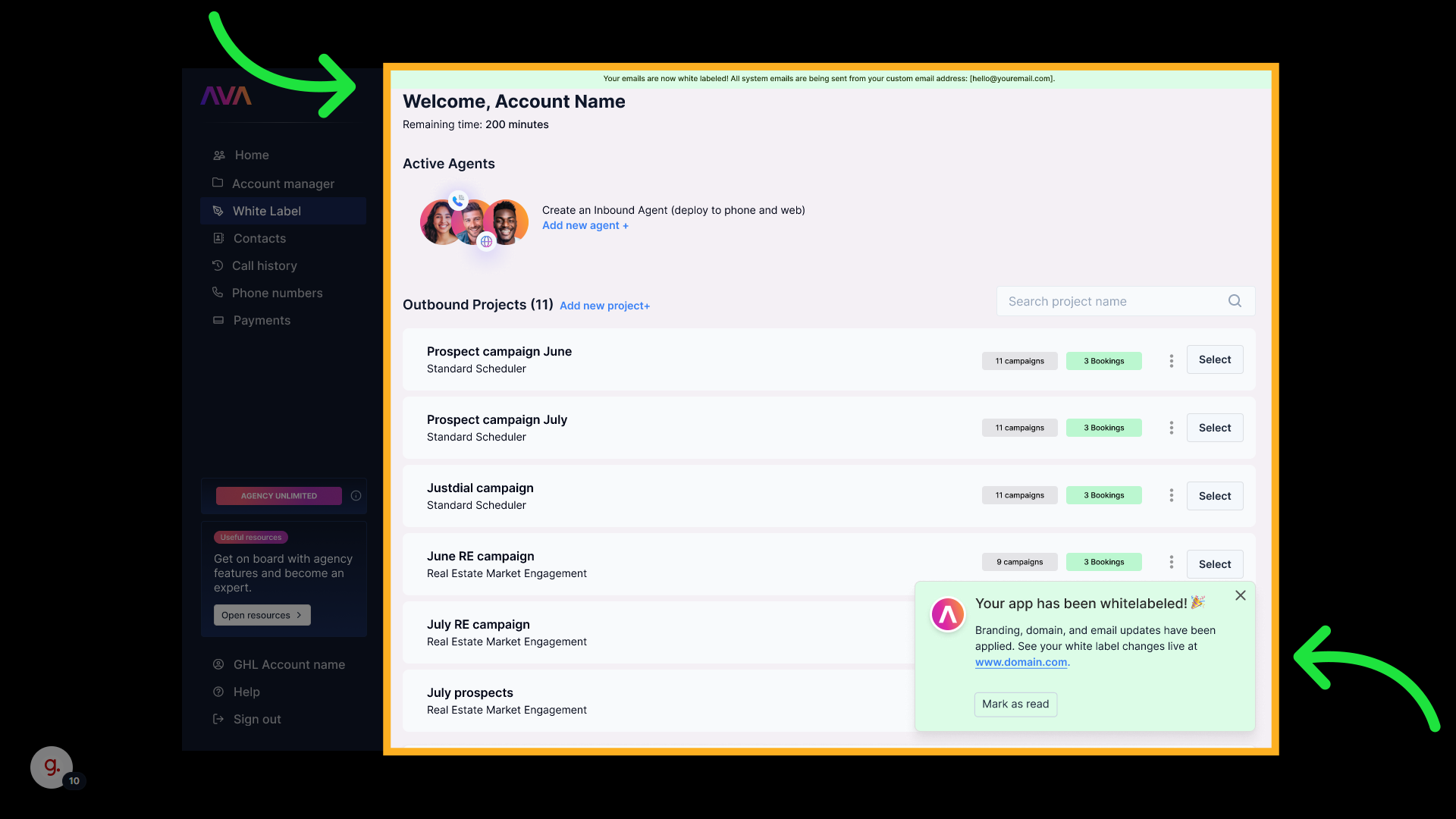
Yes, once verification is complete.
Branding only appears when logged in through **your custom domain**.
***
For additional questions or guidance, try using our [**Virtual Support Agent**](/Thinkrr-Support-Agent)! Available 24/7 to help resolve most issues quickly at [thinkrr.ai/support](https://thinkrr.ai/support).
If you still need assistance, visit our support site at [help.thinkrr.ai](http://help.thinkrr.ai) and submit a [Ticket](/Support-Ticket-System) or contact our team directly at [hello@thinkrr.ai](mailto:hello@thinkrr.ai).
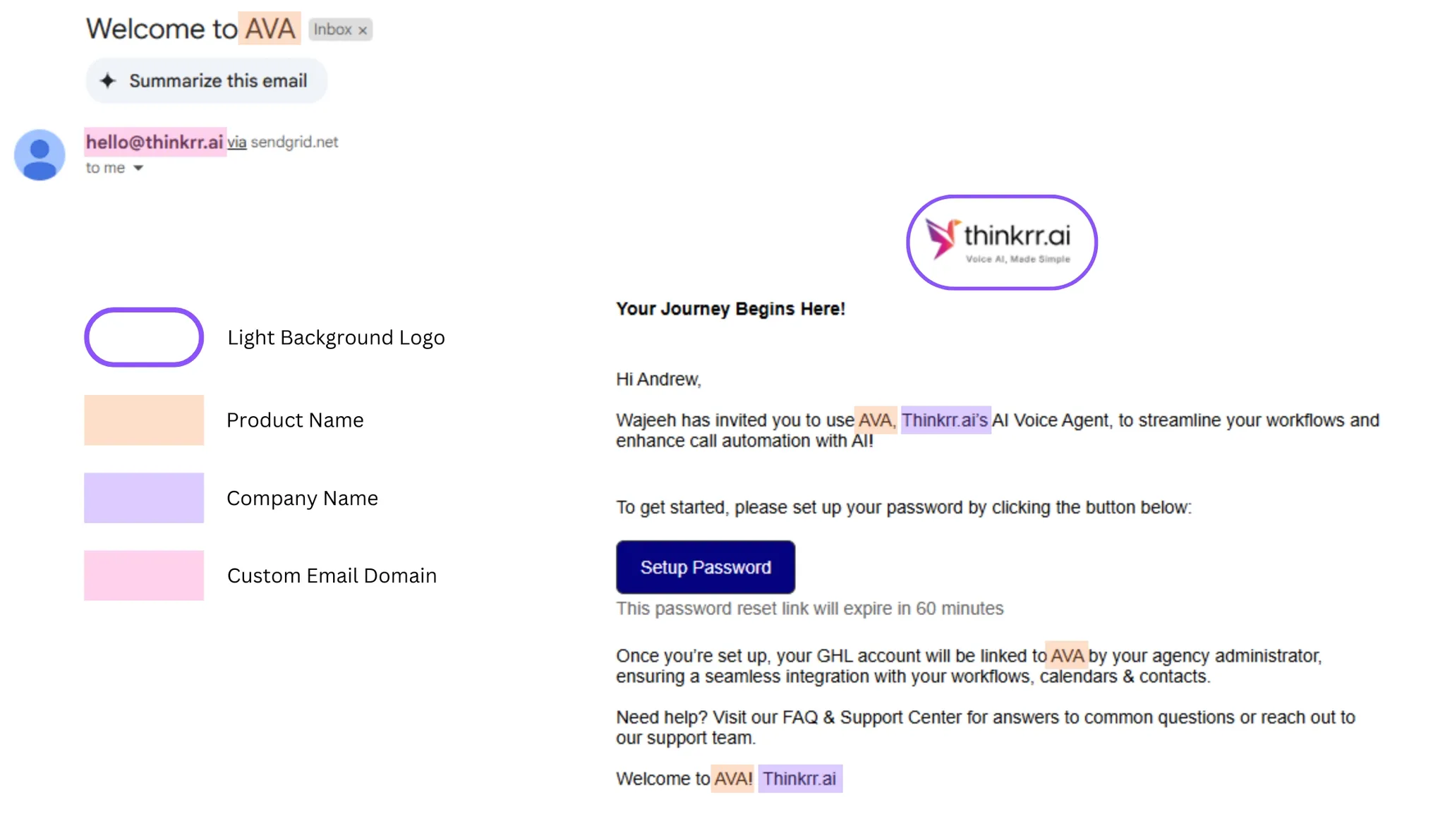 Example: Password reset email showing the branded elements as configured in the White Label settings.
 >
>
 > 🛑 **Reset warning**\
> Resetting deletes your current domain configuration permanently.
> 🛑 **Reset warning**\
> Resetting deletes your current domain configuration permanently.
 > 🔁 **Email reset notice**\
> Resetting your sender email removes all current records and requires full reconfiguration.
> 🔁 **Email reset notice**\
> Resetting your sender email removes all current records and requires full reconfiguration.