> ## Documentation Index
> Fetch the complete documentation index at: https://docs.thinkrr.ai/llms.txt
> Use this file to discover all available pages before exploring further.
# Hostaway Integration
> Learn how to connect your Hostaway account with thinkrr, configure the Property Concierge inbound agent, and use outbound scenario templates to automate guest communications.
## Overview
The **Hostaway connection** with thinkrr gives property managers an end-to-end automation system for short-term rental (STR) operations. Once connected, your Hostaway account syncs property data directly into thinkrr, powering both **inbound** and **outbound** AI experiences through the Property Concierge and prebuilt scenario templates.
Thinkrr automatically imports per-property details — guest information, check-in/out times, amenities, Wi-Fi, directions, and notes — so your concierge can respond with accurate, up-to-date information at any time. Guests can interact with your concierge via phone or web, and you can automate proactive calls like **Welcome Calls** and **Post-Stay Surveys** through the outbound tab.
> 💡 You can also manually add and configure properties directly in thinkrr if Hostaway is not connected.
This guide covers:
1. Connecting your Hostaway account to thinkrr
2. Configuring the **Property Concierge** inbound agent
3. Using **outbound call templates** for Welcome Calls and NPS Surveys
4. Applying **Knowledge Packs** to properties to enhance guest interactions
***
## Details
* **For Guests**
* **Pre-Arrival:** Automatically provides key details like directions, door codes, and house rules.
* **During Stay:** Offers help with amenities, Wi-Fi, and nearby recommendations, using synced or manually added property data.
* **Post-Stay:** Can initiate follow-up calls (e.g., NPS or feedback collection) automatically from configured scenarios.
* **For Property Managers**
* **Always-On Support:** Guests can call or chat 24/7 through the concierge.
* **Automatic Accuracy:** All responses are drawn directly from Hostaway or manual property configurations.
* **Reduced Workload:** Common guest questions are handled instantly, freeing time for high-priority tasks.
* **Scalable Setup:** Each property automatically includes its own inbound and outbound configurations.
* **Built-In Templates:** Quick-start outbound scenarios like **Welcome Call** and **NPS Survey** come pre-filled and ready to activate.
* **Behavior & Guardrails**
* The concierge only uses synced Hostaway data or explicitly configured fields.
* Agents will escalate calls rather than guess answers for unconfigured or private details.
* Access to private property data (e.g., door codes) is only given to verified guests.
***
## Connect Your Hostaway Account
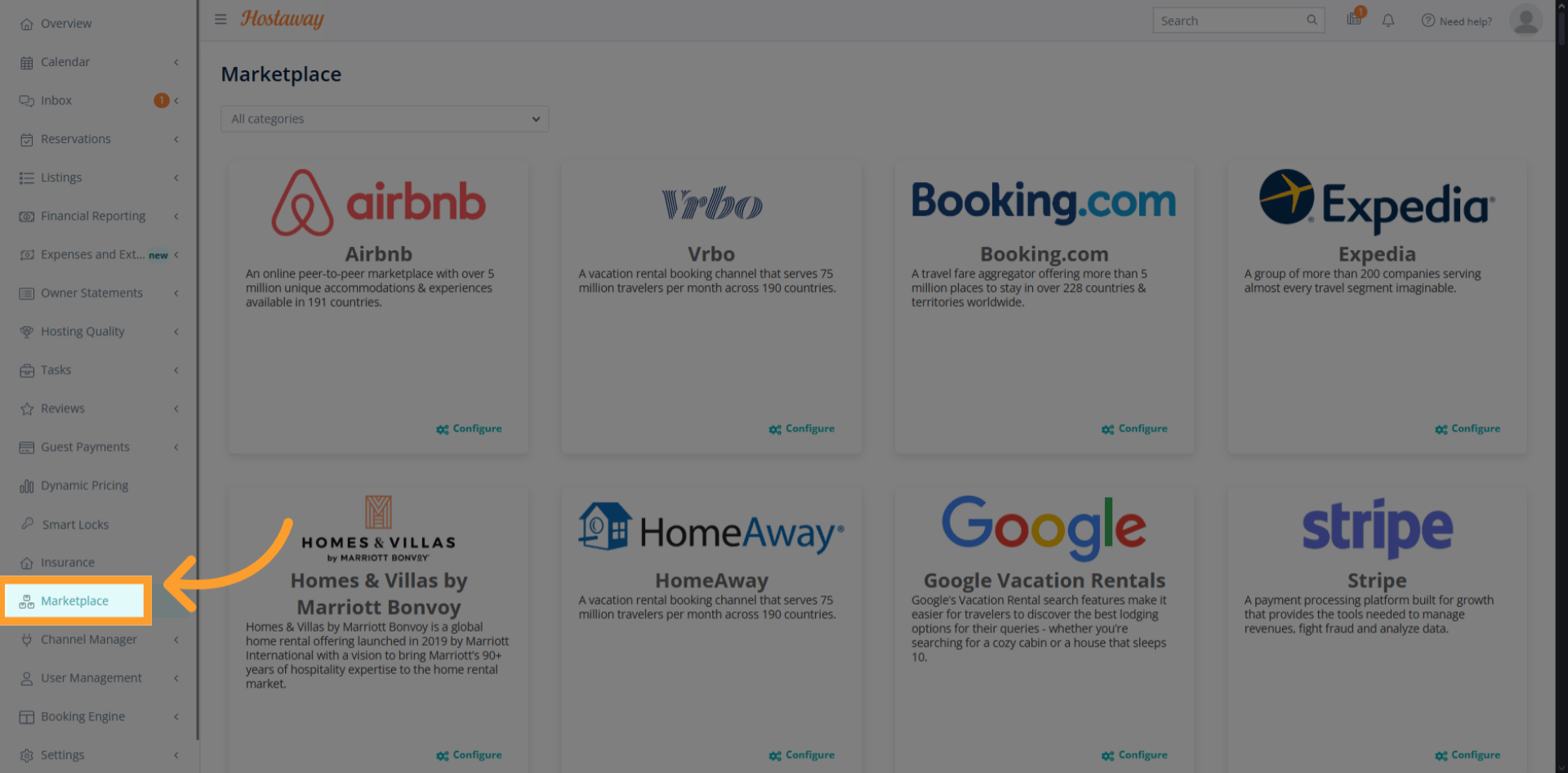
* Navigate to the **Marketplace** section within your Hostaway dashboard.
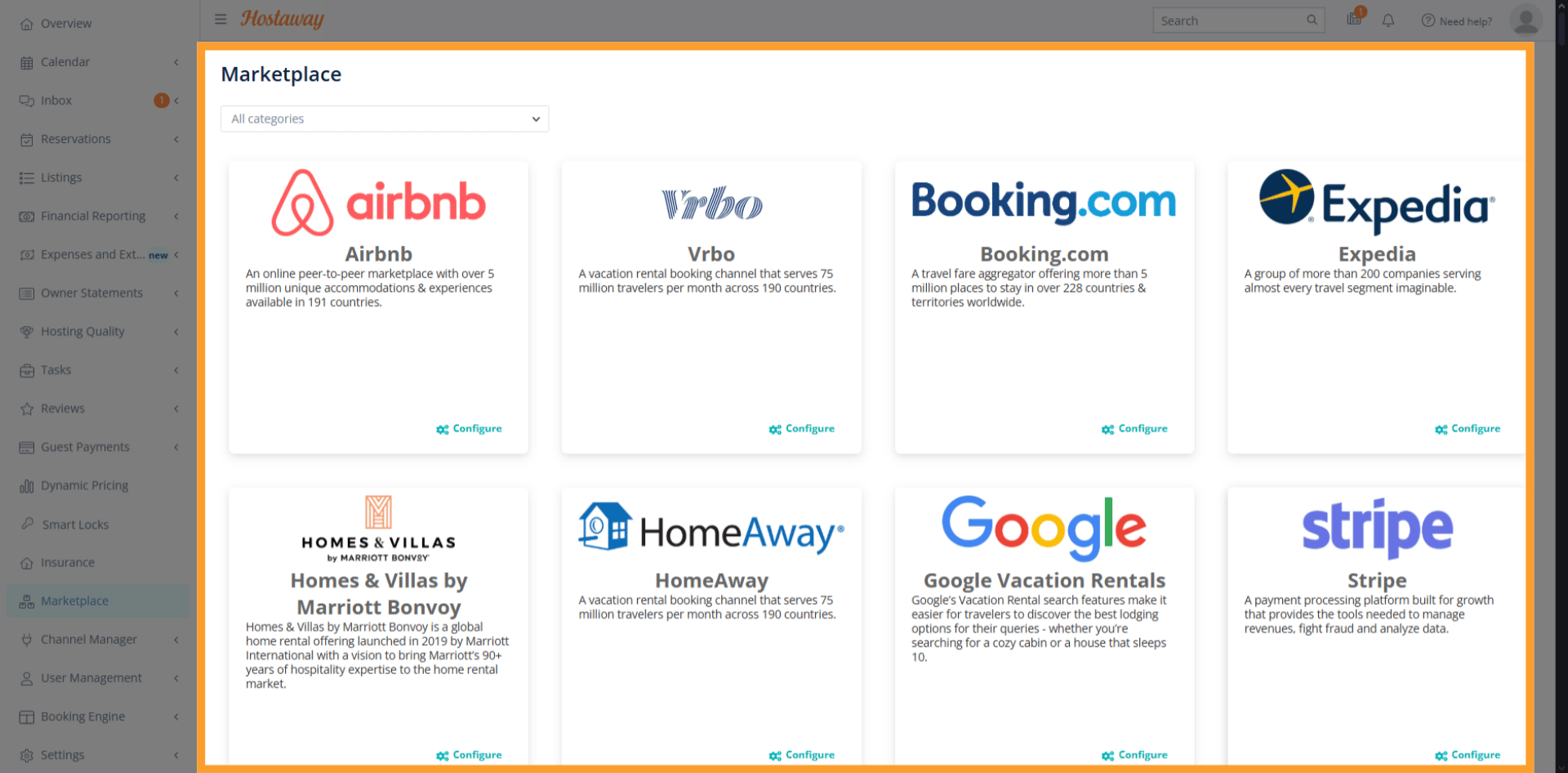
 * Search for the **thinkrr** app integration and click **Connect**.
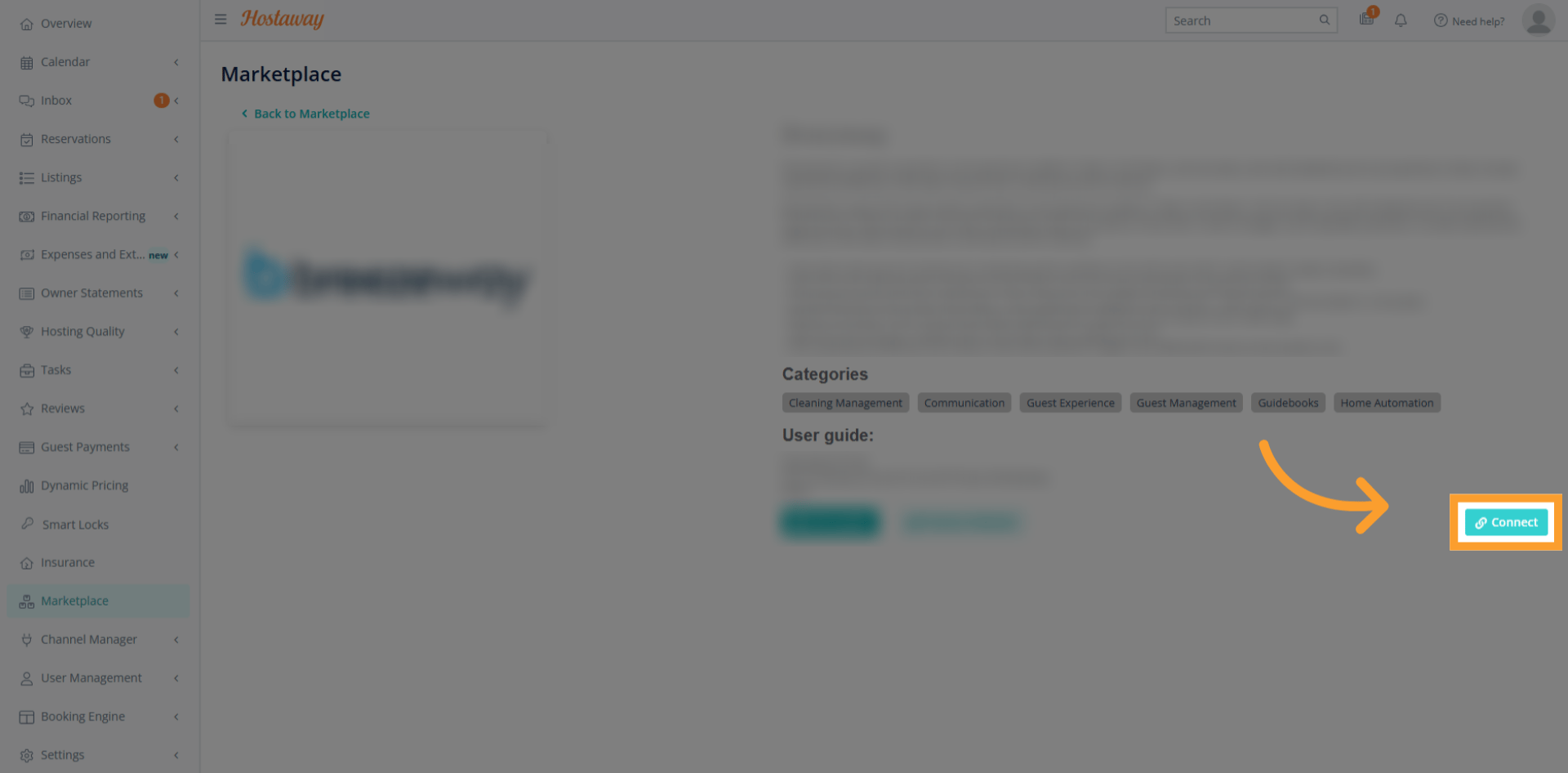
 * Click **Create** to generate a new API key within Hostaway.\
This enables secure communication between Hostaway and thinkrr.
* Click **Create** to generate a new API key within Hostaway.\
This enables secure communication between Hostaway and thinkrr.
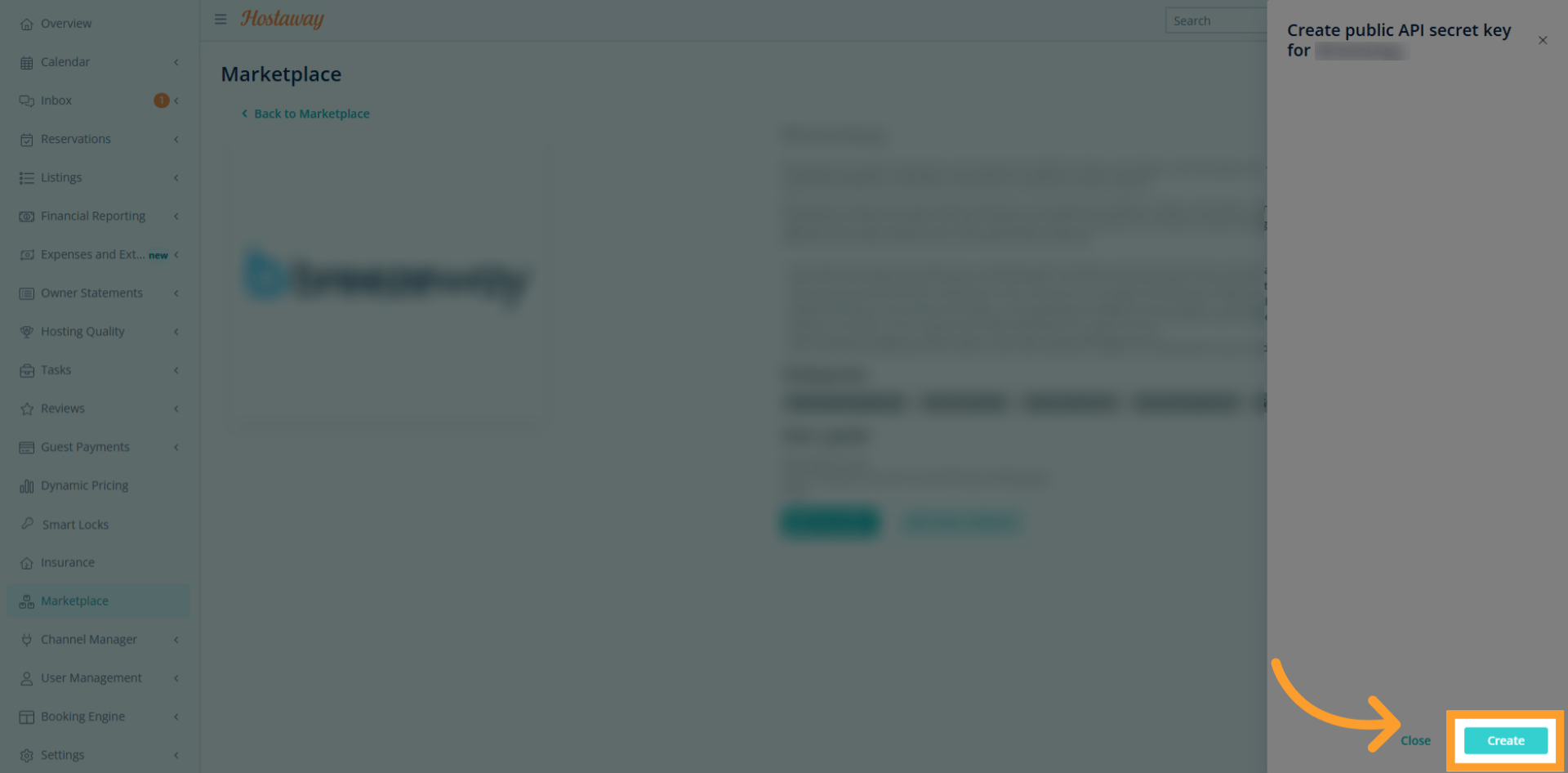
 * Copy your **Account ID** and **API Key**, then paste them into thinkrr when prompted.
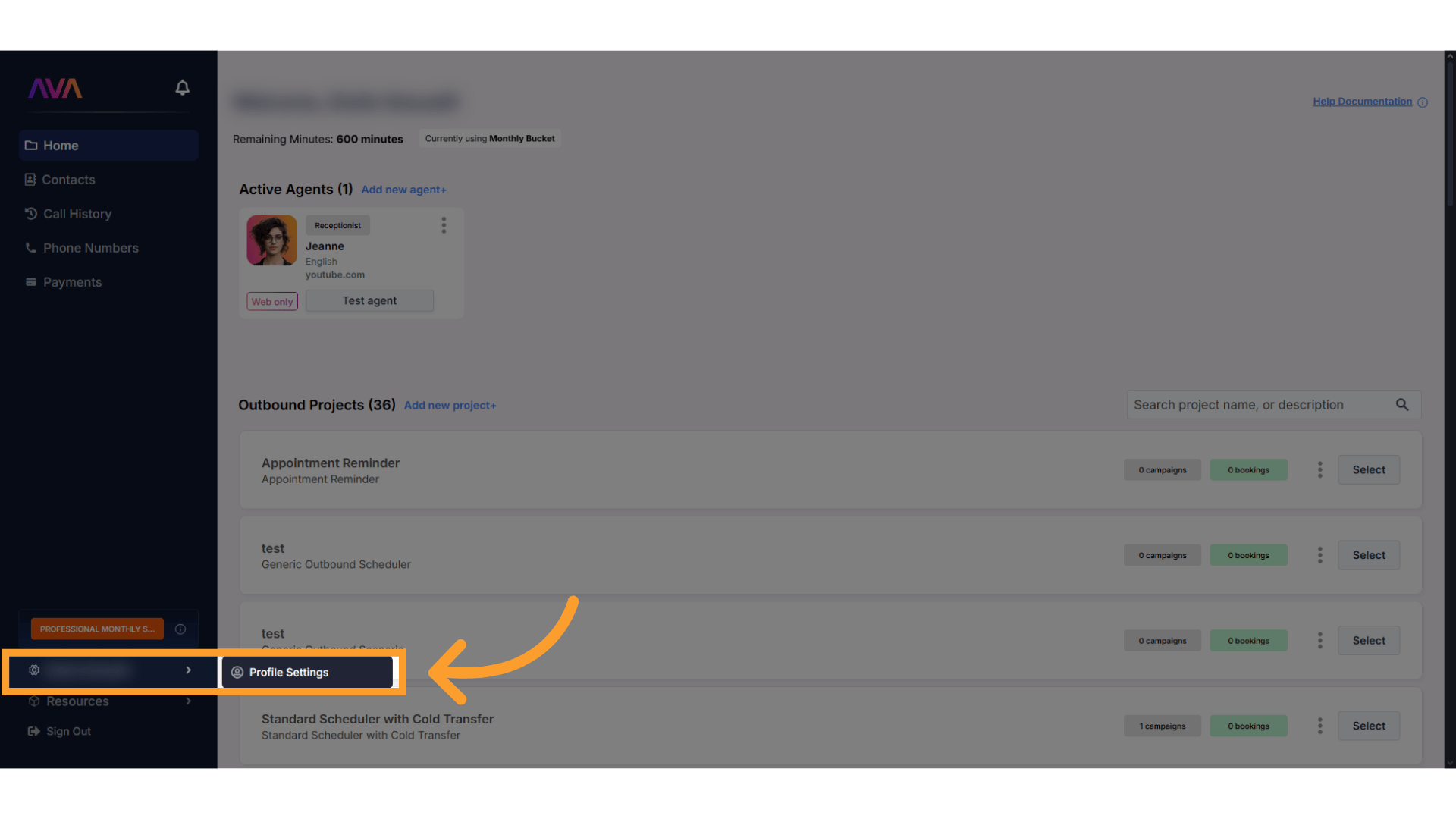
 * From your thinkrr dashboard, go to **Profile Settings**.
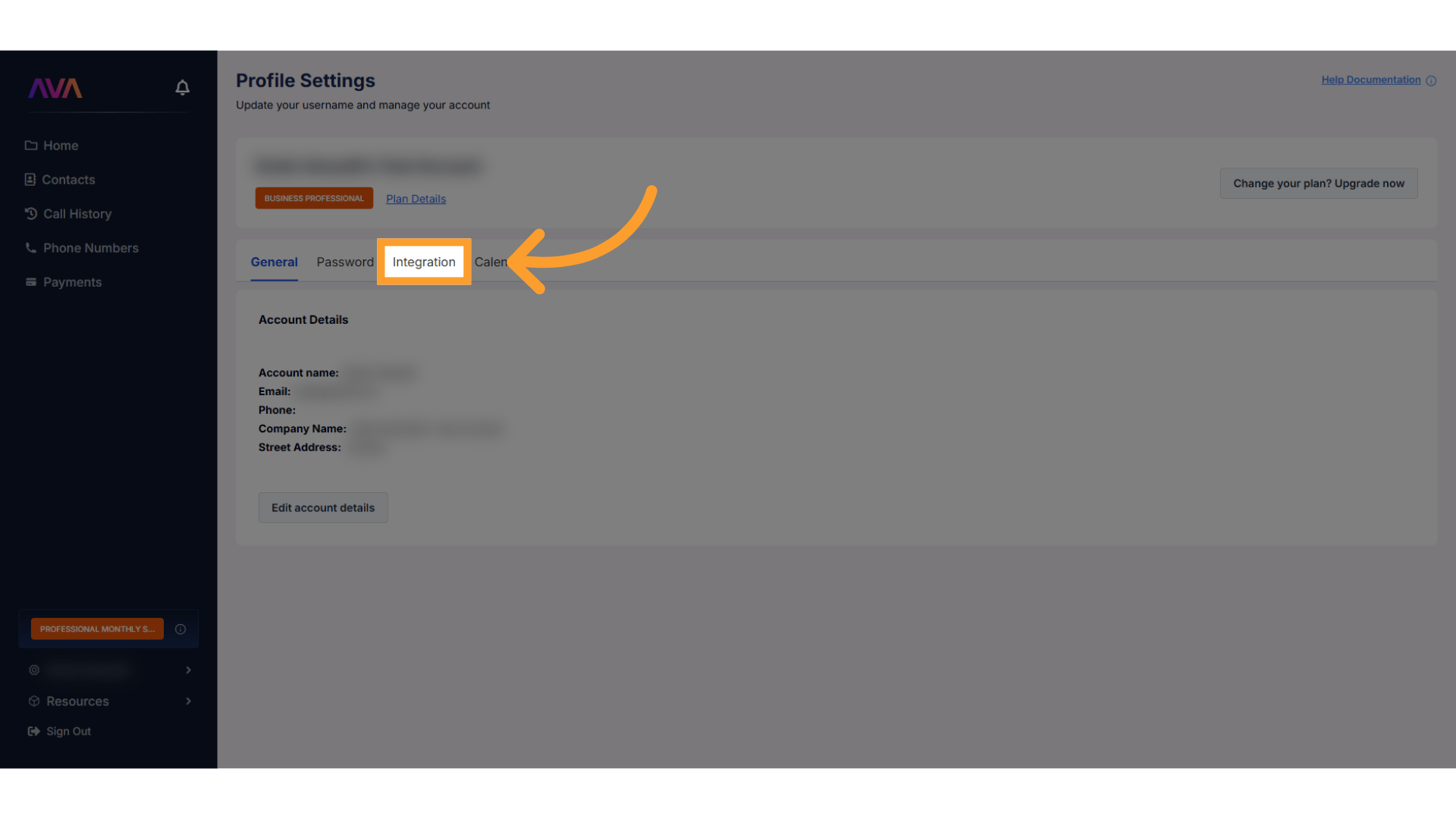
 * Click the **Integration** tab to manage third-party services.
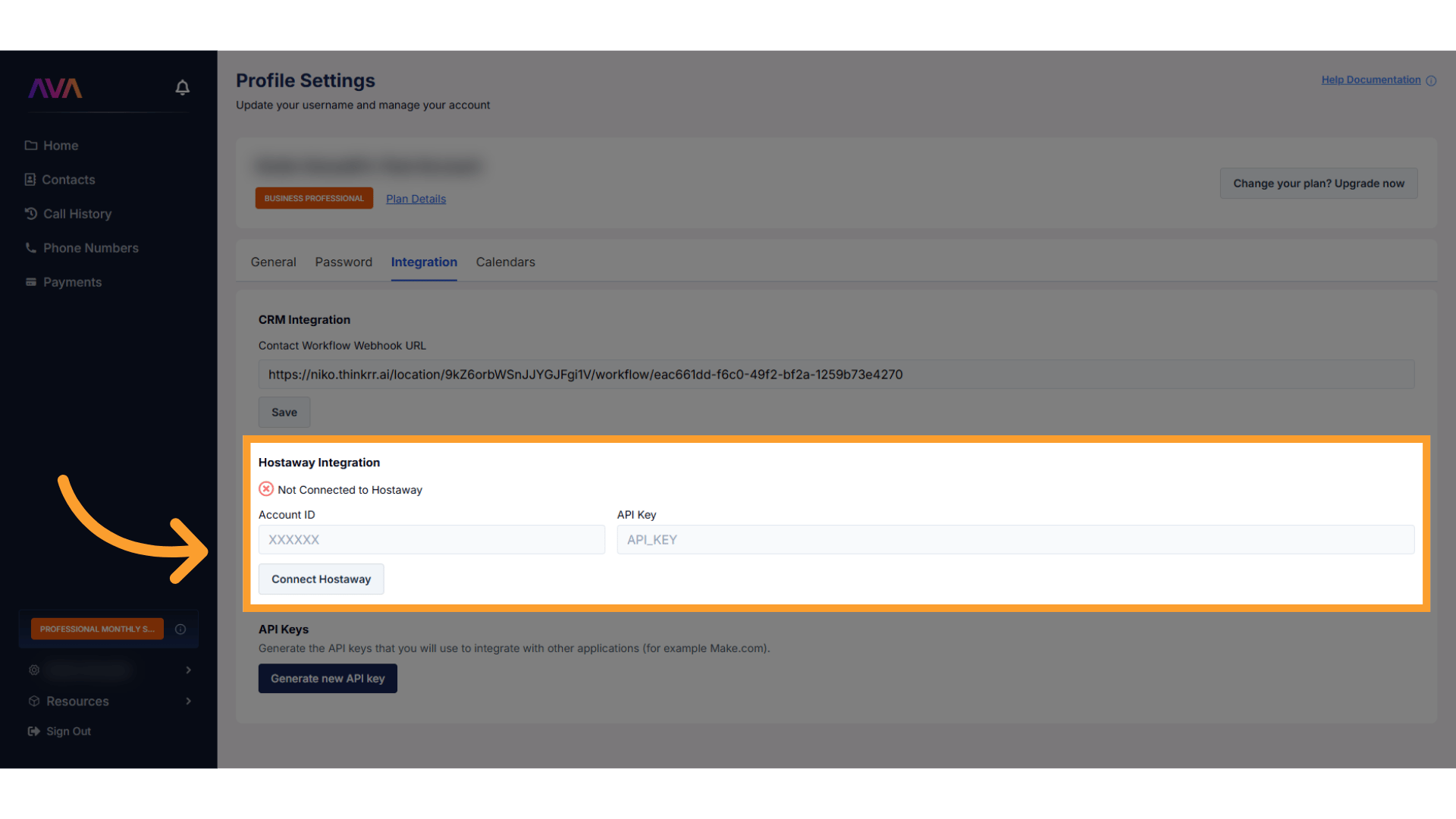
 * Locate the **Hostaway** panel and enter your **Account ID** and **API Key**.
* Save settings to establish the connection.
Once connected, thinkrr imports property data like addresses, amenities, Wi-Fi codes, and check-in/out times.
* Locate the **Hostaway** panel and enter your **Account ID** and **API Key**.
* Save settings to establish the connection.
Once connected, thinkrr imports property data like addresses, amenities, Wi-Fi codes, and check-in/out times.
 To disconnect, contact [**thinkrr Support**](https://thinkrr.ai/support).\
Active calls in progress will complete normally, but no new calls will start after the integration is disabled.
***
## Property Management in thinkrr
Properties can be connected automatically through **Hostaway** or **added manually** in thinkrr. After connection or creation, properties appear in the **Property List** on the home screen. Selecting a property opens its **Property Detail View**, which includes three tabs:
1. **Inbound** – Manage your Concierge AI agent
2. **Outbound** – Configure and monitor call scenarios (e.g., Welcome Call, NPS Survey)
3. **Property Details** – View and edit property information (synced from Hostaway or entered manually)
> Outbound and inbound configurations become available only after a property is added — either manually or through Hostaway.
Each property automatically includes an inactive **Property Concierge** inbound agent, which can be activated or configured once the property setup is complete.
***
## Property Concierge Inbound Agent
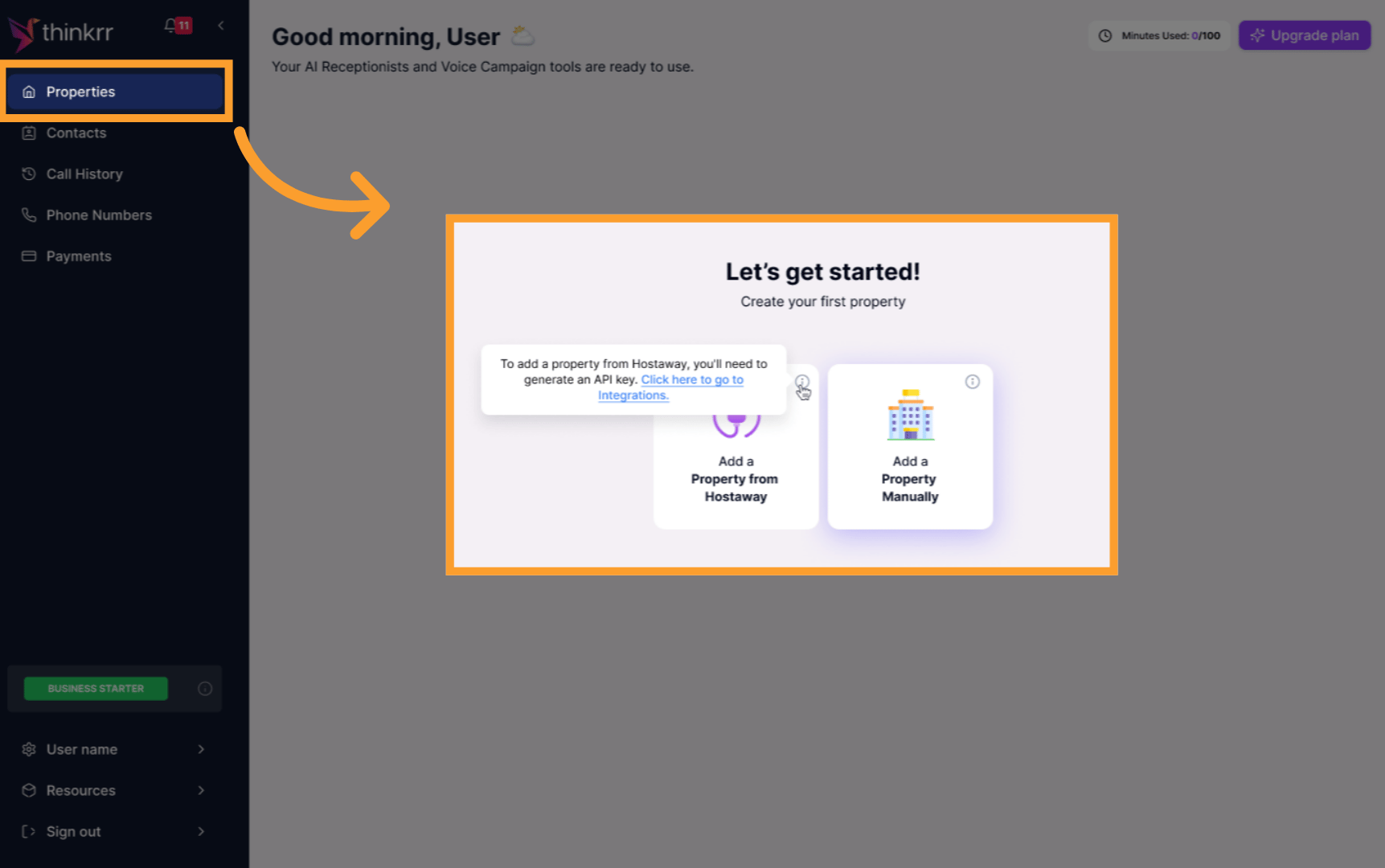
* Go to the **Properties** section from the thinkrr sidebar.
* Click **Add New Property** to create a property entry for your concierge to reference.
To disconnect, contact [**thinkrr Support**](https://thinkrr.ai/support).\
Active calls in progress will complete normally, but no new calls will start after the integration is disabled.
***
## Property Management in thinkrr
Properties can be connected automatically through **Hostaway** or **added manually** in thinkrr. After connection or creation, properties appear in the **Property List** on the home screen. Selecting a property opens its **Property Detail View**, which includes three tabs:
1. **Inbound** – Manage your Concierge AI agent
2. **Outbound** – Configure and monitor call scenarios (e.g., Welcome Call, NPS Survey)
3. **Property Details** – View and edit property information (synced from Hostaway or entered manually)
> Outbound and inbound configurations become available only after a property is added — either manually or through Hostaway.
Each property automatically includes an inactive **Property Concierge** inbound agent, which can be activated or configured once the property setup is complete.
***
## Property Concierge Inbound Agent
* Go to the **Properties** section from the thinkrr sidebar.
* Click **Add New Property** to create a property entry for your concierge to reference.
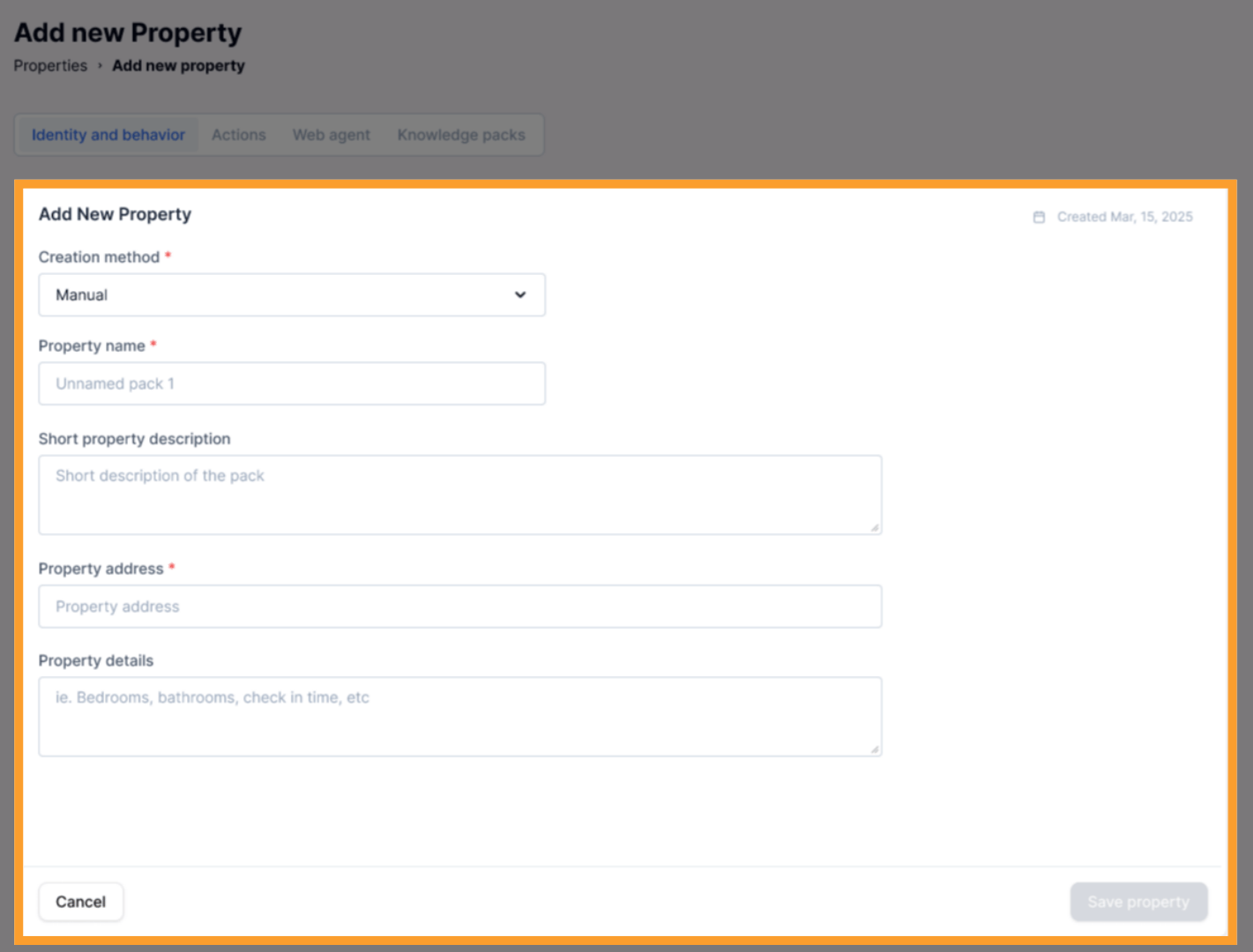
 * Open the new property and complete the setup fields, including:
* Creation Method (Manual or Hostaway)
* Property Name and Address
* Description and Details
* Save the configuration to make it available for Concierge assignment.
* Open the new property and complete the setup fields, including:
* Creation Method (Manual or Hostaway)
* Property Name and Address
* Description and Details
* Save the configuration to make it available for Concierge assignment.
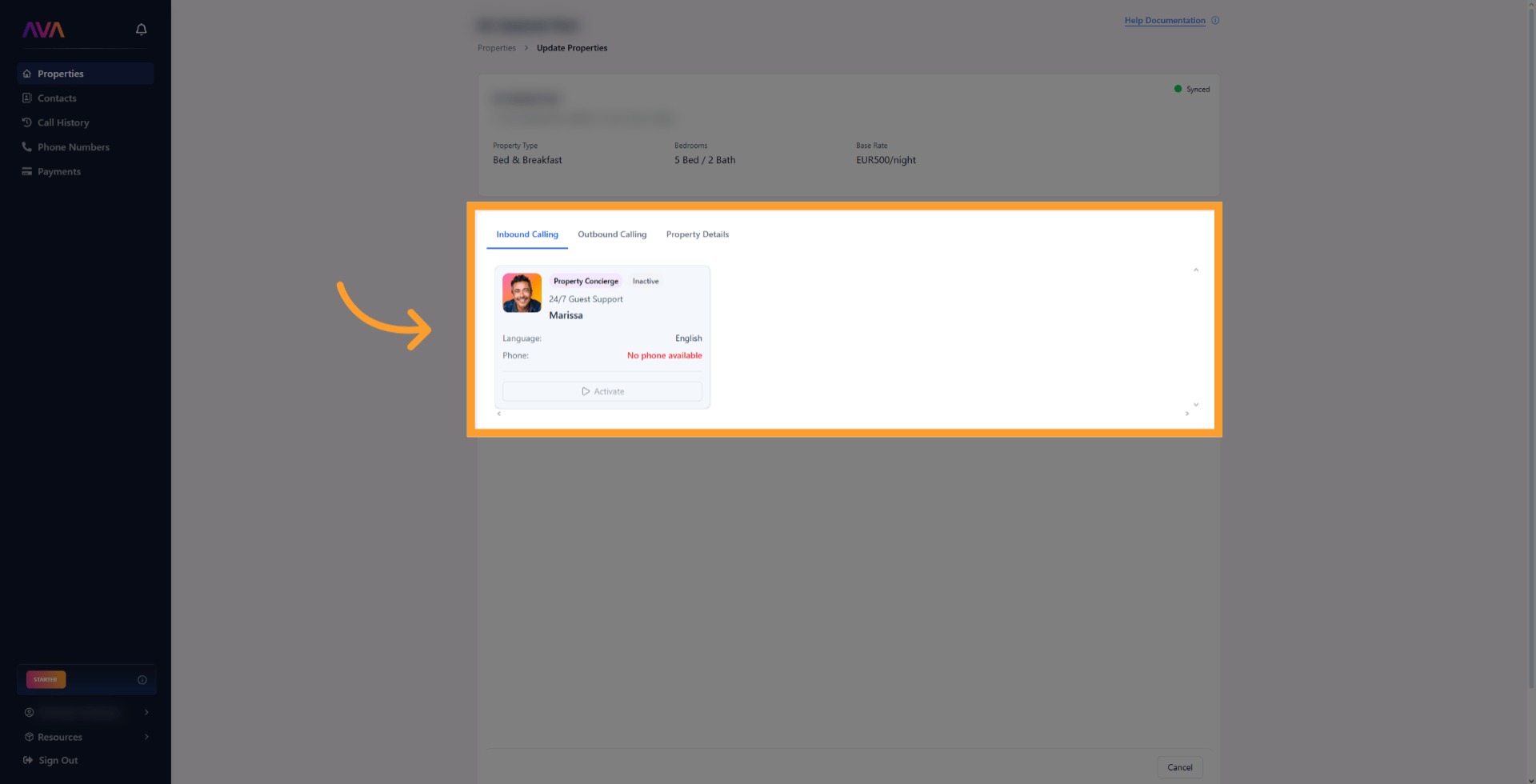
 * Each property has one pre-created concierge agent (inactive by default).
* You can **activate** it directly from the **Inbound** tab or create a new one manually if needed.
* Choose deployment type:
* Over the **phone**
* On the **web** via a [Web Widget](/guides/usage/inbound-calling/Web-Widget)
* Or both
* Each property has one pre-created concierge agent (inactive by default).
* You can **activate** it directly from the **Inbound** tab or create a new one manually if needed.
* Choose deployment type:
* Over the **phone**
* On the **web** via a [Web Widget](/guides/usage/inbound-calling/Web-Widget)
* Or both
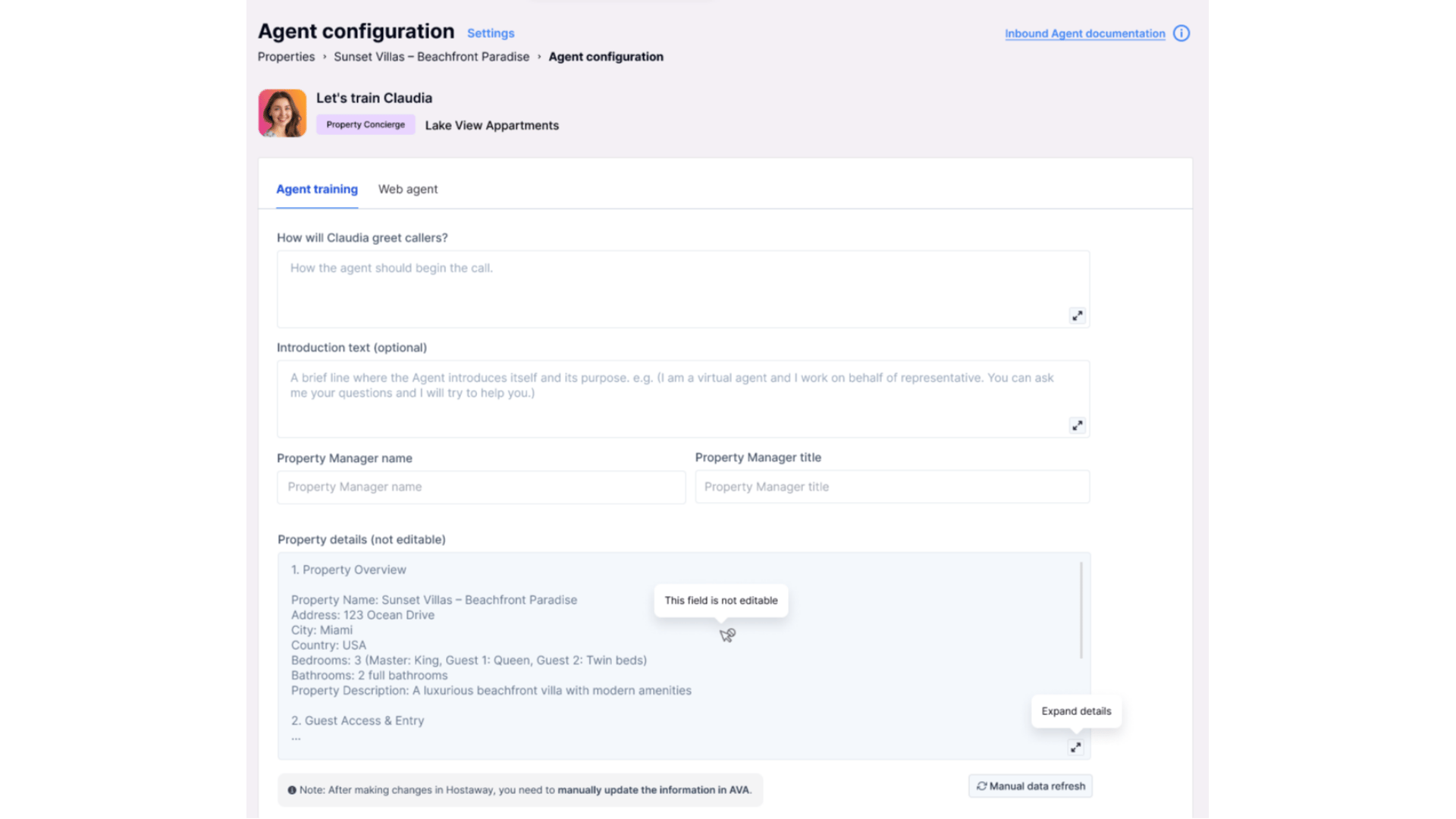
 * In the **Add New Agent** side panel, choose **Property Concierge** from the role dropdown.
* If Hostaway is connected, select the synced property.
* If Hostaway is not connected, select any **manually added** property from the **Properties** list.
Each inbound role in thinkrr includes its own predefined fields. To use the [**Concierge**](/short-term-rentals/Concierge) role, ensure a property (Hostaway-synced or manual) is available.
* In the **Add New Agent** side panel, choose **Property Concierge** from the role dropdown.
* If Hostaway is connected, select the synced property.
* If Hostaway is not connected, select any **manually added** property from the **Properties** list.
Each inbound role in thinkrr includes its own predefined fields. To use the [**Concierge**](/short-term-rentals/Concierge) role, ensure a property (Hostaway-synced or manual) is available.
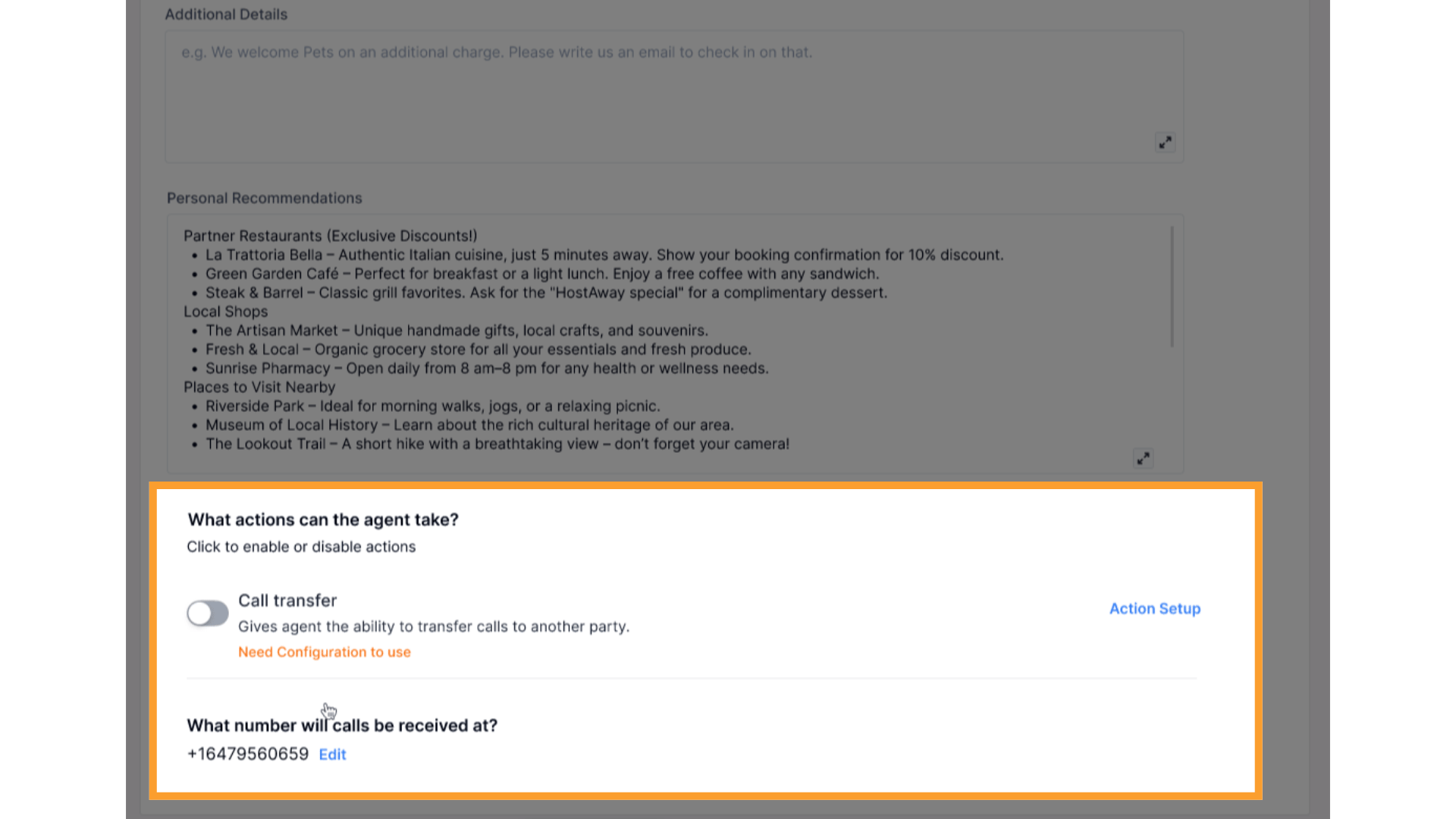
 * Scroll to **What actions can the agent take?**
* Enable or disable available actions using toggle switches.\
Configurations are retained even if toggles are turned off.
**Supported Actions:**
* **Call Transfer** – Route guest calls to another number or department, with hours and conditions.
* **Phone Number Assignment** – Assign or update the concierge’s dedicated number.
* Scroll to **What actions can the agent take?**
* Enable or disable available actions using toggle switches.\
Configurations are retained even if toggles are turned off.
**Supported Actions:**
* **Call Transfer** – Route guest calls to another number or department, with hours and conditions.
* **Phone Number Assignment** – Assign or update the concierge’s dedicated number.
 * Click **Save Agent** or **Save & Test Agent** to simulate a call.
* Test and adjust configuration based on call flow.
* Click **Save Agent** or **Save & Test Agent** to simulate a call.
* Test and adjust configuration based on call flow.
 ***
## Outbound Scenarios for Hostaway
The **Outbound** tab inside each property’s detail view allows you to automate guest communication through pre-built outbound call Scenarios.\
These Scenarios are designed to improve guest experience and reduce repetitive manual outreach before and after a stay.
Once your Hostaway account is connected, each property in thinkrr automatically includes two outbound Scenarios:
* **Welcome Call** – A check-in follow-up call to greet guests and confirm their arrival.
* **NPS Survey** – A post-stay feedback call that collects guest satisfaction ratings and reviews.
> You can configure outbound Scenarios only after adding a property — either manually or through Hostaway.
You can enable, disable, or edit each Scenario directly from the property’s **Outbound** tab. When disabled, Scenarios remain inactive and won’t trigger any calls.
* From the main dashboard, open **Properties** and select the property you want to configure.
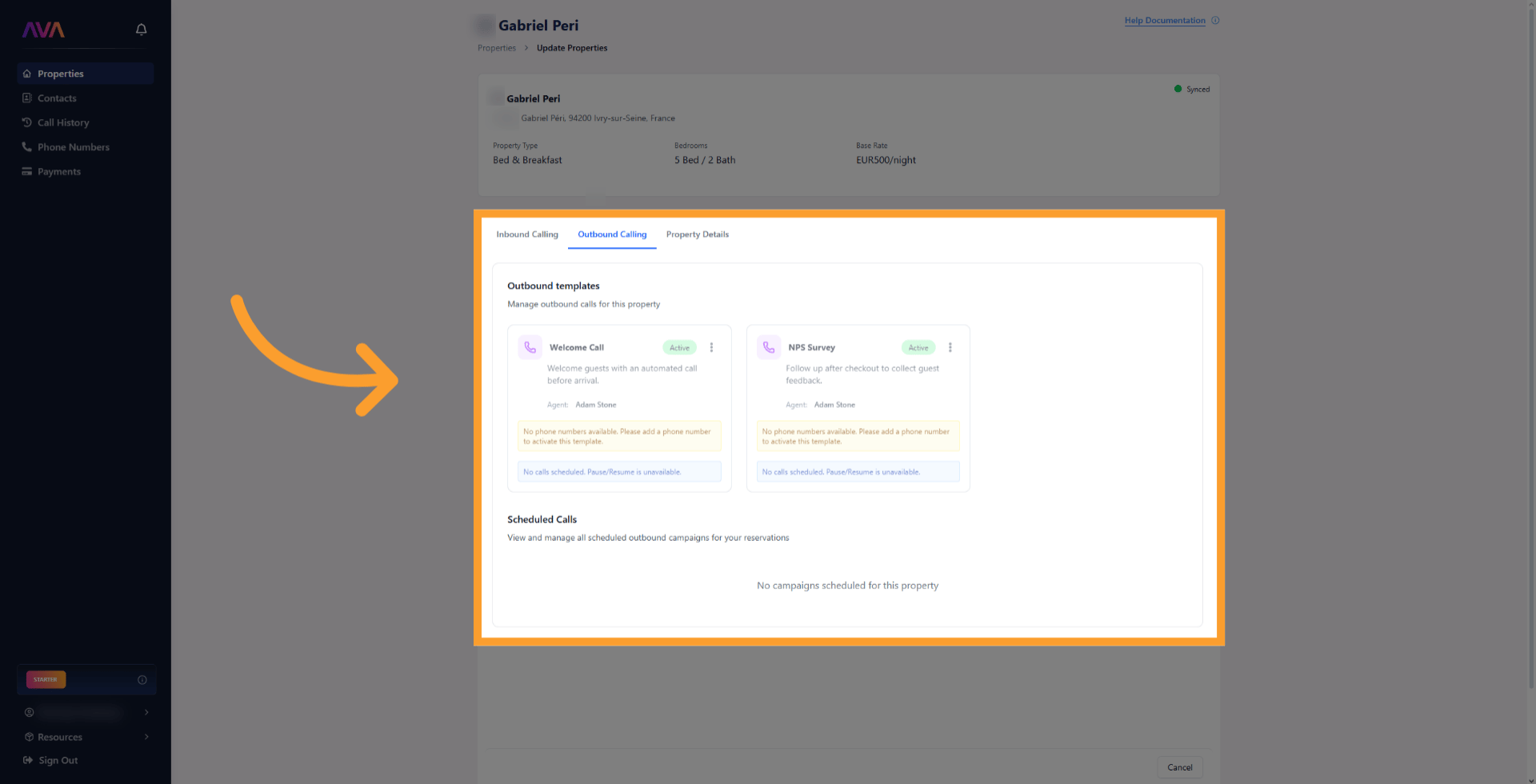
* Navigate to the **Outbound** tab in the property’s detail view.
***
## Outbound Scenarios for Hostaway
The **Outbound** tab inside each property’s detail view allows you to automate guest communication through pre-built outbound call Scenarios.\
These Scenarios are designed to improve guest experience and reduce repetitive manual outreach before and after a stay.
Once your Hostaway account is connected, each property in thinkrr automatically includes two outbound Scenarios:
* **Welcome Call** – A check-in follow-up call to greet guests and confirm their arrival.
* **NPS Survey** – A post-stay feedback call that collects guest satisfaction ratings and reviews.
> You can configure outbound Scenarios only after adding a property — either manually or through Hostaway.
You can enable, disable, or edit each Scenario directly from the property’s **Outbound** tab. When disabled, Scenarios remain inactive and won’t trigger any calls.
* From the main dashboard, open **Properties** and select the property you want to configure.
* Navigate to the **Outbound** tab in the property’s detail view.
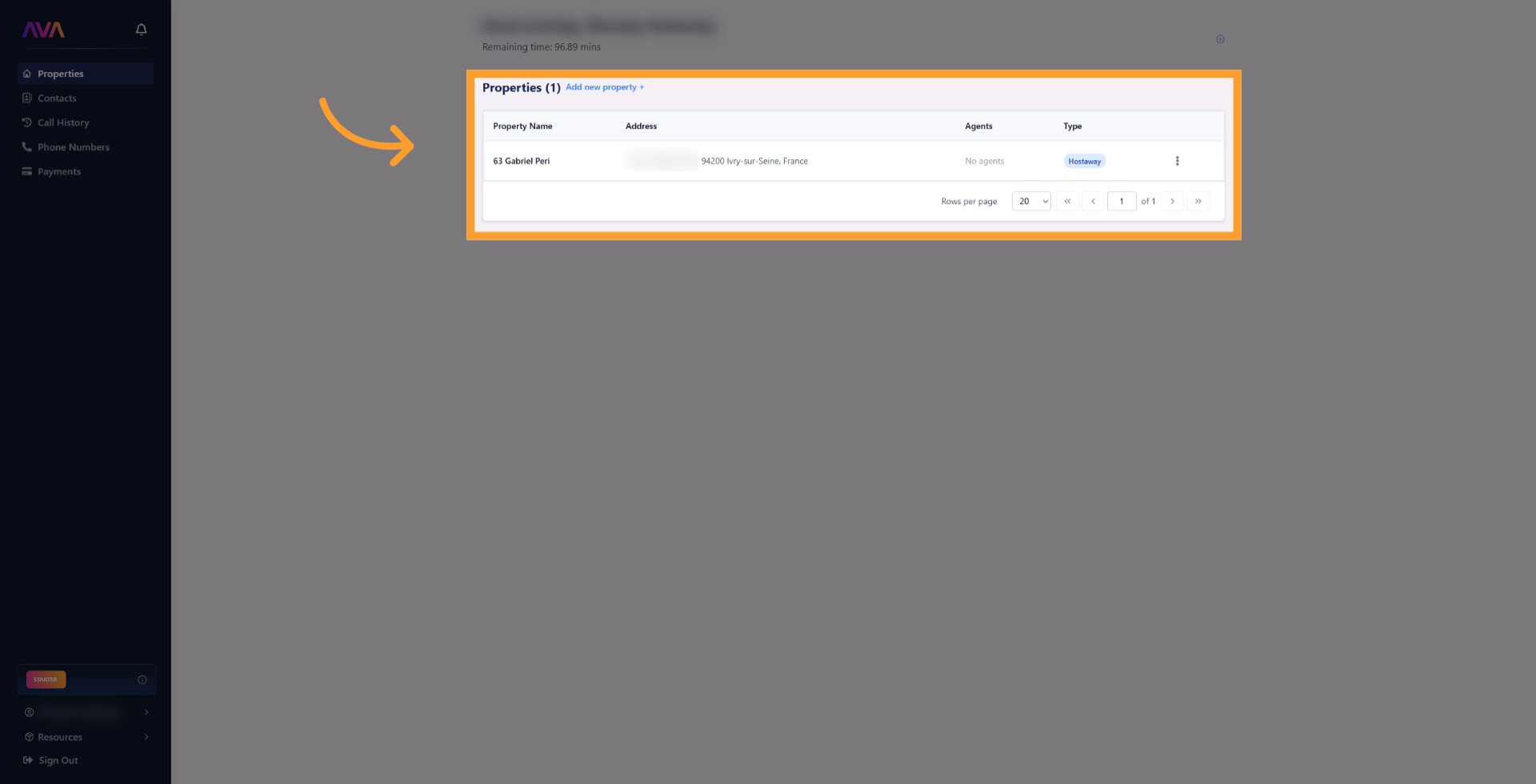 * Each property displays two pre-configured outbound Scenarios — **Welcome Call** and **NPS Survey**.
* You can toggle each Scenario **on or off**, or open it to customize messages, timing, or behavior.
* Each property displays two pre-configured outbound Scenarios — **Welcome Call** and **NPS Survey**.
* You can toggle each Scenario **on or off**, or open it to customize messages, timing, or behavior.
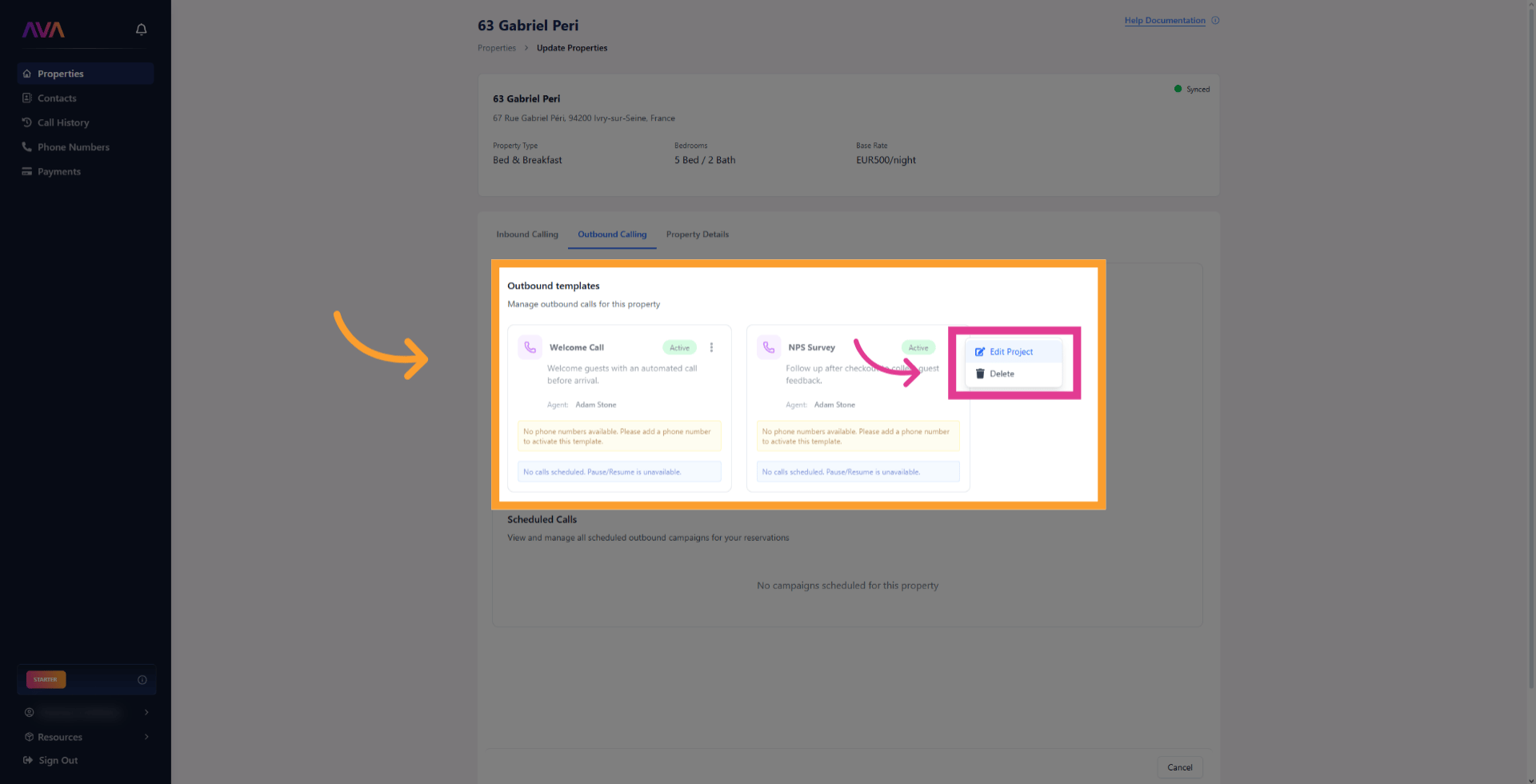
 * Click any Scenario to open its configuration panel.
* Adjust call scripts, timing, or escalation settings as needed.
* Use **Save Changes** to apply updates immediately.
* Click any Scenario to open its configuration panel.
* Adjust call scripts, timing, or escalation settings as needed.
* Use **Save Changes** to apply updates immediately.
 ### Welcome Call
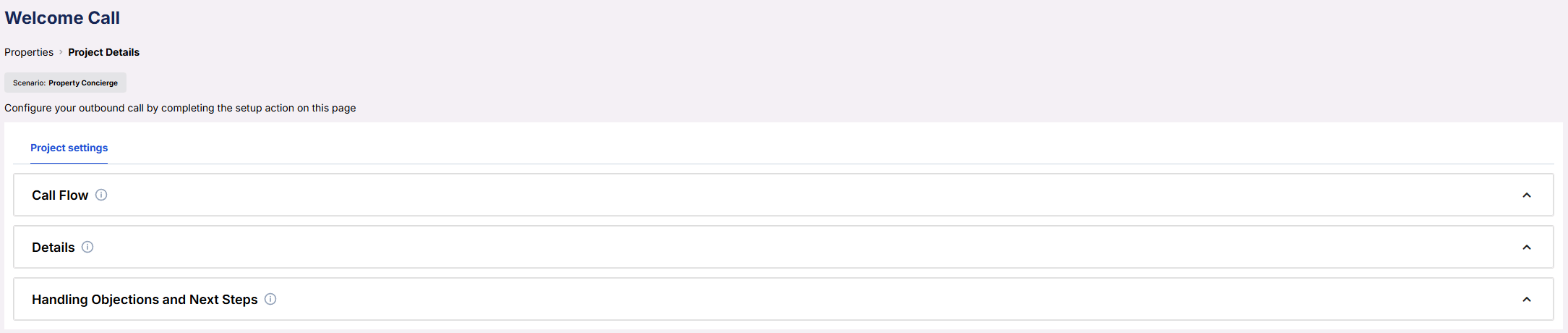
The **Welcome Call** Scenario automatically contacts guests on their **check-in day** to confirm arrival and ensure everything is in order.\
It uses synced Hostaway data like guest name, property details, and booking info to create a personalized check-in experience.
To learn more about setup, field customization, and example configurations, see the [**Welcome Call Scenario**](/short-term-rentals/outbound-scenarios/Welcome-Call) documentation.
### Welcome Call
The **Welcome Call** Scenario automatically contacts guests on their **check-in day** to confirm arrival and ensure everything is in order.\
It uses synced Hostaway data like guest name, property details, and booking info to create a personalized check-in experience.
To learn more about setup, field customization, and example configurations, see the [**Welcome Call Scenario**](/short-term-rentals/outbound-scenarios/Welcome-Call) documentation.
 ### NPS Survey
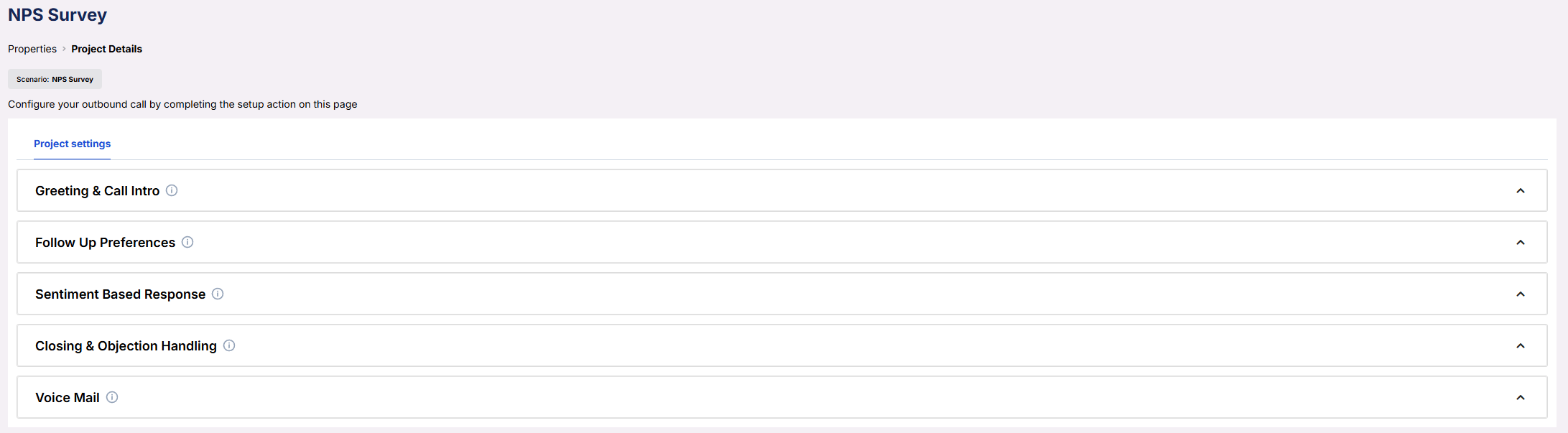
The **NPS Survey** Scenario follows up with guests **one day after checkout** to gather feedback and measure satisfaction.\
It can escalate negative feedback to a manager, record neutral comments, or text review links to happy guests.
To learn more about setup, field customization, and example configurations, see the [**NPS Survey Scenario**](/short-term-rentals/outbound-scenarios/NPS-Survey) documentation.
### NPS Survey
The **NPS Survey** Scenario follows up with guests **one day after checkout** to gather feedback and measure satisfaction.\
It can escalate negative feedback to a manager, record neutral comments, or text review links to happy guests.
To learn more about setup, field customization, and example configurations, see the [**NPS Survey Scenario**](/short-term-rentals/outbound-scenarios/NPS-Survey) documentation.
 ***
## Knowledge Packs for Properties
You can attach **Knowledge Packs** to properties, giving your concierge and outbound scenarios shared access to structured company information.
* Assign packs directly to a property.
* Use the same Knowledge Pack across inbound and outbound workflows.
* If no pack is assigned, the agent falls back to Hostaway property data.
* Ideal for handling FAQs like “Is parking free?” or “Do you allow pets?”
***
## Knowledge Packs for Properties
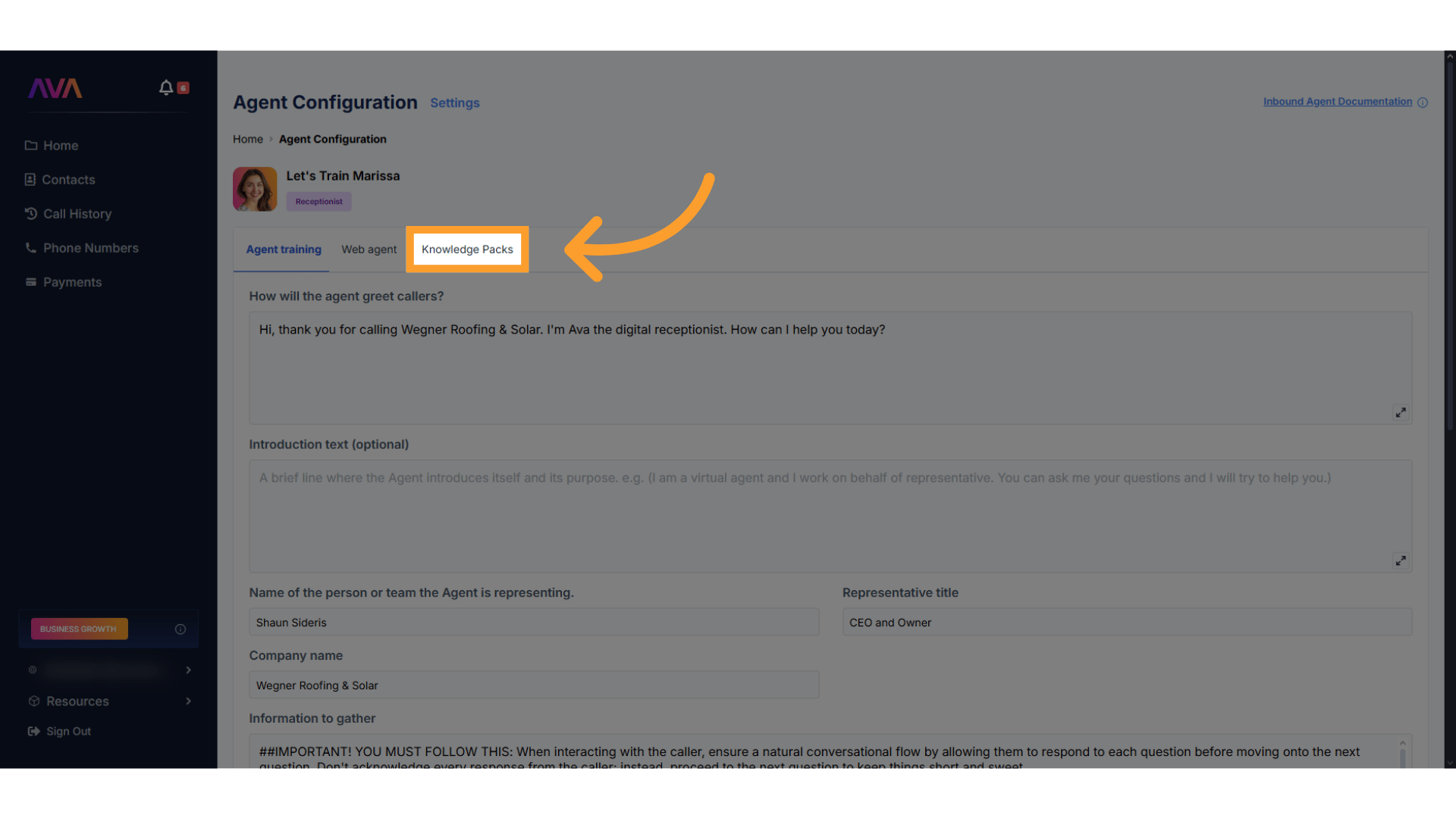
You can attach **Knowledge Packs** to properties, giving your concierge and outbound scenarios shared access to structured company information.
* Assign packs directly to a property.
* Use the same Knowledge Pack across inbound and outbound workflows.
* If no pack is assigned, the agent falls back to Hostaway property data.
* Ideal for handling FAQs like “Is parking free?” or “Do you allow pets?”
 ***
## FAQs & Troubleshooting
### General Questions
Yes. You can configure the Concierge manually without Hostaway integration, but you must be on the STR plan.
Yes. Each concierge agent is tied to a single property and can be individually customized.
### Configuration
Property information syncs automatically from Hostaway, but you can also manually add or update information for properties not connected to Hostaway.
Open the **Outbound** tab in the Property Detail view. You can activate, pause, or delete templates there.
Yes. Knowledge Packs can be assigned to properties, and their content applies to both inbound and outbound interactions.
Welcome Calls occur on the guest’s check-in day, and NPS Surveys are placed one day after checkout at your configured times.
### Usage and Results
All concierge and scenario call records are stored in the property’s activity log.
Yes. Use **Call Transfer** to define numbers and schedules for escalation.
***
For additional questions or guidance, try using our [**Virtual Support Agent**](/support-resources/support-channels/Thinkrr-Support-Agent)!\
Available 24/7 to help resolve most issues quickly at [thinkrr.ai/support](https://thinkrr.ai/support).
If you still need assistance, visit our support site at [help.thinkrr.ai](http://help.thinkrr.ai) and submit a [Ticket](/support-resources/support-channels/Support-Ticket-System) or contact our team directly at [hello@thinkrr.ai](mailto:hello@thinkrr.ai).
***
## FAQs & Troubleshooting
### General Questions
Yes. You can configure the Concierge manually without Hostaway integration, but you must be on the STR plan.
Yes. Each concierge agent is tied to a single property and can be individually customized.
### Configuration
Property information syncs automatically from Hostaway, but you can also manually add or update information for properties not connected to Hostaway.
Open the **Outbound** tab in the Property Detail view. You can activate, pause, or delete templates there.
Yes. Knowledge Packs can be assigned to properties, and their content applies to both inbound and outbound interactions.
Welcome Calls occur on the guest’s check-in day, and NPS Surveys are placed one day after checkout at your configured times.
### Usage and Results
All concierge and scenario call records are stored in the property’s activity log.
Yes. Use **Call Transfer** to define numbers and schedules for escalation.
***
For additional questions or guidance, try using our [**Virtual Support Agent**](/support-resources/support-channels/Thinkrr-Support-Agent)!\
Available 24/7 to help resolve most issues quickly at [thinkrr.ai/support](https://thinkrr.ai/support).
If you still need assistance, visit our support site at [help.thinkrr.ai](http://help.thinkrr.ai) and submit a [Ticket](/support-resources/support-channels/Support-Ticket-System) or contact our team directly at [hello@thinkrr.ai](mailto:hello@thinkrr.ai).