

Overview
Get Clients is the prospecting tool in thinkrr. It turns a list of leads into an outreach campaign that shows each lead what an AI receptionist can do for their business. A campaign:- Sends a short email to each lead from your own Gmail inbox, paced to avoid spam filters
- Includes a link to a demo page where the lead can talk to your Prospecting Demo Agent
- Lets the lead book a meeting with you, on the call or on the demo page
- Tracks who was emailed, who visited the demo, who talked to the agent, and who booked
Before You Start
Make sure you have:- Gmail connected. Campaign emails are sent from your own Gmail account, not from thinkrr. Connect it under Settings > Integrations > Gmail.
- Google Calendar connected. Meetings booked from the demo go to your calendar. You can also connect it during campaign setup.
- Leads with email addresses. Upload a list, or use contacts you already have in thinkrr.
- A Prospecting Demo Agent (optional). You can choose an existing one during setup, or create one from the campaign.
The Get Clients Tab
From the Home screen, select the Get Clients tab next to My Agents.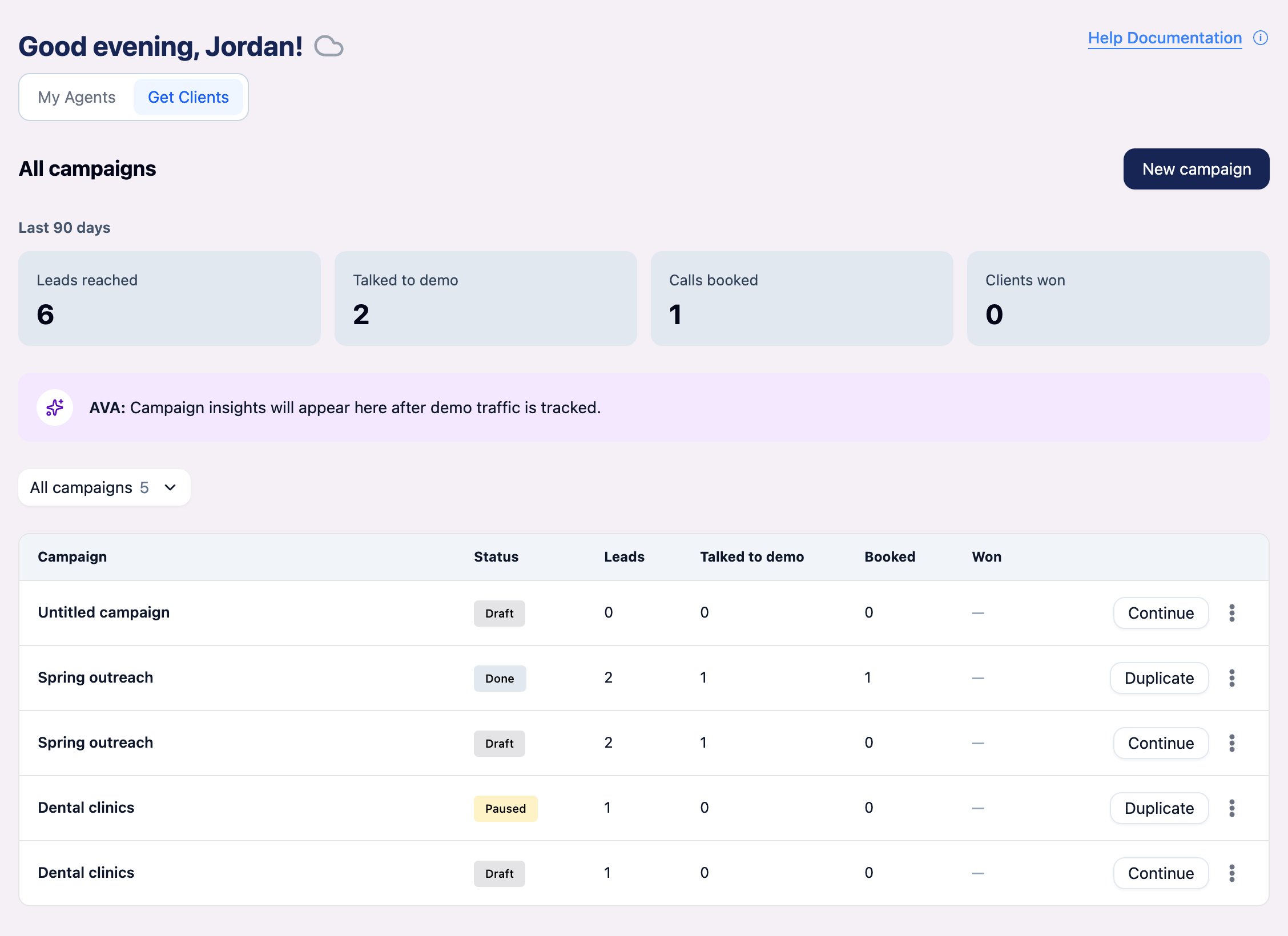
- Last 90 days – Totals across your campaigns for Leads reached, Talked to demo, Calls booked, and Clients won.
- All campaigns – Use the filter to show All campaigns, Active, Done, or Drafts.
- Campaign list – Each campaign shows its Status (for example Draft, Paused, or Done) and its Leads, Talked to demo, Booked, and Won counts.
- Continue – Picks up a draft where you left off.
- Duplicate – Copies a campaign so you can reuse its setup.
- Three-dot menu – Click it and choose Delete to remove a campaign.
Creating a Campaign
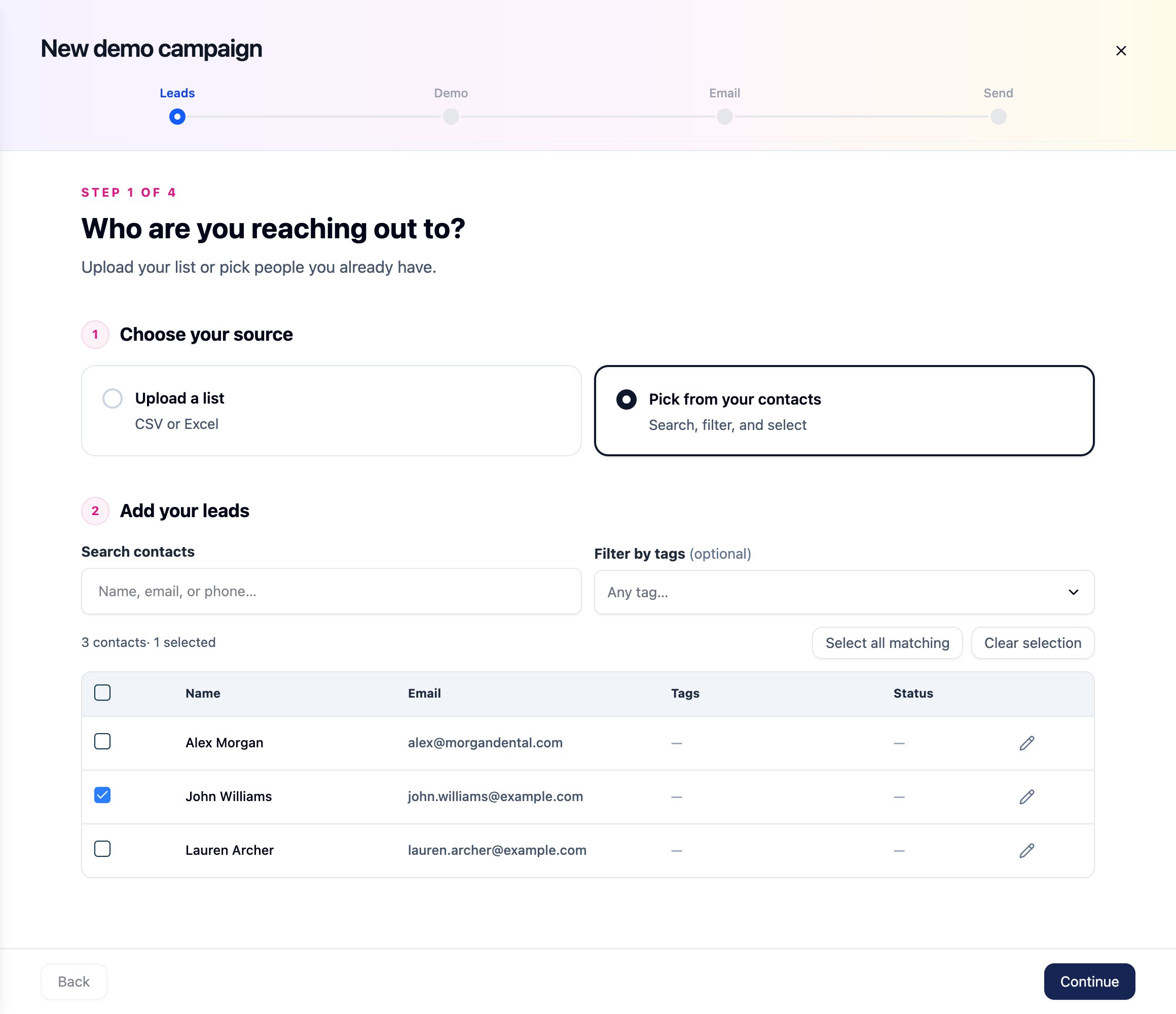
Setup has four steps: Leads, Demo, Email, and Send. Your progress is saved as a draft, so you can leave and come back with Continue.Step 1: Leads
Under Who are you reaching out to?, choose your source:- Upload a list – Upload a CSV or Excel file in the same format as a Contacts upload: phone, first name, last name, email, and time zone. Valid rows are saved to your contact list and added to the campaign in one step. See Contact Import and Export.
- Pick from your contacts – Search by name, email, or phone, and optionally Filter by tags. Select contacts one by one, or use Select all matching. Click Clear selection to start over.
Step 2: Demo
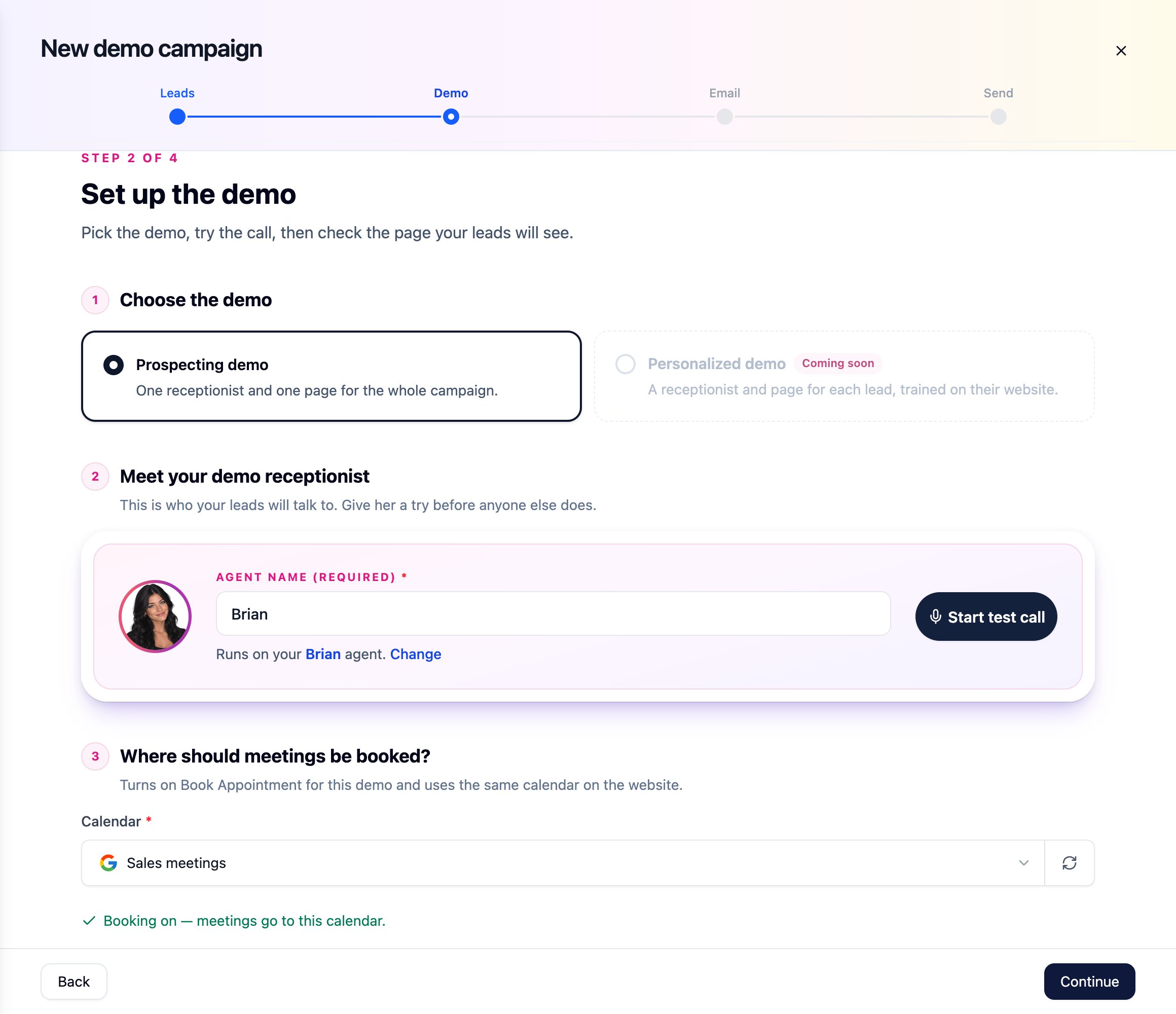
Under Set up the demo, you choose the agent your leads will talk to, where meetings are booked, and check the page leads will see.1
Choose the demo
- Select Prospecting demo. Everyone in the campaign gets the same demo agent and the same demo page.
2
Meet your demo receptionist
- Click Choose an agent and select one of your existing Prospecting Demo Agents, or click Create demo agent to create one from your saved business profile.
- Enter the Agent name (required). This is the name your leads see.
- Click Start test call to try the demo yourself. Click Change to pick a different agent.
3
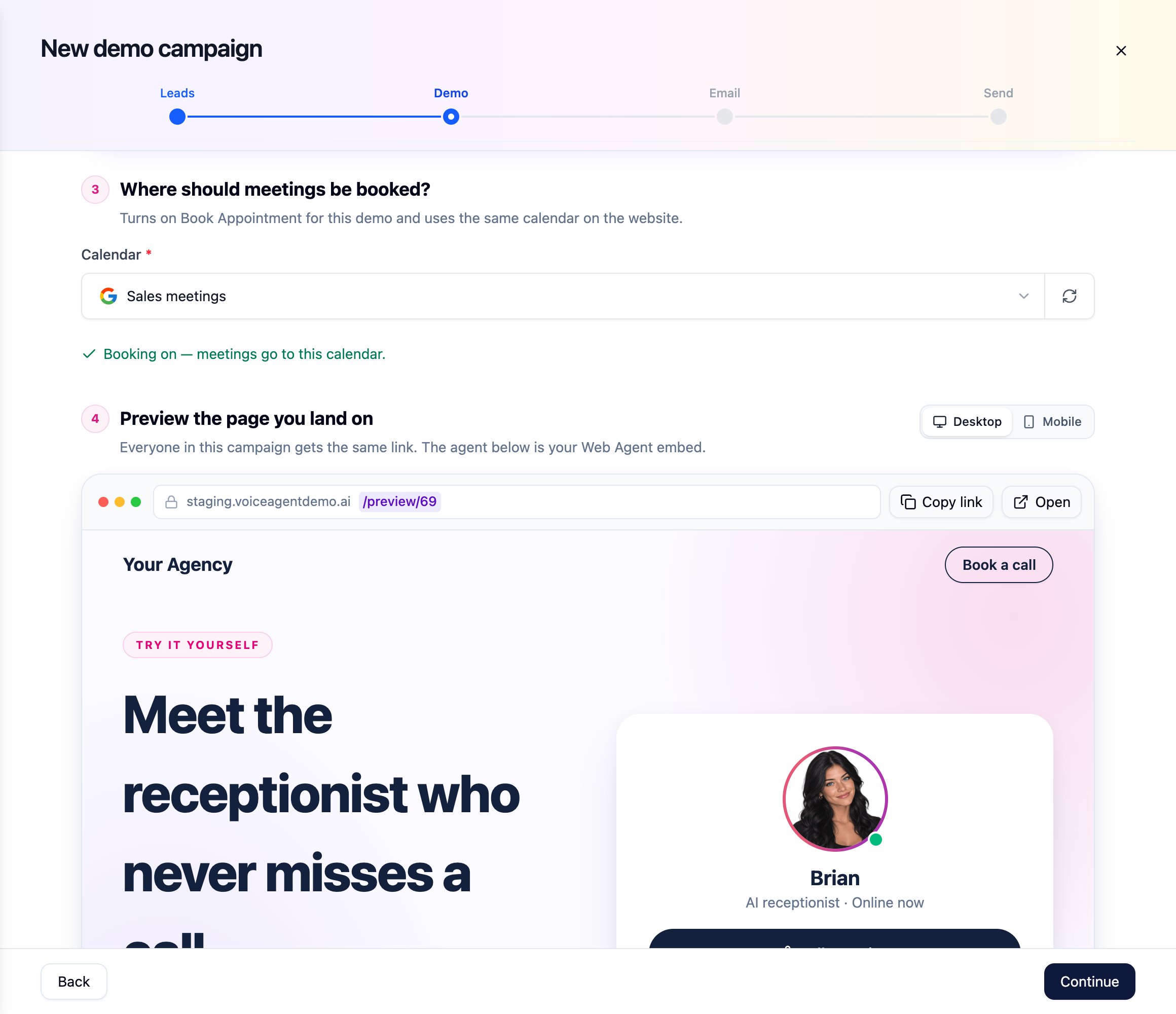
Where should meetings be booked?
- Select the Calendar meetings should be booked into. This turns on booking for the demo agent and uses the same calendar on the demo page.
- You’ll see Booking on — meetings go to this calendar. once it’s set. If your calendar isn’t listed, click Connect Google Calendar, or use the refresh icon to reload the list.
4
Preview the page you land on
- Preview the demo page in Desktop or Mobile view. Everyone in the campaign gets the same link.
- Click Copy link to copy it, or Open to view it in a new tab.
Step 3: Email
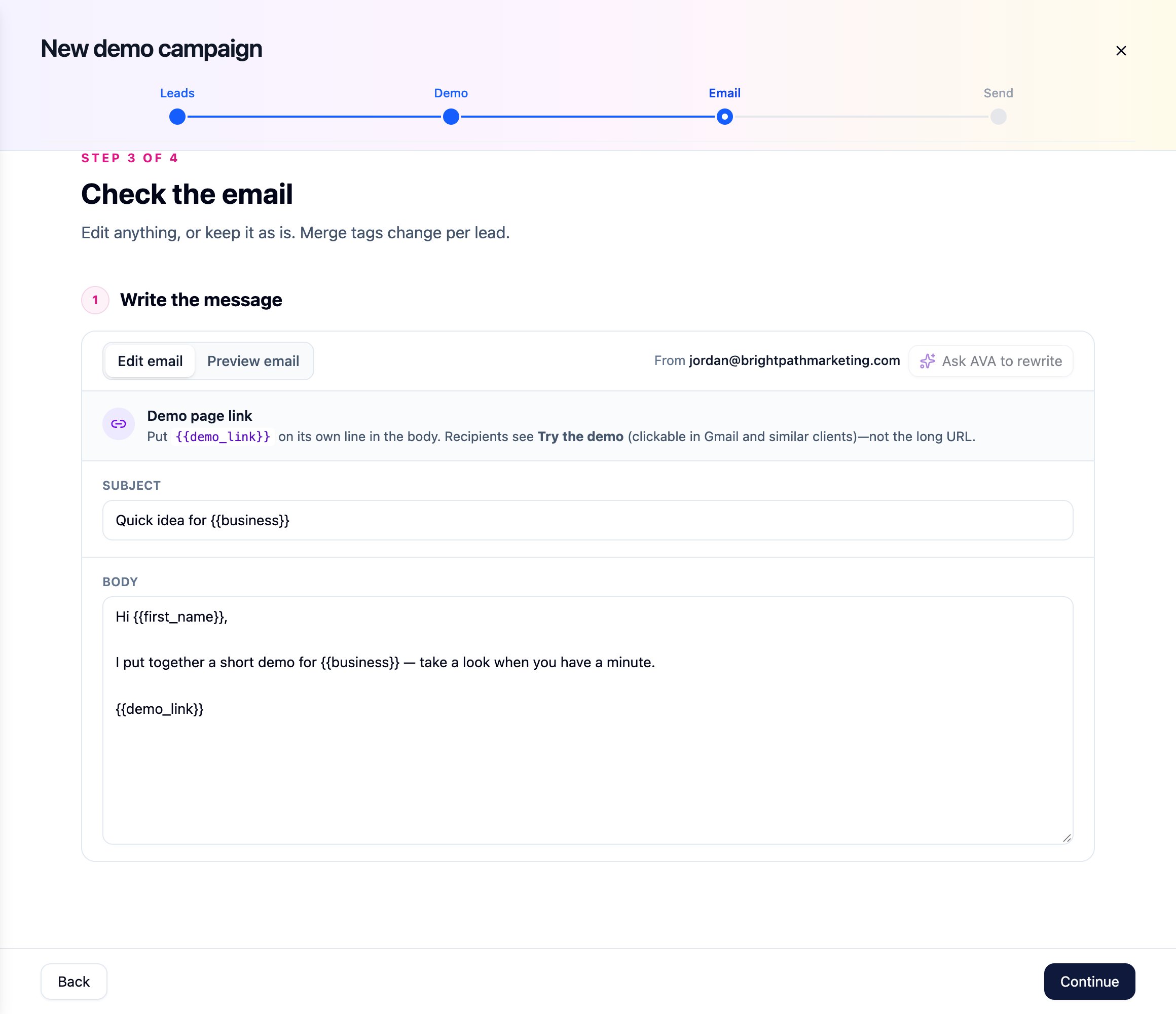
Under Check the email, review the message each lead will receive. The From address is your connected Gmail account.- Subject – The email subject line.
- Body – The email message.
- Use Edit email to make changes and Preview email to see how it looks.
Put
{{demo_link}} on its own line in the body. Recipients see a clickable Try the demo link instead of the long URL.
Step 4: Send
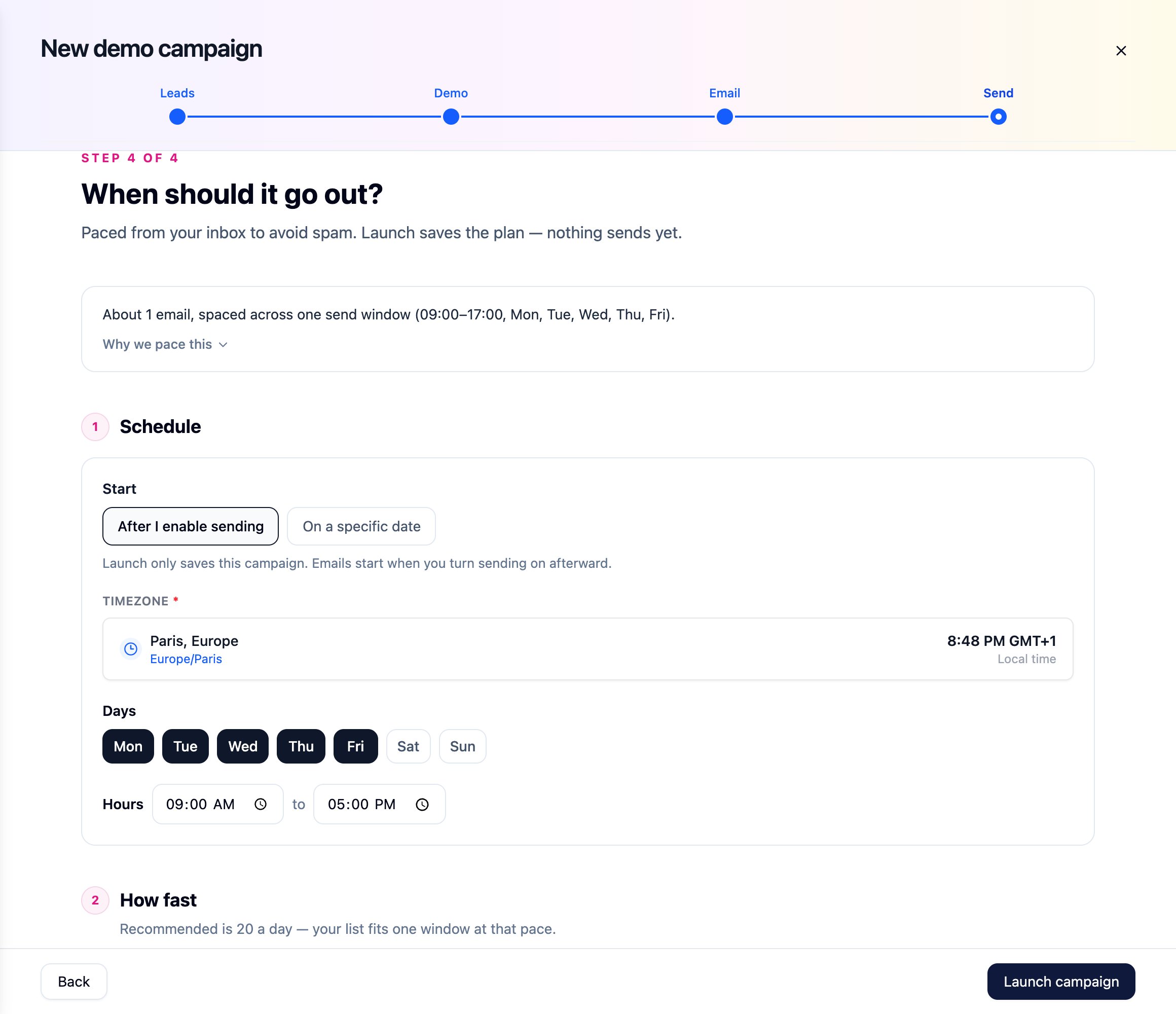
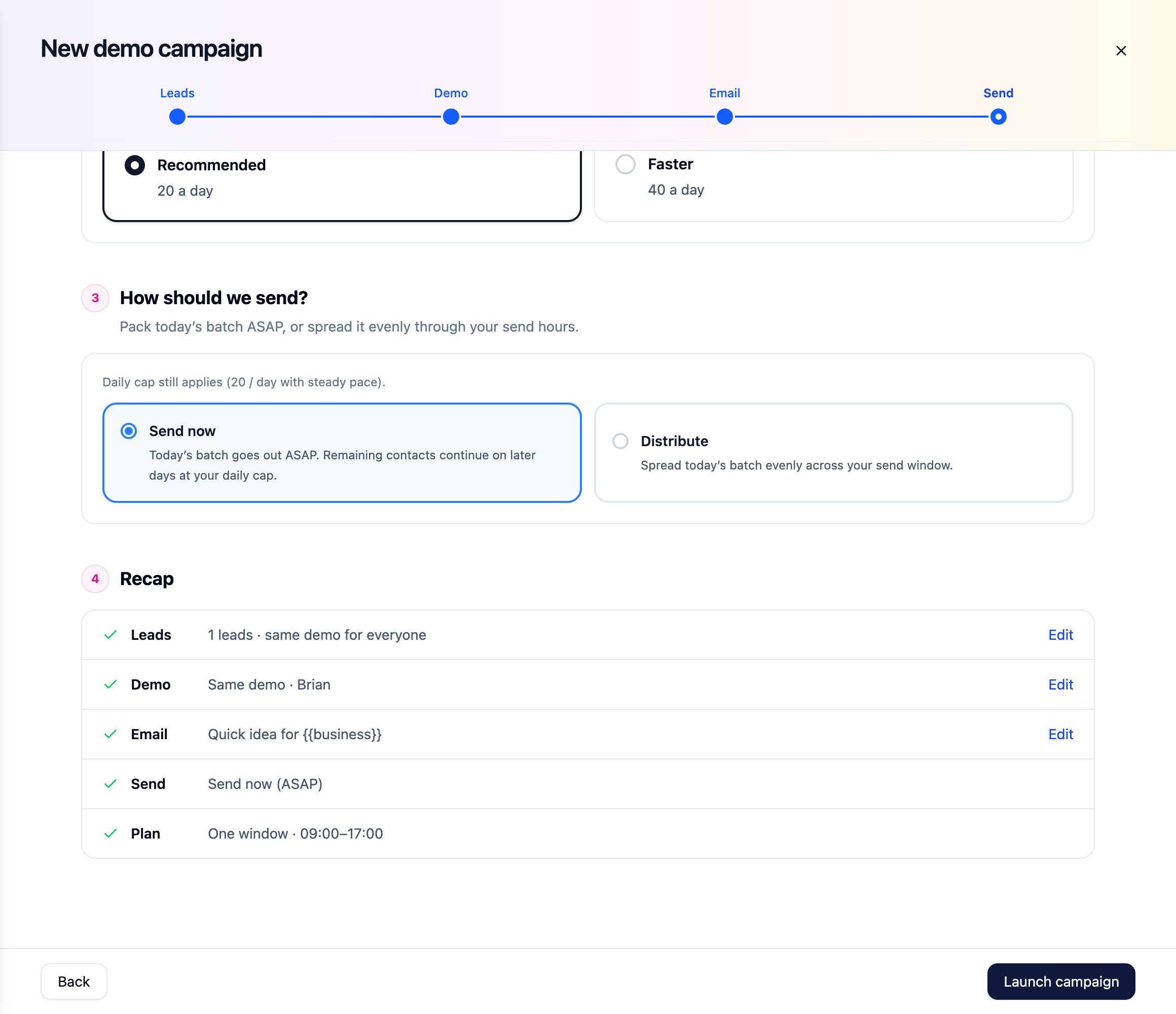
Under When should it go out?, set how and when emails are sent. Emails are paced from your inbox to avoid spam filters. Schedule- Start – Choose After I enable sending to launch the campaign without sending anything yet, or On a specific date to start sending on a date you choose.
- Timezone – The time zone used for your send window.
- Days – The days of the week emails can be sent.
- Hours – The time window emails are sent in each day.
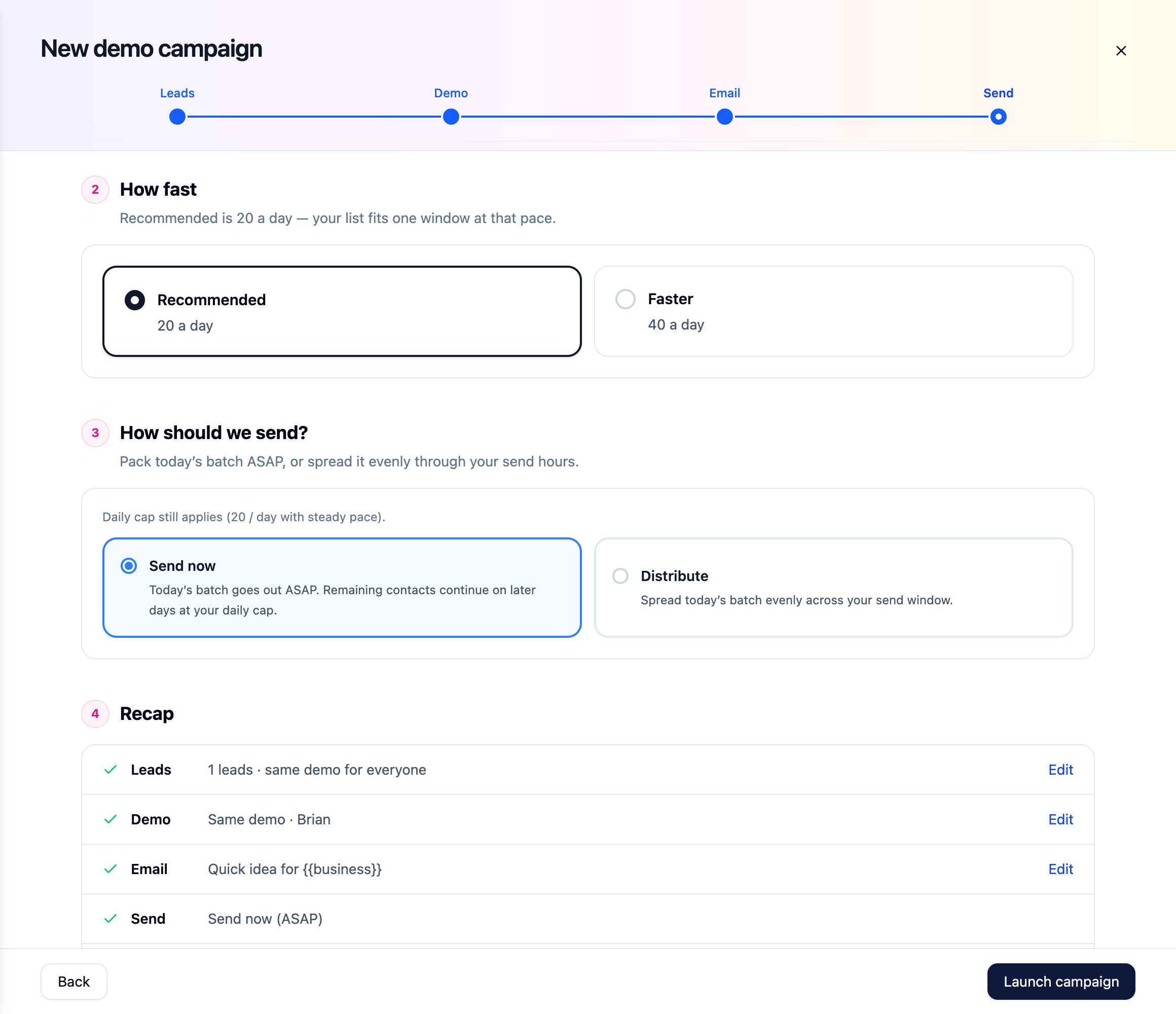
- Recommended – 20 emails a day.
- Faster – 40 emails a day.
- Send now – Today’s batch goes out as soon as possible. Remaining leads continue on later days at your daily cap.
- Distribute – Spreads today’s batch evenly across your send window.
Managing a Campaign
Click a campaign in the Get Clients tab to open it.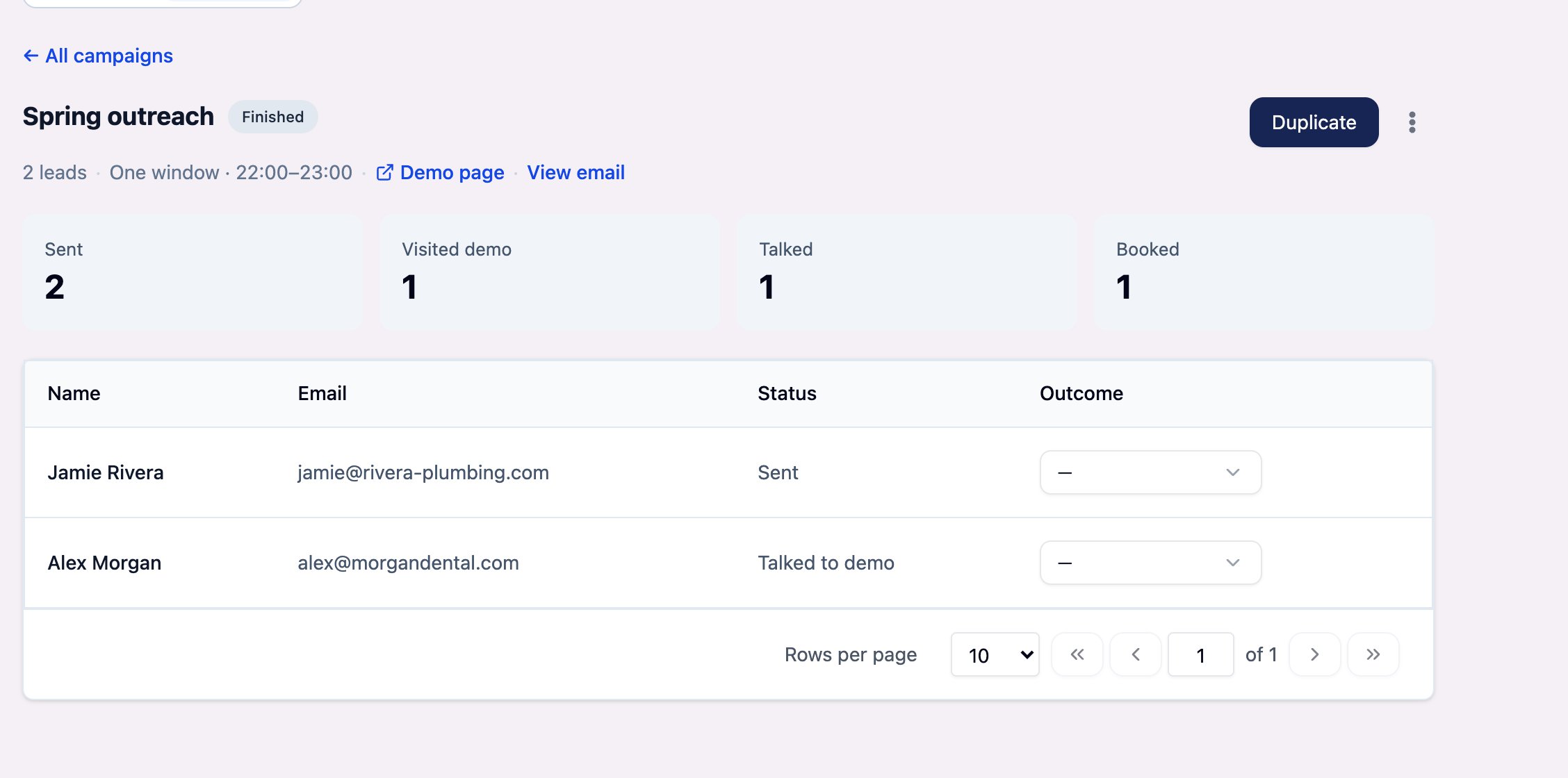
- The number of leads and the send window
- Demo page – Opens the demo page your leads see
- View email – Shows the subject and body of the campaign email
- Pause / Resume – Stops or restarts sending on an active campaign
- Duplicate – Copies the campaign
- Sent – Leads who have been emailed
- Visited demo – Leads who opened the demo page
- Talked – Leads who talked to the demo agent
- Booked – Leads who booked a meeting
Notes & Considerations
- Emails are sent from your own Gmail account, so leads see your address.
- Sending is paced and capped per day to protect your inbox’s reputation.
- Everyone in a campaign gets the same demo agent and demo page.
- Meetings are only booked when a calendar is selected in the Demo step.
- Demo calls consume credits in the same way as other calls.
FAQs & Troubleshooting
General Questions
Who sends the emails?
Who sends the emails?
Emails are sent from the Gmail account you connect under Settings > Integrations, not from a thinkrr address.
Does launching a campaign send emails right away?
Does launching a campaign send emails right away?
Not necessarily. Launch campaign saves the plan. If you chose After I enable sending, nothing sends until you turn sending on. If you chose On a specific date, sending starts on that date within your send window.
Can I use an agent I already have?
Can I use an agent I already have?
Yes. In the Demo step, click Choose an agent and select one of your existing Prospecting Demo Agents. Only agents with the Prospecting Demo Agent role can be used.
How many emails are sent each day?
How many emails are sent each day?
Up to 20 a day with Recommended, or up to 40 a day with Faster, within the days and hours you set.
Configuration
My calendar isn't in the list
My calendar isn't in the list
Click Connect Google Calendar in the Demo step, then use the refresh icon next to the Calendar field to reload your calendars.
How do I change the demo agent's script or offer?
How do I change the demo agent's script or offer?
Open the agent from My Agents and edit its Agent training tab. See Prospecting Demo Agent.
Why do I need {{demo_link}} in the email?
Why do I need {{demo_link}} in the email?
It’s how leads reach your demo. Each email replaces it with a clickable Try the demo link. Keep it on its own line in the body.
Usage and Results
Can I reuse a campaign?
Can I reuse a campaign?
Yes. Click Duplicate on the campaign to copy its setup into a new campaign.
How do I stop a campaign?
How do I stop a campaign?
Open the campaign and click Pause. Click Resume to continue sending later.
How do I track clients I've won?
How do I track clients I've won?
Open the campaign and set the lead’s Outcome to Won.
For additional questions or guidance, try using our Virtual Support Agent! Available 24/7 to help resolve most issues quickly at thinkrr.ai/support. If you still need assistance, visit our support site at help.thinkrr.ai and submit a Ticket or contact our team directly at hello@thinkrr.ai.