

Overview
The Prospecting Demo Agent is a role for Inbound Agents built to win you new clients. Instead of answering calls for your own business, it gives each prospect a short, personal demo of what an AI receptionist could do for their business. On a demo call, the agent:- Introduces itself and asks the prospect about their business, such as their name, company, and the kinds of calls they get
- Roleplays as the prospect’s receptionist while the prospect plays a customer calling in
- Asks the prospect how they liked the demo
- Pitches a meeting with you, including any End of demo offer you set
- Books the meeting into your calendar in real time, and notifies your team
- Agencies selling AI receptionists to local businesses
- Sharing a self-serve demo with leads through outreach campaigns
- Letting prospects experience the product before a sales call
How a Demo Call Works
A typical demo call follows this flow:1
Introduction
- The agent greets the prospect, explains that it is here to give a demo, and asks for their name and company name.
2
Discovery
- The agent asks what kinds of calls the prospect’s business gets most, for example billing questions, bookings, or returns.
3
Roleplay
- The agent offers a scenario, such as answering as the prospect’s billing department while the prospect plays a customer calling about a return. It then answers as if it were the prospect’s receptionist.
4
Pitch and booking
- After the roleplay, the agent asks how the prospect liked it and invites them to book a meeting with you. If you set an End of demo offer, it mentions it here.
- With Real time booking turned on, the agent books the meeting while the prospect is still on the call.
The agent only pitches and books a meeting when Real time booking is turned on with a calendar connected. Without it, the agent tells the prospect that someone will reach out instead.
Creating a Prospecting Demo Agent
1
Add a new agent
- From the Home screen, click Add agent in the Inbound Agents section and choose Create new agent.
2
Choose where the agent will live
- Choose On the Web, On the Phone, or On Web and Phone.
3
Select the role
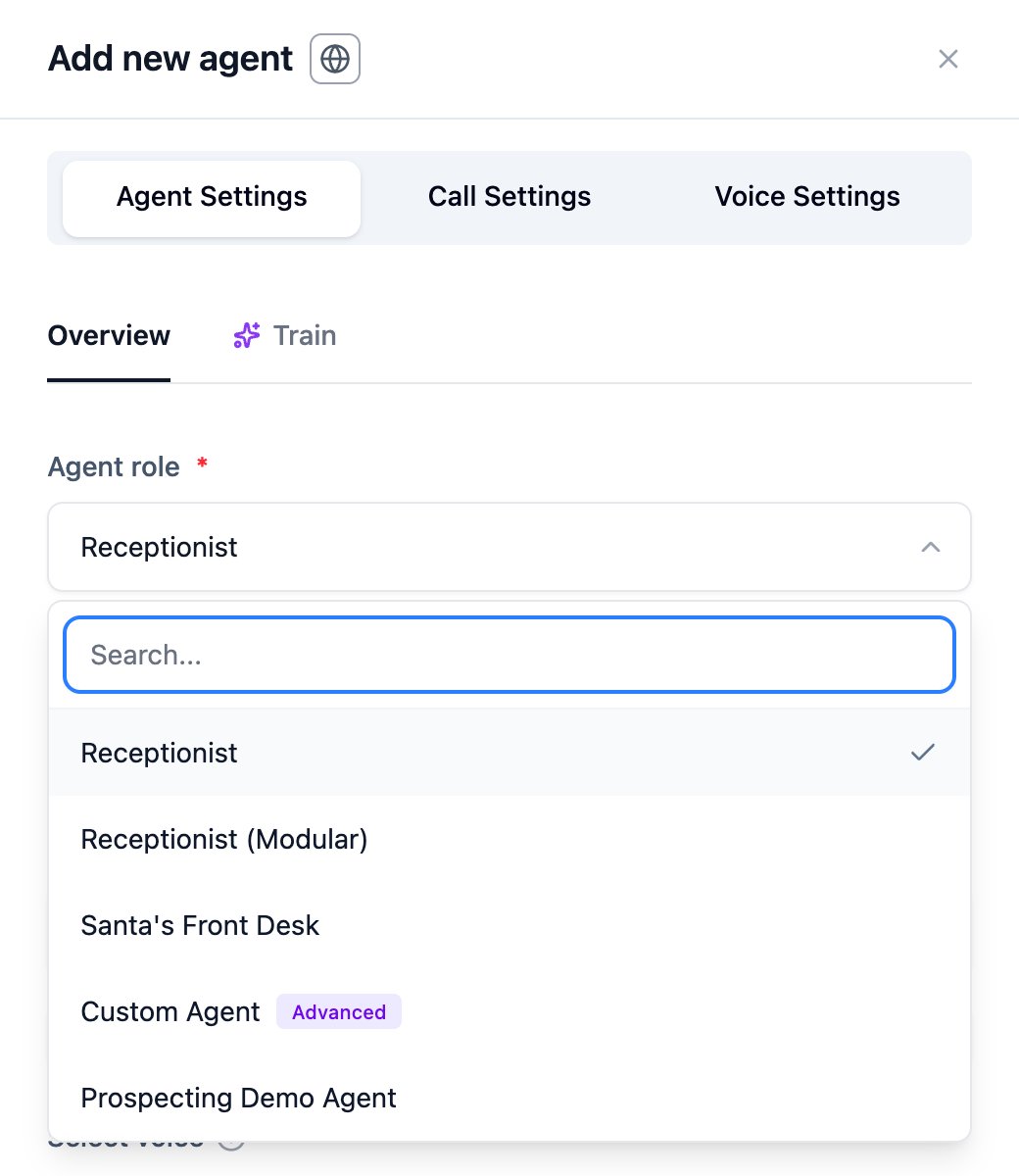
- In Agent Settings, open the Agent role drop-down and select Prospecting Demo Agent.
4
Name the agent and choose a voice
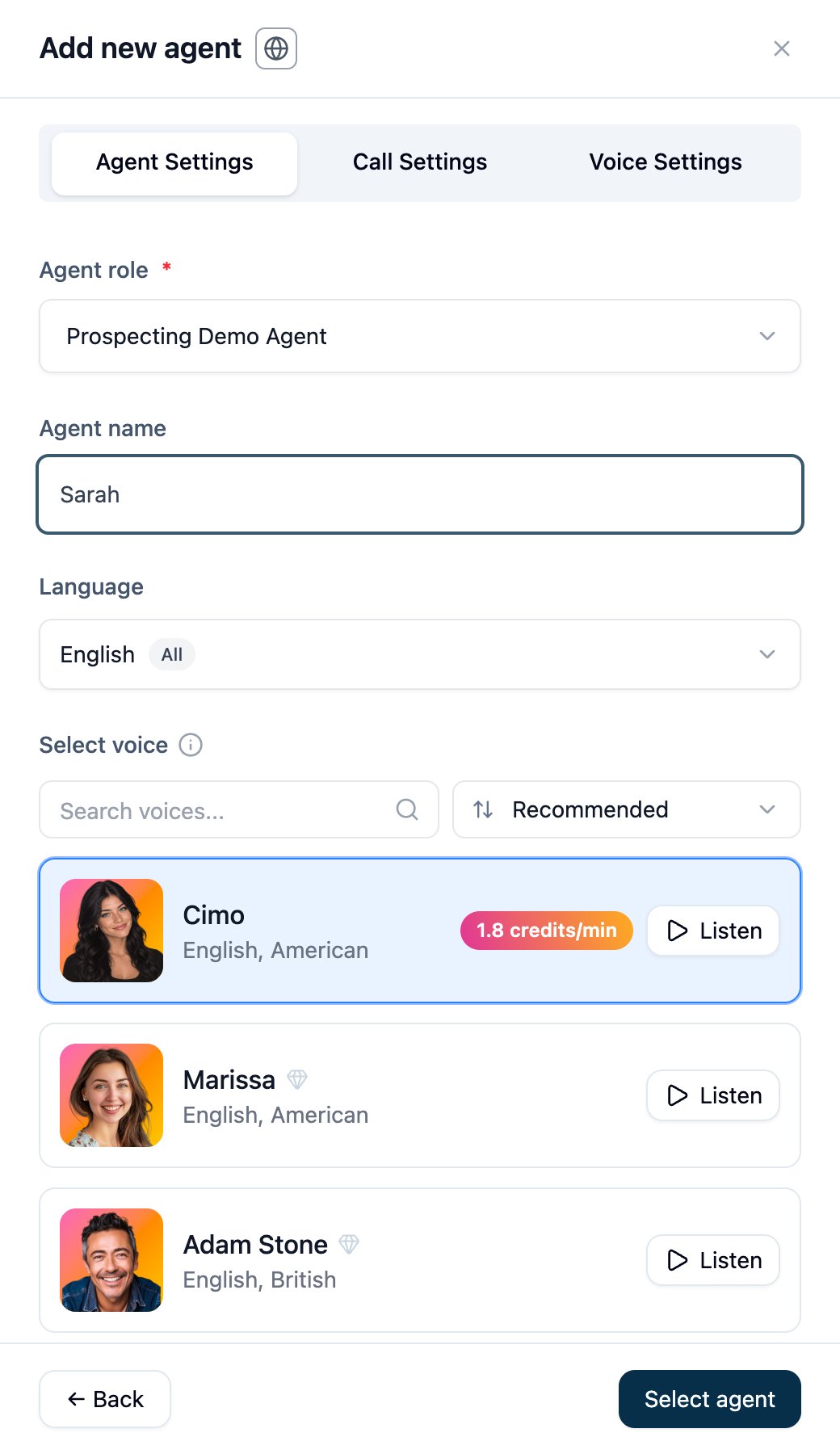
- Enter an Agent name, then choose a Language and use Listen to preview and select a voice.
- Adjust Call Settings and Voice Settings if needed. They work the same way as for any inbound agent. See Creating an Inbound Agent.
5
Save the agent
- Click Select agent to create it, then complete the Agent training tab. See Agent Training.
The Agent Configuration Screen
At the top of the screen you’ll see the agent’s name, its Prospecting Demo Agent badge, a link to add a description, its status (for example Active on Web), and a Settings button.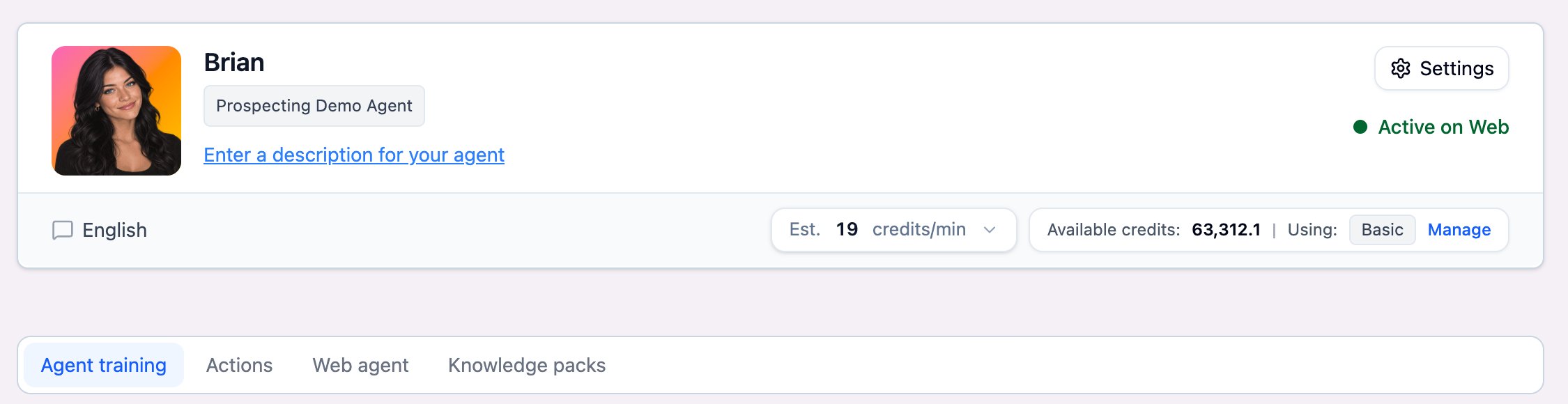
- Estimated credits per minute: An estimate of how many credits the agent consumes for each minute of calling, based on how it is configured.
- Available credits: Your current credit balance.
- Using: The model tier the agent runs on. Click Manage to choose Basic, which is reliable and efficient for shorter, linear conversations, or Premium, which offers deeper reasoning built for longer, more complex conversations.
Agent Training
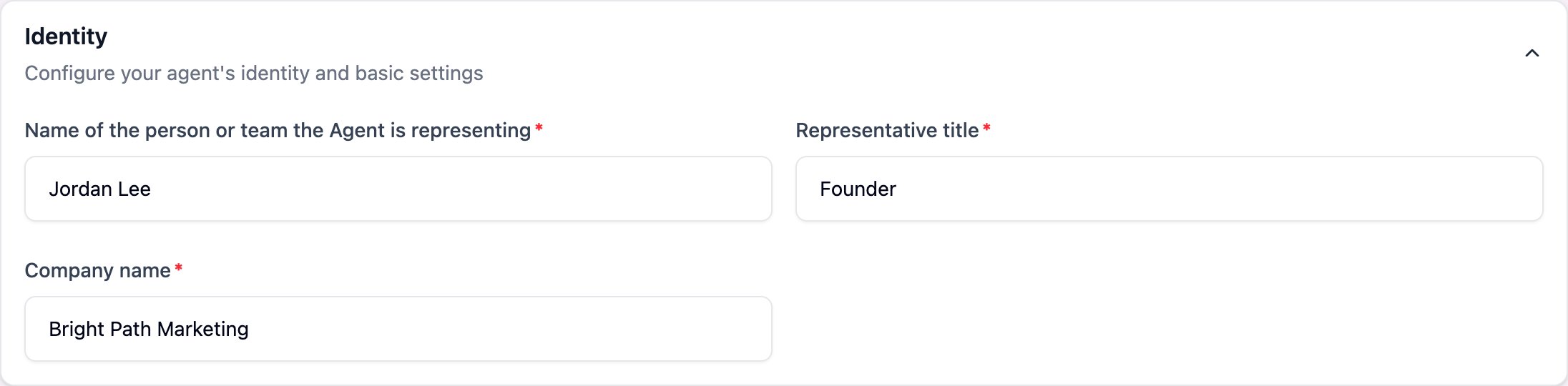
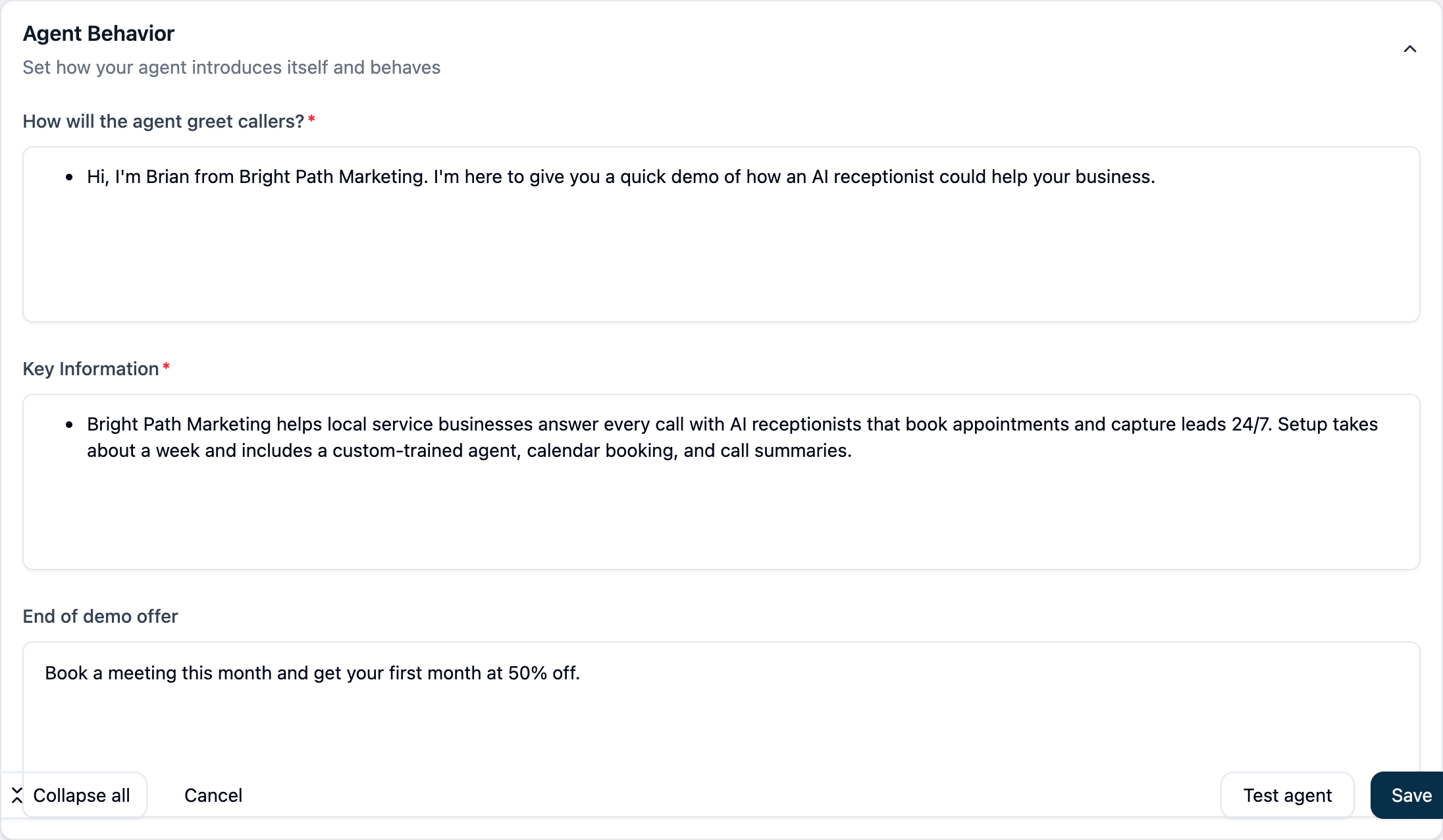
The Agent training tab describes you, the business running the demo, not the prospect. The agent learns about each prospect’s business live during the call. Identity – Who the agent represents.- Name of the person or team the Agent is representing (required) – The person or team the agent books meetings with, for example your name or “the Sales Team”.
- Representative title (required) – That person’s job title, for example “Founder”.
- Company name (required) – Your company name, which the agent uses when it introduces itself and pitches the meeting.
- How will the agent greet callers? (required) – The opening line of the demo call.
- Key Information (required) – What the agent should know about your business and services, so it can answer the prospect’s questions and explain what a meeting with you covers.
- End of demo offer (optional) – A special offer or incentive to mention when pitching a meeting after the demo, for example “Right now we are running a 50% off offer.”
Actions
The Actions tab lists the actions a Prospecting Demo Agent can use. Each has a toggle and an Action setup button, and shows Configured or Need configuration to use.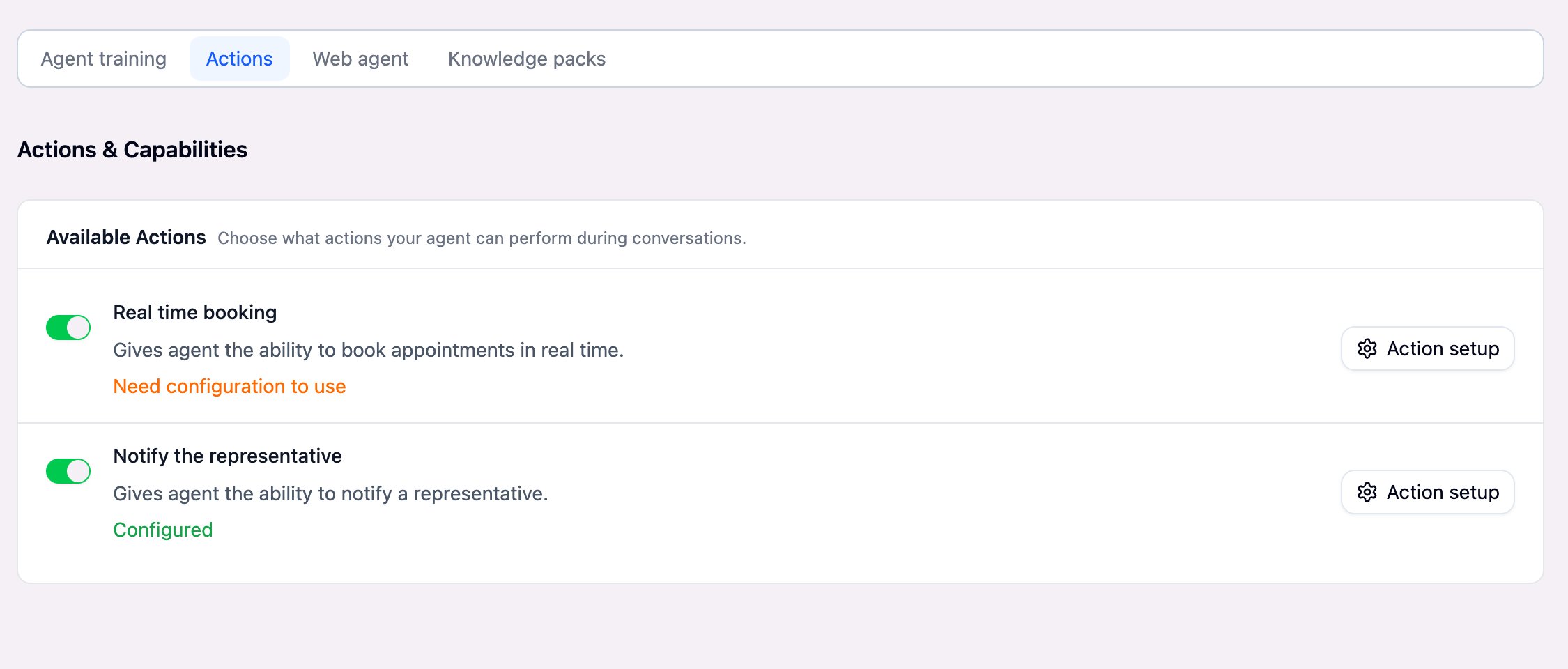
Real Time Booking
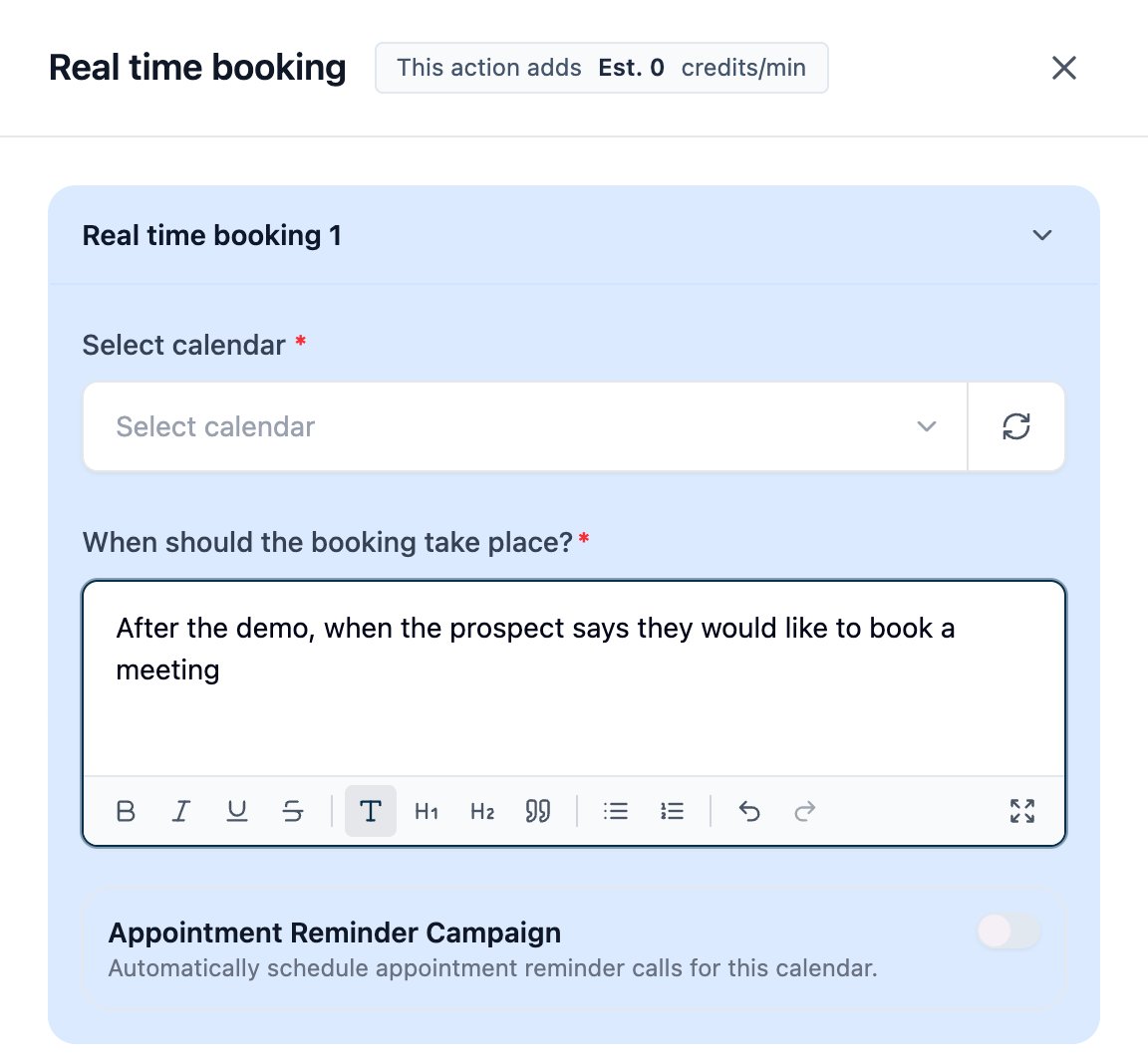
Lets the agent book a meeting with you during the demo call.- Click Action setup, then New appointment.
- Under Select calendar, choose the calendar meetings should be booked into.
- Under When should the booking take place?, describe when the agent should book, for example “After the demo, when the prospect says they would like to book a meeting”.
- Click Apply changes.
Notify the Representative
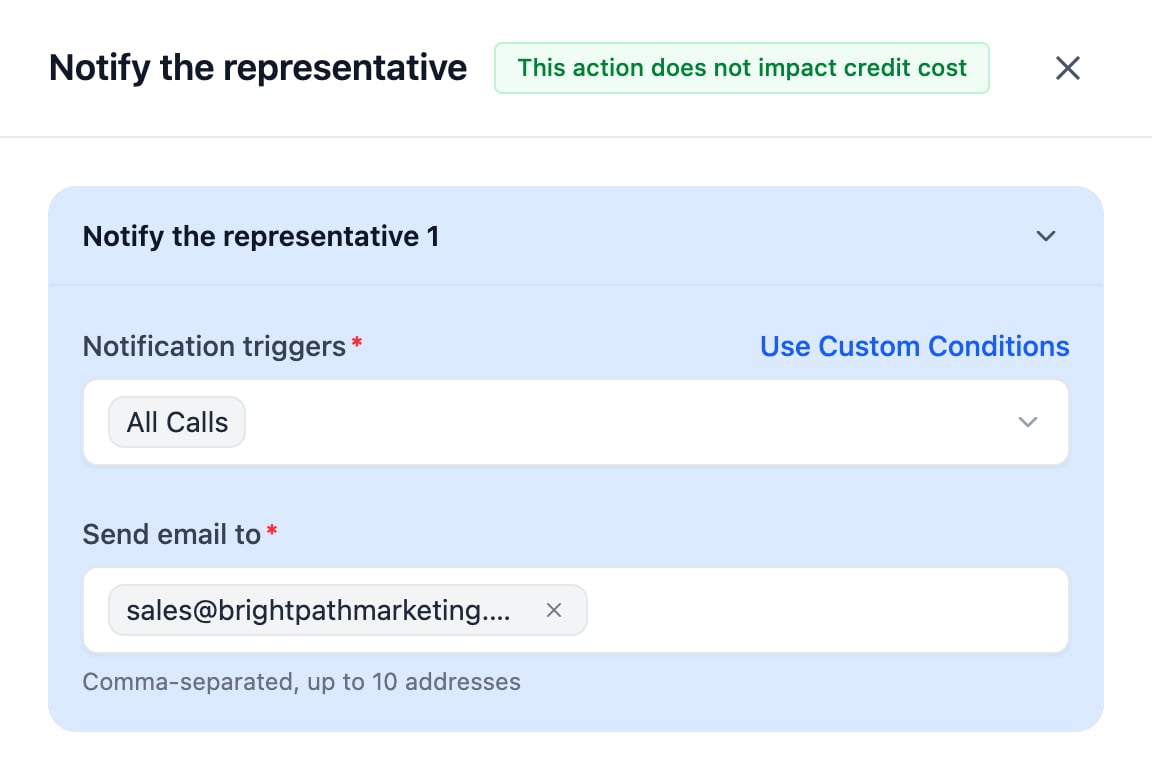
Sends your team an email after demo calls.- Click Action setup and choose the Notification triggers: All Calls, or Use Custom Conditions to notify only for certain calls.
- Under Send email to, enter up to 10 comma-separated email addresses.
- Click Apply changes. This action does not affect the credit cost.
Web Agent and Knowledge Packs
- Web Agent – Deploy the demo on your website or landing page with the same widget settings as other inbound agents. See Web Widget.
- Knowledge Packs – Attach Knowledge Packs with the same plan slots as other inbound agents. See Knowledge Packs.
Agent Settings
Click Settings at the top right of the agent page to open Edit agent settings. It has three tabs, Agent Settings, Call Settings, and Voice Settings, where you can change the agent’s name, phone number, language, voice, and call behavior. These work the same way as for any inbound agent. See Creating an Inbound Agent.Notes & Considerations
- This role is for Inbound Agents only.
- The Agent training fields describe your business. The agent asks each prospect about their own business during the call.
- The demo only shows what a standard Receptionist can do, so you can deliver the same experience to the prospect once they sign up.
- Connect a calendar with Real time booking so the agent can pitch and book meetings.
- You can create more than one Prospecting Demo Agent, for example with different voices, offers, or representatives.
FAQs & Troubleshooting
General Questions
What is the difference between the Prospecting Demo Agent and the Receptionist?
What is the difference between the Prospecting Demo Agent and the Receptionist?
The Receptionist answers calls for your own business. The Prospecting Demo Agent gives prospects a demo by roleplaying as their receptionist, then pitches a meeting with you. It is a dedicated role, so it doesn’t confuse the business in the demo with the business it works for.
Do I need to enter the prospect's business details?
Do I need to enter the prospect's business details?
No. The agent asks the prospect about their business at the start of the call and adapts the roleplay to what they say. The Agent training fields only describe your own business.
Can I use the Prospecting Demo Agent on the phone and the web?
Can I use the Prospecting Demo Agent on the phone and the web?
Yes. Like other inbound agents, it can be assigned a phone number, deployed on the web, or both.
Do demo calls use credits?
Do demo calls use credits?
Yes. Demo calls consume credits in the same way as other calls. The estimated credits per minute is shown at the top of the Agent Configuration screen.
Can I change an existing agent's role to Prospecting Demo Agent?
Can I change an existing agent's role to Prospecting Demo Agent?
No. An agent’s role is set when it is created and cannot be changed. Create a new agent and select Prospecting Demo Agent as the role.
Configuration
Where do I add a special offer?
Where do I add a special offer?
Enter it in the End of demo offer field on the Agent training tab. The agent mentions it when it pitches a meeting after the demo.
Who will the agent book meetings with?
Who will the agent book meetings with?
The person or team in Name of the person or team the Agent is representing, on the calendar you select in the Real time booking action.
How do I get notified when a prospect books?
How do I get notified when a prospect books?
Turn on Notify the representative in the Actions tab and add up to 10 email addresses.
Usage and Results
The agent said someone will reach out instead of booking a meeting
The agent said someone will reach out instead of booking a meeting
Make sure Real time booking is turned on in the Actions tab and a calendar is selected. The agent only pitches and books a meeting when booking is configured.
The agent doesn't mention my offer
The agent doesn't mention my offer
Check that the End of demo offer field is filled in and saved. The offer is mentioned during the meeting pitch, which needs Real time booking to be turned on.
Why don't my changes affect the demo?
Why don't my changes affect the demo?
Only saved changes are used. Click Save after editing, then test again.
Where can I see demo calls?
Where can I see demo calls?
Demo calls appear in Call History with your other calls, under the Prospecting Demo Agent’s name. Use the Inbound Agent filter to show only that agent’s calls.
For additional questions or guidance, try using our Virtual Support Agent! Available 24/7 to help resolve most issues quickly at thinkrr.ai/support. If you still need assistance, visit our support site at help.thinkrr.ai and submit a Ticket or contact our team directly at hello@thinkrr.ai.