

Overview
A Knowledge Pack is a structured collection of business-specific information that your thinkrr agents can reference during live calls. This could include documents, manuals, FAQs, policies, pricing sheets, inventories, and public web pages. By attaching a Knowledge Pack to an inbound agent or outbound project, you ensure that the AI responds with accurate, context-specific information every time.⚠️ Important Knowledge Packs are intended for reference information and factual knowledge only. They should not be used to instruct the agent on how to behave, what to say, or how to structure conversations. Behavioral guidance, tone, scripts, and decision logic must be configured using the agent’s dedicated instruction and guideline fields inside the platform. Placing instructions inside a Knowledge Pack can lead to inconsistent or unreliable agent behavior.Key capabilities:
- Attach to both inbound and outbound configurations
- Upload multiple supported file types
- Use URL scraping to pull and reference live web content
- Enable or disable packs without losing stored content
- Edit, refresh, and manage packs directly from the configuration panel
- Maintain separate packs for different products, brands, or departments
.md(Markdown) (NEW).csv,.tsv,.xlsx,.xls,.pdf,.txt,.docx- Up to 25 files per Knowledge Pack
- 50MB maximum per file
- Public web pages via URLs
- Business Professional – 1 Knowledge Pack
- Business Growth – 2 Knowledge Packs
- Agency Lite – 1 Knowledge Pack
- Agency Unlimited – 2 Knowledge Packs
Setting Up a Knowledge Pack
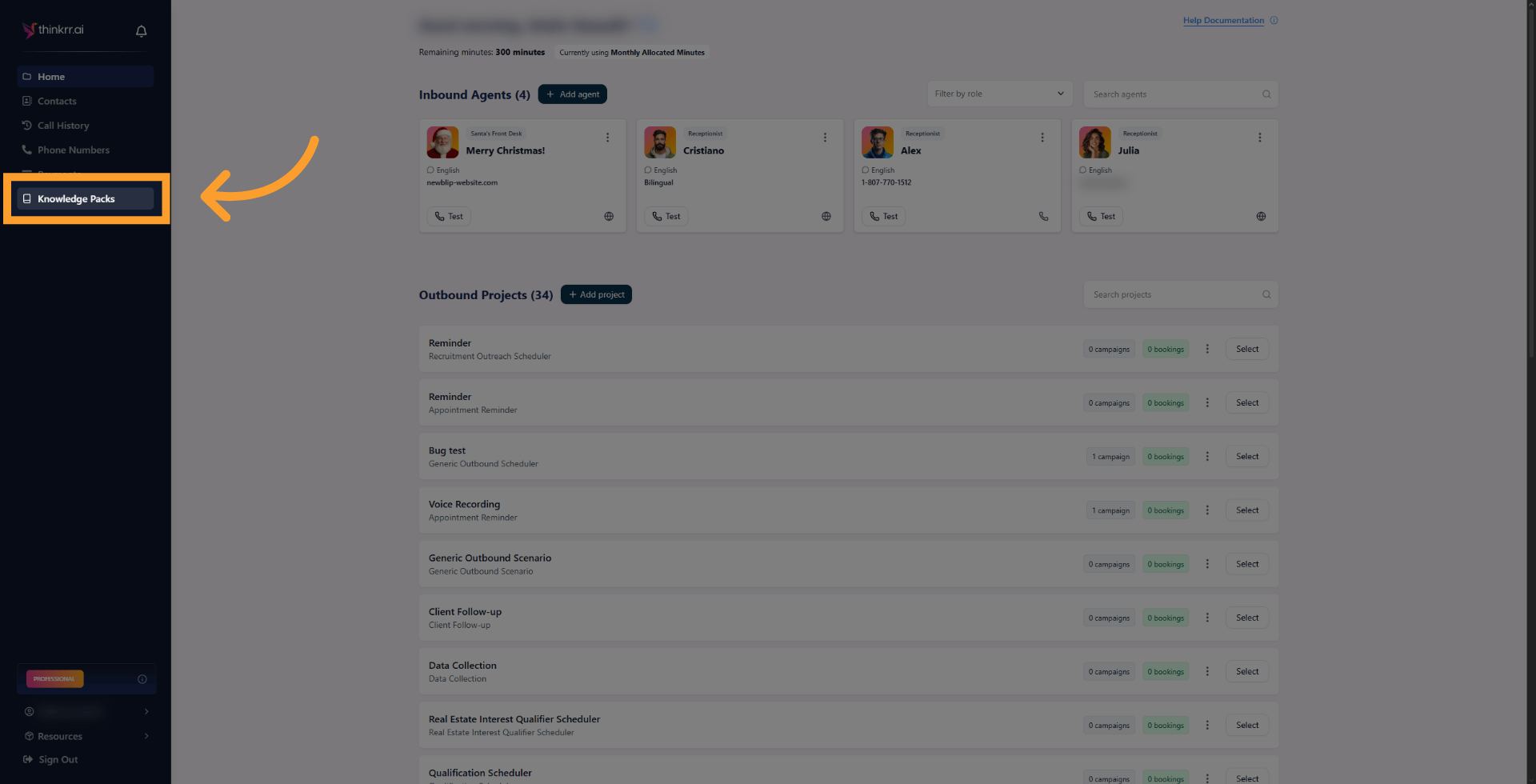
Knowledge Packs have a dedicated page in the left-hand sidebar menu, making it easier to create and manage.1
Open the Knowledge Packs page
- In the thinkrr platform, click Knowledge Packs in the left-hand sidebar menu.
2
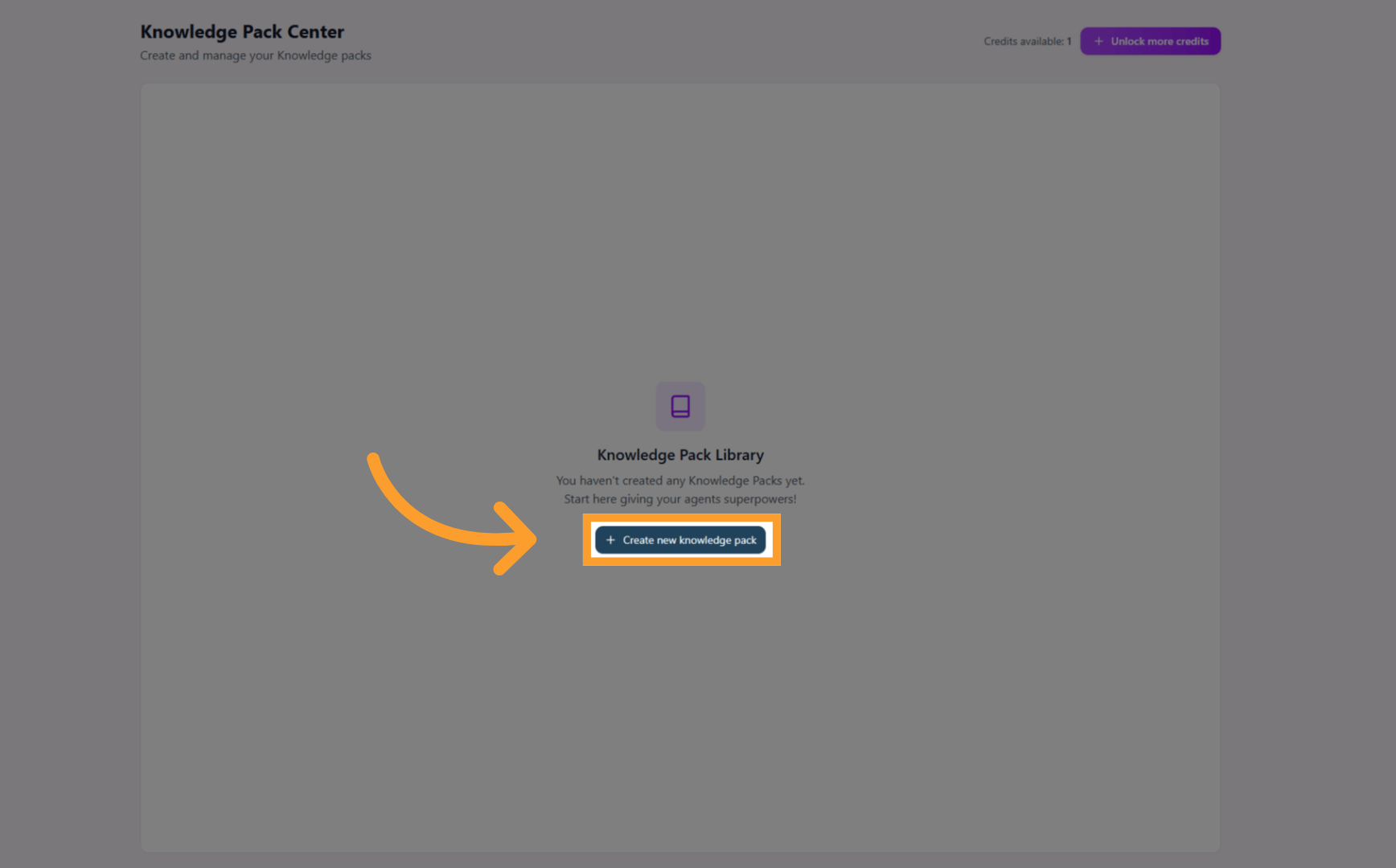
Create a New Knowledge Pack
- Click Create New Knowledge Pack to launch the builder.
3
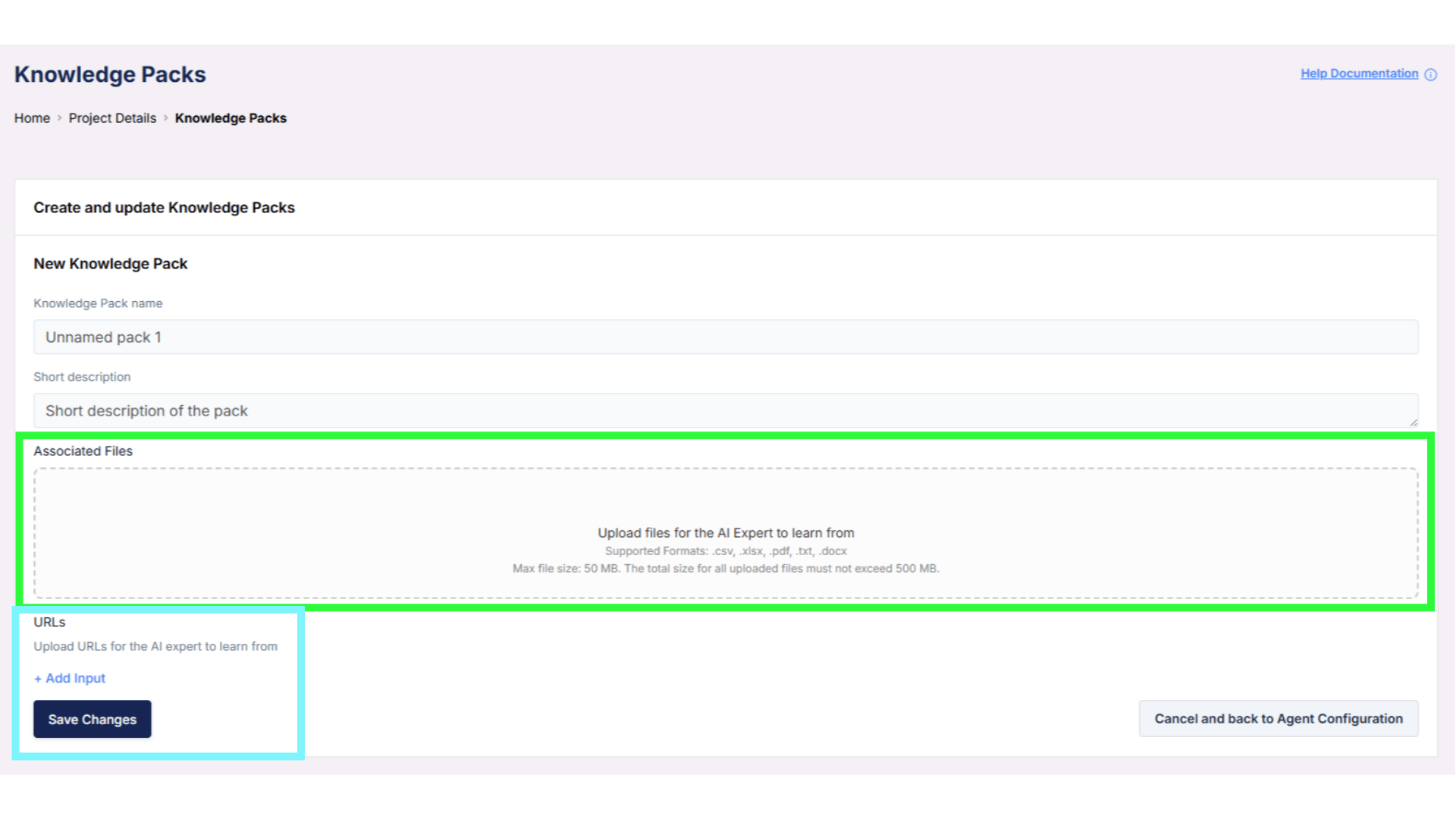
Add and configure your content
- Upload supported files or enter URLs as needed.
- Once created, you can edit, refresh, disable, or delete the pack at any time.
- The same Knowledge Pack can be assigned to inbound agents or outbound projects from their configuration screens.
Inbound Agent Setup
Inbound Agent Setup
1
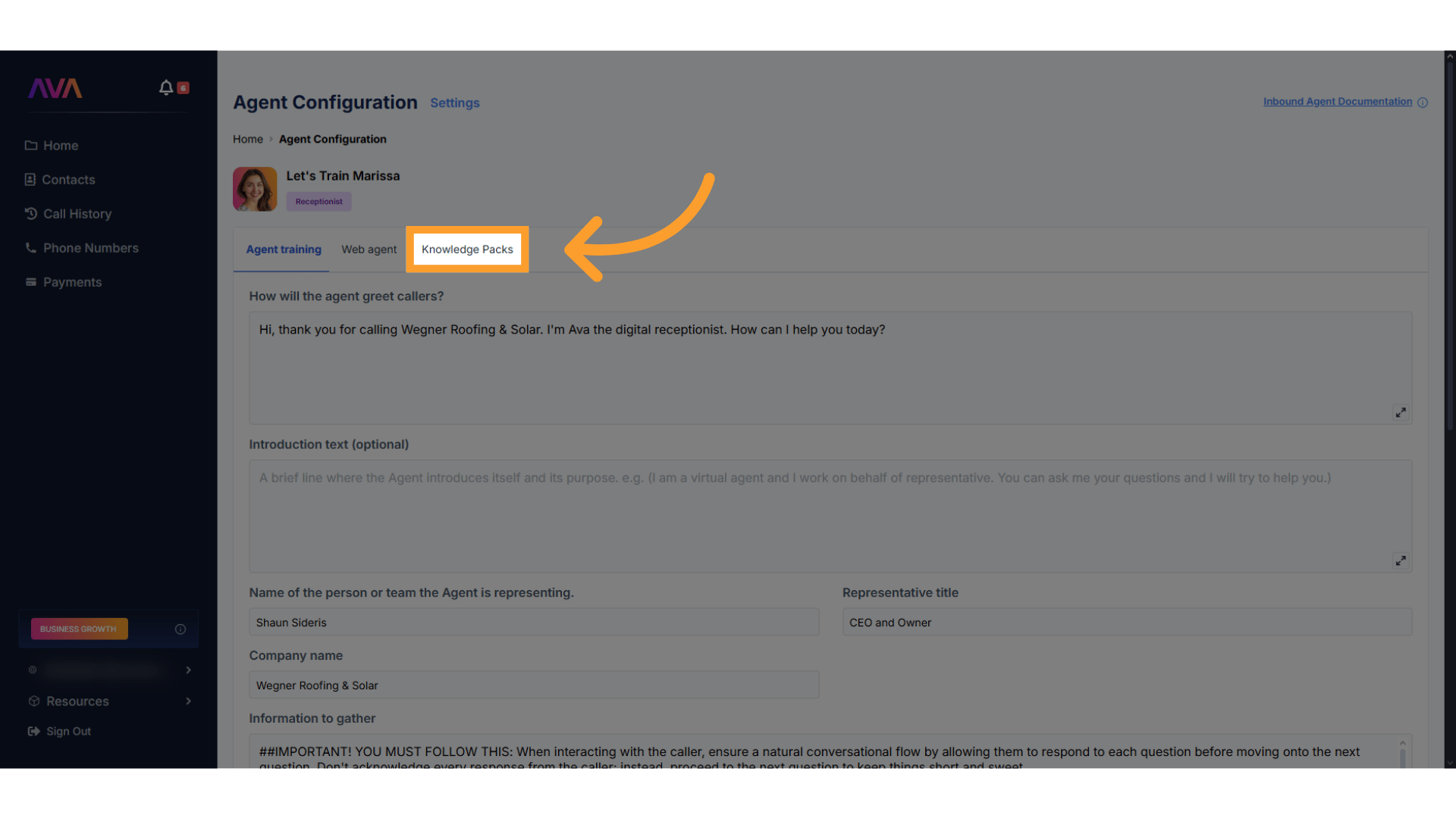
Access the Knowledge Packs section
- In your inbound agent configuration screen, click Knowledge Packs from the configurable tabs at the top of the screen
2
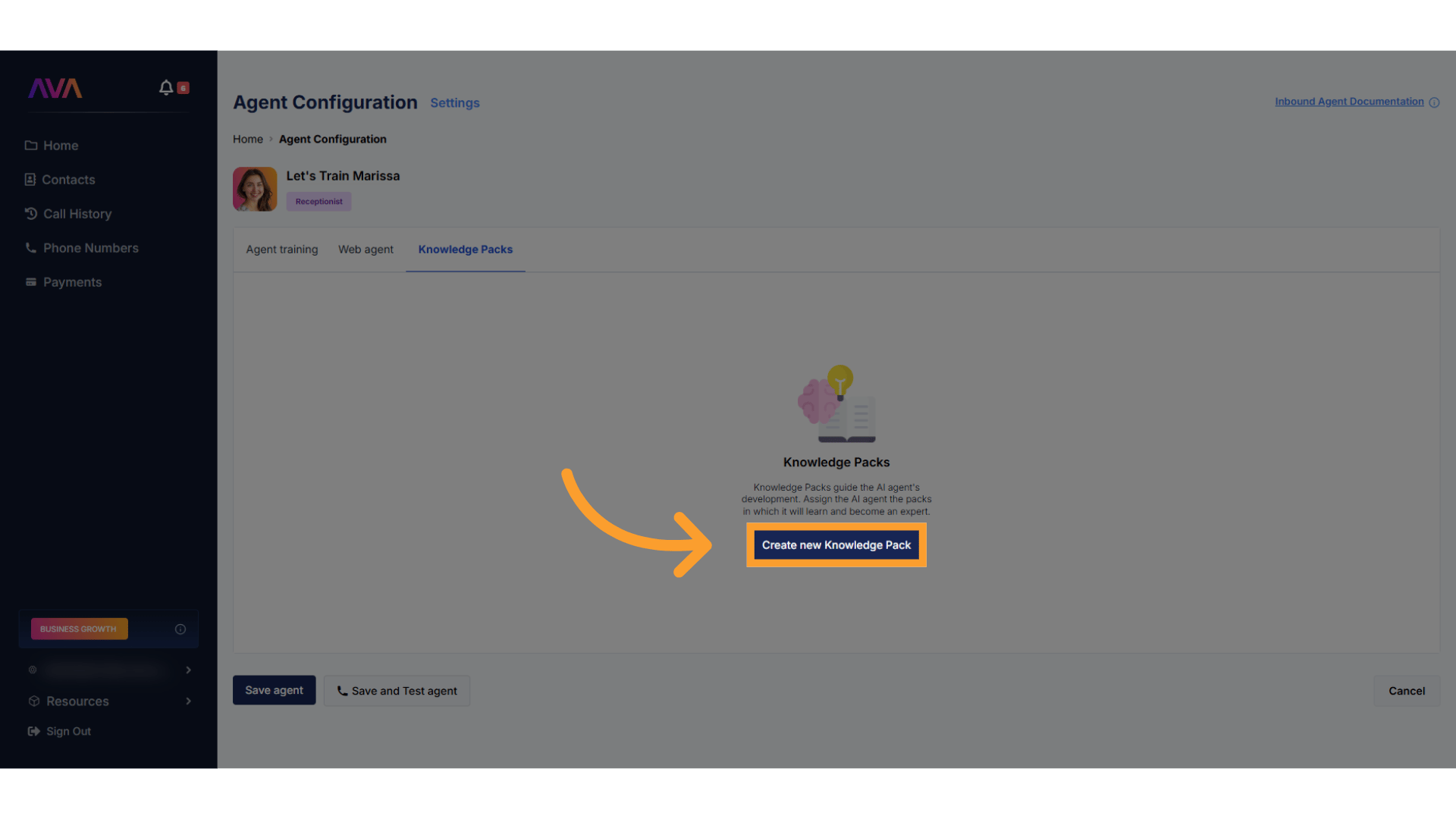
Create a New Knowledge Pack
- Click Create New Knowledge Pack to launch the builder
3
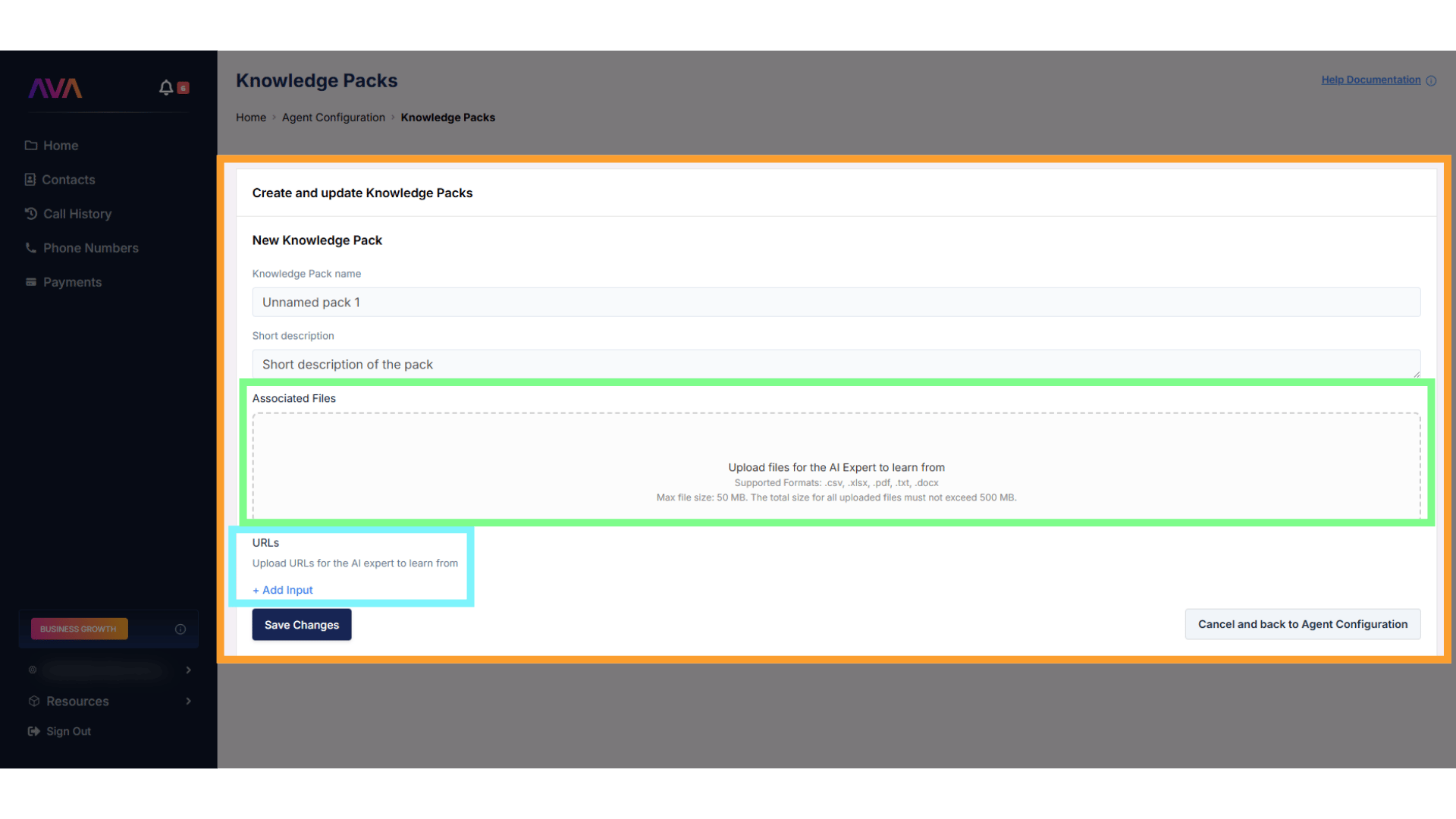
Add Content
- Upload supported files, or
- Enter one or more URLs to let thinkrr scan public web pages
- When scraping a website, you can choose which discovered pages to include in the Knowledge Pack
4
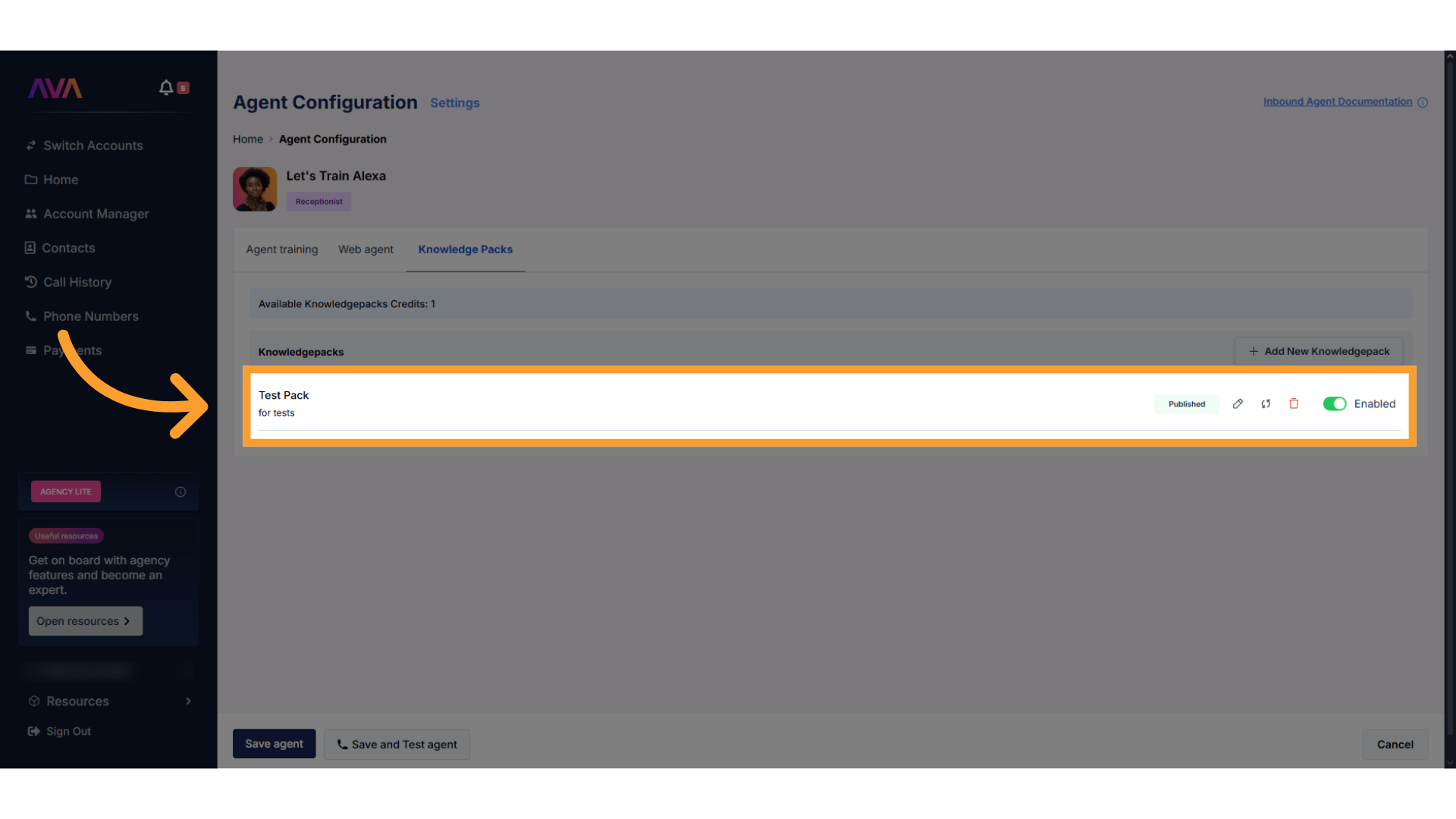
Manage Your Pack
- Edit, delete, or refresh your pack from the right-hand menu
- Disable the pack temporarily instead of deleting it
- Re-enable anytime without losing content
Outbound Project Setup
Outbound Project Setup
1
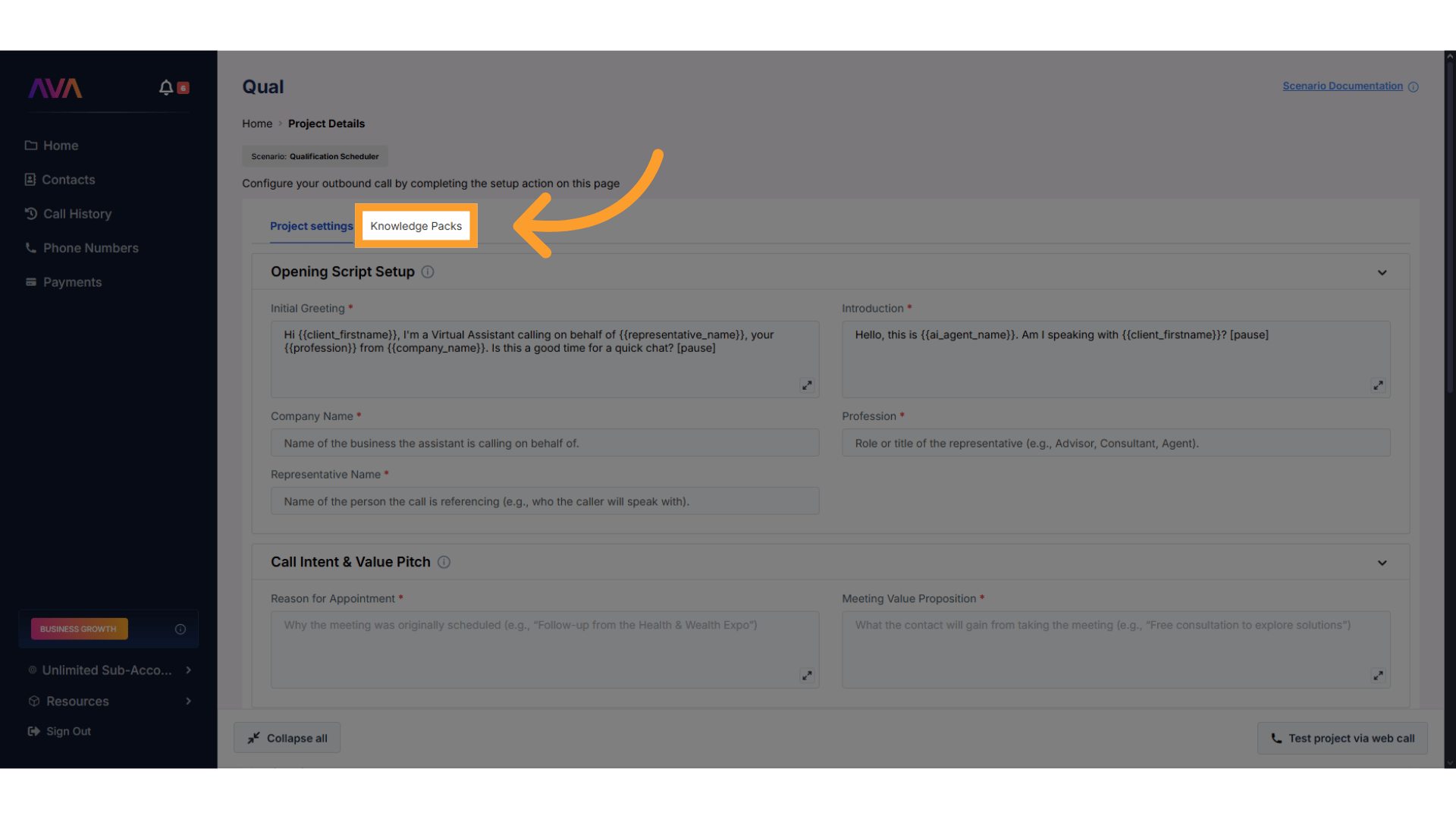
Access the Knowledge Packs section
- From the Project Configuration screen, click Knowledge Packs in the panel
2
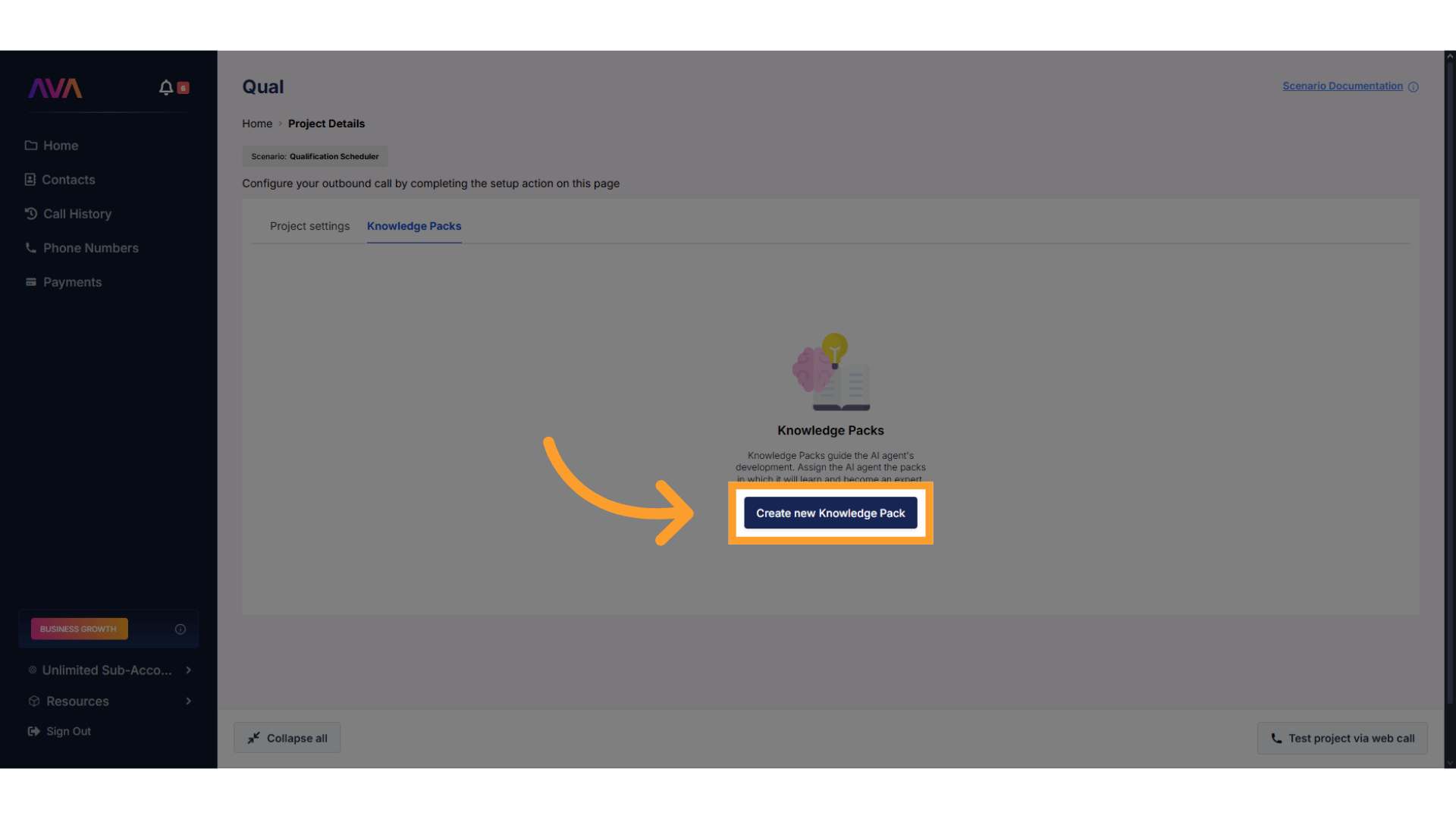
Create a New Knowledge Pack
- Click Create New Knowledge Pack to launch the builder
3
Add Content
- Upload files or add URLs as needed
- When scraping a website, you can choose which discovered pages to include in the Knowledge Pack
4
Manage Your Pack
- Edit, refresh, disable, or delete your pack
- Disabled packs can be re-enabled anytime without losing data
Updating and Refreshing a Knowledge Pack
Updating a Knowledge Pack is a simple two-step process:- Remove the outdated files or URLs
- Upload or add the updated versions
Using URLs in Knowledge Packs
Knowledge Packs allow you to add URLs as a source of information, in addition to uploaded files. This is useful when your content already lives online, such as in documentation pages or shared documents. For example:- If you manage product inventory in a Google Sheet, you can make that sheet visible to anyone with the link and add the Google Sheet URL to the Knowledge Pack.
- If you maintain policies, pricing details, or internal FAQs in a Google Doc, you can make the document publicly accessible, or accessible via link, and add the Google Doc URL directly.
- Export the document as a file
- Convert it to Markdown or PDF
- The system scans the page and pulls in the available content
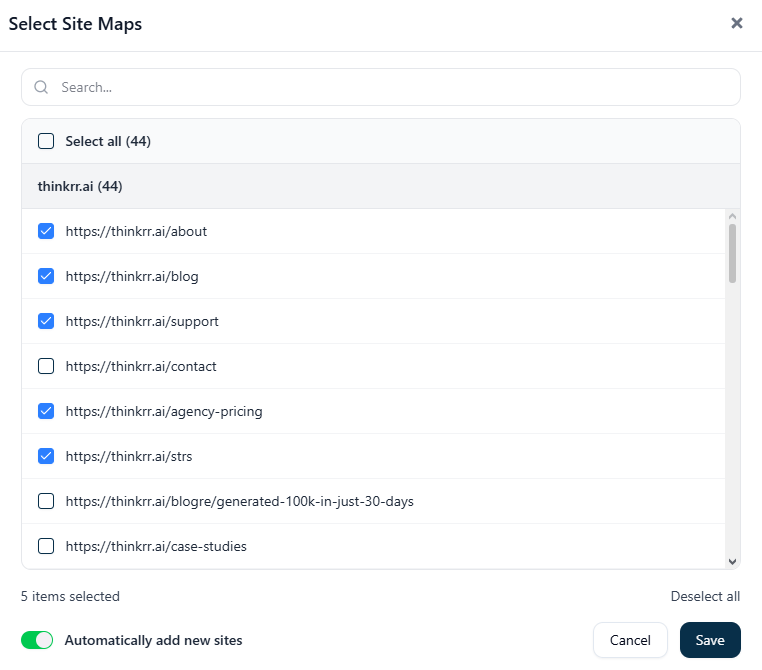
- If you are scraping a main domain, you can review the discovered pages and choose which specific pages to include
- You can use this to avoid adding pages that are not relevant to the agent
- You can also enable automatic detection of new pages from that site for easier ongoing management
- Remove the existing URL from the Knowledge Pack
- Add the same URL again to trigger a fresh scan, or rescrape the site and update the selected pages
- The document or website must be publicly accessible or set to “anyone with the link”
- Limit edit access to only trusted users who are responsible for maintaining the content
- Review sharing permissions carefully to avoid exposing sensitive information
⚠️ Important Some URLs cannot be scraped due to restrictions set by the website’s hosting provider or service platform. These protections are designed to prevent automated scraping and may block content access without any visible error. There is no built-in way for thinkrr to detect whether a page was partially or fully blocked during scraping. If a page cannot be scraped, the information will simply be missing from the Knowledge Pack. If your agent appears inconsistent or inaccurate when referencing URL-based content, this may be the cause. To avoid this:
- Check with your website host or service provider to confirm scraping is allowed
- Test the URL manually by adding it to a Knowledge Pack and verifying the agent’s responses
- Be especially cautious when scraping your own website or protected pages
💡 Tip: Check the site’s robots.txt file Some websites block automated scraping using a file called robots.txt. You can quickly check this yourself by visiting: yourwebsite.com/robots.txt This file tells crawlers which parts of the site are allowed or disallowed. How to read it (at a high level):Things to keep in mind:
- An asterisk (*) usually means “all crawlers”
Allow: /generally means the entire site can be crawledDisallow: /means the entire site is blocked- Specific paths under
Disallowmean only those sections are blockedIf your agent seems to miss or ignore information from a URL, checking robots.txt is a good first step to understand whether scraping restrictions may be the cause.
- If certain pages are disallowed, those pages may not be scraped into a Knowledge Pack
- If the robots.txt file exists, scraping rules are explicitly defined and should be reviewed
- If the file does not exist at all, the site may still block scraping through other protections
Plan Credits and Usage
Knowledge Pack usage is tied to your account’s plan credit allocation. Credits are consumed when an agent actively references Knowledge Pack content during calls. You can monitor remaining credits and purchase more from the Payments screen.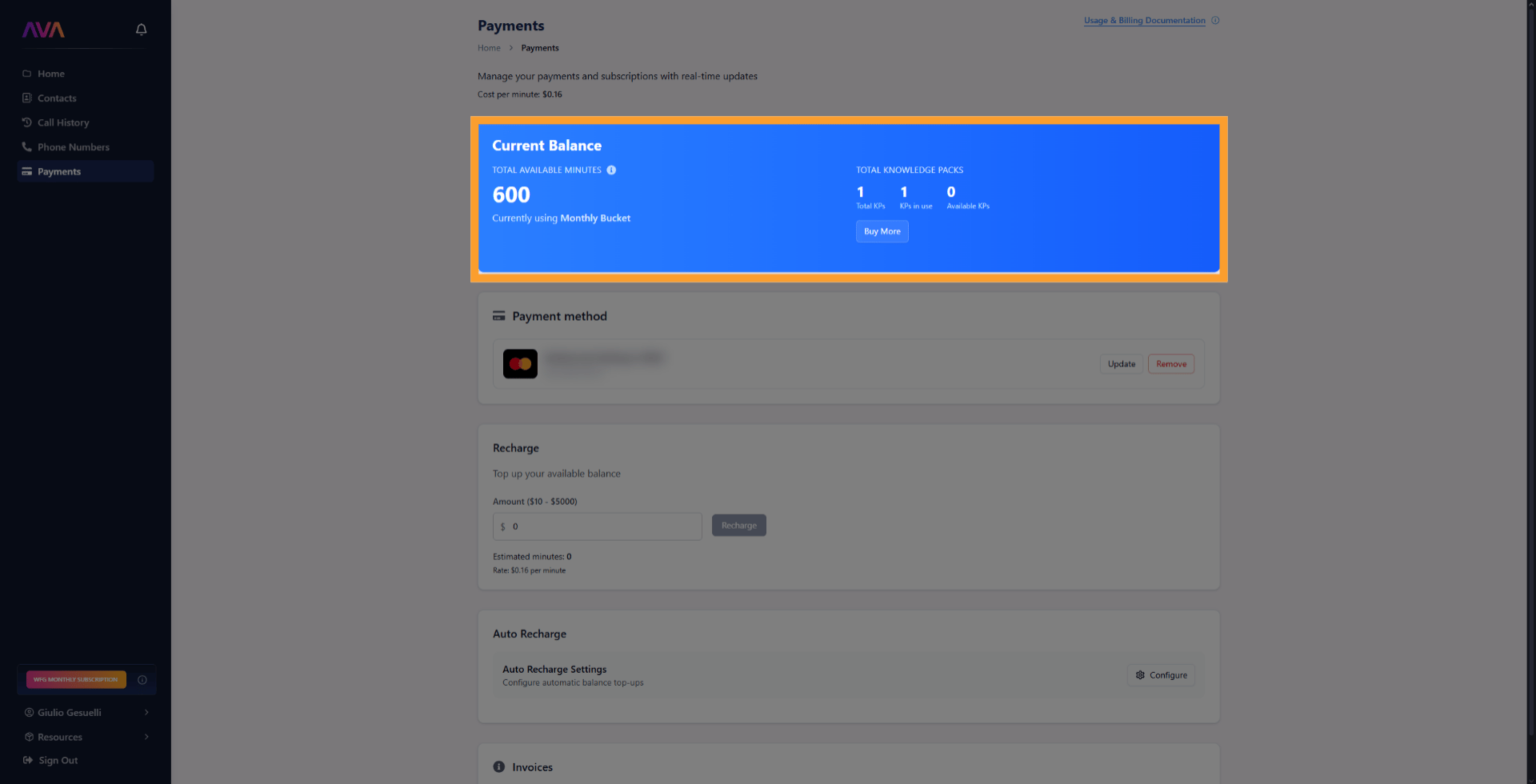
- Credit counter: Displays remaining credits for the current billing cycle
- Credit transfers: Agencies can transfer credits between sub-accounts to balance usage
Optimization
Knowledge Packs work best when the content is clean, concise, and well-structured. Poorly formatted content can reduce answer accuracy and slightly increase response time. In most cases, this adds around 100 milliseconds of latency, which is generally not noticeable.Content Formatting Best Practices
- Prefer
.md(Markdown) files over.txtwhenever possible (NEW) - Use clear and descriptive section headings
- Keep each section focused and reasonably short
- If a section becomes long, split it into multiple subsections
- Write short paragraphs and lists to separate concepts
- Avoid large walls of text
- Be specific and explicit, include names, dates, and units
- Avoid vague references like “it,” “this,” or “they,” since earlier context may not always be present
- Group related information within the same section so content stays cohesive
- Use Knowledge Packs to supply reference information only, not agent instructions or prompts
Working With CSV and Tabular Data
.csv and .tsv files are supported, but tabular data on its own can be harder for agents to retrieve accurately, especially when rows lack context.
Best practices when using CSV or spreadsheet-style data:
- Add explanatory text that describes what the table represents
- Keep related rows grouped together
- Avoid uploading raw tables without any surrounding explanation
- When possible, summarize critical information in Markdown instead of relying only on rows and columns
✅ Good Example – Table With Context
Using URLs and Auto-Crawling Effectively
When adding URLs to a Knowledge Pack, it is best to use specific and targeted paths instead of broad website URLs. This improves crawl performance and helps you avoid hitting exclusion URL limits. What the tip means ❌ Bad approach (broad path + many exclusions):Set auto-crawl on
https://example.com/entire site)Then add 100+ exclusion URLs for pages you don’t want ✅ Good approach (granular paths):
Set auto-crawl on specific paths like:
https://example.com/docs/https://example.com/faq/Only crawl what you actually need Why it matters
- Better performance, crawling fewer, targeted pages is faster
- Avoids hitting limits, there’s a max of 200 exclusion URLs per auto-crawling path and 500 exclusion URLs per Knowledge Pack
FAQs & Troubleshooting
General Questions
Can I attach one Knowledge Pack to multiple agents or projects?
Can I attach one Knowledge Pack to multiple agents or projects?
Yes. A single Knowledge Pack can be linked to multiple inbound agents and outbound projects.
Does URL scraping work for any site?
Does URL scraping work for any site?
thinkrr can scan most publicly accessible pages but cannot access login-protected or private content.
Configuration
Do I need to manually refresh or reindex a Knowledge Pack after updates?
Do I need to manually refresh or reindex a Knowledge Pack after updates?
No. Knowledge Packs update automatically after new files or URLs are added. (NEW)
What happens if I disable a Knowledge Pack?
What happens if I disable a Knowledge Pack?
Disabling a pack removes access for the agent while keeping all content intact. You can re-enable it anytime.
Usage and Results
What should I do if a large file fails to upload?
What should I do if a large file fails to upload?
Split the file into smaller parts and upload them separately. Even a few megabytes of text can represent a large amount of content. (NEW)
Will using a Knowledge Pack slow down responses?
Will using a Knowledge Pack slow down responses?
No. thinkrr optimizes response generation even when referencing large Knowledge Packs.
For additional questions or guidance, try using our Virtual Support Agent! Available 24/7 to help resolve most issues quickly at thinkrr.ai/support. If you still need assistance, visit our support site at help.thinkrr.ai and submit a Ticket or contact our team directly at hello@thinkrr.ai.