

Overview
It enables users to trigger AI-driven voice calls through Dynamic Outbound Call actions and automate workflows using Contact Called triggers. With Call Status Filters, users can tailor workflows based on call outcomes, and Payload Values provide scenario-specific data for further automation and reporting. This guide combines all the essential details for setting up outbound projects, using call status filters, and accessing payload values in workflows.Terms & Definitions
Scenarios
Standard Scheduler
Standard Scheduler With Cold Transfer
Custom Multi-Topic Scheduler
Event Follow-Up Scheduler
Real Estate Market Engagement
Strategic Sales Opportunity Scheduler
Recruitment Outreach Scheduler
Event Attendance Confirmation
Generic Sales Closer Scheduler
Qualification Scheduler
Real Estate Interest Qualifier Scheduler
Data Collection
Client Follow-Up
Generic Outbound Scenario
Generic Outbound Scheduler
Generic Outbound Scenario with Cold Transfer
Appointment Reminder
Hostaway: Welcome Call
Hostaway: NPS Survey
Details
1. Creating Outbound Projects in thinkrr
Outbound projects are created from the Home screen and serve as the foundation for all outbound calling activity. Each project is built using a selected Scenario, which determines the configuration fields available for training the AI agent.1
From the Home screen, click Add New Project to create a new outbound project.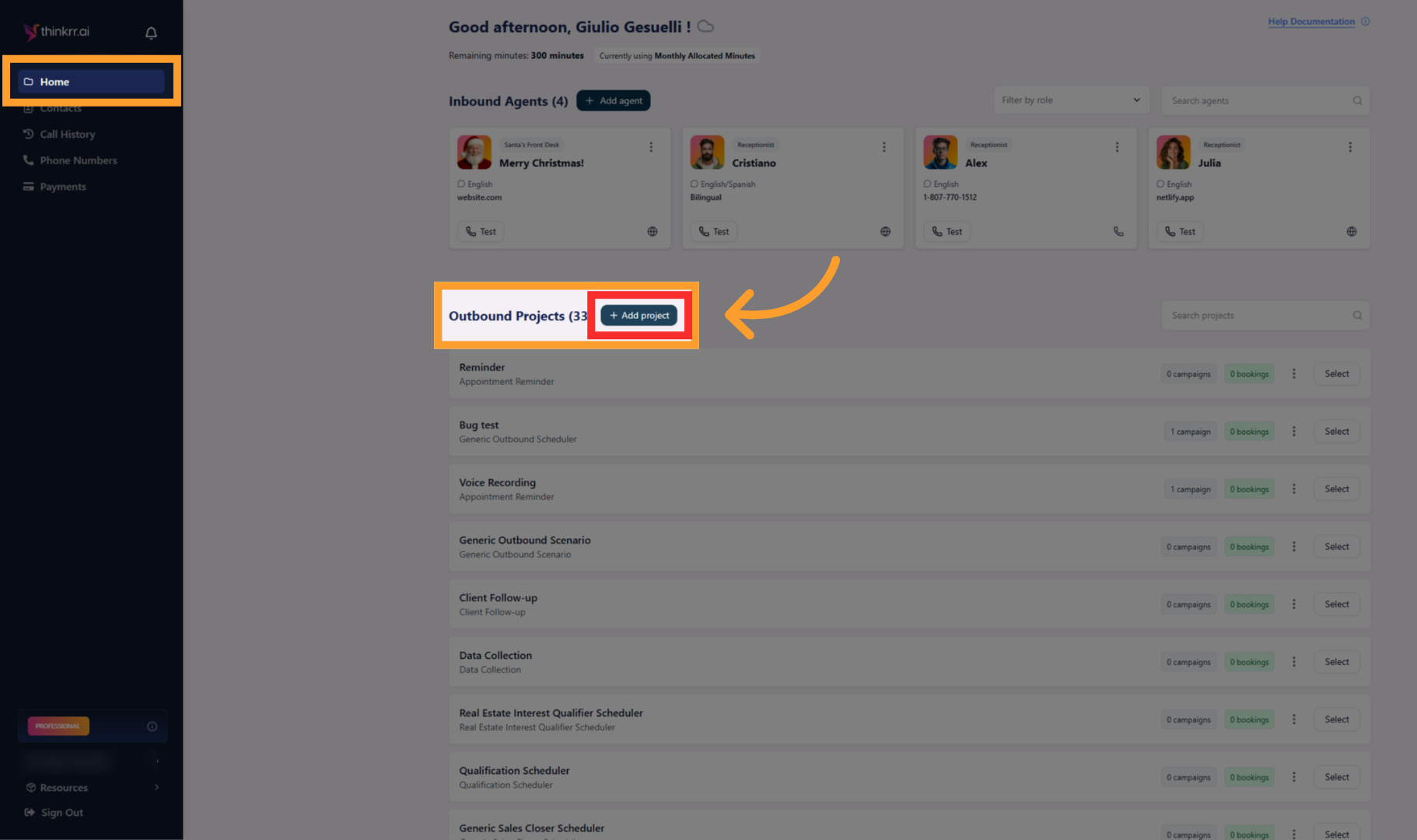
2
Select a Scenario from the Scenario Library.
Scenarios define the call type and which configuration fields will be available.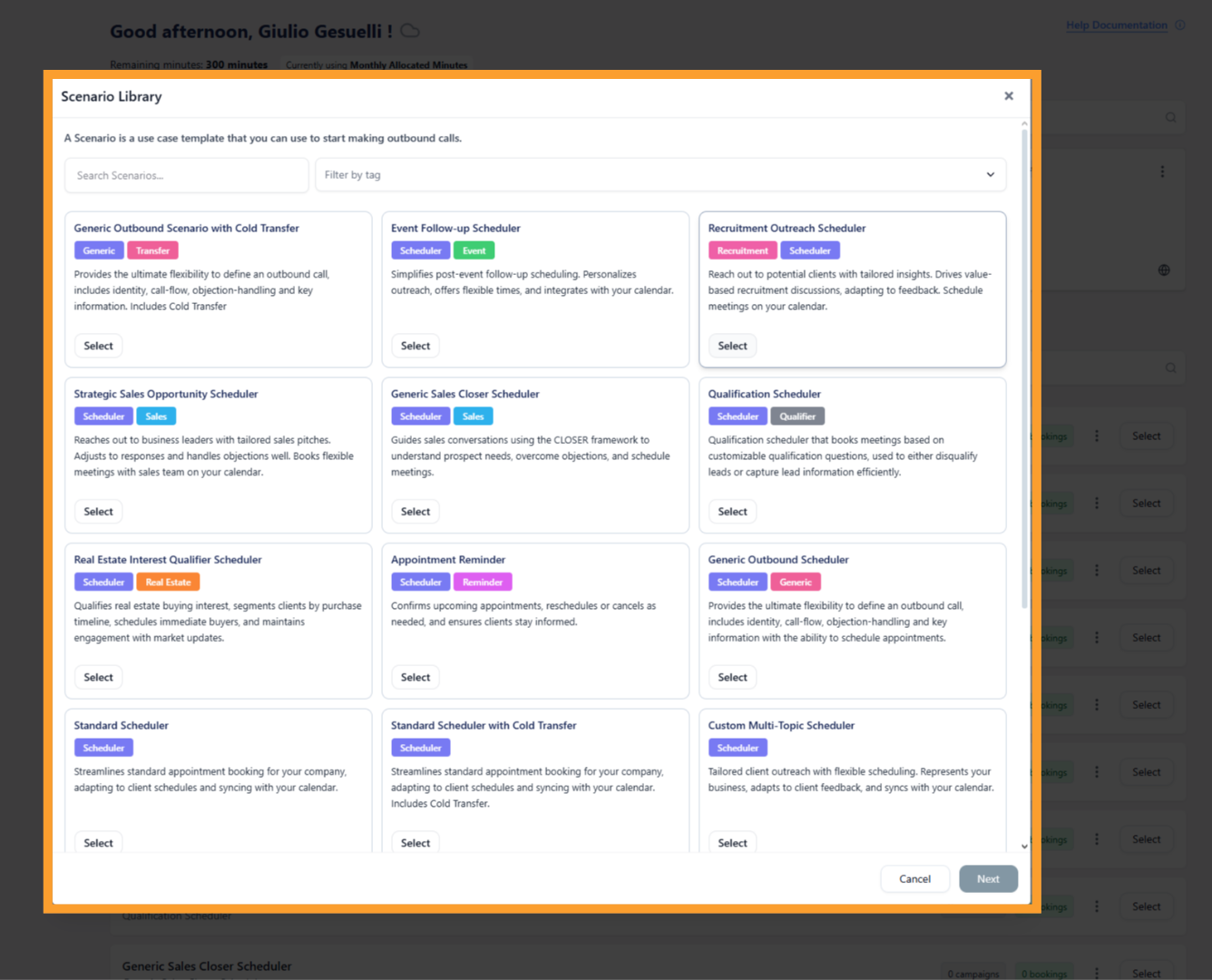
Scenarios define the call type and which configuration fields will be available.
3
Click Next, then enter a Project Name to create the project.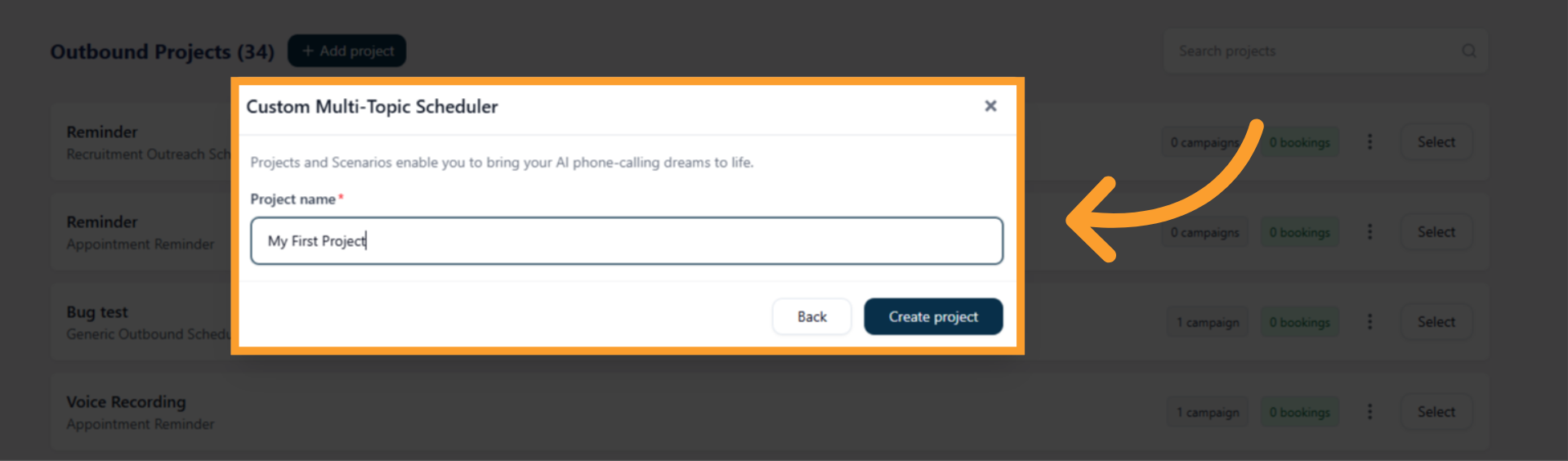
4
After the project is created, you’ll land on the Project Configuration tab.
This tab contains all scenario-specific fields used to train and instruct the AI agent.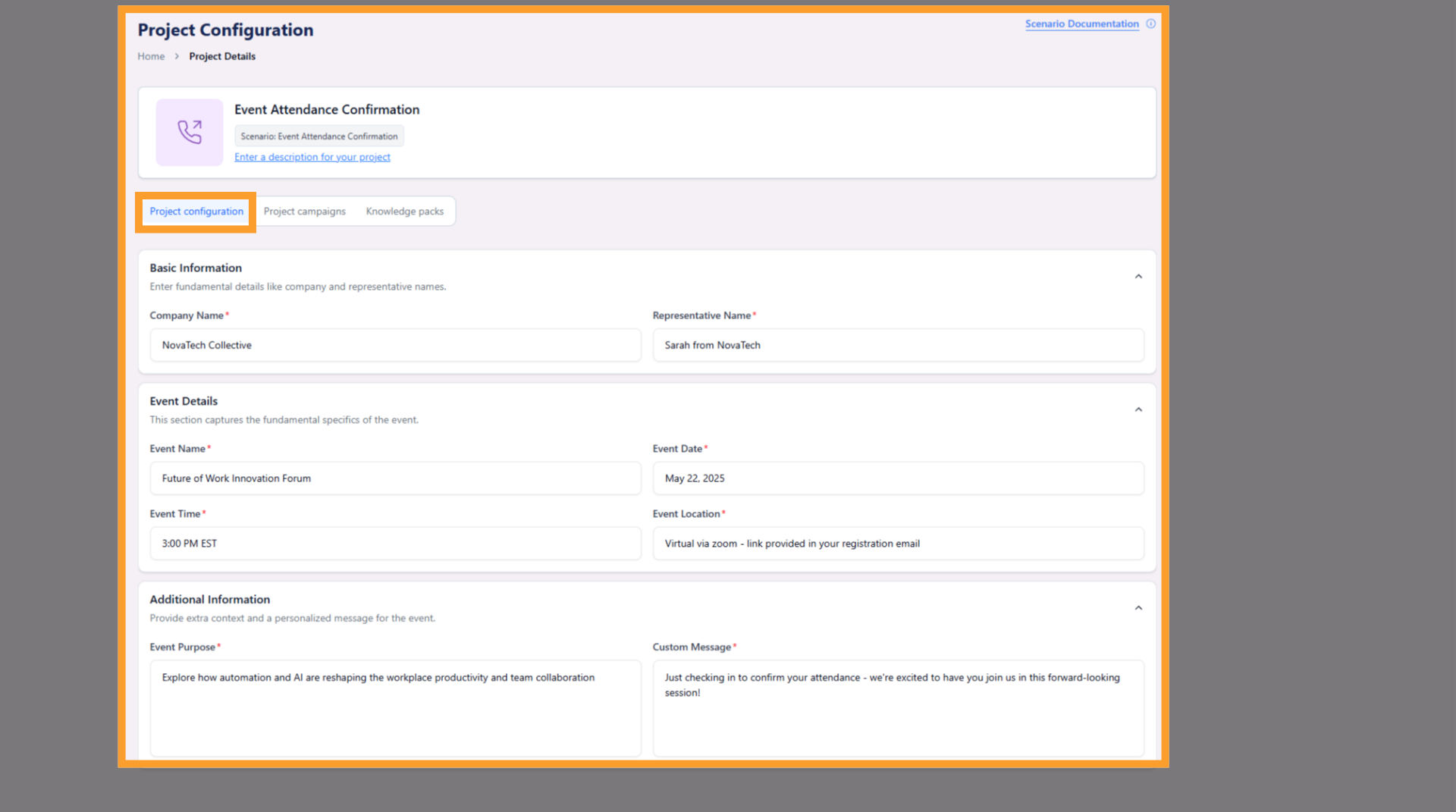
This tab contains all scenario-specific fields used to train and instruct the AI agent.
5
Use the Project Campaigns tab to create and manage campaigns that execute outbound calls using the project’s configuration.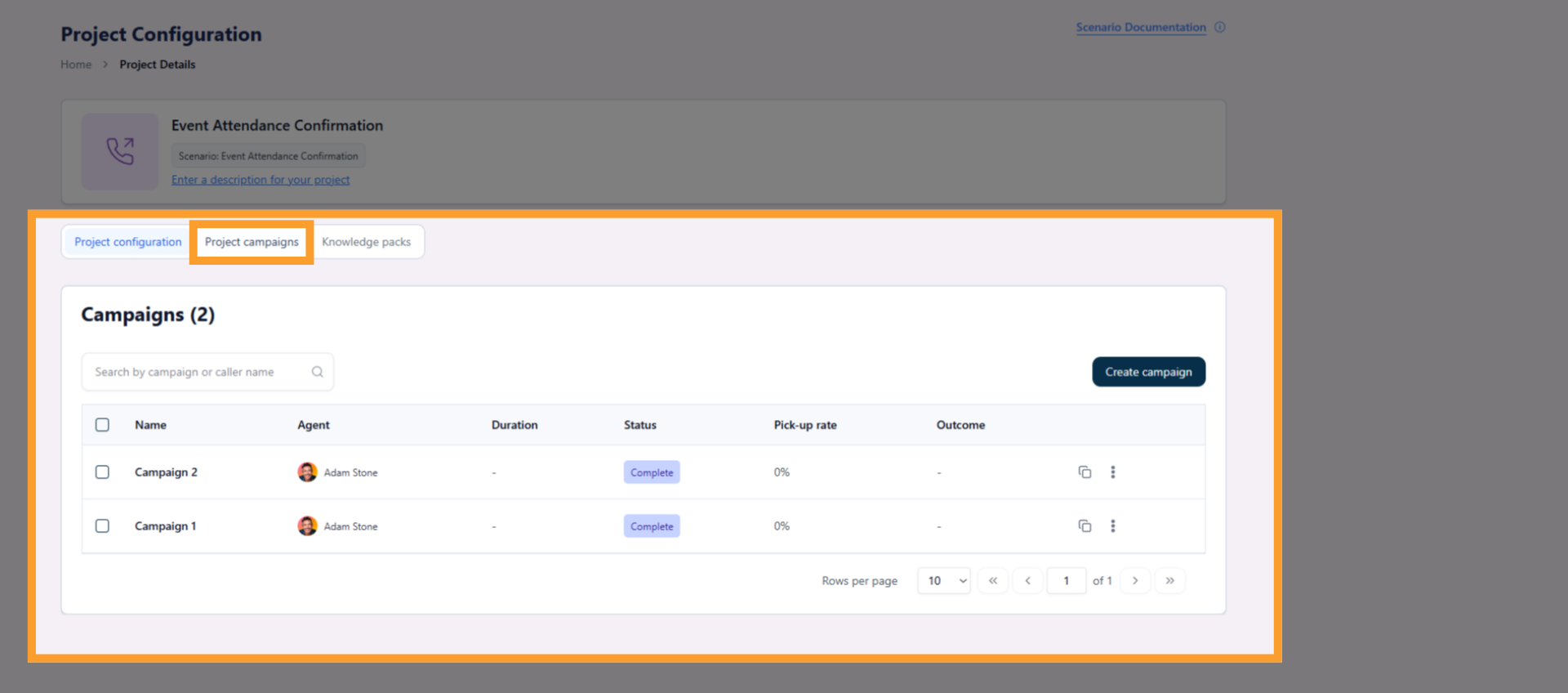
2. Using thinkrr with thinkrr CRM/GHL Automations
Dynamic Outbound Call:1
Create a new automation in thinkrr CRM/GHL.
2
Add the Dynamic Outbound Call action to your workflow.
3
Map the contact fields (e.g., phone number, name, email) to thinkrr’s project configurations.
4
Publish the automation to enable outbound calls.
1
Add the Contact Called trigger to your automation.
2
Use Call Status Filters to define actions based on call outcomes (see table below for available filters).
3. Call Status Filters
4. Understanding Payload Values
Payload values provide additional data from thinkrr calls and are accessible as custom values in thinkrr CRM/GHL workflows. These values vary by scenario and can be used to automate further actions or update contact records. Accessing Payload Values1
In your automation, select Update Contact Field or another action.
2
Click the text field to access the dropdown menu of available custom values.
3
Navigate to thinkrr Voice AI > Contact Called to view associated payload values.
4
Select the desired value to populate a contact record or process in your workflow.
5. Customising Workflows with Payload Values
Payload values in thinkrr workflows can be used to store important information, such as call transcripts, call start and end times, or meeting details. These values can then be processed further within automations or workflows in thinkrr CRM/GHL. By combining Call Status Filters with payload values, you can build highly dynamic and advanced workflows. Below are some practical ways to use payload values in your workflows: Using Call Status Filters Call Status Filters in the Contact Called trigger allow you to define different paths in your workflow based on the call outcome. For example:- Meeting Booked: Automatically update the contact’s status and send an email confirmation with meeting details.
- No Answer: Tag the contact for a follow-up attempt or schedule a reminder call.
- Voicemail with Message: Notify your team with a summary of the voicemail or store it in the contact record.
- Storing Payload Data:
- Update a Contact Field to save payload data, such as transcripts, meeting locations, or appointment details, into contact records or custom fields.
- This allows you to retain critical data for further actions or reporting.
- Post-Processing with Custom Values:
- Store a call transcript or other payload value into a custom value in the workflow.
- Use this custom value in advanced actions, such as:
- Sending the transcript to a ChatGPT custom action to generate insights or summaries.
- Creating automated follow-up tasks based on the tone or sentiment of the call (e.g., if sentiment = negative, assign a priority follow-up task).
- Dynamic Workflow Examples:
- ChatGPT Integration: Save the call transcript as a custom value, then pass it to a ChatGPT action to summarize the call or draft a follow-up email based on the conversation.
- Sentiment-Based Actions: Use the Call Sentiment payload value to segment your workflow. For instance:
- If Call Sentiment = Negative, tag the contact as “Needs Attention” and alert the support team.
- If Call Sentiment = Positive, schedule a follow-up meeting to build on the positive interaction.
- Meeting Confirmation Emails: Automatically pull meeting details (e.g., date, time, location) from the payload values and include them in an email template to the contact.
- Advanced Use Cases:
- Pipeline Management: Use the Meeting Booked status to trigger movement in your sales pipeline stages.
- Recording Access: Store the Recording URL as part of the contact record, enabling easy access for future reference or quality control.
- Custom Reporting: Save values like Call Status, Transcript, and Sentiment into custom fields for detailed reporting or analysis.
FAQs & Troubleshooting
What happens if I create a project in thinkrr? Will it sync with thinkrr CRM/GHL workflows automatically?
What happens if I create a project in thinkrr? Will it sync with thinkrr CRM/GHL workflows automatically?
A: Currently, projects created in thinkrr do not automatically sync with thinkrr CRM/GHL workflows. For a project to be used in a thinkrr CRM/GHL workflow, you must manually set it up as a Dynamic Outbound Call action within the workflow. Additionally, configurations set in thinkrr (e.g., greeting scripts, meeting details) do not sync with thinkrr CRM/GHL and must be manually mirrored in your workflows.However, all Call History from thinkrr is synced back into the platform, allowing you to review call details, listen to recordings, and access transcripts directly within thinkrr. This ensures that even though configurations are not synced, you have a complete history of all interactions for reference.
How do I know which Payload Values are available for a scenario?
How do I know which Payload Values are available for a scenario?
A: The Payload Values available depend on the scenario you’ve selected in thinkrr. To check, open your workflow in thinkrr CRM/GHL and select an action like Update Contact Field (the tag icon inside the action). Navigate to thinkrr Voice AI > Contact Called to view the list of available values. Review the dropdown to understand what you can process, such as transcripts, meeting details, or sentiment.Also refer to the documentation for each scenario for further details.
What happens if the Dynamic Outbound Call fails to execute in a workflow?
What happens if the Dynamic Outbound Call fails to execute in a workflow?
A: If a Dynamic Outbound Call fails to execute, check the following:
- Ensure that the contact’s phone number is valid and formatted correctly.
- Verify that the thinkrr project linked to the action is active and properly configured.
- Review the Execution Logs inside the workflow for details about the error.
- Confirm that your thinkrr CRM/GHL automation is published and the action is correctly set up.
Can I trigger multiple workflows based on the same call outcome?
Can I trigger multiple workflows based on the same call outcome?
A: Yes, you can. Use the Contact Called trigger in thinkrr CRM/GHL workflows and apply Call Status Filters to segment actions. For example, you could trigger:
- A workflow to send an email confirmation if the status is Meeting Booked.
- Another workflow to schedule a follow-up attempt for No Answer.
Is it possible to build sentiment-based automations in thinkrr CRM/GHL?
Is it possible to build sentiment-based automations in thinkrr CRM/GHL?
A: Yes! thinkrr provides a Call Sentiment payload value that can be used in workflows. For example:
- If sentiment is Positive, you could move the contact to a “Hot Lead” stage in your pipeline.
- If sentiment is Negative, you could tag the contact for a priority follow-up or escalate the case to a team member.
How can I handle contacts with ‘No Answer’ or ‘Voicemail’ call statuses efficiently?
How can I handle contacts with ‘No Answer’ or ‘Voicemail’ call statuses efficiently?
A: For No Answer:
- Use the Contact Called trigger with the No Answer filter to tag the contact for a follow-up attempt or schedule a reminder call.
- If a message was left, store the voicemail transcript with the contact, either in a custom field or within the Notes.
- If no message was left, tag the contact to prioritise another call attempt during a more optimal time.
For additional questions or guidance, try using our Virtual Support Agent! Available 24/7 to help resolve most issues quickly at thinkrr.ai/support. If you still need assistance, visit our support site at help.thinkrr.ai and submit a Ticket or contact our team directly at hello@thinkrr.ai.