

Details
The Sub-Account Management & Monitoring tools provide both internal admins and client admins with centralized visibility over account usage, billing cycles, and client engagement quality. With built-in reporting and monitoring features, you can track how sub-accounts are performing, identify risks, and manage account health across your entire client base. The Account Manager section of the platform contains two tabs: Subaccounts and Users. The Subaccounts tab is where you manage client accounts, monitor usage, and handle billing. The Users tab is where you manage team members and their access across your agency environment.Subaccounts Tab
Sub-account management in thinkrr revolves around the relationship between your Primary Sub-account (agency operational account) and your Secondary Sub-accounts (individual client accounts). As an agency, you use the Agency Dashboard to monitor client usage, track account activity, calculate billing amounts, and manage profitability across your sub-accounts.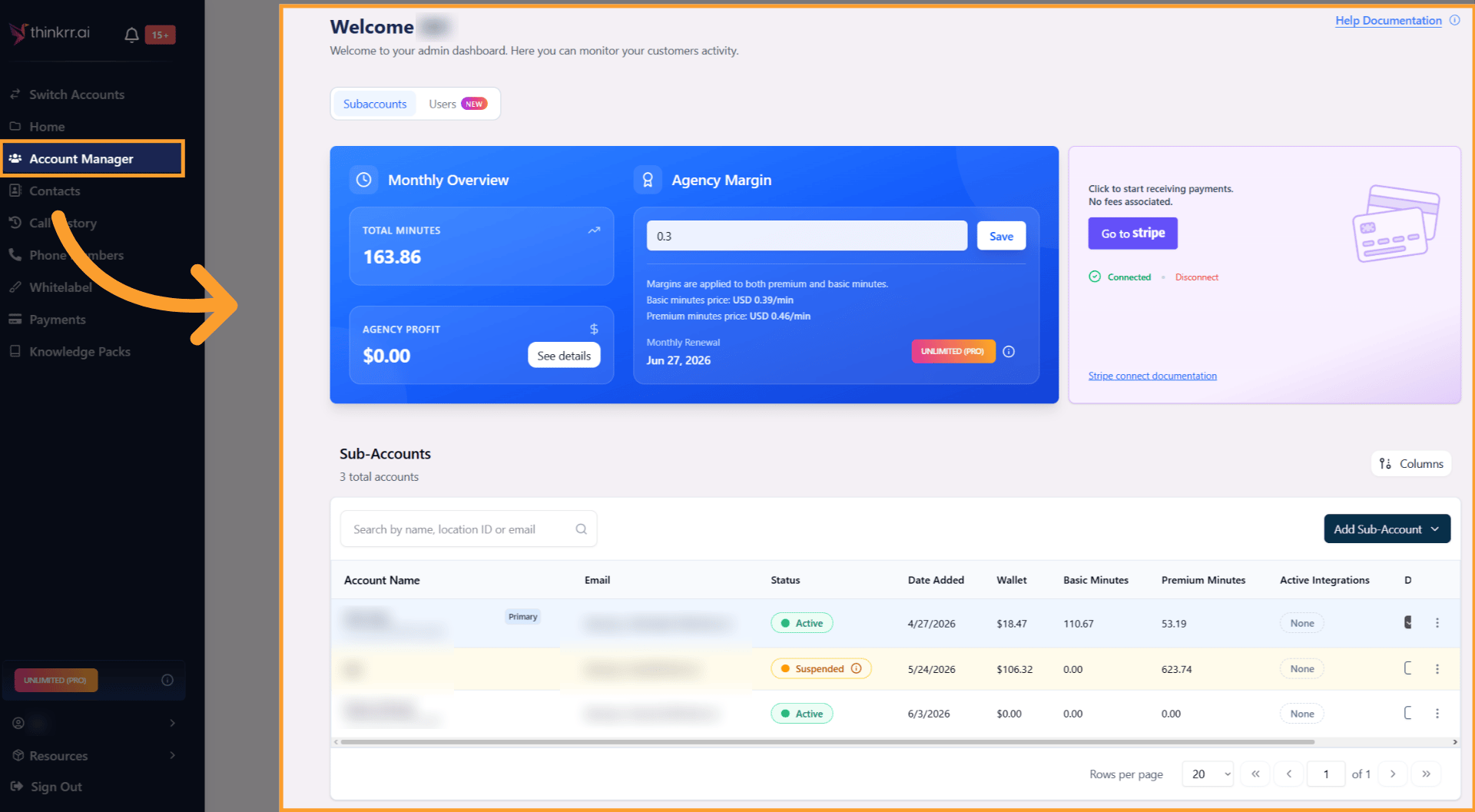
Primary Sub-account (Agency Account)
The Primary Sub-account represents your agency’s operational base:- Tracks:
- Global total minutes consumed across all sub-accounts.
- Agency profit generated through markups on client usage.
- Plan renewal dates and subscription management.
- Serves as the financial and operational overview for your agency.
- Adding or Managing Sub-Accounts: From the thinkrr Agency Home page, navigate to Account Manager to:
- Add new sub-accounts.
- Update login emails for existing sub-accounts.
- View usage, balances, and client activity.
- Remove existing sub-accounts:
- Click the three dots beside the client account and select Remove Sub-Account.
- Primary accounts cannot be removed.
- Removing a sub-account frees a slot under your plan limit, allowing you to add another client if available.
- Transferring Minutes Between Sub-Accounts: Agencies can move minutes between client accounts directly from Account Manager.
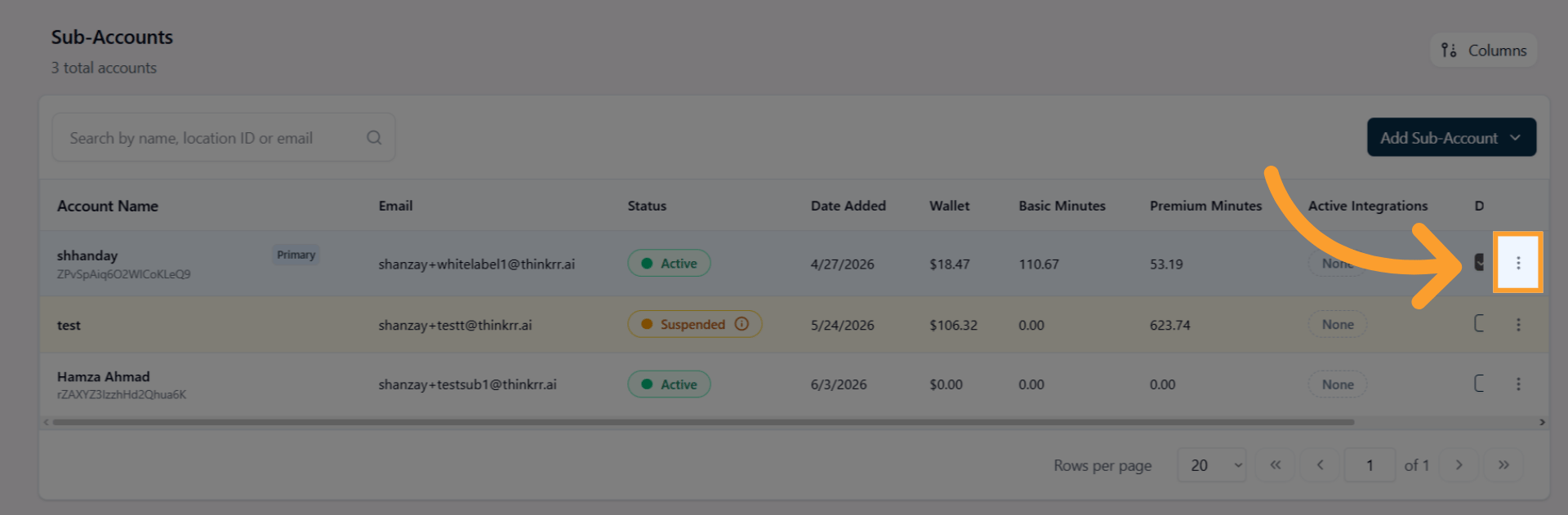
- Click the three dots beside the Primary Sub-account.
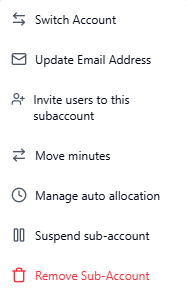
- Select Move Minutes to open the transfer interface.
- Enter the number of Basic or Premium minutes you want to transfer.
- Select:
- The sub-account the minutes will be taken from
- The sub-account the minutes will be deposited into
- If the destination account uses a different markup, thinkrr automatically calculates the final minute amount received.
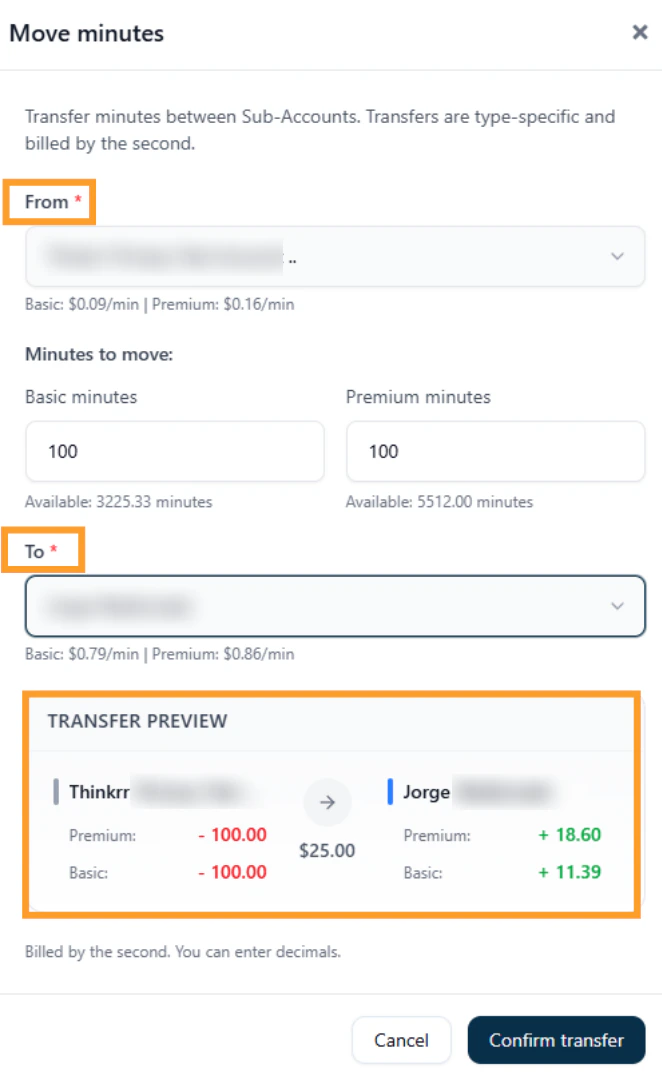
- Always review the calculated values before confirming, especially when transferring between accounts with different pricing markups.
💡 Agency Tip: If your plan has a sub-account cap (like Agency Lite), removing a sub-account restores one available slot that can be reassigned to a new client.
Suspending a Sub-Account
Agency Owners and Agency Admins can suspend a sub-account at any time without deleting it. Suspending a sub-account pauses all activity immediately while keeping all data intact. When a sub-account is suspended:- All calls and edits are paused immediately.
- Active outbound campaigns are paused.
- Inbound agents are marked inactive.
- GHL triggers and workflow actions associated with the sub-account stop working.
- The sub-account user can still sign in and view their historical data, but cannot make any changes.
- A banner is displayed to the sub-account user explaining that their account is paused, along with any note provided by the agency.
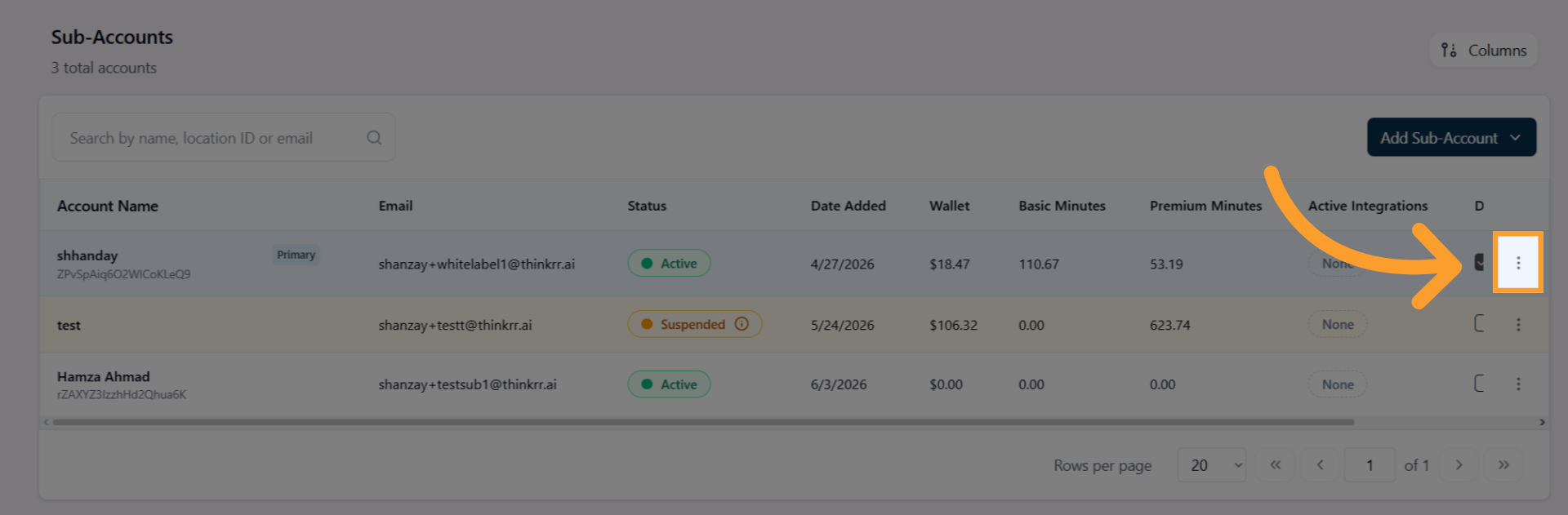
- Inside the Account Manager and locate the sub-account.
- Click the three-dot menu beside it and select Suspend sub-account.
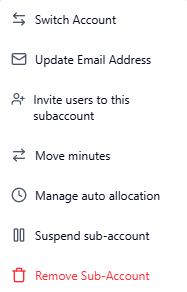
- Optionally, add a note to be shown to the client (e.g. “Invoice 30+ days overdue”) — up to 150 characters.
- Click Suspend sub-account to confirm.
Removing a Sub-Account
When removing a sub-account, thinkrr walks you through a two-step process to handle any remaining minutes and Knowledge Pack credits before the account is deleted. What happens when a sub-account is removed:- All minutes from the sub-account are transferred to an account of your choice.
- All associated automations stop working.
- Knowledge Packs previously transferred to the sub-account can be transferred back.
- All phone numbers associated with the sub-account are deleted.
1
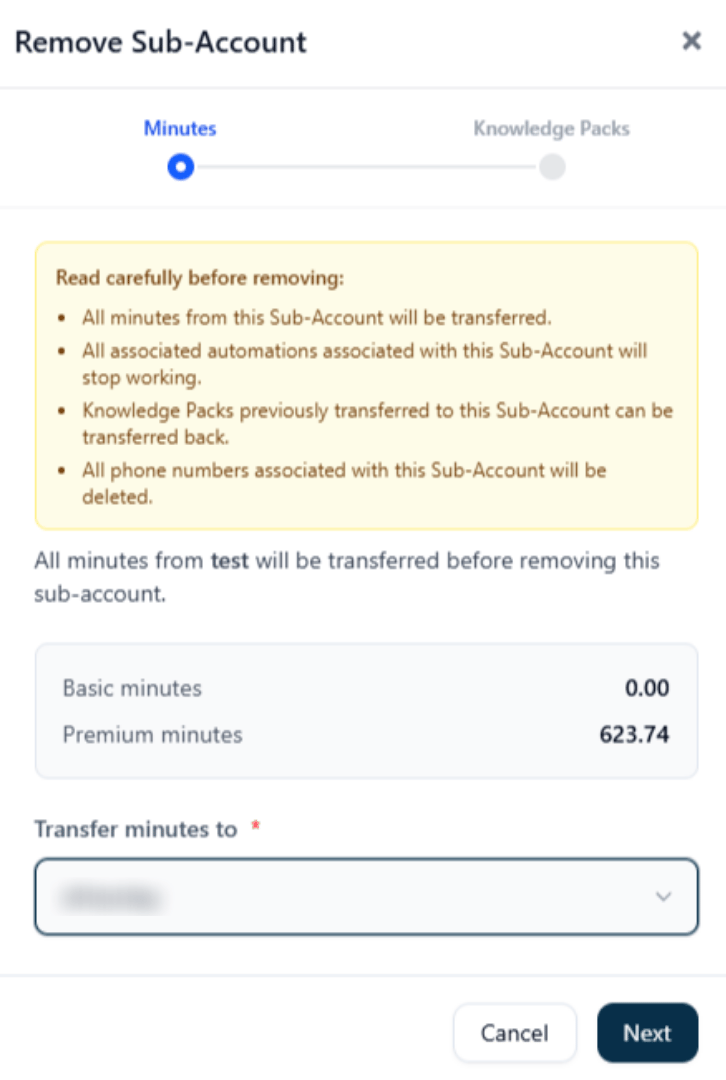
Minutes
- thinkrr displays the Basic and Premium minute balances remaining in the sub-account.
- Select which account the minutes should be transferred to using the dropdown.
- Click Next to proceed.
2
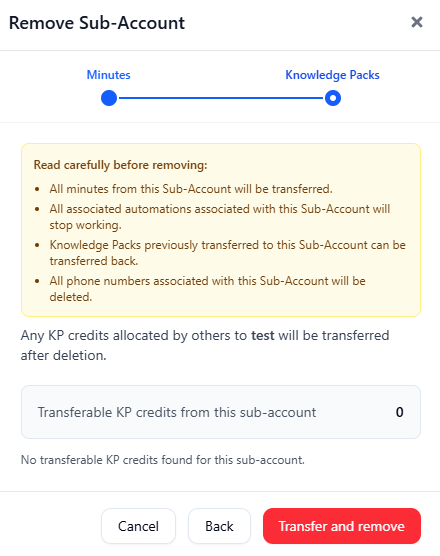
Knowledge Packs
- thinkrr displays any transferable KP credits from the sub-account.
- If credits exist, they will be transferred automatically after deletion.
- Click Transfer and remove to complete the removal.
Monthly Sub-Account Auto Allocation
In addition to manually transferring minutes, agencies can configure Monthly Sub-Account Auto Allocation to automatically purchase and assign minutes to a selected client account on a recurring monthly basis. This allows you to:- Allocate a fixed number of Basic and/or Premium minutes per month to a specific sub-account.
- Charge the allocation to the primary account’s saved payment method.
- Ensure clients receive consistent monthly minute coverage without manual transfers.
- Go to Agency Dashboard > Account Manager
- Open the three-dot menu beside the desired sub-account
- Select Manage > Manage Auto Allocation
Secondary Sub-accounts (Client Accounts)
Secondary Sub-accounts represent your individual client accounts:- Operate independently with their own:
- Call scenarios (campaigns and projects)
- Usage reporting (call volumes, statuses, wallet balances)
- Billing cycle dates and renewal management
- Clients consume minutes (and generate costs) based on actual call usage.
- Agencies manage:
- Wallet balances (remaining dollar value of minutes)
- Spent amounts (cost of minutes consumed during the period)
- Profit margins by applying markups over the base minute pricing
- Tracking consumption and wallet activity ensures that agencies can bill clients accurately based on real usage, rather than static allocations.
Note: Sub-accounts can only be removed from within the Primary (Agency) account. To request or confirm removal, access Account Manager in your agency dashboard and use the three-dot menu beside the sub-account name.
💡 Agency Tip: Use the Wallet Balance, Spent Amount, and Total Minutes Used metrics in the Reporting section to calculate how much to invoice each client. Profit tracking is automated based on the difference between your base cost and the client-facing markup.
Users Tab
The Users tab inside Account Manager is where you manage team members across your agency environment. You can invite teammates, assign roles, control which sub-accounts they can access, update permissions at any time, and track pending invitations. There is no limit on the number of users you can invite, and there is no limit per role.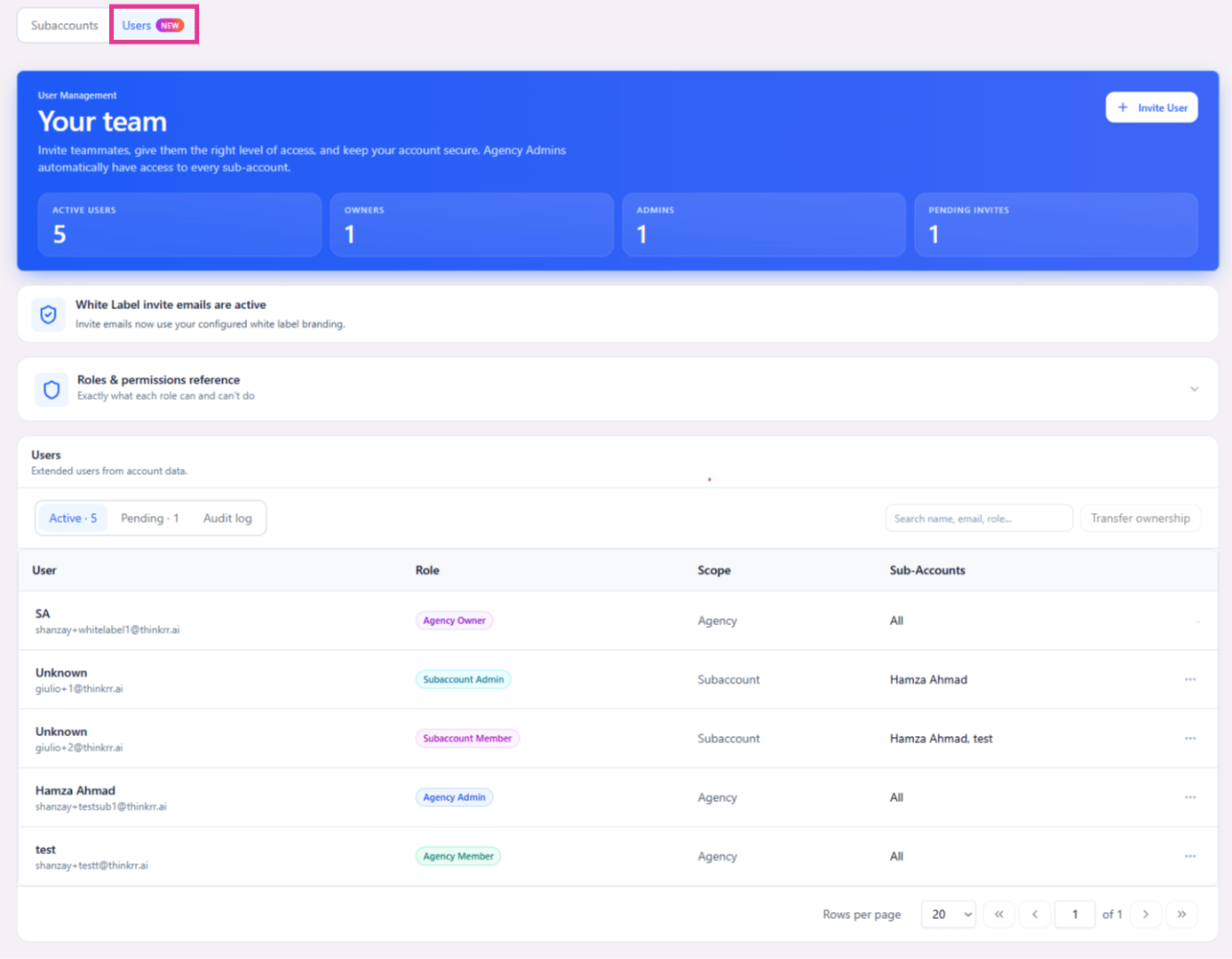
Roles & Permissions
Each user is assigned one of five roles. The role determines their scope of access across the agency and its sub-accounts.The Agency Owner role is assigned to the email address associated with the account itself. It cannot be assigned through an invitation — there is always exactly one owner per agency.
Inviting a User
To invite a team member:1
Open the Users tab
Navigate to Account Manager and click the Users tab. Click + Invite User in the top right.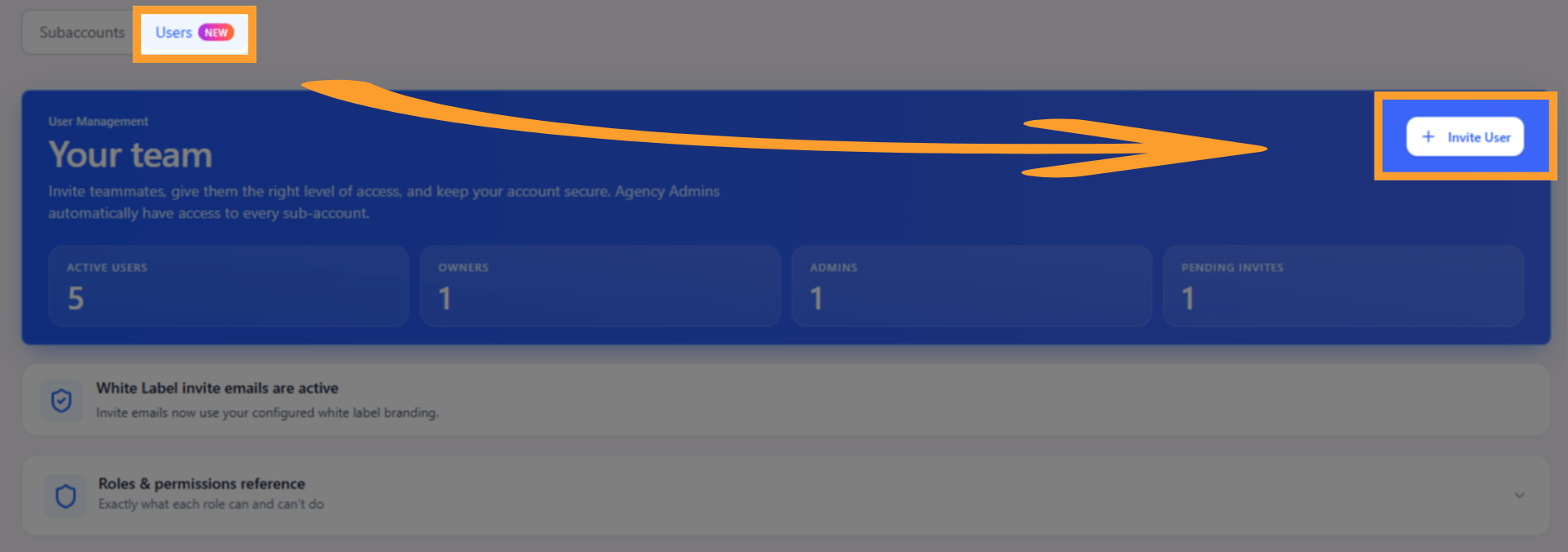
2
Enter their email address
Type the email address of the person you want to invite. The email must be unique — if it already exists in the system, an error will be shown.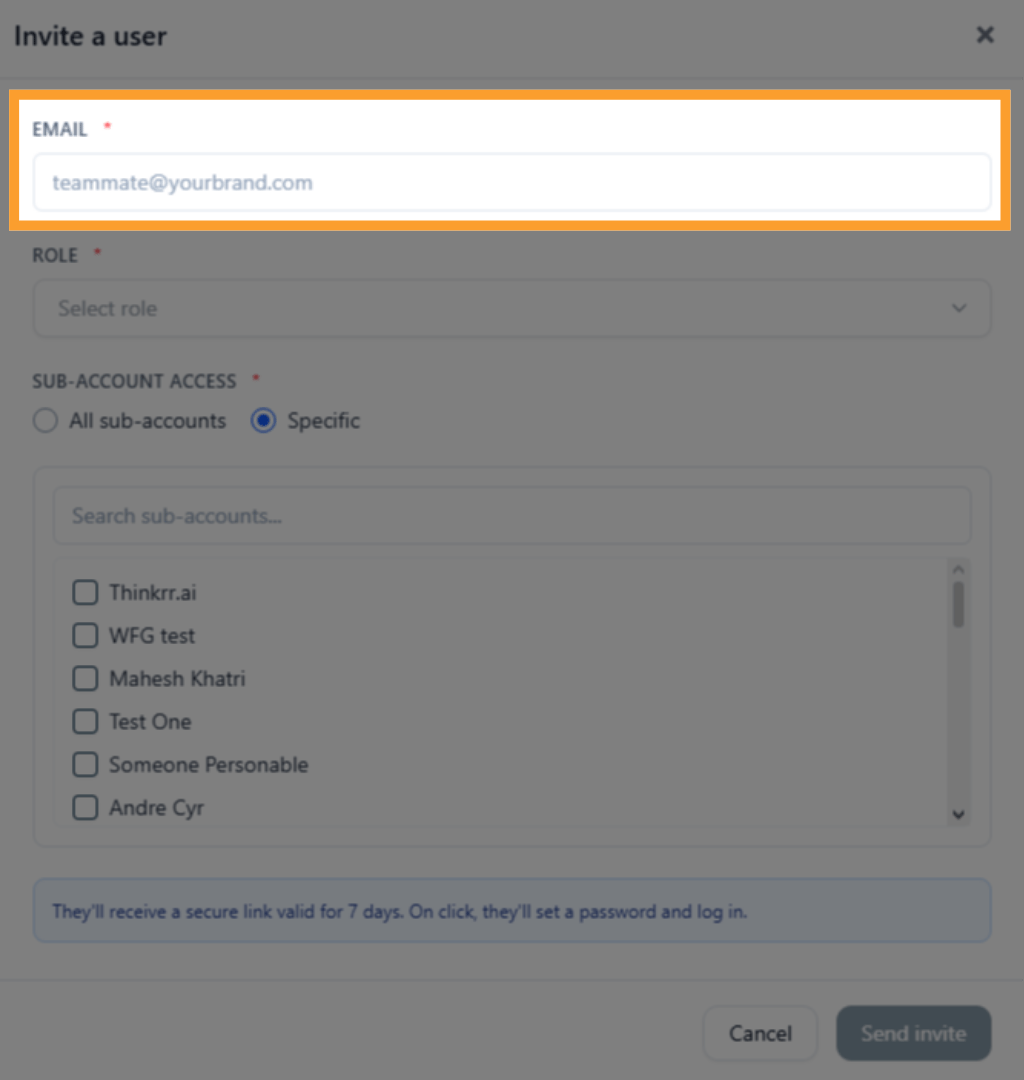
3
Select a role
Choose one of the four assignable roles: Agency Admin, Agency Member, Subaccount Admin, or Subaccount Member.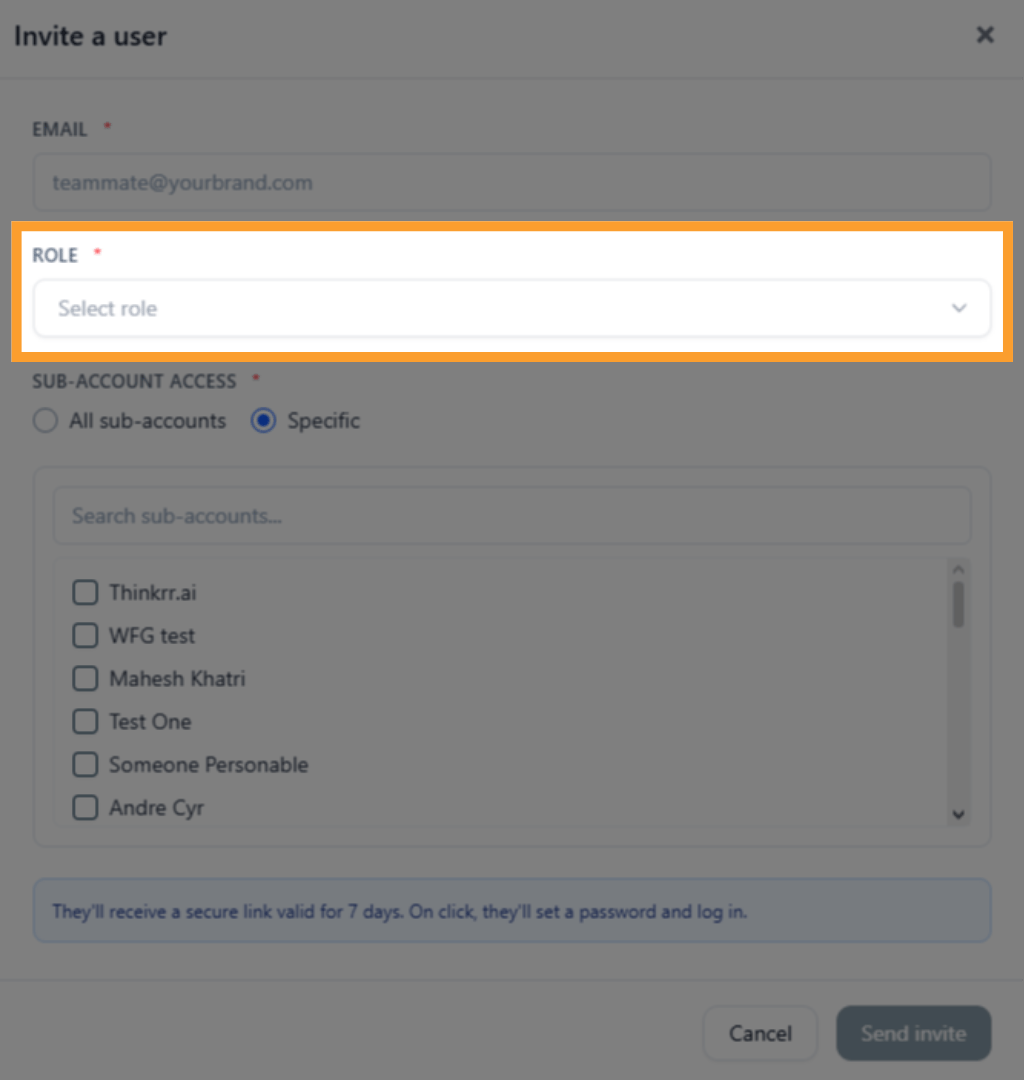
4
Set sub-account access
- For Agency Admin and Agency Member: access applies across the full agency environment.
- For Subaccount Admin and Subaccount Member: select either All sub-accounts or Specific sub-accounts from the list.
5
Send the invite
Click Send invite. The invited user will receive a secure link valid for 7 days. On clicking the link, they set their password and log in.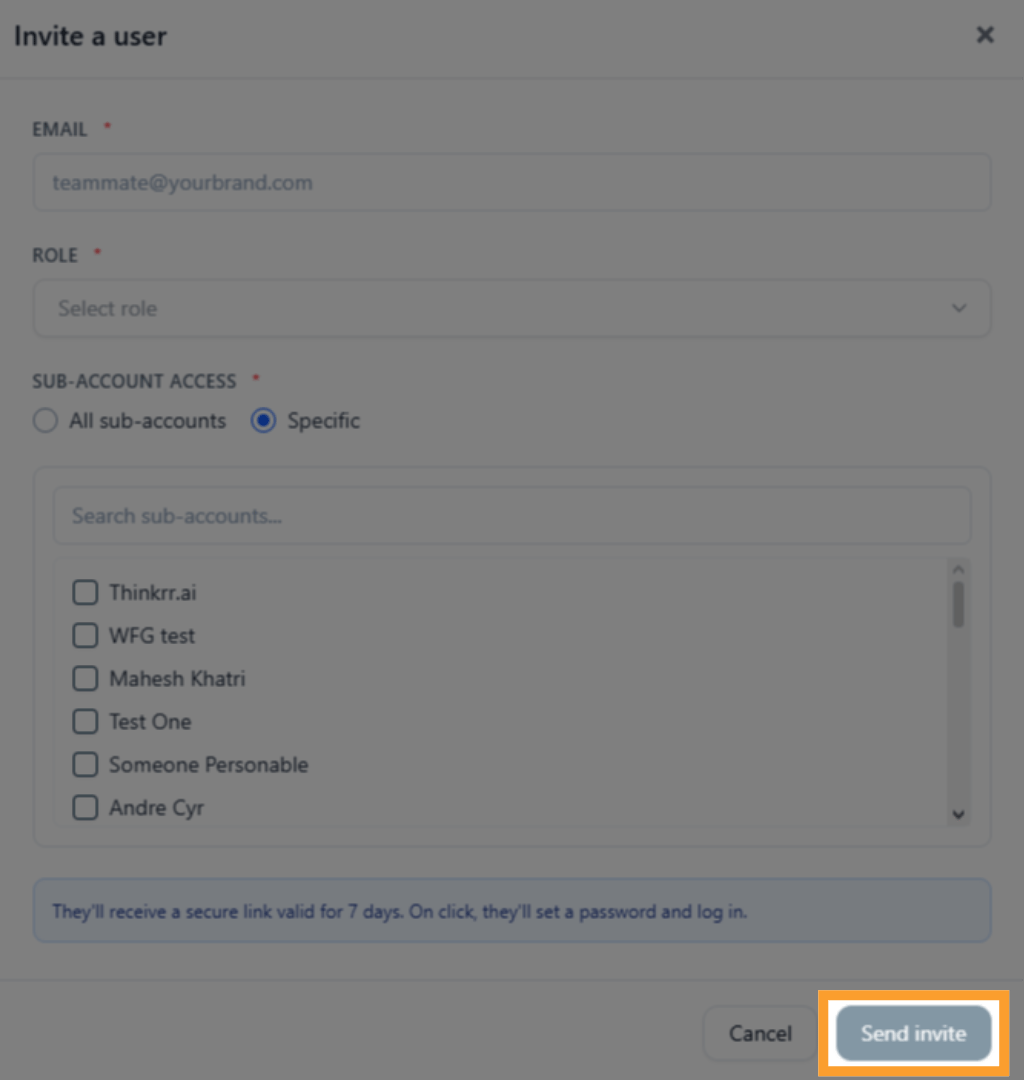
Managing Existing Users
From the Users table you can:- Update a user’s role at any time using the three-dot menu beside their name.
- Remove a user from the account entirely.
Profits & Stripe Payouts
When clients purchase minutes, the difference between the base price and your markup is tracked as agency profit. Once your total earnings reach a certain value, payouts are processed through Stripe Connect — which must be configured from your Agency Dashboard > Account Manager. Make sure you’ve connected your Stripe account to receive automated payouts. To learn more, see Profits & Payouts.FAQs & Troubleshooting
General Questions
What is the difference between the Primary and Secondary Sub-accounts?
What is the difference between the Primary and Secondary Sub-accounts?
The Primary Sub-account belongs to the agency and acts as the operational hub, tracking global usage and profitability.
Secondary Sub-accounts represent individual client accounts, operating independently with their own campaigns, reporting, and billing cycles.
Secondary Sub-accounts represent individual client accounts, operating independently with their own campaigns, reporting, and billing cycles.
Where can I manage or add client sub-accounts?
Where can I manage or add client sub-accounts?
Go to the Agency Dashboard > Account Manager.
From there, you can add new sub-accounts, update existing account email addresses, monitor usage and balance details, and remove existing ones.
From there, you can add new sub-accounts, update existing account email addresses, monitor usage and balance details, and remove existing ones.
Can I distribute minutes to my sub-accounts?
Can I distribute minutes to my sub-accounts?
Yes. Agencies can move minutes between sub-accounts at any time using Move Minutes in Account Manager, or set up recurring monthly allocations via Manage Auto Allocation.
Configuration
How are billing cycle dates determined?
How are billing cycle dates determined?
Each Secondary Sub-account’s billing cycle is based on the subscription start date.
The billing date is visible in the Reporting section and helps agencies forecast client renewals and charges.
The billing date is visible in the Reporting section and helps agencies forecast client renewals and charges.
How can I track client profitability?
How can I track client profitability?
Agency profit is calculated by applying a markup over the base minute price.
Use the Reporting section to review wallet balances, spent amounts, and profit margins per client.
Use the Reporting section to review wallet balances, spent amounts, and profit margins per client.
Can I filter data by custom date ranges?
Can I filter data by custom date ranges?
Yes. The Reporting section allows you to apply custom date ranges for all usage and call activity data, making it easier to review performance over specific periods.
Usage and Results
How should agencies charge their clients based on usage?
How should agencies charge their clients based on usage?
Agencies should monitor:
- Wallet balance (remaining prepaid value).
- Spent amount (total usage for the billing period).
- Total minutes used.
Using these metrics, agencies can invoice clients based on their real usage, ensuring accurate billing and maintaining healthy profit margins.
For additional questions or guidance, try using our Virtual Support Agent! Available 24/7 to help resolve most issues quickly at thinkrr.ai/support. If you still need assistance, visit our support site at help.thinkrr.ai and submit a Ticket or contact our team directly at hello@thinkrr.ai.