
Overview

Call statuses are used to track the outcome of each call made during a Campaign in thinkrr. These statuses provide crucial insights into the effectiveness of the outreach efforts, allowing users to evaluate their campaigns, identify issues, and optimize the process for better results. Call outcomes add a second layer of detail on top of the call status. While the status shows the general result of the call, the outcome helps clarify how the call ended or what happened during it.

Statuses and Outcomes

Call Status shows the general result of the call. Some statuses appear while the call is actively being processed, while others reflect the final result once the call has ended.
StatusDescription
Not startedThe call has not started yet.
QueuedThe call is waiting in the queue to be processed.
Initiating..The system is starting the call attempt. This is an in-progress status that usually appears while the call is actively being placed.
Ringing..The call is currently ringing. This is an in-progress status that usually appears while the call is actively happening.
Being processed..The call is still being processed by the system. This is an in-progress status that usually appears during the active call flow.
CompletedThe conversation was completed with no more specific final status, such as a booked meeting or transferred call.
User Hung upThe callee ended the call before the AI completed the conversation.
Meeting BookedA meeting was successfully scheduled during the call.
Call TransferredThe call was successfully transferred to another party.
Client Callback RequestedThe callee requested a callback during the conversation.
Voicemail - Left MessageThe call went to voicemail and the AI left a recorded message.
Voicemail - No MessageThe call went to voicemail, but no message was left by the AI.
No AnswerThe call rang, but was not answered and did not reach voicemail. The call was not connected.
BusyThe callee’s line was busy, and the call could not be connected.
Issue diallingThe system encountered a network or formatting error and could not place the call. The call was not connected.
FailedThe call attempt failed entirely due to a system, connection, or unknown error. The call was not connected.
Inactive ResponseThe call could not continue because there was no active response from the callee.
IVR DetectedThe call was answered by an automated system (IVR) and was terminated.
Call Outcome adds more specific detail to the call result. It works alongside the call status to give you a clearer picture of what happened during the interaction.
OutcomeDescription
Calendar IssueThere was a problem accessing or updating the calendar.
Callback RequestedThe client requested a callback during the conversation.
Appointment SetA meeting was successfully scheduled.
Explicit RequestThe caller specifically asked to speak with a human agent.
Complex RequestThe caller asked a question the AI is not trained to answer, requiring a human agent.
IVR SystemThe call was dropped because an interactive voice response menu was detected.
Integration ErrorA connection issue prevented the AI from completing the request.
Sentiment EscalationThe caller appeared frustrated or angry, triggering an automatic transfer to staff.
System ErrorA system error prevented the call from completing as expected.
After-hours queuedThe agent offered a call transfer, but it could not be completed because the call happened outside business hours.
No Message LeftVoicemail was reached, but no message was left.

How to Check Your Campaign Call Status

1

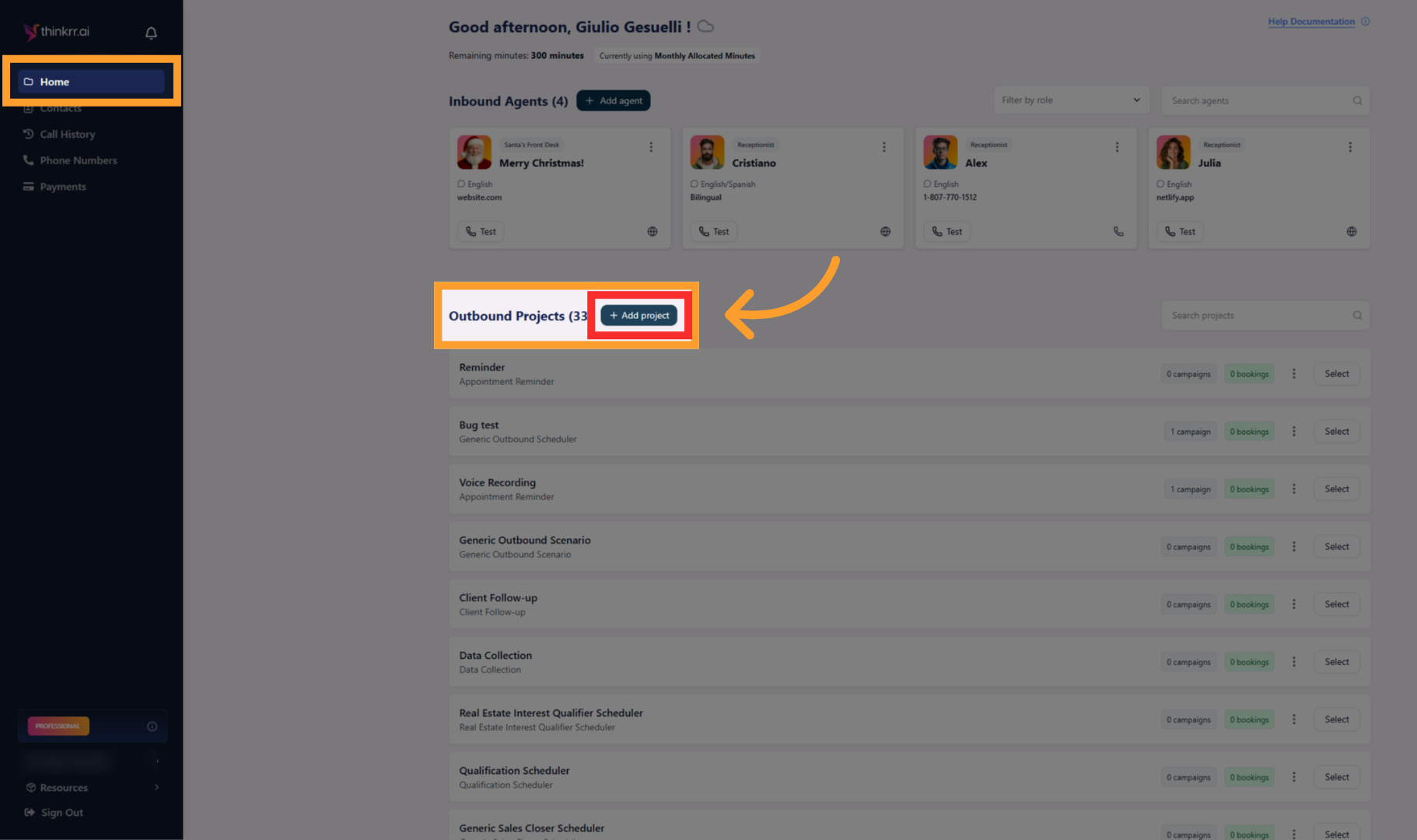
Open an outbound project

  • From the Home screen, select an existing outbound project.
Projectnew1
2

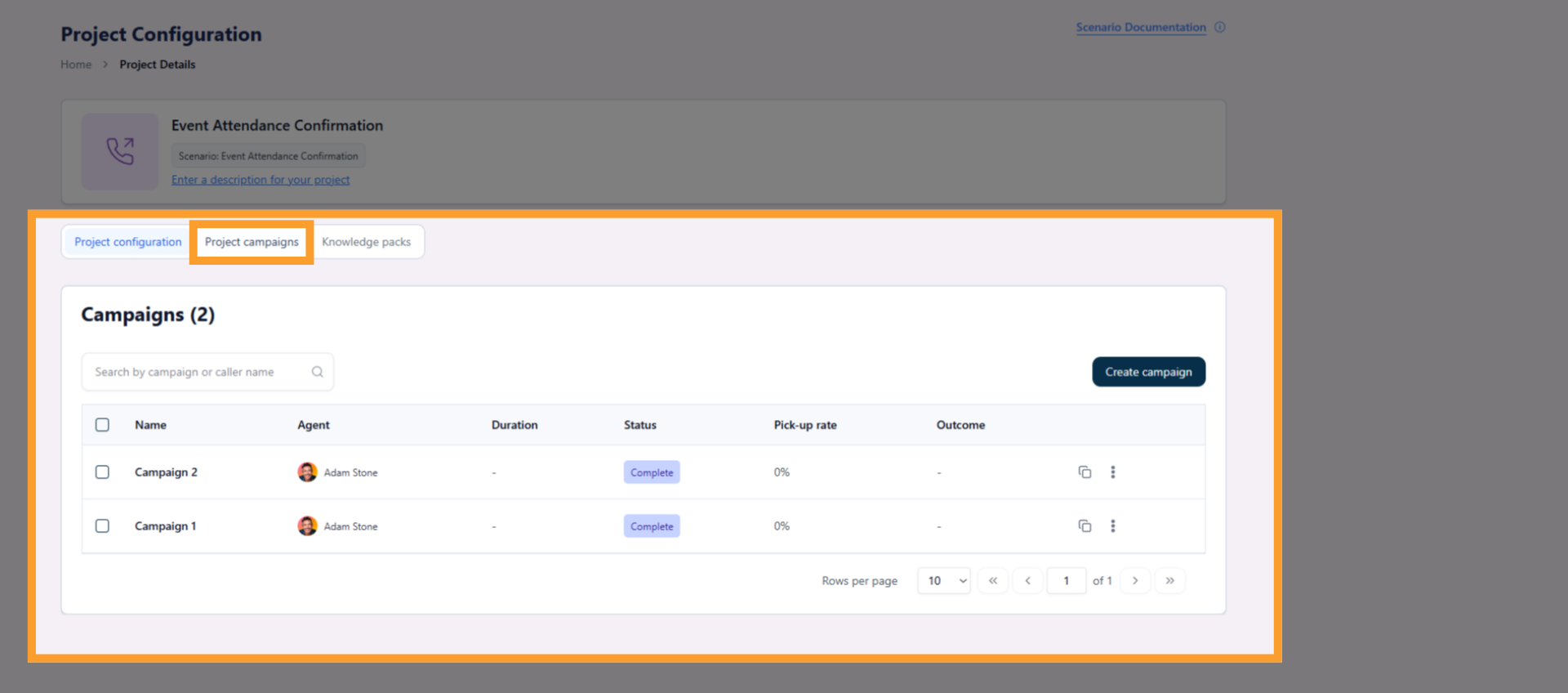
Navigate to Project Campaigns

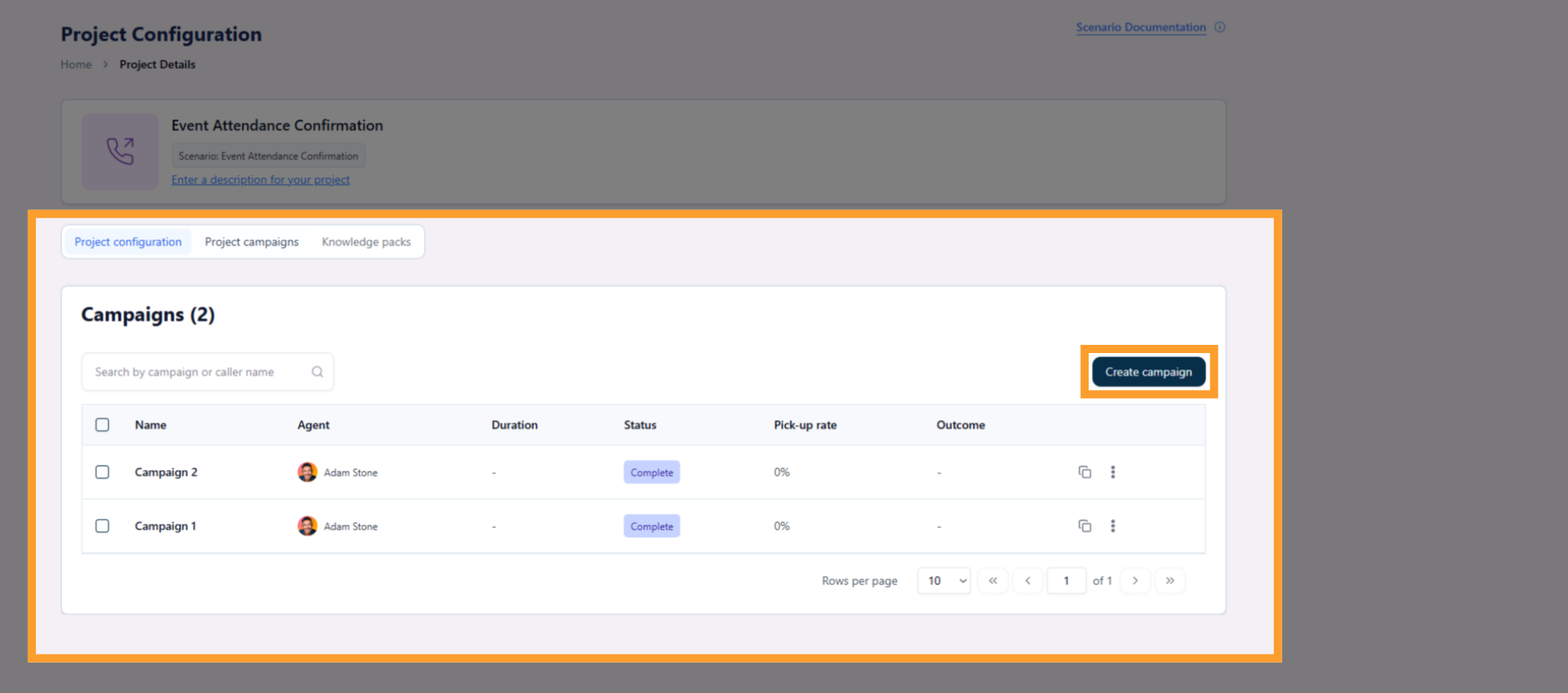
  • Inside the project, click the Project Campaigns tab.
  • This displays all campaigns created under the project.
Projectnew5
3

Open the campaign

  • Click the campaign you want to review.
  • This opens the campaign workspace.
Newcamp
4

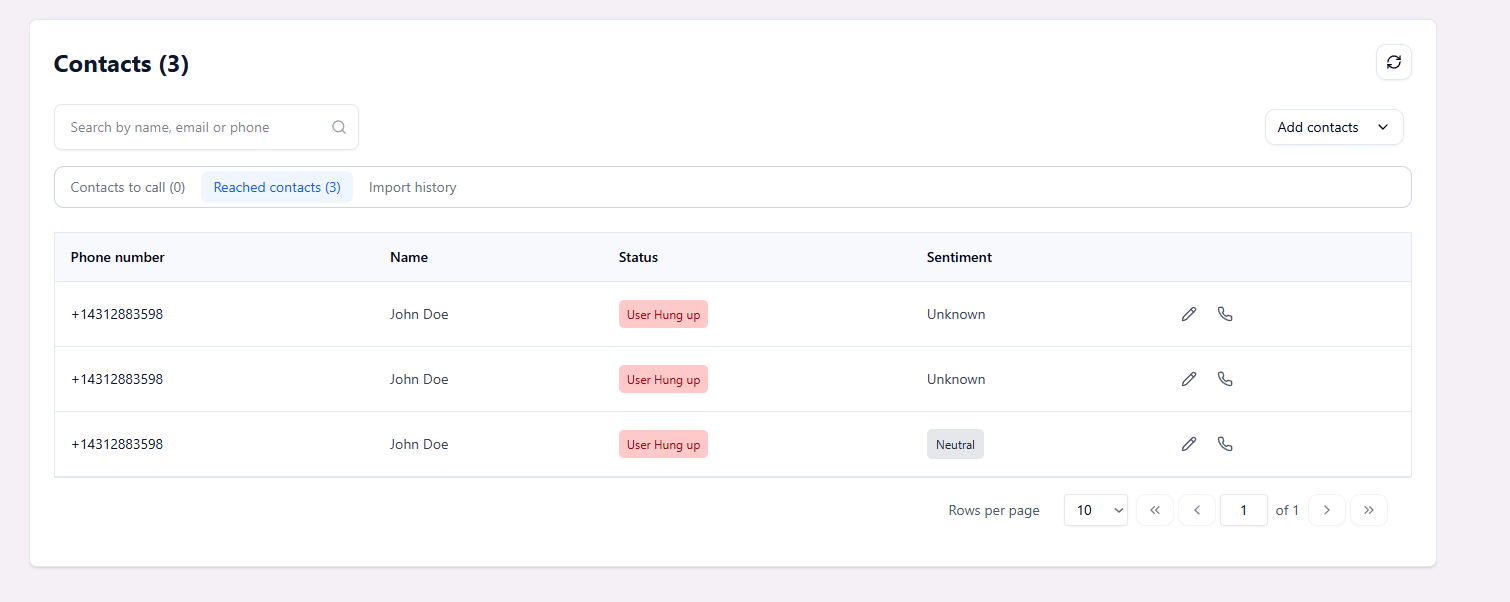
View call status per contact

  • Inside the campaign workspace, open the Contacts tab.
  • Each contact shows its current Call Status, reflecting the general result of the call.
  • Where available, Call Outcome adds a more detailed explanation of what happened during the call.
Campcontacts

Handling Call Status in GHL

This video also contains information on Call History & Recording in GHL
You can integrate call status outcomes into your Go High Level (GHL) automation workflows to trigger actions such as logging feedback, updating contact fields, or sending follow-ups. This is especially useful in scenarios like outbound campaigns where you’d want to react differently based on whether a call resulted in a meeting, voicemail, or no response.Here’s how to set it up:
1

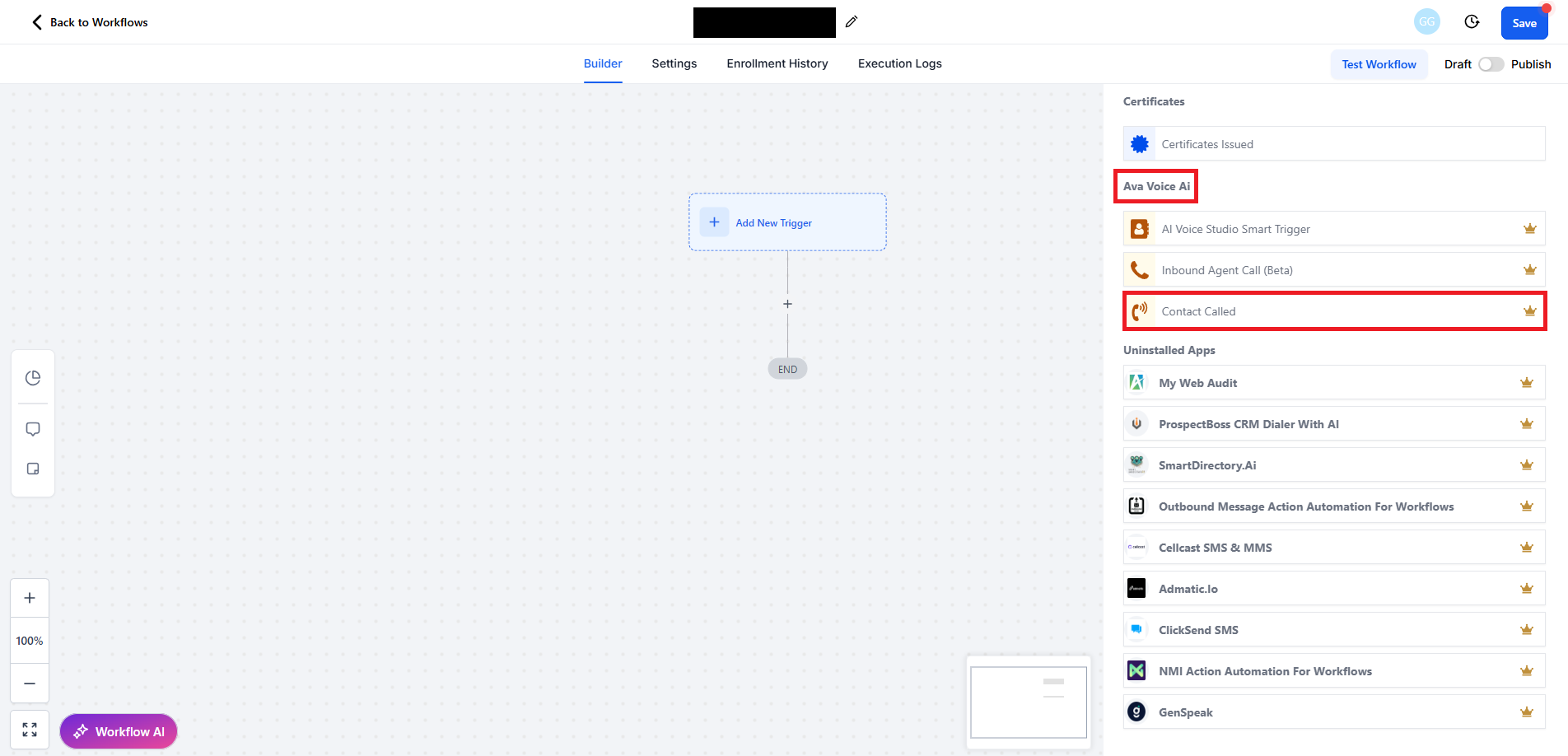
Add Contact Called as a workflow trigger

  • In your GHL workflow builder, scroll down to thinkrr Voice AI’s premium actions.
  • Select Contact Called as the workflow trigger. GHL Contact Called Pn
2

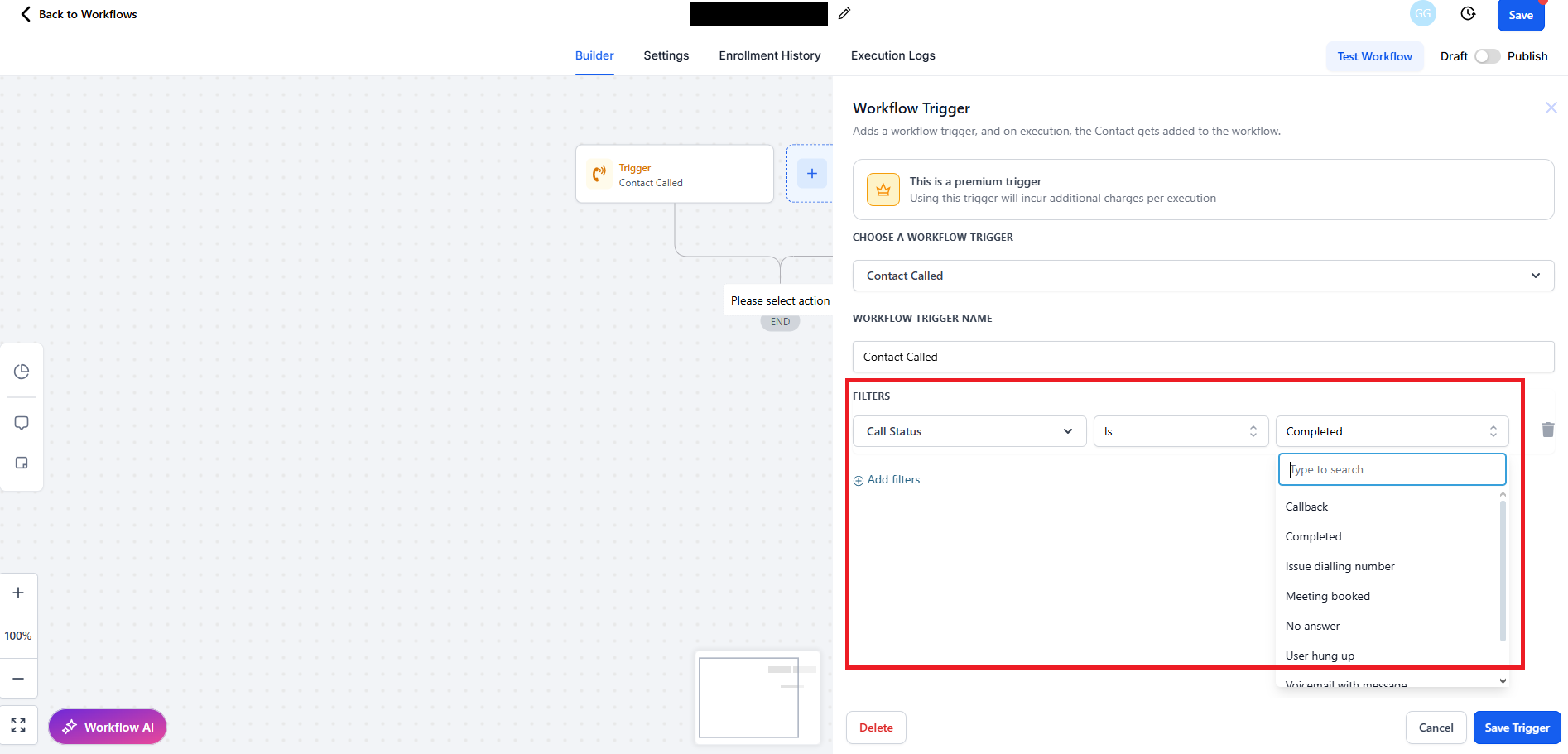
Apply a Call Status filter to the trigger

  • Click +Add filters below the trigger.
  • Choose Call Status from the Standard Fields section.
  • Set the operator to is.
  • Select your desired Call Status from the dropdown to act as the trigger condition. Tag Blur Pn Statuses GHL Pn
3

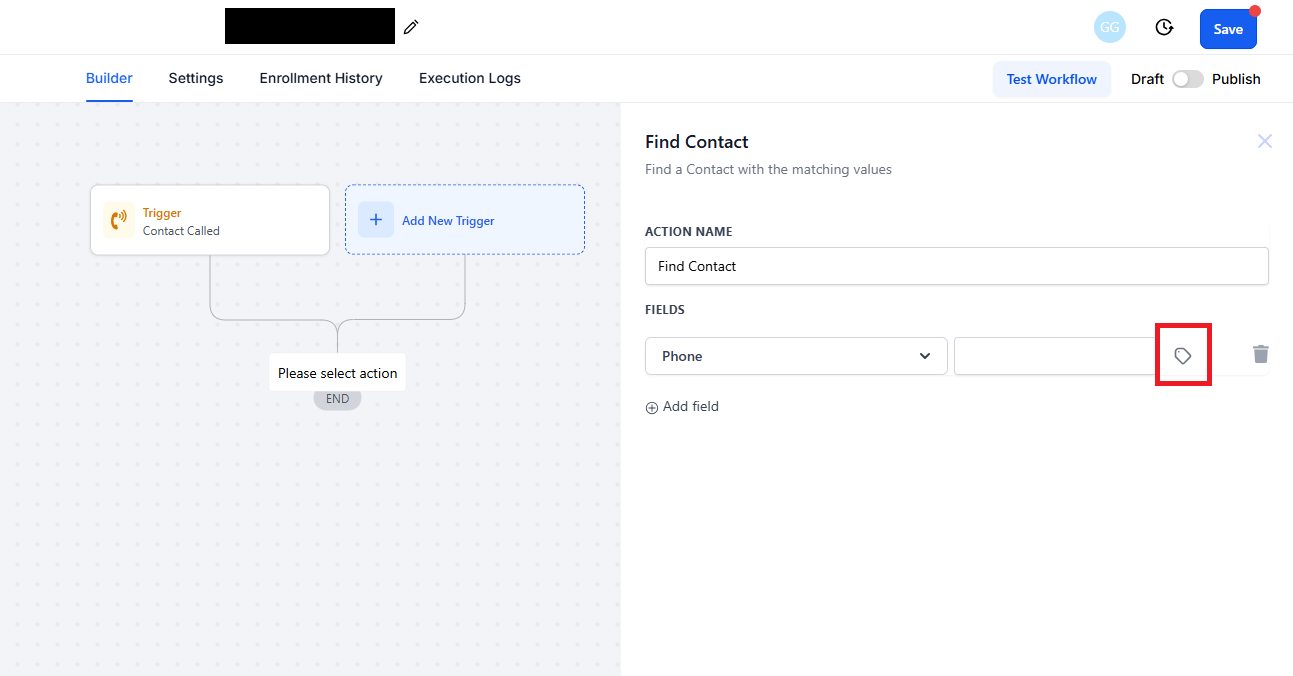
Locate the contact using Find Contact

  • Click the + in the workflow and select Find Contact.
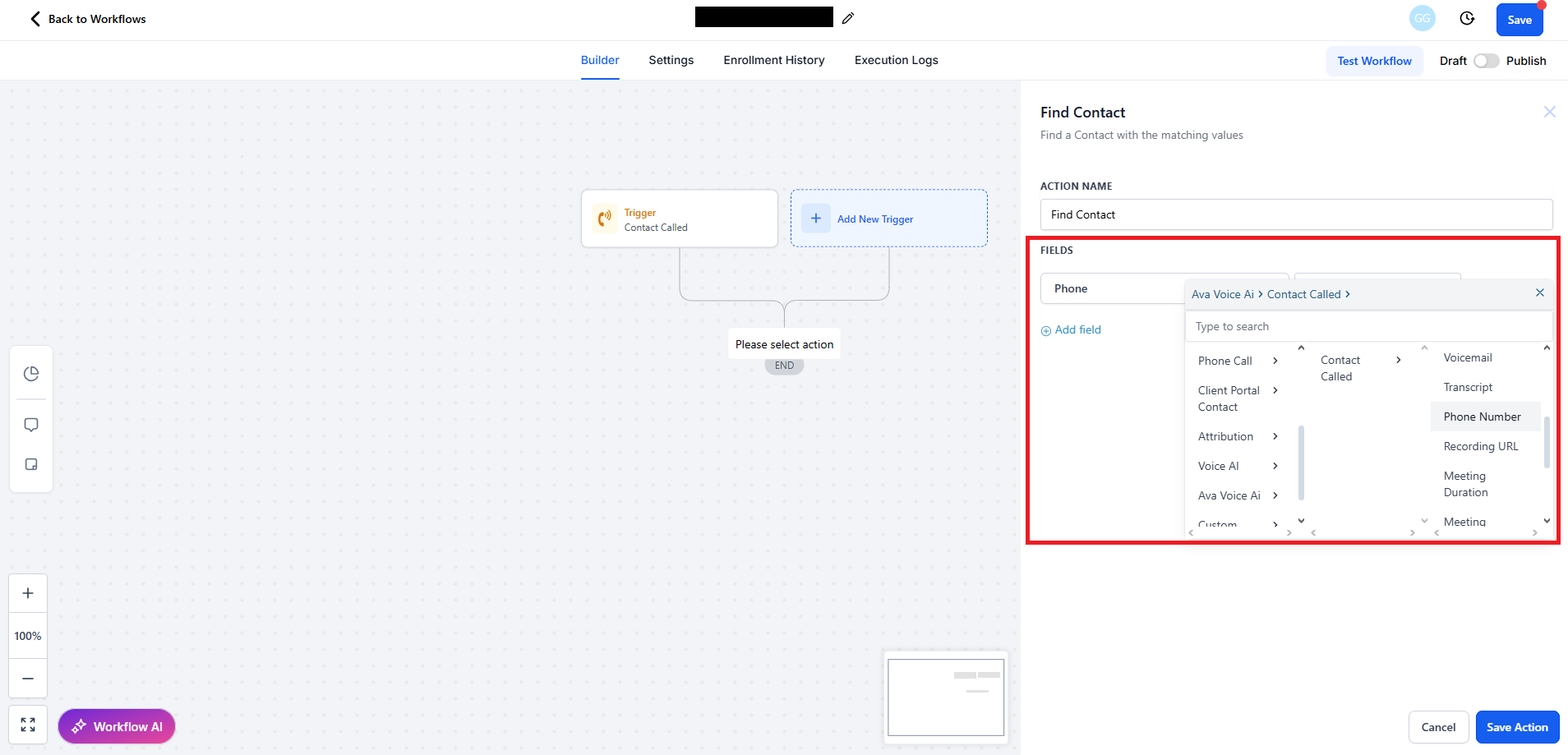
  • Add a filter using the contact’s Phone Number, which is a unique identifier.
  • Use the custom field selector to access:
    thinkrr Voice AI > Contact Called > Phone Number.
    Find Contact Blur Pn
4

Update contact with transcript or other fields

  • An IF/ELSE condition should be added automatically after Find Contact is added. If not, add manually.
  • Under the Contact Found branch, add an action to Update Contact Field.
  • Choose or create a custom field (e.g., Transcript) to store call data.
  • You can create new fields via GHL Settings > Custom Fields > Add Field. Transcript Blur Pn
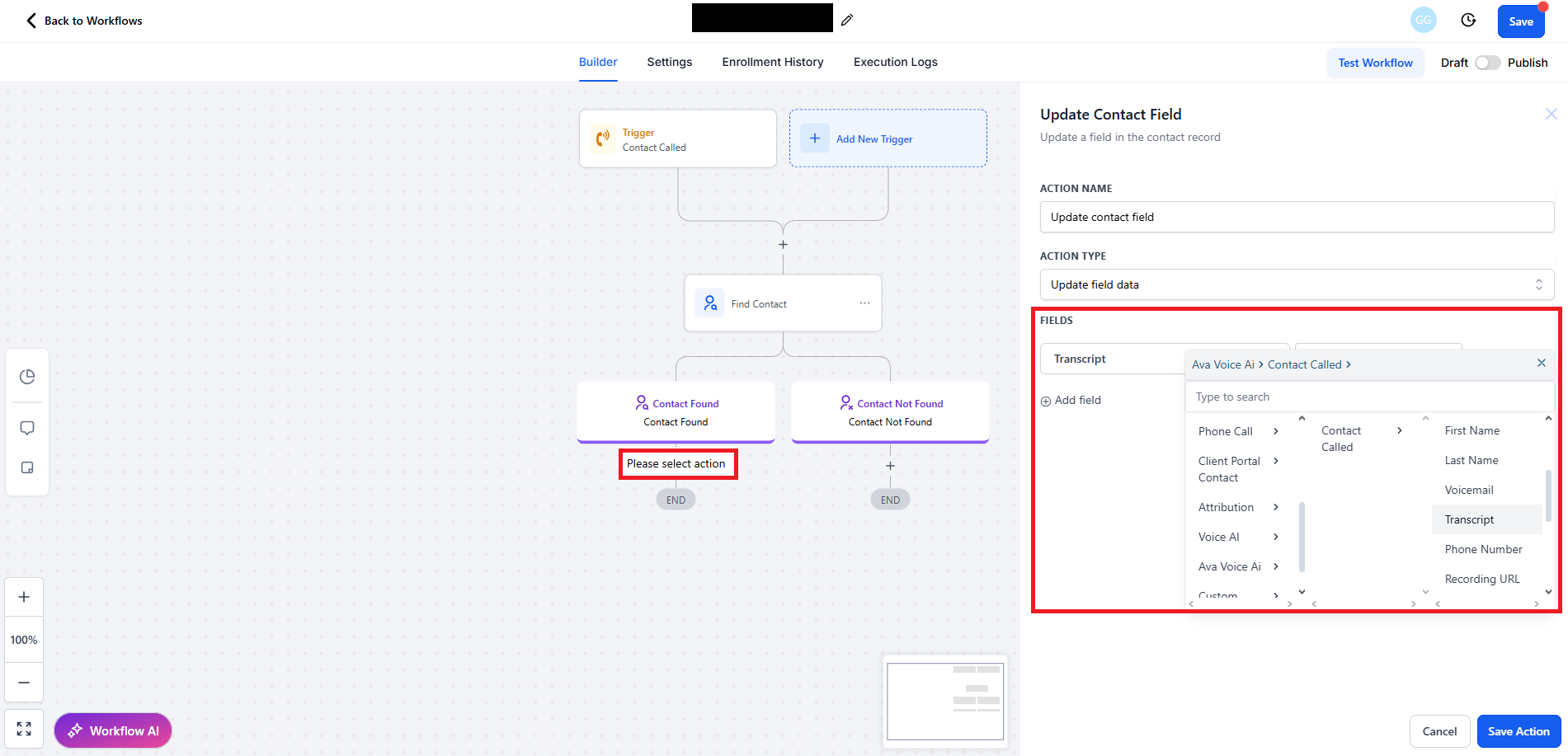
Additional Call Considerations

In addition to these statuses, it is important to note how call connection time is tracked in thinkrr. Calls that are successfully connected, whether answered or sent to voicemail, will count toward the Total Time Spent in the campaign. This includes calls marked as Completed, User Hung Up, Meeting Booked, Call Transferred, Client Callback Requested, Voicemail - Left Message, and Voicemail - No Message. Calls that were not connected, such as No Answer, Busy, Issue dialling, and Failed, do not reflect a completed conversation and may affect results differently depending on the call attempt. The call statuses and outcomes provide valuable feedback for evaluating the overall performance of a Campaign and help guide decisions on whether to adjust call frequencies, campaign durations, or engage in additional follow-up efforts.

FAQs & Troubleshooting

General Questions

Call statuses allow users to track the general result of every call attempt within a Campaign. They help evaluate outreach effectiveness, guide improvements, and determine if follow-up actions such as scheduling another call or sending a message are needed.
Call Status shows the general result of the call, such as whether it was completed, transferred, or sent to voicemail. Call Outcome adds a more specific layer of detail on top of that status, helping you understand more clearly what happened during the interaction.
Yes. Within the thinkrr dashboard, you can filter your call history or Campaign analytics by specific call statuses, allowing you to better understand patterns like unanswered calls, failed attempts, or meetings booked.

Configuration

thinkrr automatically assigns a call status based on the result of the interaction. For example, if a call reaches voicemail and a message is left, it is marked as Voicemail - Left Message. If the user asks for a callback, it is marked as Client Callback Requested. These assignments require no manual tagging.
Call outcomes are automatically assigned when a more specific result is available for the call. They work alongside the call status to provide additional clarity, such as whether a call ended with an appointment being set, a calendar issue, or a transfer request.
Currently, call status definitions are standardized across all Campaigns to maintain consistency in reporting. Custom logic for status determination is not supported but may be added in future updates.
Connected calls and voicemail interactions count toward the Total Time Spent in your Campaign and may influence usage or billing metrics depending on your plan. Calls that do not connect, such as No Answer, Busy, Issue dialling, and Failed, do not reflect a completed conversation.

Usage and Results

These typically result from network errors or invalid numbers. Check the phone number formatting and ensure the contact information is correct before trying again.
If a user requests a callback, the call status may appear as Client Callback Requested, and the call outcome may appear as Callback Requested. You can review these entries in your campaign records and decide on the next follow-up action.
These are in-progress statuses that usually appear while the call is actively happening. In most cases, users see the final call result instead, especially when reviewing campaigns after the call has already ended.
Call status and outcome details are accessible through your Campaign records and call-related views in the thinkrr dashboard. Each entry helps you understand how the call progressed and what result was reached.

For additional questions or guidance, try using our Virtual Support Agent! Available 24/7 to help resolve most issues quickly at thinkrr.ai/support. If you still need assistance, visit our support site at help.thinkrr.ai and submit a Ticket or contact our team directly at hello@thinkrr.ai.